


- What Is Auslogics Windows Slimmer, and What Does It Do?
- Is Auslogics Windows Slimmer Compatible with My System?
- What Are the Notable Features of Auslogics Windows Slimmer?
- Should You Use Auslogics Windows Slimmer?
- What Users Are Saying…
- How Does Auslogics Windows Slimmer Compare Against Similar Tools?
- Auslogics Windows Slimmer: Expand Free Storage Space
- FAQ
The less free space you have on your C drive, the slower your PC becomes, as it takes longer to write and recall data. The condition becomes dire if the drive is nearly full or already filled to capacity. You’ll find that the system takes ages to boot, apps and games are often crashing or hanging, multitasking becomes a struggle, and downloads can’t complete.
Moving some of your personal files to the cloud or to an external drive is one way to resolve these problems.
But you’d be surprised at the space occupied by unneeded system files, junk files, and unused apps (some of which you may not even know are present). That’s where Auslogics Windows Slimmer comes in handy.
It provides a streamlined and effective way to free up space on your C drive so that you can keep your PC performing at its best.
In this article, we’ll show you how to use this free tool to run cleanups, slim down Windows, and leave insufficient storage space in your rearview.
🧹 Windows Slimmer is a free tool that helps users safely remove unneeded files and apps to free up tons of space on their hard drives and improve system performance.
👨💻 It is suitable for beginners and seasoned experts.
📦 The program shows you applications you rarely use and allows you to remove them.
➡️ Other items that can be removed include:
🔄 Old Windows updates and installation files
📂 Temporary files and folders
♻️ Old system restore files
📚 Unneeded libraries
🗑️ Recycle Bin items
📜 Windows and app logs, dumps, and caches
💾 The Compact OS feature compresses Windows files to reduce the operating system’s disk footprint.
🛡️ The tool can create backups and restore points, helping revert cleanups if ever necessary.
📊 The Reports page shows system resource usage and allows users to generate HTML files showing details of cleanup sessions.
What Is Auslogics Windows Slimmer, and What Does It Do?
Auslogics Windows Slimmer is a free-to-use PC cleanup tool designed to help you free up storage space, speed up your Windows PC, and make it cleaner.
The program clears out all sorts of temporary files, unnecessary system files, and unwanted apps from your main drive without leaving any traces behind. Thus, it not only frees up disk space but also remedies computer glitches, performance issues, and the privacy and security risks posed by these items.
Windows Slimmer’s App List Cleanup feature allows you to uninstall apps you no longer need, and the Compact OS feature reduces the amount of space Windows occupies on the drive.
You’ll find this free third-party tool to be safer and more effective than manually finding and removing unneeded items. It also lends greater convenience than using native cleanup methods available on Windows.
Let’s now take a look at some of the pros and cons of Auslogics Windows Slimmer.
- Windows Slimmer is free to use.
- The app is lightweight, fast, user-friendly, and safe to use.
- It is suitable for both beginners and tech-savvy users.
- It offers multi-language support.
- The app provides clear descriptions of all available features.
- You can use the Rescue Center to create restore points and back up items selected for cleanup.
- You can also add files and folders to an ignore list.
- Technical support is readily available via the Ask a Question platform.
- The app has a portable version to facilitate usage on multiple PCs, with no installation required.
- It does not notify users when a cleanup becomes necessary.
- Windows Slimmer does not perform automatic maintenance. Users have to manually initiate scans and cleanups.
- The app only cleans up the primary Windows drive. Users cannot scan secondary and external drives.
The app only cleans up the primary Windows drive. Users cannot scan secondary and external drives.” product-code=”boost-speed” description_link=”Auslogics BoostSpeed” description_end=”if you want access to more functionalities like cleaning up secondary and external drives, tweaking your operating system to work the way you want, and managing browser add-ons.
The app contains over 20 tools for PC optimization, including Windows Slimmer.
Both programs are part of Auslogics’ extensive portfolio of system maintenance utilities for Windows. The company has 17 years of experience developing tools dedicated to fixing and preventing various Windows issues.
Is Auslogics Windows Slimmer Compatible with My System?
Auslogics Windows Slimmer is compatible with 32-bit and 64-bit versions of Windows 11, 10, 8.1, 8, and 7. The app is not available for Mac, Linux, iOS, and Android devices.
- Installation file size: 22.4 MB
- Required disk space: 70.1 MB
What Are the Notable Features of Auslogics Windows Slimmer?
We will now take a tour of the core features of the Windows Slimmer app, starting with the download and installation.
- Simple installation process
- Easy setup:
- Rescue Center settings
- Ignore lists
- General settings
- Cleanup options:
- One-Time Maintenance
- Regular Maintenance
- App List Cleanup
- Restore items using the Rescue Center
- Compact OS for Windows 10/11
- Detailed reports
- Ask a Question
![IMG]() Simple installation process
Simple installation process

Like other Auslogics products, downloading and installing Windows Slimmer is simple and straightforward.
Follow these steps to complete the installation process:
- Visit the official Auslogics Windows Slimmer product page.
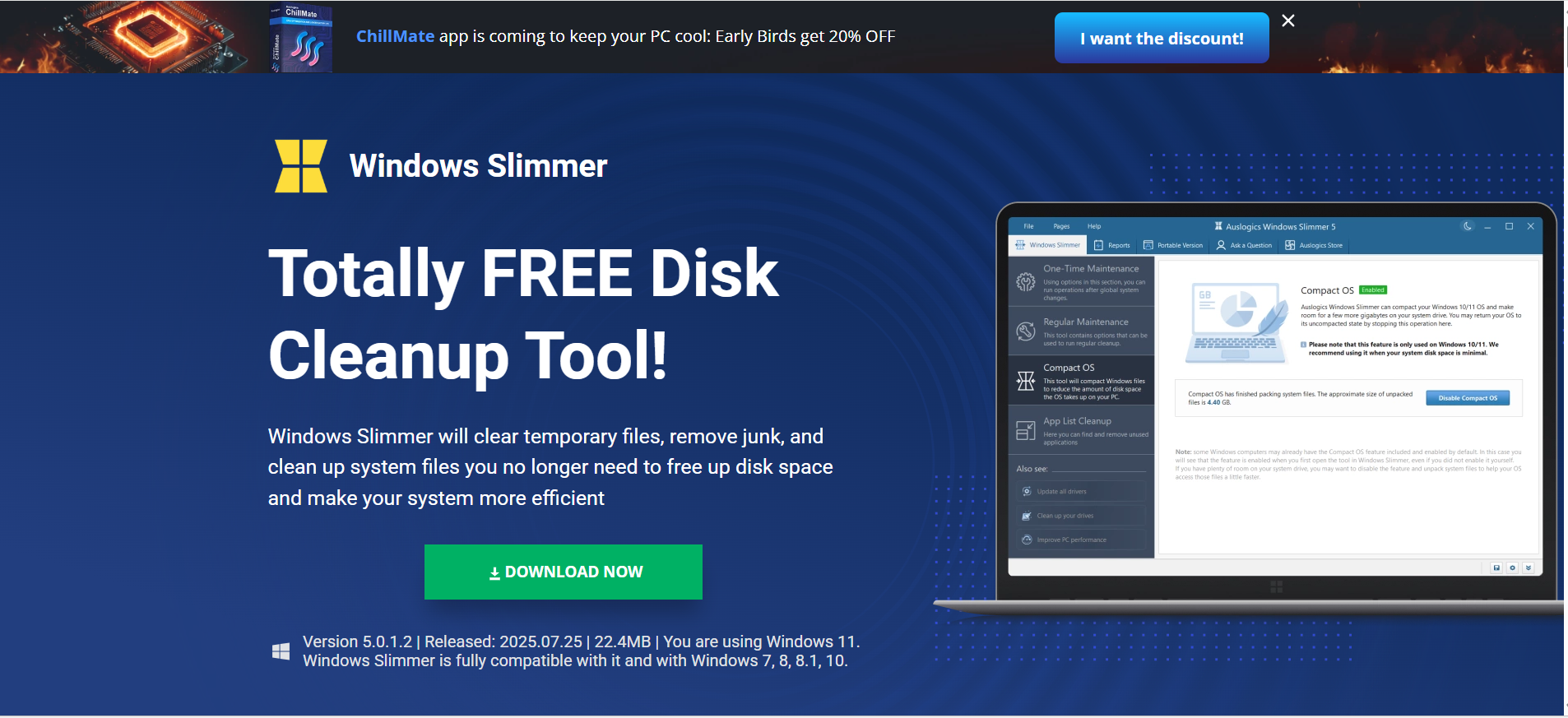
- Click the Download Now button to download the setup file. The installation file size is 22.4 MB.
- Once the download is complete, double-click on the file to run the installer.
- Click the Yes button in the Windows Account Control prompt to commence with the installation.
- Now, you can choose your preferred language via the drop-down in the top-right corner of the window.
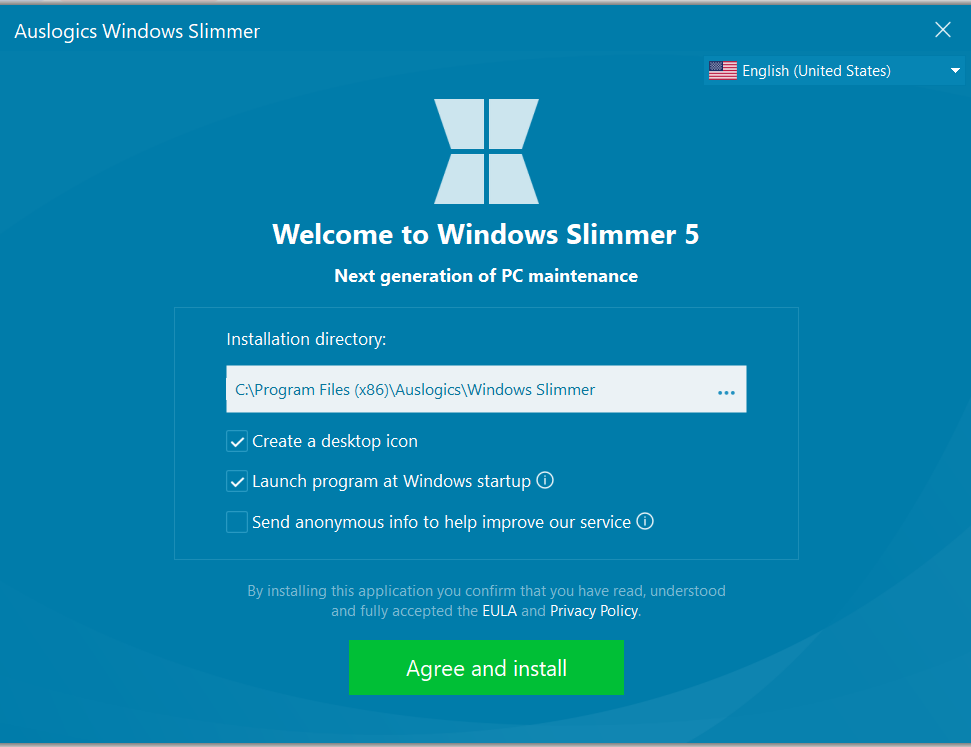
- Click the Agree and install button to proceed. The program will launch automatically afterward.
![IMG]() Easy setup
Easy setup

Before starting your first cleanup, let’s explore the app settings and make the tool work in a manner that suits you.
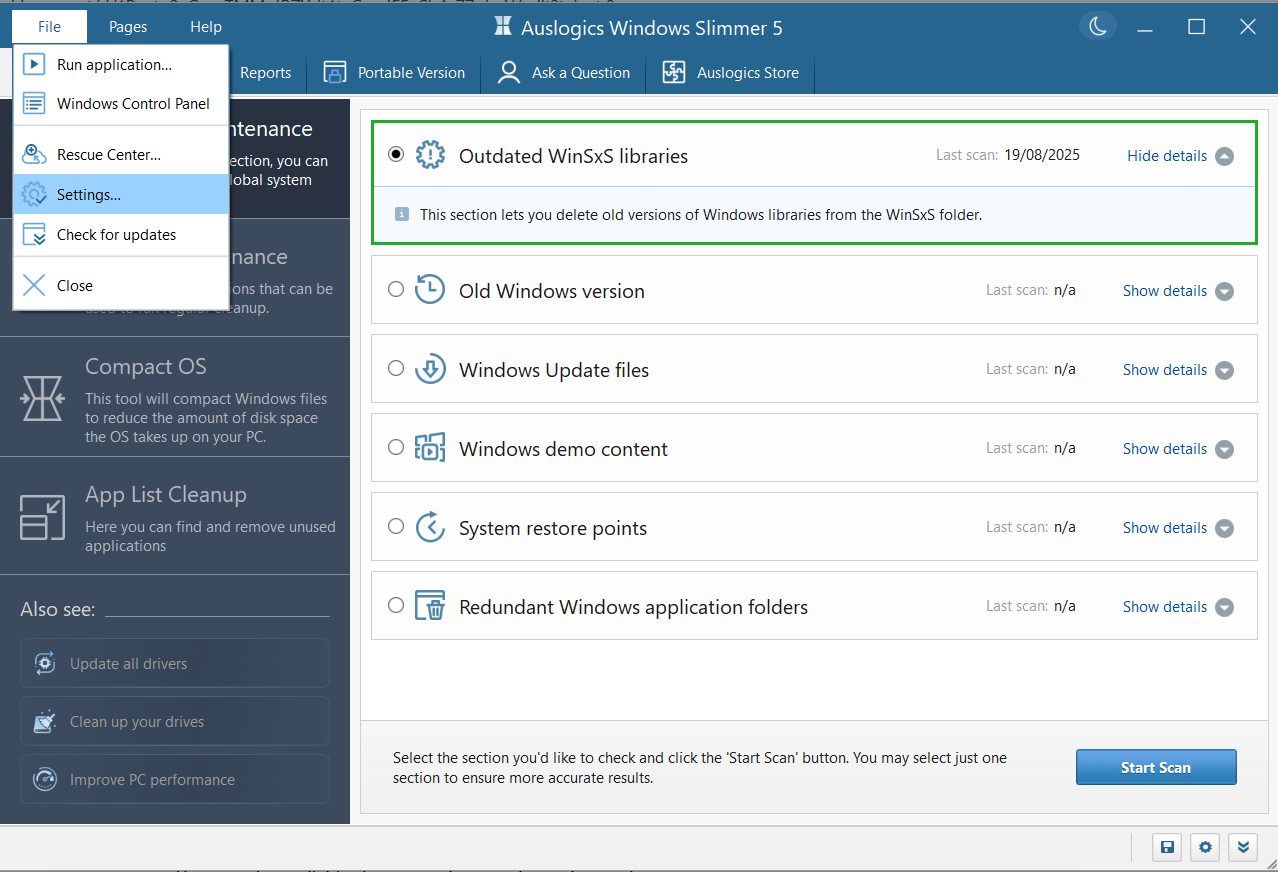
Head over to the File tab in the top-left corner and click on Settings to configure the app.
- Rescue Center settings
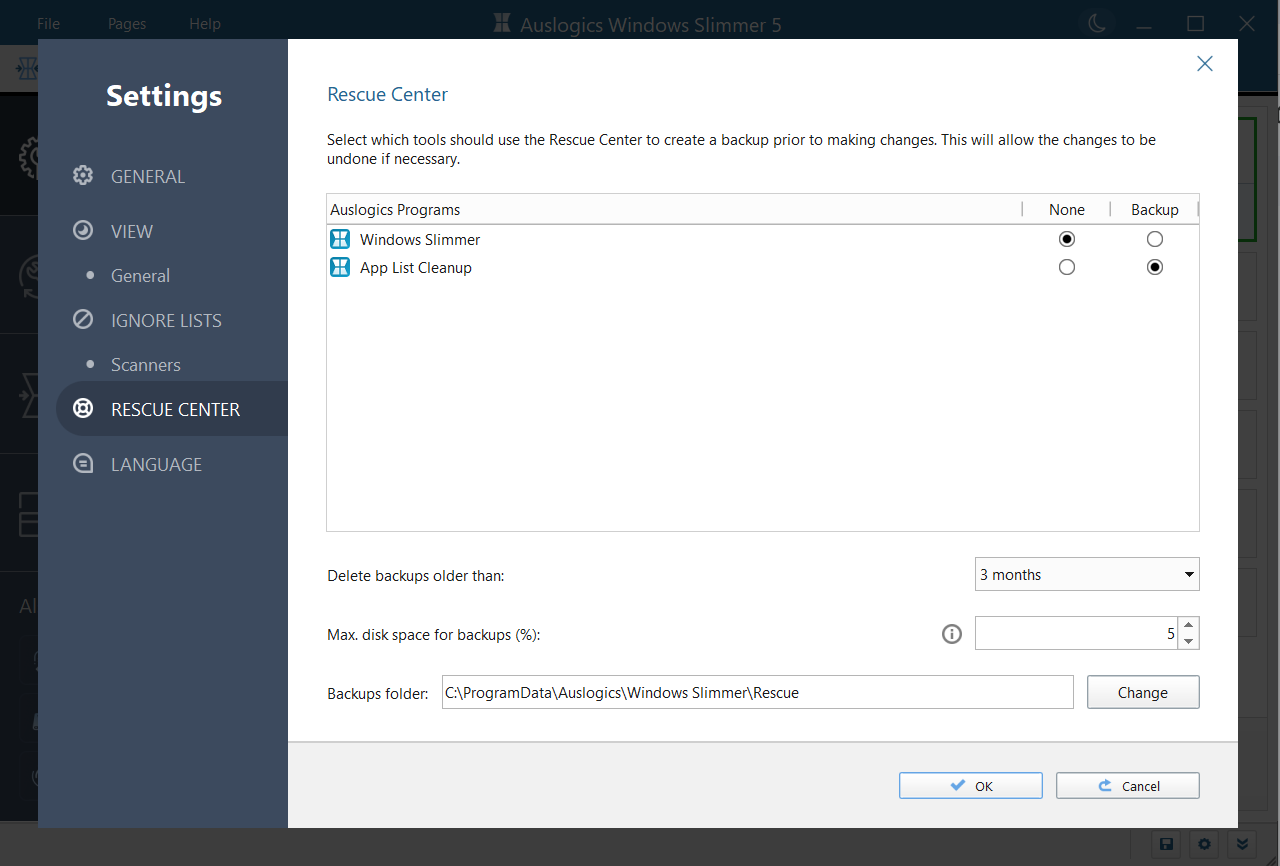
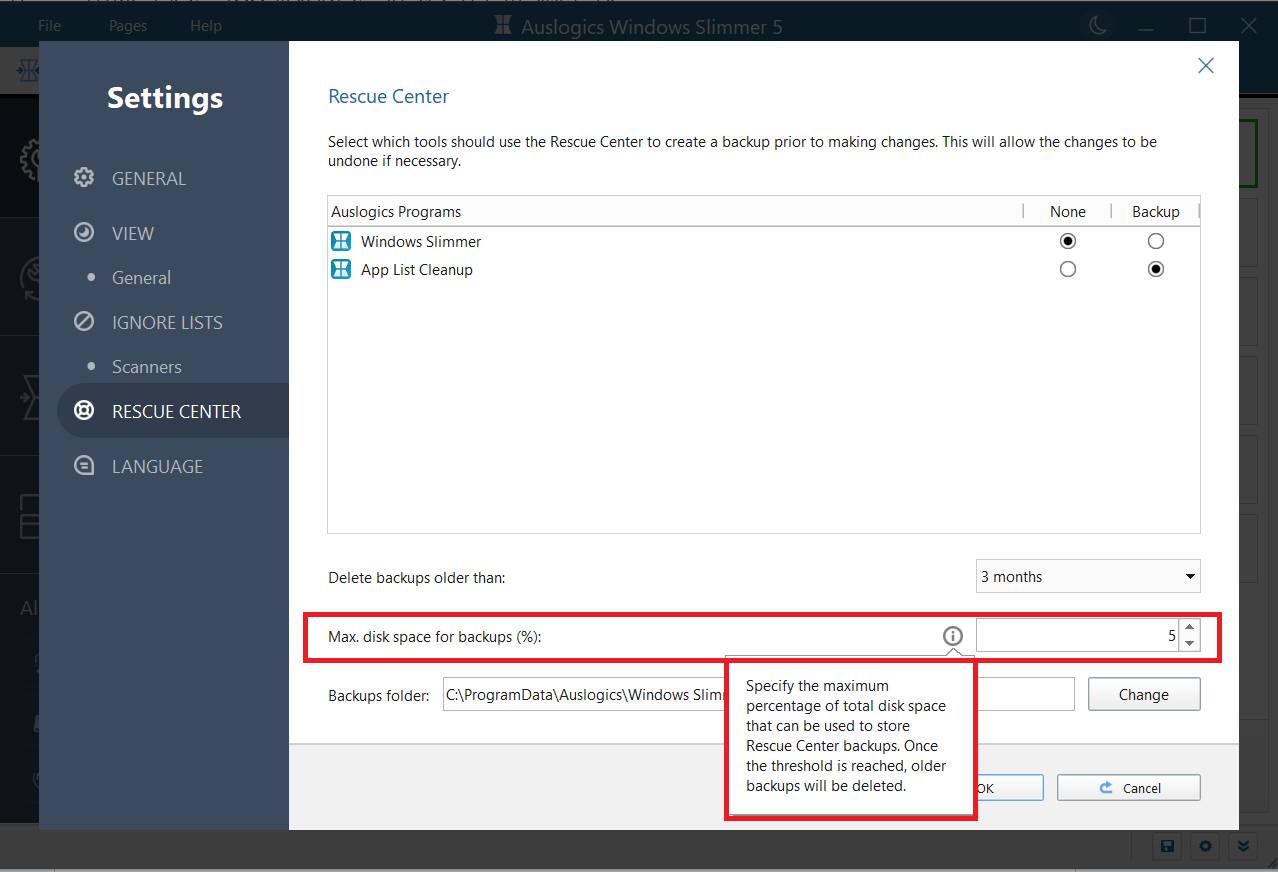
After cleaning up your PC, the Rescue Center makes it possible to undo the changes. So, let’s start with its settings.
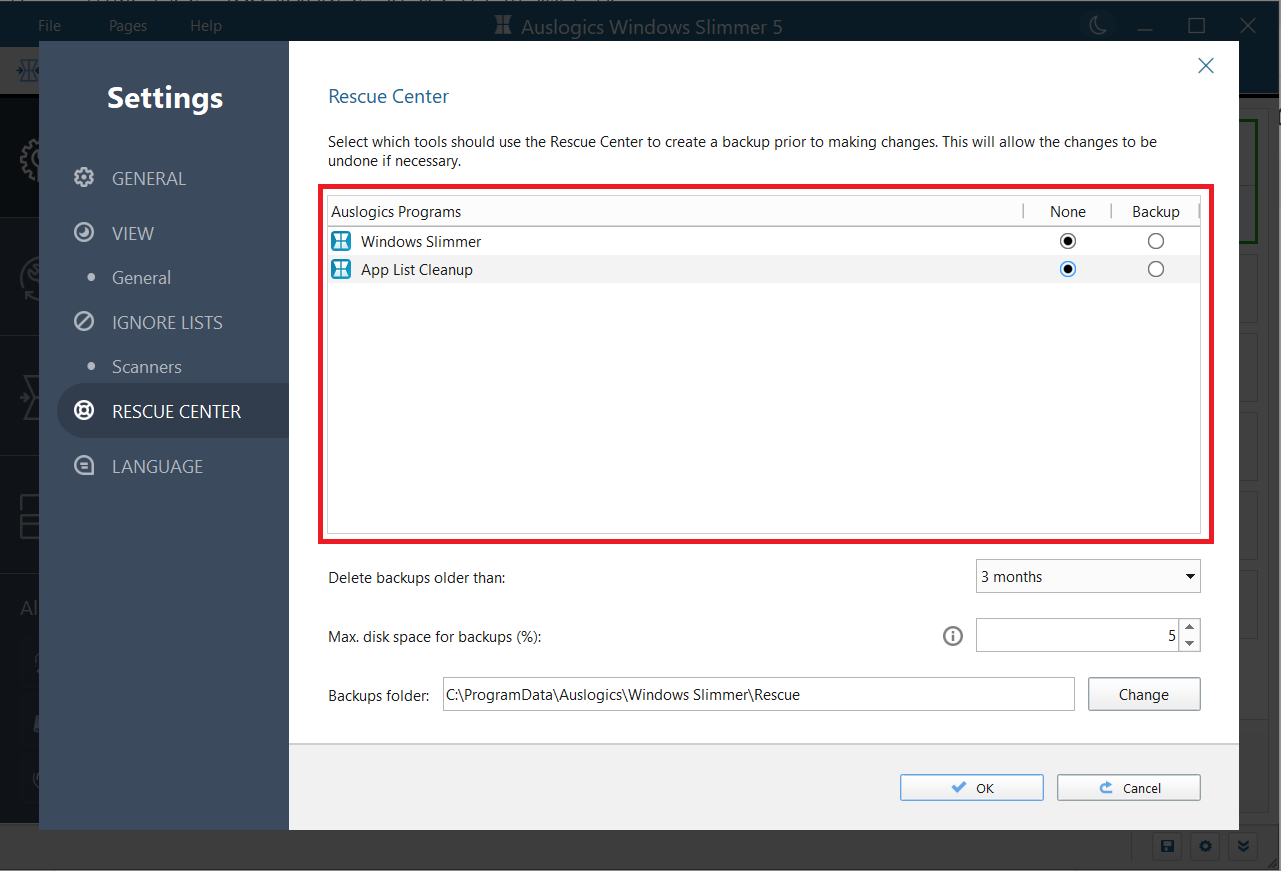
- Here, you can make the program back up files before clearing them and back up apps before uninstalling them. Click the radio button under the Backup column to automatically back up files when you clean up files (Windows Slimmer) or uninstall apps (App List Cleaner).
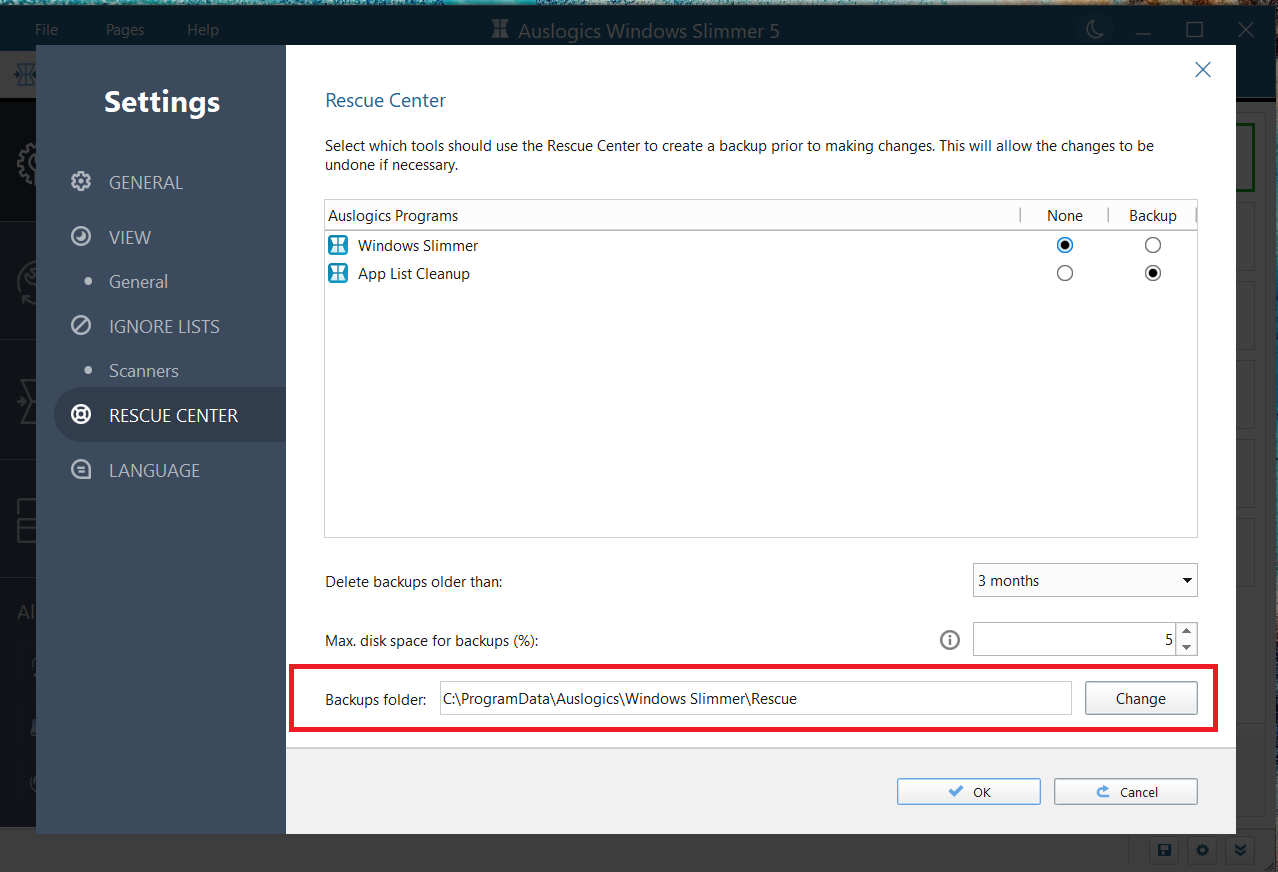
- You can choose the location in which the backups will be stored on your PC.
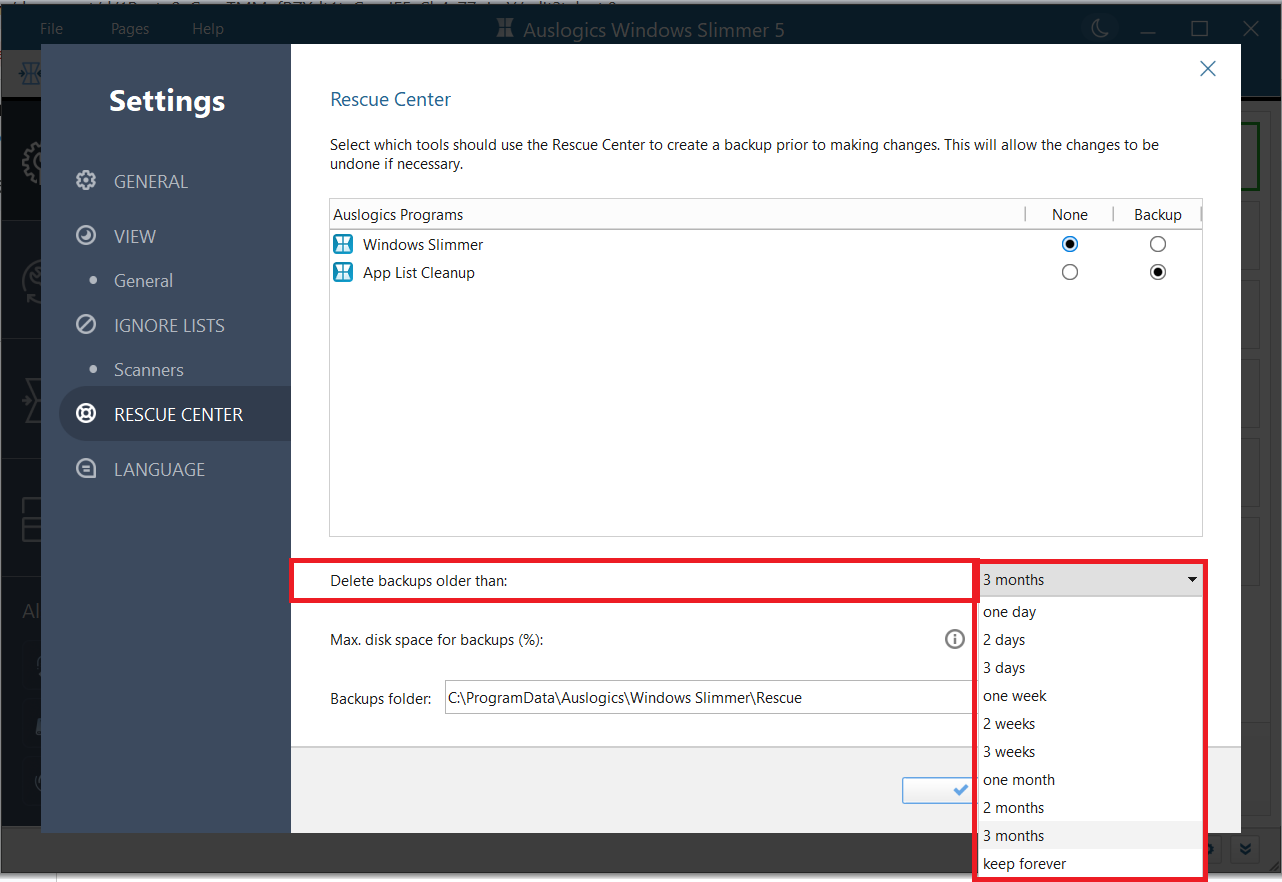
- And also indicate how long you want the app to keep the backups before deleting them permanently. This ranges from days to months to forever.
- Furthermore, you can set the maximum disk space (in percentage) that will be allowed for holding backups.
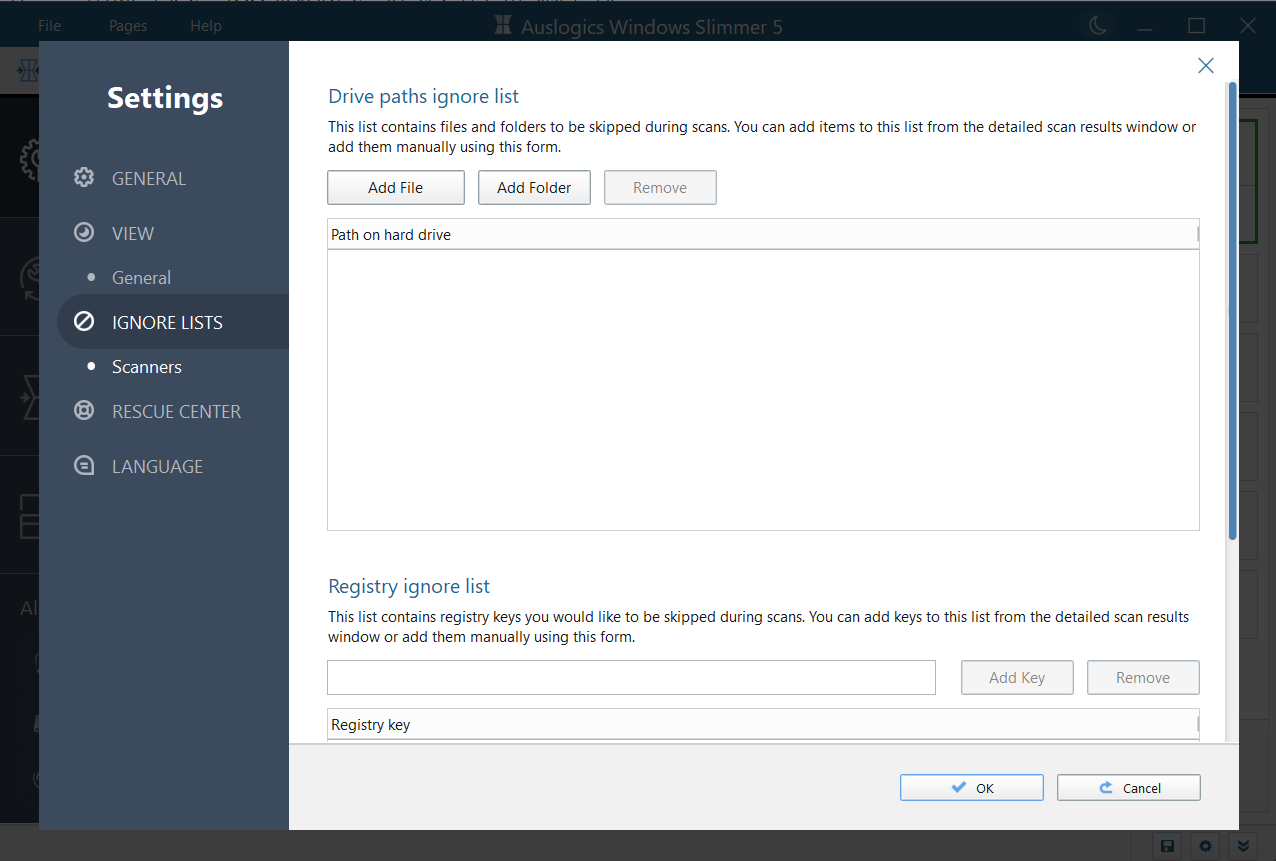
- Ignore lists
- General settings
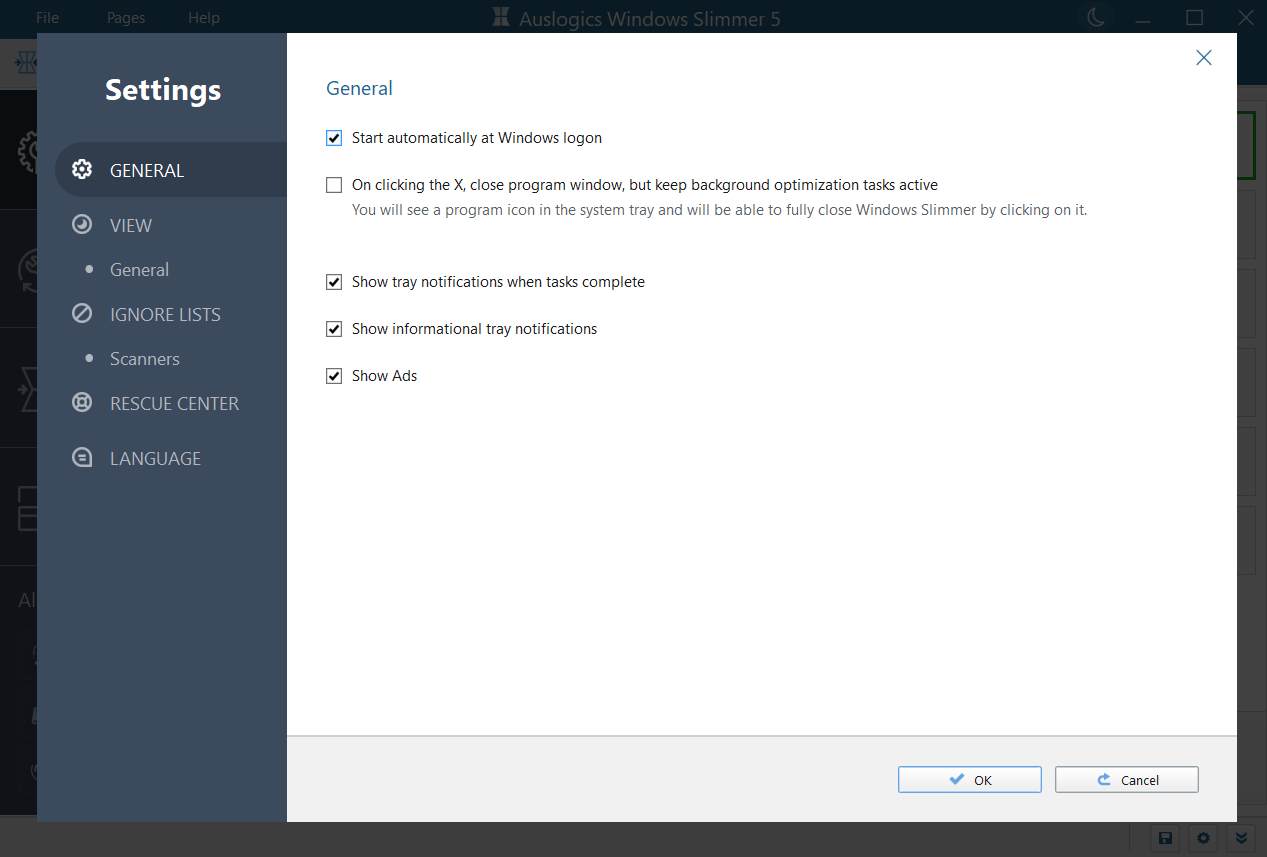
Via the general settings, you can allow or prevent the app from:
- Opening automatically after PC startup
- Staying active in the background when closed
- Showing notifications after completing an ongoing task
- Showing ads and popping up informational tray notifications
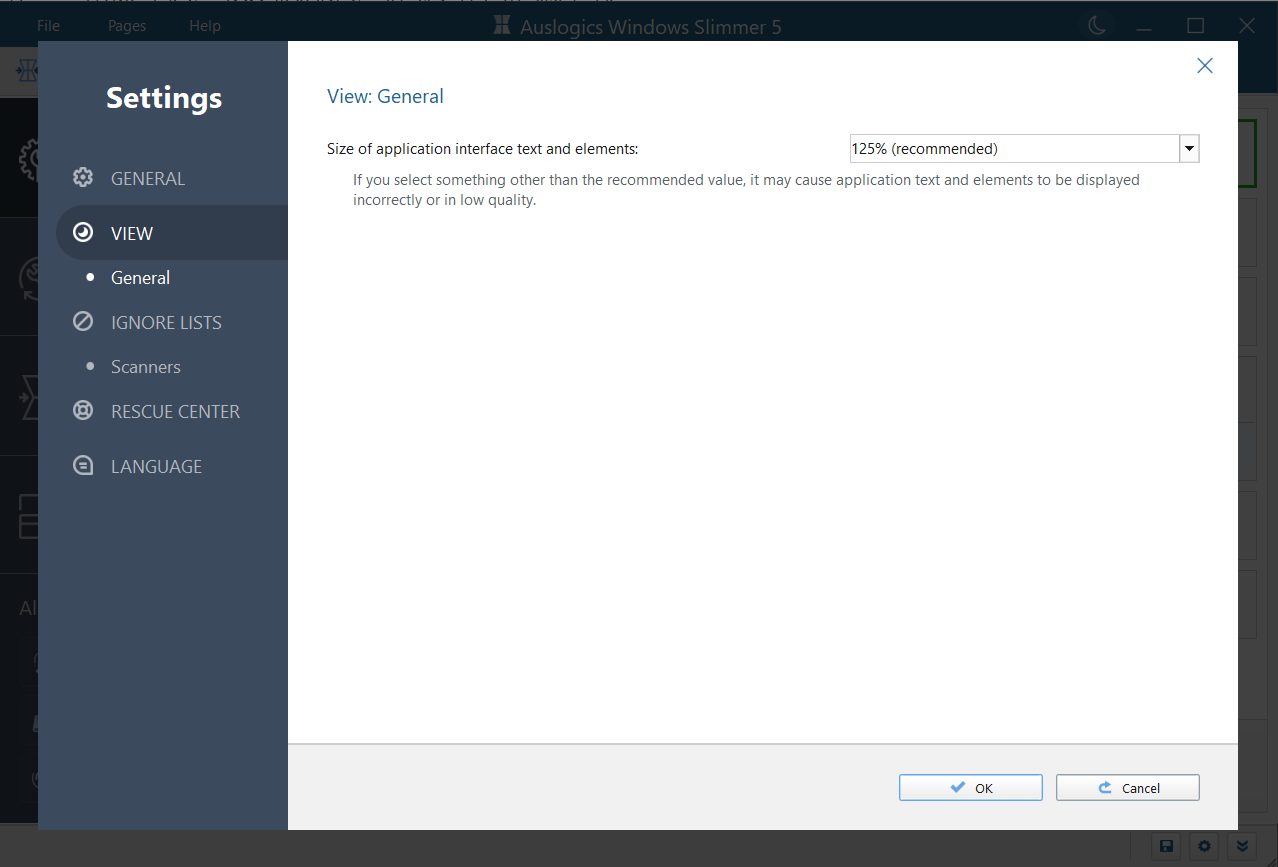
You can also change the app view to make the interface and texts larger or smaller under View.
![IMG]() Cleanup options
Cleanup options

There are three main options for cleaning up your PC. And they are as follows:
- One-Time Maintenance
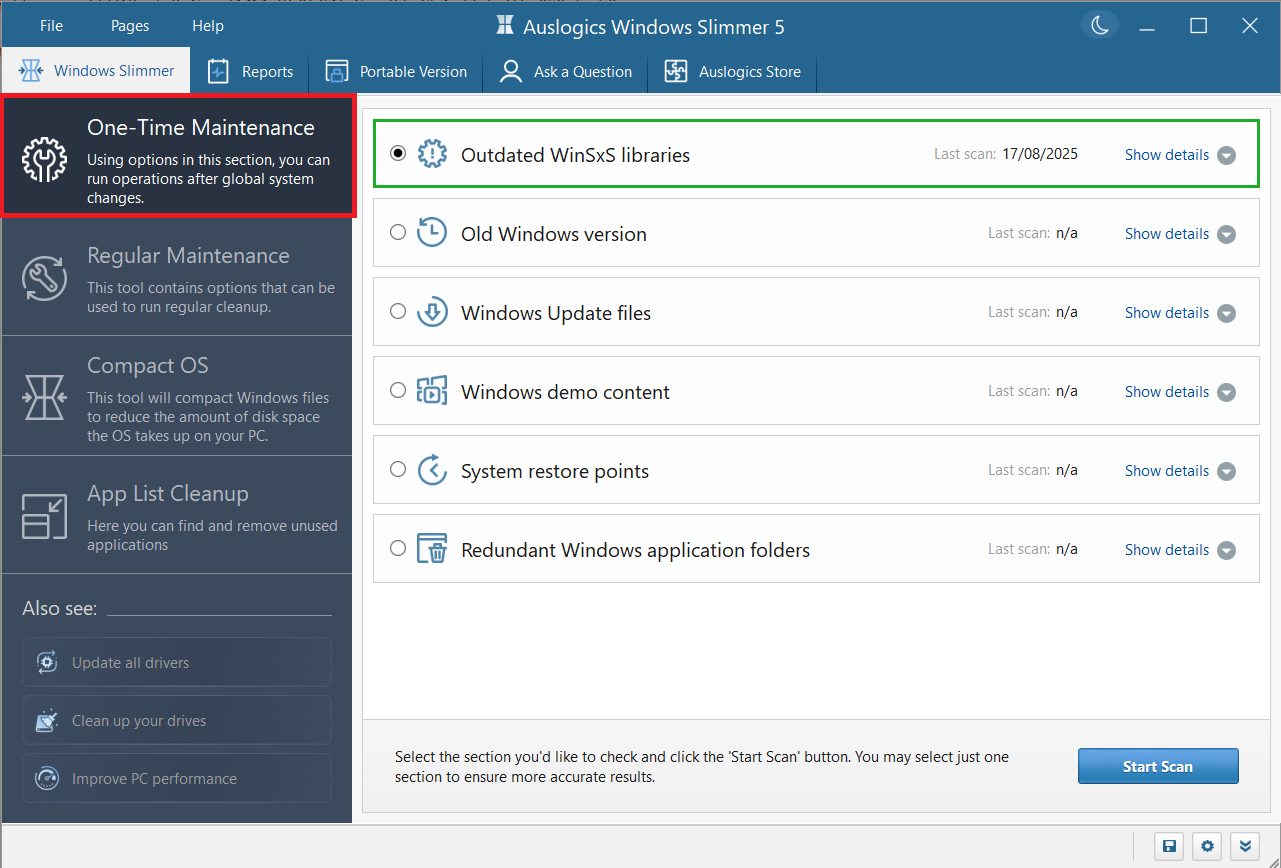
The One-Time Maintenance option on Windows Slimmer lets you clean up unnecessary system files that are no longer of use and are simply sitting idle on your PC, hogging valuable storage space. They include:
- Outdated WinSxS libraries
- Old Windows version archive
- Temporary and old Windows Update files
- Windows pre-sale demo files
- Old system restore points
- Redundant Windows application folders
One at a time, after scanning each section, you’ll be presented with a detailed result, showing all the files that have been marked for cleanup. And you can start the cleanup right away or first scroll through the list and deselect any item you’d prefer to keep. Scan results Clicking the Start Cleanup button will either delete the selected items permanently or send them to the backup folder you selected in the Rescue Center settings.
- Regular Maintenance
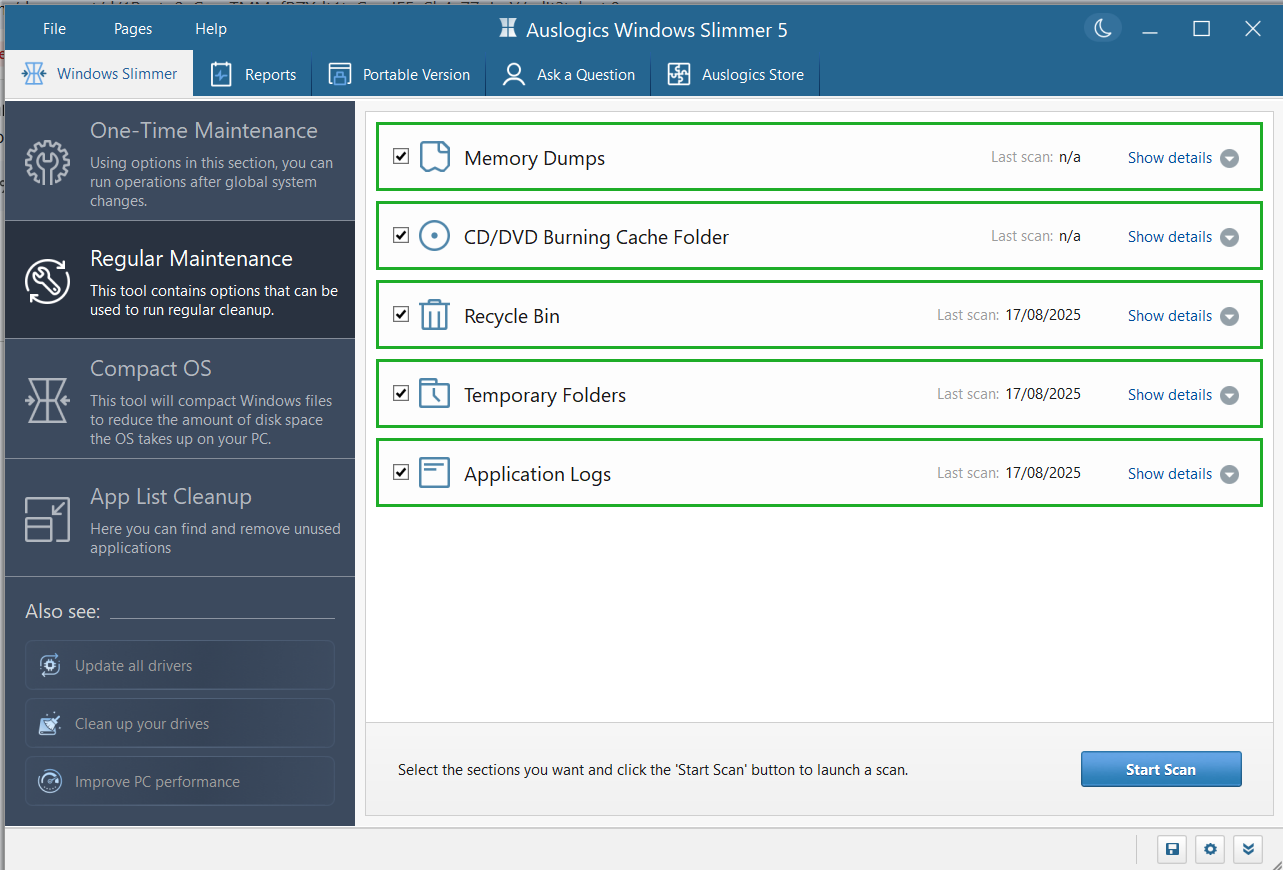
This cleanup option removes frequently created junk files. These include:
- Temporary files
- Deleted files in the Recycle Bin
- Application logs
- Memory dumps
- Cache files from CD/DVD burning
Unlike the One-Time Maintenance tab, you can scan one or multiple categories at once.
Click the Show details arrow to reveal files under each. Choose the items to delete after the scan, and hit the Start Cleanup button.
Additionally, you can click the See full report button after cleaning up the files to see details of the cleanup session.
- App List Cleanup
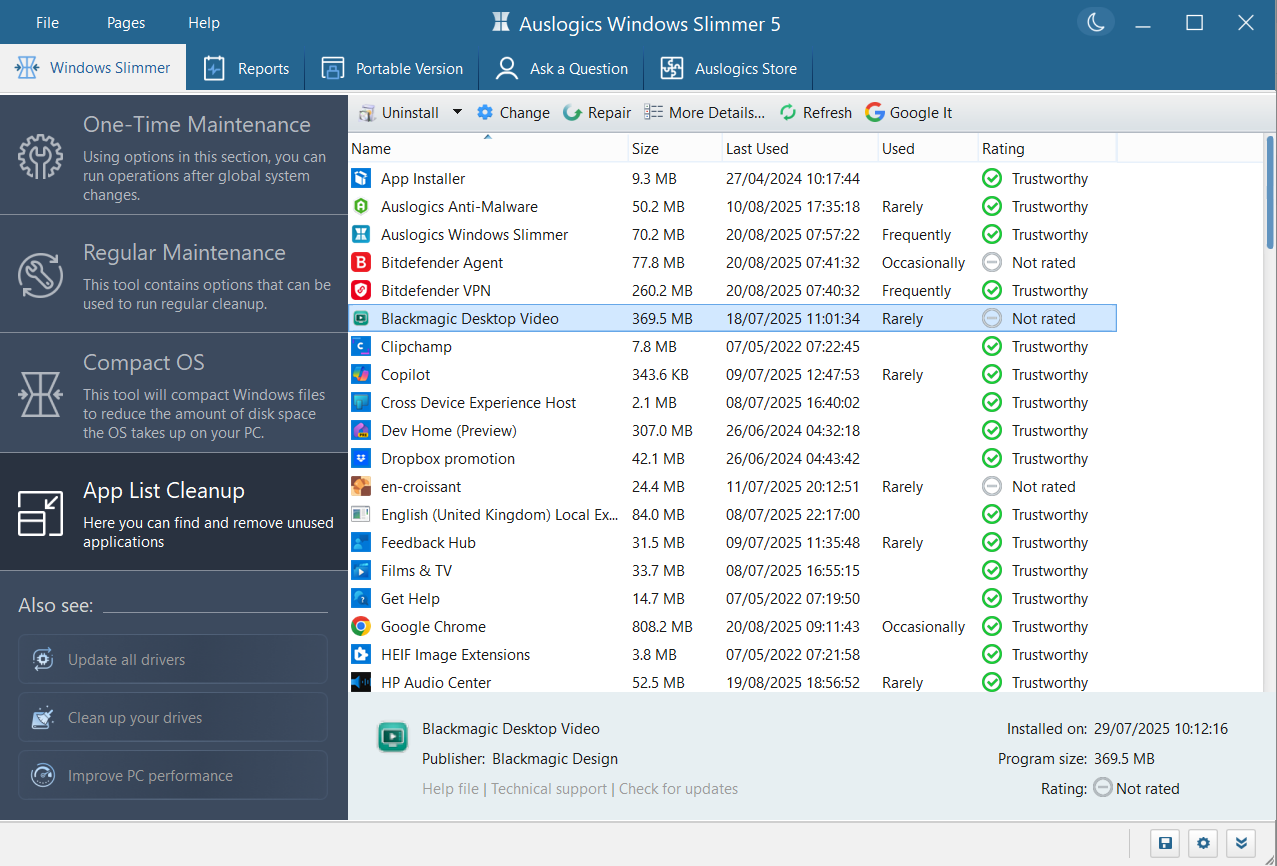
Here, you will get a complete list of all apps installed on your computer.
You’ll see how often you use each app and the last time you used it. You’ll also see the amount of space they occupy in your storage and whether the apps are trustworthy.
This list helps you reduce the prospect of background apps stealing valuable resources. Some apps you don’t use often run updaters and other processes in the background and contribute to system slowdowns.
By selecting an app on the list, you can do the following by clicking the corresponding button at the top:
- Change/uninstall/force remove the app
- Google the app to learn about it online
- Repair the app
- Refresh the app
- Get more details (like when it was installed, where it is located on your PC, the publisher, and more)
![IMG]() Restore items using the Rescue Center
Restore items using the Rescue Center

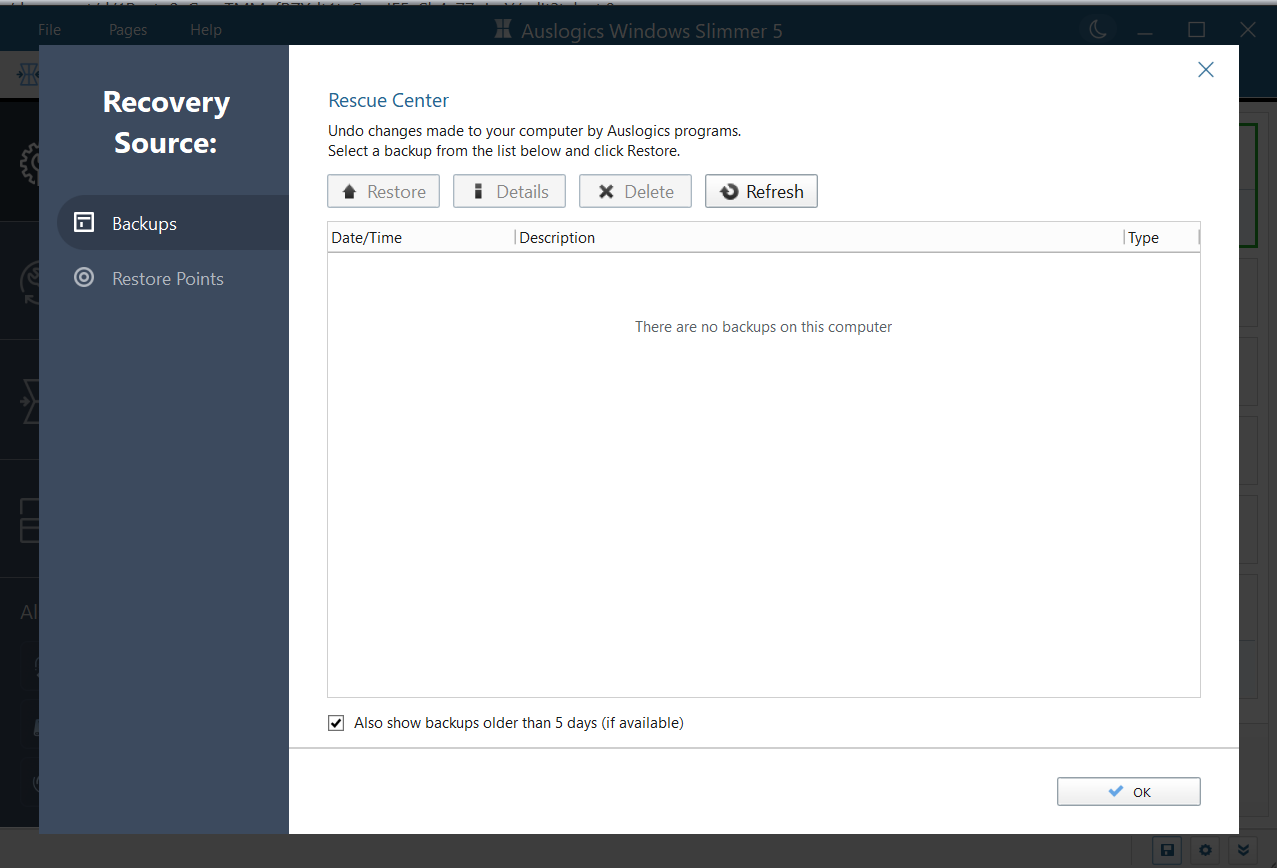
As previously shown during the program setup, you can tell Auslogics Windows Slimmer to back up apps and files before cleaning them out.
While the backups still exist, you can restore them via the Rescue Center.
The backups are kept in a specified folder for a period you selected before they are permanently wiped.
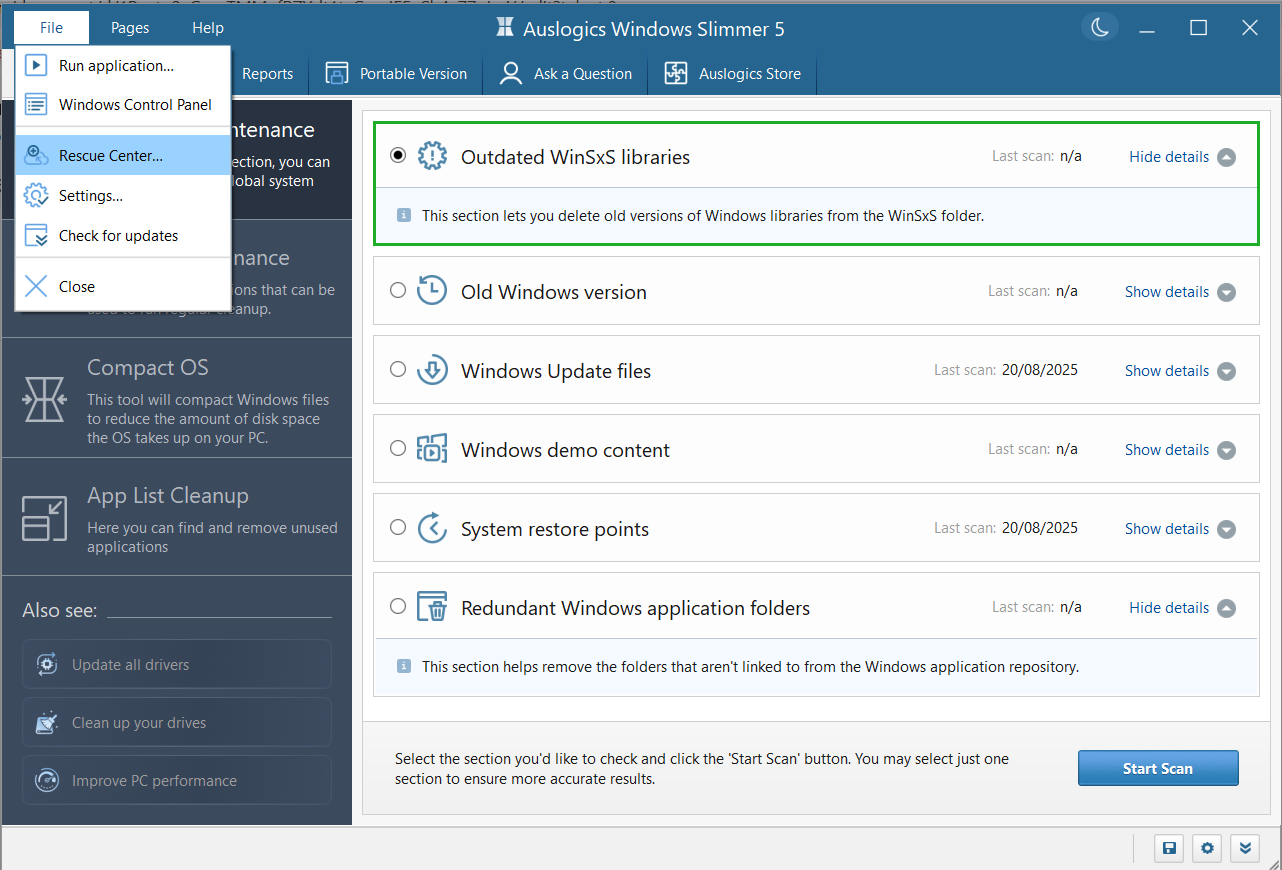
To get to the Rescue Center, simply click on the File tab and select Rescue Center.
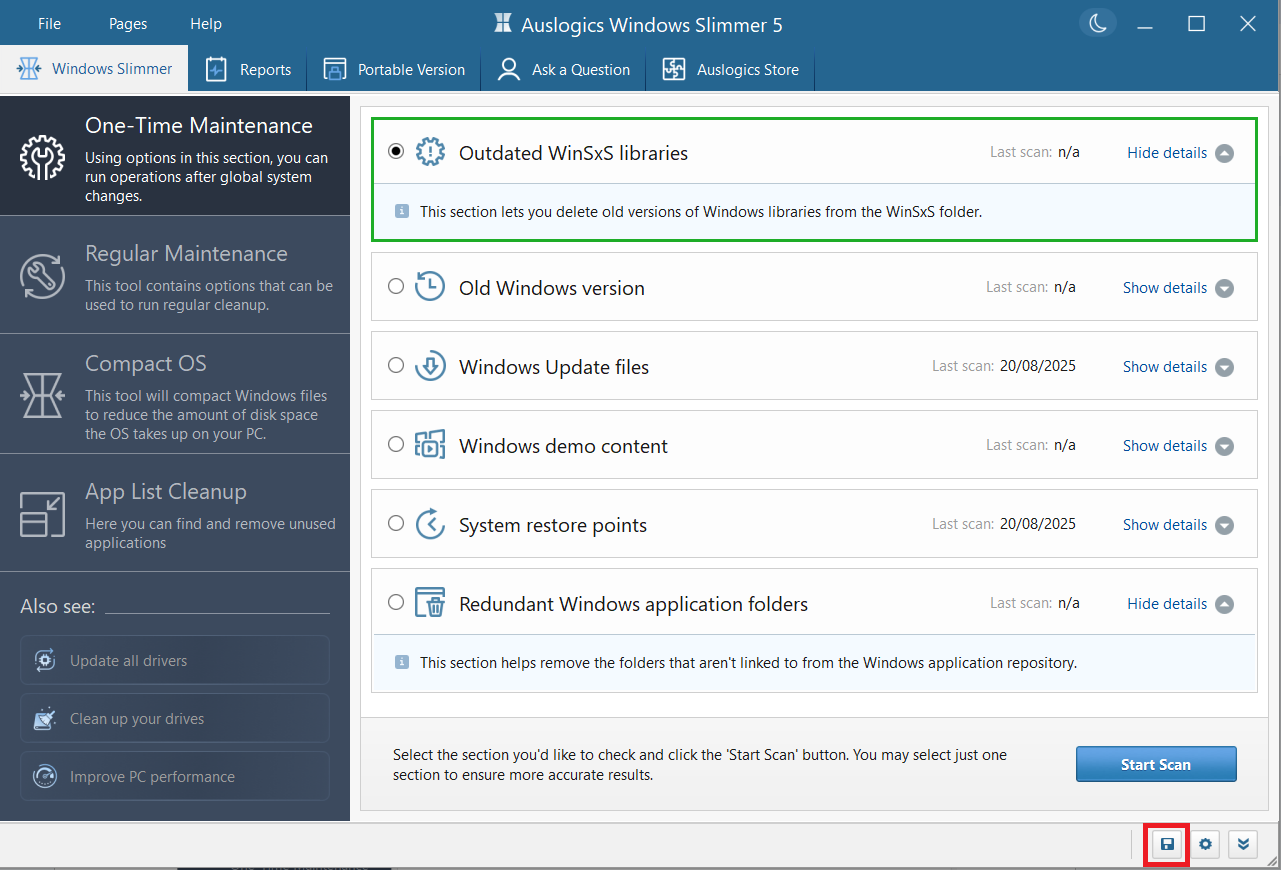
Alternatively, you could click on the floppy disk icon in the bottom-right corner of the app window.
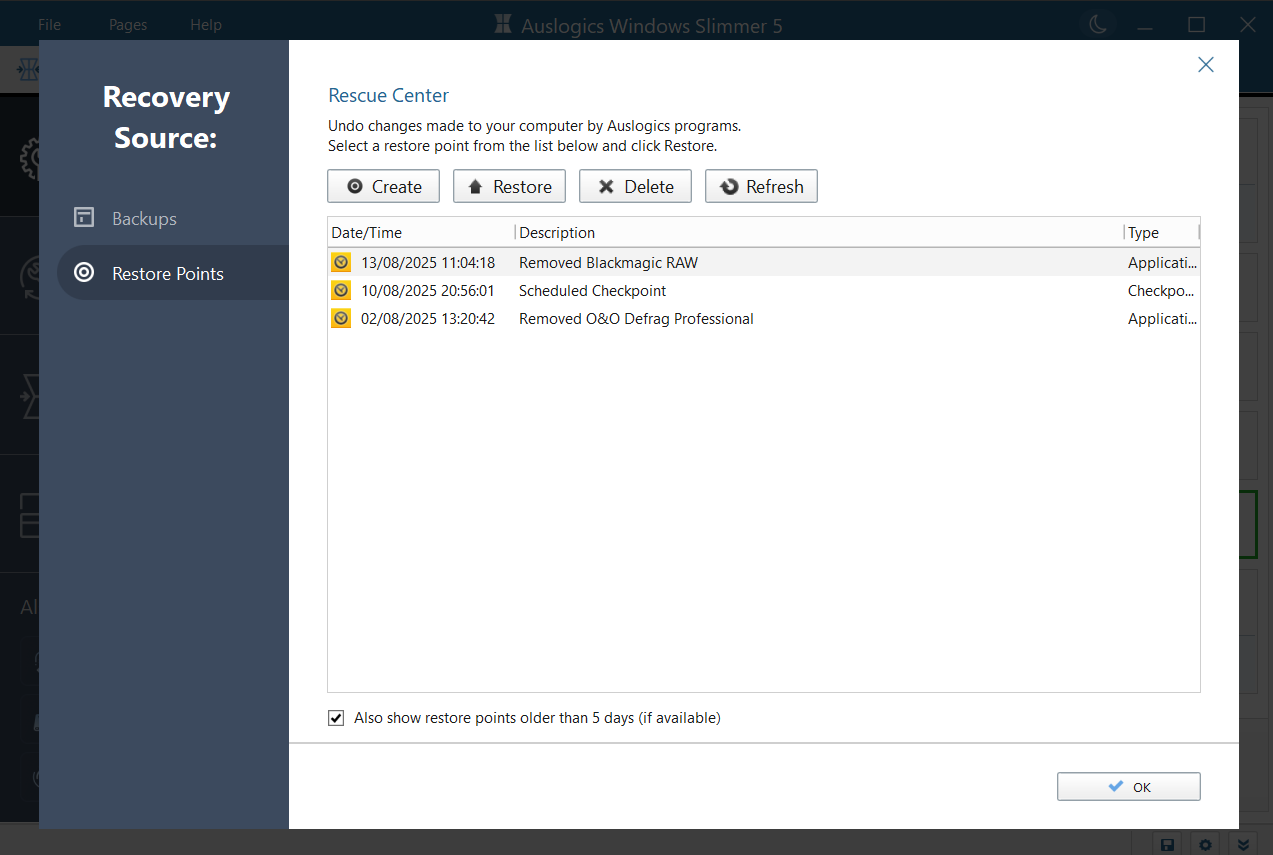
You won’t see multiple single files in the Rescue Center. Instead, each backup represents every file you removed in a single session. You can click the backup item and select Details to see the list of files within the backup. Click Restore to restore the files to their original folders and Delete to permanently get rid of the backup.
The Rescue Center also creates restore points automatically whenever Windows Slimmer makes changes to your computer. This enables you to revert the computer to its former state if the need ever arises.
You can also create new restore points or delete existing restore points created by Windows, users, and other programs (including Auslogics products).
![IMG]() Compact OS for Windows 10/11
Compact OS for Windows 10/11

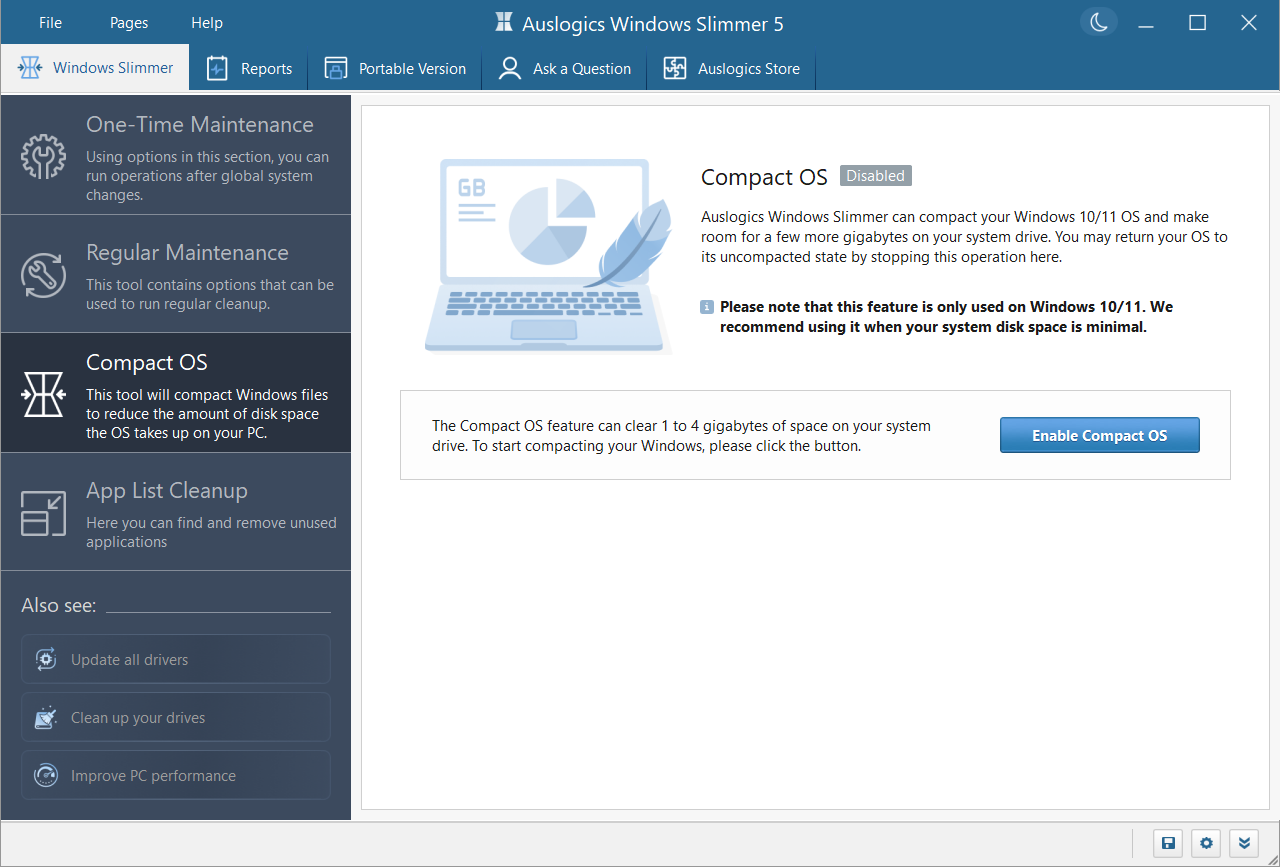
If you have very limited storage space on your Windows 10/11 PC, consider using the Compact OS option in Windows Slimmer to compress system files and gain extra space. The process is easily reversible. So whenever you decide, you can use the option once more to undo it.
Meanwhile, Windows will still work fine from its compressed files. The CPU will decompress them on the fly when they are in use. This might bring about a slight tradeoff in performance, depending on your CPU speed. There’ll be little or no noticeable difference with faster CPUs.
![IMG]() Detailed reports
Detailed reports

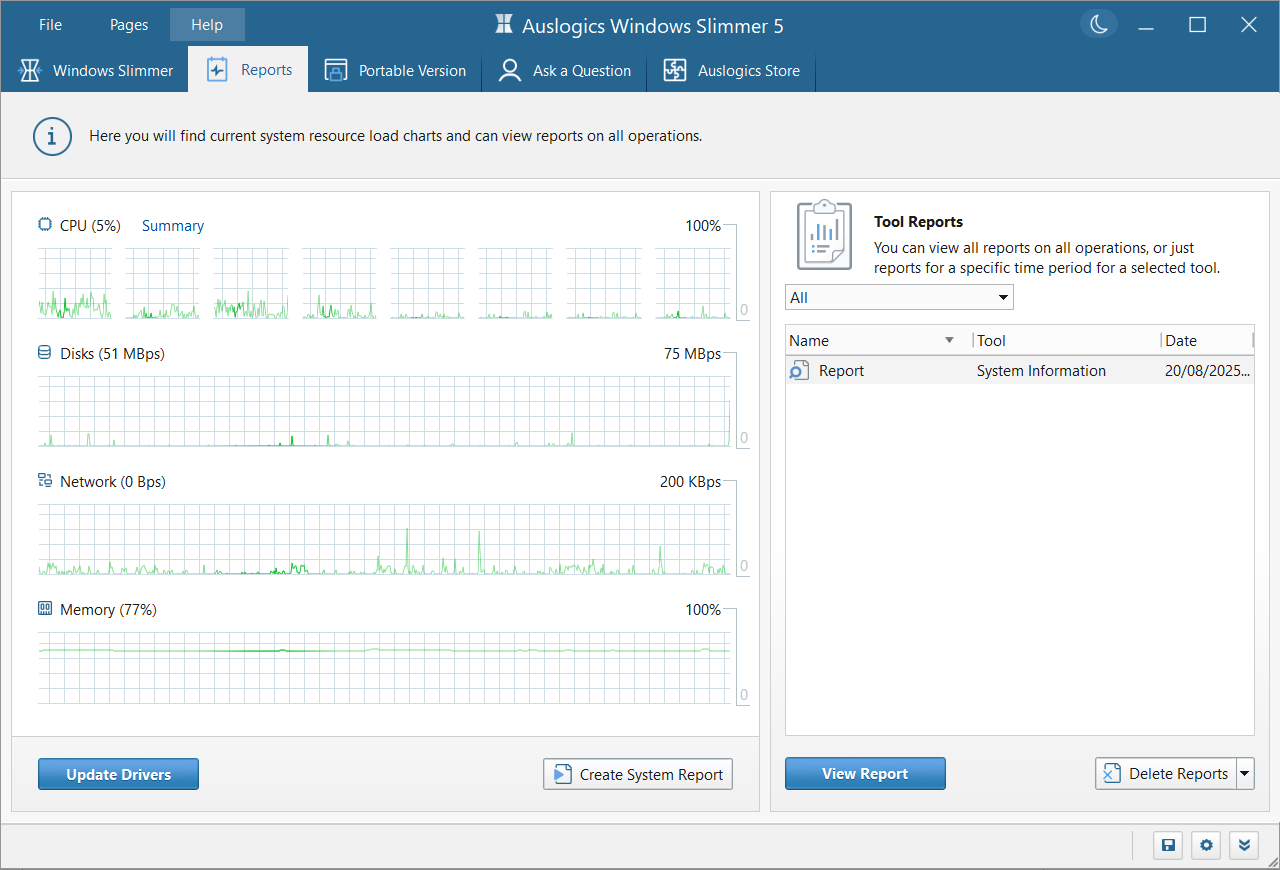
You can monitor the performance of your PC via the Reports tab. Here, you’ll be presented with system resource charts, showing your current CPU load, memory load, network speed, and drive speed.
Clicking the Create System Report button generates an HTML file that opens in your browser. It shows a complete breakdown of your computer’s specifications. On the other hand, the reports under the Tool Reports section create HTML pages containing details of specific cleanup sessions, which you can view by clicking View Report.
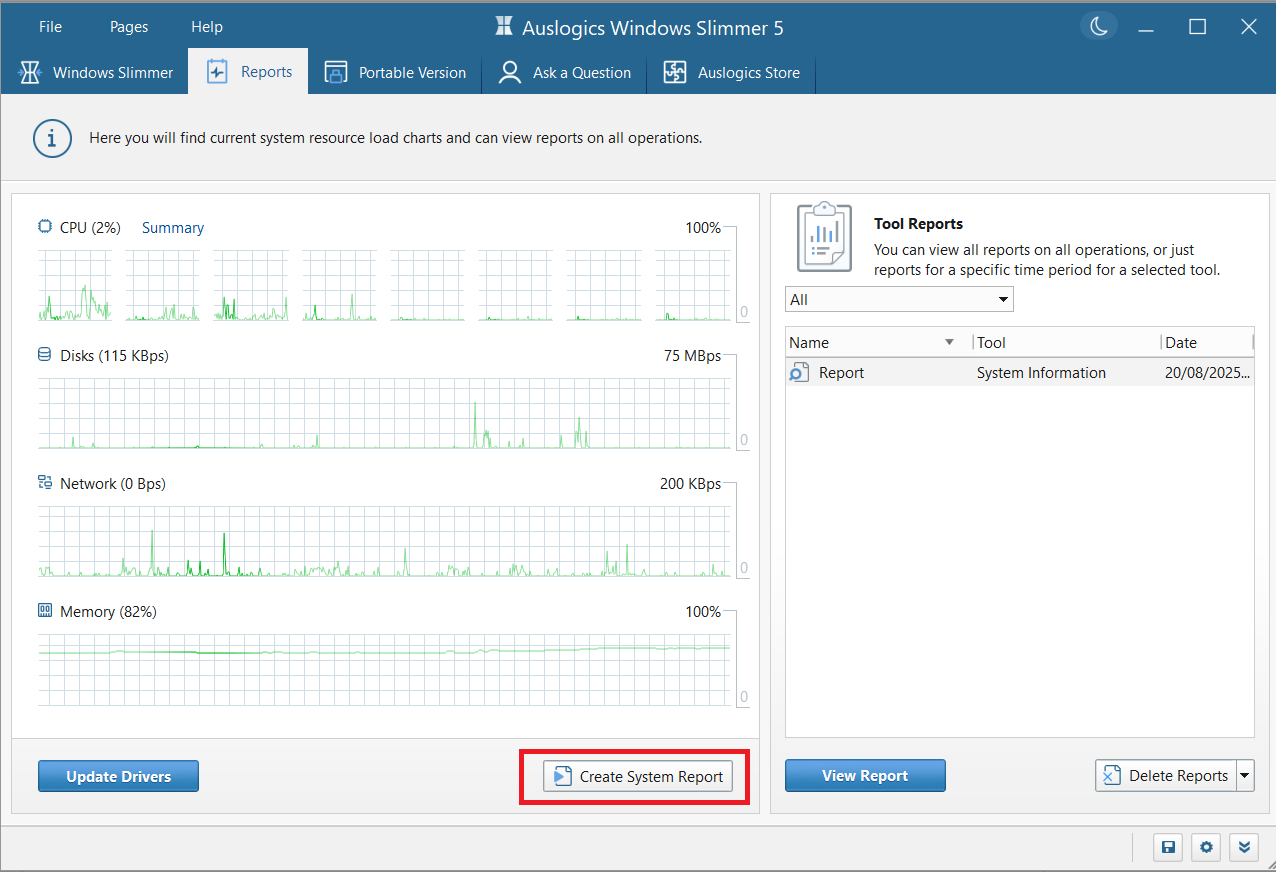
Advanced users will find this feature quite useful when running system diagnostics.
![IMG]() Ask a Question
Ask a Question

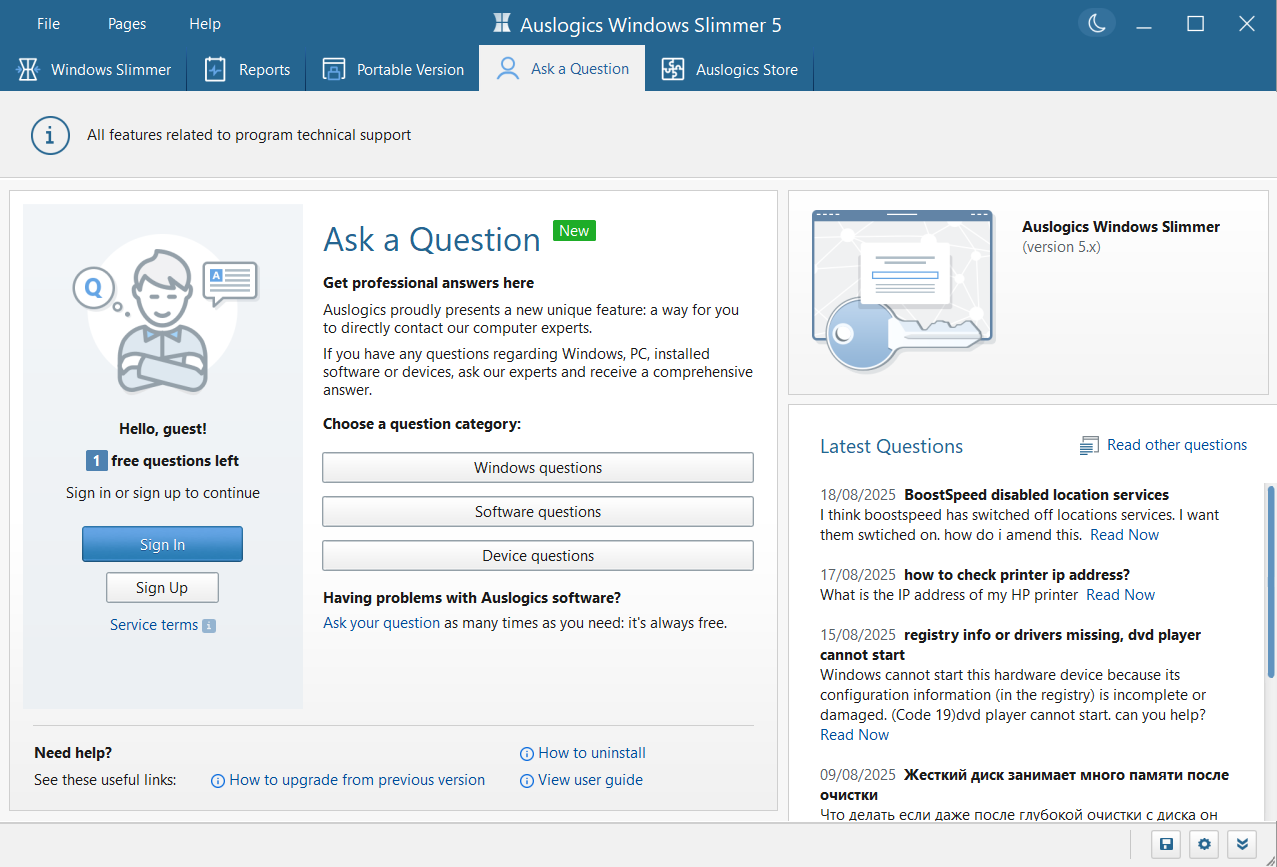
If you ever require technical support, quickly switch over to the Ask a Question tab and get timely assistance.
You can ask a question regarding an Auslogics product, any issues you might have on your device, and general Windows queries. An Auslogics agent will reply to you shortly.
In the meantime, you can browse through the questions left by other users, and peruse the professional responses given by the Auslogics team of experts.
To ask a question, you’ll have to sign in first. If this is your first time, then click the Sign Up button to register with your email address.
![IMG]() Portable version
Portable version

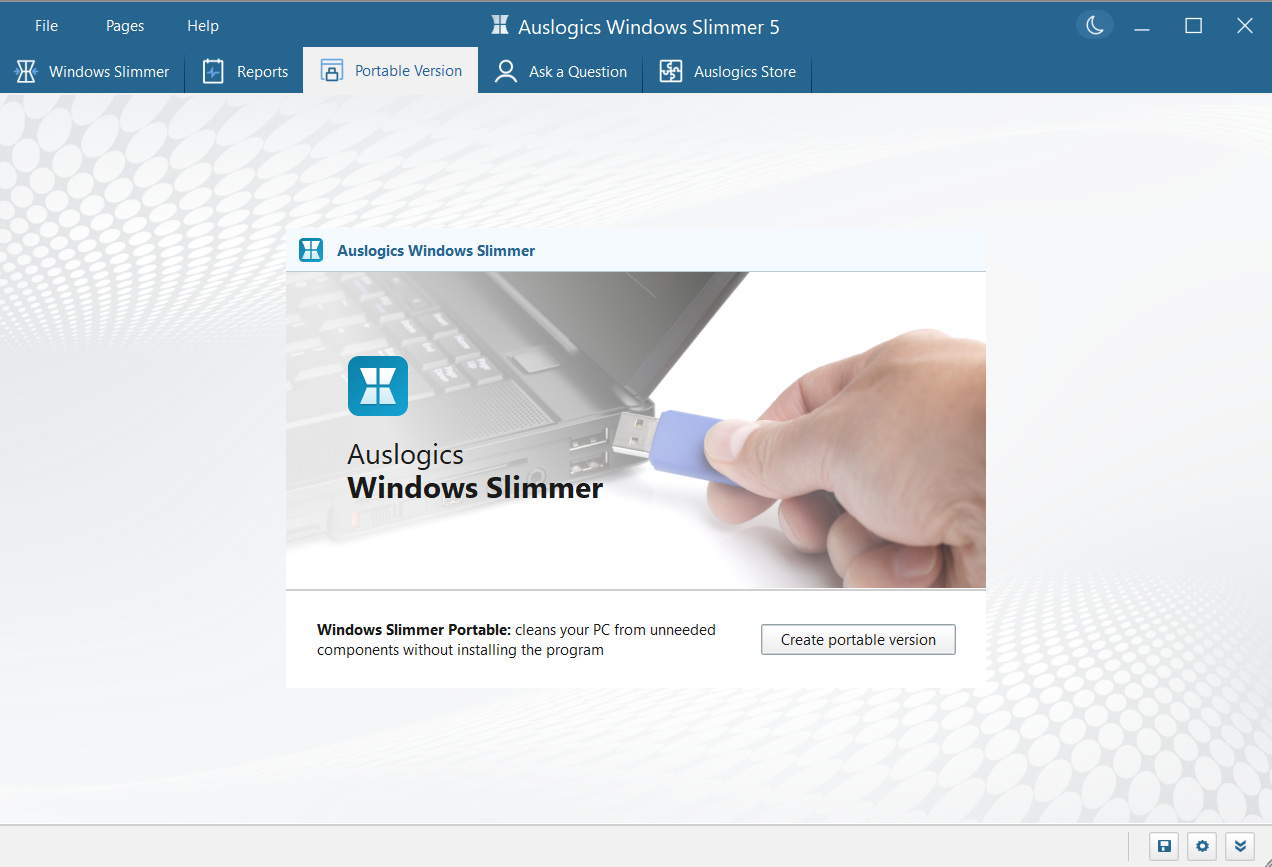
Windows Slimmer provides a portable version that you can store on a USB drive and run on any PC without having to install the app. Run cleanups anytime, anywhere, on any PC.
Should You Use Auslogics Windows Slimmer?
Yes. You should use Auslogics Windows Slimmer to effectively clean up your PC and free up storage space without removing personal or crucial system files.
Using the tool yields the following benefits, giving you a smoother Windows experience :
- More storage space: Gain more room for your personal files by compacting Windows and removing unnecessary system files that are hogging valuable space on your storage. You don’t have to keep scrambling for free space.
- Improved system performance: More free space on the C drive makes system operations smooth and efficient. Apps launch faster and run better. And you can multitask without experiencing those annoying slowdowns.
- Faster boot times: Regularly cleaning up unnecessary files and uninstalling unused and unwanted apps reduces system loads and helps your PC boot faster.
- Better virtual memory performance: Virtual memory enables PCs with low RAM to lean on the storage drive when running heavy tasks. By using Windows Slimmer to clean out your drive and create more free space, you’re ensuring that virtual memory processes can carry on seamlessly.
- Prevent errors and crashes: The accumulation of junk files, outdated system files, and redundant application files often causes conflicts and unexpected errors. Clearing them out helps prevent those issues.
- Promote privacy and security: Windows Slimmer helps take care of privacy risks by permanently removing files from the Recycle Bin, as well as unwanted apps and app leftovers, temporary files, and other kinds of junk that may be leveraged by malicious entities. When such items are left behind, they might fall into the wrong hands or be exploited by malware.
- Safeguard drive health: Having at least 15–20% free space is essential for carrying out drive optimization processes, which boosts hard drive performance and helps maintain the natural life of the drive.
Carry out essential tasks like checking drive health, defragmenting HDDs, optimizing SSDs, finding and deleting large user files, shredding sensitive documents, clearing duplicate files, and so much more.
What Users Are Saying…
Auslogics has an average Trustpilot rating of 4.2/5 from 1,958 reviews. Let’s take a look at the reviews left by everyday users. Here’s what users are saying on Trustpilot:
⭐️⭐️⭐️⭐️⭐️ “I love it. It’s easy to use, and I am very happy with the app.” — Alexander Markakis.
⭐️⭐️⭐️⭐️ “My computer skill/understanding level is pretty low (hey—I turned 72 Monday), and I chose to use Auslogics to do the necessities, and they have been damned good. I have had no issues whatsoever! Happy to recommend this company.” — Steve Dixon.
⭐️⭐️⭐️⭐️ “Easy to use, especially compared to other similar programs. Made a perfect job.” — Joannes.
⭐️⭐️⭐️⭐️⭐️ “Auslogics goes the extra mile!! The comprehensive tools that Auslogics offers to ensure that your PC runs safely and optimally are amazing. I’m grateful I found them, and I’m more than happy to stick with them.” — Kgaugelo.
⭐️⭐️⭐️⭐️⭐️ “Amazing company with amazing service.” — TheDavdeceK.
How Does Auslogics Windows Slimmer Compare Against Similar Tools?
Compared to what you can get for free with other PC cleanup tools, Auslogics Windows Slimmer provides better safety and offers more options for freeing up storage space. Here’s a table comparing Windows Slimmer with three other popular tools:
| Feature | Auslogics Windows Slimmer | Microsoft PC Manager | BleachBit | Glary Disk Cleaner |
|---|---|---|---|---|
| Supported OS | Windows 11, 10, 8.1, 8, and 7 | Windows 11 and 10 |
|
Windows 11, 10, 8, 7, Vista XP, and 2000 |
| App size | 70.1 MB | 100.9 MB | 42.6 MB | 51.1 MB |
| Compact OS feature | ✅ | ❌ | ❌ | ❌ |
| Shred files, folders, and paths | ❌ | ❌ | ❌ | ❌ |
| Wipe free space | ❌ | ❌ | ✅ | ❌ |
| Deep cleanup and junk file removal | ✅ | ✅ | ✅ | ✅ |
| Clean-uninstall apps | ✅ | ✅ | ✅ | ❌ |
| Force remove unwanted apps | ✅ | ❌ | ❌ | ❌ |
| Remove old Windows version | ✅ | ❌ | ❌ | ❌ |
| Remove outdated WinSxS libraries | ✅ | ❌ | ❌ | ❌ |
| Remove temporary Windows Update files | ✅ | ❌ | ❌ | ❌ |
| Remove Windows demo content | ✅ | ❌ | ❌ | ❌ |
| Delete old system restore points | ✅ | ❌ | ❌ | ❌ |
| Add files and folders to ignore list | ✅ | ❌ | ❌ | ✅ |
| Backup and restore | ✅ | ❌ | ❌ | ✅ |
| Portable version available | ✅ | ❌ | ✅ | ❌ |
Auslogics Windows Slimmer: Expand Free Storage Space
Manually cleaning up Windows files is not something PC users should venture to do, since you might inadvertently delete crucial system files and render your PC unstable or unusable. And native Windows tools, like Disk Cleanup, do not perform a thorough enough cleanup to free up a considerable amount of storage space.
But Auslogics Windows Slimmer gives you a way out. It provides a safe and effective way to clean up Windows files. And in addition, it gives you the opportunity to compress core system files to make more room on your storage.
The app is also super helpful for keeping track of apps that exist on your PC, so you can decide on what should go and what should stay.
You’ll also have the opportunity to rid your PC of junk files that keep accumulating with everyday operations.
Here’s your chance to free up much-needed space on your C drive and make system operations faster and much more efficient.
Feel free to leave us a comment. We’d like to know what you think.
FAQ
Slimming down Windows by removing junk files, unwanted apps, and system files that are not of use helps:
- Free up storage space and improve system performance
- Prevent the possibility of data leaks and protect your privacy
- Remove security vulnerabilities presented by PUPs and junk files
- Resolve and prevent application and system errors
Furthermore, using Compact OS reduces the storage footprint of your Windows 10/11 OS by compressing core system files. This can be beneficial for PCs with low storage as it helps you reclaim valuable space.
No. Windows Slimmer does not run automatically nor on a schedule.
You have to manually:
- Initiate a scan to clean up junk files and unnecessary system files.
- Enable or disable Compact OS anytime, as desired.
- Inspect the full list of apps on your PC, allowing you to repair, refresh, change, remove, or Google them to get more information about them.


