


So, your hard drive is getting sluggish. You are not alone. The truth is, over time, hard drives tend to slow down. There may be specific reasons why this is happening. Or it may be your basic wear and tear.
But whatever the reasons may be, you will probably want to get your hard drive working faster.That’s what we will be looking into today.
We’ll first see what you can do to diagnose your hard drive issues and then share some proven solutions to turbocharge it for better performance.
Why Is My HDD Slow?
Over time, your old hard drive can slow down due to wear and tear from lots of reading and writing. This can lead to a frustrating
“slow computer” problem and occasional crashes. Some common reasons for this slowdown include:
- Bad sectors: The more bad areas your hard drive has, the slower it gets.
- Too many temporary files: These files can pile up and take up valuable hard drive space.
- Viruses and malware: Nasty software can harm your hard drive and make your computer misbehave.
- File mess: When your files are scattered all over, it takes longer to find and use them.
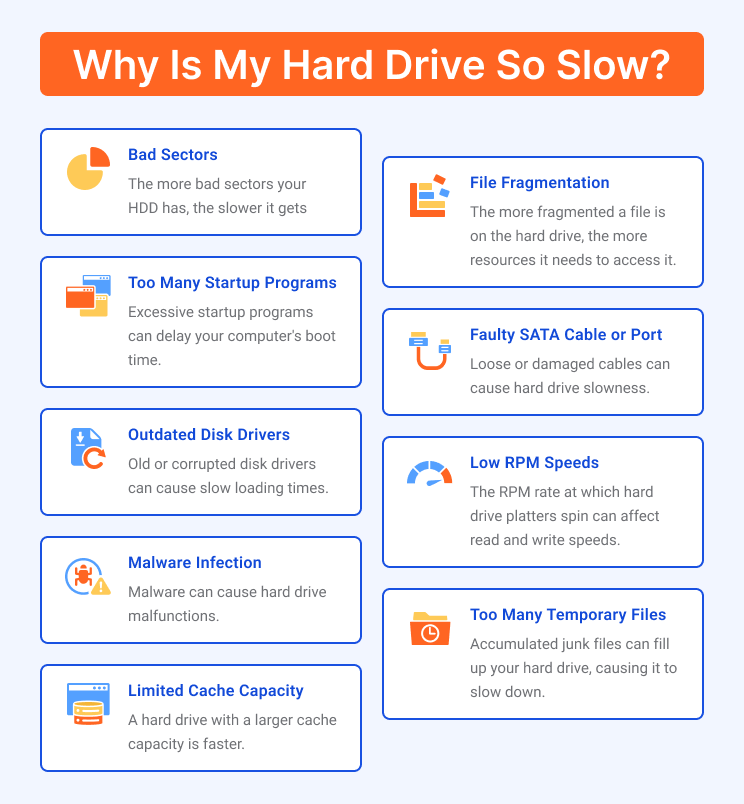
There are more reasons for a slow hard drive, but it’s essential to learn how to fix it for a smoother computer experience. Keep reading to find solutions. You can also explore related links for more information on hard drives.
How to Perform HDD Diagnostics?
Performing HDD diagnostics helps identify and address potential issues with your hard drive. This helps prevent data loss and system crashes and ensures optimal performance.
To perform HDD diagnostics:
- Use built-in Windows tools like Check Disk or Windows Memory Diagnostic.
- Use third-party hard drive diagnostic software and tools: Various diagnostic software and tools are available to assess the health and performance of your hard drive, providing insights into potential issues and helping you make informed decisions about maintenance or replacement.
- S.M.A.R.T is a built-in feature in many hard drives that continuously monitors the drive’s condition, tracking parameters like temperature and error rates to provide early warnings of potential failures.
- Many hard drive manufacturers offer their own diagnostic utilities and software, specifically designed for their hardware, which can be valuable for accurate assessments and troubleshooting.
- Third-party diagnostic software options, like CrystalDiskInfo or HD Tune, provide additional tools and features for in-depth hard drive analysis, offering a comprehensive view of your drive’s health and performance.
📌 Read more: How to Run Hard Drive Diagnostics on Windows PC?
How to Speed Up a Hard Drive Performance
Unlocking the full potential of your computer often begins with optimizing its hard drive performance. Whether you’re experiencing sluggish system responsiveness or simply want to enhance overall efficiency, there are several strategies and techniques that can help you get the most out of your hard drive.
Here’s how to make a hard drive faster:
Delete temporary files
Deleting temporary files is a simple yet effective way to boost your computer’s performance. These files accumulate over time and can consume valuable disk space, slowing down your system. By regularly clearing them, you can free up storage, reduce clutter, and improve your hard drive’s speed and responsiveness.
📌 Read more: How to Delete Temporary Files from Windows 10 PCs
Check for bad sectors
Checking for bad sectors on your hard drive is a crucial maintenance task. Bad sectors are areas on the disk that can lead to data loss or slow performance.
By performing regular checks, you can identify and address these issues early, ensuring the integrity of your data and maintaining optimal hard drive performance.
📌 Read more: How to Fix Bad Sectors on a Hard Drive
Defragment your HDD
Defragmenting your hard drive is a fundamental step in optimizing its performance. Over time, files on your disk become fragmented, meaning they’re scattered in various locations.
This can slow down read and write operations. Defragmentation rearranges these files, organizing them into contiguous blocks for faster access.
By regularly defragmenting your HDD, you can significantly improve your computer’s speed and responsiveness.
📌 Read more: Defrag Your Hard Drive Like a Pro – Step-by-Step Guide
Run a Check Disk scan
Running a Check Disk scan is an essential practice for maintaining a healthy hard drive. This built-in Windows utility checks for errors, bad sectors, and file system inconsistencies.
By performing this scan regularly, you can detect and repair issues early, preventing data loss and ensuring your hard drive operates at its best performance.
📌 Read more: Ultimate Guide: How to Check For and Fix Disk Errors with CHKDSK Command
Turn on Write Caching
Enabling Write Caching is a valuable strategy to enhance your hard drive’s performance on Windows. By utilizing this feature, you can significantly accelerate data writing processes, improving the overall responsiveness of your system.
Just remember to enable it cautiously, considering factors like power backup and data safety
With the right settings and precautions in place, you can unlock the full potential of your hard drive and enjoy a faster and more efficient Windows experience.
Here’s how to turn on Write Caching on Windows 10:
- Right-click This PC.
- Go to Properties.
- Select the Hardware tab.
- Click Device Manager.
- Expand Disk drives.
- Right-click the drive for which you want to turn on white caching.
- Select Properties.
- Check the box that says Enable Write Caching.
- Click OK.
Partition your hard drive
Partitioning your hard drive is a valuable strategy to enhance organization and performance. By dividing your drive into separate sections, you can isolate data, improve data management, and even install different operating systems on the same device.
This optimization not only helps streamline your workflow but also contributes to better overall hard drive performance.
📌 Read more: Ultimate Guide: How to Partition a Hard Drive
Run Disk Cleanup
Running Disk Cleanup is a simple yet effective way to boost your computer’s performance. This built-in Windows utility scans your system for unnecessary files, such as temporary files and system cache, that accumulate over time and clog up your storage.
By regularly performing a Disk Cleanup, you can free up valuable disk space, reduce clutter, and improve your computer’s speed and responsiveness.
📌 Read more: Disk Cleanup Tips: How to Compress a Drive to Save Disk Space in Windows 10
Remove unwanted applications
Removing unwanted applications is a key step in optimizing your computer’s performance. Over time, we tend to accumulate software that we no longer use, taking up valuable disk space and system resources.
By uninstalling these unnecessary applications, you can free up storage, reduce system clutter, and enhance your computer’s speed and responsiveness, ensuring it runs more efficiently for your tasks and needs.
📌 Read more: So Easy to Do: How to Uninstall Programs and Apps on Windows 10/11?
Check for malware and viruses
Checking for malware and viruses is a critical part of maintaining your computer’s performance and security. Malicious software can not only compromise your data and privacy but also significantly slow down your system.
By regularly scanning for and removing malware and viruses, you can ensure a safe and speedy hard drive experience, protecting both your files and the overall performance of your computer.
📌 Read more: How to Remove Virus and Other Malware from Windows
The tool offers comprehensive solutions for tasks such as disk cleanup, defragmentation, and registry optimization, all of which directly impact hard drive speed.
By automating these optimization processes and fine-tuning system settings, software like BoostSpeed ensures your hard drive operates at peak efficiency, leading to a faster and more responsive computer experience.
📌 Also read: Speed Up Slow Computer as a Pro – Introducing Auslogics BoostSpeed 13
How to Speed Up Hard Drive Performance on Windows: Answered
To make your PC run faster and smoother, you will need to optimize your hard drive.
Clean out temp files, check for bad sectors, run a check disk command, and, when needed, defragment your drive. All of this will help your hard drive perform better and get you a better experience on your PC.
Which of these strategies has proved the most effective? Please share in the comments below!


