


But you know what? You are not alone. There are tons of users who have complained that their game sounds interfere with their conversations, and many have looked into possible solutions to fix this problem.
So, if you are wondering, “How do I fix my mic picking up game sound on Discord?” you’ve come just to the right place.
Today, we will be testing out some of the most popular solutions found online that promise to get your sound on Discord to work properly (spoiler: they actually work).
But first, let’s answer the question, why Discord may be picking up game sounds to get our heads around why it happens in the first place.
📌 Might be interesting: [FIXED] Discord Stuck on “RTC Connecting”
If Discord is picking up computer audio, the issue usually comes down to misconfigured settings, Stereo Mix, or faulty drivers. Here’s a quick fix list:
🛠️ Check Discord’s troubleshooting guide.
🎚️ Set the correct input/output devices in Discord.
🔌 Double-check your mic/headset connections.
🎤 Adjust mic settings in Windows (disable Listen to this device ).
🚫 Disable Stereo Mix.
💽 Troubleshoot, disable/enable, update, or reinstall your sound drivers.
🔄 As a last resort, uninstall and reinstall Discord completely
Why Is Discord Picking Up Game Sound?
So, you’ve noticed that your friends on Discord can hear your game audio along with your voice—you are not alone. A number of users report the same issue. There are actually a number of reasons why Discord may be picking up game sounds and mixing them into your voice messages. Let’s take a look at some of the most probable ones.

The most common cause is simply incorrect settings. If your input/output devices are set up wrong, or if Stereo Mix (a feature that captures all system sound) is enabled, Discord may transmit game audio along with your voice.

Drivers act as the middleman between your hardware and operating system. If your audio drivers are outdated, corrupt, or incompatible, Discord may not correctly distinguish between microphone input and game output, leading to sound bleed.

It’s easier than you think to plug your mic into the wrong port or use the wrong headset jack. A loose cable, incorrect connection, or even using a keyboard’s audio passthrough instead of the PC’s sound card can cause Discord to pick up unintended audio.

Some microphones, especially built-in laptop mics or low-quality headsets, can pick up sound from your speakers. If your speakers are loud or your mic is overly sensitive, Discord may capture both your voice and your game audio.

Other apps, such as voice changers, streaming software, or sound enhancers, can sometimes reroute audio incorrectly. This makes it appear as though your mic is transmitting your game audio directly to Discord.
How to Fix Discord Picking Up Game Audio on Windows
As we mentioned above, there are quite a few things you may need to try to fix Discord’s sound problems.
Below, we will go over the most workable solutions, starting with the quickest and easiest methods before moving on to the more complicated ones.
Our recommendation is that you start at the top and work your way down. If one fix doesn’t work, move on to the next one until you find something that does.
📌 Also read: Discord Update Failed: Steps to Fix It Fast
Fix 1: Check out the Discord troubleshooting guide
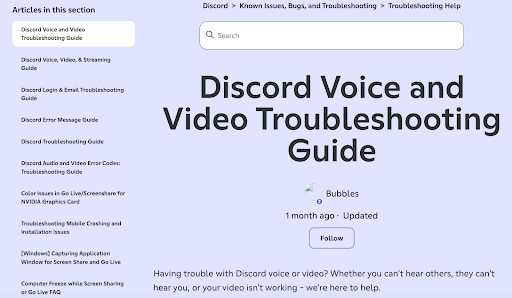
If you are running into any issues on Discord, the best place to start when looking for a solution is in the app’s built-in troubleshooting guide. To get to it:
- Go to User Settings (click the gear icon at the bottom).
- Locate the Voice & Video section.
- Here, you will see the link to the troubleshooting guide highlighted in blue.
- You will be taken directly to the Voice & Video troubleshooting page. It is basically an article covering essential Discord settings and basic troubleshooting steps.
Fix 2: Change your sound settings in Discord
This is the next thing that the Discord community is suggesting to get your sound to work properly. Here’s what to do:
- Open Discord.
- Go to User Settings. You can find this section by clicking the little gear icon in the bottom left corner.
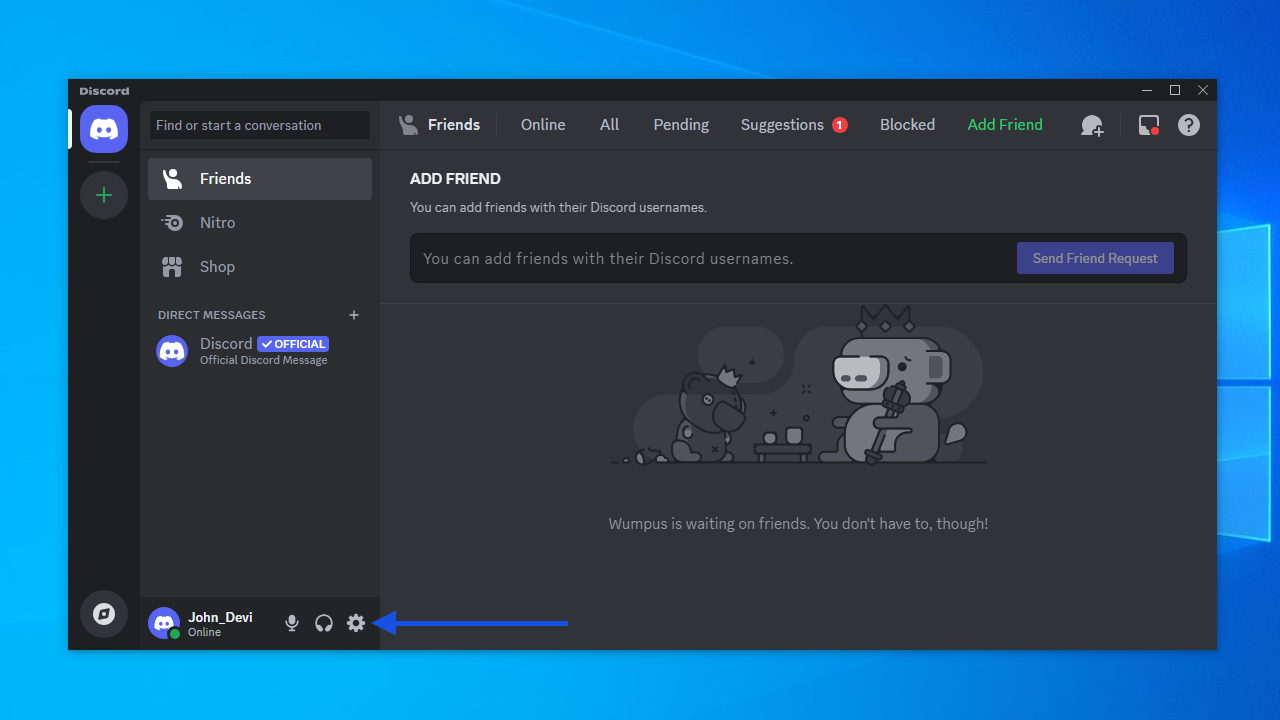
- Scroll down the left sidebar until you reach Voice & Video. Once you locate the setting, click it.
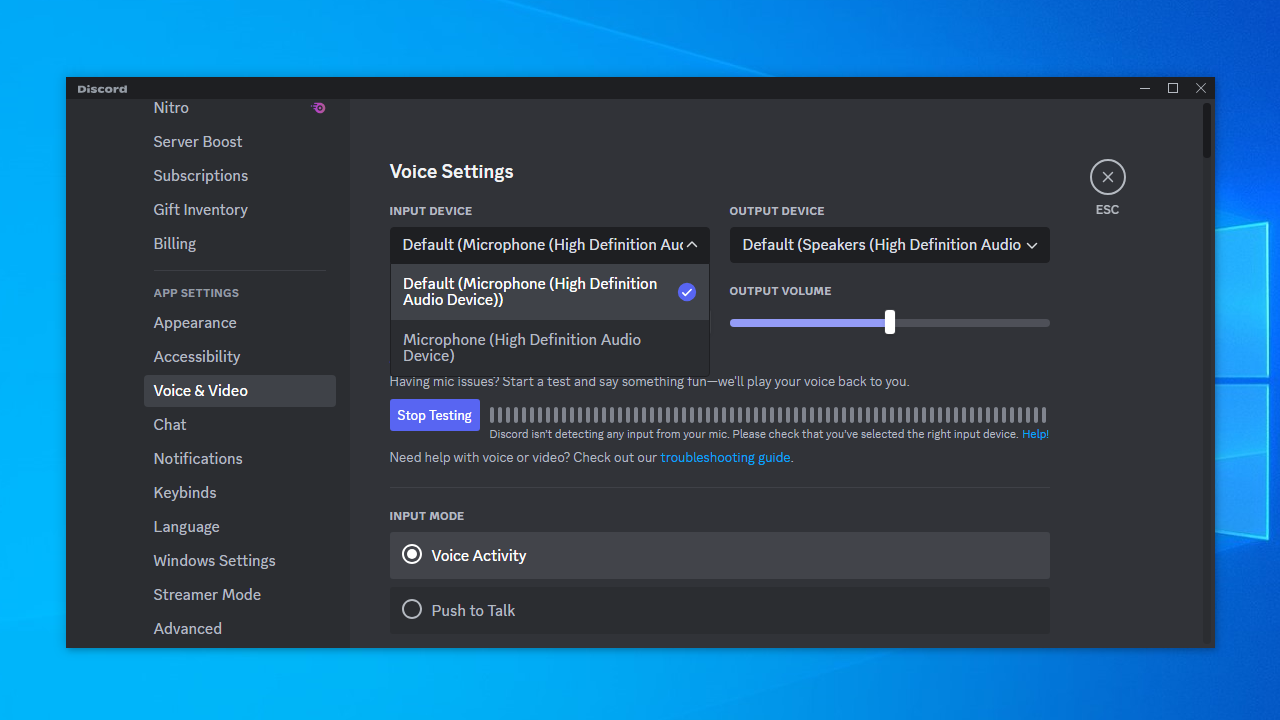
- Next, enter the correct input and output devices. If they are set to their defaults and you have sound issues with the app, it’s better to set them manually.
Run Discord again and check if everything is working properly. If you are still experiencing the same problem, move on to the next fix.
📌 Related: Learn How to Turn Off Discord Overlay in a Few Steps
Fix 3: Check your connections
Still asking, “Why is my game audio playing through Discord?” Don’t give up hope just yet. The next solution that we will be trying out is quite simple: you just need to check all your connections. Here’s what to do:
- If you are using a USB connector for your audio devices, double-check that they are plugged into the correct USB port and not the keyboard one.
This seems to be a common mistake that will definitely interfere with your audio experience.
- If everything is correct, try plugging your earphones and speakers into different audio jacks.
Now, get back to the app and check if the issue with Discord picking up game audio is resolved. If not, let’s try the next fix.
📌 Also read: Can’t Hear Anyone on Discord: How to Fix It
Fix 4: Change the microphone settings on your PC
If the mic settings on your PC are incorrect, you may be having sound issues across your system, including on Discord. Here’s what is recommended for your mic settings:
- In the search bar, type control panel and select the top result.
- Change the View by option to Large icons.
- Locate Sound and click it.
- Go to the Recording tab and choose the microphone that you are currently using.
- Go to Properties by double-clicking the microphone.
- Go to the Listen tab.
- Find the Listen to this device option and uncheck it.
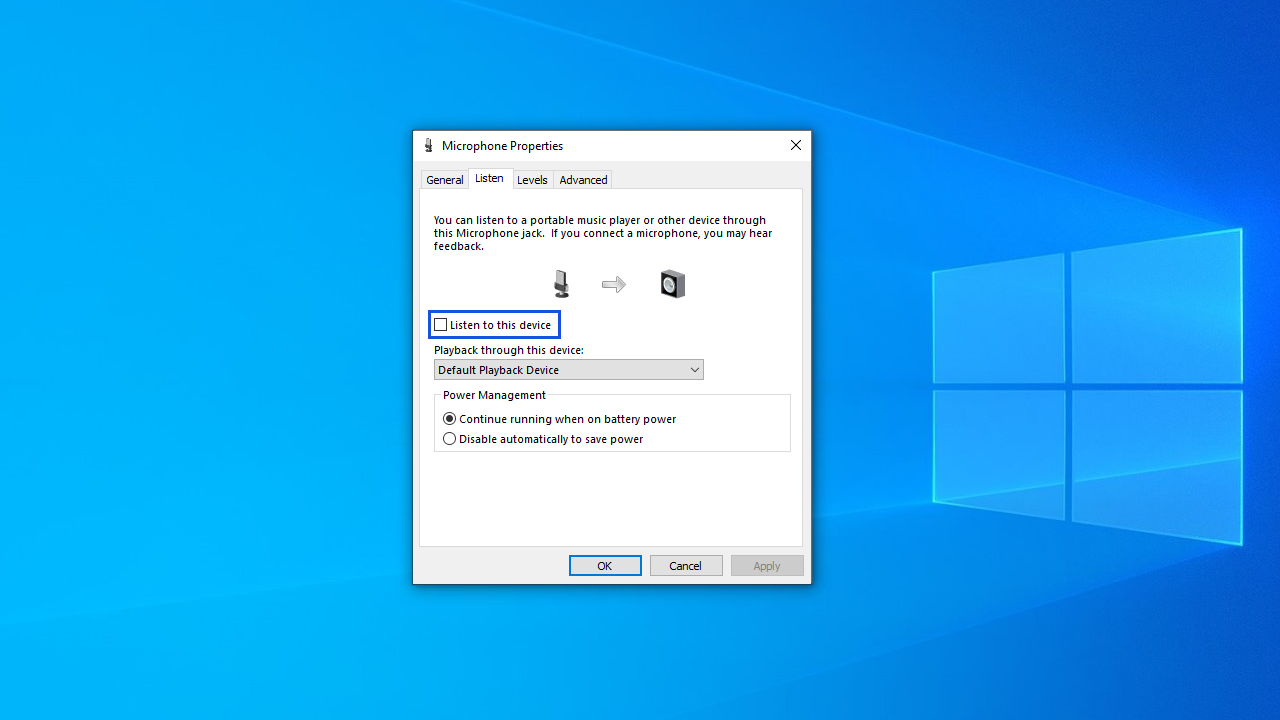
- Next, go to the Advanced tab.
- Here, uncheck all the options under Exclusive Mode.
📌 Also read: Why Is My Microphone Not Working: Easy Fixes
Fix 5: Disable Stereo Mix
If changing your mic settings didn’t do the trick, you can also try disabling Stereo Mix and check if Discord is picking up game audio after that. Here’s how:
- Go to Settings > Accessibility > Audio.
- And then switch on the Mono audio toggle.
Fix 6: Troubleshoot your sound drivers
If none of the above solutions have worked for you and you’re still dealing with Discord picking up computer audio, it may be worth trying more complicated fixes, such as troubleshooting your sound drivers.
Here’s how to troubleshoot your drivers on Windows 10 and 11:
- Use the
Win + Rshortcut to start Run. - Type in devmgmt.msc and hit
Enteron your keyboard.
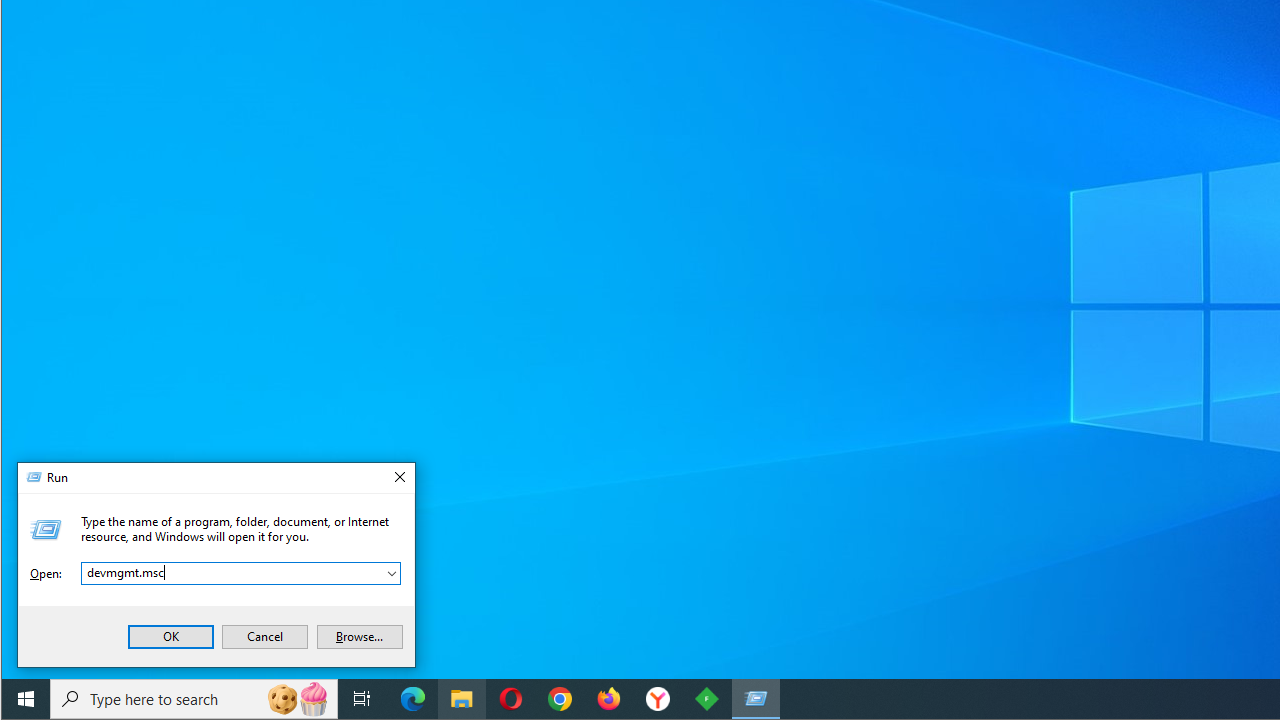
- Expand the Sound, video and game controllers menu items.
- Right-click your sound device and select Disable device.
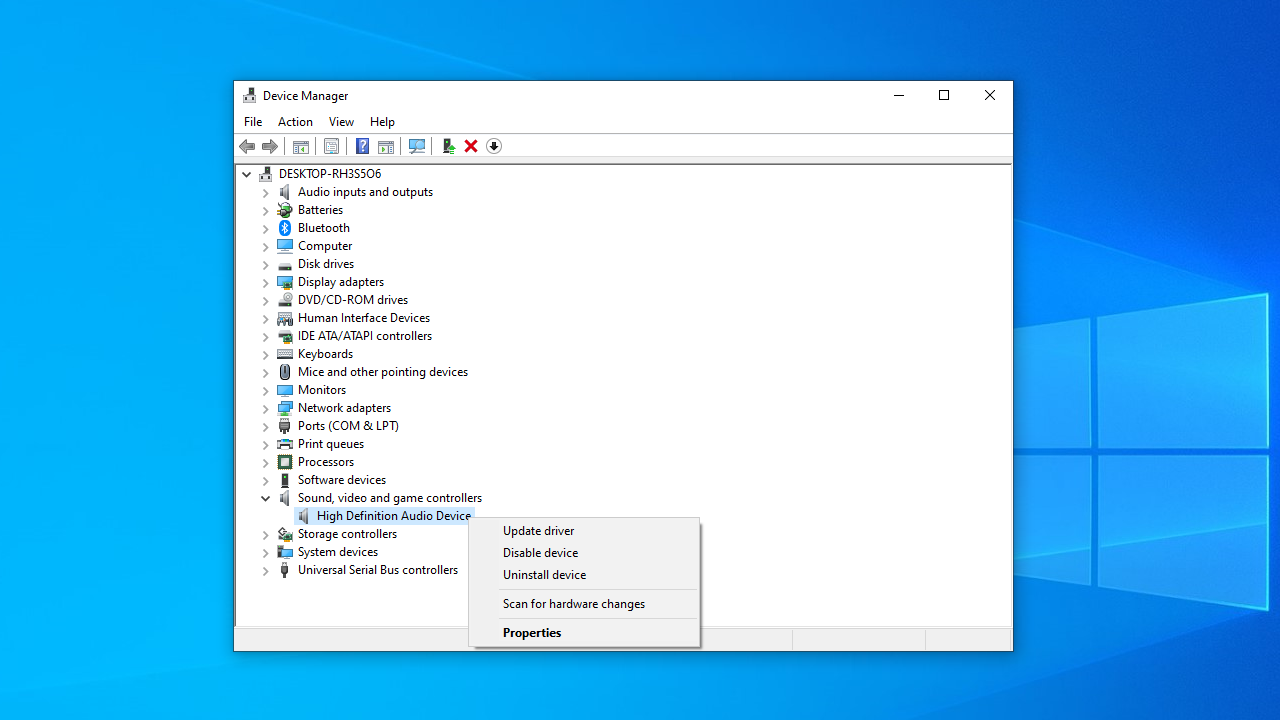
- Next, right-click the device again and select Enable device.
If you are not sure which drivers you are using, you can check your active devices via Windows settings:
- Right-click the speaker icon in your taskbar (bottom right corner).
- Select Sound settings (or Open Sound settings).
- Look under Output → this shows which device is currently playing sound (e.g., Speakers (Realtek High Definition Audio), Headset (USB Audio)).
- Look under Input → this shows which microphone is being used.
Go back to Device Manager and compare the names you see here with the ones you saw under Input/Output.
- If Windows sound settings said your active device is Headset (USB Audio) → you’re looking for the USB device in Device Manager.
- If it said Speakers (Realtek High Definition Audio) → you’ll find Realtek Audio listed.
- If it mentioned HDMI or Display Audio → that belongs to your graphics card (like NVIDIA High Definition Audio) and usually isn’t the one you want unless you’re using monitor speakers via HDMI.
If after troubleshooting your drivers you are still facing Discord picking up game audio, try updating your sound driver. You can do this manually or automatically with the help of a specialized program.
If you’ve updated your drivers before and are familiar with the process, you can go on with the following steps:
- Launch Run again (press the
WinandRkeys at the same time). - Type devmgmt.msc and press the
Enterkey—this will bring up Device Manager. - Go to the Sound, video and game controllers option.
- Right-click your sound device.
- In the context menu, find the Update driver option and click it.
- Choose Search automatically for drivers.
- Go on to follow the instructions on your screen to complete the process.
- Once it is over, you will need to restart your PC.
If updating your drivers hasn’t worked, you may need to uninstall them:
- Go to Device Manager again.
- Right-click your audio driver. This time, click Uninstall device.
- Follow the instructions on the screen and then restart your PC—the driver will be reinstalled automatically.
Once this is done, try launching Discord, and hopefully you won’t have to ask again, “Why is my game audio playing through Discord?” If the issue persists, it may be time to uninstall and reinstall Discord.
Fix 7: Uninstall and reinstall Discord
There are two ways you can go about uninstalling Discord. The quicker way to do so would be to use the Settings app. However, a better way to uninstall Discord is to make sure all of the app’s data and residual files are gone from your system.
Here’s how:
Step one: Terminate all Discord processes running in the background
- Right-click the Discord icon on your PC and select Quit Discord.
- Go to Task Manager (
Ctrl + Shift + Esc) and check if there are any Discord processes running in the background under Processes. - If you find any, right-click them and select End task.
Step two: Uninstall Discord from Control Panel
- Go to Control Panel.
- Open Programs and Features.
- Locate Discord and click Uninstall.
Step three: Delete the Discord folder from File Explorer
- Open Run.
- Type in %AppData% and click OK.
- The Roaming folder will open.
- Locate the Discord folder and delete it.
- Open Run again.
- Type in %LocalAppData% and click OK.
- The Local folder will open.
- Find Discord and delete it.
- Restart your PC.
Using Uninstall Manager reduces the risk of leftover files causing future conflicts and saves time compared to manually hunting for them.
Step four (optional and advanced): Remove leftover registry entries
Most users can skip this step, but if you want to be absolutely sure Discord is fully removed, you can also delete its registry keys.
- Open Run.
- Type in regedit and click OK.
- The User Account Control prompt will pop up—click Yes to agree.
- The Registry Editor will open.
- Enter the following address: Computer\HKEY_CURRENT_USER\Software\Discord.
- Right-click on Discord and click Delete.
- Restart your PC once you are done.
Once you have fully uninstalled Discord and its data from your computer, you will need to download and install it again. Head to Discord’s official website and get the latest version of the program. Open the installer and follow the setup prompts. Once the app has been installed, launch it and check if the issue of Discord picking up computer audio is finally fixed.
📌 Also check: [FIXED] Discord Installation Has Failed Issue on Windows 10/11
Discord Picking Up Game Audio: Fixed
And there you have it. Hopefully, at least one of the solutions above has worked, and you now know how to fix Discord picking up game audio. Let’s recap.
First, do not reinvent the wheel and check out the Discord troubleshooting guide. Next, check
your sound settings and connections on Discord. If this doesn’t work, you may need to change your microphone settings and disable Stereo Mix. Finally, troubleshoot your sound drivers and uninstall and reinstall Discord as a last resort.


