


- What Is Auslogics BoostSpeed 14?
- Getting Started with Auslogics BoostSpeed 14
- What Are the Key Features of Auslogics BoostSpeed 14?
- Why BoostSpeed Is the Best PC Optimizer and Cleaner in 2025
- How Much Does Auslogics BoostSpeed Cost?
- What Users and Experts Say About Auslogics BoostSpeed
- My verdict on Auslogics BoostSpeed 14
- Auslogics BoostSpeed 14: Speed Up and Clean your PC as a Pro
- FAQ
Auslogics BoostSpeed is the long-established PC cleaner and optimizer that’s been keeping Windows machines in peak shape for over 15 years, trusted by millions worldwide.
BoostSpeed 14 recently launched, introducing new features and tools while preserving the longtime favorites.
I’ve been testing this new version for a while now and have prepared this review to cover what’s included in this edition—so you can see exactly why Auslogics BoostSpeed 14 is your go-to solution for computer maintenance.
✅ All‑in‑one PC toolkit: 20+ powerful tools in one suite—Disk Defrag, SSD Optimizer, Deep Disk Cleaner, Internet Optimizer, Startup Manager, Windows Slimmer, Registry Cleaner, and more.
⚡ Next-gen performance: One‑click fixes, deep registry repair, smart defragmentation, and precise disk space recovery to get you back up to peak performance in no time.
🔒 Privacy & security: Secure cleanup of junk files and erasure of browsing traces and hidden data to ensure sensitive information never falls into the wrong hands.
⏰ Automated maintenance: Schedule real‑time PC checks and repairs to run in the background for continuous optimization.
👥 Who it’s for: From power users and gamers squeezing out every FPS to everyday PC owners reviving older machines—BoostSpeed 14 fits any Windows setup.
🏆 Proven quality & best value: Over 17 years on the market, 50 million+ downloads, 5-star accolades from industry experts, a forever-free version, and an affordable Pro license—all you need from the top PC optimizer.
What Is Auslogics BoostSpeed 14?
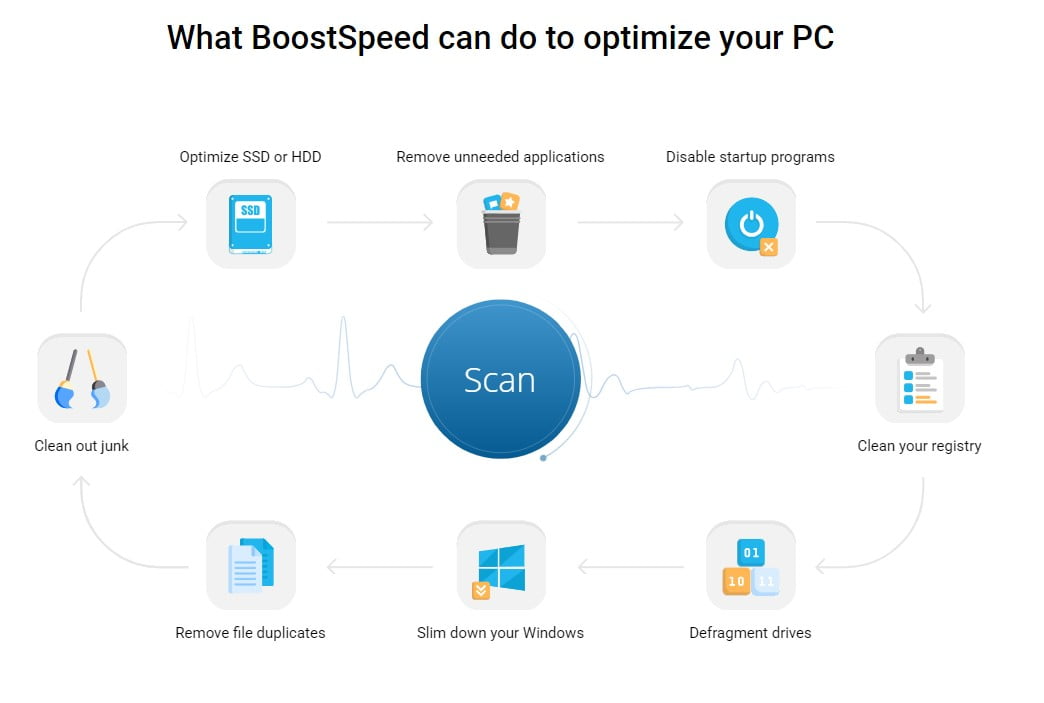
is a system optimization software developed by Auslogics that keeps your PC running like new, resolving typical PC problems like random crashes and error messages, speeding up boot times, accelerating applications, and minimizing hardware wear so you get the most lifespan and performance out of your computer.
Here’s how BoostSpeed 14 achieves that:
- Locates & eliminates junk: Safely removes temporary files, error logs, and browser caches without touching anything important.
- Fixes system faults: Repairs deep-rooted issues that can trigger freezes or blue screen errors.
- Optimizes resources: Frees up RAM, boosts CPU performance, defragments HDDs, and optimizes SSDs for smoother multitasking.
Auslogics BoostSpeed 14 isn’t demanding and works even with older setups. Here are the system requirements:
- OS: Windows 7, 8, 8.1, 10, and 11 (32-bit & 64-bit)
- RAM: 256 MB minimum (1 GB or more recommended)
- Disk space: 138 MB
- Screen resolution: 1000×675 px or higher
If you’re not sure if your system meets the requirements, here’s how to check your PC specs :
- Right-click Start and select System.
- Scroll to Device specifications to check your CPU, RAM, and system type.
To find your Windows version, scroll further to Windows specifications.
Getting Started with Auslogics BoostSpeed 14
Whether you like to keep things under control or let them slide, BoostSpeed 14 has got you covered. Here’s how to get started in a few easy steps:
- Download and install the app.
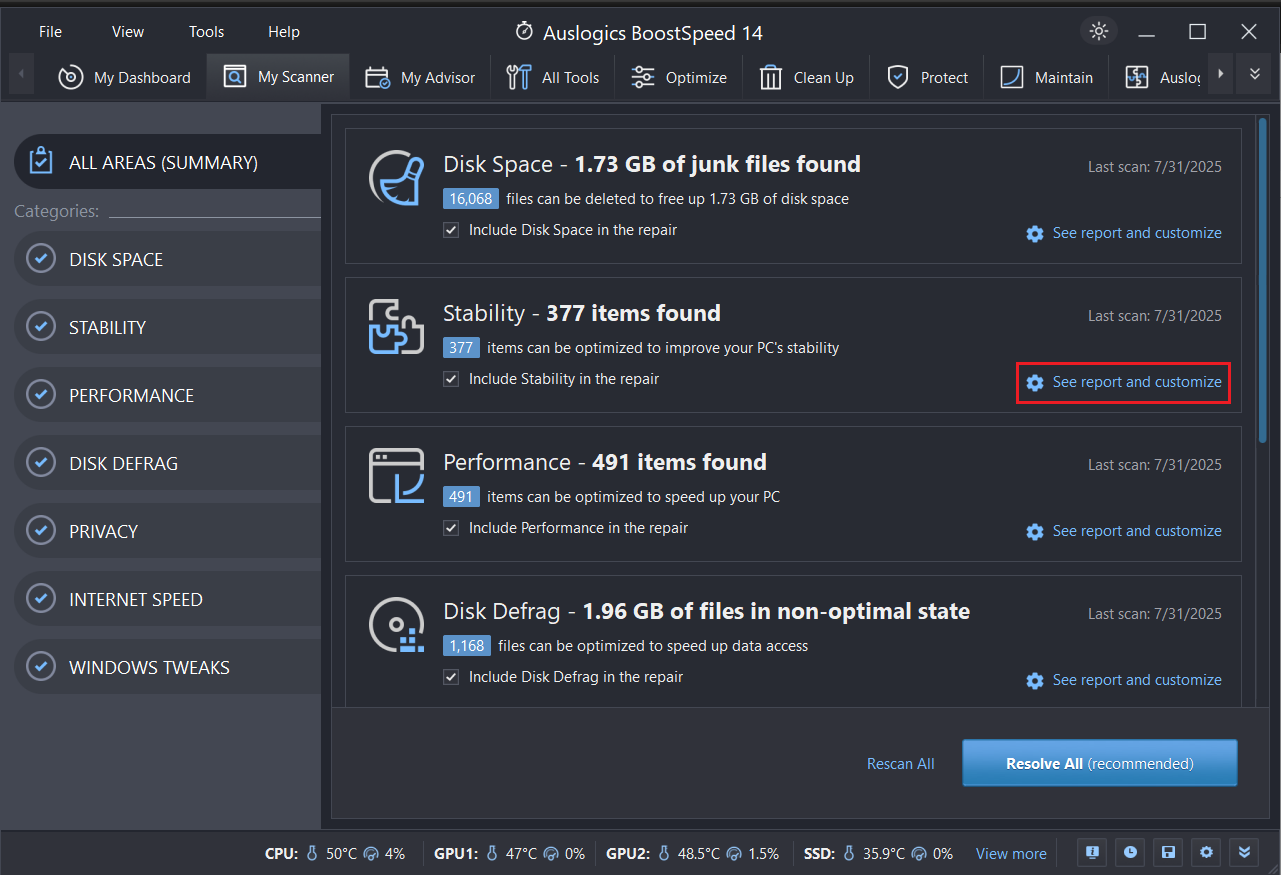
- Run BoostSpeed 14 and click the Scan button to start an automated check for junk files, issues, and available tweaks.
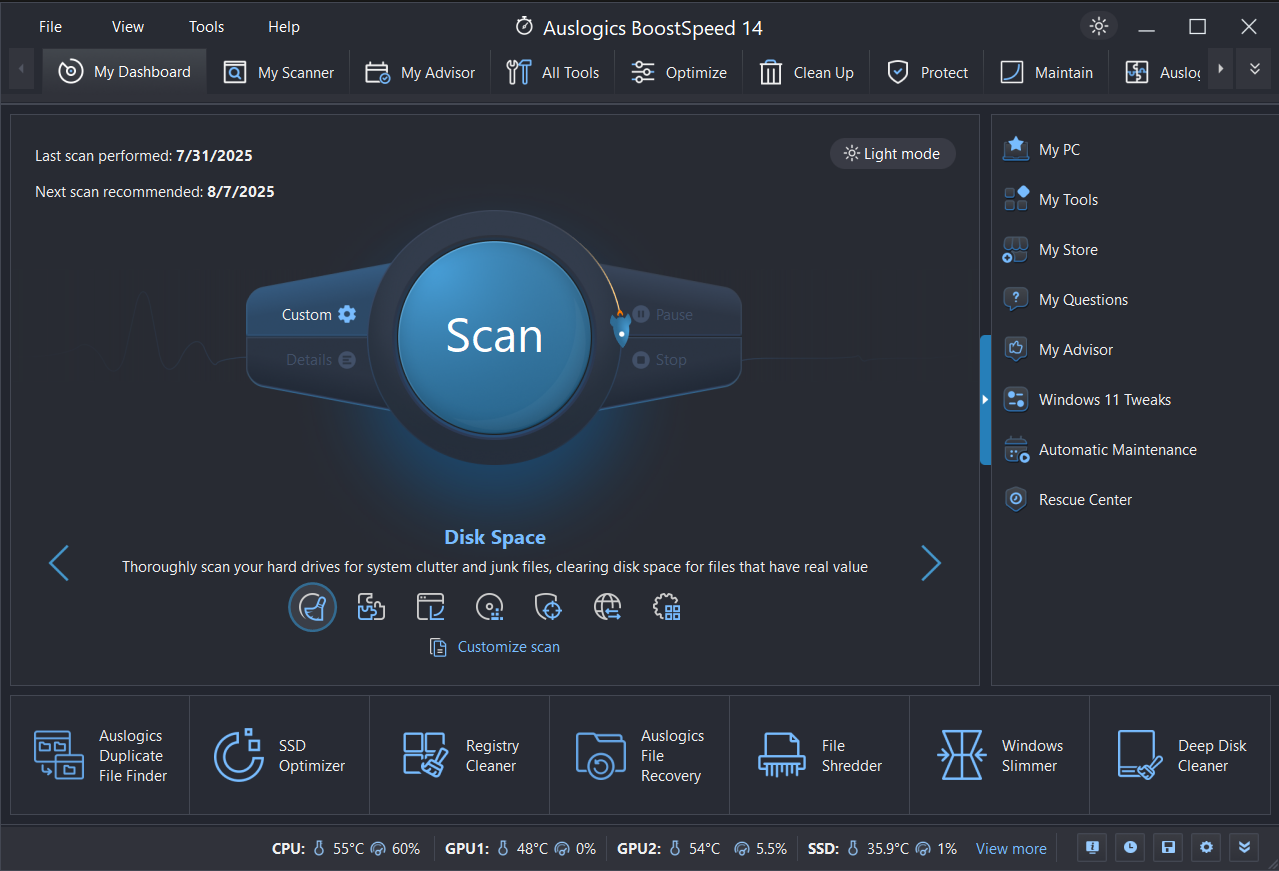
- Wait for the scan to finish and click Resolve All to apply all fixes and tweaks at once.
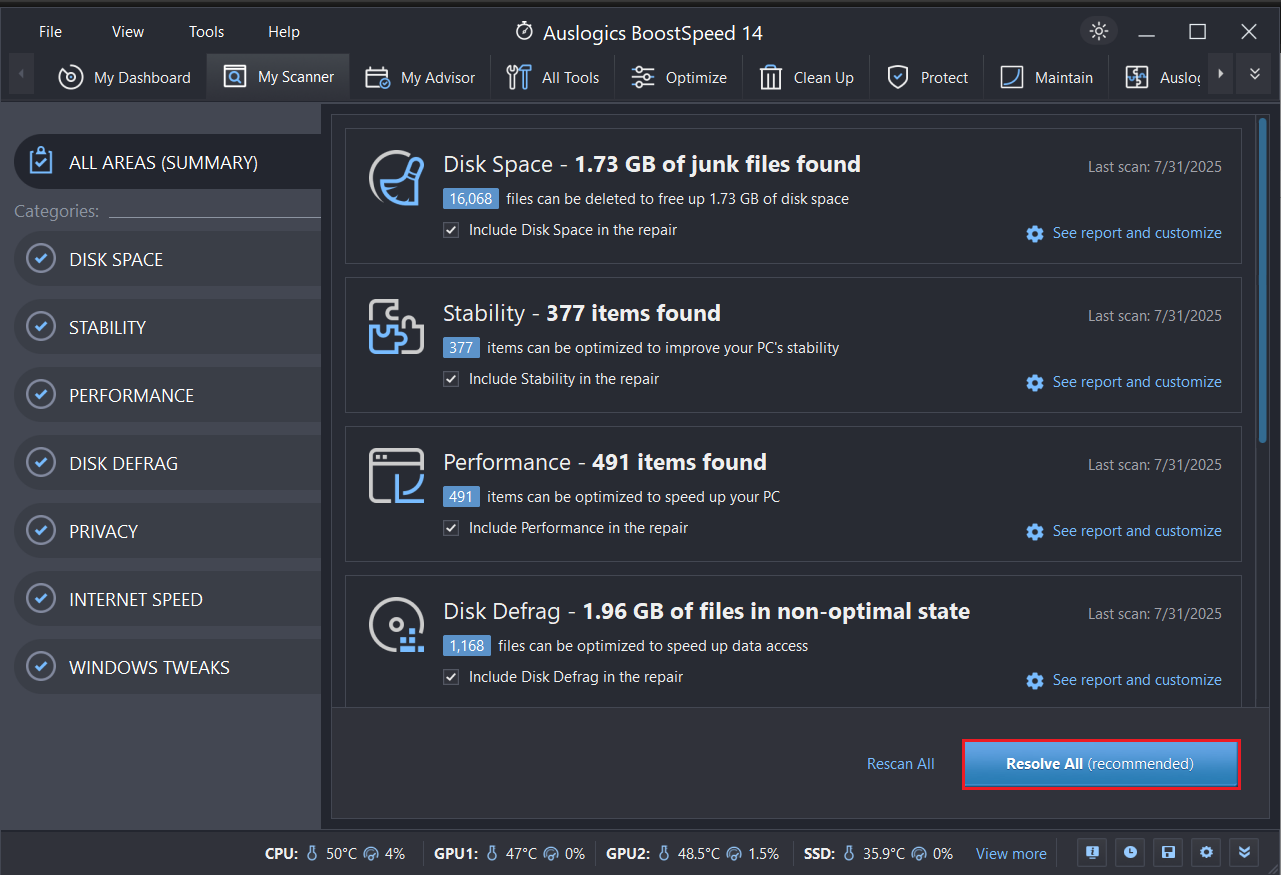
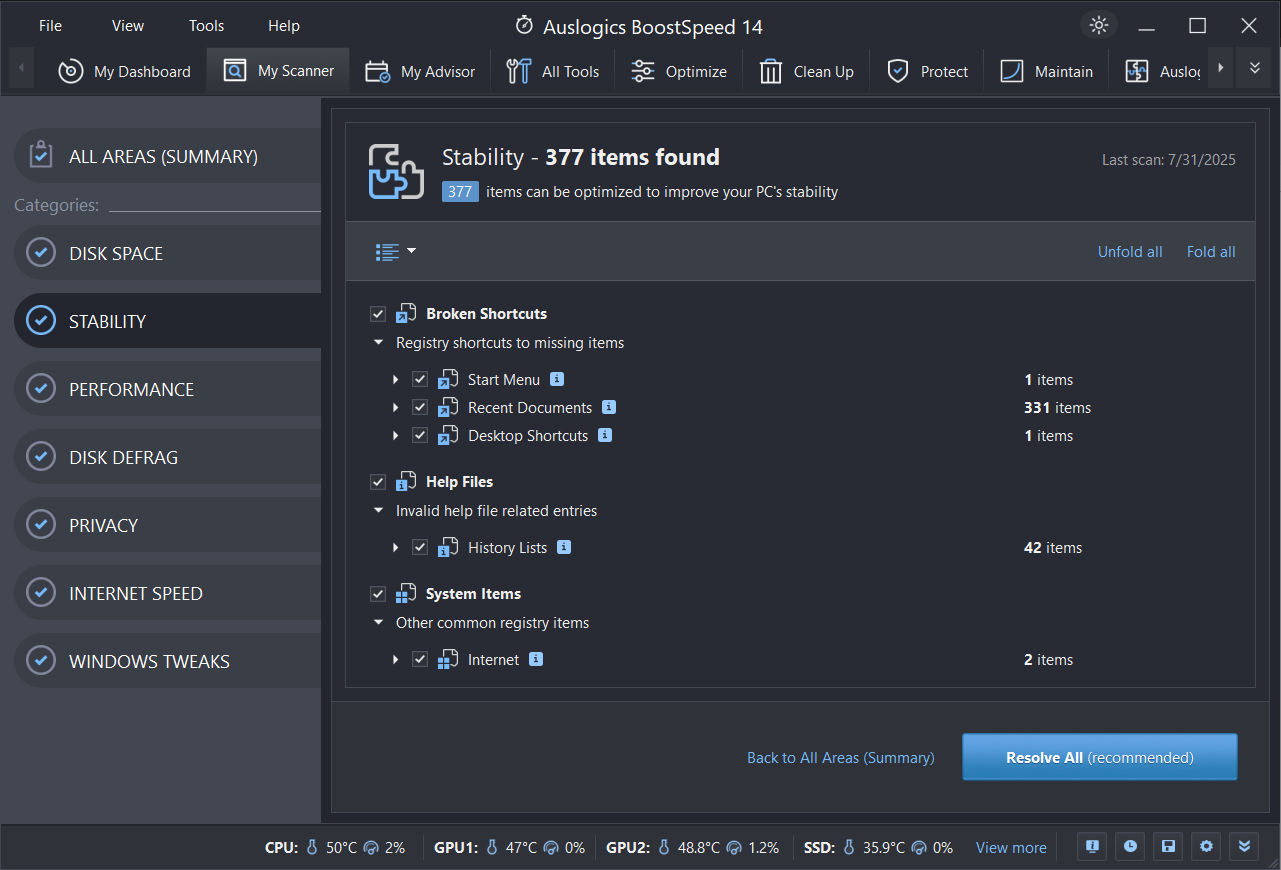
- You can also click See report and customize to manually select the fixes or tweaks you want to apply.
- Click Resolve All to fix all items in the chosen category or Resolve Selected to fix only selected items.
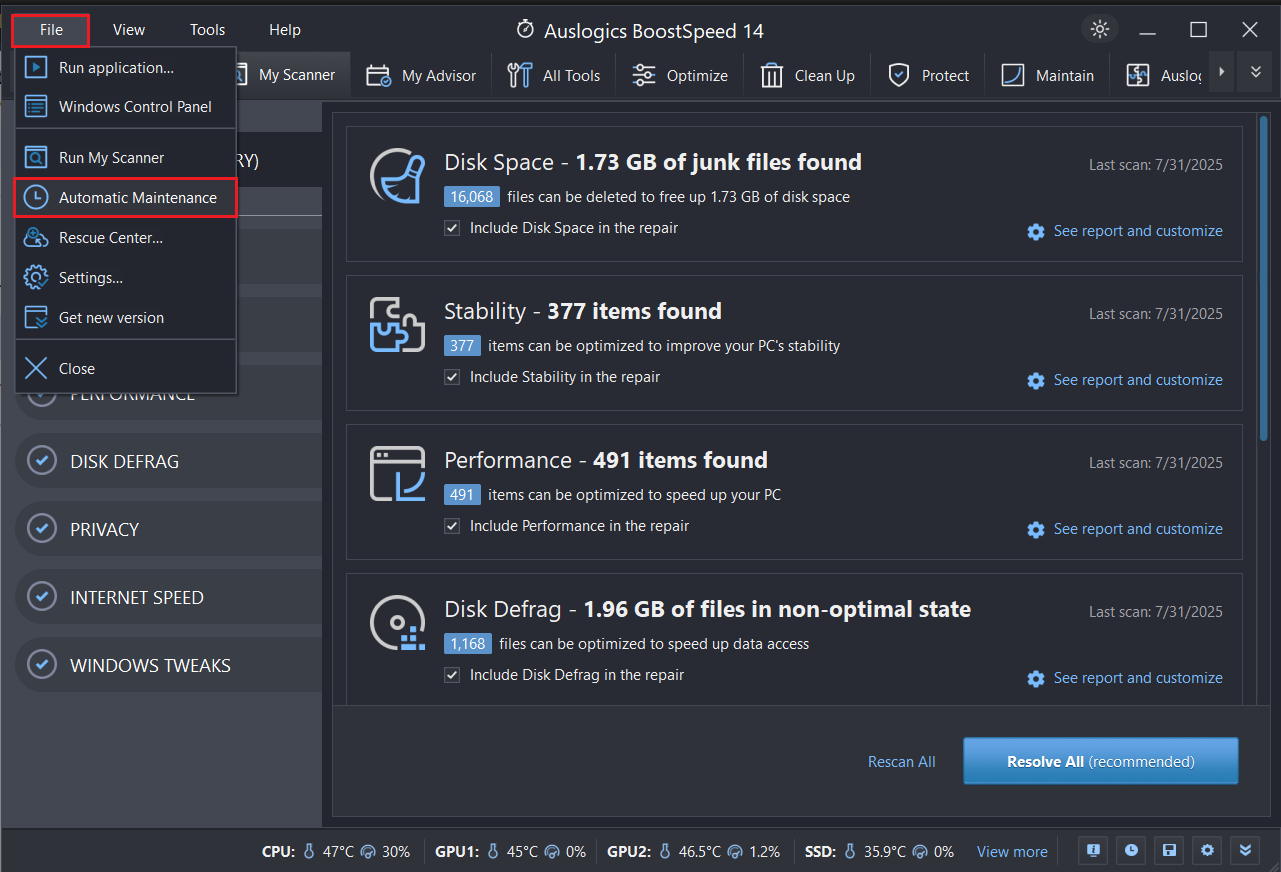
To fully automate the process, schedule maintenance to run in the background:
- Click File and select Automatic Maintenance.
- Select My Scanner under Scheduler in the left pane, check Enable automatic maintenance, choose the categories to scan and tweaks to apply, and click OK.
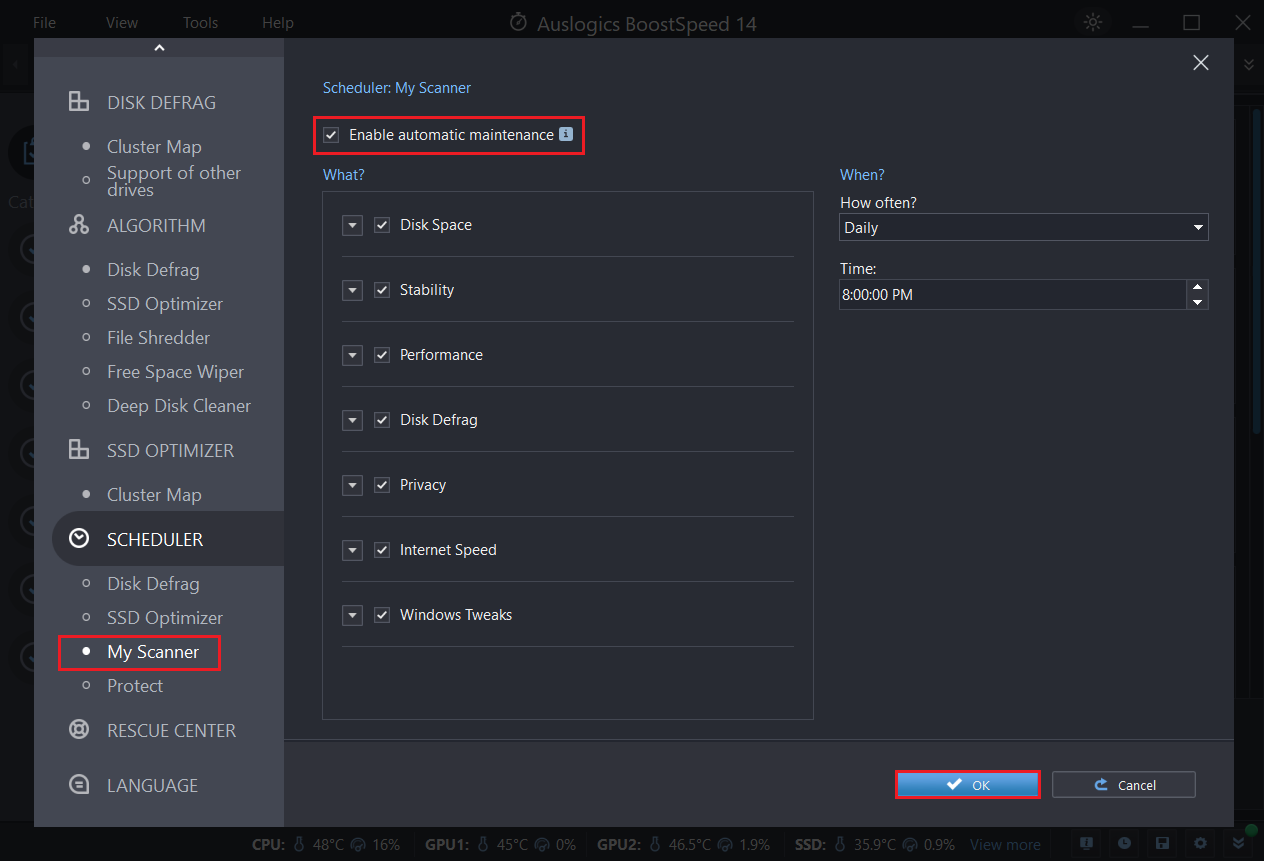
Setting up automatic maintenance lets you sit back and enjoy continuous optimization—no extra manipulations required. If you prefer more control, let’s dive deeper into BoostSpeed 14’s features so you can make the most of every tool.
What Are the Key Features of Auslogics BoostSpeed 14?
Whether you’re looking for how to clean junk on your PC or speed it up, BoostSpeed 14 is packed with useful tools that help improve stability, boost performance, and generally make your life easier by automating PC maintenance. I’ve split the key features by categories for easier navigation.
![IMG]() Performance boosters
Performance boosters

Thinking about how to speed up your computer ? These tools help squeeze more power out of your hardware:
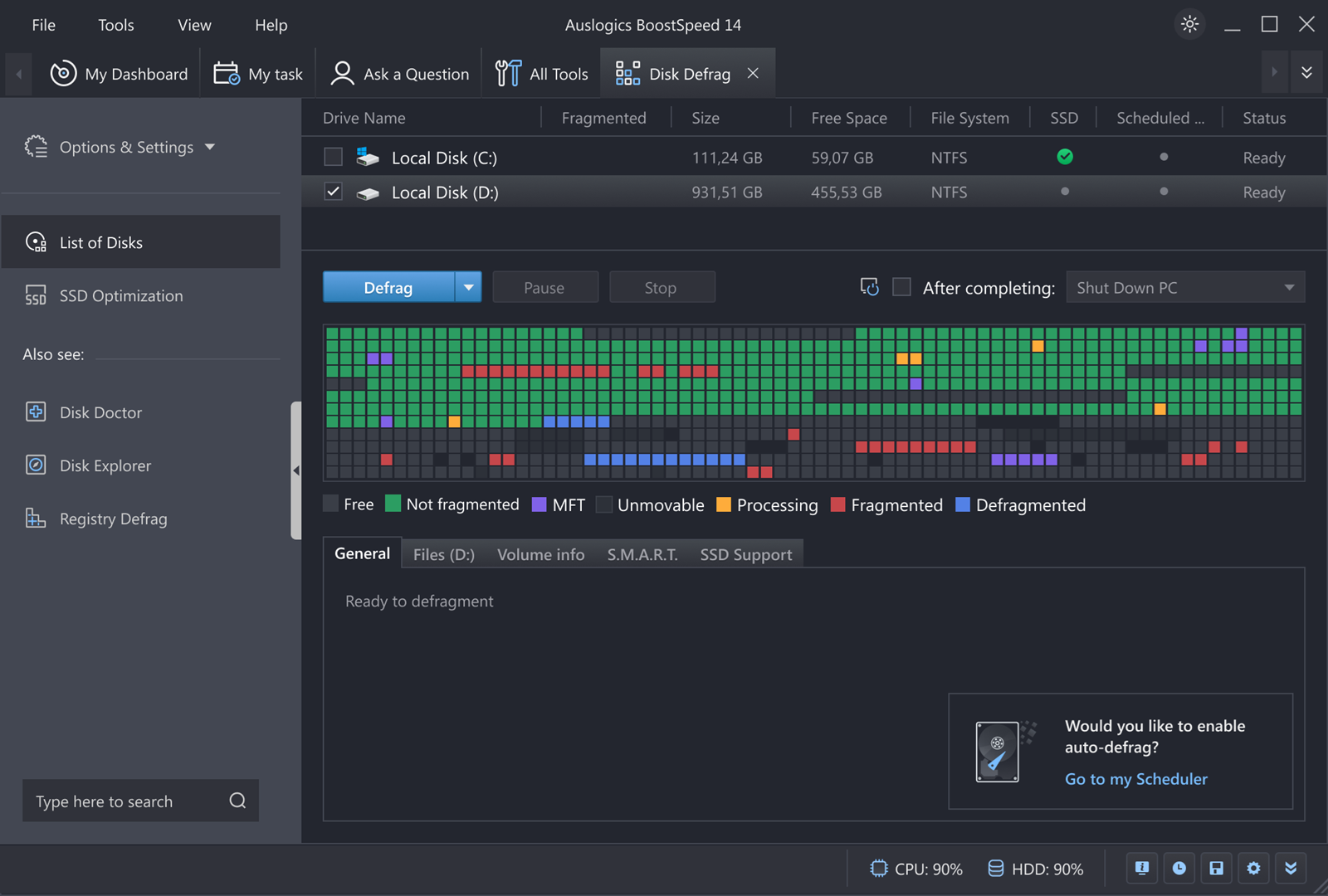
- Disk Defrag
BoostSpeed 14 is powered by the advanced technology from our award-winning defragmentation tool, which consolidates fragmented data on HDDs to speed up file reads and writes.
You can defrag entire volumes or target specific files or folders, on demand or via schedule, to keep load times low.
Defragmentation also reduces wear on external hard drives, extending their usable life.
- SSD Optimizer
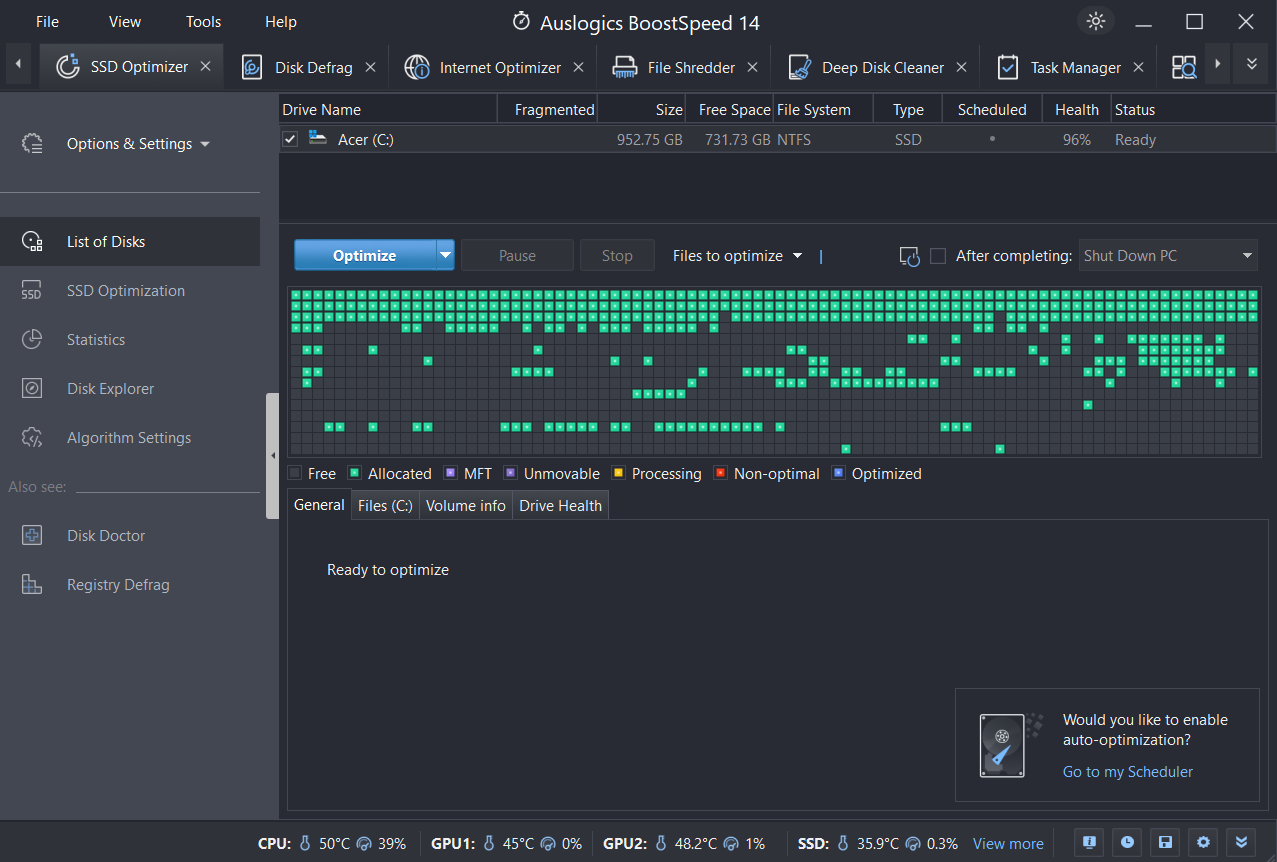
Sends TRIM commands and fine-tunes your SSD’s internal settings, preventing performance degradation over time. Since SSDs handle data differently than HDDs, this tool ensures your flash storage maintains peak throughput. Optimizing SSDs also reduces unnecessary write cycles, which helps prolong drive lifespan.
- Internet Optimizer
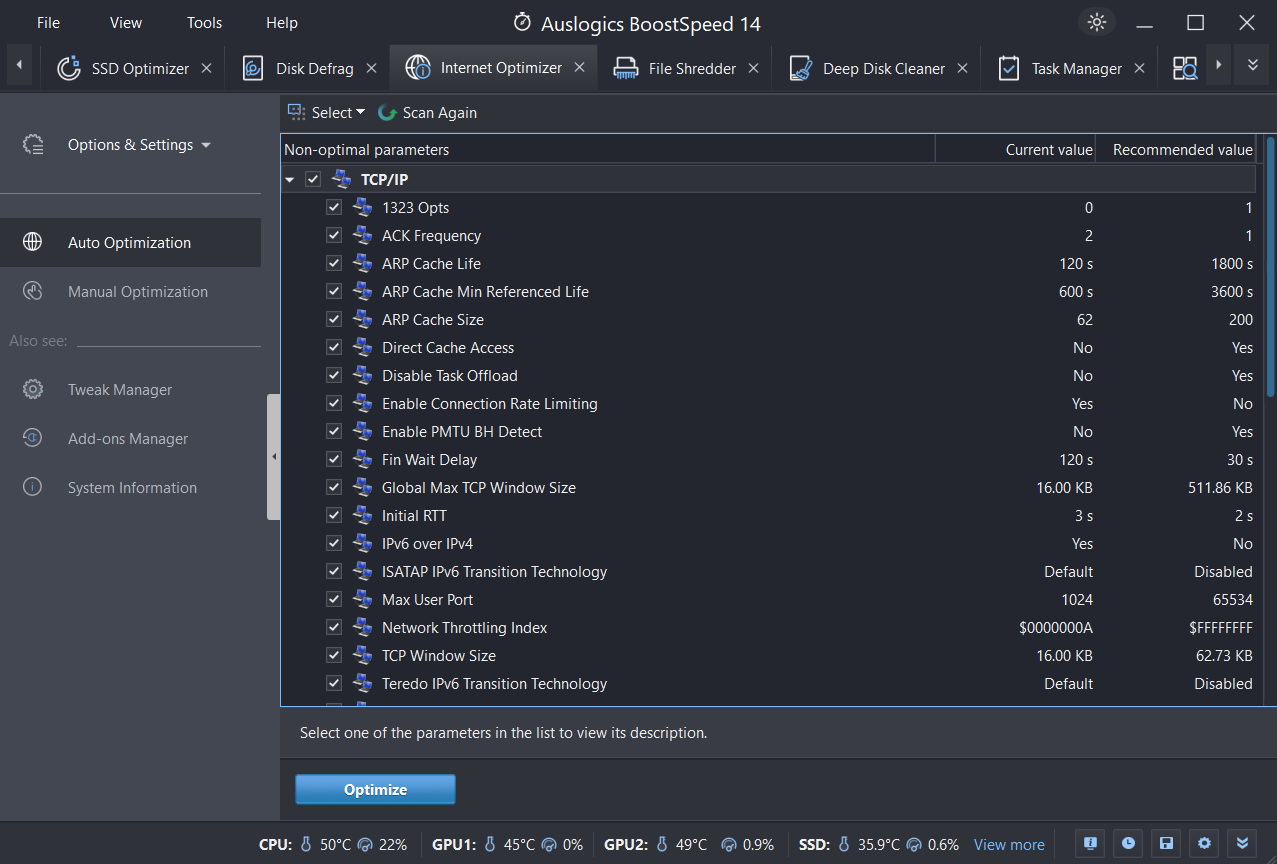
Tests and applies the best network parameters tailored to your hardware, boosting download speeds and reducing latency for smoother performance.
![IMG]() Optimization tools
Optimization tools

Your PC feels glitchy, making you wonder how to boost system responsiveness and reliability? These core utilities help you optimize resource usage so your PC stays stable and fast:
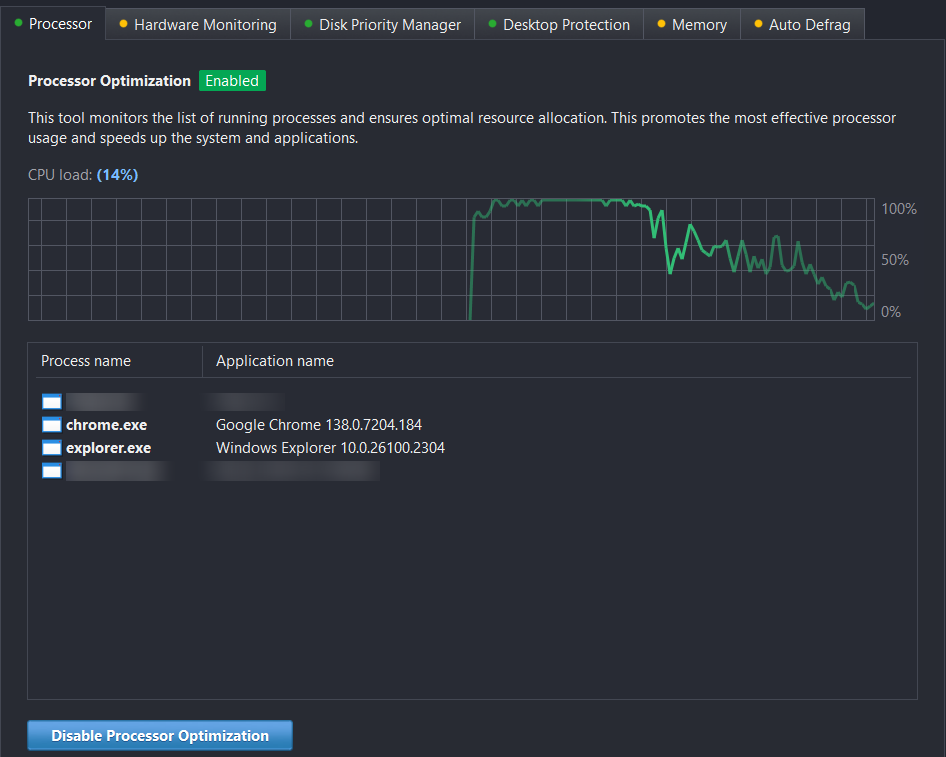
- Optimization toolkit
Smart tools that ensure optimal resource allocation and improve your CPU, RAM, and drive performance in real time to speed up your system and apps.
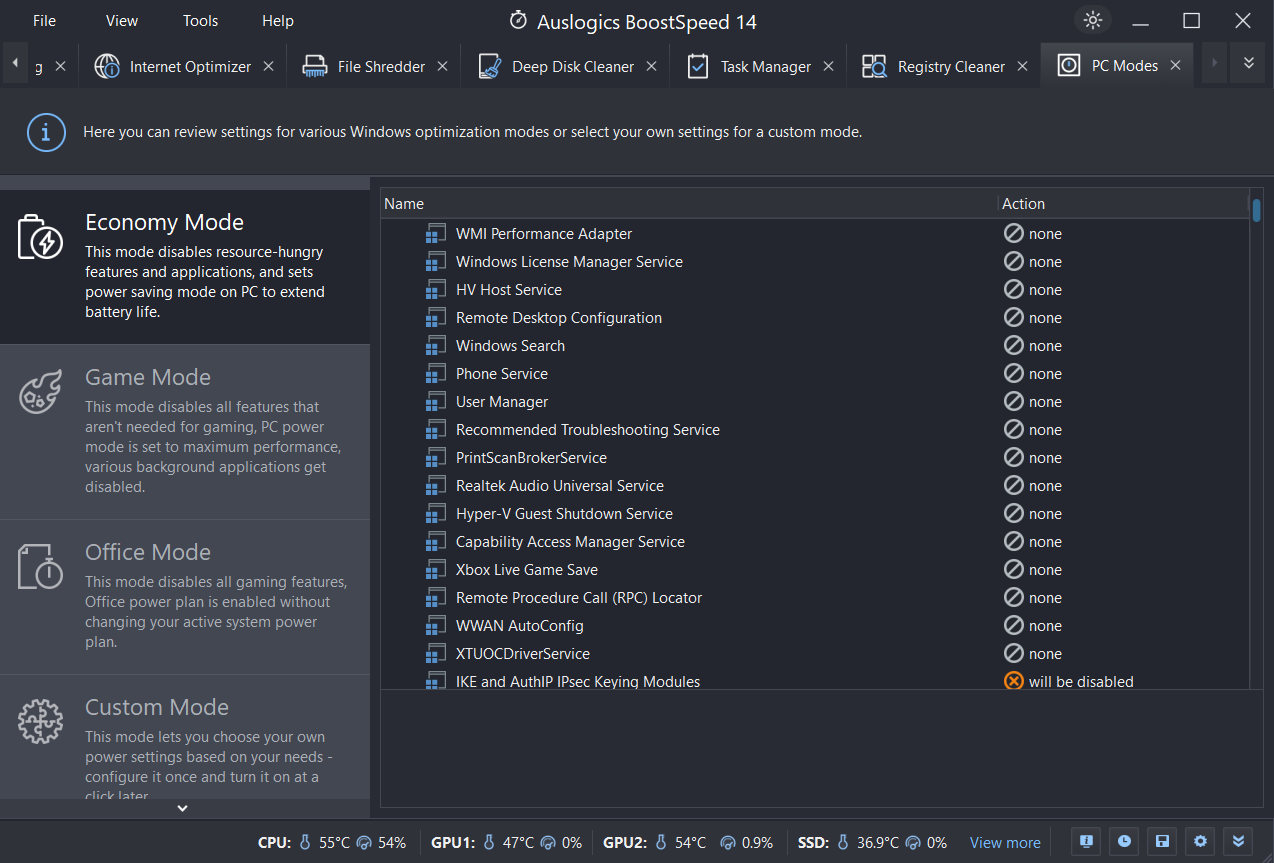
- PC Modes
Lets you switch between predefined Windows modes—like Economy, Game, or Office —for optimal performance based on your current task.
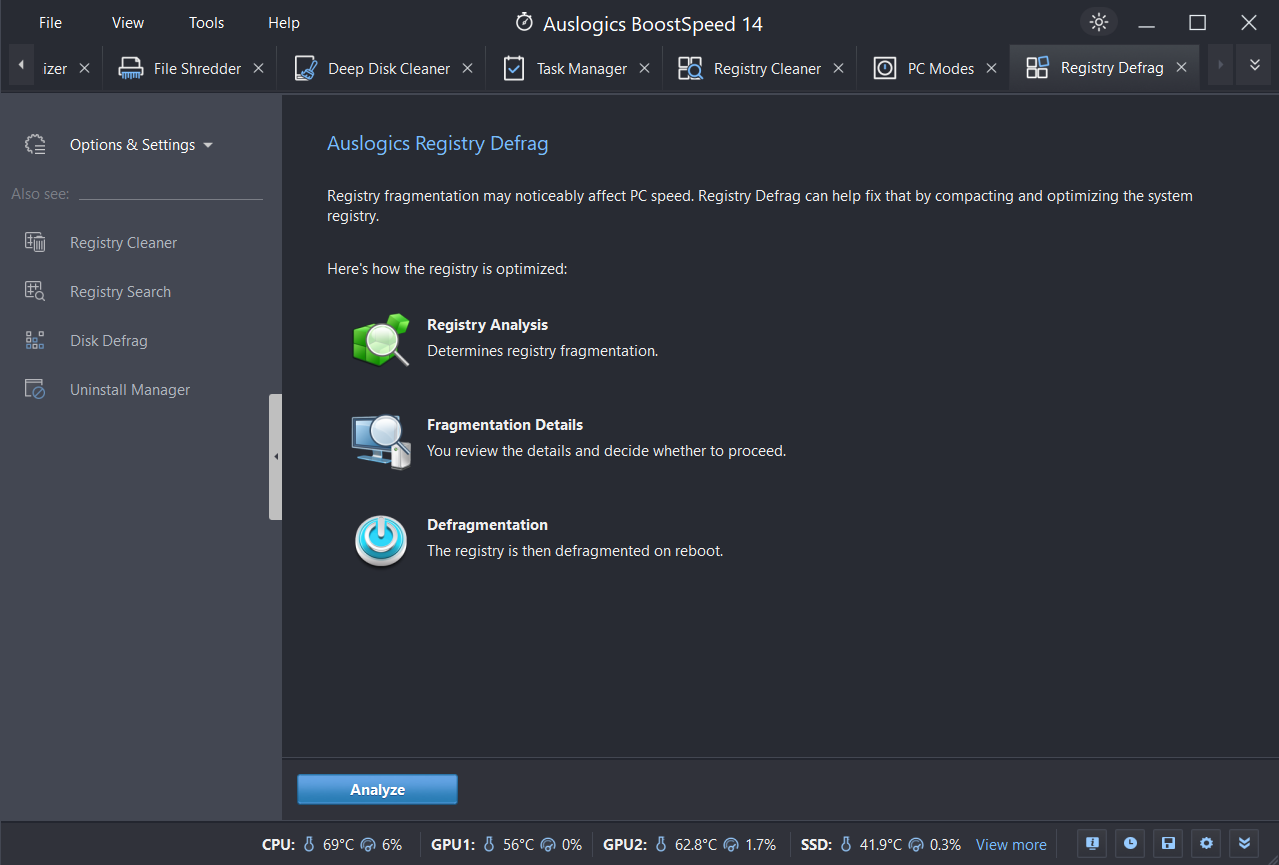
- Registry Defrag
Compacts and reorganizes your Windows registry hives to improve access speeds and reduce loading times. By consolidating scattered entries, it helps Windows fetch settings more efficiently and minimizes fragmentation overhead.
![IMG]() Advanced cleaning tools
Advanced cleaning tools

Always low on space, wondering how to get more storage on your PC? Use these utilities to find hidden leftovers and redundant data that may slip past everyday maintenance:
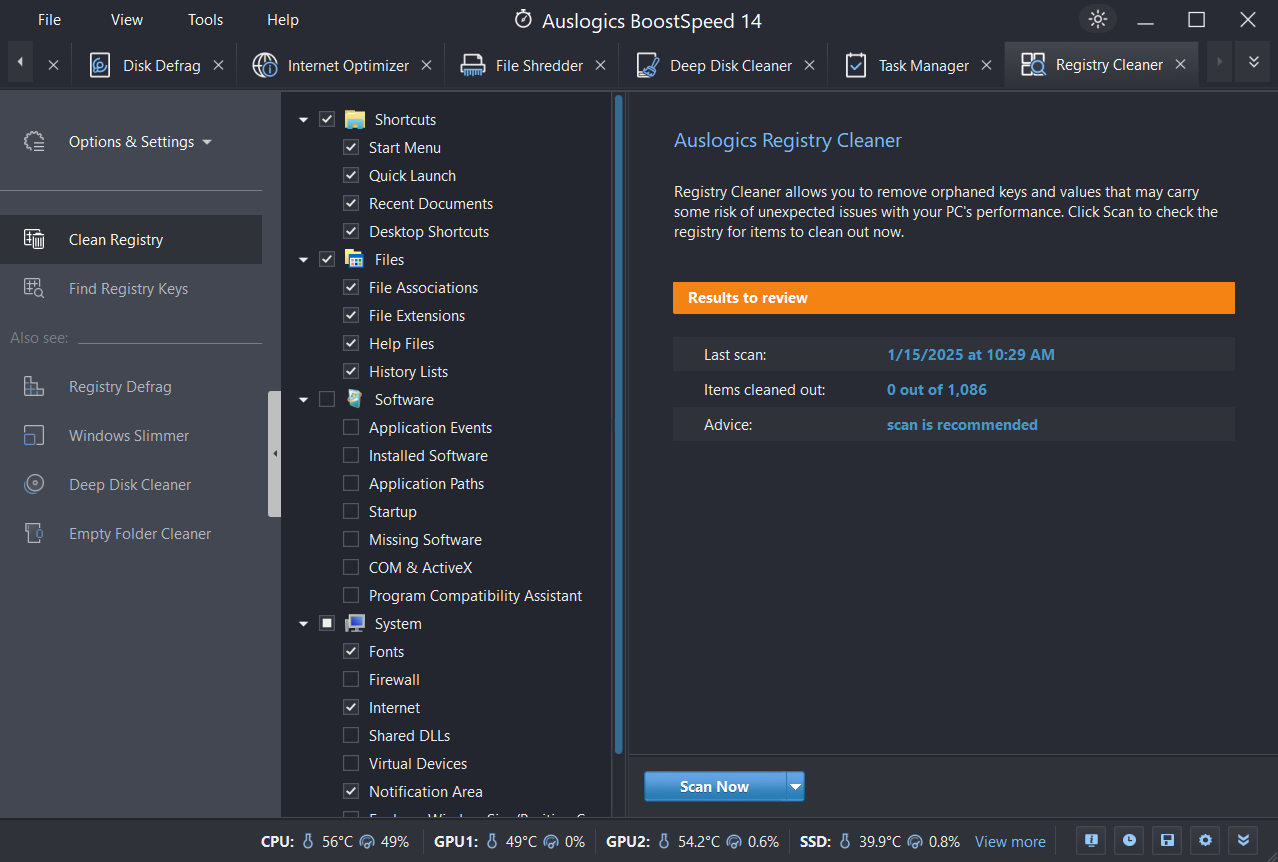
- Registry Cleaner
Scans your Windows registry for invalid, missing, or obsolete entries and safely repairs them to prevent crashes and error messages. Every fix is backed up automatically, so you can roll back if needed.
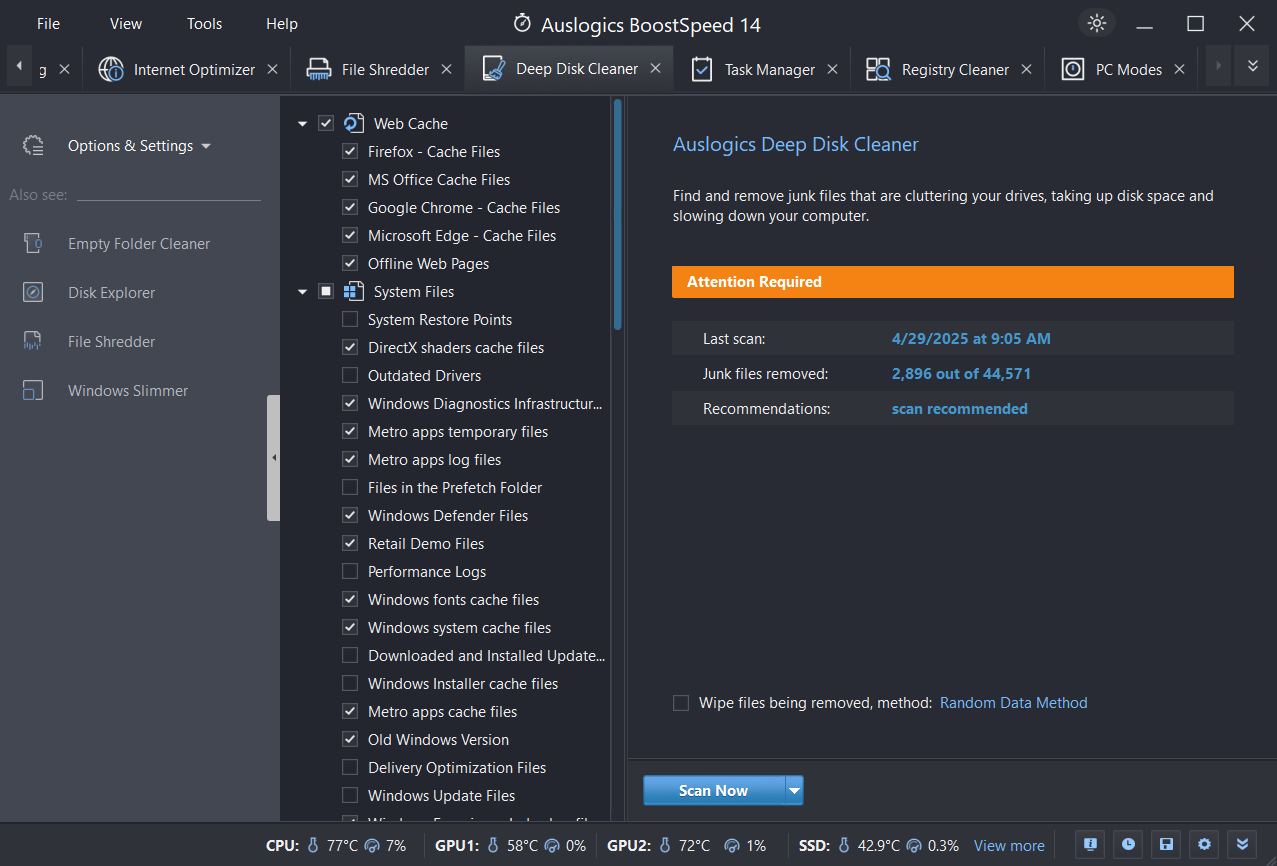
- Deep Disk Cleaner
Looking for how to delete temporary files and other deep-rooted leftovers? Deep Disk Cleaner scans the most obscure folders and temporary locations for caches, logs, and other residuals. Its smart filters distinguish between safe-to-remove junk and important files, giving you full control over what’s deleted.
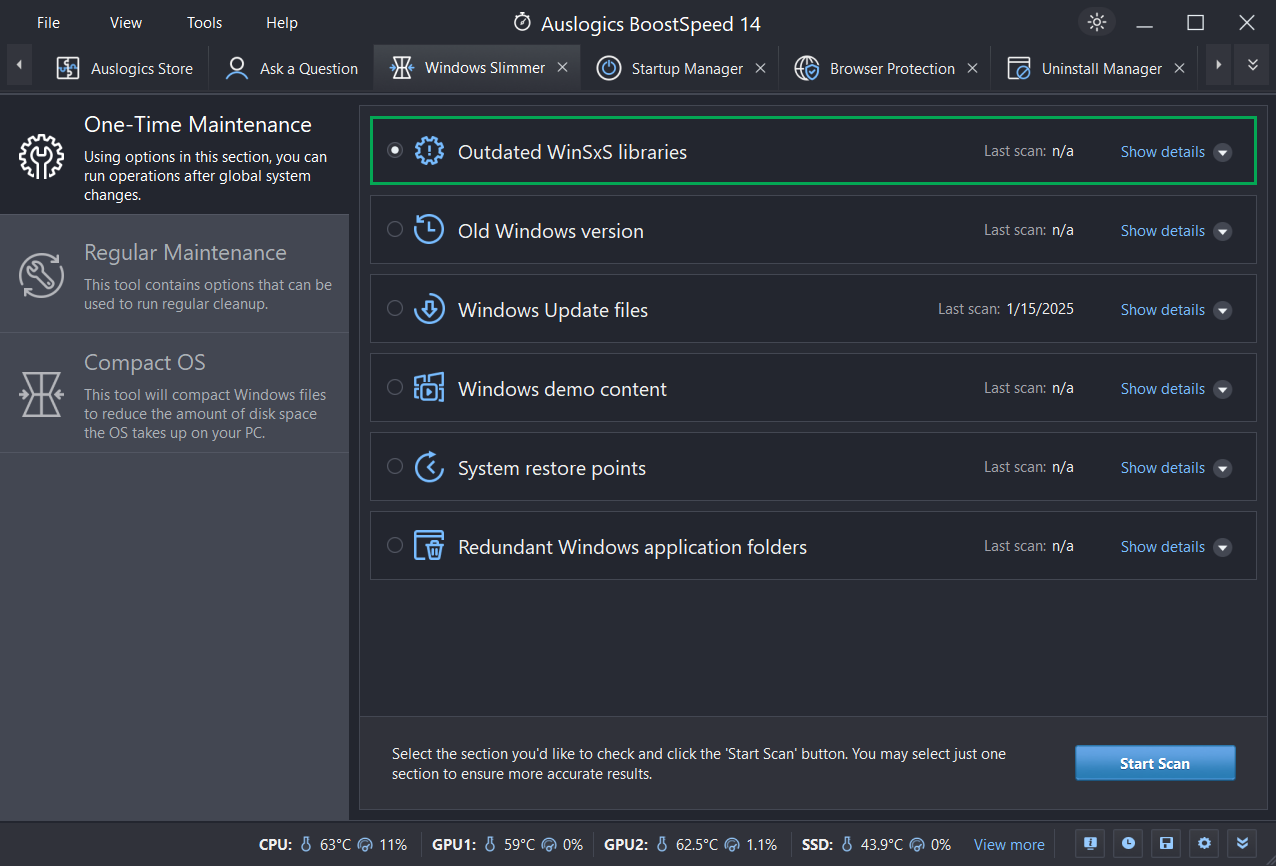
- Windows Slimmer
Analyzes built-in Windows components—old libraries, unnecessary update files, redundant folders—and lets you remove what you don’t need. Slimming down your OS can free up tons of space on your C drive, with clear recommendations on what’s safe to delete.
![IMG]() Privacy & security tools
Privacy & security tools

Concerned about data safety? Protect your personal info and digital footprint with features that securely erase data, block tracking, and shred files beyond recovery:
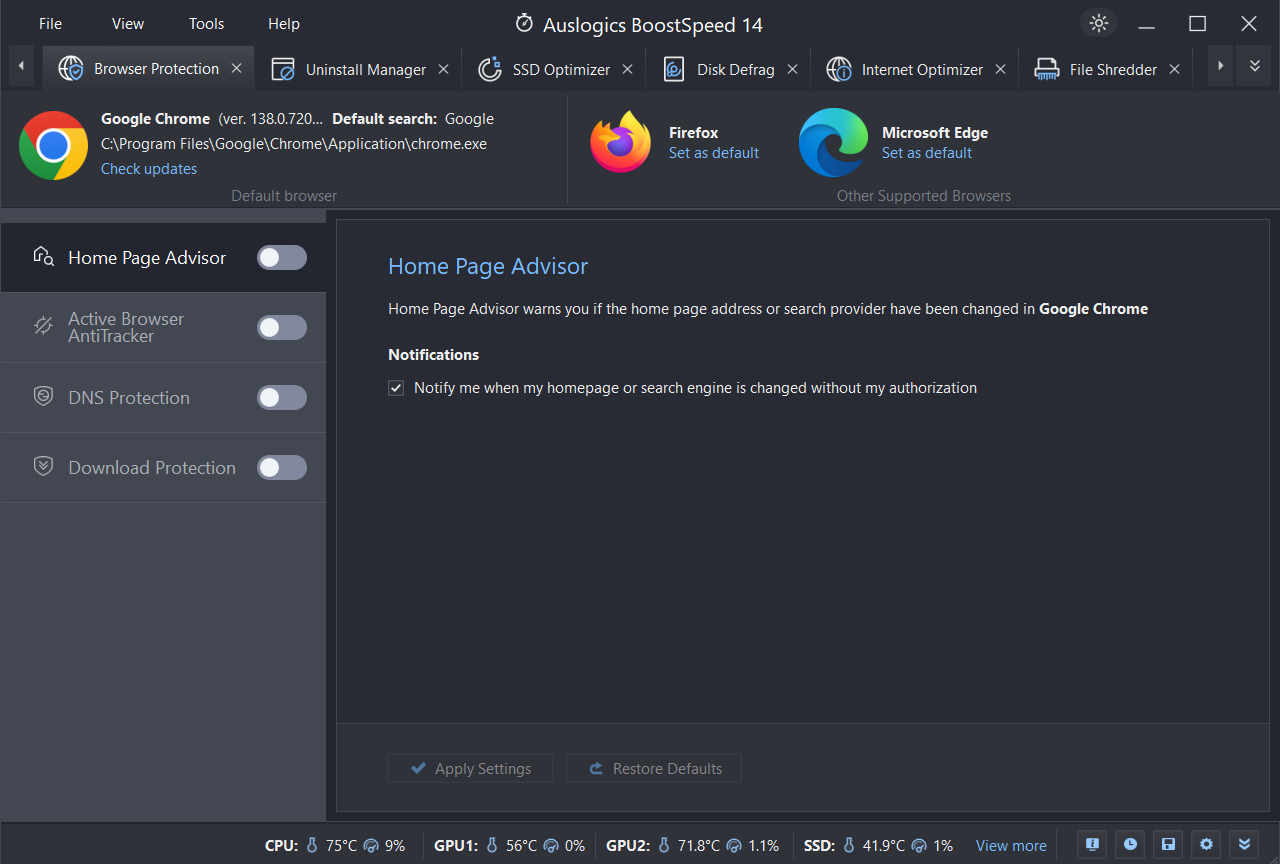
- Browser Protection
Automatically clears browsing data, prevents unauthorized changes to DNS settings, scans downloads for threats, and more.
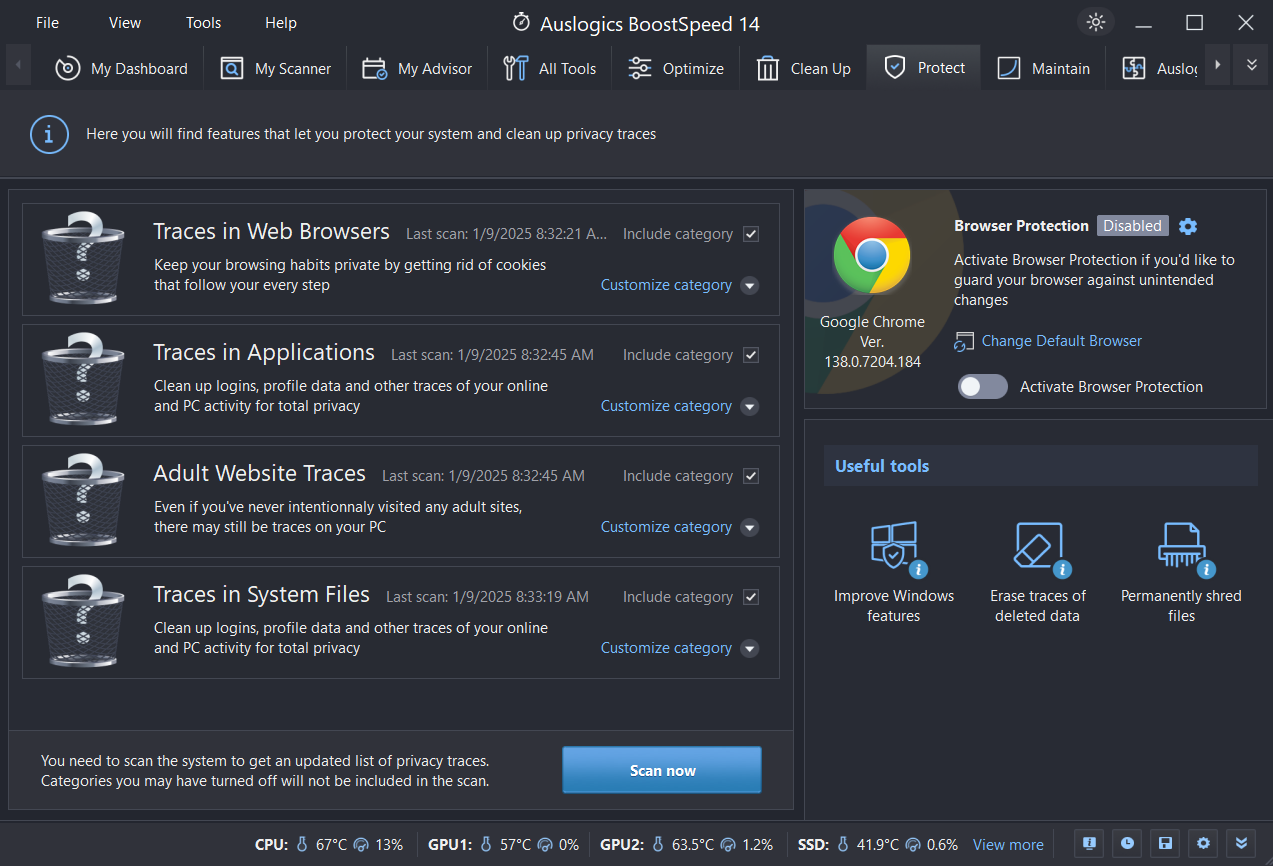
- Privacy traces removal
Wipes histories and traces across browsers, most-used applications, and Windows itself—everything from cookies to login and profile data.
You can select exactly which categories to erase for full control.
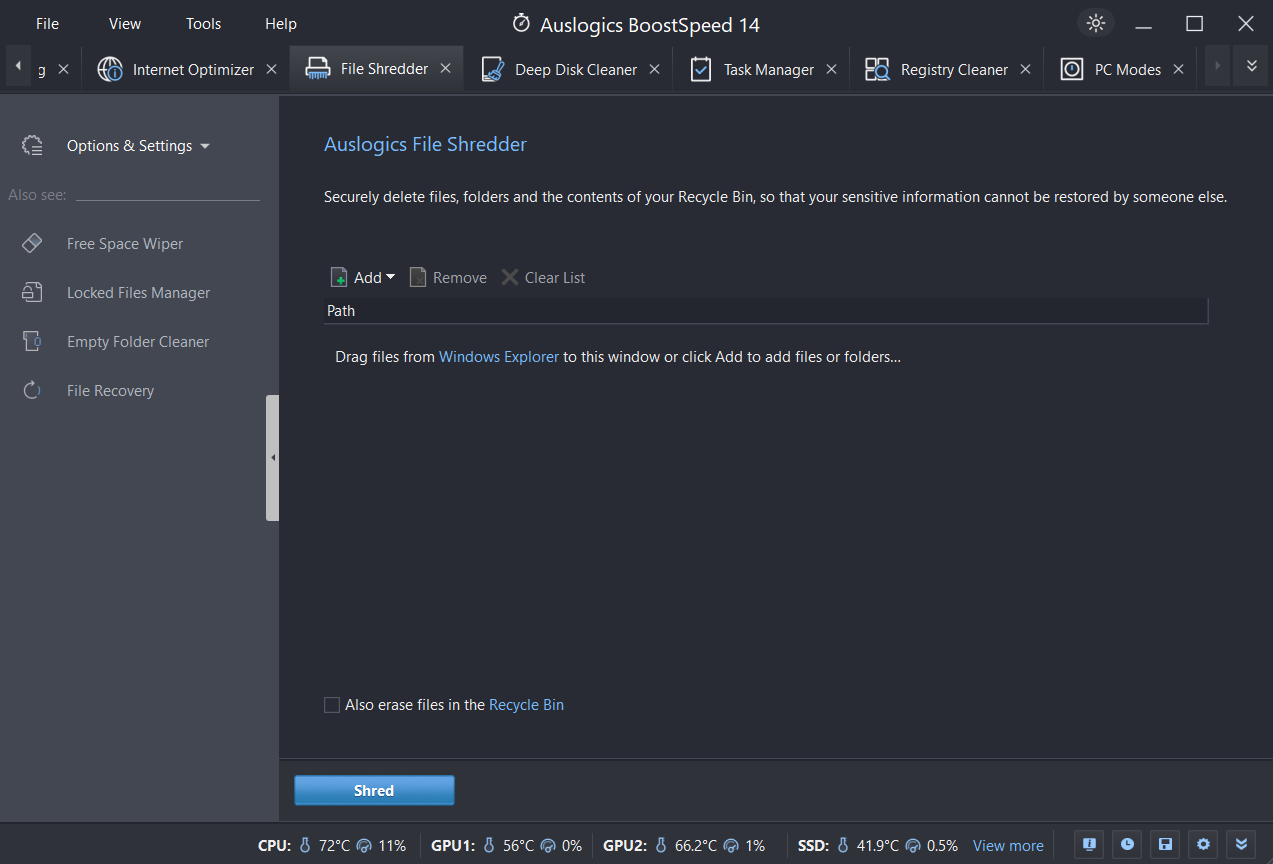
- File Shredder
Deletes files beyond recovery, ideal for disposing of sensitive documents. Unlike standard deletes, shredded files leave no digital breadcrumbs.
![IMG]() Extra tools
Extra tools

Want more? These handy utilities give you precise control over startup, uninstalls, and scheduling:
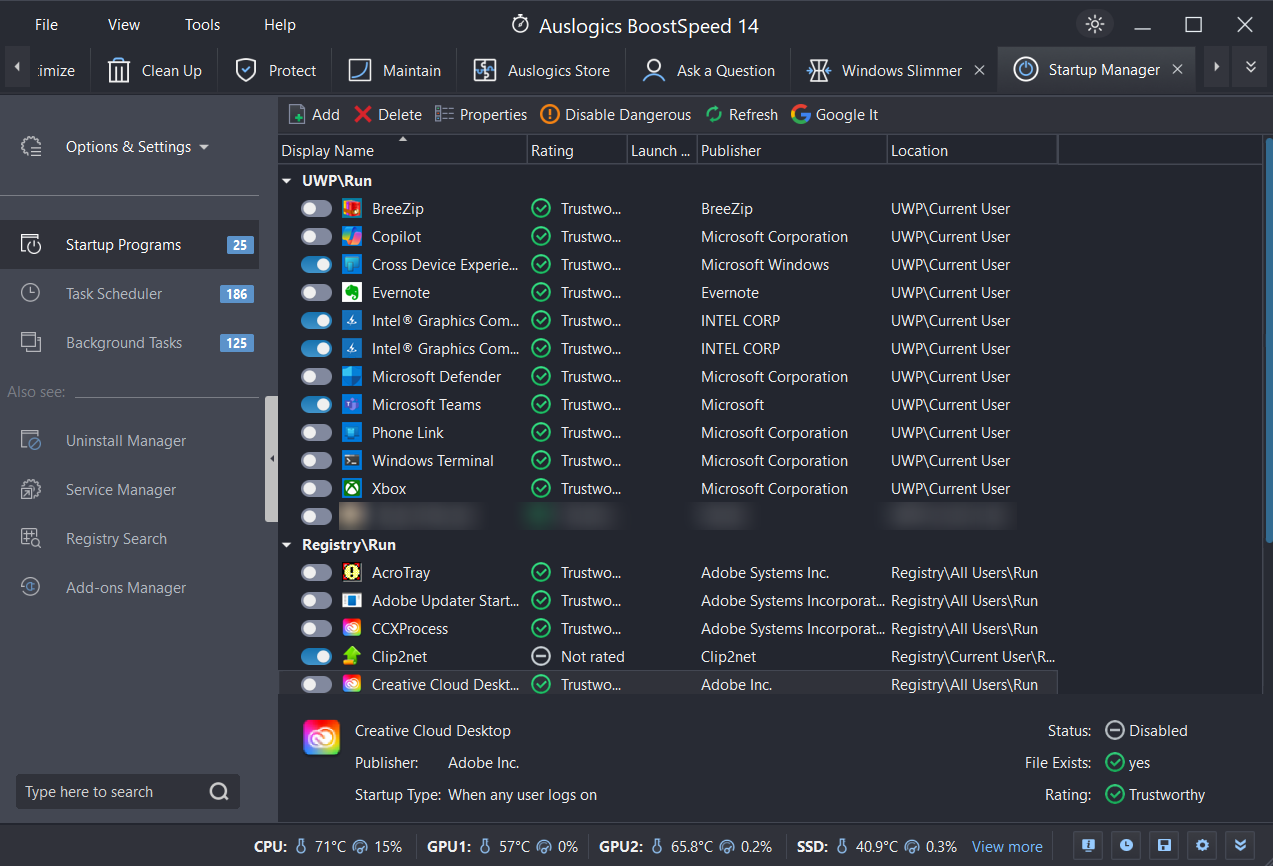
- Startup Manager
Forget about crawling through Windows settings—this tool is the ultimate answer to how to stop apps from opening on startup. It allows you to disable every program, service, and scheduled task that runs at boot to speed up startup.
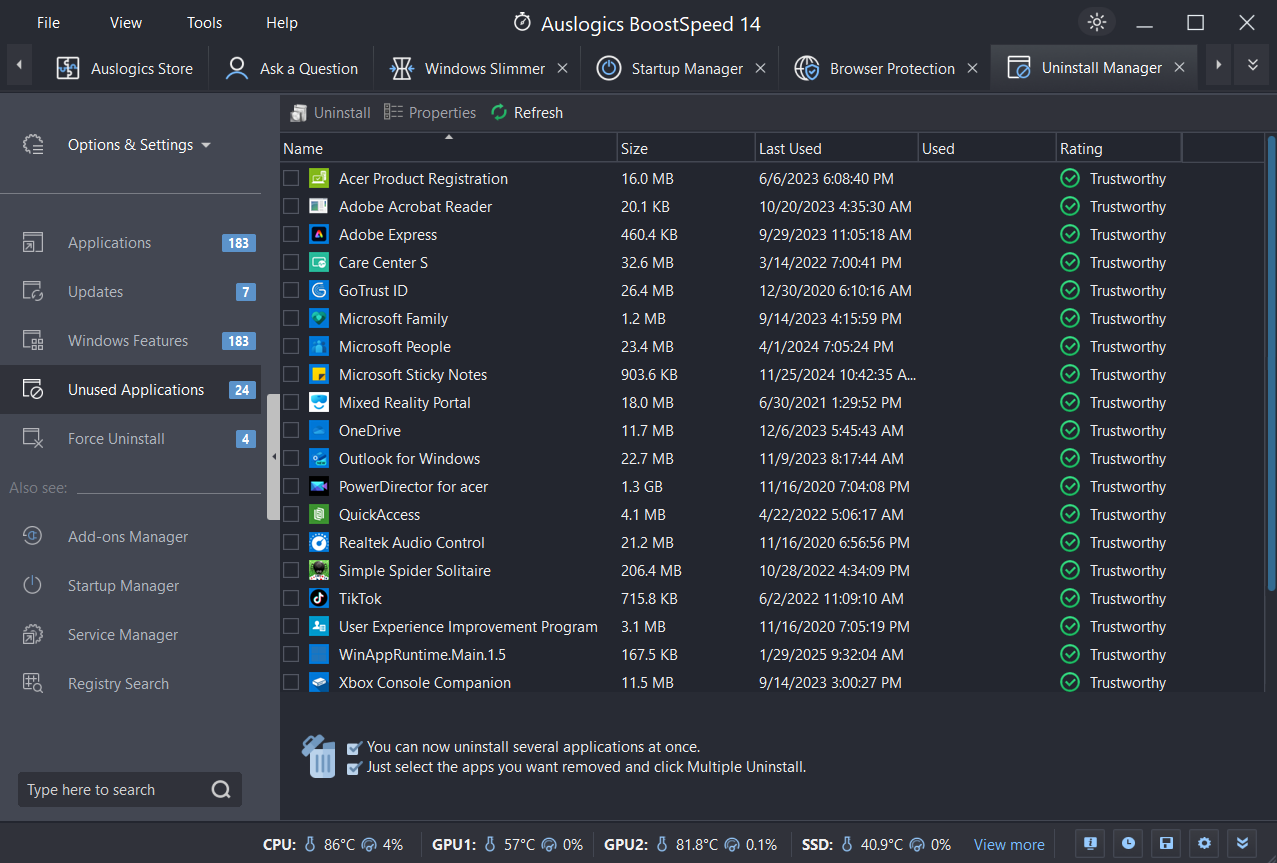
- Uninstall Manager
If you think you know how to uninstall programs on Windows 10/11 efficiently—think twice. This tool fully replaces Windows’ basic uninstaller with a thorough wizard that removes leftover files, folders, and registry entries after each application removal.
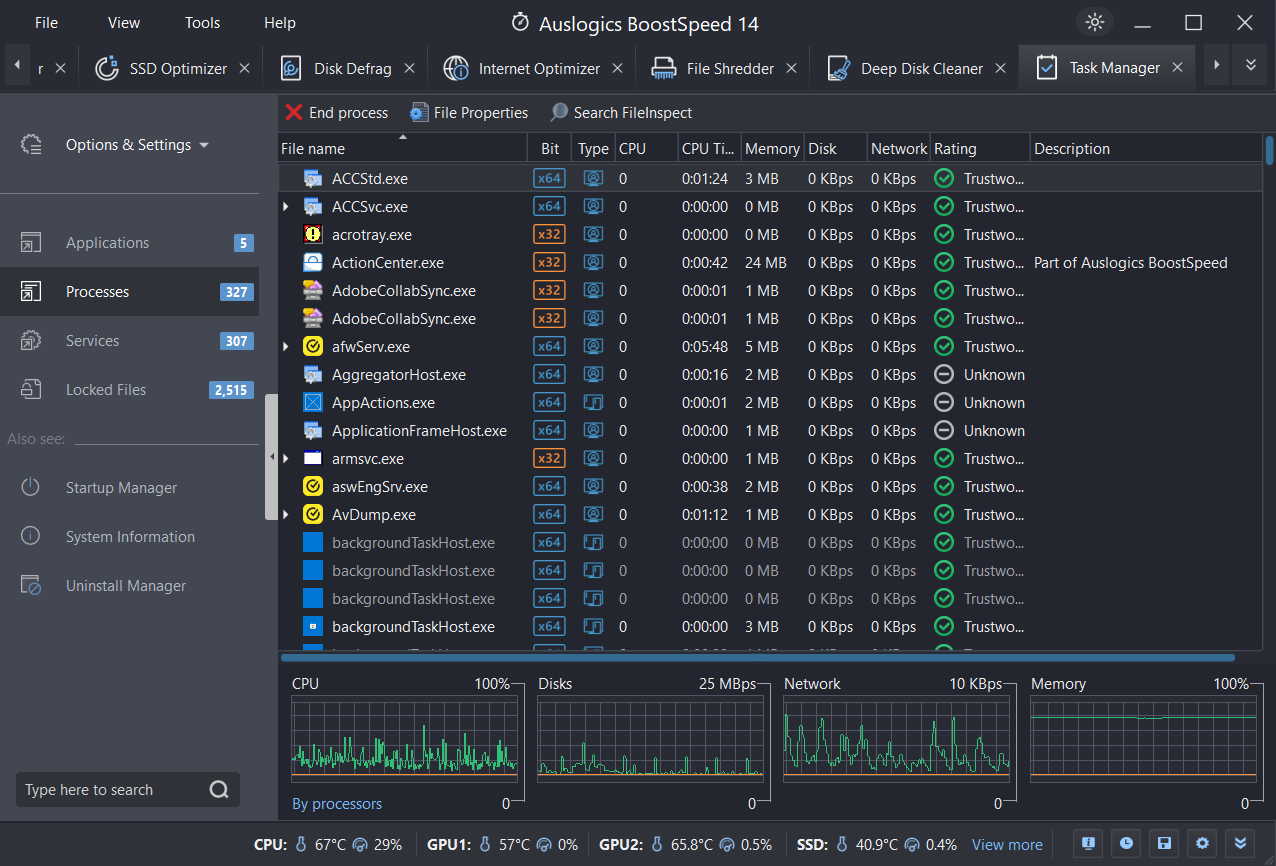
- Task Manager
Looking for how to stop apps from running in the background? You can use the built-in Windows namesake—but BoostSpeed’s Task Manager goes further and grants you full access to programs, processes, and services, even the locked ones, and allows you to check what each is responsible for, so you don’t disable something important.
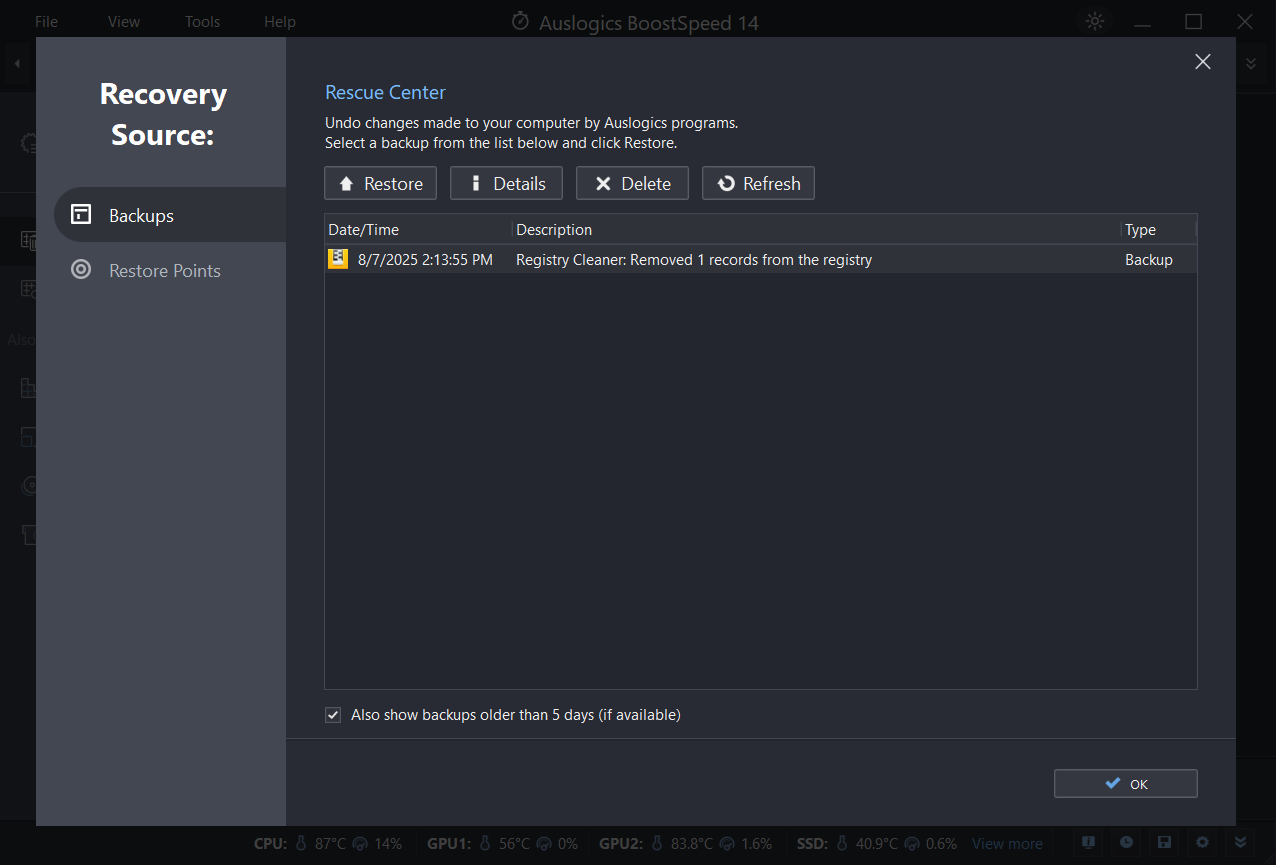
- Rescue Center
If you’re worried something might go sideways—don’t. BoostSpeed creates backups after all major changes, from registry modifications to Internet Optimizer tweaks, so you can restore them later from the Rescue Center. You can select tools to create backups prior to making changes and how long to store them in BoostSpeed settings.
- Ask a Question
Need professional help with Windows, software, devices, or Auslogics products? This forum connects you directly with Auslogics experts—you can ask your own questions or browse answers to those already asked.
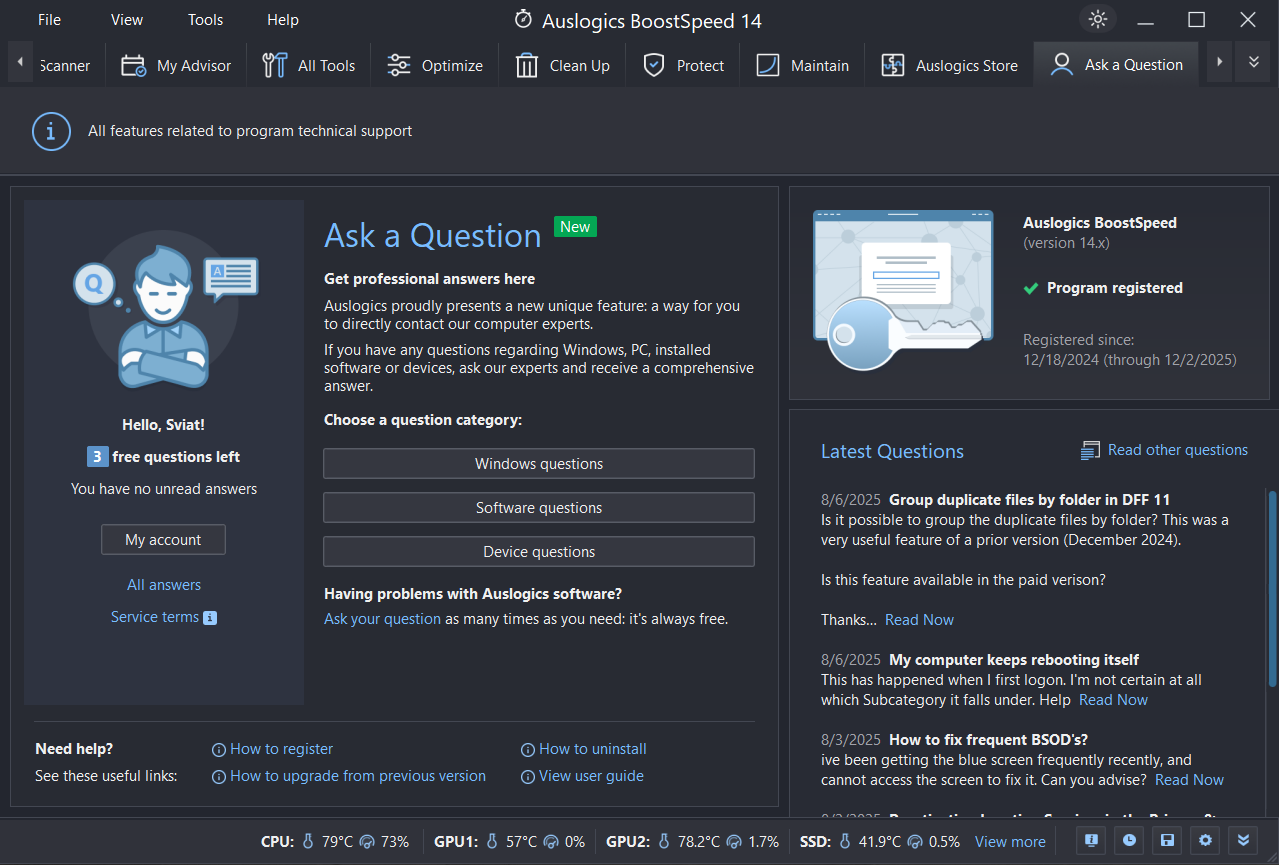
As you can see, Auslogics BoostSpeed 14 is a well-rounded suite—no matter if you search for how to clean up your computer or make it boot faster—and it still has more to offer. Let’s take a look at how it stacks up against the competition next.
Why BoostSpeed Is the Best PC Optimizer and Cleaner in 2025
Auslogics BoostSpeed 14 outshines competitors with its all-in-one toolkit, advanced tools, real-time insights, and reliable support. Below is a quick side-by-side comparison with two other popular PC cleaners /optimizers— CCleaner and IObit Advanced SystemCare:
| Feature/tool | Auslogics BoostSpeed 14 | CCleaner 6 | IObit Advanced SystemCare 18 |
|---|---|---|---|
| Disk cleanup | ✅ | ✅ | ✅ |
| Registry cleaning | ✅ | ✅ | ✅ |
| One-click maintenance | ✅ | ✅ | ✅ |
| HDD defragmentation | ✅ | ❌ | ❌ |
| SSD optimization | ✅ | ❌ | ❌ |
| Real-time performance monitoring | ✅ | ❌ | ❌ |
| Automatic background maintenance | ✅ | ❌ | ✅ |
| Internet optimization | ✅ | ❌ | ✅ |
| Pro version price (3 PCs) | $69.95/year (U.S. price, varies by region) | $64.95/year | $59.98/year |
BoostSpeed 14 clearly stands out, offering industry-leading maintenance tools. But here’s what truly sets it apart:
- HDD defragmentation & SSD optimization: Dedicated tools for both hard and solid-state drives that speed up performance and extend drive lifespan.
- Real-time performance monitoring: Track overall or per-app/service CPU, RAM, disk, and network usage.
- Automated background maintenance: Schedule it once, and BoostSpeed keeps your PC optimized 24/7.
- Ask a Question forum: Get personalized advice from Auslogics technicians or browse their answers to other users’ questions.
- All-in-one value: 20+ tools under one roof—no hidden modules or add-ons.
Add to that 17+ years on the market, praise from industry experts, and high user ratings, and you’ve got the full picture of why people call Auslogics BoostSpeed 14 the best PC optimizer.
How Much Does Auslogics BoostSpeed Cost?
BoostSpeed offers both a free and a Pro version. The free version includes core optimization and cleanup tools, so you can start optimizing today at no cost and then upgrade whenever you’re ready for advanced features. Here’s the free vs. Pro comparison:
| Feature | Free | Pro |
|---|---|---|
| Essential PC cleanup & optimization | ✅ | ✅ |
| Advanced PC cleanup & optimization | ❌ | ✅ |
| Manual internet optimization | ✅ | ✅ |
| Automatic internet optimization | ❌ | ✅ |
| Basic privacy protection | ❌ | ✅ |
| Advanced privacy protection | ❌ | ✅ |
| Browser Anti-Tracker | ❌ | ✅ |
| Basic registry cleanup | ✅ | ✅ |
| Full registry cleanup | ❌ | ✅ |
| Basic junk cleanup | ✅ | ✅ |
| Advanced disk cleanu | ❌ | ✅ |
| HDD defragmentation | ✅ | ✅ |
| Intelligent defrag | ❌ | ✅ |
| Full SSD optimization | ❌ | ✅ |
| Scheduled maintenance | ❌ | ✅ |
| Unlimited use of all advanced PC tools | ❌ | ✅ |
| Ask a Question (live expert answers) | 1 question | 3 questions |
As you can see, the free version already provides a solid set of optimization features. However, if you want to get the most out of BoostSpeed and make your PC feel brand new, definitely go Pro. Here’s the upgrade breakdown:
- The base price in the U.S. is $69.95/year for three PCs and varies by region.
- Generous discounts are quite frequent.
- All payments are processed through a secure checkout.
- The license key is sent to the email you specify.
- A 30-day money-back guarantee—request a refund within this period, no questions asked.
Still not convinced? Let’s take a look at what users and experts have to say.
What Users and Experts Say About Auslogics BoostSpeed
Auslogics Trustpilot rating: 4.2/5 (1,956 reviews)
Here’s what real users say about BoostSpeed on Trustpilot:
⭐⭐⭐⭐⭐ “I find it works great. I typically use my computer for eighteen hours a day, and whenever my PC starts to slow down, I turn to Auslogics. I sometimes use it twice a day, and it does an excellent job of improving performance.” — Stanley Vogel.
⭐⭐⭐⭐⭐ “BoostSpeed is very easy to use. It works really well. Manually deleting and optimizing things takes a lot of time. This software really helped that out.” — EHAN.
⭐⭐⭐⭐⭐ “The software is really easy to use! I currently have the free version of BoostSpeed but am seriously considering upgrading to the paid version.” — Chance Wilhite.
⭐⭐⭐⭐⭐ “Auslogics BoostSpeed has proven its usefulness over time. I’ve been using several Auslogics products on several of my computers, real and virtual, for half a decade or so now. BoostSpeed has worked well with SSDs, both on host machines and on those hosts’ virtual machines. Haven’t lost data. Improved network settings to a pronounced degree.” — Debbie.
⭐⭐⭐⭐⭐ “I have been using BoostSpeed for several years. The program does everything I need it to do and keeps my laptop running as if it were new. There is one feature of the program that has saved me several times: you can create a restore point of your system. It works great! Customer service is excellent. Over the years I have asked several questions, and the replies were very quick. I have no complaints, and I recommend BoostSpeed. You will not be disappointed!” — Sam Sangetta.
Tech experts are impressed too. Here are some industry opinions:
David Hamilton, GeekByter (9.8/10):
“Auslogics BoostSpeed 14 Pro is one of the most efficient and easy-to-use optimization tools that I have used in a long time. The software offers much more in terms of functionality than some of its nearest competitors and will entice both amateurs and professionals with its ease of use and impressive arsenal of advanced features.”
Shashank Sharma, Gadget Lite (9.5/10):
“Auslogics BoostSpeed 14 improves system speed, stability, internet performance, and privacy protection in one unified dashboard. If you’re currently using simpler cleaners like Wise Cleaner or CCleaner, switching to BoostSpeed will feel like a serious upgrade. Its feature depth, user-friendly design, and performance impact make it one of the best Windows optimization tools currently available.”
My verdict on Auslogics BoostSpeed 14
Having tested BoostSpeed 14 for some time, I can only agree with the experts—it’s a standout PC optimizer. That said, no tool is perfect. Here’s the breakdown.
- 20+ powerful tools
- HDD defragmentation and SSD optimization
- Automatic background maintenance
- Strong privacy features
- Ask a Question forum with expert support
- Top features are locked behind the Pro paywal
- Pro can feel pricey
If you’re wondering if BoostSpeed is for you, let me assure you it is. With that number of tools and features, it’s incredibly versatile and will fit all types of users:
- If you’re a gamer, it’ll help squeeze out more FPS.
- If you’re an office user, it’ll smooth out multitasking.
- If you own an older PC, it’ll make your old buddy faster and extend hardware life.
- If you like to keep things private, BoostSpeed has got you covered.
Bottom line: I’ll just join the users and experts—Auslogics BoostSpeed has been and still is one of the best PC cleaners and optimizers on the market with a solid range of tools for every use case.
Auslogics BoostSpeed 14: Speed Up and Clean your PC as a Pro
Summing up, whether you’re a heavy user looking for a set of advanced tools for defragmentation, deep cleaning, and privacy or a regular guy thinking about how to speed up your computer for a better gaming experience or just a smoother Windows operation, look no further than Auslogics BoostSpeed 14.
It’s reliable, easy to use, and has all the tools you need and a little bit more—proved by experts and users alike—making it my top-recommended PC optimizer for 2025.
Have you already tried BoostSpeed? Share your thoughts in the comments!


