


![[FIXED] “This App Has Been Blocked by Your System Administrator” Error](https://www.auslogics.com/en/articles/wp-content/uploads/2024/03/This-App-Has-Been-Blocked-by-Your-System-Administrator-568x343.webp)
- What Does the “This App Has Been Blocked by Your System Administrator” Error Mean
- Why Do You See the “This App Has Been Blocked by Your System Administrator” Message?
- How to Fix “This App Has Been Blocked by Your System Administrator” Error
- Fix 1: Unblock the file
- Fix 2: Run the file as an administrator
- Fix 3: Disable Windows protection features
- Fix 4: Execute the file via the Command Prompt
- Fix 5: Run the app using the hidden administrator account
- Fix 6: Temporarily disable your antivirus program
- Fix 7: Repair or reinstall the app
- Fix 8: Remove the admin block in the Windows registry
- Fix 9: Modify the Group Policy settings
- Fix 10: Check for Intune Shared Device Mode (for managed environments)
- “This App Has Been Blocked by Your System Administrator” Error: Fixed
- FAQ
The notification that sometimes also manifests as “An administrator has blocked you from running this app” comes up when you try launching or installing a new program. It occurs due to the actions of Microsoft Defender and the User Account Control (UAC) software in trying to keep your PC safe from potential threats.
That said, if you are not sure if the file you are trying to run is safe, it’s not advised to try and bypass the “This app has been blocked by your system administrator” message. However, if the message comes up even when you try installing and/or launching trusted software, then you may want to learn how to unblock apps to get that fixed. But first, let’s explore the causes of the error message.
What it means:
Windows is blocking the app due to security settings—not because it’s broken, but because it lacks proper permissions or violates admin policies.
Common causes:
- No admin rights
- SmartScreen or Defender blocks
- Group Policy or registry restrictions
- Antivirus interference
- Managed devices (e.g., via Intune)
Quick fixes:
- 🗂️ Unblock via Properties (Right-click > Properties > check Unblock )
- 🧑💻 Run as an administrator
- 🚫 Temporarily disable SmartScreen
- 💻 Launch via the elevated Command Prompt
- 👤 Use the hidden administrator account
- 🛡️ Whitelist the app in antivirus settings
- 🧠 Edit Group Policy or registry (advanced)
- 📞 Contact IT (for managed devices)
Bottom line:
The block is intentional. If the app is safe, these steps can help you unlock it—no hacks, just smart troubleshooting. 🛠️✨
What Does the “This App Has Been Blocked by Your System Administrator” Error Mean
The error message “This app has been blocked by your system administrator” means that Windows has prevented the application from running because it violates a rule or restriction set by the system’s configuration.
This message is a security enforcement notice. It doesn’t necessarily mean the app is dangerous—it means that Windows is following instructions (from security policies, settings, or system rules) to block the app from running on your profile.
The key takeaway:
🔒 You’re being blocked by a policy, not by a crash or bug. It’s intentional—Windows is doing what it was told to do.
Why Do You See the “This App Has Been Blocked by Your System Administrator” Message?
The “This app has been blocked by your system administrator” error can be triggered by several reasons:
- Lack of admin rights: One common cause is when the app doesn’t have the necessary administrative permissions to run.
- Microsoft Defender settings: Microsoft Defender settings may block the app if it’s flagged as potentially unsafe.
- SmartScreen: Windows SmartScreen may prevent the app from running if it’s not recognized as trusted.
- Recent Windows updates: Sometimes, newly installed Windows updates may interfere with certain applications, leading to this error.
- Antivirus software interference: Third-party antivirus programs may mistakenly identify the app as a threat and block it from running.
- Group Policy or registry restrictions: On work or school computers, IT administrators often set policies that restrict which apps can run (e.g., “Don’t run specified Windows applications”).
Now that we know what triggers the error, let’s find out how to unblock an app if an administrator has blocked you from running this app.
How to Fix “This App Has Been Blocked by Your System Administrator” Error
The fix that will work best for you depends on the specific cause of the error on your device. But we’ve scoured user forums and tech support pages—and these fixes seem to have been the best options for most people:
Fix 1: Unblock the file
Unblocking the file is the first step to take if you’re getting the “This app has been blocked by your system administrator” error.
Follow these steps:
- Right-click on the file to open the context menu.
- From the context menu, select Properties.
- In the Properties window, navigate to the General tab.
- Locate and check the Unblock box within the General tab.
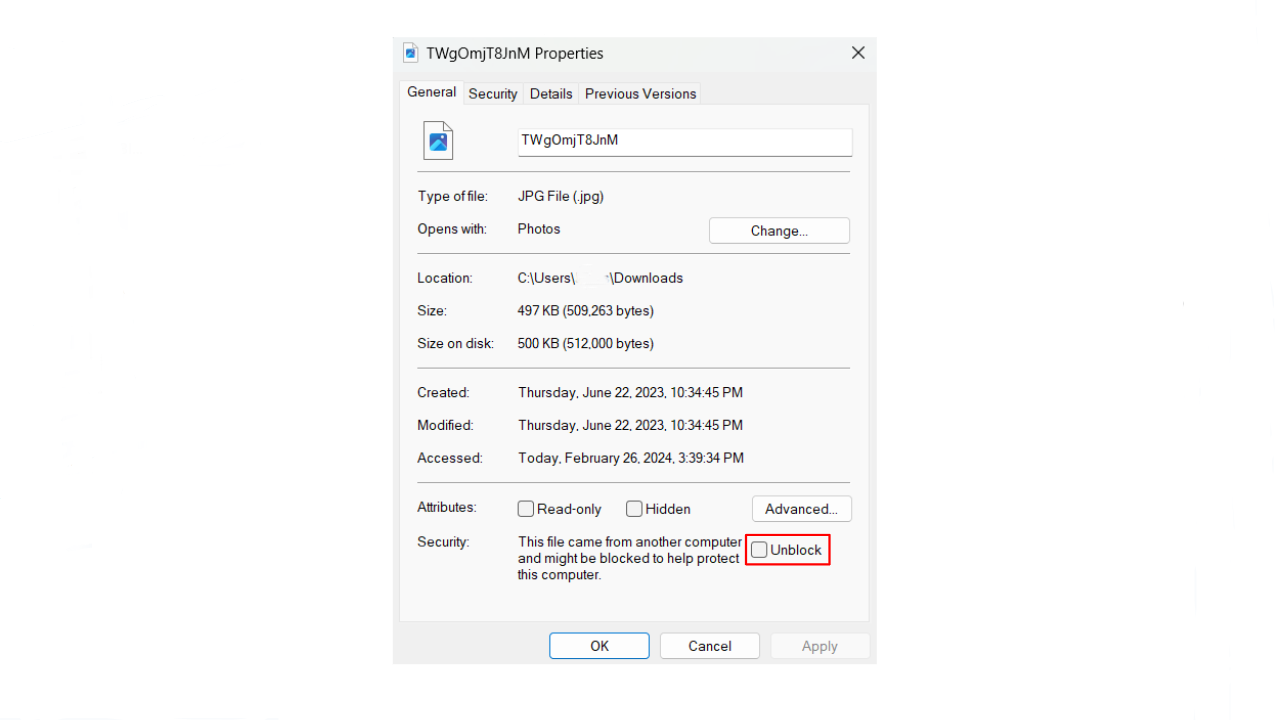
- Click Apply and OK to close the Properties window.
- Try running the file again to see if the error message persists.
Fix 2: Run the file as an administrator
Try running the file as an administrator to resolve the “This app has been blocked by your system administrator” error. Here’s how:
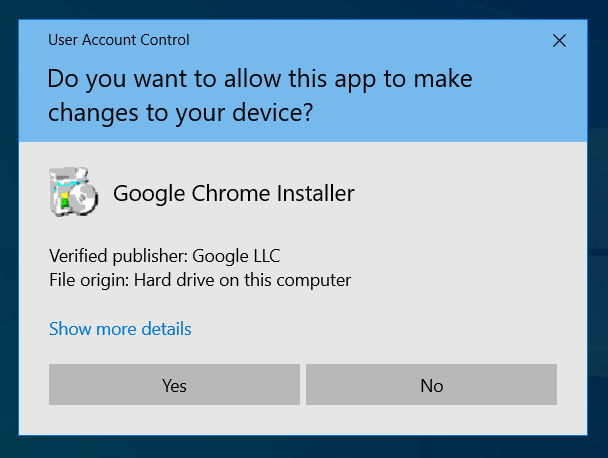
- Locate and right-click the file, then select Run as administrator.
- Click Yes in the UAC window.
Fix 3: Disable Windows protection features
Windows 10 has the SmartScreen feature, which is a cloud-based component that wards off phishing and malware attacks. It cross-references downloaded files against a list of programs and software websites that have been reported to be unsafe.
You are also notified if the file you are trying to execute is not known to be trusted and popular amongst Windows users.
To disable SmartScreen and see if it is behind the error, here’s what you have to do:
- Press the
Windows keyto open the Start menu. - In the search bar, type SmartScreen and select App & browser control from the results.
- In the Windows Security window that opens, go to Check apps and files and select Off.
- Now, try running your file again to see if the issue has been fixed.
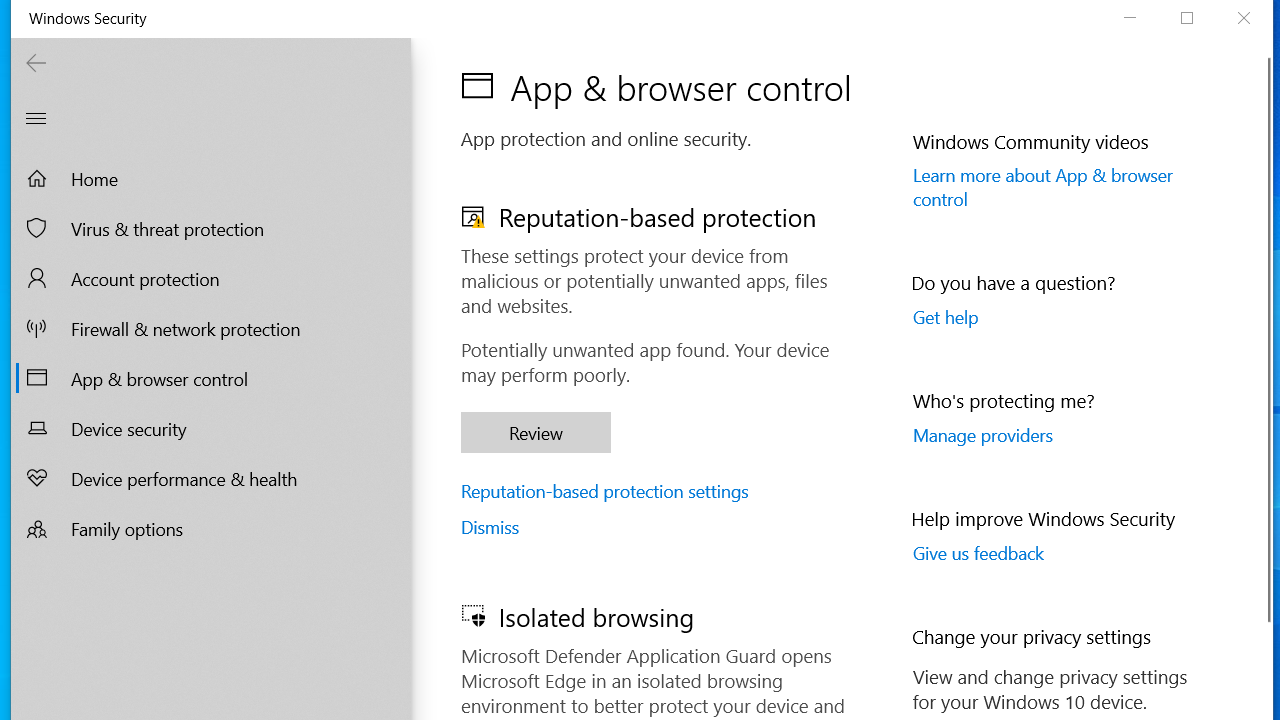
Note that in Windows 11 this feature is now called reputation-based protection. To disable it, follow these steps:
- Go to Settings > Privacy & security > Windows Security > App & browser control.
- Under the Reputation-based protection section, click Reputation-based protection settings.
- Toggle Check apps and files to Off.
Fix 4: Execute the file via the Command Prompt
You can get through the error message by using the elevated Command Prompt to run your file. Simply follow these easy steps:
- Right-click on the file and select Properties from the context menu.
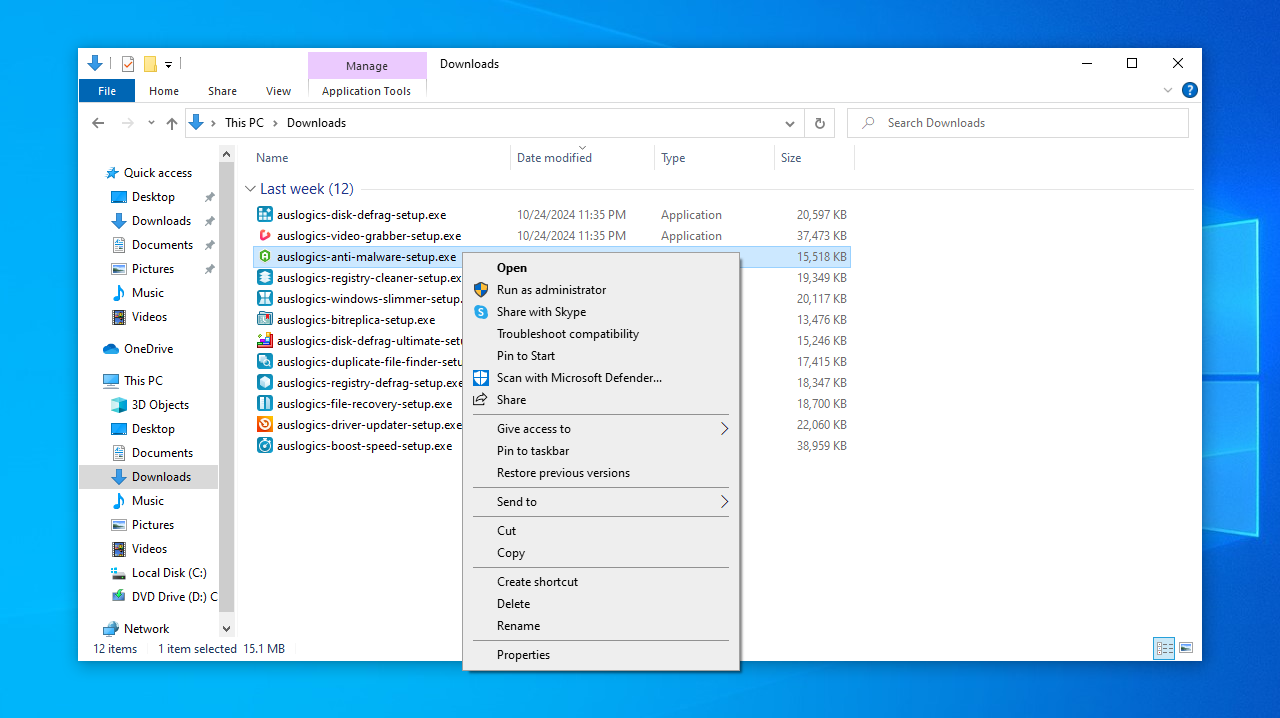
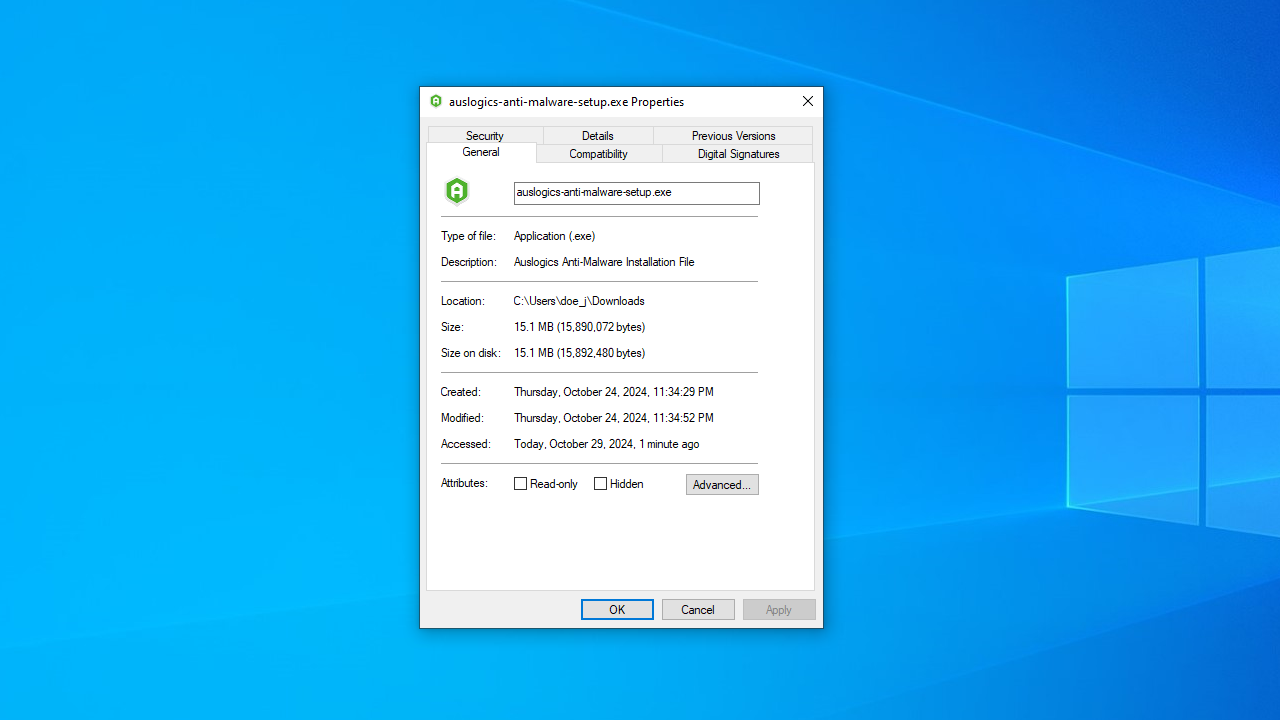
- In the General tab, highlight and copy the entry under Location. For example, C:\Users\Public\Downloads.
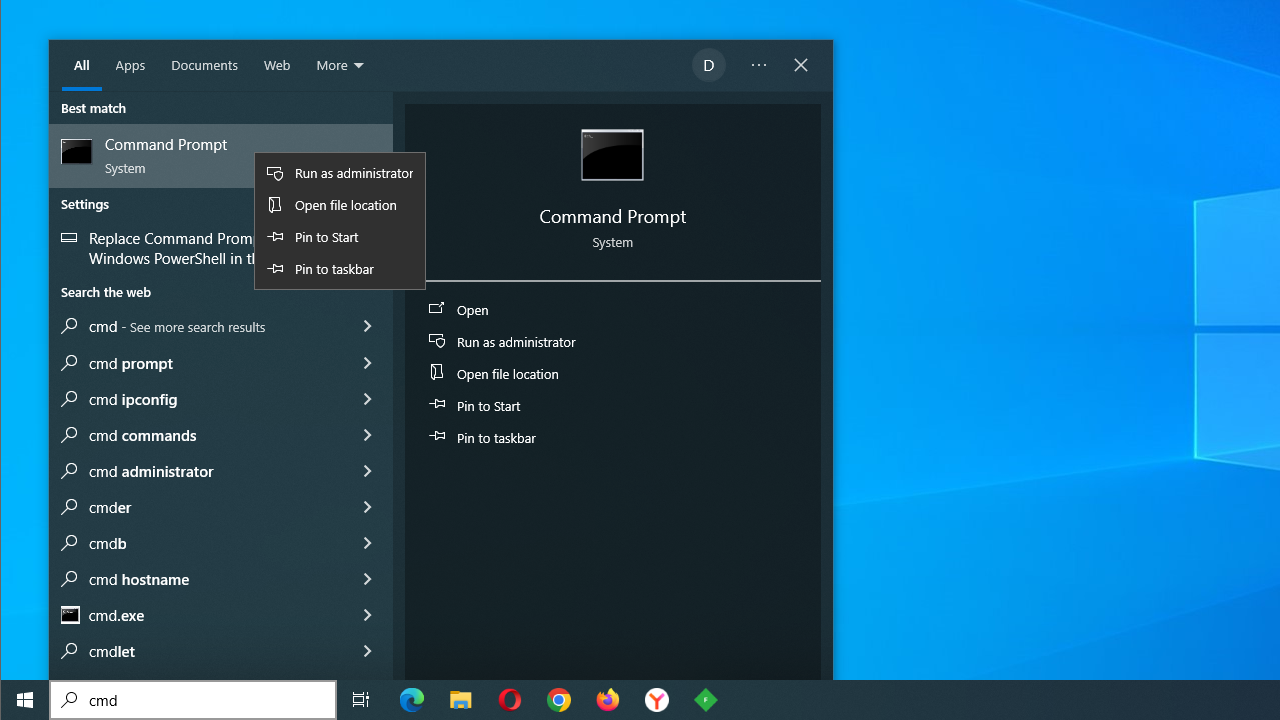
- Now, in the search box, type cmd, right-click the first option, and select Run as administrator from the menu.
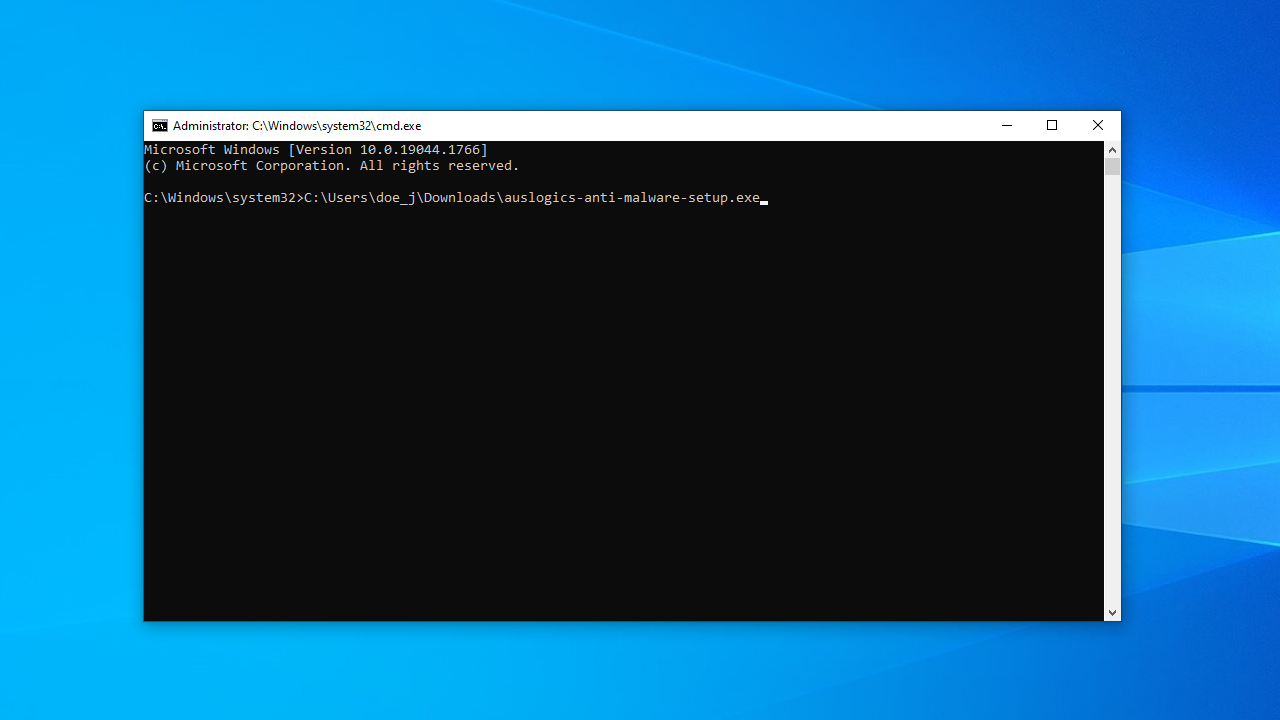
- Paste the file location you copied in Step 2 in the elevated Command Prompt window.
- Minimize the elevated Command Prompt and go back to the file’s Properties window (as shown in Step 1). Copy the name of the file. (It is the entry in the box at the top of the page. For example, auslogics-anti-malware-setup.exe.)
- Maximize the elevated Command Prompt. Type \ and then paste the entry you copied in Step 5. You will now have the location and name of the file. It should be something like this: C:\Users\Public\Downloads\auslogics-anti-malware-setup.exe.
- Press
Enteron your keyboard to execute the command. See if the error message will still appear.
Fix 5: Run the app using the hidden administrator account
Using the hidden administrator account might enable you to successfully run your application. Here’s what you have to do:
- Run the Command Prompt as an administrator by following the steps in the previous fix.
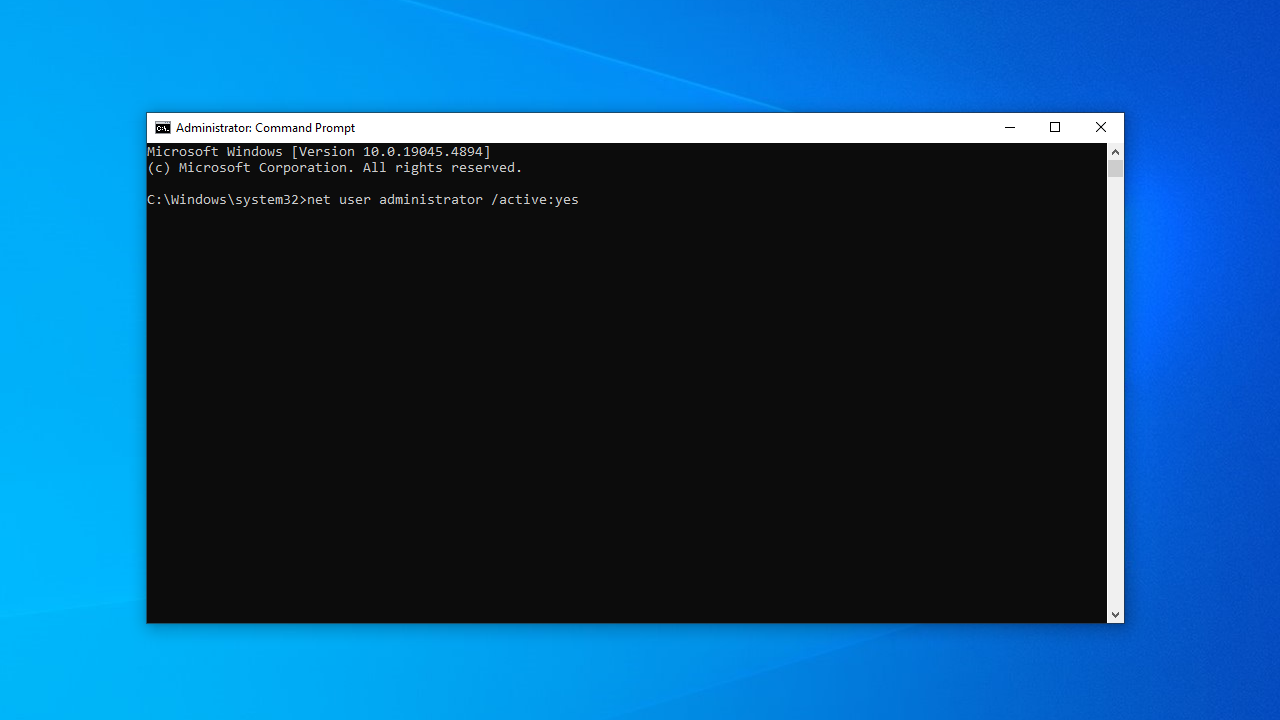
- Copy and paste the following command in the elevated Command Prompt window and press
Enterto execute it:
net user administrator /active:yes
Fix 6: Temporarily disable your antivirus program
It may well be that it is the third-party antivirus program on your PC that is throwing up the “An administrator has blocked you from running this app” or similar message.
So, the first thing you have to do is to add an exception for the application you are trying to launch. To find this setting, we suggest consulting your antivirus program’s user manual or simply looking it up on the web.
You also have the option of completely disabling the antivirus software if you are unable to find a way of adding an exception for the problematic app.
Keep in mind that it is important to have a strong and trusted security program active on your PC at all times to keep you safe from potential threats. In this regard, we recommend Auslogics Anti-Malware.
Fix 7: Repair or reinstall the app
If it’s a Microsoft Store app that is triggering the “This app has been blocked by your system administrator” error, try resetting or repairing the app by following these steps:
- Press the
Windows key + Ito open the Settings app. - In the Settings window, navigate to Apps.
- Click on Apps & features from the left sidebar (in Windows 11, select Installed apps).
- Scroll through the list of installed apps to find the Microsoft Store app that’s causing the error.
- Click on the app, then on Advanced options below the app’s name (in Windows 11, click on three vertical dots next to the app and select Advanced options).
- In the Advanced options menu, you’ll see options to reset or repair the app. Choose either Reset or Repair depending on your preference. The Reset option will revert the app to its default settings, while the Repair option will attempt to fix any issues with the app.

If the error is triggered by a third-party app, try reinstalling the application—as we’ve suggested in the workaround.
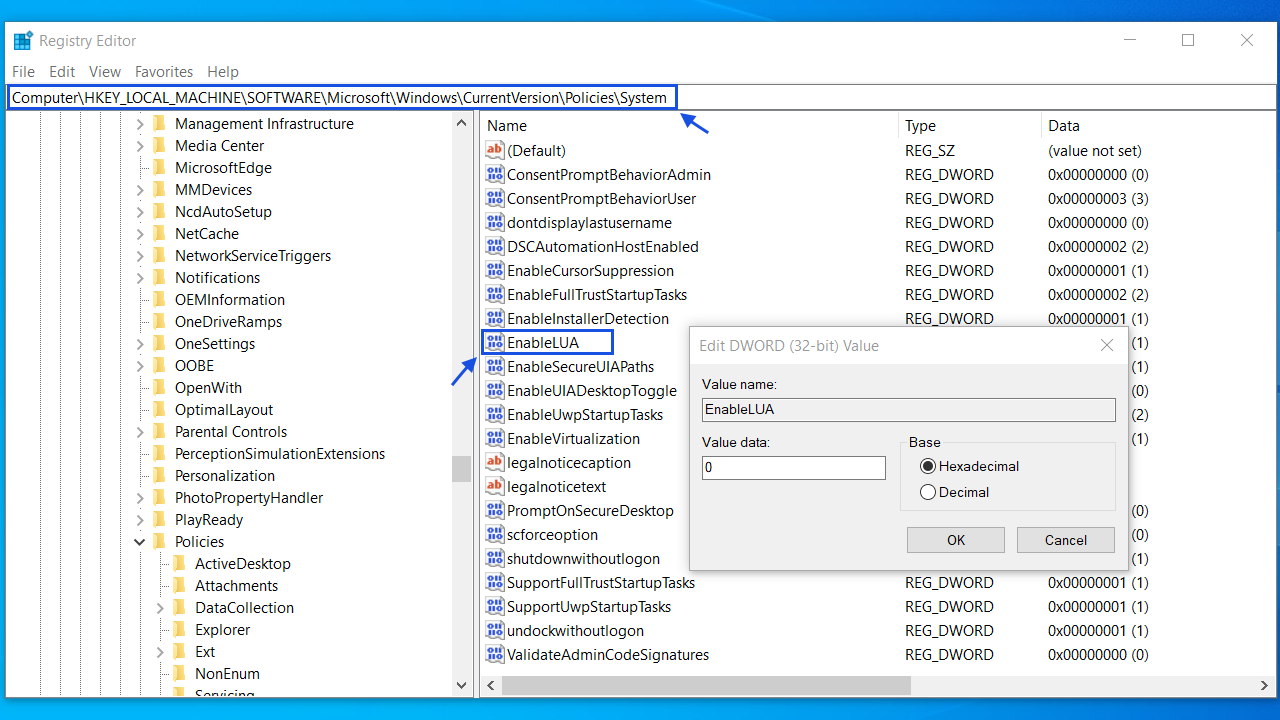
Fix 8: Remove the admin block in the Windows registry
Removing the admin block through the Windows registry is another proven solution to fix the “This app has been blocked by your system administrator” error. Here’s how to do it:
- Press the
Windows key + R, type regedit, and pressEnter. - In the Registry Editor, navigate to the following key:
HKEY_LOCAL_MACHINE\SOFTWARE\Microsoft\Windows\CurrentVersion\Policies\System
- Look for the entry named EnableLUA. Double-click on it and change its value to 0.
- Close the Registry Editor and restart your computer.
- Check if the app can start now.
📌 Related: What Is Windows Registry and How to Use It the Right Way: All You Need to Know
Fix 9: Modify the Group Policy settings
If nothing else worked, try adjusting the Group Policy settings to disable Admin Approval Mode and other UAC policies.
If you are using Windows Pro or Enterprise, you can follow these steps:
- Press the
Windows keyandRsimultaneously to open the Run utility. - In the dialog box, type gpedit.msc and hit
Enterto launch the Local Group Policy Editor. - Test whether you can run the file without encountering the error now.
Fix 10: Check for Intune Shared Device Mode (for managed environments)
When one device is shared, the rules change for all. That’s the essence of Shared Device Mode, a configuration often deployed in workplaces and schools using Microsoft Intune. It limits app behavior and user privileges to ensure security and consistency across multiple users—but it can also block apps unexpectedly. First, check if your PC is enrolled in Intune:
- Press
Windows + Ito open Settings. - Go to Accounts > Access work or school.
- Look for any listed organizational accounts under Access work or school.
If your PC is connected to a school or workplace, it may be enrolled in Intune. To verify if Shared Device Mode is active:
- Press
Windows + R, type regedit, and pressEnter. - If prompted by UAC, click Yes.
- Navigate to the following key:
HKEY_LOCAL_MACHINE\Software\Microsoft\SharedDevice
- Look for a SharedDeviceMode value. If the DWORD value is set to 1, Shared Device Mode is active.
- Run the following command to see Intune-assigned configuration profiles:
dsregcmd /status
- Scroll to the Device State section and look for:
- AzureAdJoined: YES
- EnterpriseJoined: YES
- DeviceAuthStatus: SUCCESS
- These confirm that your device is managed via Intune/Entra ID.
Now, check device configuration in Microsoft Endpoint Manager (if you are the IT admin or can contact your IT department):
- Visit https://endpoint.microsoft.com.
- Go to Devices > Windows > Configuration profiles.
- Search for any profiles applying Shared Device Mode policies.
- Review whether UAC restrictions or app blocks are enabled in these profiles.
- You cannot disable Shared Device Mode yourself on a managed device.
- Contact your IT admin or organization’s support team and request:
- A review of AppLocker or WDAC (Windows Defender Application Control) policies.
- An exemption or whitelisting for the app you’re trying to run.
“This App Has Been Blocked by Your System Administrator” Error: Fixed
Let’s sum up. If you are running into the “This app has been blocked by your system administrator” error, Windows is basically telling you that you are not allowed to open this app—and Windows has its reasons.
If you’ve tried simple workarounds like uninstalling and reinstalling the app—and they haven’t worked—the next thing you should try is unblocking the app via Properties, if this feature is available.
Next, run the file as an administrator. If this doesn’t work, go on to disable Windows protection features (SmartScreen/reputation-based protection). You can also try executing the file via the elevated Command Prompt.
The next fix you can try is using the hidden administrator account.
Note that your antivirus may also be the reason for the error.
If none of the above has helped you gain access to the app, you may need to move on to the more complex fixes: reset or repair your Microsoft Store app, remove the admin block via the Windows registry (EnableLUA), modify the Group Policy settings (Pro/Enterprise only), and check for Intune Shared Device Mode (in managed environments).
FAQ
If unblocking via file properties doesn’t work, try these alternatives:
- Run the app via the Command Prompt as an admin to bypass some restrictions.
- Temporarily disable antivirus software, especially third-party tools.
- Turn off SmartScreen in Windows Security (then re-enable it after).
- Use the hidden administrator account to gain full permissions.
- Repair or reset the app via Settings > Apps > Installed apps.
- Check Group Policy or registry restrictions if you’re on a Pro edition or using a managed device.


