


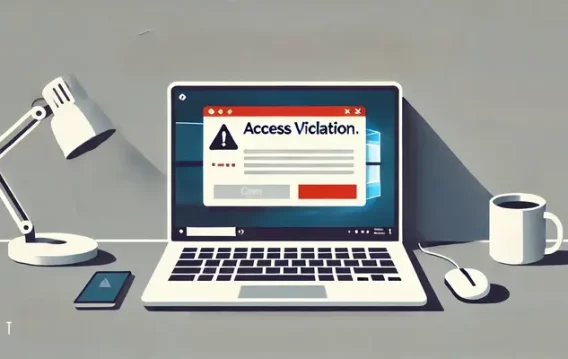
- What Does the “EXCEPTION_ACCESS_VIOLATION” Error Mean on Windows 10/11?
- How to Fix the “EXCEPTION_ACCESS_VIOLATION” Error on Windows 10/11
- Fix 1: Perform a malware scan
- Fix 2: Update Windows
- Fix 3: Add the app to the Data Execution Prevention (DEP) exception list
- Fix 4: Disable User Account Control (UAC)
- Fix 5: Make sure the affected software isn’t set as read-only
- Fix 6: Run the problematic program in compatibility mode
- Fix 7: Run the SFC and DISM tools
- Fix 8: Check your RAM for corruption
- Fix 9: Troubleshoot your hardware
- Fix 10: Reinstall the problematic software
- “EXCEPTION_ACCESS_VIOLATION” Error: Fixed
- FAQ
The full error message often includes a specific memory address or even the name of the offending application, but to the average user, it might just seem like digital gibberish.
This type of error is often tied to one particular program, but in some cases, it may signal broader issues like hardware instability or malware tampering with system files. You may run into the error when gaming, launching an old app, or during startup.
Whatever the case, understanding the root cause is the first step toward a smoother Windows experience.
🔍 What is it?
An “Access violation at address” or “EXCEPTION_ACCESS_VIOLATION” error means a program tried to access protected memory it wasn’t allowed to—often due to bugs, hardware issues, or system misconfigurations.
💥 Common causes:
- 🦠 Malware infections
- ⚙️ Corrupted system files
- 🧠 Faulty or unstable RAM
- 🚫 Data Execution Prevention (DEP) blocks
- 📄 Read-only file settings or compatibility issues
- 🧬 CPU overclocking instability
✅ Top fixes (from basic to advanced):
- 🛡️ Scan for malware
- 🔄 Update Windows
- 🚫 Add the app to DEP exceptions
- ⚠️ Temporarily disable UAC (for Java apps)
- 📄 Ensure app files aren’t read-only
- 🧩 Run app in compatibility mode
- 🛠️ Run SFC and DISM tools
- 🧠 Check RAM with Windows Memory Diagnostic
- 🔧 Use the built-in troubleshooter for hardware issues
- ♻️ Reinstall the problematic app properly
- 🚀 [Advanced] Lower CPU performance ratio (for Intel 13th/14th Gen users via BIOS or Intel XTU)
What Does the “EXCEPTION_ACCESS_VIOLATION” Error Mean on Windows 10/11?
If a program on your Windows PC crashes with a message like “EXCEPTION_ACCESS_VIOLATION”, it means something tried to access protected memory—and was denied.
This error can pop up for a variety of reasons, including:
🦠 Malware infections
⚙️ Corrupted files or faulty system settings
🔧 Hardware problems, especially with memory (RAM)
📄 Incorrect file permissions or compatibility issues
You might also see a specific address or code alongside the error—this just tells you where in memory the problem occurred.
The good news? You’re not stuck with it. Whether you’re on Windows 10 or Windows 11, this guide will walk you through effective ways to fix the “ Access violation” problem and get your programs running smoothly again.
How to Fix the “EXCEPTION_ACCESS_VIOLATION” Error on Windows 10/11
Follow the steps below to resolve the “Access violation at address” error:
Fix 1: Perform a malware scan
If your computer is heavily infected with malware, it can corrupt your memory system and cause this error to appear. You should perform a thorough and detailed security scan if you have noticed suspicious behavior on your computer.
Fix 2: Update Windows
Updating Windows can resolve the “Access violation at address” issue by providing bug fixes, security patches, and updated system files that might solve compatibility issues or repair problematic system files causing the error. Here’s a detailed step-by-step guide on how to update Windows 11:
- Press the
Windows key + Ito open the Settings app. - In the Settings app, click on the Windows Update tab located in the left-hand pane.
- Click the Check for updates button. Windows will start searching for available updates.
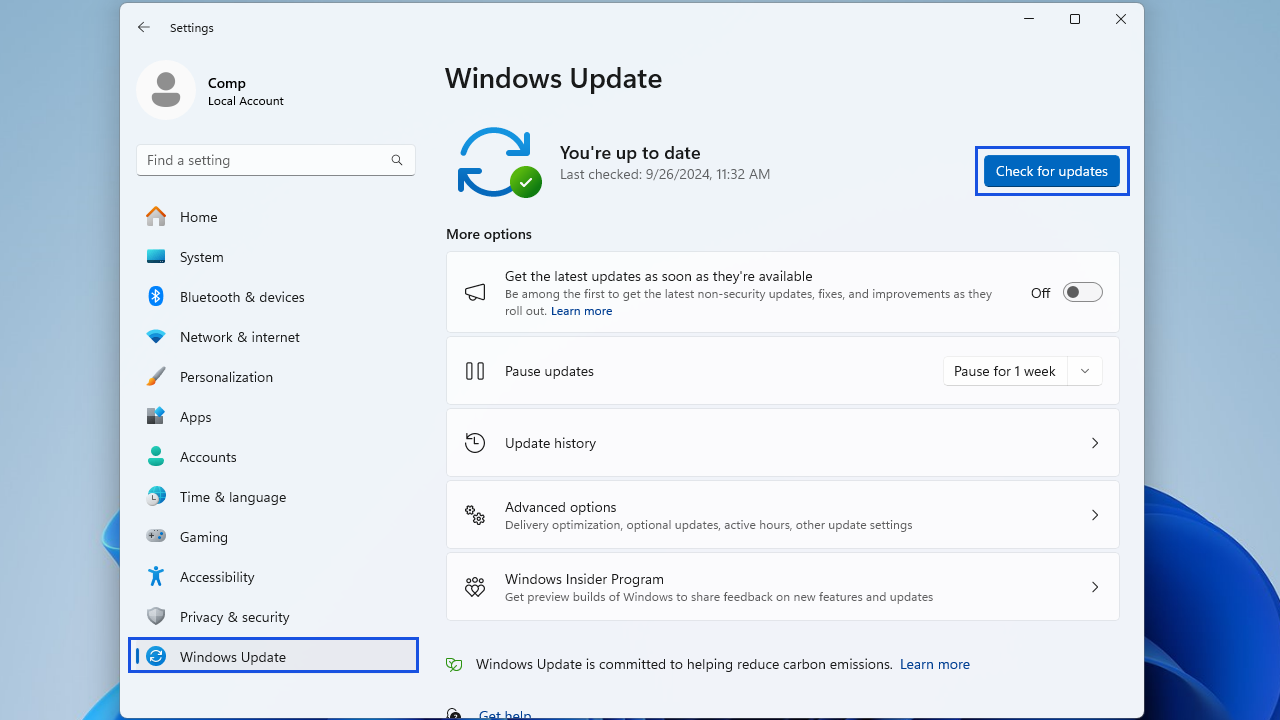
If there are updates available, Windows will automatically begin downloading and installing them. This process may take some time, depending on the number of updates and your internet connection speed.
After the updates have been installed, restart your computer to apply the changes. Then, check to see if the problem has been resolved.
Follow these steps to update Windows 10:
- Open the Settings app and click on Update & Security.
- Click on Check for updates under the Windows Update page.
- Click on View optional updates to select f eature, quality, or driver updates, depending on your preference.
- Allow the update client to download and install the updates. You may be required to restart your computer to complete the process.
Fix 3: Add the app to the Data Execution Prevention (DEP) exception list
If your computer does not have malware, you can add the problematic program to a Data Execution Prevention exception list. This will let you run the program and fix the problem with the “Access violation” error.
- Input Control Panel in your Windows search bar and launch the app.
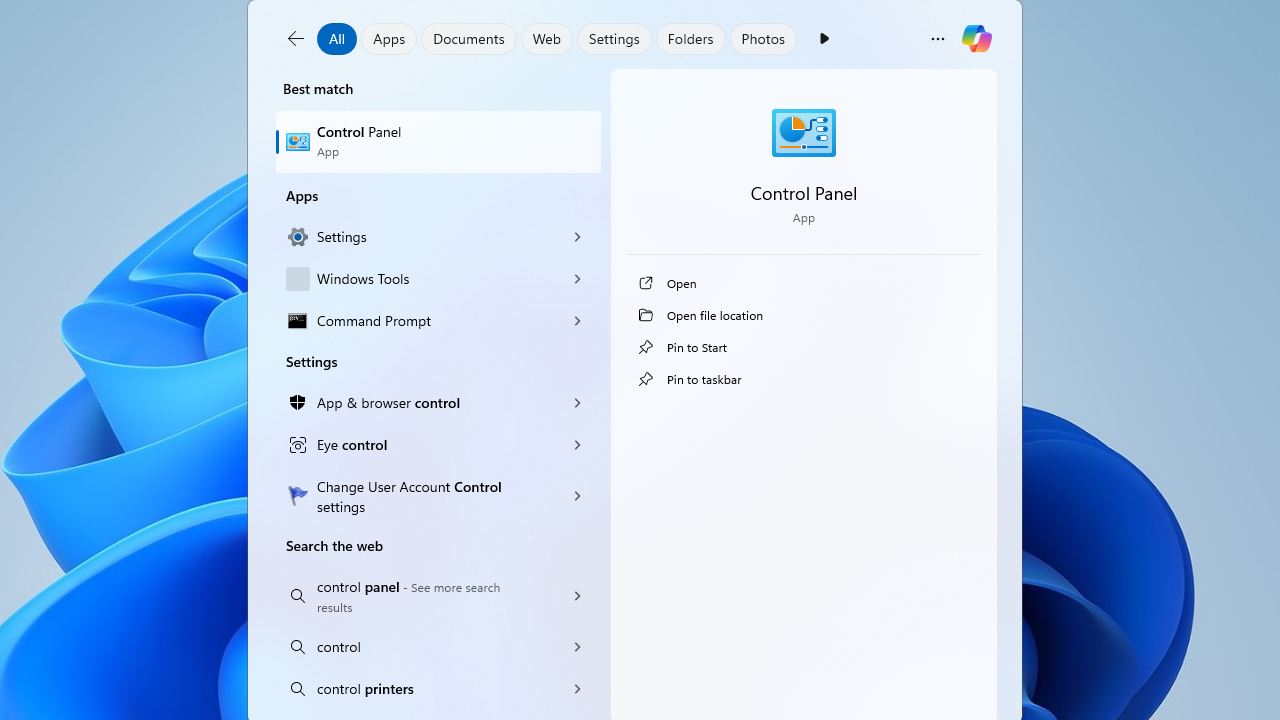
- Scroll down and click on System.
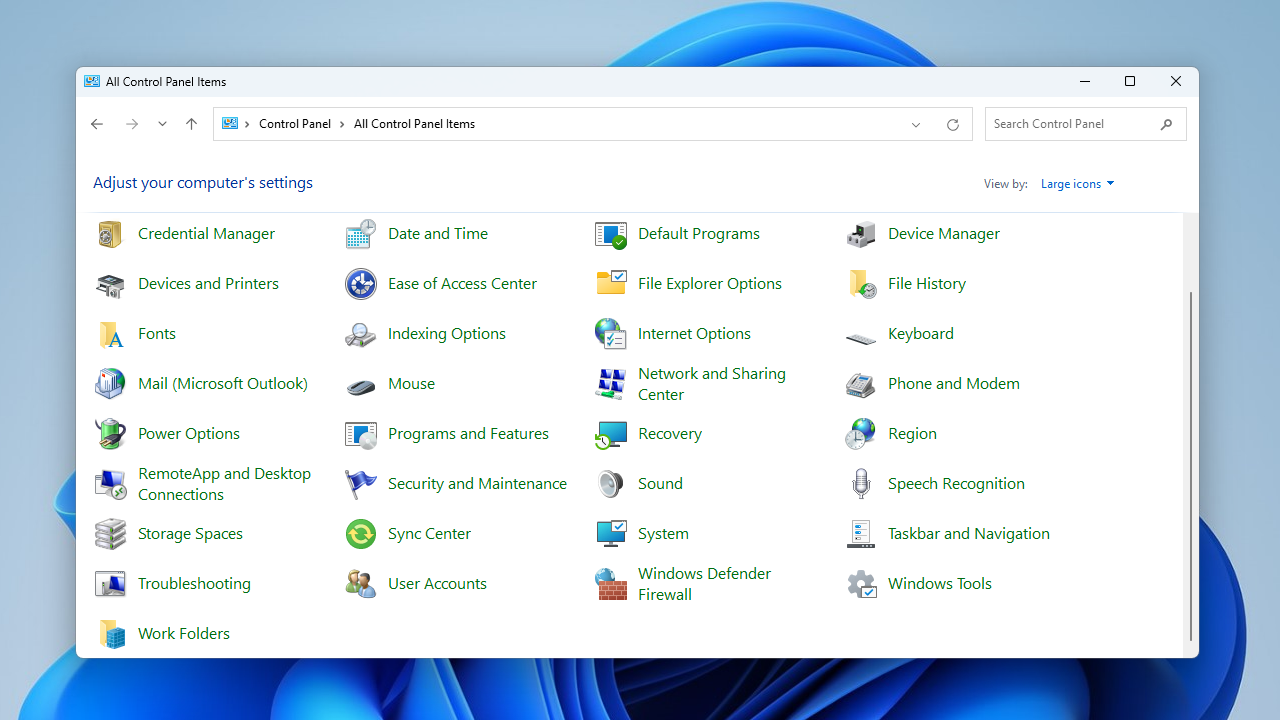
- In the left pane, click on Advanced system settings.
For Windows 11, follow these steps:
- Open the Settings app, click System, and scroll down and click on About.
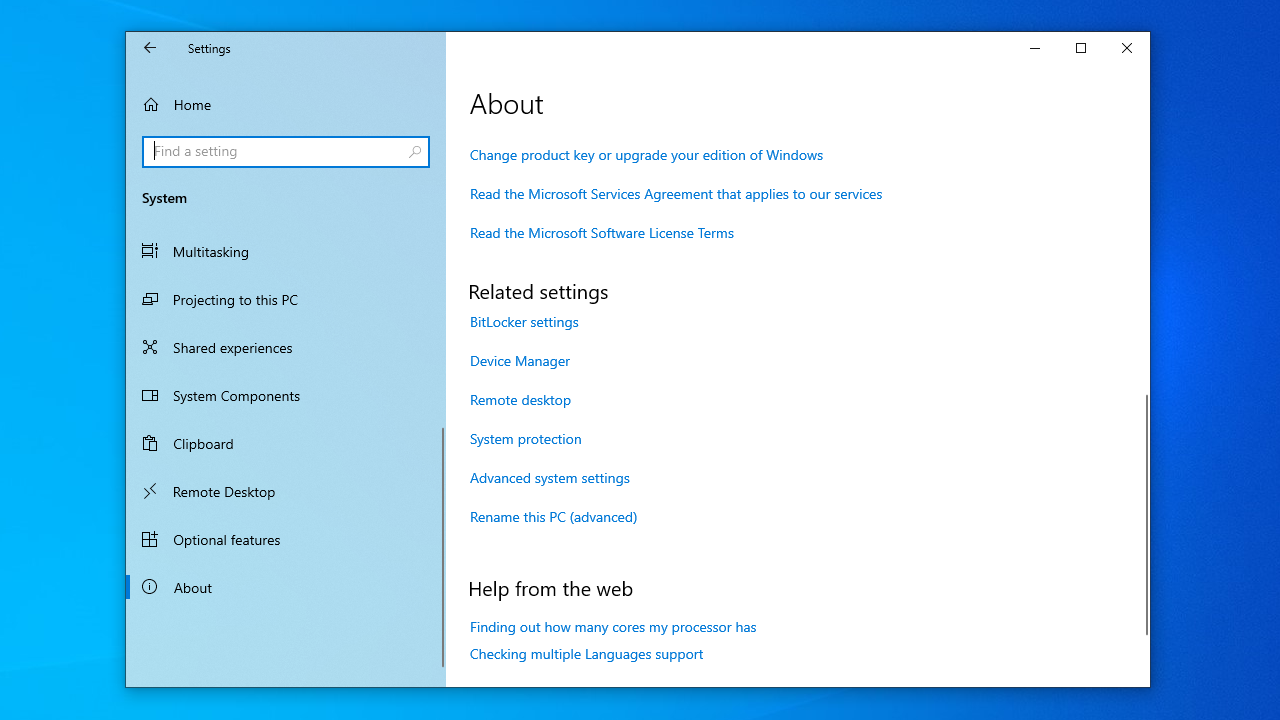
- Click on Advanced system settings under the About page.
- In the Advanced tab, click on Settings under the Performance section.
- In the Performance Options window, click on the Data Execution Prevention tab.
- Tick the Turn on DEP for all programs and services except those I select option, then click on the Add button and find your program’s .exe file.
- Add it to the list, click on Apply, and then on OK to save the changes.
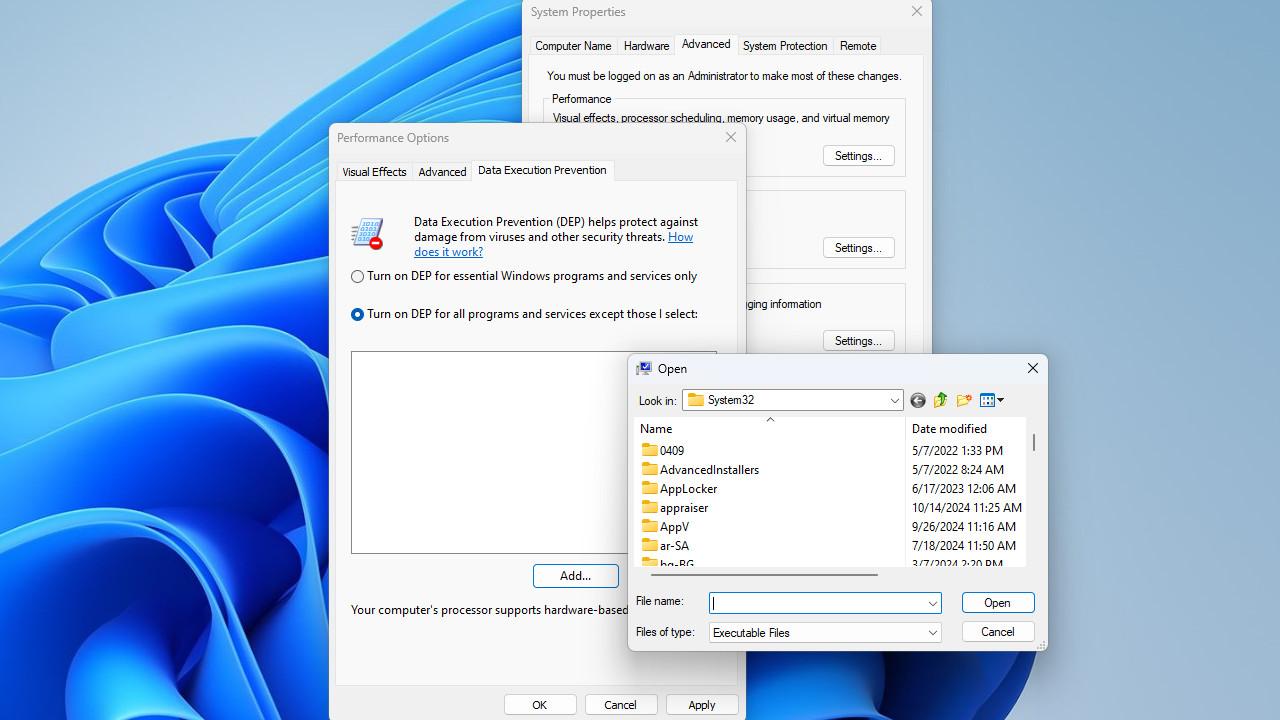
Try running the problematic program again to see if you still get the “Access violation at address” error.
We recommend scanning your system using a PC optimization tool such as Auslogics BoostSpeed. BoostSpeed’s cleaning module is designed to clean all types of PC junk. It safely removes temporary system and user files, problematic system files, leftover Windows Update files, temporary files, and other elements that may slow down your PC and cause many issues.
Experts consider it one of the safest tools for eliminating all those annoying glitches and crashes once and for all.
Fix 4: Disable User Account Control (UAC)
You are more likely to encounter the “Access violation at address” problem if you are trying to install or run a Java-based application.
If this is the case, you can temporarily disable User Account Control to fix the problem.
User Account Control is a Windows feature that helps protect your PC by asking for permission before apps make major changes.
Sometimes, Java-based apps don’t handle this permission request properly. As a result, they might crash or show errors like “Access violation at address.”
Temporarily turning off UAC can let the app run smoothly. Just remember to turn it back on afterward to keep your system secure.
Here’s how to disable UAC on Windows:
- In your Windows search bar, enter Control Panel and launch the app.
- Scroll down and click on User Accounts.
- Click on User Accounts again.
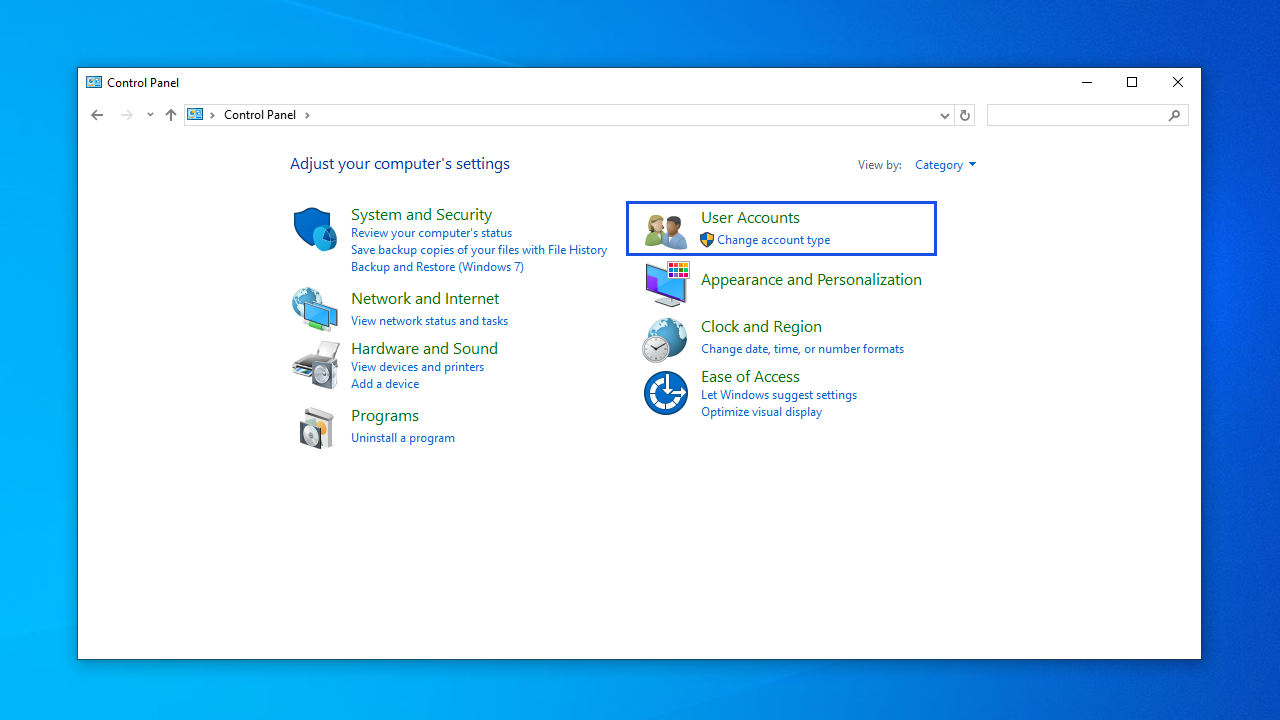
- In the right pane, click on Change User Account Control settings.
- Move the slider down to Never notify and click on OK.
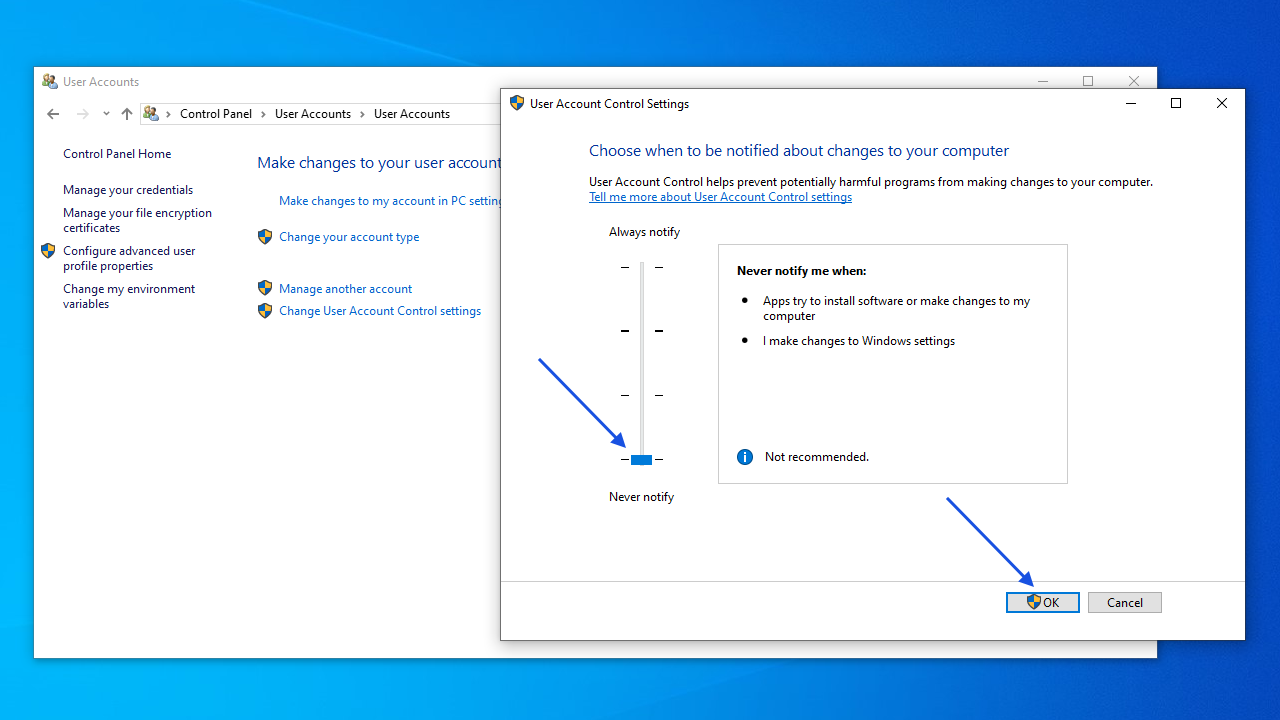
- Try running the affected program again to see if the problem has been resolved. After you run your program, remember to re-enable UAC.
Fix 5: Make sure the affected software isn’t set as read-only
You won’t be able to launch or run a program effectively if it’s in read-only mode. Here’s how to check and fix it:
- Locate the affected program’s shortcut on your desktop and right-click on the file.
- From the menu, select the Properties option.
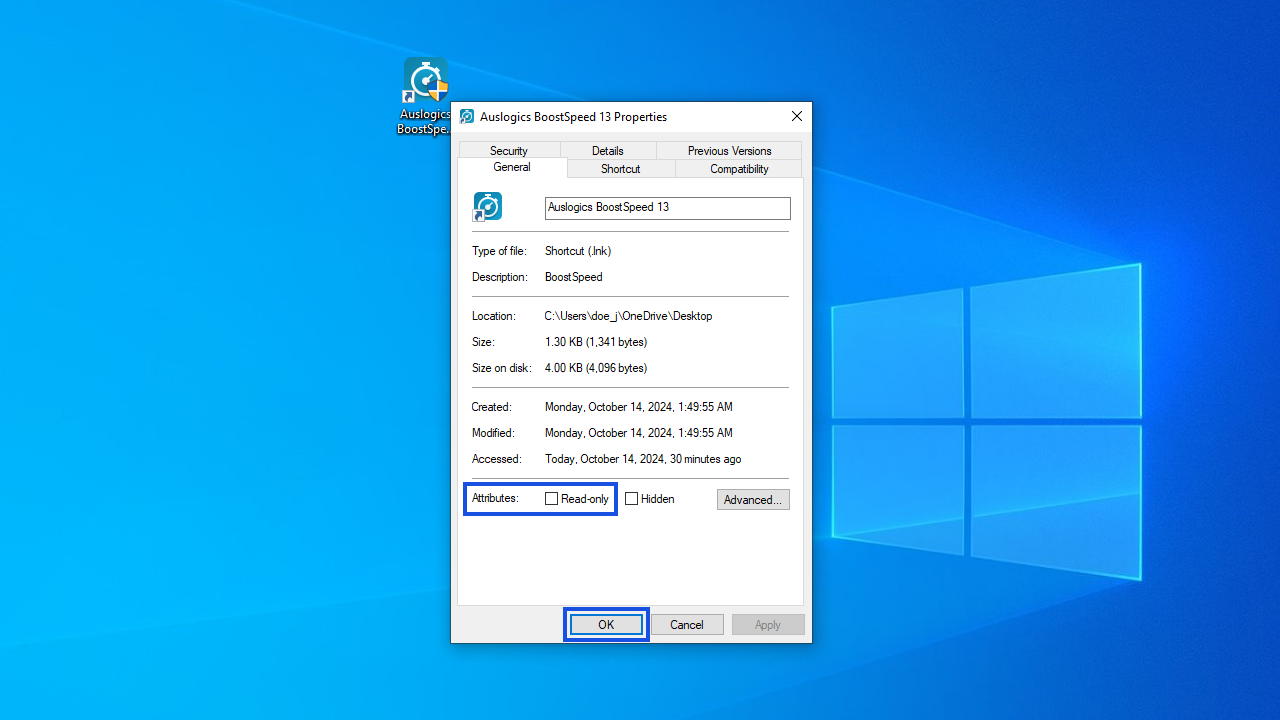
- Go to the General tab, locate the Attributes section, and make sure the read-only option is not checked.
- Click on Apply, then on OK to save changes.
Fix 6: Run the problematic program in compatibility mode
You may be receiving an “EXCEPTION_ACCESS_VIOLATION” message on your PC due to compatibility issues. Some older programs that you are trying to run may not be compatible with newer operating systems like Windows 10 and 11.
However, your operating system has a feature called compatibility mode that lets you run older applications. If you encounter this problem with an application, you can enable compatibility mode.
- Locate the affected program’s shortcut on your desktop and right-click on the file.
- From the menu, select the Properties option.
- In the Properties menu, select the Compatibility tab.
- Select the Run this program in compatibility mode checkbox, then select an older Windows version from the drop-down menu.
- Click on Apply and OK to save changes.
Run the problematic program again to see if you still get the error.
Fix 7: Run the SFC and DISM tools
Running the System File Checker (SFC) and Deployment Image Servicing and Management (DISM) tools can help fix system file corruption issues that might be causing the “Access violation at address” error.
To run the System File Checker tool, follow the detailed steps below:
- Press the
Windows key + Xand select Terminal (Admin) or Command Prompt (Admin) from the context menu. - If prompted by User Account Control, click Yes to grant the necessary permissions.
- In the Command Prompt window, type sfc /scannow and press
Enter.
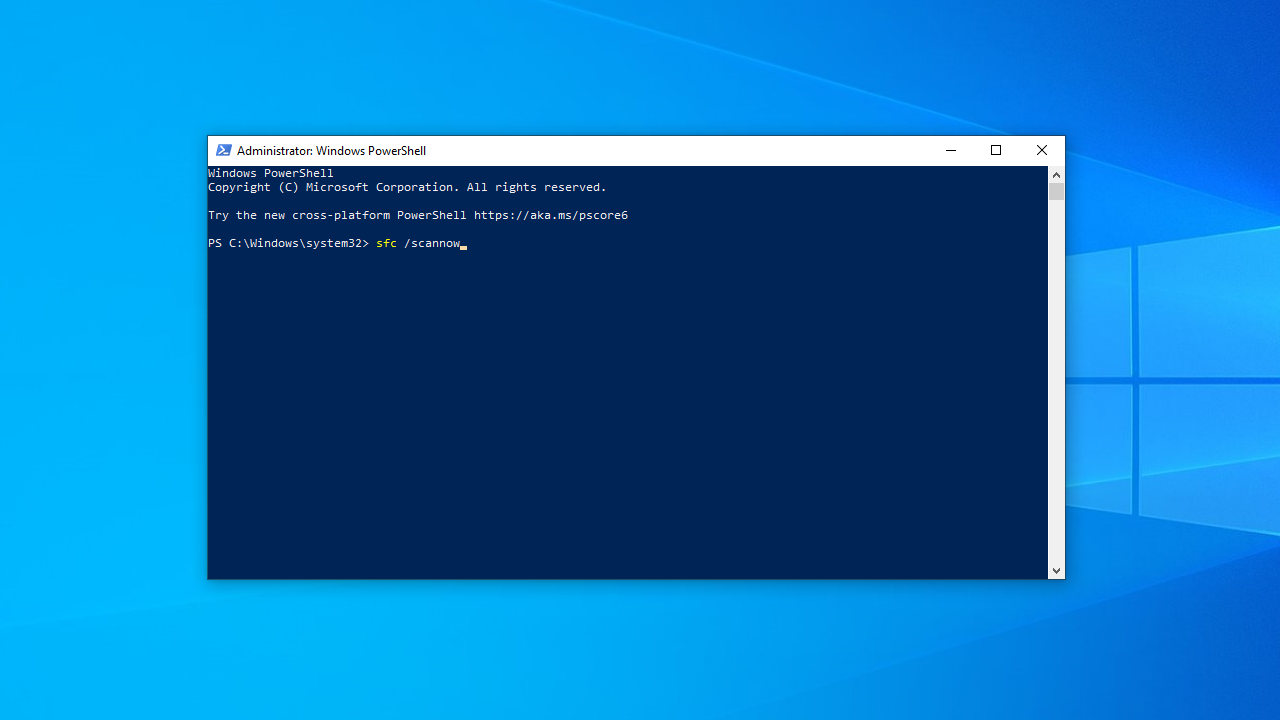
System File Checker will begin scanning your system for corrupted files. This process might take some time, so be patient. If SFC finds any corrupted files, it will attempt to repair them automatically.
Once the scan and repair process is complete, restart your computer to apply the changes.
Run the DISM tool
In some cases, the SFC tool may not be able to fix the corrupted files. In such situations, you can use the DISM tool to repair the Windows system image.
Follow these steps to use the DISM tool:
- Open the Command Prompt as an administrator.
- Type DISM /Online /Cleanup-Image /RestoreHealth and press
Windows key + X.
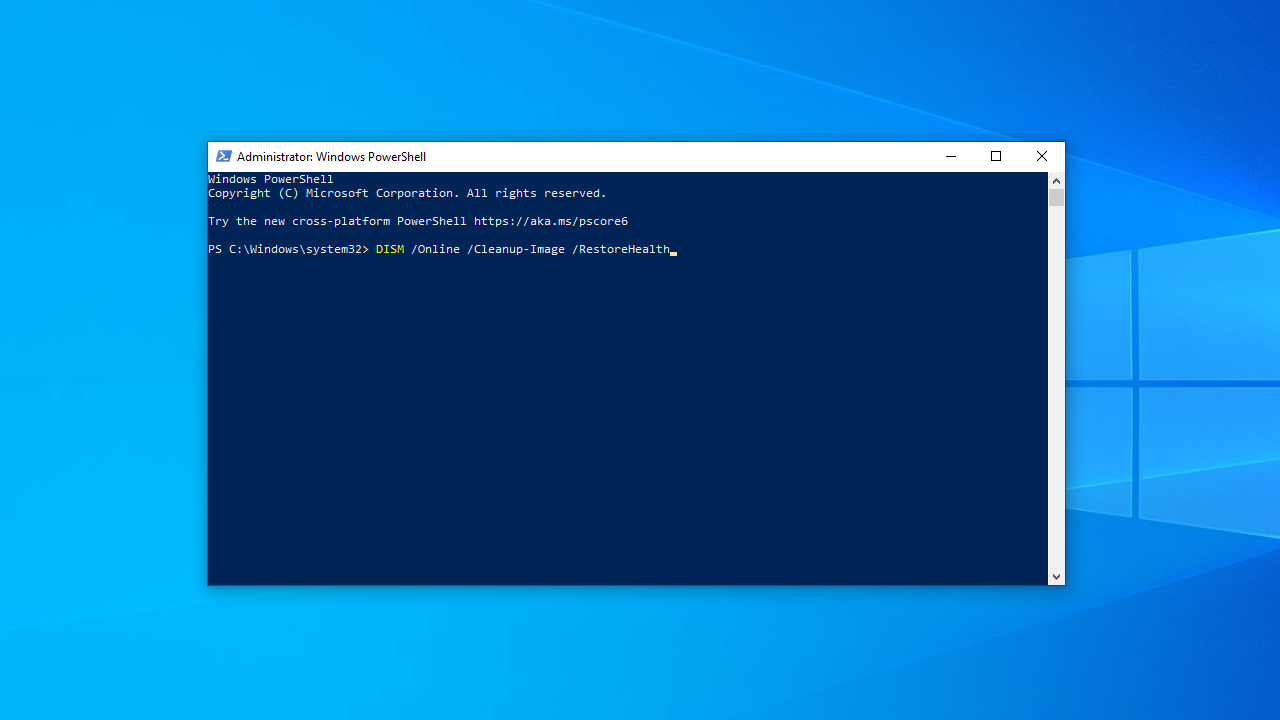
The DISM tool will download and replace any damaged files in your system image. This process may take some time, so be patient.
Fix 8: Check your RAM for corruption
You may encounter the “EXCEPTION_ACCESS_VIOLATION” issue if you previously had a malware infection that caused damage to parts of your RAM. Check your RAM for corruption using the following steps:
- Input Windows Memory Diagnostic in your Windows search bar and launch the program.
- Click on the Restart now and check for problems option.
- Just let the program run and wait for its results.
- You should replace your RAM if it is corrupted.
Fix 9: Troubleshoot your hardware
Sometimes, the “ Access violation at address” error can be triggered by issues with your hardware—especially your memory (RAM), graphics card, or input devices like your mouse or keyboard. Running the built-in Windows troubleshooter can help detect and fix these problems. Here’s how to do it:
- Press
Win + Ito open the Settings app. - Go to System (Windows 11) or Update & Security (Windows 10).
- Select Troubleshoot.
- Go to Other troubleshooters (Windows 11) or Additional troubleshooters (Windows 10).
- Look for hardware-related options such as:
- Keyboard
- Bluetooth
- Hardware and Devices (if available)
- Select the one related to the device you’re having trouble with and click Run the troubleshooter.
- Follow the on-screen instructions.
Win + R): msdt.exe -id DeviceDiagnosticFix 10: Reinstall the problematic software
If you get the “EXCEPTION_ACCESS_VIOLATION” message when running a certain application, try reinstalling the affected program.
There is a good chance that parts of the app you are trying to run have been damaged from crashes or improper saves, or perhaps a buggy update has caused issues.
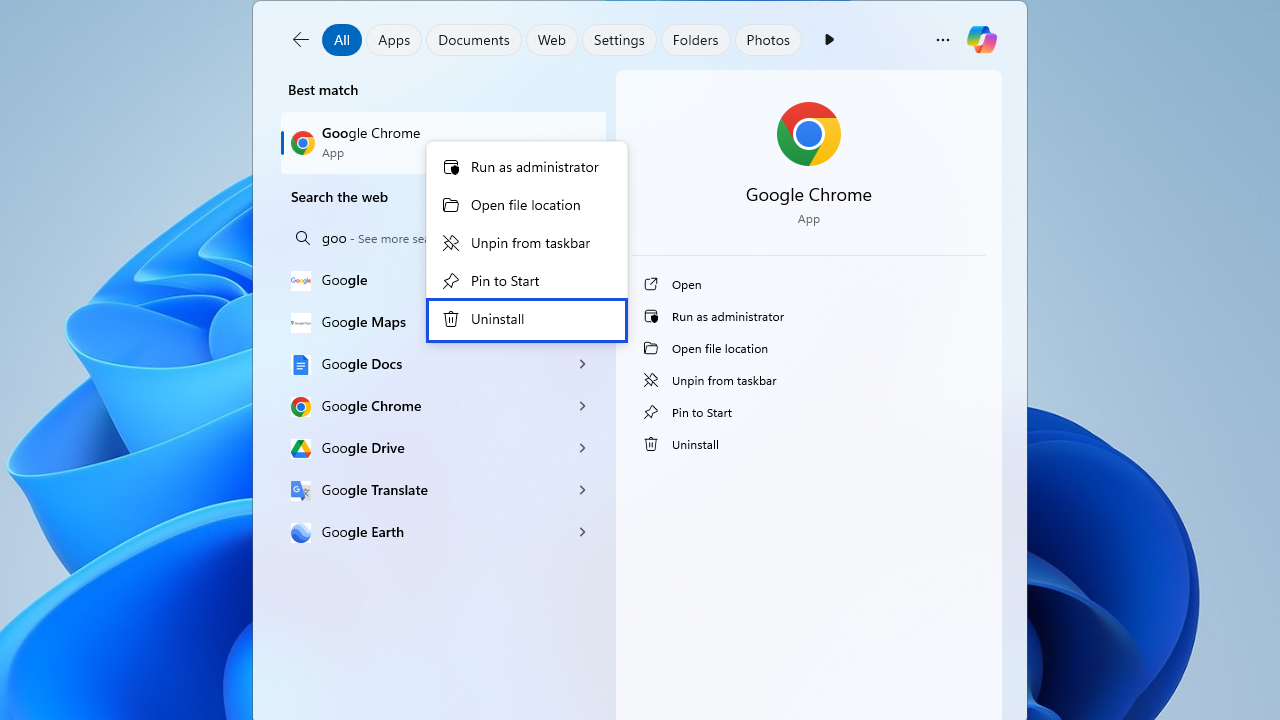
If you’re running Windows 11, you can search for the app in the Start menu, right-click it, and select Uninstall.
To remove the affected program in Windows 10, follow these steps:
- Use the
Win + Ishortcut to launch the Settings app. - Click on Apps and select Apps & features from the left pane.
- Locate the problematic application from the list and click on Uninstall.
- Follow the usual procedure for installing the affected program.
Do note that uninstalling apps like these manually may still leave behind residual files. You may not see them, but they will accumulate on your PC and could potentially lead to storage issues, glitches, errors, and more. Auslogics BoostSpeed helps remove any leftover traces, ensuring the app is uninstalled properly.
“EXCEPTION_ACCESS_VIOLATION” Error: Fixed
Here’s the key takeaway. If you are running into the “Access violation at address” error on Windows 10 or 11, there are a number of proven fixes that you can try.
Start simple: run a malware scan to rule out a virus messing with your system. Next, check if your OS is fully up to date.
If everything is in order but you are still getting the error, look into adding the problematic app to the Data Execution Prevention exception list and temporarily disabling User Account Control. It’s also a good idea to check if the affected software isn’t set as read-only and try running it in compatibility mode. If this doesn’t help, run the SFC and DISM tools and check your RAM for possible corruption.
You can also make use of Windows’ built-in troubleshooters to check if your hardware is in order. If none of the above works, you may have to uninstall the problematic software—and then reinstall it.
In this case, it’s a good idea to use a tool like Auslogics BoostSpeed to make sure the program is fully uninstalled and no traces are left behind and it gets reinstalled properly.
Finally, a number of users on related forums mention that lowering the CPU performance ratio is a highly effective, permanent fix to the “Access violation” error. However, make sure to proceed with caution and do not alter any other CPU-related settings on your PC.
FAQ
You can identify the app causing the “Access violation” error by checking the error message—it usually names the faulty program or file.
You can also use Event Viewer:
- Press
Windows + Xand choose Event Viewer. - Go to Windows Logs > Application.
- Look for recent Error entries related to the time the crash happened.
- The details usually mention the name of the app or module that triggered the violation.
Or, view your PC’s reliability history:
- Search for Reliability Monitor in the Start menu.
- Open it and look for recent red Xs indicating app failures.
- Click on them to see detailed crash info, including the app name and faulting module.


