



We love our gadgets (who doesn’t?), and SSDs are no exception. We all want them to live a long—preferably eternal—life so that we don’t need to spend our time, money, and nerves replacing them.
But eventually this moment will come. Ouch! And even though it might hurt, you’d better be ready.
An average SSD lifespan can range from around five to ten years under normal conditions. But this is only an estimate.
In reality, how long your SSD lasts depends on many factors, from flash memory type to data write limits to how well you maintain your drive. That’s why it’s important to know how much life your drive has left: to back up promptly and plan replacement ahead.
✅ How long do SSDs last? For most users, about 5–10 years, but often longer—especially for light use.
🔑 TBW (terabytes written) vs. TBW used—the main lifespan metric: TBW is your drive’s manufacturer-rated endurance budget; TBW used (total data written ÷ TBW) shows how much of that budget you’ve consumed.
🔍 Other useful metrics: Life remaining (or percentage used), DWPD (drive writes per day), power-on hours, and SMART error counters.
🧰 How to check:
- Quick health checks: Command Prompt/PowerShell (Windows); Disk Utility/Terminal (macOS).
- Drive-specific TBW used, life remaining, SMART errors, firmware: Vendor tools (Samsung Magician, Crucial Storage Executive, Kingston SSD Manager, etc.).
- Cross-vendor TBW used, life remaining, SMART errors: CrystalDiskInfo or other third-party tools.
- Optimization: Auslogics SSD Optimizer for safe tweaks and automated maintenance.
⚠️ When to back up & plan replacement: TBW used is > 70–80%, health is < 50%, or any critical warnings, reallocated sectors, or uncorrectable errors.
🛠️ Quick fixes to extend SSD lifespan:Enable TRIM, keep firmware updated, leave 10–20% free, reduce unnecessary writes, and keep drives cool.
💾 Always back up: Timely replacement is cheaper and less painful than data recovery.
What Does SSD Lifespan Mean?
SSD lifespan is primarily about write endurance, or how long the drive can reliably store and rewrite data before the flash cells wear out. Here’s how it works: every time a cell is erased and rewritten, it loses a tiny bit of its ability to hold charge—and over thousands or millions of cycles, those tiny losses add up, wearing out your drive. Let’s get into more detail.
How SSDs store data
Unlike magnetic platters in HDDs, SSDs store data electronically using NAND flash memory—arrays of tiny cells that hold electrical charge to represent bits—which makes them fast and shock-resistant but comes at a cost of a limited number of write/erase cycles per cell. There are various NAND types:
- SLC (single-level cell): Stores 1 bit per cell by holding two charge states (0 or 1). It’s the fastest and most durable option with the highest write/erase cycle count—expensive, so primarily used in enterprise and industrial drives.
- MLC (multi-level cell): Stores 2 bits per cell by using four charge levels. It balances endurance and cost better than SLC, with solid durability for prosumer and some high-end consumer use cases.
- TLC (triple-level cell): Stores 3 bits per cell across eight charge levels. This is the mainstream consumer choice: higher density and lower cost than MLC, but lower native endurance. Modern controllers, SLC caching, and overprovisioning (OP) help maintain real-world longevity.
SLC caching is when the SSD’s controller temporarily treats part of the NAND as single-level cells to absorb incoming writes quickly, boosting burst performance and reducing immediate wear on the denser TLC/QLC cells. However, if the cache fills during sustained writes, write speeds drop and wear can increase.
Overprovisioning is reserved space the controller keeps out of user view so it can remap worn cells and balance writes. More OP means less write amplification, longer life, and often steadier performance.
- QLC (quadruple-level cell): Stores 4 bits per cell using sixteen charge states. QLC maximizes capacity at the lowest cost per GB but has the smallest write budget and is best suited for read-heavy or archival workloads, as sustained heavy writes will wear it faster.
As you move from SLC to QLC, endurance and cost-per-bit shift: QLC gives high capacity at a lower cost but with smaller write budgets, while SLC gives enterprise-grade endurance at a premium.
How flash works
Flash is organized into pages (the smallest writable unit, typically ~4 KB) and blocks (groups of many pages). You can write to an empty page, but you cannot overwrite a page directly—the whole block containing that page must first be erased.
That erase-before-write requirement causes write amplification (more physical operations than logical writes), which is why SSD controllers implement wear leveling and garbage collection to spread writes evenly across the NAND.
They can dramatically reduce premature cell exhaustion but don’t make endurance infinite.
Typical consumer SSD life expectancy
So how long do SSDs last ? For typical home and office use like web browsing, office apps, and gaming, most modern TLC-based consumer SSDs will comfortably last 5–10 years and often longer. Write-heavy scenarios like continuous video recording, intense database workloads, or running many virtual machines can shorten that.
Also, capacity and TBW—your drive’s endurance rating—matter as much as workload. Entry-level drives can wear out in just a few years under heavy use, while high-end SSDs can easily outlive a decade of continuous writes, so it’s important to pick the right drive for your use case.
In practice, given the pace of technology, most users purchase new drives for capacity or performance upgrades well before their SSDs hit their write budget.
| User type | Typical writes (GB/day) | Entry-level SSDs (250 GB, ~150 TBW) | Mid-range SSDs (1 TB, ~300 TBW) | High-end SSDs (2 TB, ~1,200 TBW) |
|---|---|---|---|---|
| Light user (office work, browsing, cloud sync) | ~5–50 GB | 8+ yrs | 16+ yrs | 65+ yrs |
| Average user (gaming, apps, regular installs) | ~50–150 GB | ~3–8 yrs | ~5–16 yrs | ~21–65 yrs |
| Heavy user (video editing, content creation, AI/ML) | ~150–500 GB | ~0.8–3 yrs | ~2–5 yrs | ~6–21 yrs |
How Can I Check My SSD’s Lifespan?
The good news: you don’t have to guess. Windows/macOS built-in tools, vendor utilities (Samsung Magician, Crucial Storage Executive, Kingston SSD Manager, etc.), and third-party apps (like CrystalDiskInfo) can report the metrics you need.
Key metrics to watch
Below are the most useful metrics that actually tell you how much life your drive has left and when you should start worrying:
- TBW (terabytes written): The manufacturer’s endurance rating—how many terabytes you can write over the drive’s life under test conditions.
- MTBF (mean time between failures): A statistical reliability indicator from the vendor measuring the average time a drive operates between breakdowns.
- DWPD (drive writes per day): A relative metric showing how many full drive writes per day your SSD can sustain during warranty until it fails.
- Total data written (or total host writes/bytes written): Measures how much data has been written on your drive so far. Use this to calculate how much of your TBW you’ve consumed.
- Percentage used: Direct wear indicator that helps estimate how long your SSD has left—very actionable.
- Power-on hours: Tells you how long the drive has been powered, which helps estimate age and usage patterns.
So first, confirm your SSD model and note your drive’s TBW and MTBF on the manufacturer’s product page or datasheet—those are your baseline numbers. Now we’re set for the checks.
Built-in tools to check SSD health
These are great for a fast SSD health check. They won’t show detailed numbers that’ll directly indicate how much life your drive has left, but they’ll surface SMART warnings and basic health flags.
⇢ Windows
Windows offers a simple Command Prompt check and a slightly more informative PowerShell query—both provide basic SMART info so you know whether to investigate further.
Command Prompt
- Click Start, search for Command Prompt, and click Run as administrator.
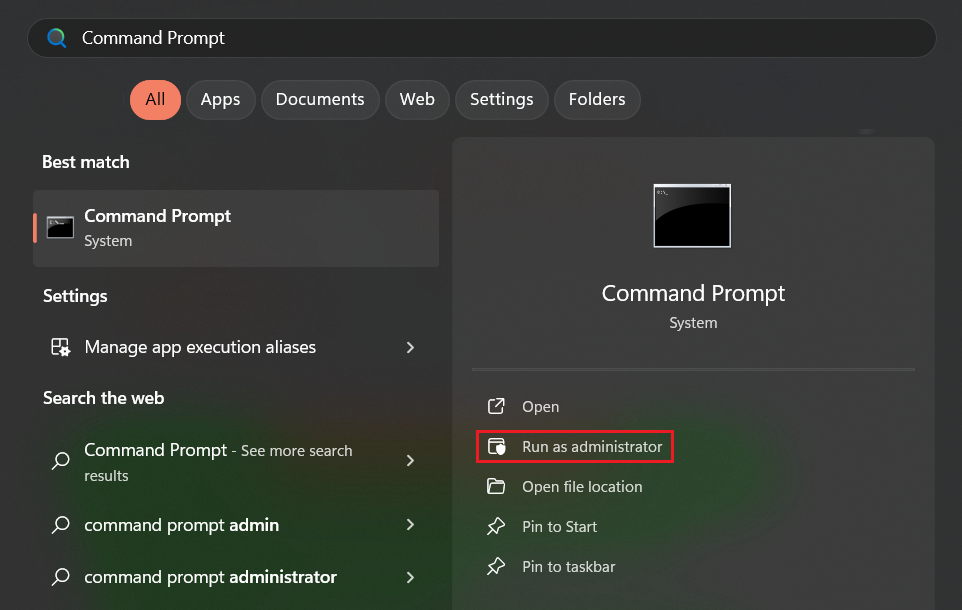
- Copy and paste the following command and hit Enter:
wmic diskdrive get model,status

Confirm it’s your SSD under Model and check Status. If you see OK, your drive is probably fine. If you see Pred Fail, treat it as an immediate replacement trigger—back up now and run a vendor or third-party tool to investigate SMART details for reallocated sectors and uncorrectable errors to confirm whether your drive is failing.
PowerShell
- Click Start, search for PowerShell, and click Run as Administrator.
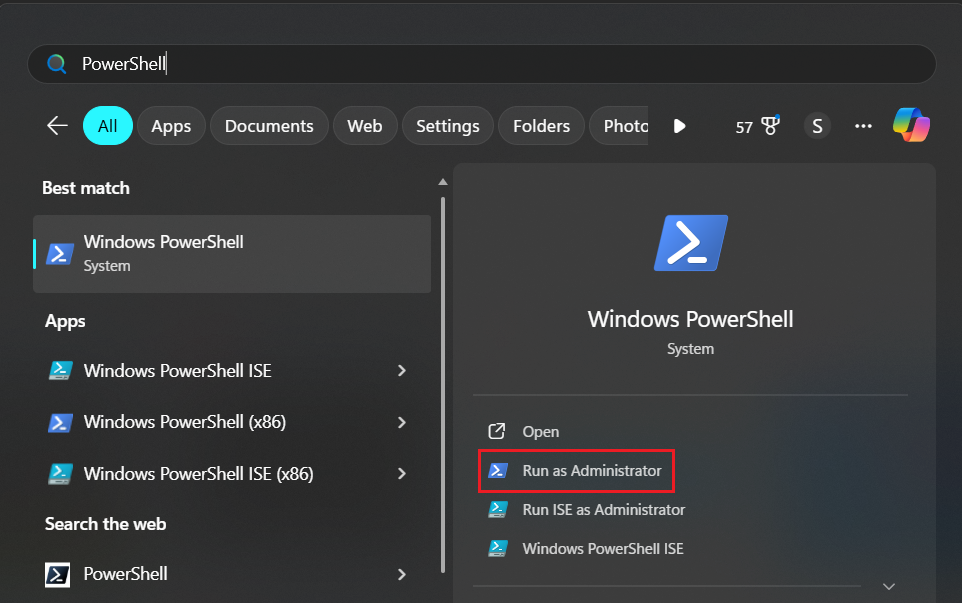
- Run the following command:
Get-PhysicalDisk | Format-List FriendlyName, MediaType, HealthStatus, OperationalStatus
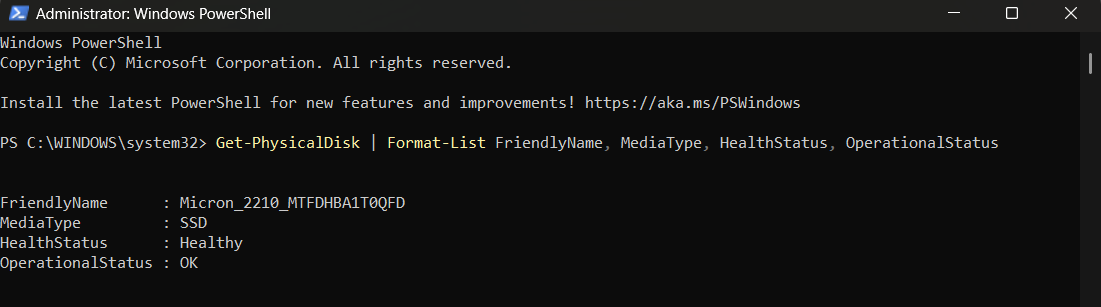
Confirm your SSD is displayed under FriendlyName and check the results. If HealthStatus is Healthy and OperationalStatus is OK, your drive is behaving normally. If you see Degraded and/or Warning, it’s an early sign of trouble—back up immediately and check your drive manufacturer’s or a third-party tool for more SMART details.
⇢ macOS
macOS provides a GUI check via Disk Utility and a Terminal command for a quick SMART read.
Disk Utility
- Open Finder → Applications → Utilities → Disk Utility.
- Choose View → Show All Devices.
- Select your SSD in the sidebar and look at the S.M.A.R.T. status label.
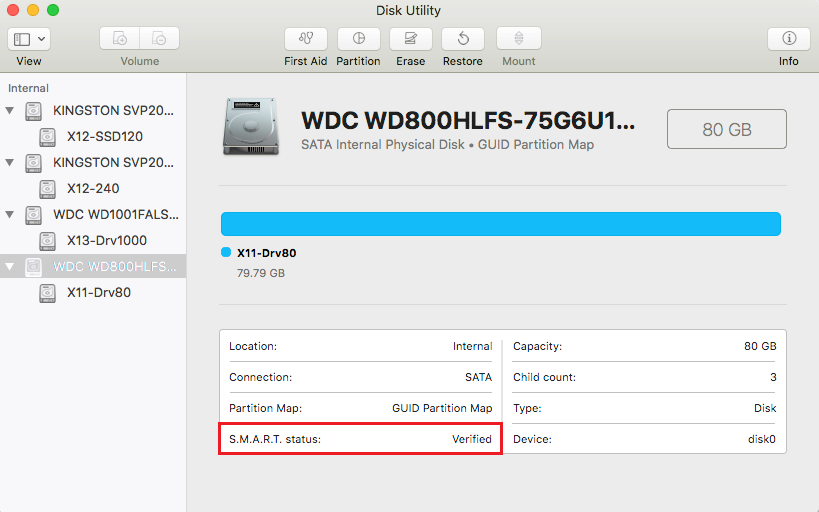
If it shows Verified, your drive is likely fine. If it reports as Failing, back up immediately and use a vendor or third-party tool to check for reallocated sectors and uncorrectable errors.
Terminal
- Open Terminal ( Applications → Utilities → Terminal ).
- Run the following command:diskutil info disk0 | grep -i “SMART”
Check the result next to SMART Status: Verified means you’re good; Failing signals trouble—back up and check the SMART details in your drive manufacturer’s or a third-party tool to confirm.
Manufacturer tools to check SSD health
Vendor utilities can read firmware-specific metrics that built-in tools lack and generic ones sometimes miss. Let’s look at three common tools.
Samsung Magician
Samsung Magician is the go-to for Samsung consumer SSDs—it reports total bytes written and health status along with SMART info, runs firmware updates, and includes an SSD performance benchmark.
- Download Samsung Magician from Samsung’s official website and run the installer.
- Open the app and select your drive from the main screen.
- Note your drive’s health status under Drive health and compare the amount of data written (17 GB on the screenshot below) against your drive’s TBW.
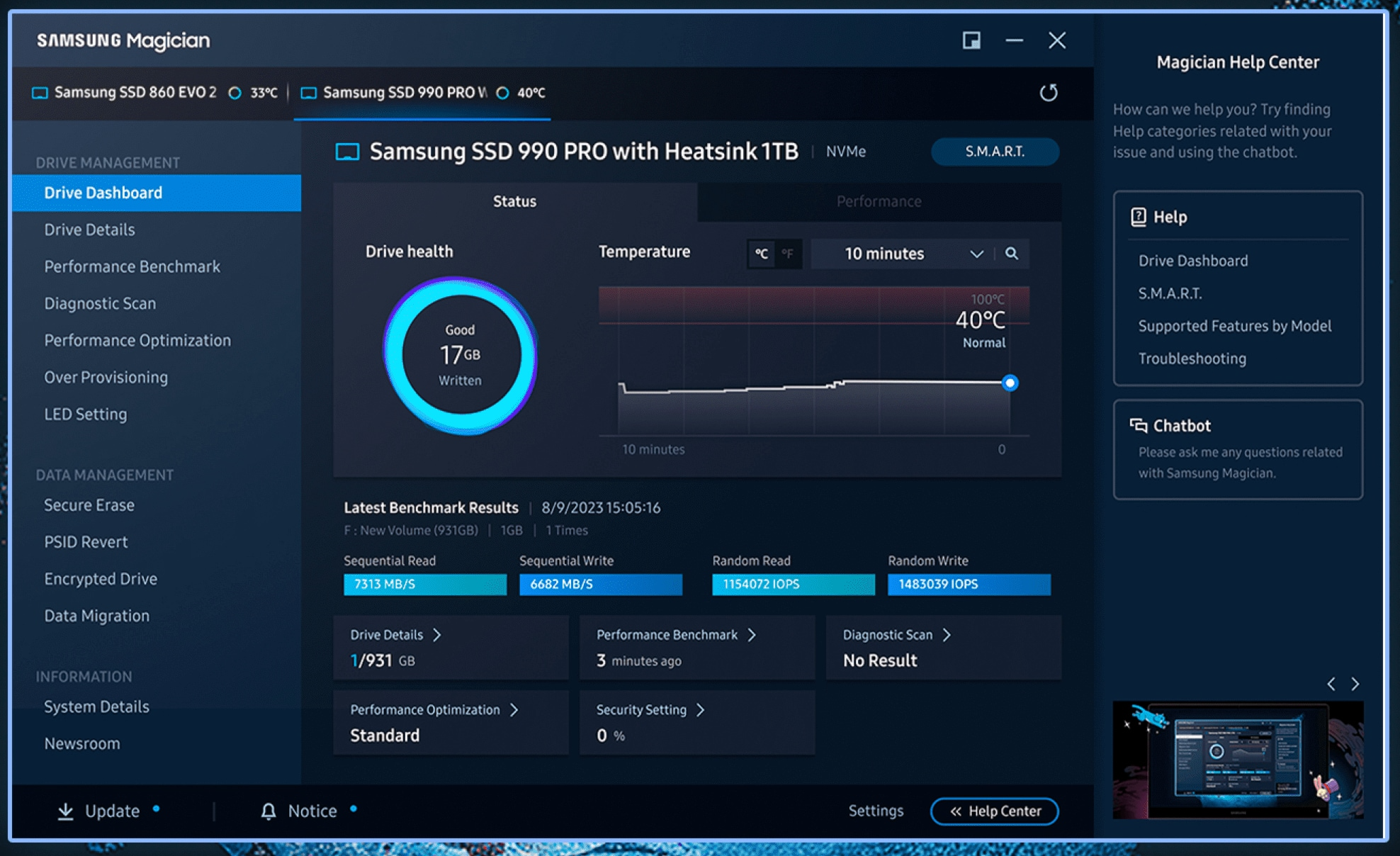
- Also, note the percentage used and power-on hours indicators in the S.M.A.R.T. section and watch for any warnings or errors.
Crucial Storage Executive
Crucial’s tool works well for Crucial and Micron drives and gives clear SMART indicators on total data written and SSD health. It also exposes firmware updates and optional drive settings.
- Download Crucial Storage Executive from Crucial’s support page and install it.
- Launch the app and select your drive in the main UI.
- Go to the S.M.A.R.T. tab and check your drive’s status at the top of the app window and note the indicators for Percentage Lifetime Used, Data Units Written, Power on Hours Count, Critical Warning, and Media Errors Counts.
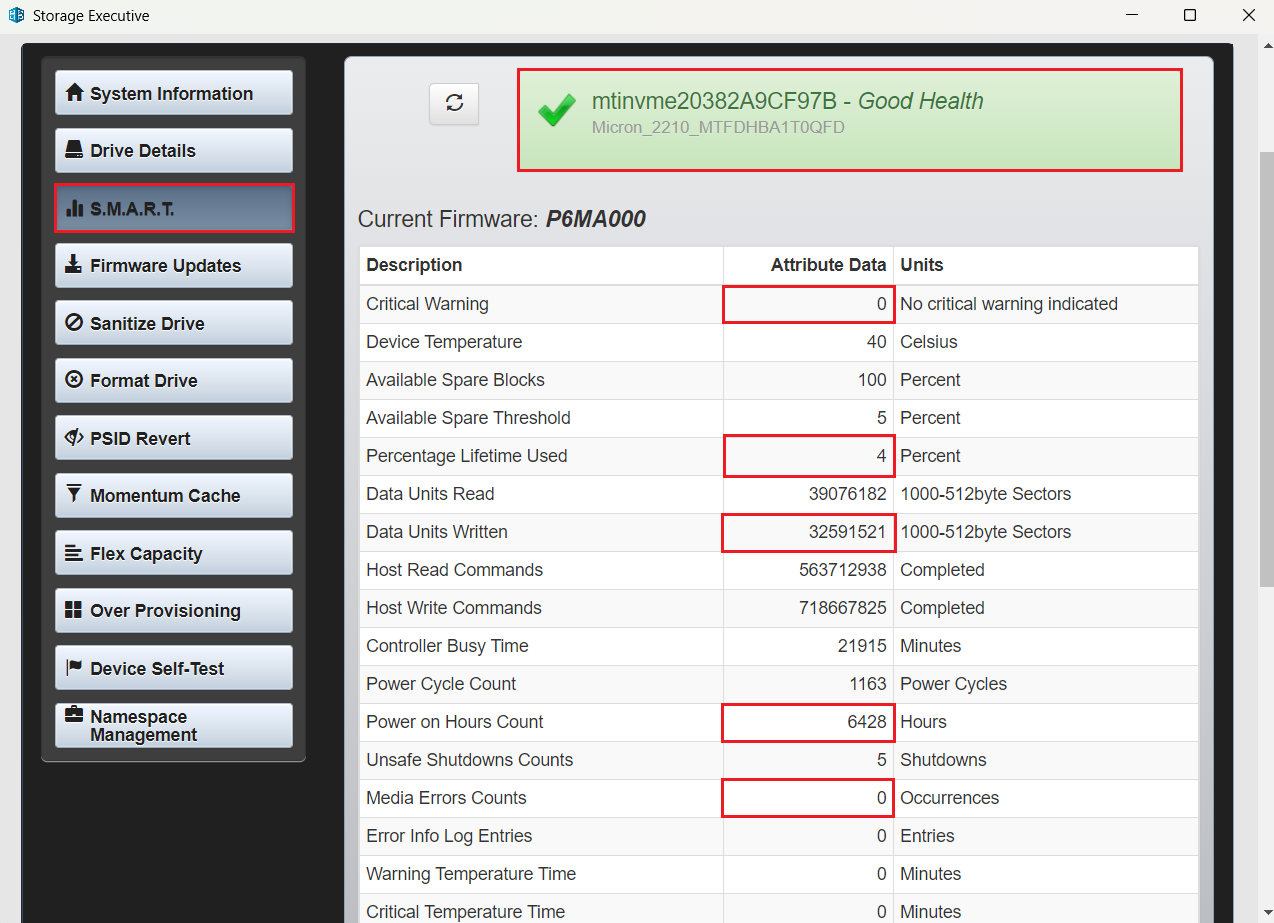
- 1 unit = 1000 × 512 bytes = 512,000 bytes.
- Data Units Written (TB) = 32,591,521 (amount from the screenshot above) × 512,000 = 16,686,858,752,000 bytes ≈ 16.69 TB.
Kingston SSD ManagerKingston SSD Manager is Kingston’s official utility for consumer SSDs. It reports drive health and SMART attributes and typically includes firmware updates and security tools.
- Download Kingston SSD Manager from Kingston’s official support page and run the installer.
- Open the app, select your drive, and look for SMART Overview and SSD Health indicators.
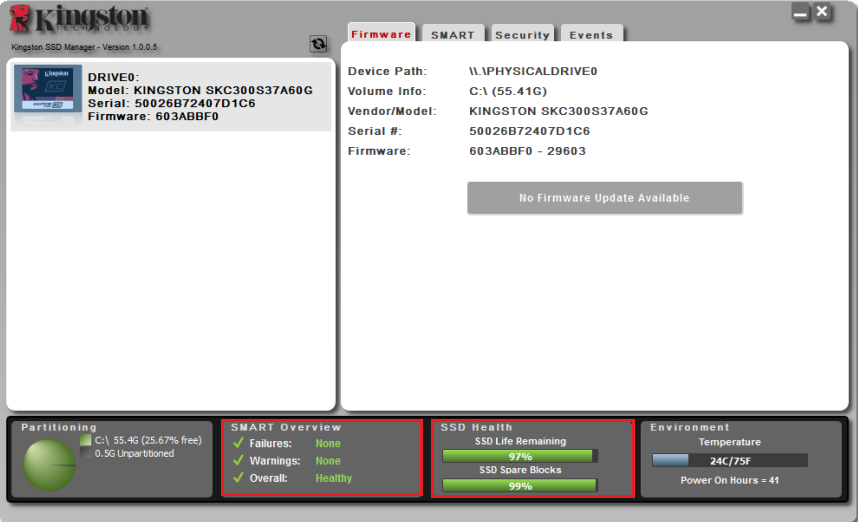
Also, check the written data numbers under the SMART tab and compare them against your advertised TBW and note the power-on hours indicator.
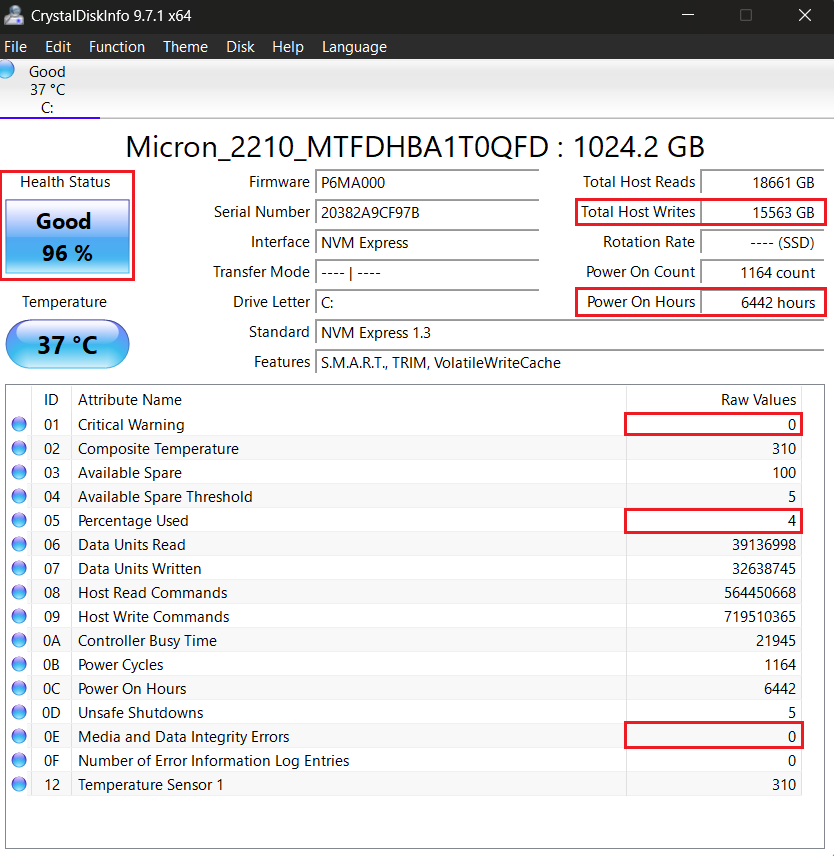
Third-party tools are great because they work with all drives (with rare exceptions) and are especially useful when your drive model is not supported by your vendor’s tool. My go-to is CrystalDiskInfo—it’s lightweight and info-rich—all you need for a quick check.
- Download CrystalDiskInfo and run the installer.
- Launch the app and note the Health Status, Total Host Writes, Power On Hours, Percentage Used, Critical Warning, and Media and Data Integrity Errors indicators.
How to count your SSD lifespan
Now it’s time to put the numbers you noted above to work:
Health status/percentage used
- Good: Life remaining ≥ 80% (or percentage used ≤ 20%)—just monitor normally.
- Moderate: Life remaining 50–79% (or percentage used 21–50%)—check monthly and plan replacement within ~12 months if you do heavy writes.
- Poor: Life remaining 20–49% (or percentage used 51–80%)—schedule replacement within months and increase backup frequency.
- Critical: Life remaining < 20% (or percentage used > 80%)—back up now and replace ASAP.
TBW used (total data written ÷ manufacturer TBW × 100)
- < 50% TBW used: Comfortable.
- 50–70%: Good, but start tracking trends.
- 70–90%: SSD life is nearing its end—prepare to replace within months.
- > 90%: Replace soon, as risk of wear-related failures rises sharply.
Power-on hours
- < 5,000 hours: Low age. Most consumer SSDs here are still early in life. Nothing to worry about at this stage.
- 5,000–15,000 hours: Moderate age. Start checking SMART metrics monthly.
- 15,000–40,000 hours: High age. This often signals long service life or continuous operation. Combine with TBW used and SMART: if TBW used is > 70% or life remaining is < 50%, back up and replace soon.
- > 40,000 hours: Very high cumulative runtime. Treat it as high-risk context: even if other SMART indicators are still OK, consider a replacement plan and increase backup frequency.
DWPD (spec vs. actual)
- Calculate your drive’s spec DWPD using this formula:Spec DWPD = TBW ÷ (drive capacity (TB) × warranty years × 365)
For example, my drive capacity is 1 TB, TBW is 360 TB, and the warranty is three years (visit your SSD vendor’s support page to check yours), so my spec DWPD = 360 ÷ (1 × 3 × 365) ≈ 0.33.
- Now multiply this number by your drive capacity, and you’ll get the number in data storage units.
In my case, it’s pretty simple: 0.33 × 1 TB = 0.33 TB/day (330 GB/day).
- Next, count your actual DWPD using this formula:Actual DWPD = total data written (TB) ÷ (drive capacity (TB) × (power-on hours ÷ 24))
My actual DWPD = 15.6 TB ÷ (1 TB × (6,442 ÷ 24)) ≈ 0.06 → 0.06 TB/day (60 GB/day). If your actual DWPD exceeds the spec DWPD, you’re running a heavy write workload and should pick a higher-end drive, or you may have to plan replacement sooner than you thought.
Signs your SSD is failing
The clearest hardware warnings are SMART predictive failure alerts ( Pred Fail in the Command Prompt) and non-zero reallocated sectors, uncorrectable errors, and critical warnings—these always mean you need to back up immediately. Other strong signals:
- Recurring BSODs tied to disk access
- Frequent file corruptions
- Sudden read-only mode
- Disappearing drive or intermittent mounting failures
- Other performance issues like sustained slowdowns and stalled writes
If you see any of the above, stop using the drive for new writes, back up everything immediately, run your vendor utility or CrystalDiskInfo for a full SMART check to confirm, and prepare to replace the drive.
Are SSD Lifespan Estimates Trustworthy?
They are useful but conservative. Manufacturers test drives under controlled lab conditions, accounting for worst-case write patterns, firmware behaviors, and warranty risk, and then publish TBW or DWPD to guarantee endurance across a broad range of use cases.
And like I mentioned, in the real world, most consumers never hit the published TBW before they upgrade. Typical home workloads are read-heavy (browsing, streaming, gaming), and modern controllers, wear leveling, and overprovisioning extend usable life well beyond raw NAND cycle counts.
Bottom line: use TBW and DWPD data for planning and comparison, but act on live SMART values.
Which Factors Affect SSD Lifespan?
It depends—SSD lifespan is driven by how much you write, the type of NAND inside the drive, environmental stress (mainly heat), and how well the controller and firmware manage writes. Let’s go over the main factors.
NAND flash type (SLC, MLC, TLC, QLC)
Higher-end NAND trades endurance for density and cost. SLC is extremely durable (rare in consumer drives), MLC and TLC are common mainstream options, and QLC packs the most capacity but has the smallest write budget. Choose NAND that matches your workload.
Write/erase cycles
Every write/erase reduces a cell’s lifespan. Heavy or frequent writes increase wear, and write amplification makes it worse. Controllers and firmware aim to minimize this, but the underlying principle is simple: more writes = less life.
Workload
Video editing, VM hosts, and constant surveillance recording are write-heavy and will age your SSD much faster than web browsing or gaming. So if you’re going to use the SSD for writes a lot, pick a drive accordingly.
Heat & environmental factors
High sustained temperatures accelerate NAND wear and can trigger thermal throttling or instability. Improving cooling and airflow and adding a heatsink for hot M.2 NVMe drives help preserve SSD life.
User maintenance habits
Enable TRIM, keep firmware updated, avoid defragmenting an SSD, leave 10–20% free space, don’t clutter the drive with unnecessary temporary or log files, and use other SSD optimization tricks to reduce write amplification and prolong SSD lifespan.
What Happens After SSD Lifespan Is Reached?
When an SSD exhausts its write budget, it doesn’t always die instantly—many drives go into a read-only mode to protect your data, giving you a final window to copy files off.
That said, drives can also fail unpredictably: controller faults, firmware bugs, or sudden electronic failures may occur without much warning. Can you recover data if your drive fails? If the drive is still readable—yes, you can usually copy your data.
However, if the controller or firmware fails, even data recovery software may not help. Professional recovery is still an option in this case, but it’s costly and not guaranteed. Solution?
Back up immediately if you see any SMART errors, your drive’s health is lower than 20%, or TBW used is over 70%, and replace the drive before you rely on it for important data.
How to Prolong SSD Lifespan?
Little habits make a big difference. These optimizations can help you extend your drive’s life:
- Enable TRIM: It lets the OS tell the SSD which blocks are no longer in use, lowering write amplification and preserving endurance.
- Keep firmware updated: Vendors fix wear leveling, stability, and performance bugs in firmware updates, which can extend useful life and reduce failures.
- Avoid defragmenting an SSD: Defragging writes large amounts of unnecessary data and speeds up wear. SSDs don’t need it because they have no moving parts.
- Use hibernation & pagefile wisely: Hibernation writes a full RAM image, and a large pagefile causes constant writes. So if you have lots of RAM, reduce or relocate these to limit extra writes.
- Leave 10–20% free for wear leveling: Spare space gives the controller room to remap worn cells and balance writes, improving SSD performance and increasing its lifespan.
- Keep the drive cool: Thermal stress accelerates degradation and triggers throttling, so ensure sufficient airflow or add a heatsink for hot NVMe modules.
- Limit background writes: Disable Search indexing and excessive backup snapshots to cut unnecessary write operations.
- Set up overprovisioning: OP reserves extra space for the controller. This tradeoff—less user capacity for more spare cells—noticeably helps endurance.
- Use a trusted SSD optimization tool: A good optimization tool like Auslogics SSD Optimizer can automate SSD tweaks and schedule drive maintenance so you don’t have to do it manually.
SSD vs. HDD Lifespan: Which Drive Lasts Longer?
Usually an SSD, but it depends on how you use it. HDDs have mechanical parts (spinning platters, heads) that wear and are sensitive to shock. In real-world scenarios, the average hard drive lifespan is around 3–5 years, depending on model and use. SSDs have no moving parts and resist physical shock better and typically last 5–10 years or more, especially if they’re not constantly used for write-heavy tasks.
However, even though SSDs beat HDDs in this category most of the time, misuse or extreme conditions like constant heavy writes, high heat, and ignored firmware issues can shorten an SSD’s life below an HDD’s—so care and monitoring matter. Regardless of tech, the best rule is the same: back up critical data and replace your drive when wear indicators rise.
SSD Lifespan: Should I Replace My Drive?
We’ve discussed the ins and outs of SSD lifespan —from how to check it to how to extend it—so let’s close this loop. You should only replace your SSD when wear metrics or drive behavior tell you to, or when you want an upgrade. Here are the fundamental triggers for you to start planning a swap:
- Your drive’s TBW used hits 70–80%
- Your drive’s life left is lower than 50%
- Your tool reports any SMART errors or warnings
- Your drive shows persistent performance drops
- Your drive goes read-only
- You need more capacity or modern speed
All of those are perfectly valid upgrade reasons before end-of-life. So how long does an SSD last? It mostly depends on you now—maintenance and backups matter more than calendar years. Keep TRIM running and firmware up to date, monitor SMART monthly, keep your SSD cool, and follow the simple habits I shared in this article, and your drive will return you the favor by staying fit and healthy for years.
Most importantly, follow this rule when in doubt: back up now, replace early—a simple swap is most often far cheaper and less painful than data recovery. How long have you been using your SSD? Share in the comments below!


