


- Is Defragmentation Still Relevant in 2025?
- How to Optimize Drives with Microsoft’s Built-In Defragmenter?
- Are Third-Party Disk Defrag Programs Better than Windows’ Built-In Disk Defragmenter?
- What Are the Pros and Cons of the Windows Defragmenter vs. Third-Party Tools?
- Which Option Should I Choose?
- How Can I Choose the Right Third-Party Tool?
- The Built-In Disk Defragmenter on Windows 11 vs. Third-Party Tools: Which Is Better?
- FAQ
You may already know that defragmentation is an essential maintenance process for PCs that run on hard disk drives. And now you’re wondering whether the Windows built-in Defragment and Optimize Drives utility is sufficient to get the job done.
The answer is generally yes, as recent iterations of the tool automatically optimize both solid-state drives (SSDs) and hard disk drives (HDDs). That said, professional third-party software allows users to take a more hands-on approach and provides more drive maintenance options.
In this guide, we will explore how Microsoft Drive Optimizer works and compare it to professional third-party disk defrag tools like Auslogics Disk Defrag and Piriform Defraggler.
We will learn how they differ in regard to their available functionalities and defragmentation capabilities.
🛠️ Third-party tools offer more robust customizable options for HDD defrag, scheduling, and disk optimization.
💡 Windows’ built-in defragmenter (Microsoft Drive Optimizer) automatically detects solid-state drives and implements the type of optimization they require.
🔍 Some third-party defraggers also detect SSDs and offer dedicated optimization, but not in every case.
⏱️ Microsoft Drive Optimizer runs on a weekly schedule by default. It optimizes drives in the background when the system is idle. Third-party tools can be set to run at any time.
📊 Users can manually initiate hard drive analysis and defrag as desired using both Drive Optimizer and third-party tools.
🧩 When choosing a third-party tool, consider defrag methods, scheduling, SSD detection, resource use, extra features, and cost.
Is Defragmentation Still Relevant in 2025?
Yes. Defragmentation immensely benefits computers running on traditional hard disk drives. HDDs are negatively impacted by fragmentation because they contain moving parts for reading and writing data.
However, most modern computers now come equipped with solid-state drives. These types of drives have no spinning disks or actuator arms like HDDs. They instead use flash memory, which enables instant data retrieval. Therefore, file fragmentation is not a concern.
Yes. SSDs are now the preferred choice for boot drives and continue to grow in popularity. But that doesn’t imply hard disk extinction. HDDs are now predominantly used as backup solutions and in NAS systems. That means defragmentation remains every bit necessary to enhance performance for these HDD use cases.
How to Optimize Drives with Microsoft’s Built-In Defragmenter?
Microsoft Drive Optimizer (formerly Disk Defragmenter) is a built-in Windows utility designed to automatically optimize hard disk drives and solid-state drives.
This is consistent with how the app is named on the Windows Start menu, on the app itself, and within Task Manager, respectively.
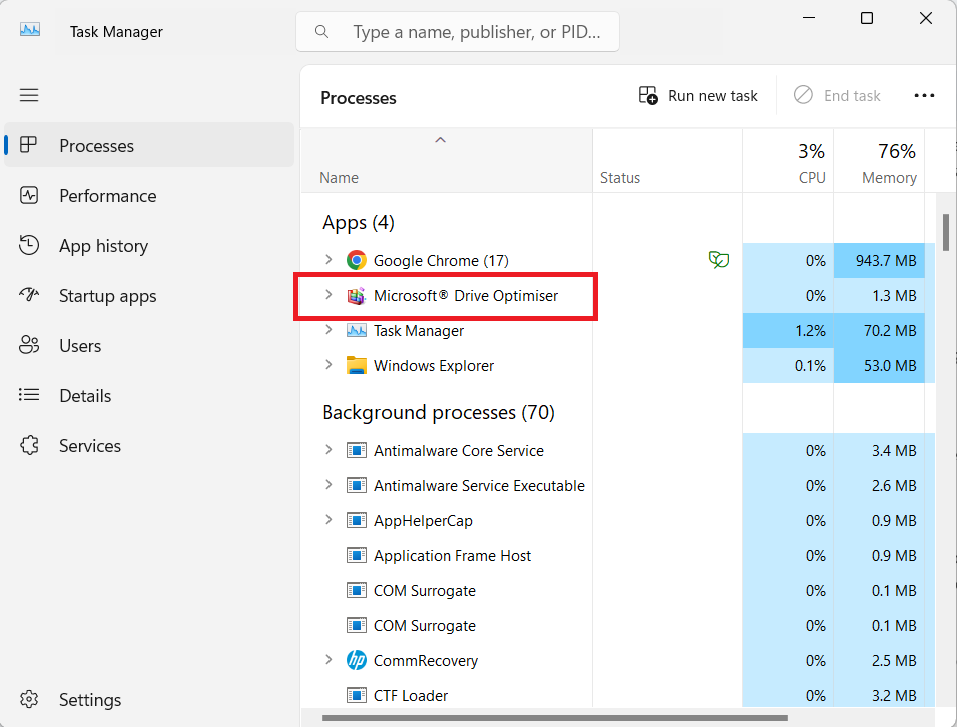
Drive Optimizer periodically analyzes hard disk drives to ascertain the presence of fragmented files. It then initiates the defragmentation process to:
- Consolidate the free space on the drive
- Rearrange and rewrite file fragments contiguously for fast and easy access
The resultant effect is improved system responsiveness and faster startup times. Also, by curbing excessive movements of the drive’s read-write head, there’s less wear and tear, helping maintain the health of the hard drive.
For solid-state drives, Drive Optimizer does not run defragmentation. It instead uses the Optimize function to initiate TRIM commands. TRIM notifies the SSD controller of data blocks that contain deleted files. Those blocks can then be cleared during garbage collection. This helps manage storage space more efficiently, improves write speeds, facilitates wear leveling, and extends the lifespan of the SSD.
By default, Drive Optimizer analyzes your drives on a weekly schedule and runs optimization as needed. But you can change the schedule as desired. You can also initiate optimization manually.
How to manually initiate SSD retrim and hard drive defrag with Disk Defragmenter
If you are concerned that your PC is not in the best condition, you can manually initiate a hard drive defrag or SSD retrim. Here’s how to defrag a computer using the built-in tool:
- Click on the Start icon (Windows logo) on your taskbar.
- Start typing defragment.
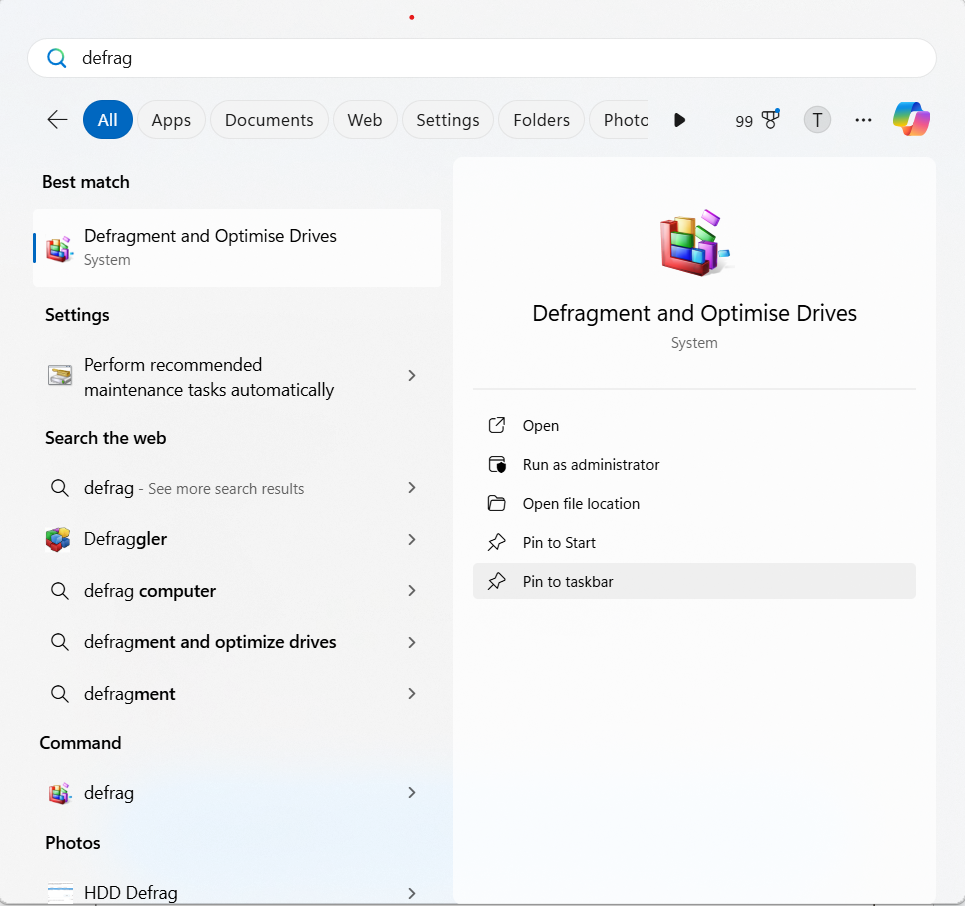
- Click the Defragment and Optimize Drives option from the search results.
- Select your drive.
- If the selected drive is a hard disk drive, click the Analyze button to run a scan and determine whether your drive needs defragmentation. Or click the Optimize button to start defrag immediately after drive analysis.
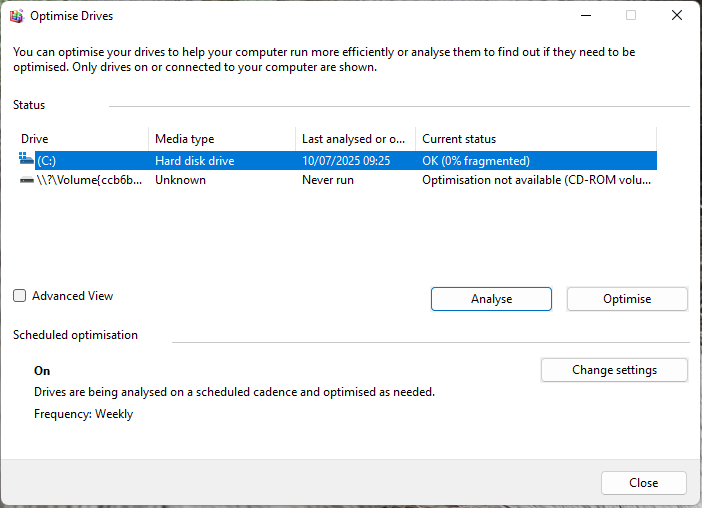
- If your drive is a solid-state drive, the Analyze button will be grayed out. Simply click the Optimize button to initiate a retrim.
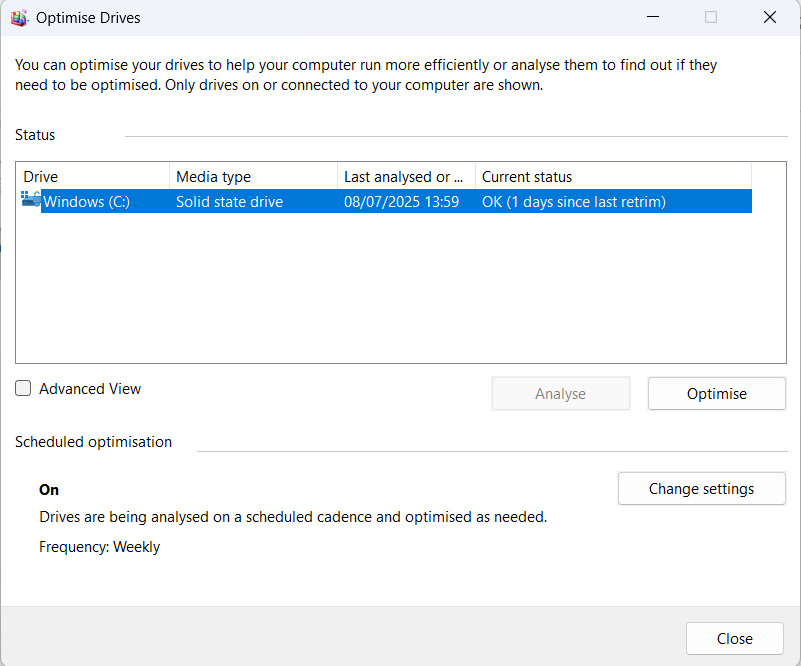
How to change the Optimize Drives schedule
By default, the tool runs drive optimization on a weekly basis. But you can change this schedule.
Here’s how:
- Press the Windows logo key on your keyboard.
- Start typing defragment.
- Click the Defragment and Optimize Drives option from the search results.
- Click the Change settings button under the Scheduled optimization segment.
- Expand the Frequency drop-down menu and select Daily if you want drive optimization to happen on a daily basis. Select Monthly if you want optimization to happen only once a month. The default option is Weekly.
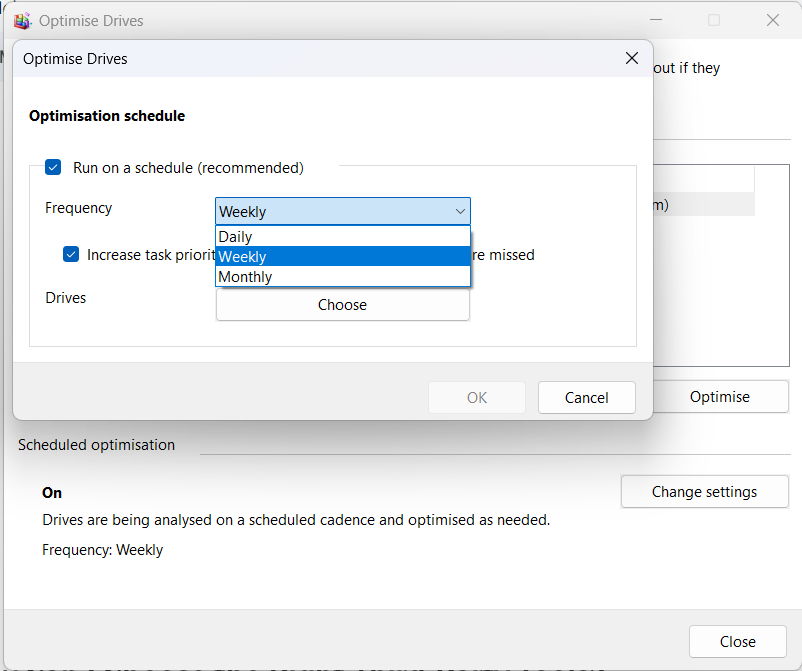
- Click the Choose button to select the drive(s) that will be optimized on the schedule.
- Ensure that the Increase task priority, if three consecutive scheduled runs are missed option is enabled.
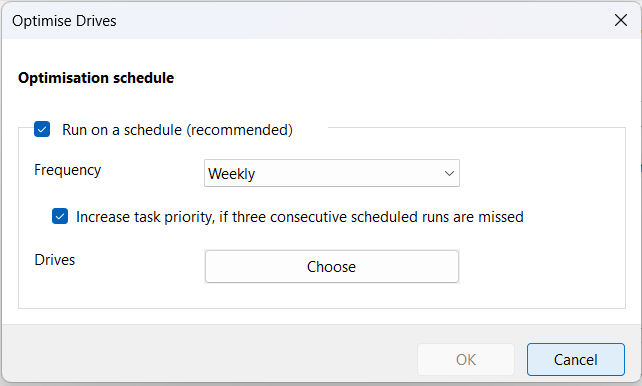
You can disable scheduling entirely by unchecking the Run on a schedule (recommended) option. But that would not be advisable unless you have enabled scheduling with a third-party disk defragmenter software such as Auslogics Disk Defrag or an SSD optimizer software like Auslogics SSD Optimizer.
The working method of disk defraggers goes as follows:
- They first run a disk analysis to discover the level of fragmentation on the disk. This also determines whether the hard drive requires defragmentation.
- They then create a defragmentation plan, establishing how files will be arranged on the drive.
- Next comes the defrag execution, whereby file fragments are pieced together and arranged on the disk according to this plan. Free space on the disk is also consolidated.
- Afterwards, verification is carried out to ensure that all files are written contiguously and can be accessed without issue.
Are Third-Party Disk Defrag Programs Better than Windows’ Built-In Disk Defragmenter?
Now let’s see how third-party disk defrag programs compare against the Microsoft Drive Optimizer utility.
🧭 Ease of use
Drive Optimizer has fewer features and is, therefore, easier to navigate.
✅ Reliability and effectiveness
Third-party tools are more reliable and effective.
💾 SSD detection and TRIM/Active Garbage Collection support
Not all third-party defraggers support SSD TRIM. But there are dedicated SSD optimization tools like Auslogics SSD Optimizer.
🧩 Customizable defrag algorithms
Third-party tools support defrag customization. Drive Optimizer does not.
📅 Defrag scheduling
Microsoft Drive Optimizer’s defrag scheduling features are limited. Third-party tools lend more flexibility.
📈 Reporting and logs
Third-party tools provide highly detailed defrag reports, unlike the Windows native defragger.
❌ Features that Microsoft Drive Optimizer doesn’t provide
- Cluster mapping
- Boot-time defrag
- File/folder-level defrag
- File/folder exclusion
- File Explorer integration
- Disk health monitoring
- Disk cleanup
- Disk error check and correction
- Free space wiping
- Disk performance benchmarking
| Feature | Windows Drive Optimizer | Auslogics Disk Defrag | Piriform Defraggler |
|---|---|---|---|
| Detailed disk information, analysis report, and defrag reports | LIMITED | YES | YES |
| Customizable defragmentation algorithms | NO | YES | YES |
| Boot-time defrag | NO | YES | YES |
| Custom scheduling | LIMITED | YES | YES |
| Single file/folder defrag | NO | YES | YES |
| Exclude selected files and folders | NO | YES | YES |
| Show fragmented files and folders | NO | YES | YES |
| File Explorer integration | NO | YES | YES |
| Check for and fix disk errors | NO | YES | YES |
| Disk cleanup | NO | YES | YES |
| Additional options for hard drive optimization | NO | YES | YES |
| Disk health monitoring and performance checks | NO | YES | YES |

✅ Microsoft Drive Optimizer has a clear and simple user interface that’s not at all complicated to figure out. Manually initiating disk optimization and changing the scheduling frequency is easy and straightforward.
❌ Third-party tools, on the other hand, come with a lot of features that often take a little time to get used to. Some programs, however, such as Auslogics Disk Defrag Ultimate, provide helpful user guides as well as feature descriptions right within the app. They make it easy to navigate the many available features. Thereby decidedly shortening the learning curve.

❌ Microsoft Drive Optimizer is reliable and effective to an extent. In some cases, it doesn’t always get it right when it comes to detecting the level of fragmentation on a drive. Furthermore, since the utility only runs in the background when the system is idle, there’s a good chance that scheduled runs could be missed.
✅ Third-party tools are more robust and dependable. They may sometimes detect more fragmented files. They also run strictly according to set times and hardly miss scheduled optimizations.

✅ The Optimize Drives utility on Windows differentiates between solid-state drives and hard disk drives. It runs defragmentation for HDDs and trimming for SSDs.
❌ Some third-party disk defragmenters might only be able to defragment your hard drive without providing smart algorithms for running maintenance on SSD. But some do provide SSD support. As mentioned, it is best to use dedicated SSD optimizers, such as Auslogics SSD Optimizer and SSD Fresh, for SSD maintenance.

❌ The Windows built-in Drive Optimizer does not offer as much flexibility as third-party tools do. It has basic features for hard drive defragmentation, and there’s not much that users can do since the utility practically runs itself.
✅ Third-party programs offer multiple features for defrag customization. For instance:
- You can choose to only defrag files of a specific size.
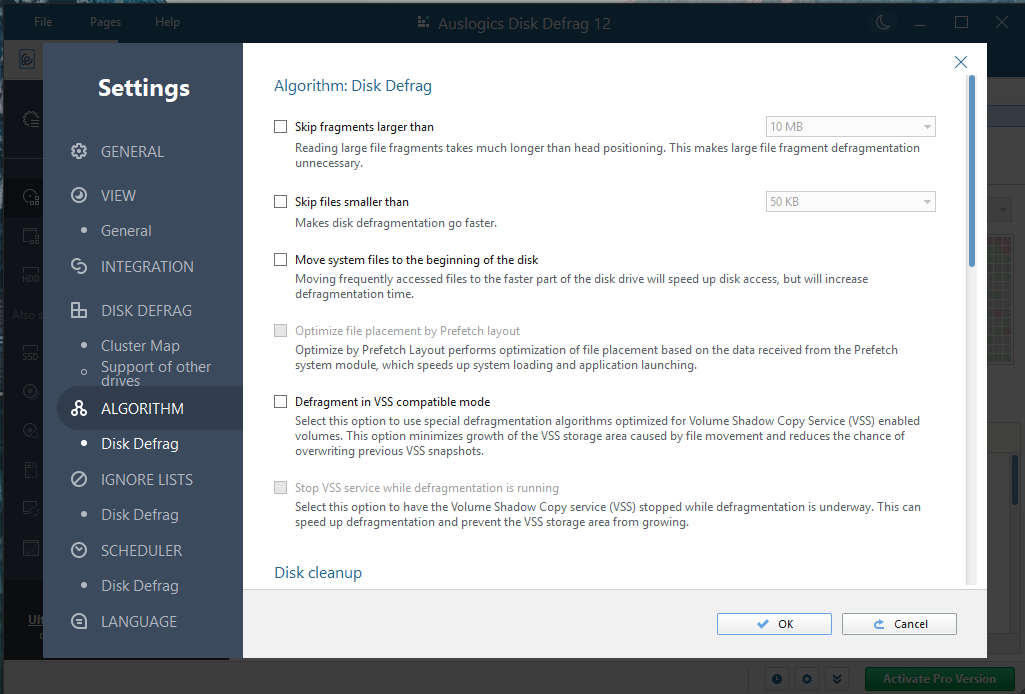
- Decide how files are organized on the disk after being defragmented.
- Specify actions that will be taken before and after defragmentation.
- Manage system resource usage for defrag session optimization.

❌ The Defragment and Optimize Drives utility only offers scheduling on a daily, weekly, or monthly basis. It does not have specific times for drive optimization.
✅ On the other hand, third-party tools allow users to set the exact times when drive optimization will be carried out. And you can effectively track when every scheduled defrag session is supposed to start.

❌ Microsoft Drive Optimizer does not provide as much detail. It only shows the time of last optimization and the drive’s current status. It also doesn’t notify the user when scheduled optimizations have been successfully completed. You can also go through the Event Viewer to check for defrag actions. Navigate to Event Viewer > Windows Logs > Application and click Filter Current Log. Scroll through the Event sources drop-down menu, select Defrag, and click OK.
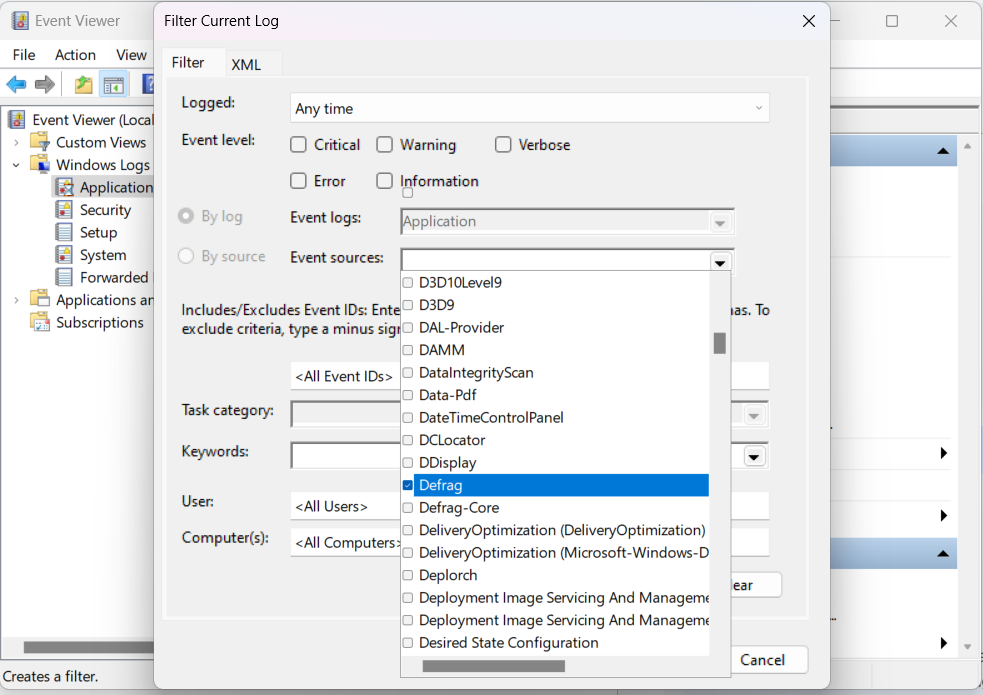
You can click on each event to expand the information.
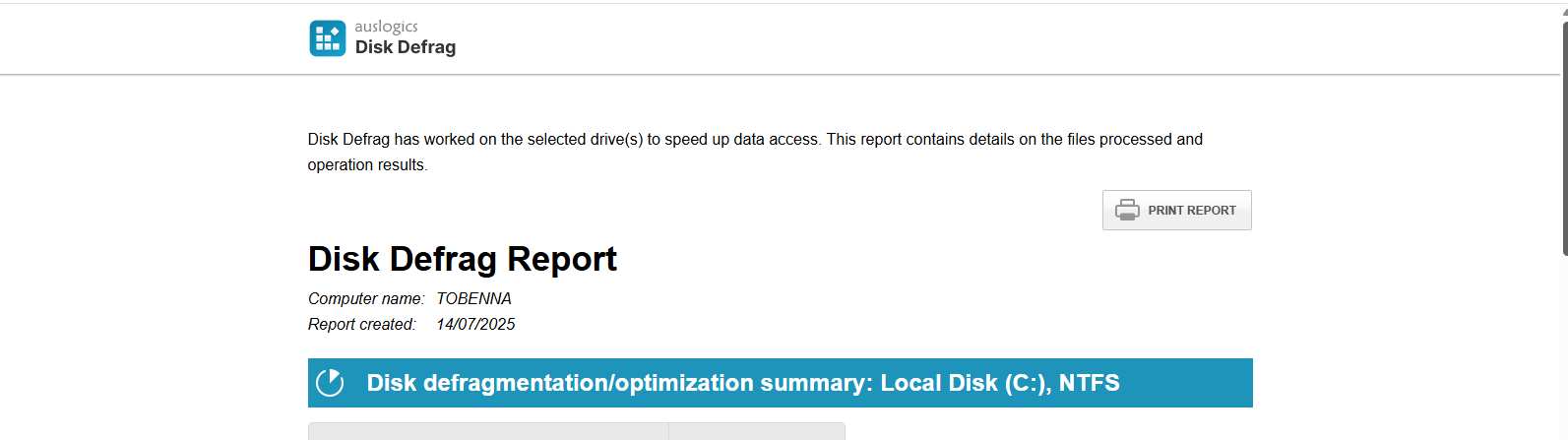
✅ If you require detailed reports and defragmentation logs, even over extended periods of time, then you should go with third-party programs. Reports are well-organized and easy to track.
You will get information like the list of files and folders that were defragged, the time it took to complete each defrag session, performance improvements after the defrag, and more. Some programs, like Auslogics Disk Defrag, even make it possible to save the reports to a file or print them out.

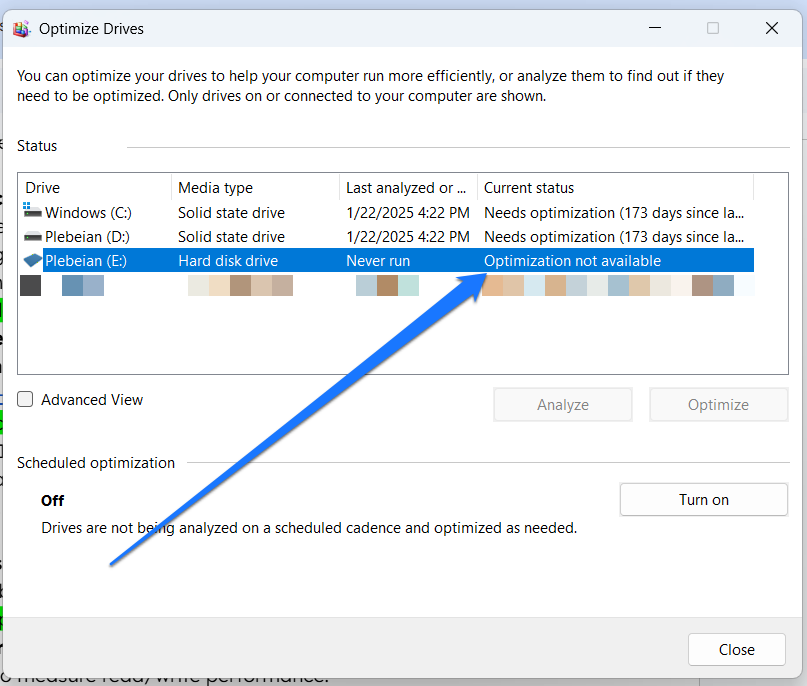
❌ Windows’ native drive defragmenter does not provide a cluster map or any form of visual aid.
✅ Third-party tools provide color-coded cluster maps to help users identify blocks that contain fragmented files on the disk. You can see the number of fragmented files in a block. Some tools make it possible to view the list of files in each block and their details. The cluster map also has color codes for free space, allocated blocks, defragmented blocks, MFT-occupied blocks, and so on.


❌ Microsoft Drive Optimizer does not carry out boot-time defrag.
✅ Third-party tools allow for boot-time defrag, whereby defragmentation happens at system startup. This makes it possible to defrag system files that are typically inaccessible after system startup. These include the paging file, hibernation file, registry files, and the NTFS file system MFT.

❌ Microsoft Drive Optimizer does not allow the selection of files and folders for defragmentation. Neither does it make it possible to exclude select files and folders from the defrag process. It instead takes a holistic approach, analyzing and defragging the entire drive.
✅ Third-party tools make it possible for users to defrag selected files and folders as opposed to defragging the entire drive. This lets you prioritize the performance of certain apps or effectively manage large files and frequently accessed files. You can also exclude certain files and folders from the defragmentation process. This targeted approach helps save time and makes the defragmentation process less disruptive.

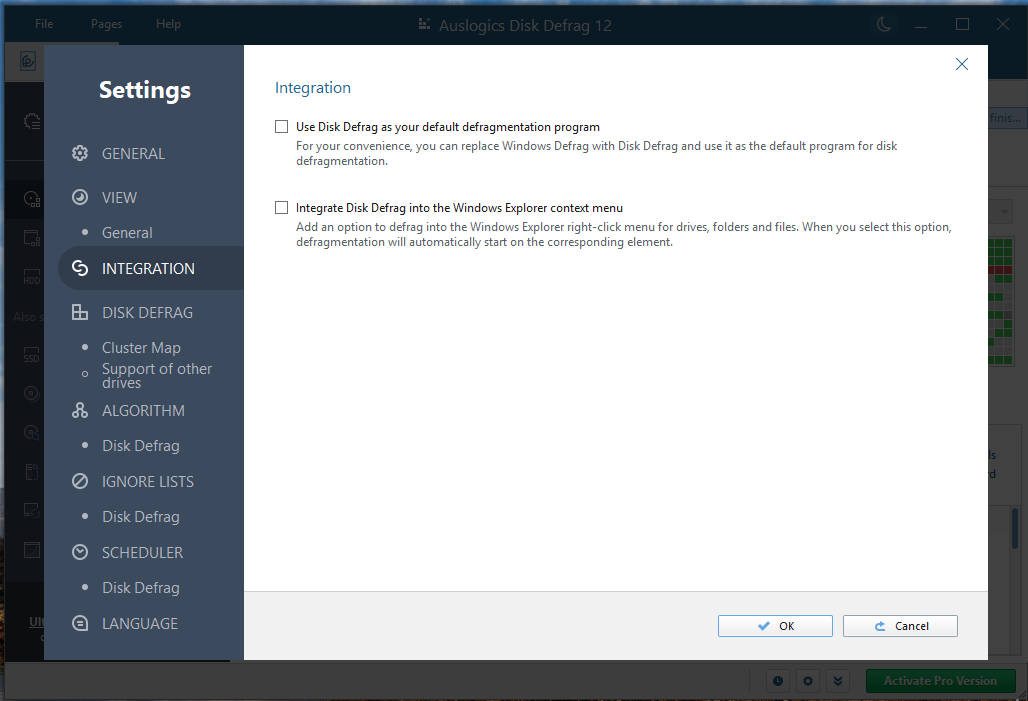
❌ Microsoft Drive Optimizer does not integrate with File Explorer, since it doesn’t support defragging individual files and folders.
✅ Some third-party tools integrate directly with File Explorer by adding defragmentation and optimization commands to the right‑click context menu for files and folders, allowing you to launch a defrag job or view fragmentation details without opening a separate app.
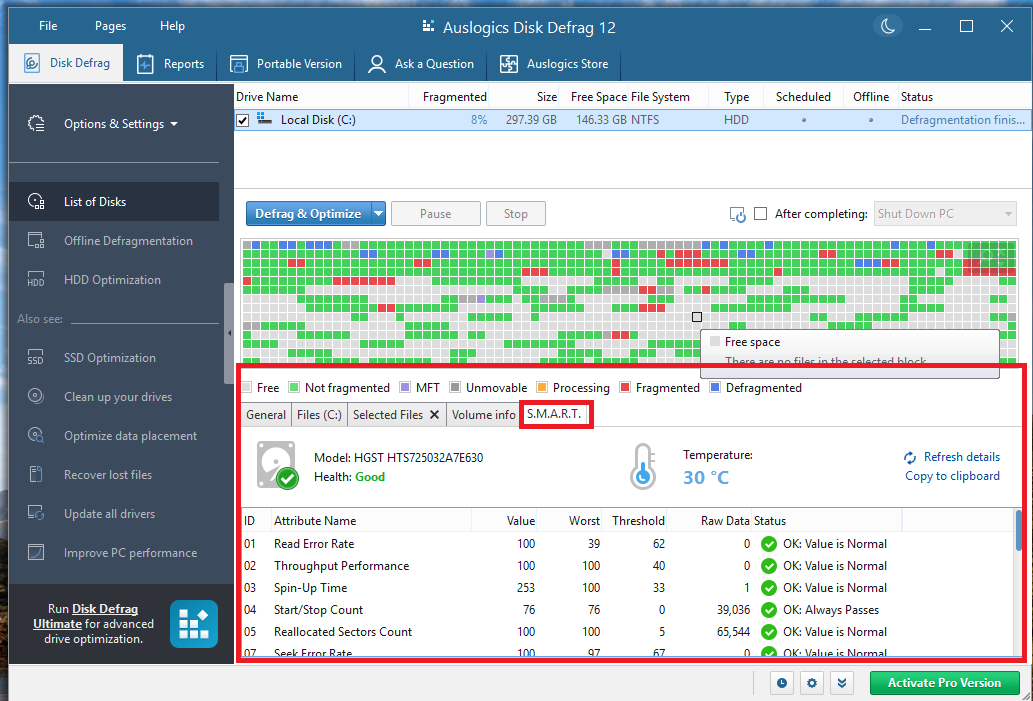
❌ Microsoft Drive Optimizer can only analyze your drives to determine when defrag is needed. It does not monitor the general health of the disk or present users with the disk’s SMART data.
✅ Third-party tools can read and interpret your hard drive’s SMART data. SMART stands for Self-Monitoring, Analysis, and Reporting Technology. The information thus provided exhaustively reveals the health condition of your drive and sheds light on potential issues. This enables the user to take prompt action to save the drive and safeguard their data.
❌ Windows’ native disk defragmenter focuses solely on disk analysis and defragmentation for HDDs and trimming for SSDs. And that’s about all it does.
✅ In contrast, third-party disk defrag programs provide additional features for general drive maintenance, such as:
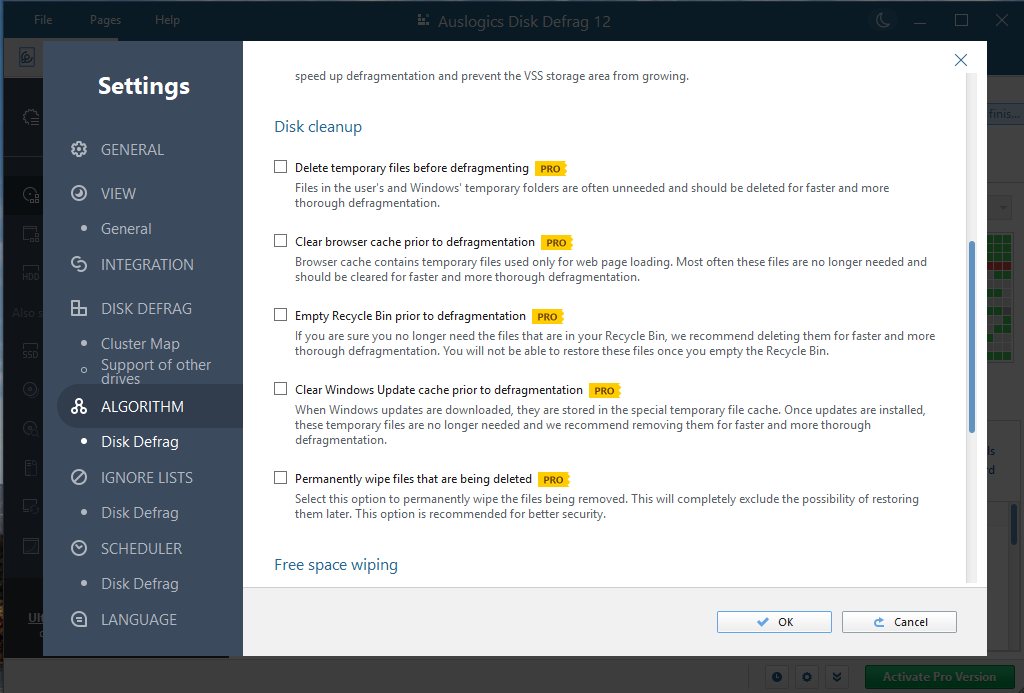
- Disk cleanup: Freeing up disk space by clearing out temporary files and other unneeded items reduces the number of files that will be processed during the defragmentation process. This saves time and makes defragging the disk more efficient.
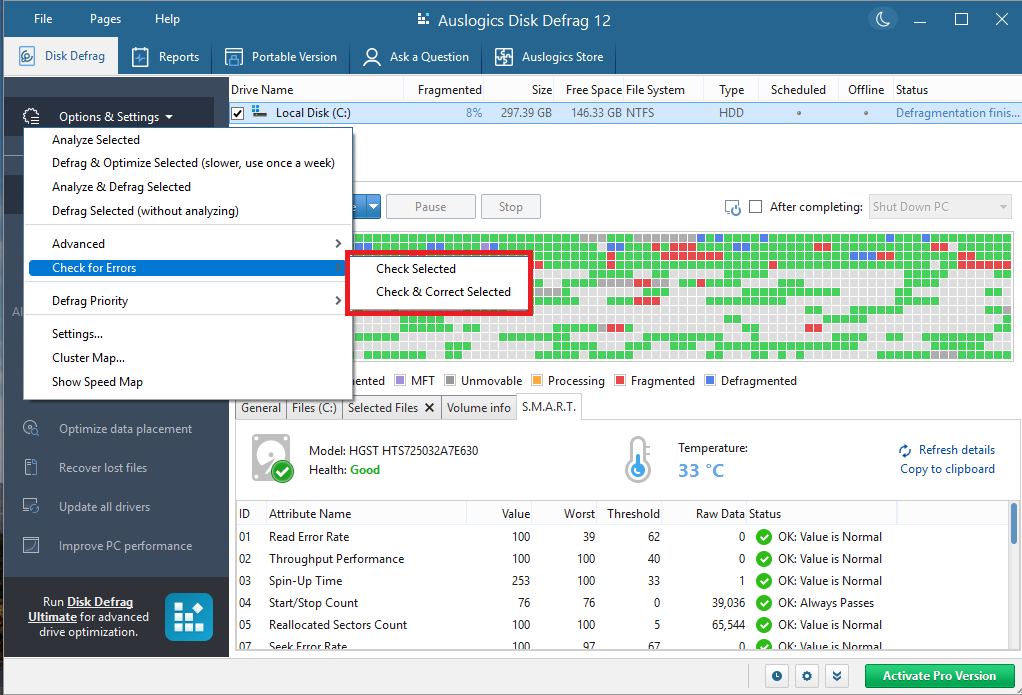
- Disk error check and correction: If the disk has errors, starting a defrag poses the risk of data corruption. Third-party tools like Auslogics Disk Defrag use CHKDSK to fix all disk errors prior to defragmentation.
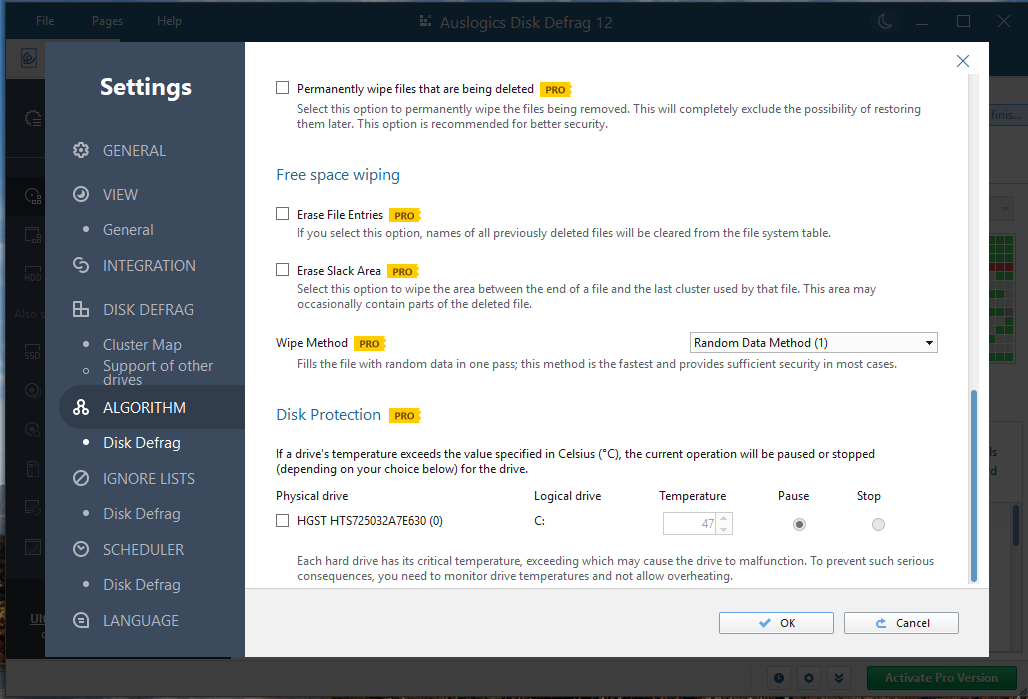
- Free space wiping: Some third-party tools allow users to wipe available free space to make deleted data unrecoverable.
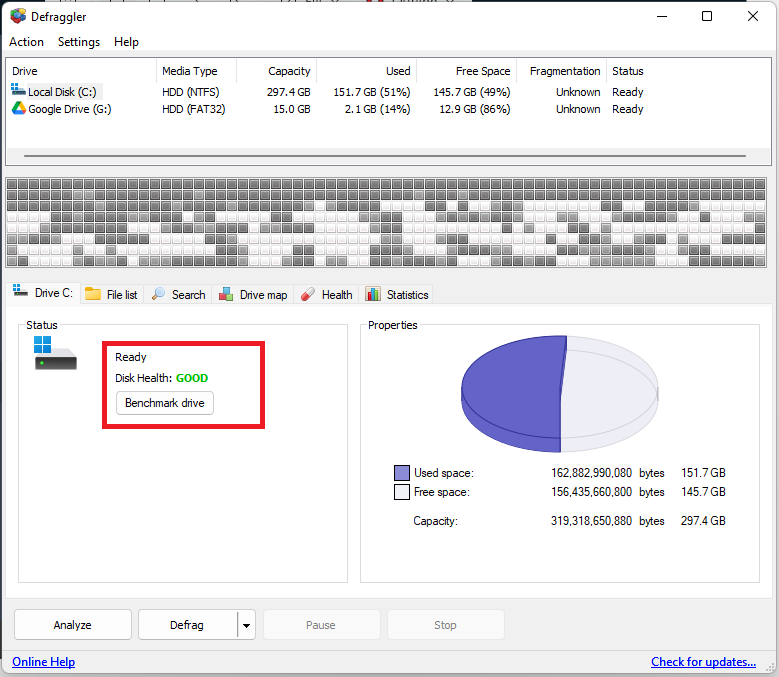
- Performance benchmarking: Programs like Piriform Defraggler run drive tests to measure read/write performance.
What Are the Pros and Cons of the Windows Defragmenter vs. Third-Party Tools?
| Microsoft Drive Optimizer | Third-party disk defragmenter |
Pros:
Cons:
|
Pros:
Cons:
|
Which Option Should I Choose?
| Choose Microsoft Drive Optimizer if: | Choose third-party software if: |
|
|
How Can I Choose the Right Third-Party Tool?
If you have decided to opt for third-party software to defragment your hard drive, then it’s vital that you get the right one. Here are important factors to consider:

Go for a third-party tool that provides all the features you require.
Pay attention to:
- Supported drive types: A good defragger can identify the type of drive you have and exclude solid-state drives from the defragmentation process. Some third-party tools support both SSD trimming and hard drive defragmentation.
- Scheduling options: You want a tool that makes defrag scheduling easy and effective.
- Customizable disk defrag algorithms: As a professional user, you may require a tool that allows for defrag customization. For instance, you can choose how files are organized on the drive after defrag.
- Reporting capabilities: You want a tool that enables you to track defrag sessions, results, and performance improvements.
- Resource management: The best tools provide settings for automatically adjusting system resource usage for defrag operations.
- Additional features: Go for tools that provide various other options for drive optimization, in addition to disk defragging.
The best defrag programs are lightweight and fast. You don’t want a tool that hangs your system, taking forever to run drive analysis and defrag.
It’s always a good idea to go for apps that provide detailed help files where you can easily find information. Also, see that you can get real-time access to an expert who can answer your pressing questions.
Check online communities and platforms like Trustpilot to find out what people are saying about the tool. Also pay attention to how the brand handles negative reviews and how well they respond to reported issues.
Check when the latest version of the app was released. It’s also a good sign if the app has an automatic update feature. It shows that the developers are still actively maintaining the tool.
Free versions and free trials enable you to decide whether a defrag tool is worth paying for. Find out what features are available for free and compare them against other third-party alternatives.
The Built-In Disk Defragmenter on Windows 11 vs. Third-Party Tools: Which Is Better?
It depends on what you need. If your main drive is an SSD, then you don’t need defragmentation. SSD maintenance relies on TRIM support.
If you have an SSD as your system drive and an HDD as the secondary drive on the computer, you will find that Microsoft Drive Optimizer optimizes them automatically and quite efficiently, so you don’t really need to get involved.
However, for systems that have HDDs as the primary drive, including PCs and NAS setups, third-party disk defragmenter programs often prove to be highly beneficial. They provide more robust and highly customizable defrag and scheduling options that lend greater flexibility to the user.
Furthermore, in addition to defragmentation, third-party tools offer extra functionalities that go a long way in maintaining and improving the general health of your hard disk drives.


