


- What Is Auslogics SSD Optimizer and How Does It Work for Your PC?
- Who Should Use Auslogics SSD Optimizer?
- Is Auslogics SSD Optimizer Compatible with My System?
- What Are the Key Features of Auslogics SSD Optimizer?
- Why Auslogics SSD Optimizer Is the Best Tool for SSD Optimization
- How Much Does Auslogics SSD Optimizer Cost?
- Auslogics SSD Optimizer: Keep Your Solid-State Drive Fast and Healthy
- FAQ
Solid-state drives are more advanced in every way than hard disk drives. They are fast, run quietly, consume less power, and are less prone to physical damage. These upsides make them an attractive option for running an OS.
However, SSDs have their own unique set of limitations, notably their limited write cycles.
In order to extend their lifespans, they need to be properly optimized. Otherwise, they’ll suffer from excessive write amplification, and the NAND flash memory cells will quickly deteriorate.
In this article, I’ll show you all the ways that Auslogics SSD Optimizer will help keep your drive healthy, enabling your PC to perform at its best.
💯 Auslogics SSD Optimizer applies advanced algorithms to minimize SSD writes, improve drive health, and ensure a longer lifespan.
⏱️ Scheduled automatic optimizations improve SSD speed and keep your PC running smoothly.
⚒️ Tweaks system settings and handles background processes to prevent excessive write activities and improve performance.
🚦 Manages file operations to reduce write burden.
🗄️ Consolidates and wipes free space to improve write speed and ensure data security.
⚙️ The algorithm settings let you configure how the app works.
📊 Detailed statistics highlight your drive usage patterns.
🕵️ Scans drive contents to reveal what’s consuming space in your storage.
⛑️ Lets you monitor drive health and identify hidden issues with SMART data readings.
🩺 Checks for and fixes drive errors.
🤝 Active user support—get help from online experts via the Ask a Question platform.
🌐 The portable version of the app facilitates SSD optimization on multiple PCs, with no installation required.
💻 Auslogics SSD Optimizer is available for use on 32-bit and 64-bit versions of Windows 11, 10, 8.1, 8, and 7.
💪 You can either use the free version of the tool to run some basic optimization or purchase the Pro version with a 30-day money-back guarantee. Take full advantage of all advanced features to supercharge your SSD.
What Is Auslogics SSD Optimizer and How Does It Work for Your PC?
Auslogics SSD Optimizer is a tool designed to optimize your SSD for improved performance and extended lifespan. With this tool, you can maintain your drive’s endurance and ensure that it’s in the best condition that it can be.
Here’s a brief overview of how Auslogics SSD Optimizer promotes the health of your SSD and keeps your system working smoothly and efficiently:
💽 SSD optimization:
SSD Optimizer uses special algorithms to optimize system settings and background processes, streamline file operations, and maintain the health of your solid-state drive. All these amount to fewer write operations, so that the SSD’s endurance is sustained, the drive lasts longer, and you continue enjoying fast SSD speeds.
🗂️ Storage space management:
Identify and deal with unwanted space hogs in your storage, leaving more room for your important files.
🧹 Junk cleanup:
Get rid of temporary files and other sorts of junk before running optimization, thus freeing up even more space and helping your system run more smoothly.
🩺 Drive analysis:
Check SSD health and stay informed on your drive’s estimated service life. Access actionable real-time data that reveals your SSD’s status.
🕒 Automatic optimization:
Scheduled optimization sessions ensure your SSD remains in top condition at all times. And can be adjusted to suit the intensity of drive usage. SSD Optimizer comes to you from the stables of Auslogics, which in itself is a guaranteed mark of quality.
Auslogics is an award-winning company that has been providing Windows users with quality service for over 17 years. There are now over 50 million downloads of Auslogics products by satisfied users.
Who Should Use Auslogics SSD Optimizer?
Auslogics SSD Optimizer is designed for Windows users who want to take an active charge of maintaining and monitoring their SSD health. Anyone can use the tool without necessarily being tech-savvy. It helps sustain the lifespan of your SSD and keeps your PC running at its best.
What are the pros and cons of Auslogics SSD Optimizer? Let’s take a look:
- Offers a free version. The Pro version is available at an affordable price (differs by region), with a 100% money-back guarantee.
- The app is lightweight and doesn’t slow down the system when performing tasks.
- Multi-language support.
- Easy to use, no matter your level of technical expertise.
- Has customizable settings.
- Also available in a portable version that allows usage on multiple devices with no installation required.
- Get answers to pressing questions—customer support is readily available. You can submit your queries via email or use the Ask a Question platform right within the app.
- Many useful features are locked behind a paywall.
- Only available on Windows.
Is Auslogics SSD Optimizer Compatible with My System?
Auslogics SSD Optimizer is fully compatible with Windows 11 PCs and goes all the way down to Windows 7. The installation file size is 25.7 MB, and the app itself takes up a mere 78 MB of storage space.
What Are the Key Features of Auslogics SSD Optimizer?
- SSD optimization
- Automatic maintenance
- Customizable optimization algorithms
- Drive monitoring
- Real-time temperature readings
- Comprehensive SMART reports
- Detailed drive statistics
- Drive usage level
- Optimization reports
- Detailed SSD analysis
- Ignore lists
- Additional functions
- Check for errors
- Free space wiping
- Disk Explorer (view drive content statistics)
- CPU, memory, drive, and network usage report
- Portable version
- Software support—Ask a Question
Let’s now take a guided tour of these features, just as they appear on the app.
![IMG]() SSD optimization
SSD optimization

The Pro version of the tool keeps the SSD installed on your system in top shape and helps extend its lifespan. It does this by running optimization tasks that reduce the number of write requests that are sent to the drive.
This is essential because SSDs have limited endurance. The flash memory cells can only take a given number of write cycles until they reach their end of life.
When this feature is enabled, it carries out the following functions to keep your SSD in good condition:
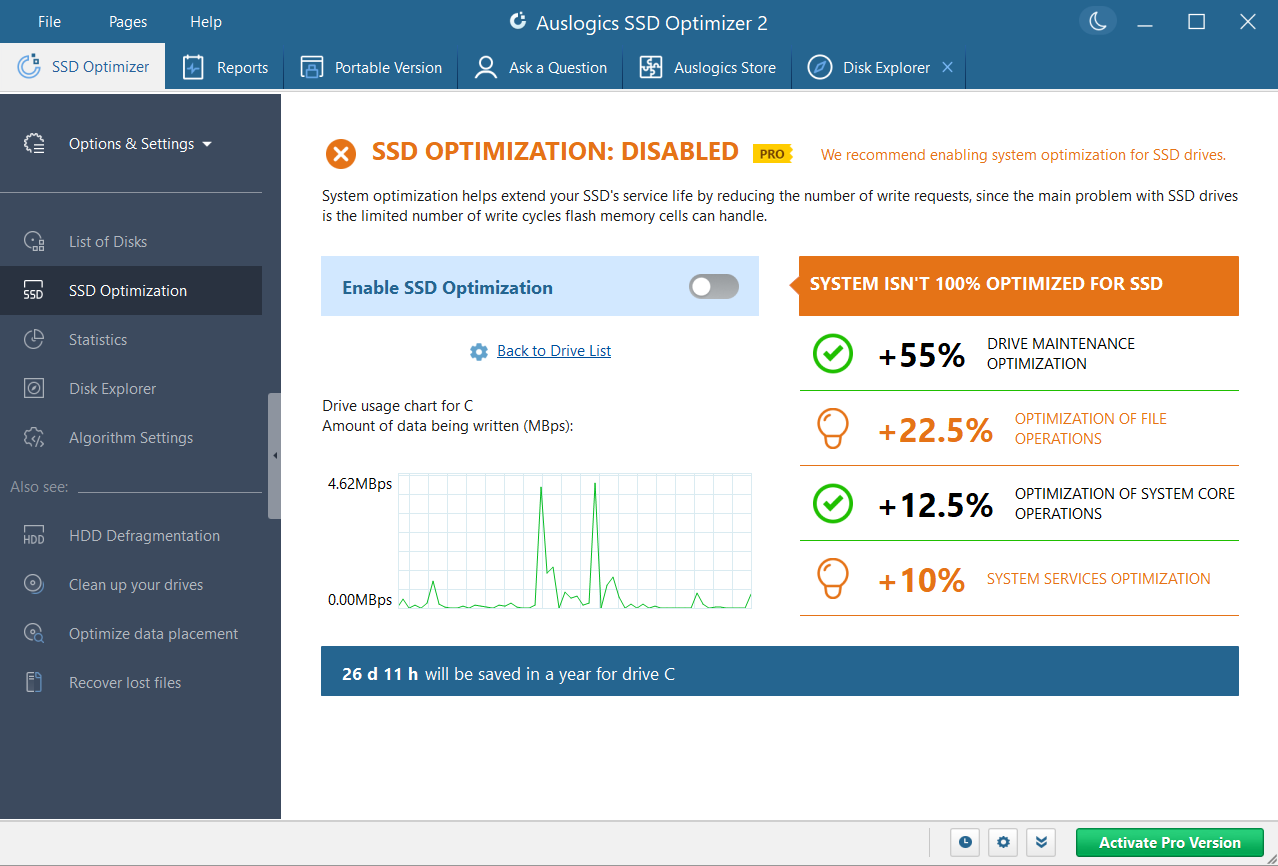
- Drive maintenance optimization: Promotes drive health by adjusting and triggering maintenance tasks to fit your PC usage intensity and minimize write operations.
- Optimization of file operations: Manages the way that files (including system caches and temporary files) are saved, moved, and deleted on the drive to reduce write burden.
- Optimization of system core operations: Tweaks vital system settings to reduce the volume and frequency of data writes to the SSD. This also helps boost overall system performance.
- System services optimization: Manages background processes to keep excessive and unnecessary write activities in check and prevent SSD degradation.
Furthermore, whether you are using the Pro version or the free version of the tool, clicking the blue Optimize button on the main window of the app will apply the following optimization processes:
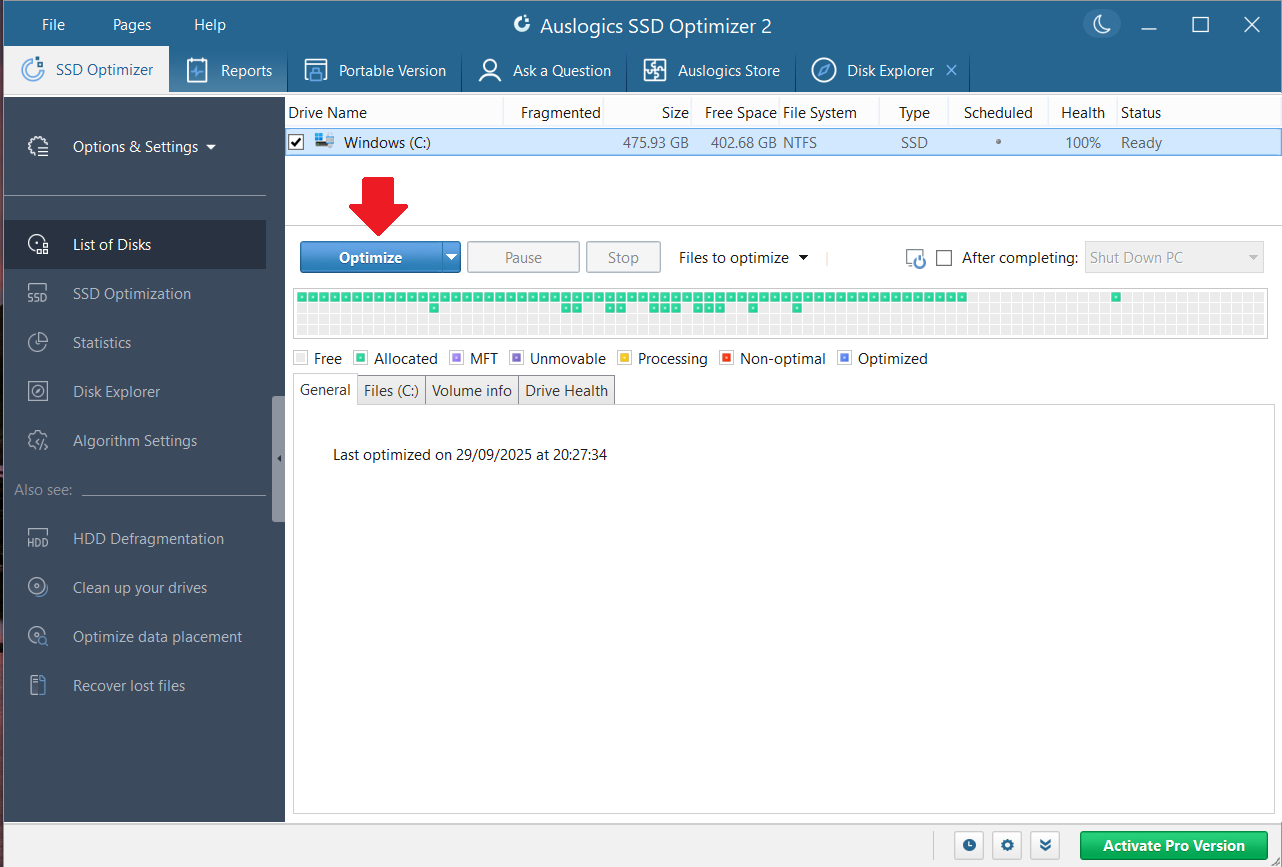
- Initiates SSD TRIM: The TRIM command on Windows informs the SSD controller of blocks on the NAND flash chip that need to be cleared of old data, readying them for new data writes. The process ensures that TRIM and garbage collection work together to discard invalid pages and keep write processes optimized.
- Optimizes file placement: Makes the system communicate with the SSD controller to store system files, registry files, and active user folders in optimal pages and blocks. This helps reduce write amplification, facilitates wear leveling, and makes garbage collection a bit more efficient.
- Consolidates free space: Rearranges the free space on your SSD into contiguous blocks to further improve write speed.
- Performs smart defragmentation: Uses a special algorithm to mildly defrag select files. Only small fragments are merged to help reduce the number of input/output operations on the SSD, resulting in improved performance.
![IMG]() Automatic maintenance
Automatic maintenance

The Pro version of Auslogics SSD Optimizer makes automatic maintenance seamless. It has a scheduler feature with an array of configurable options.
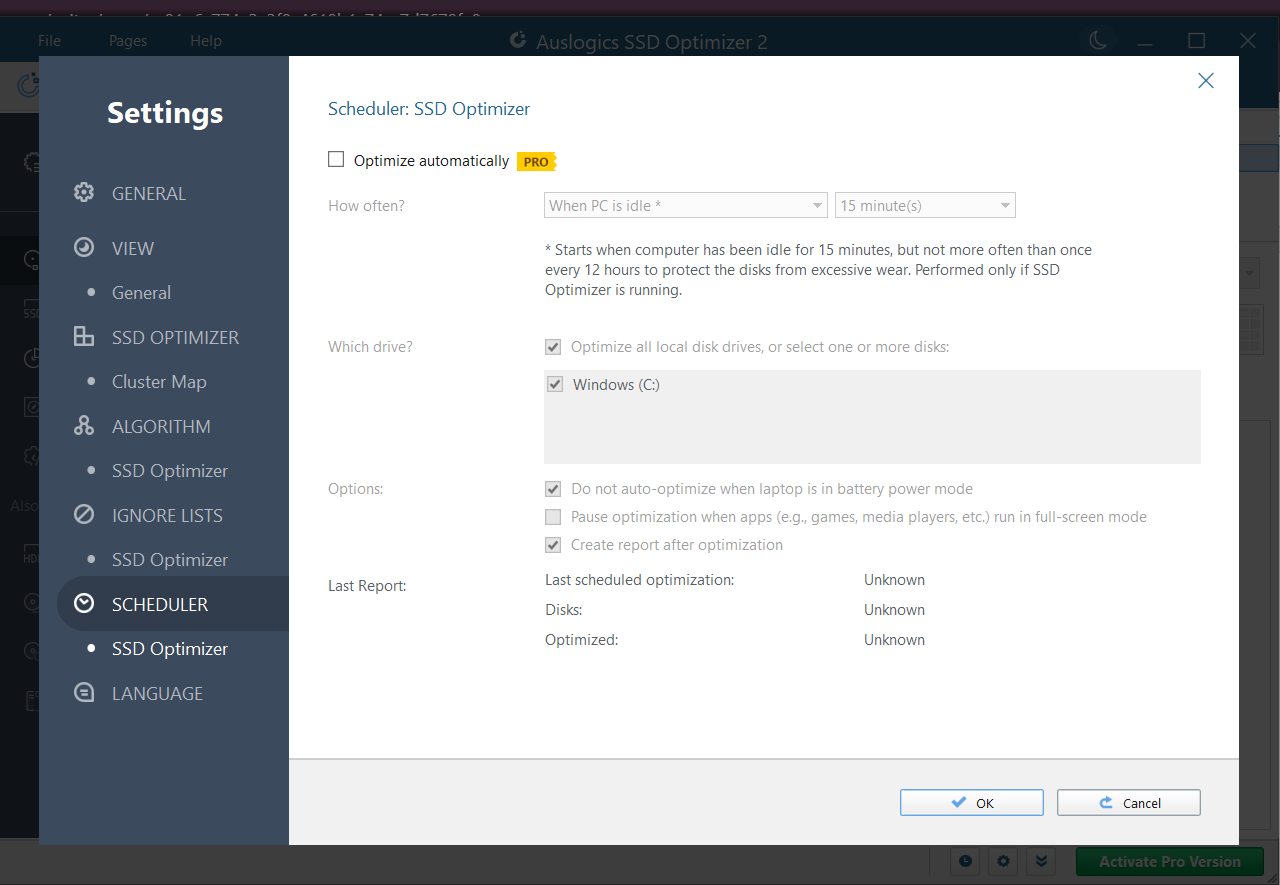
Specify when and how often you want optimization to run—you can make it so that if the app is running, maintenance starts as needed whenever the PC is idle (stopping immediately when you resume using the PC). There’s also the option of starting optimization at a set time, even if the app isn’t running.
📌 Also read: How to Initialize an SSD: Set Up Your New SSD for Best Performance
Follow these steps to set up the scheduler:
- Click on File > Settings.
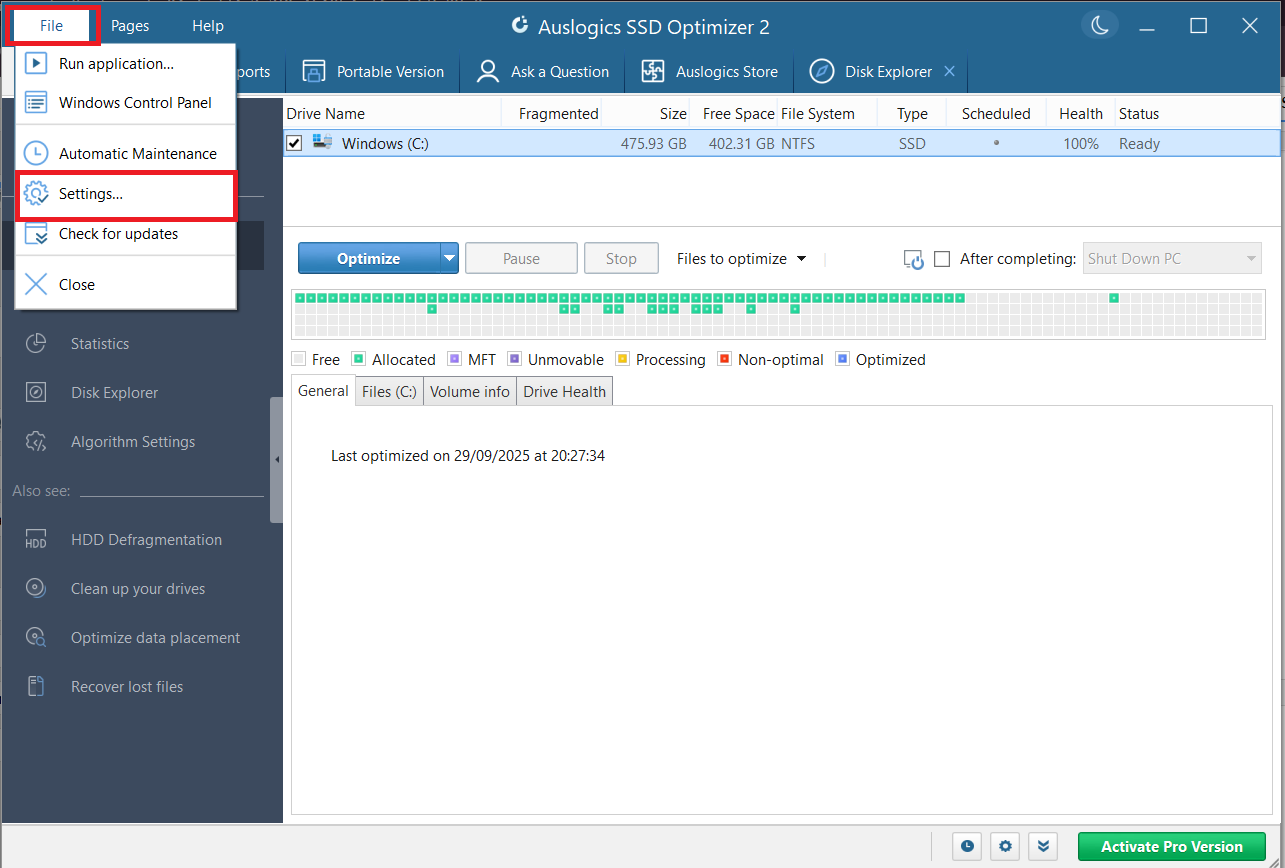
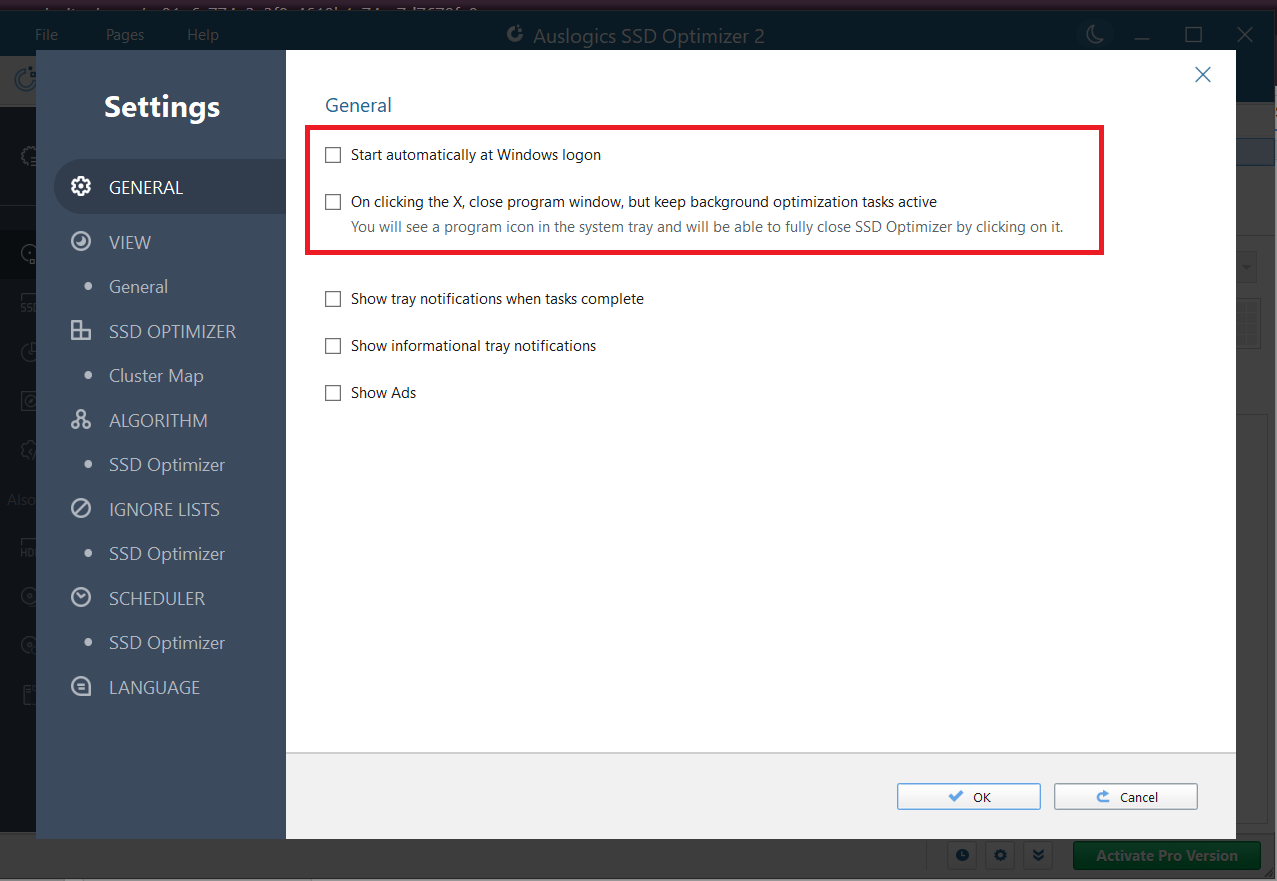
- First, you want to make the app activate itself every time you start up your PC. So, under General, mark the checkbox for the option that says, “Start automatically at Windows logon.” Also, enable the option to keep background optimization tasks active when you close the program window.
- Now, click on Scheduler (the option with the clock icon) in the left pane. And mark the checkbox for Optimize automatically.
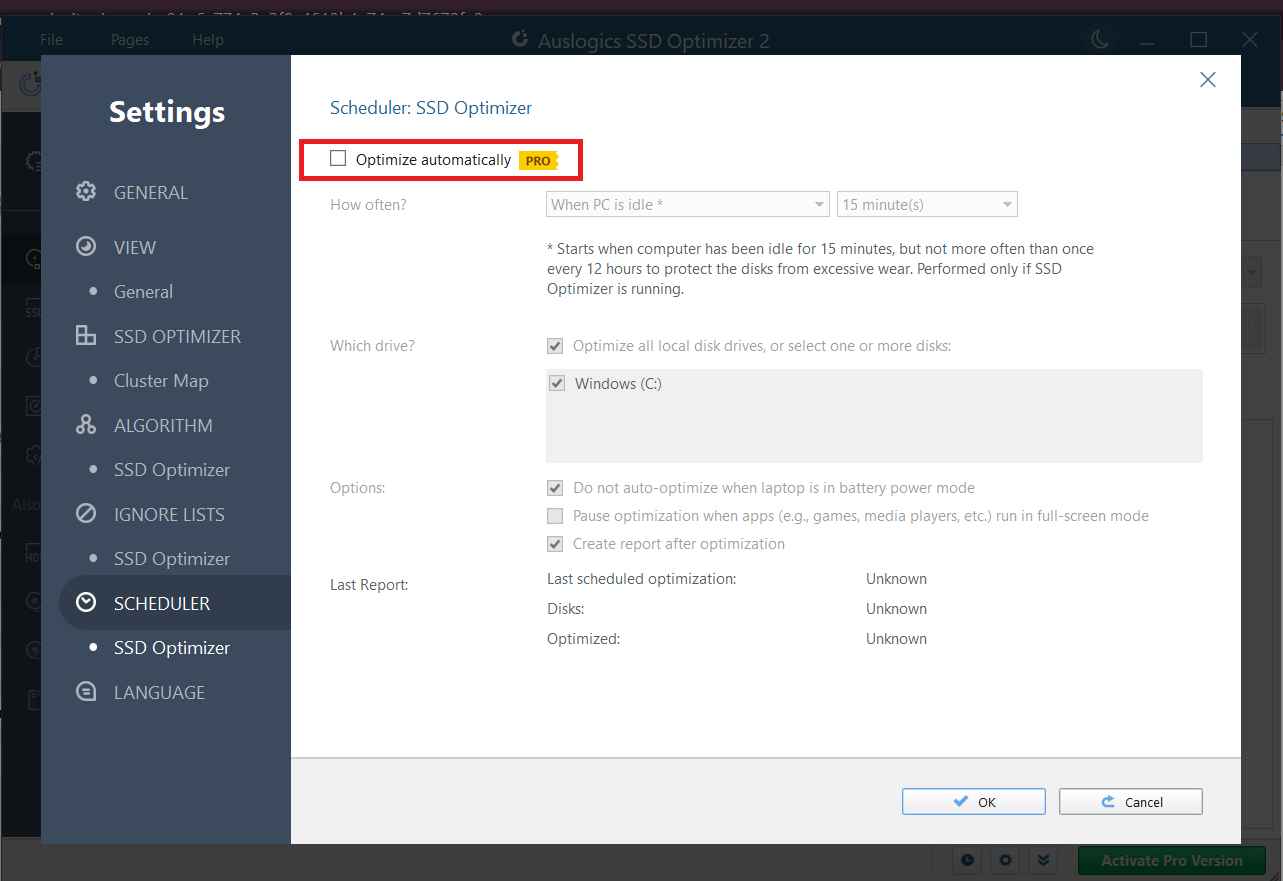
- Expand the drop-down to set how often you want optimization to run.
- Select the drives you want optimized.
- Enable or disable the options to:
- Make the app avoid auto-optimization when the PC is not plugged in.
- Pause optimization when apps are in full-screen mode.
- Create a report after auto-optimization.
- Click the OK button to save your preferences.
![IMG]() Customizable optimization algorithms
Customizable optimization algorithms

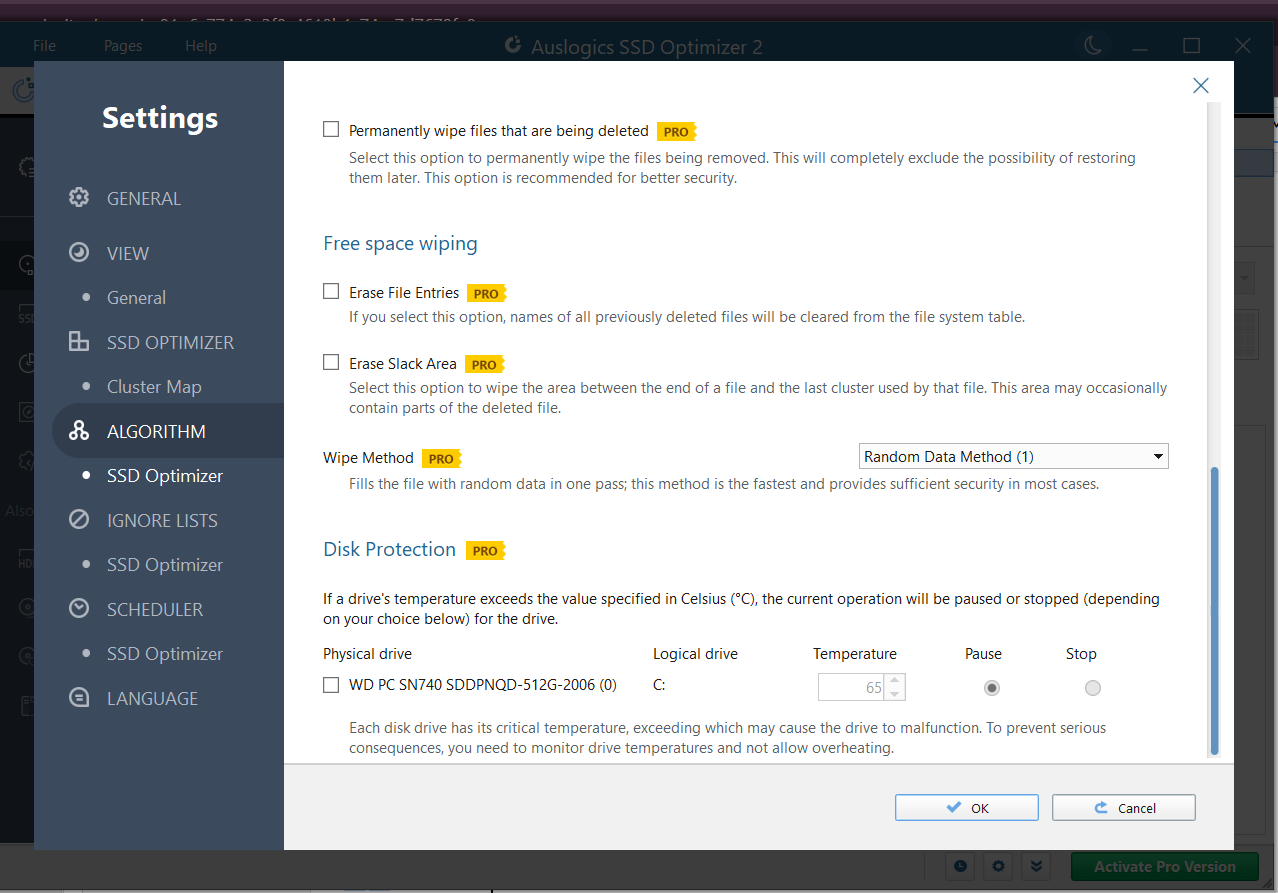
Settings under Algorithm let you specify what the app is allowed to do when carrying out SSD optimization:
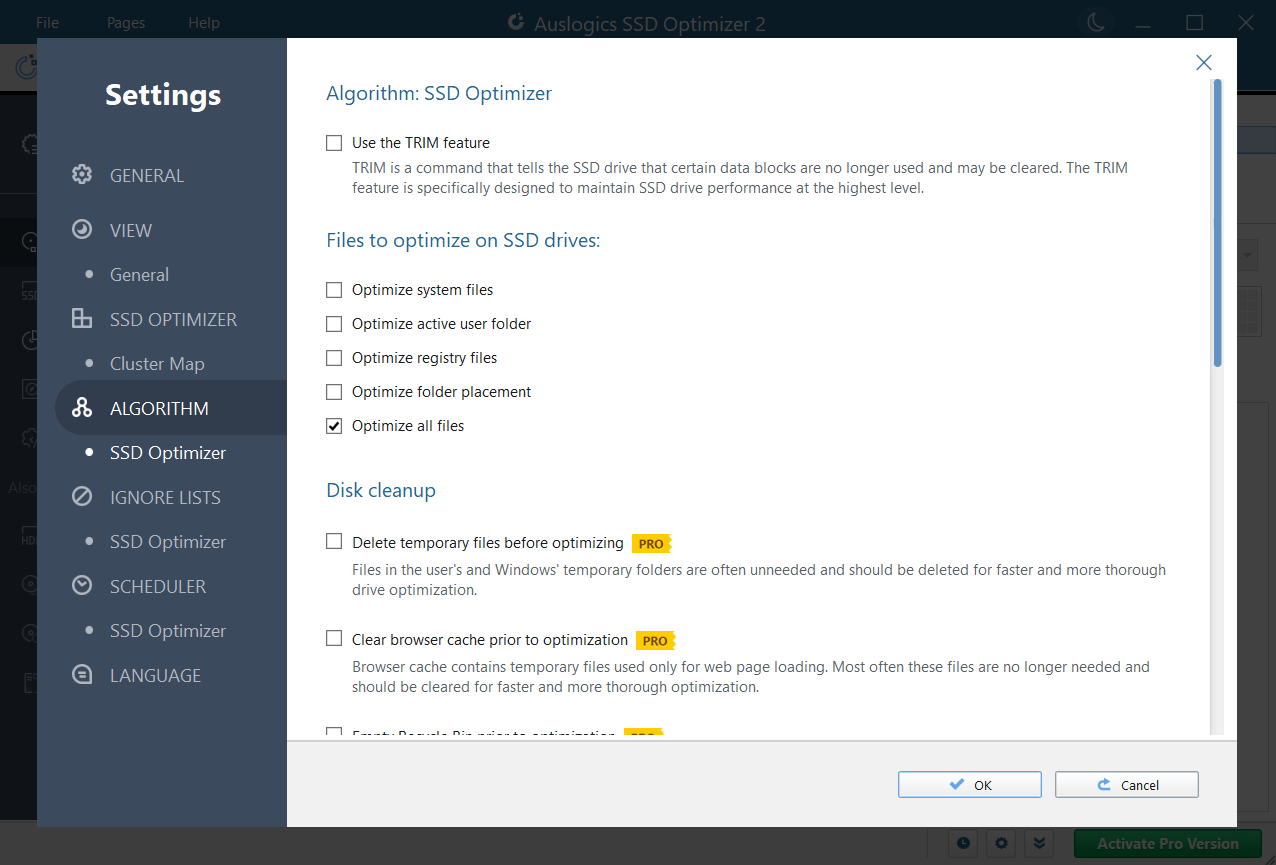
- Enable the Use the TRIM feature option to permit the app to run TRIM commands and promote SSD health.
- Choose which category of files the app is allowed to optimize, or let it optimize all files without exclusion.
- Enable disk cleanup options to clear temporary files, Recycle Bin files, browser cache, Windows Update files, and other sorts of unnecessary files before optimization.
- Enable free space wiping and choose a wipe method.
- Under Disk Protection, specify a maximum temperature within which the app will safely perform SSD optimization.
![IMG]() Drive monitoring
Drive monitoring

What is the current condition of your SSD? And how well is it performing? If you are looking for how to check SSD health, look no further. You can get detailed information on your drive’s health with Auslogics SSD Optimizer.
➡️ Real-time temperature readings
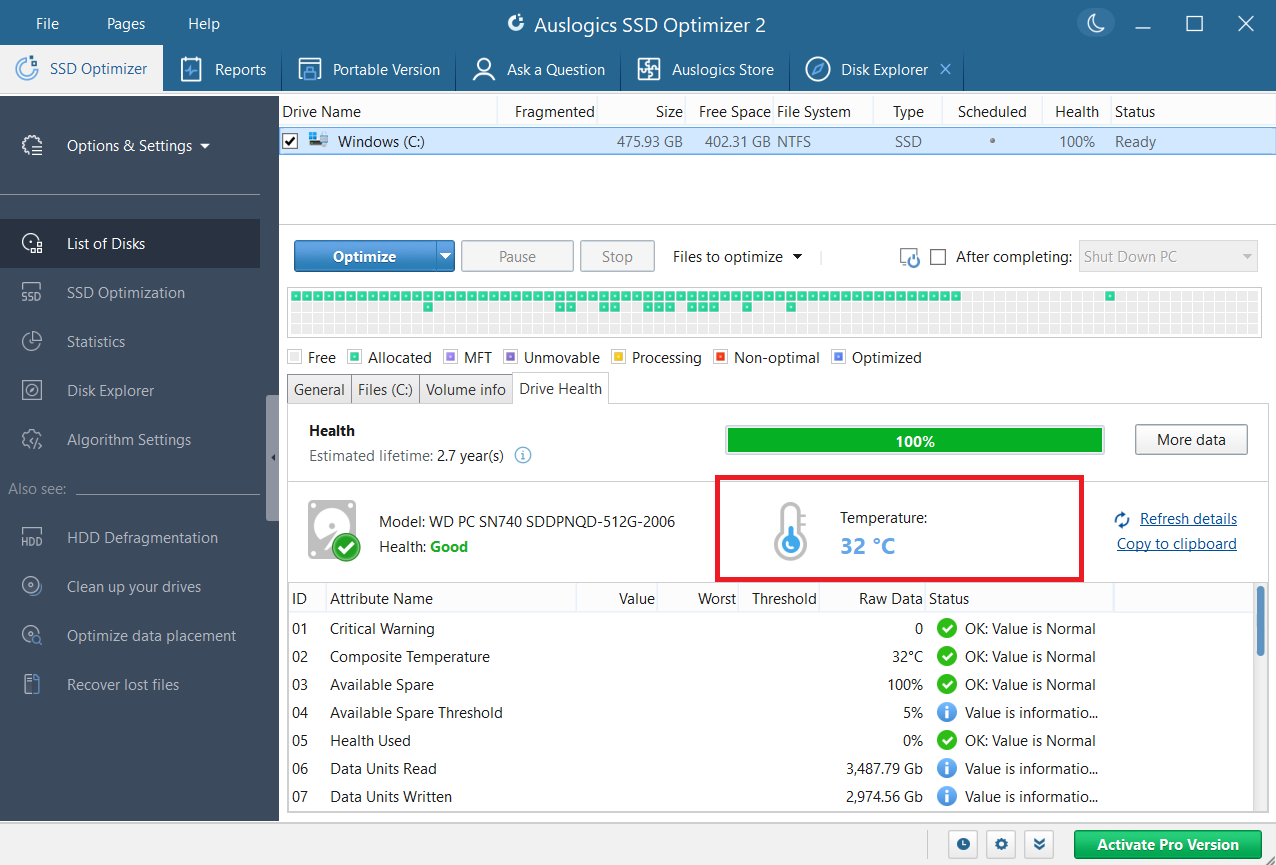
Knowing how hot your SSD is running is crucial in maintaining its health. SSD Optimizer shows your drive’s temperature readings in real time so you can take prompt action when necessary.
➡️ Drive usage level
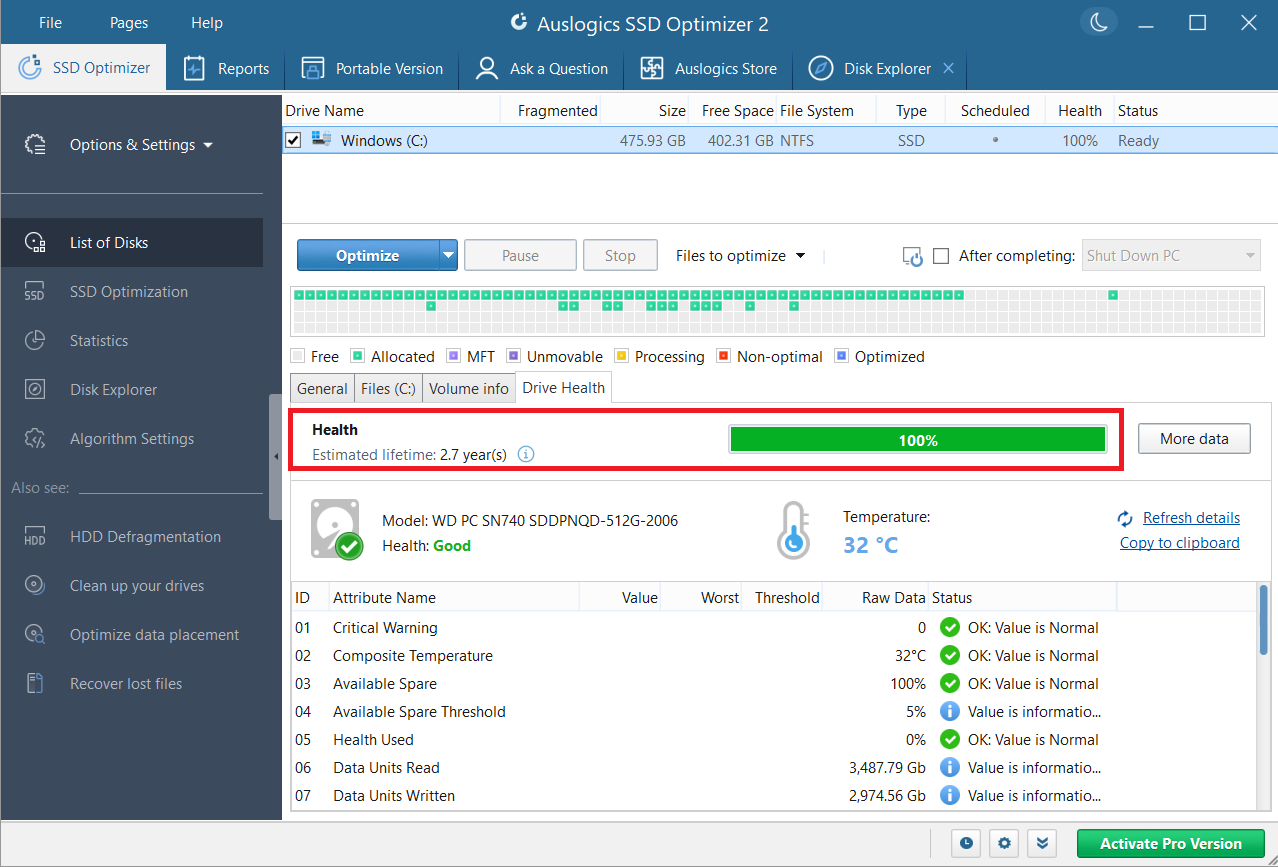
The health bar shows how close you are to the SSD’s end of life. You can use it to monitor the intensity of drive usage by observing how quickly the bar depletes. Start backing up your data if the drive’s endurance is getting low.
➡️ Comprehensive SMART reports
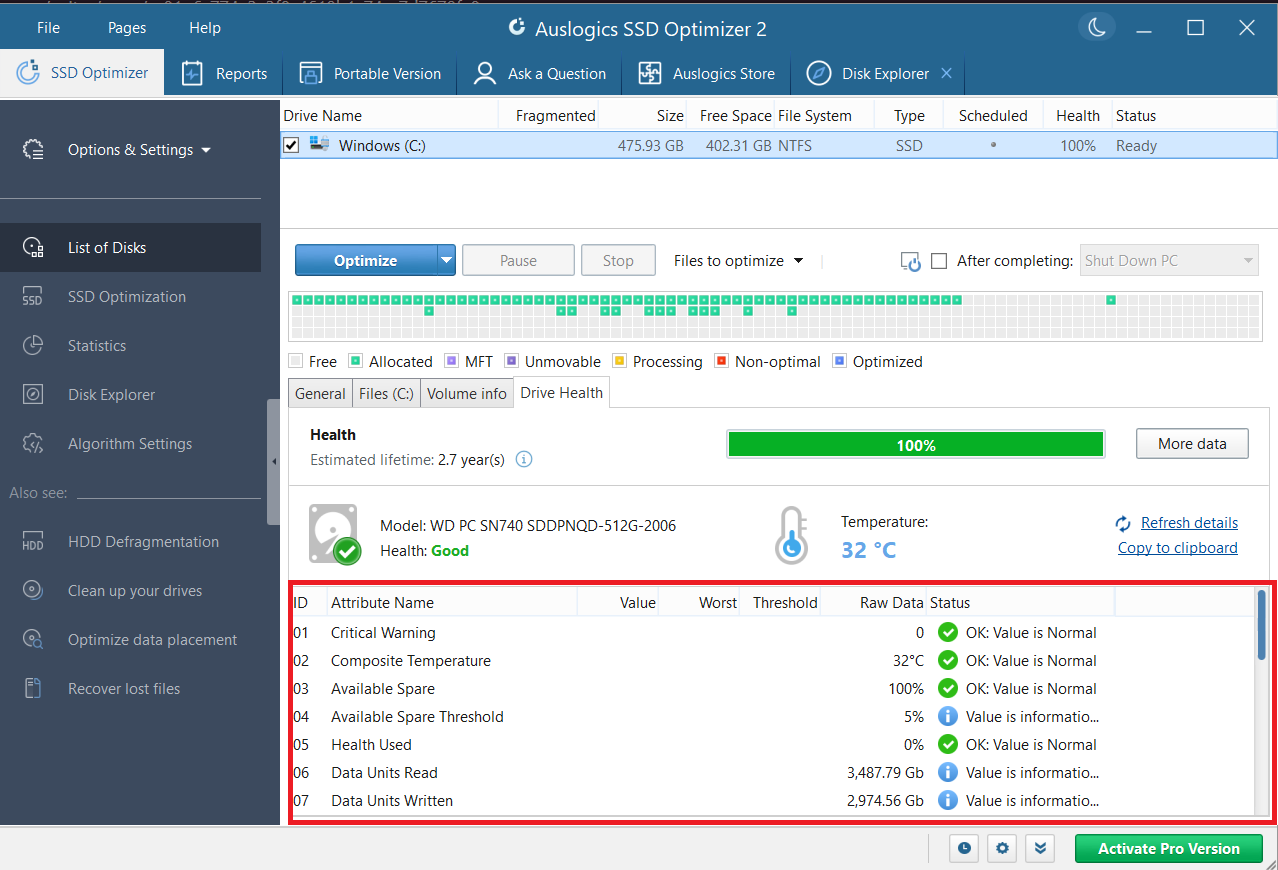
You’ll also find a complete presentation of your drive’s SMART (Self-Monitoring, Analysis, and Reporting Technology) metrics, which highlight any existing issues with the drive.
➡️ Detailed drive statistics
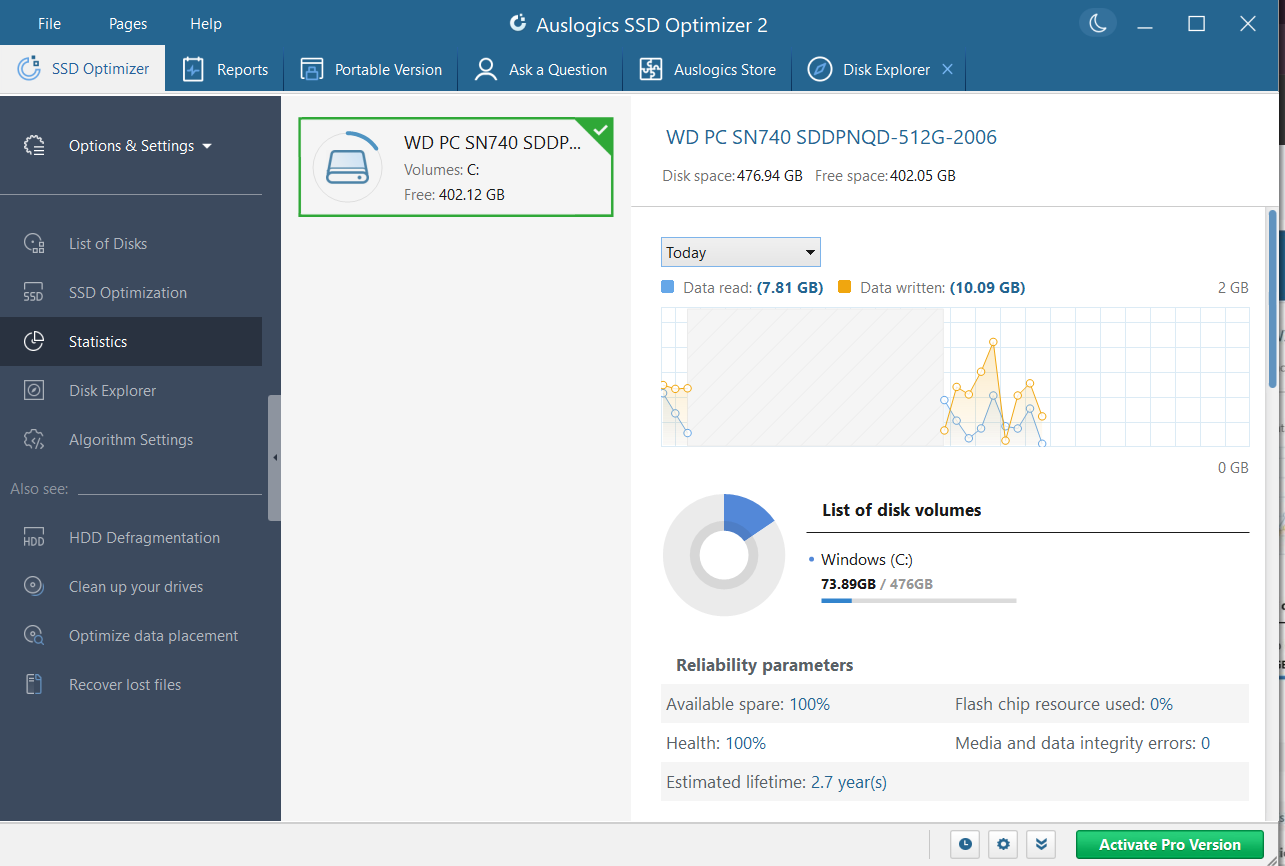
Get a full summary of your drive’s usage patterns and performance over time. The information provided in the Statistics tab will give you a keener insight into your drive’s workload and operational state. You can view data for any period of time, ranging from Today to Past year.
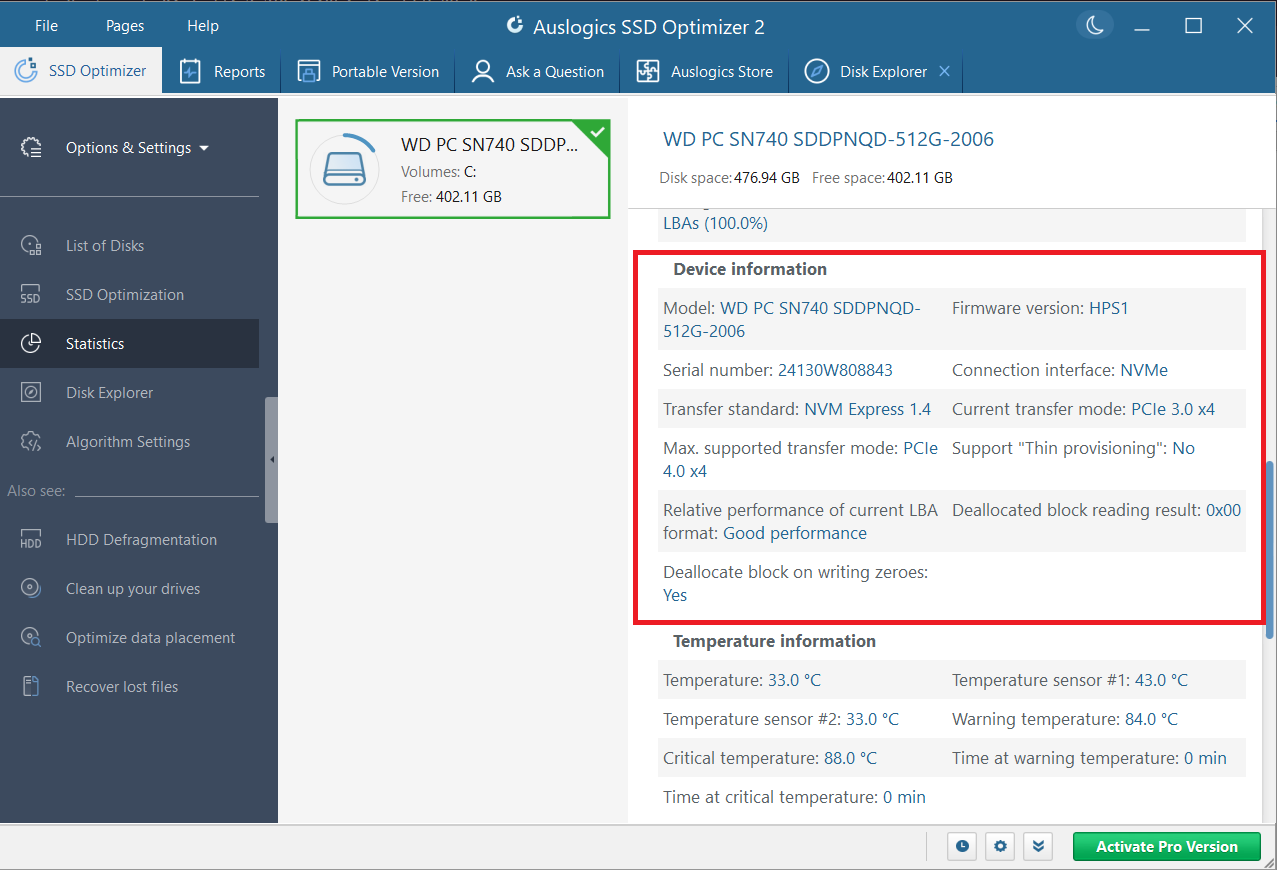
You’ll also find important information on the type of SSD you have. Every detail about the device is presented here (under Device information ), including the model, serial number, transfer mode, and so on.
➡️ Optimization reports
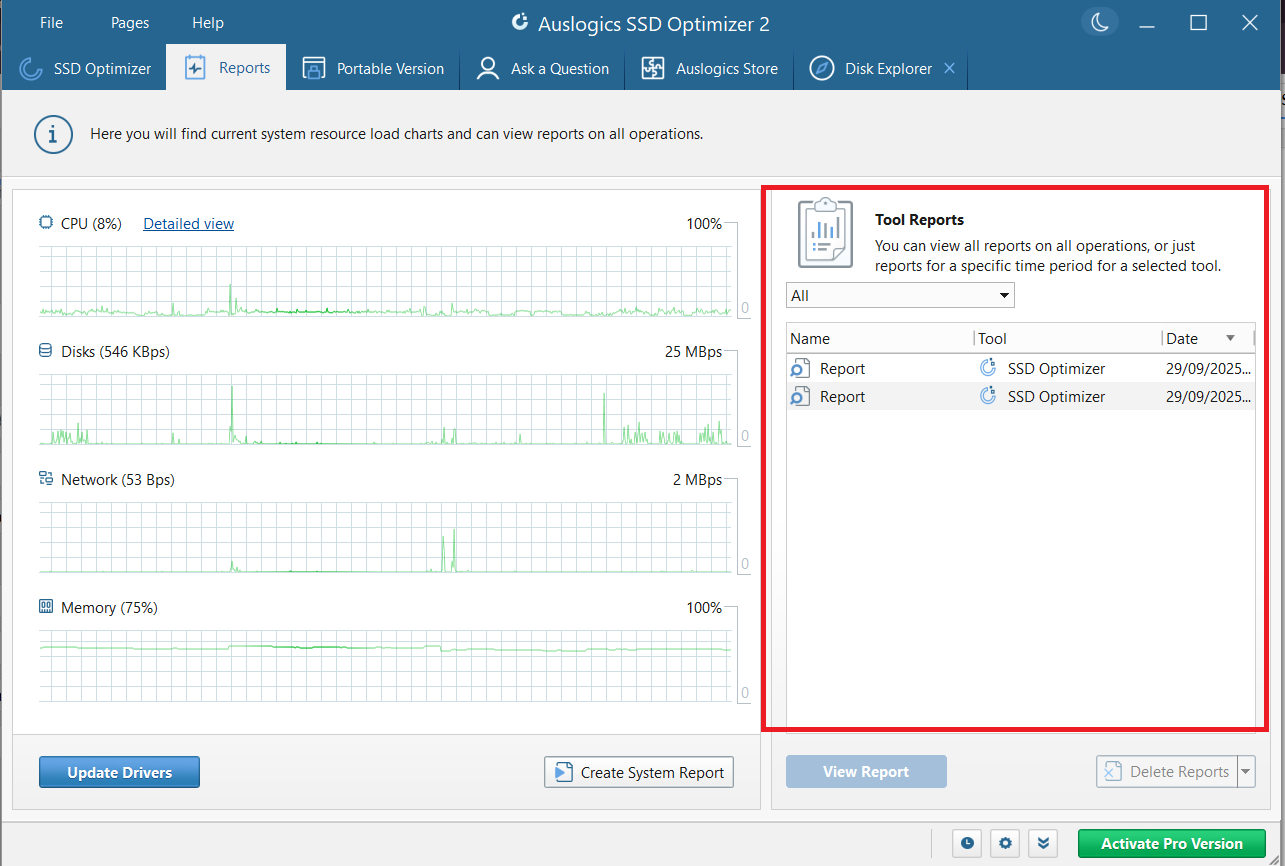
Every optimization session generates a report, and you can view them all in the Reports tab. The names of the reports and the creation dates are presented in a table on the right-hand side of the page. You can filter them using the drop-down at the top to see those that were created within a given period of time.
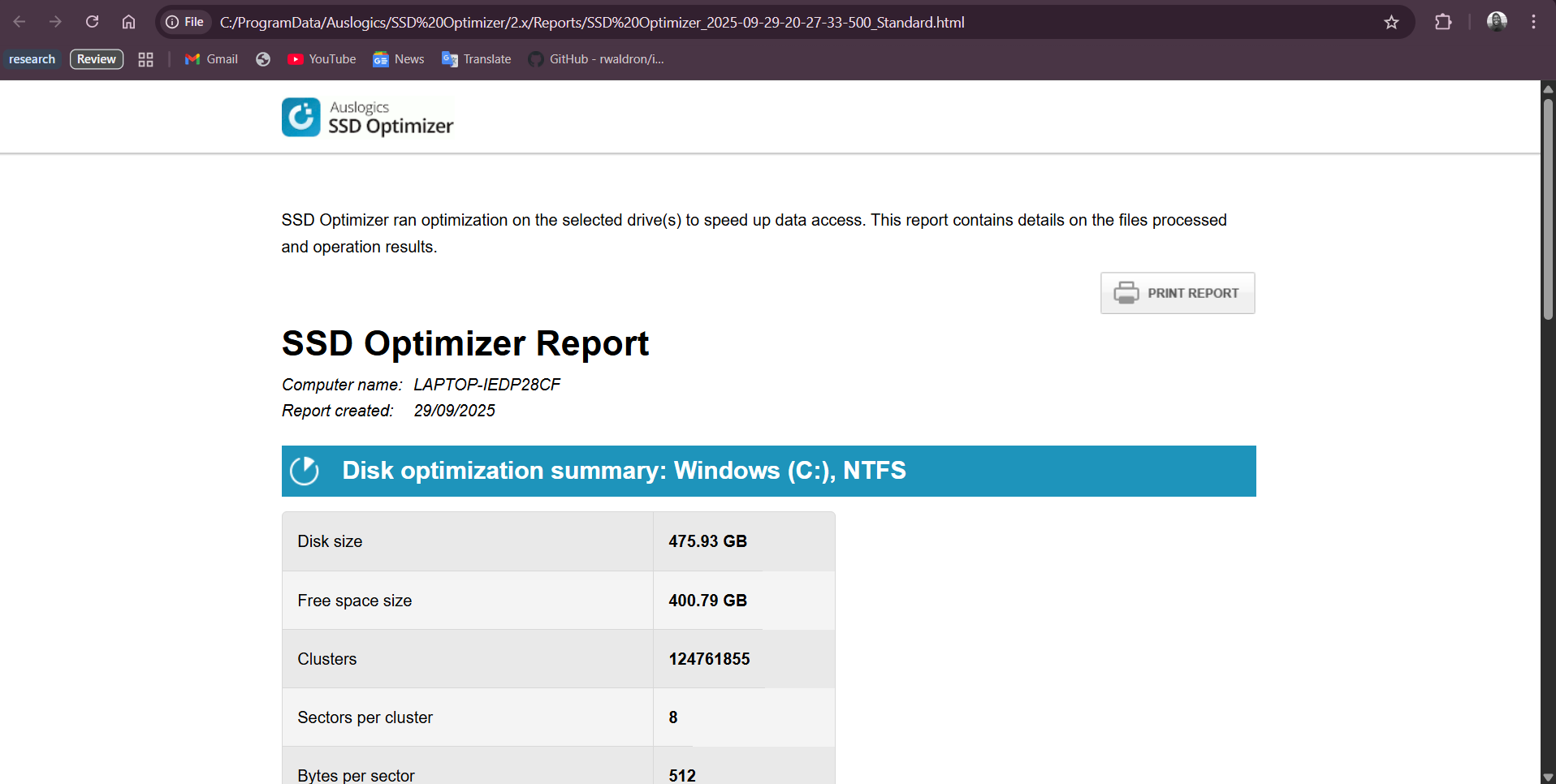
To view a report, select it and then click the blue View Report button below. It will open on your browser, and you can print it out if you wish.
![IMG]() Detailed SSD analysis
Detailed SSD analysis

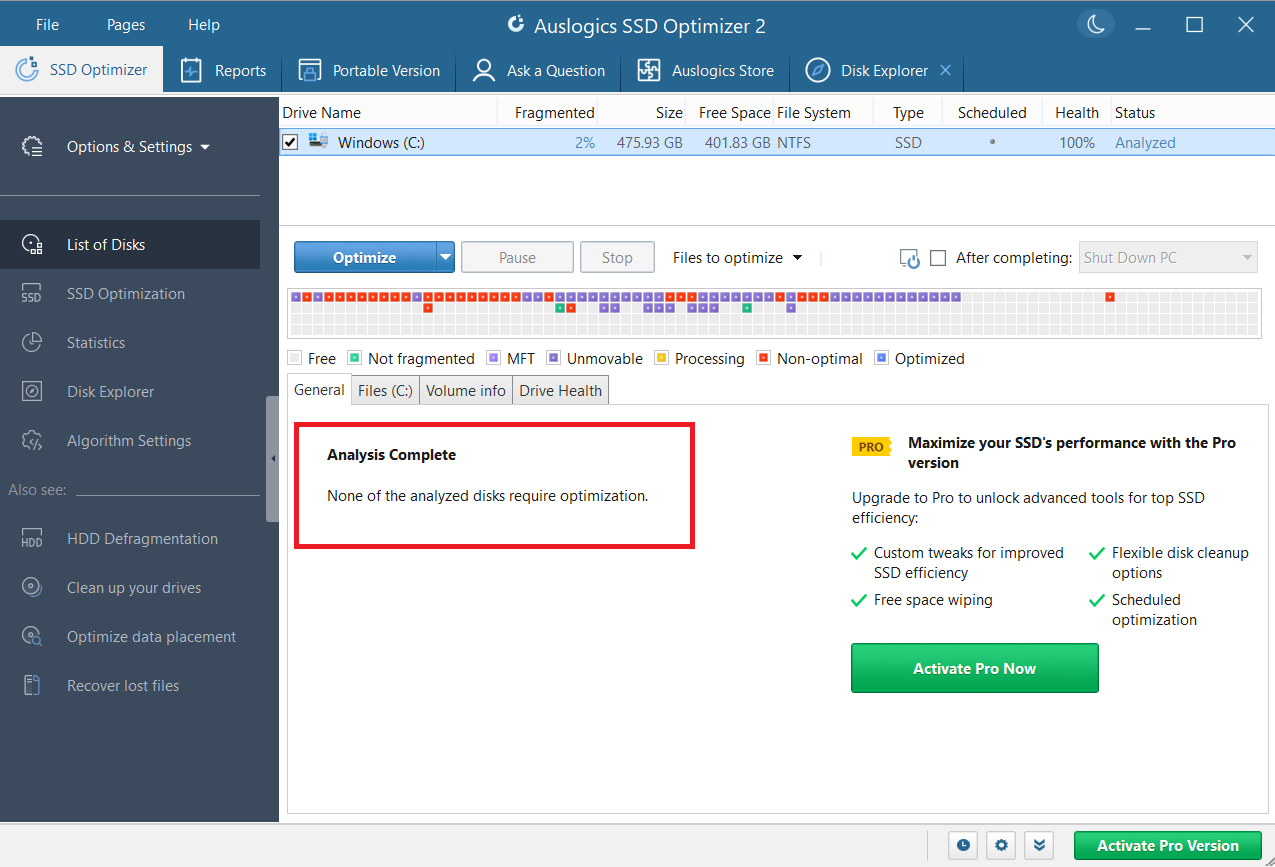
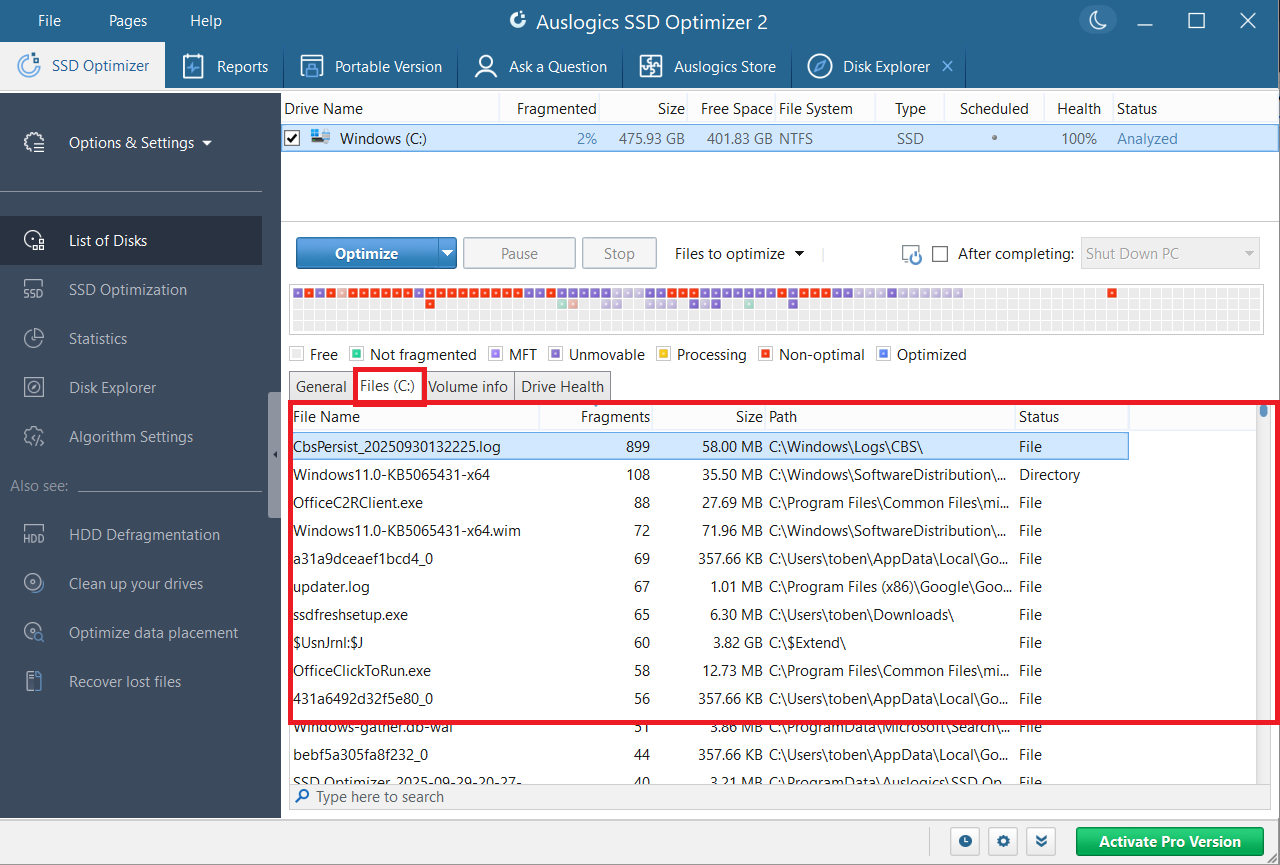
Analysis determines whether your SSD requires optimization. Upon completion, the state of your drive is clearly highlighted in the cluster map, and you can view the list of unoptimized files on the drive. Follow these steps to perform SSD analysis:
- Select the SSD you want to analyze from the list of disks.
- Click the drop-down arrow on the Optimize button.
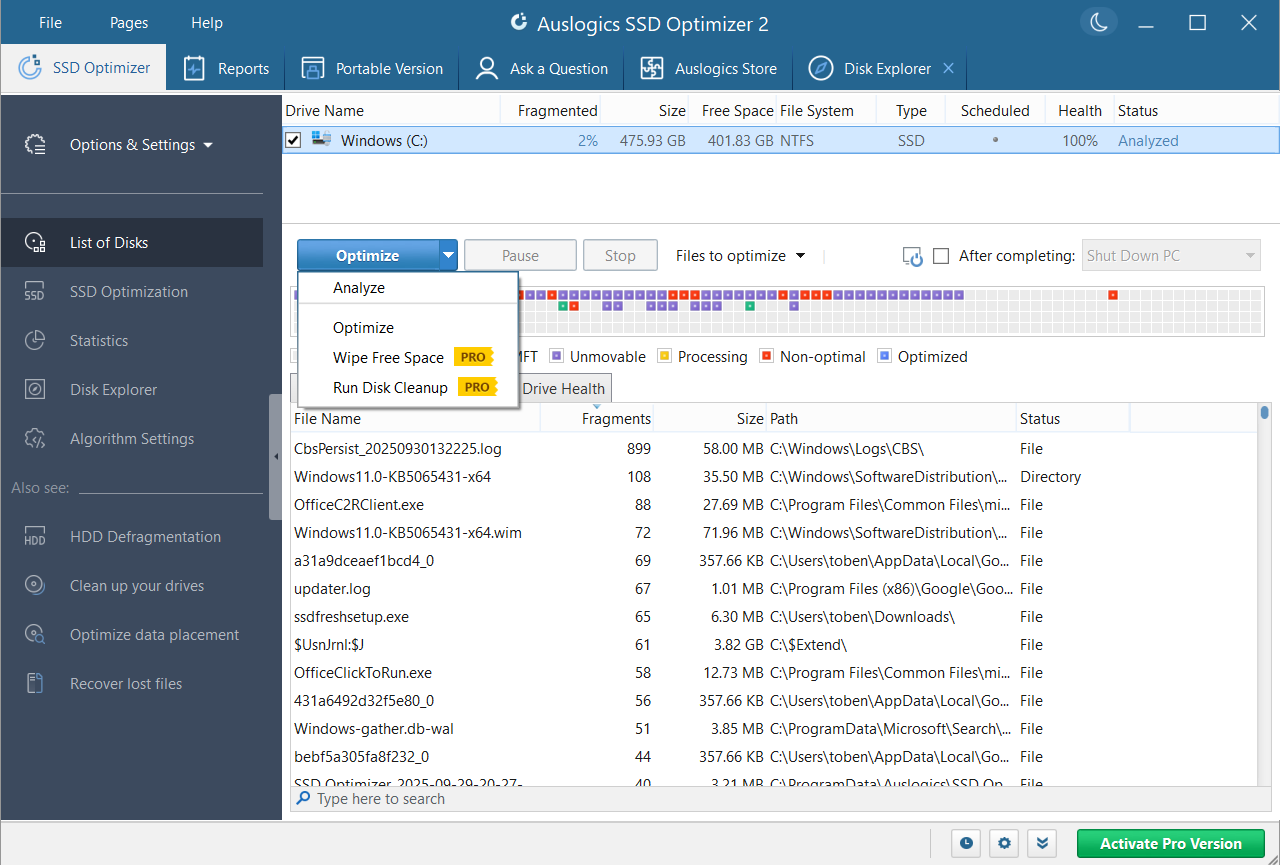
- Click Analyze.
- When the process is complete, in the section below the cluster map, the tool will clearly state whether your drive requires optimization.
- Switch to the Files tab to view a full list of fragmented files on the drive. When you select a file on the list, the location of its fragments will be indicated on the cluster map.
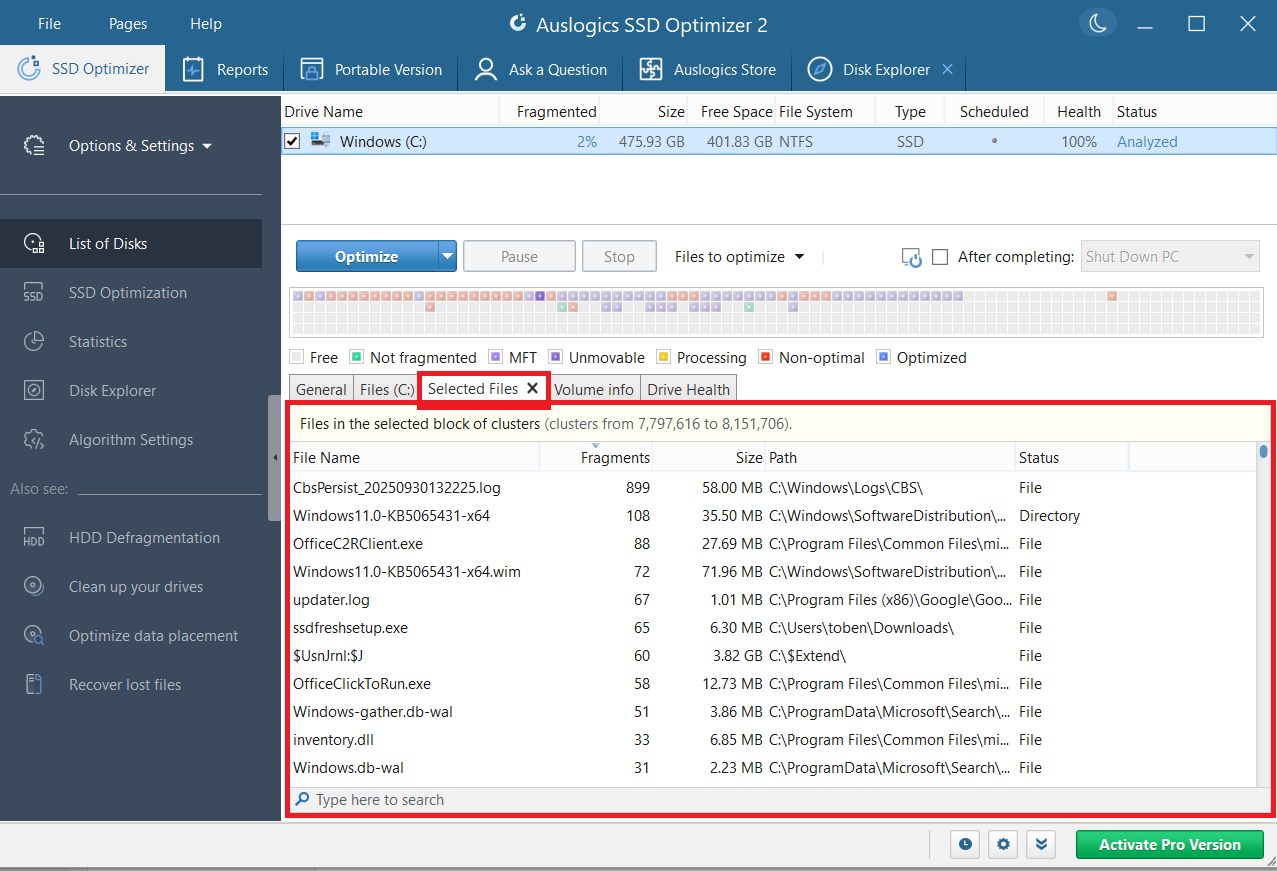
- Click a block on the cluster map, and a Selected Files tab will appear, listing all files that are located in that block.
![IMG]() Ignore lists
Ignore lists

To make optimization a bit faster, you can specify which files or folders to exclude from the optimization process:
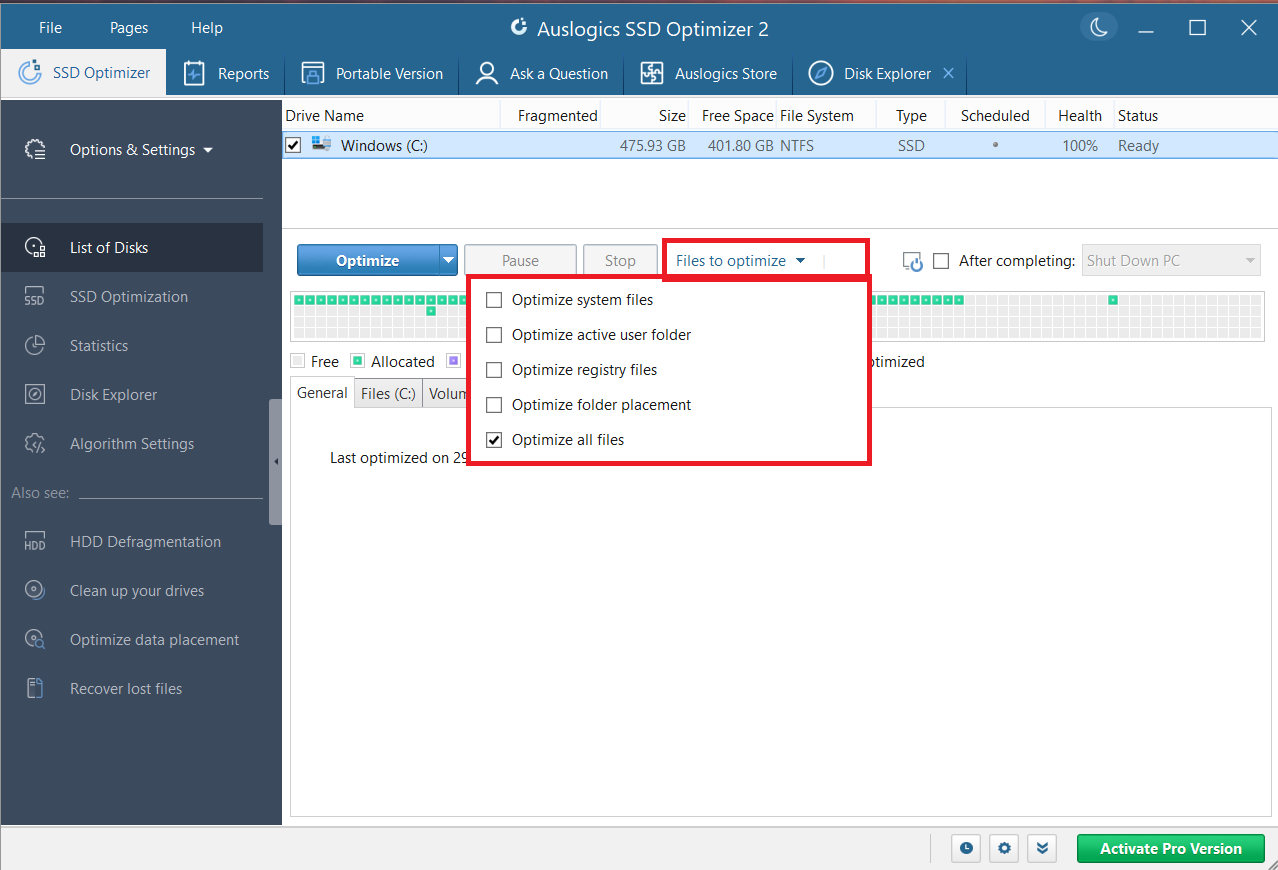
- To begin with, click the Files to optimize drop-down and select your desired option(s).
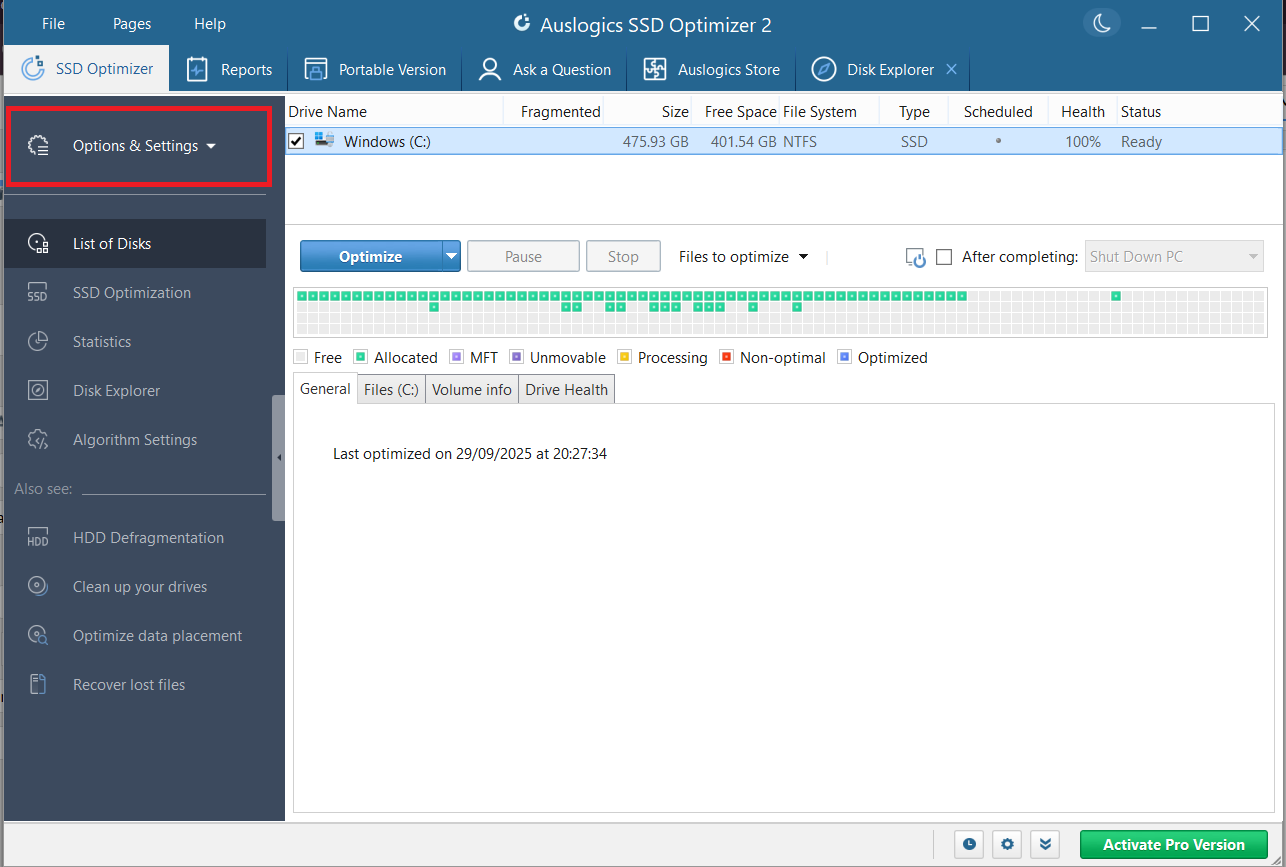
- Click on Options & Settings in the left pane of the SSD Optimizer tab.
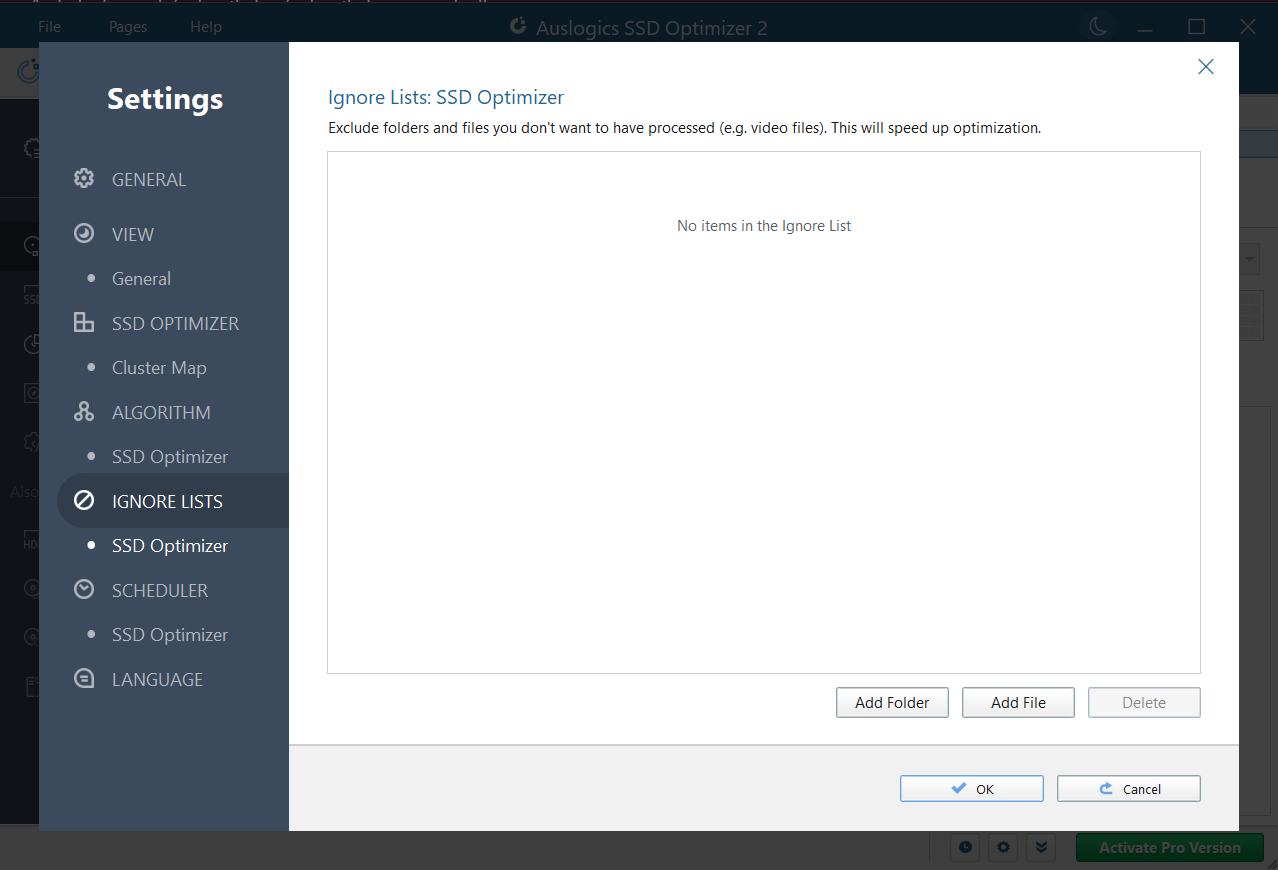
- Click on Ignore Lists and then use the Add Folder or Add File button to select specific folders or files on your storage to ignore. You can also use the Delete button to remove items from the list. Click OK when you are done.
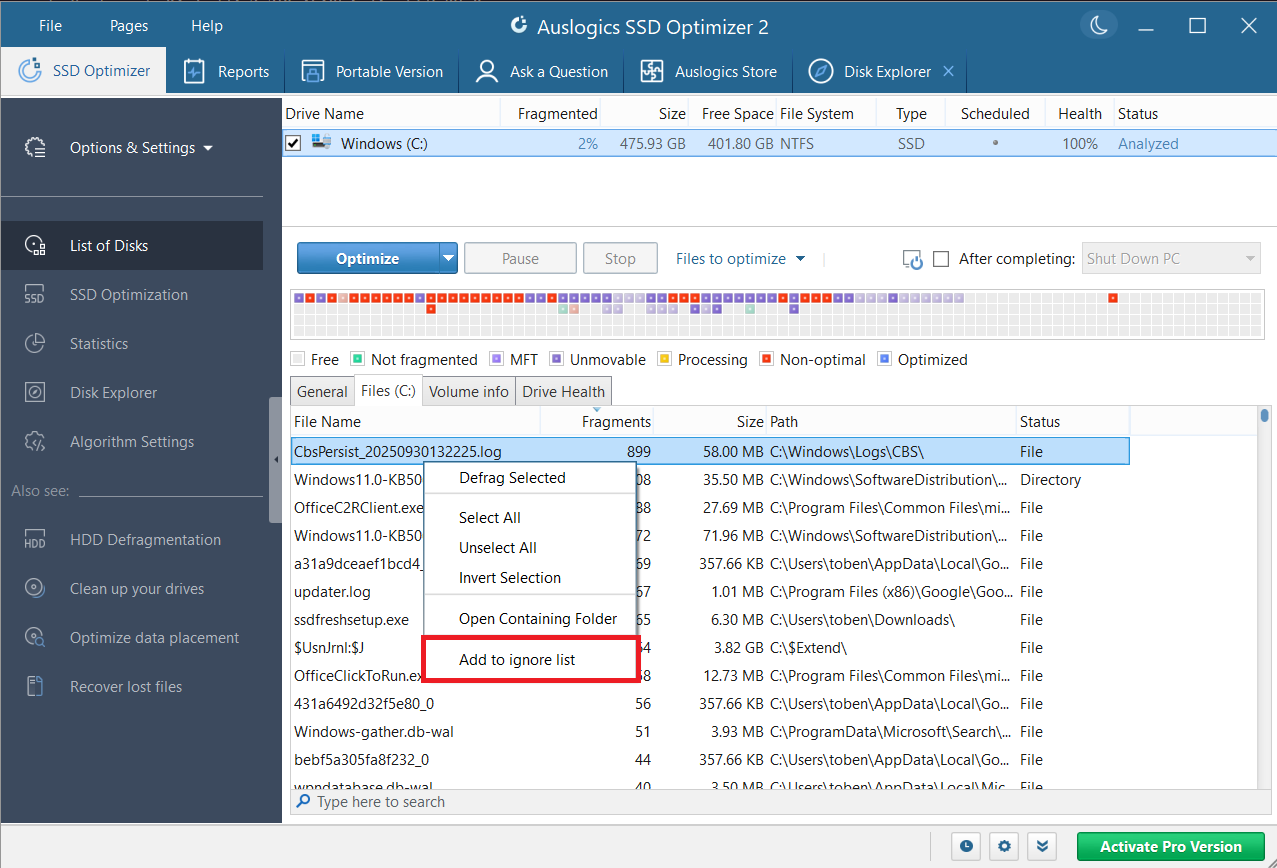
- Also, after performing SSD analysis as previously shown, you can right-click on a file from the list of fragmented files and select Add to ignore list from the context menu.
![IMG]() Additional functions
Additional functions

Auslogics SSD Optimizer offers additional services that go a long way in promoting disk health and maximizing user satisfaction.
➡️ Check for errors
After SSD analysis, error checking helps ensure that data stored on the SSD won’t get lost or corrupted during the optimization process. This feature launches the Check Disk (CHKDSK) tool on Windows:
- Select the disk(s) you’d like to check for errors from the list of disks.
- Click the drop-down arrow on Options & Settings in the left pane.
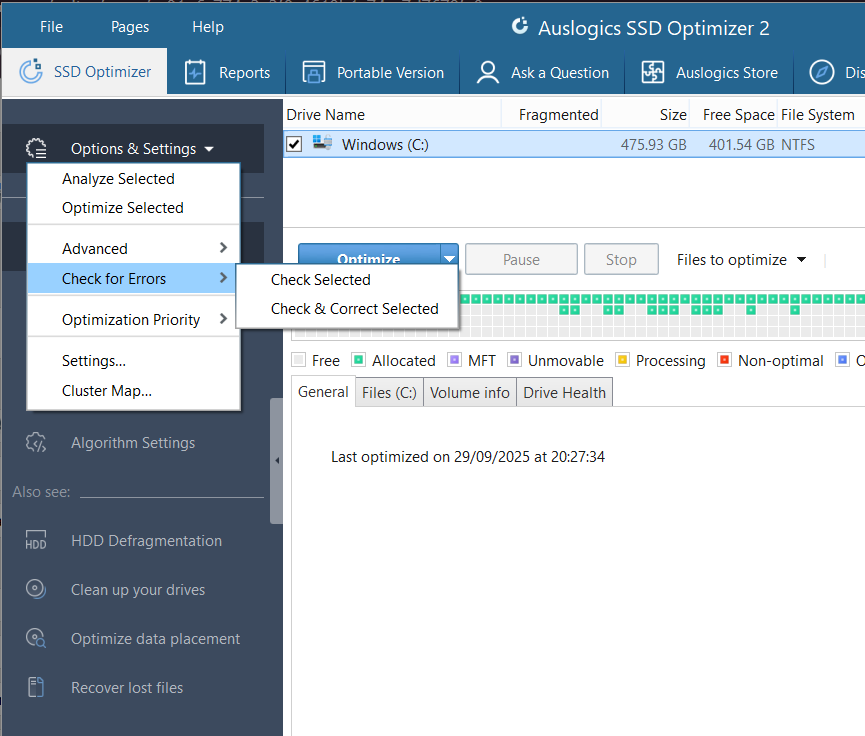
- Hover over Check for Errors.
- Click on Check Selected to only check for errors without attempting to fix them. Or click on Check & Correct Selected to fix detected errors on the drive.
➡️ Free space wiping
Wiping free space on the disk ensures that deleted data can no longer be recovered. This promotes data security and protects your privacy. All you have to do is click the drop-down arrow on the Optimize button and then click on Wipe Free Space.
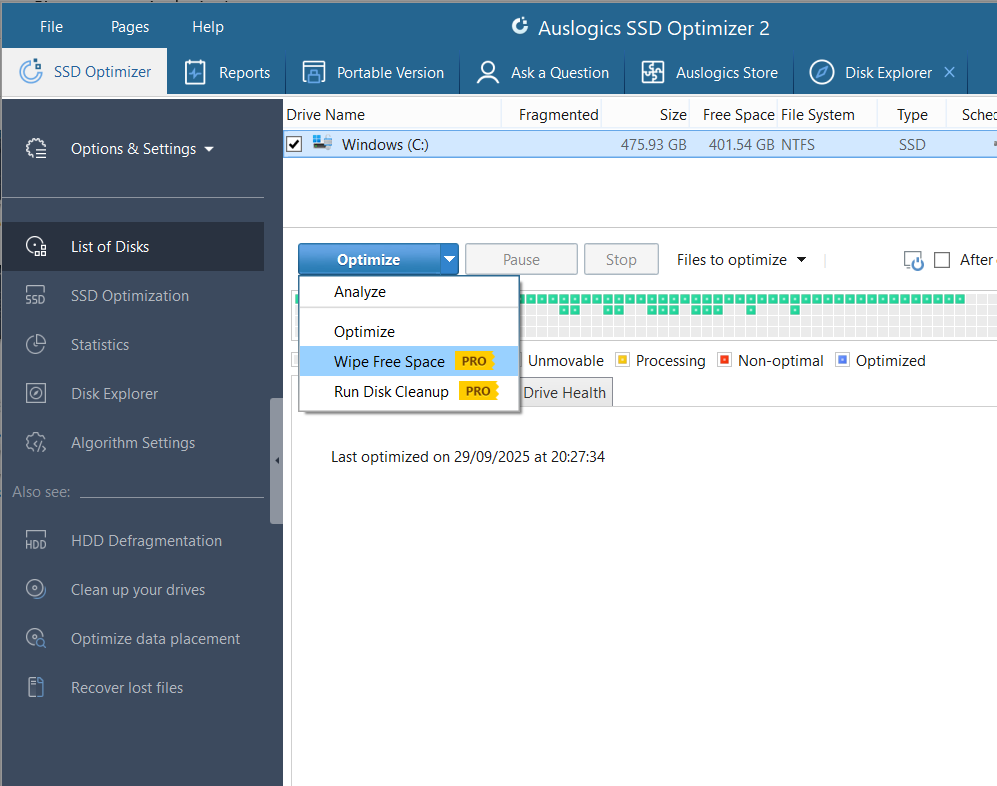
If you’d like to change the wipe method, click on Algorithm Settings in the left pane and scroll down to Free space wiping.
➡️ Disk Explorer (view drive content statistics)
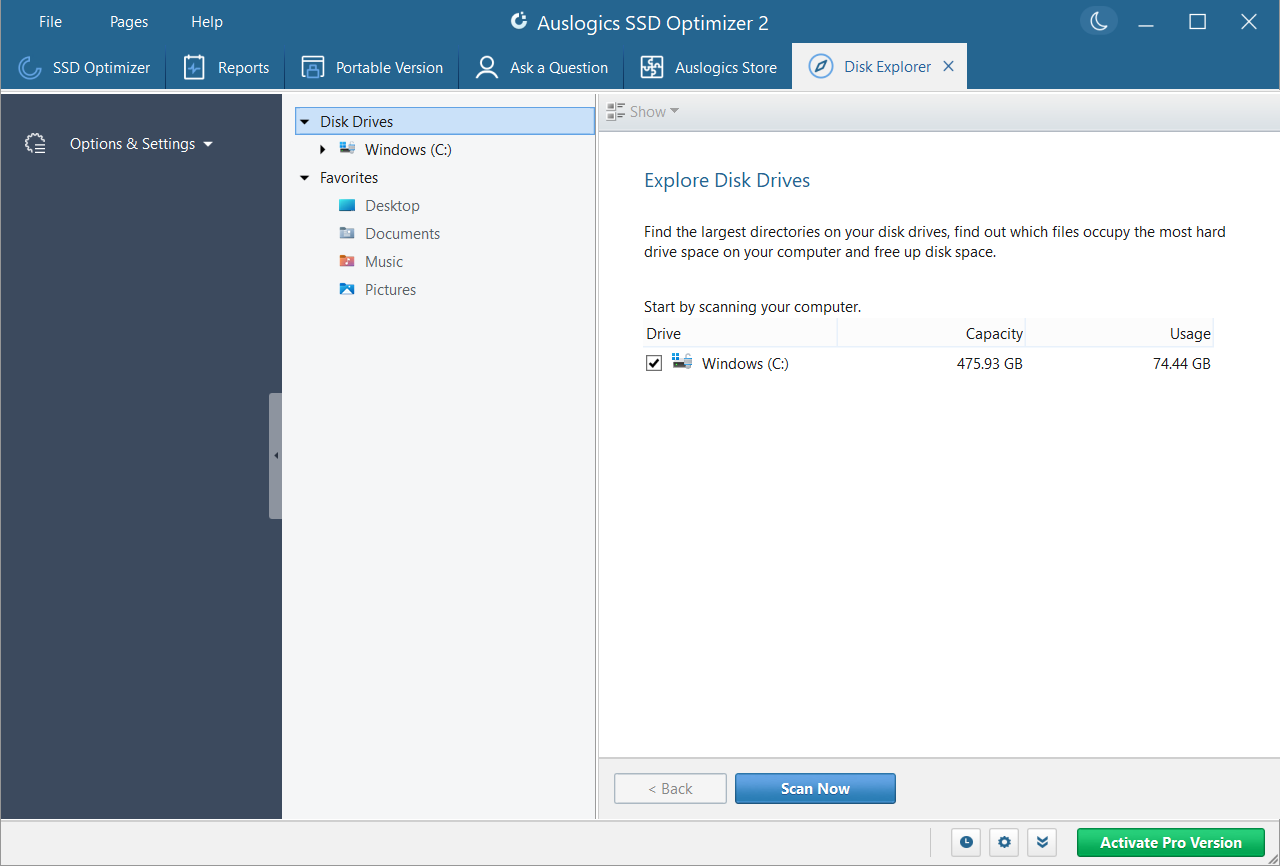
Want to find out what’s occupying the most space on your drive? The Disk Explorer feature will run a scan and display an exhaustive report of your SSD contents, listing all folders from largest to smallest.
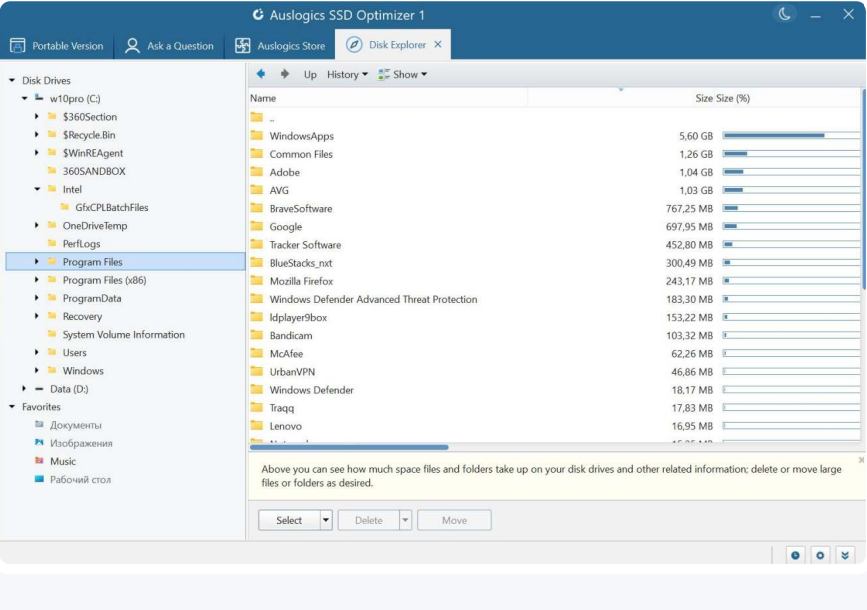
View highly digestible charts and detailed statistics that highlight the biggest space hogs on your drive.
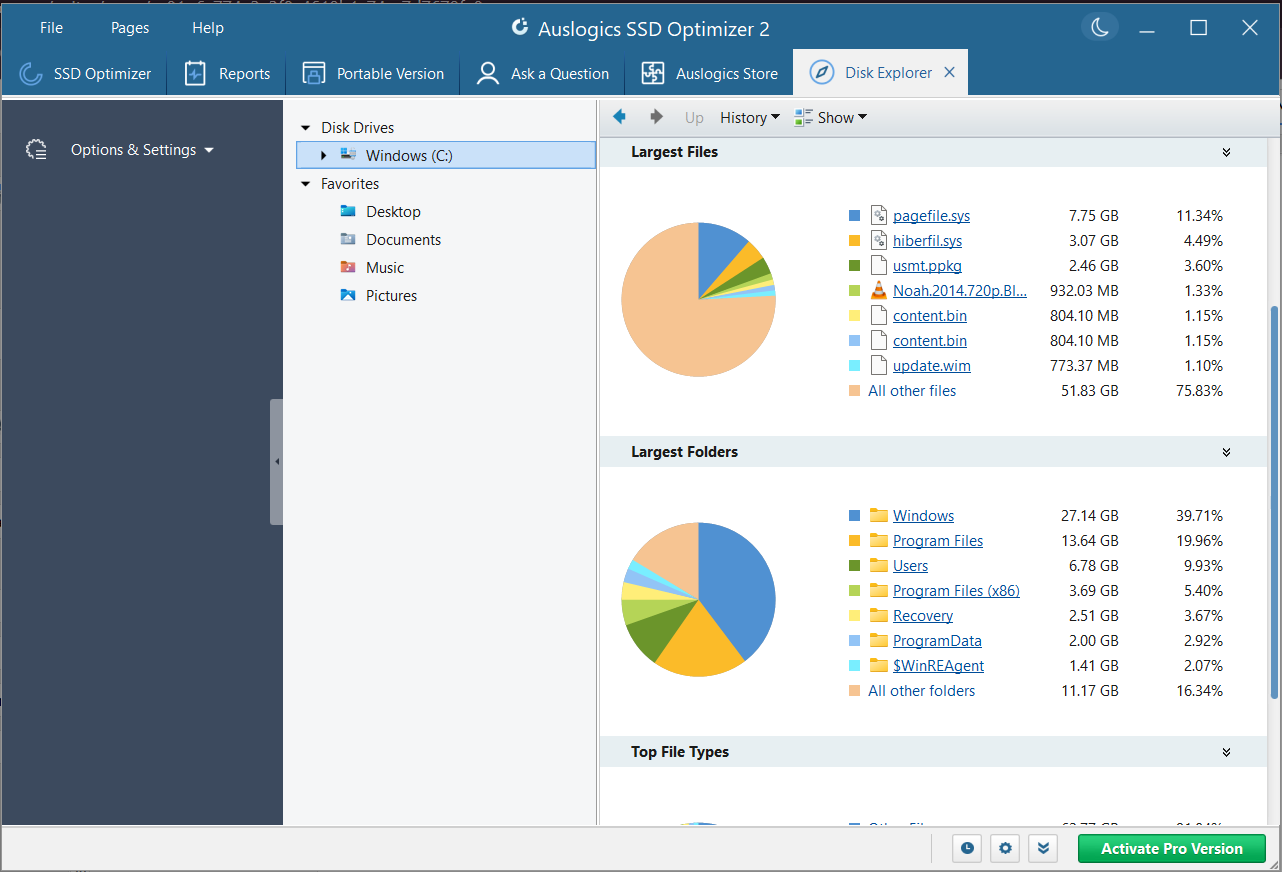
You can then easily move or delete selected items to maximize your storage space:
- Click on the Disk Explorer tab in the left pane and click the Scan Now button.
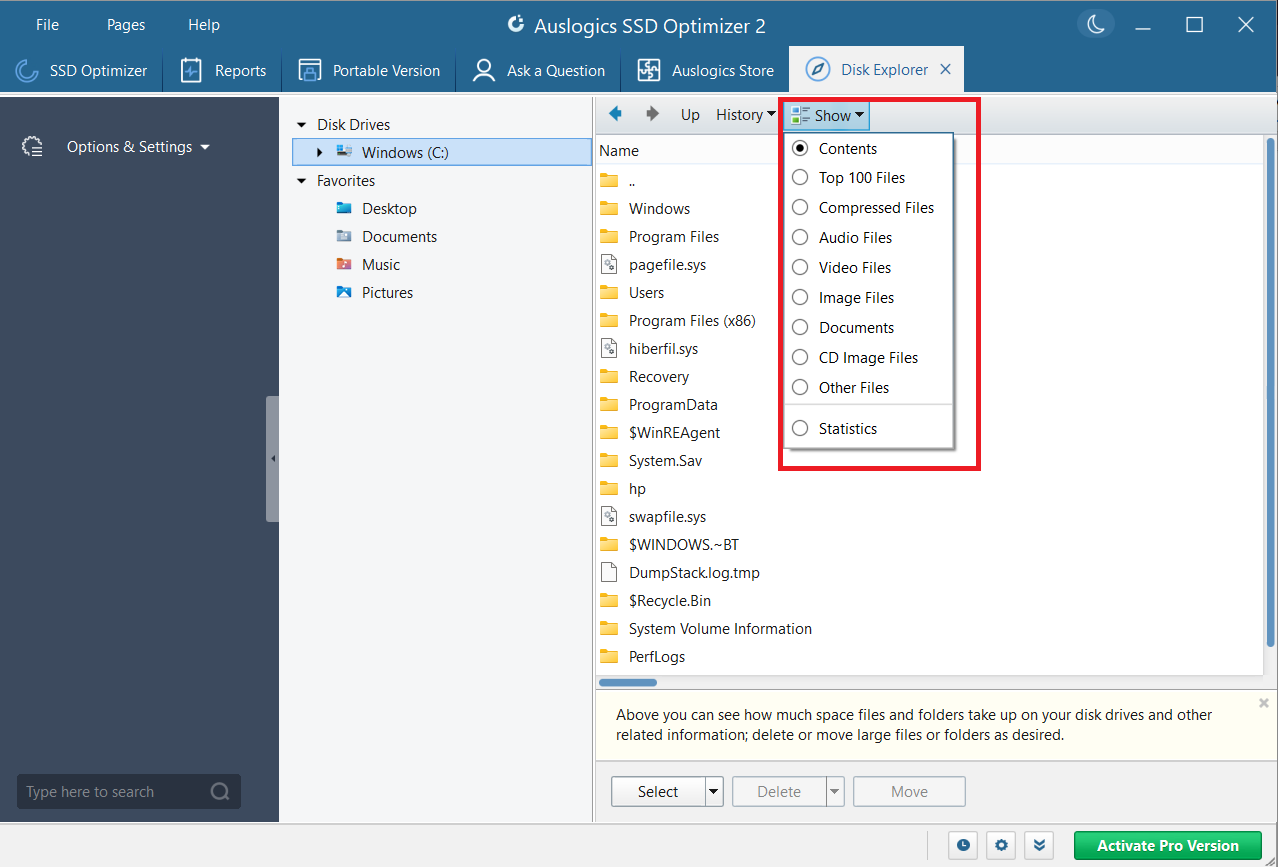
- Once the scan is complete, click Show to choose what you want to see.
- Use the Select, Move, and Delete buttons to manage files and folders.
➡️ CPU, memory, drive, and network usage report
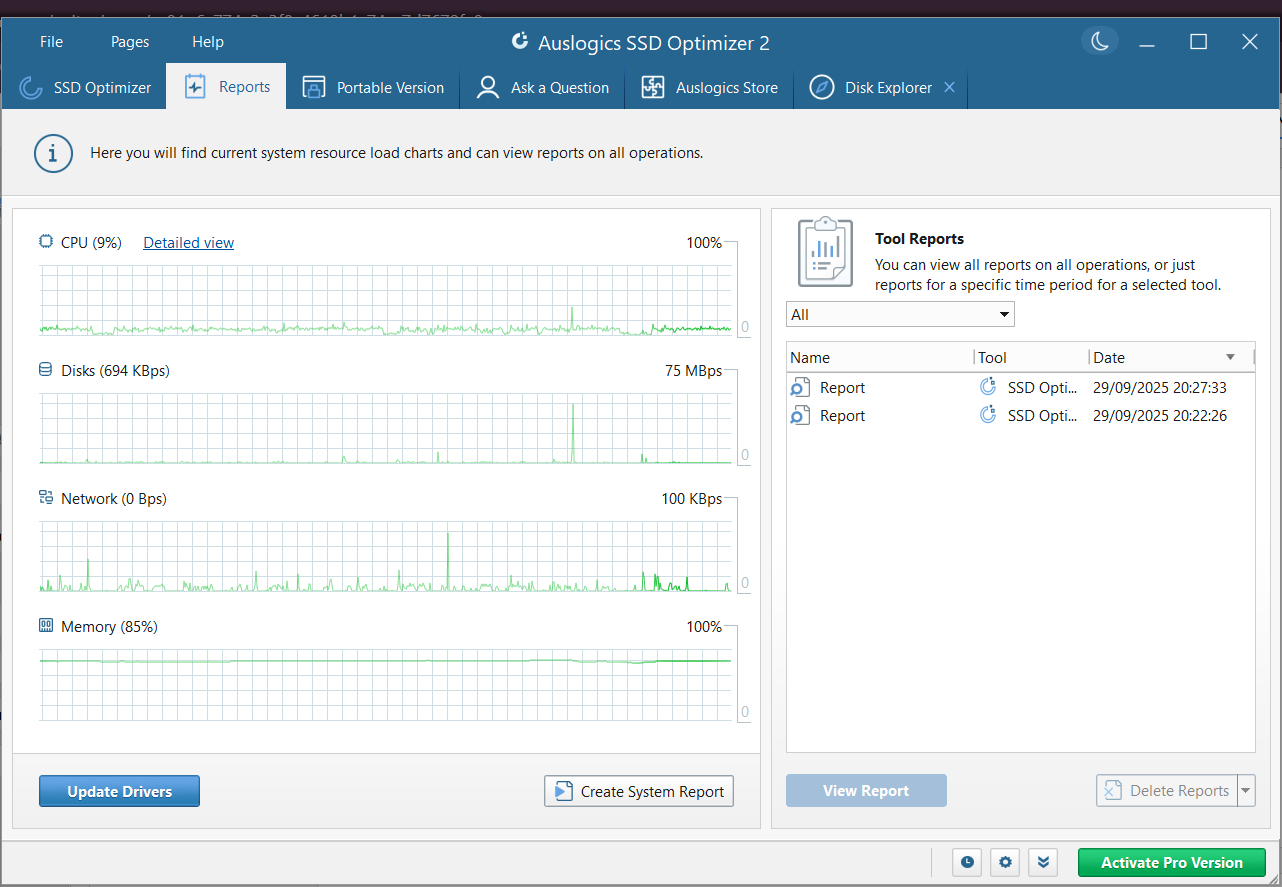
The Report tab in Auslogics SSD Optimizer lets you monitor system resource usage. You can see at a glance how heavily active apps and processes are consuming CPU, memory, network, and disk resources. This will help you catch abnormal activities that may be running on your computer—high loads could indicate that something is wrong.
![IMG]() Portable version
Portable version

Optimize your SSD on any PC with Auslogics SSD Optimizer without installing the app. The portable version can be run from a USB flash drive. To create a portable version of SSD Optimizer:
- Plug in the USB device to which you’d like to save the software.
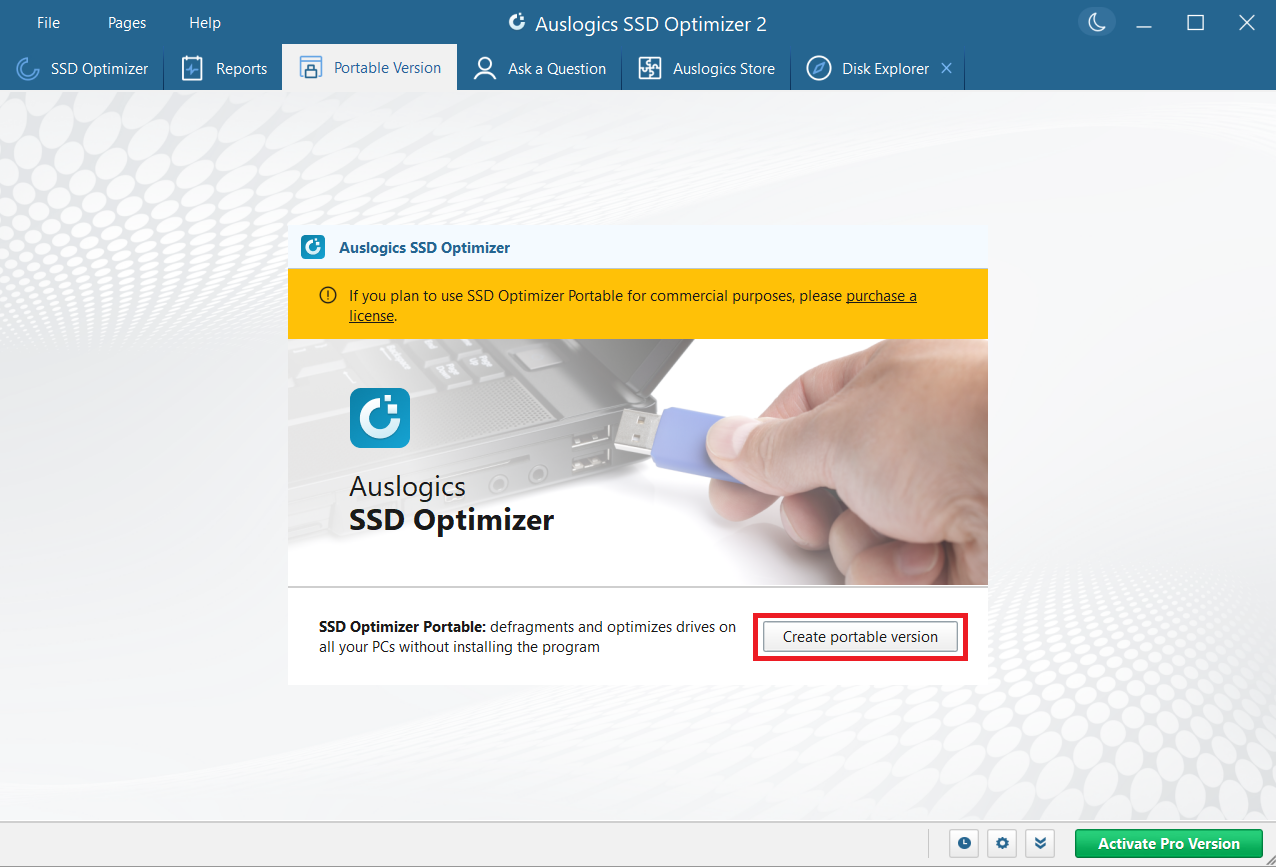
- Go to the Portable Version tab on the app and click the Create portable version button.
- Select a location on your computer to save the portable file and click Save to proceed.
- After SSD Optimizer Portable is successfully saved, click on Open folder and move the file to your USB drive.
![IMG]() Software support—Ask a Question
Software support—Ask a Question

Have questions related to using any Auslogics product or optimizing your PC? The Ask a Question platform provides a means for you to get quick responses from online experts. You can also browse through the questions already posted by other users, and you might just find answers to what you need. To use the feature:
- Click on the Ask a Question tab.

- On the right-hand side of the page, you can scroll through the latest questions on the platform. Click the Read Now link on any question that catches your interest to view it in your browser.
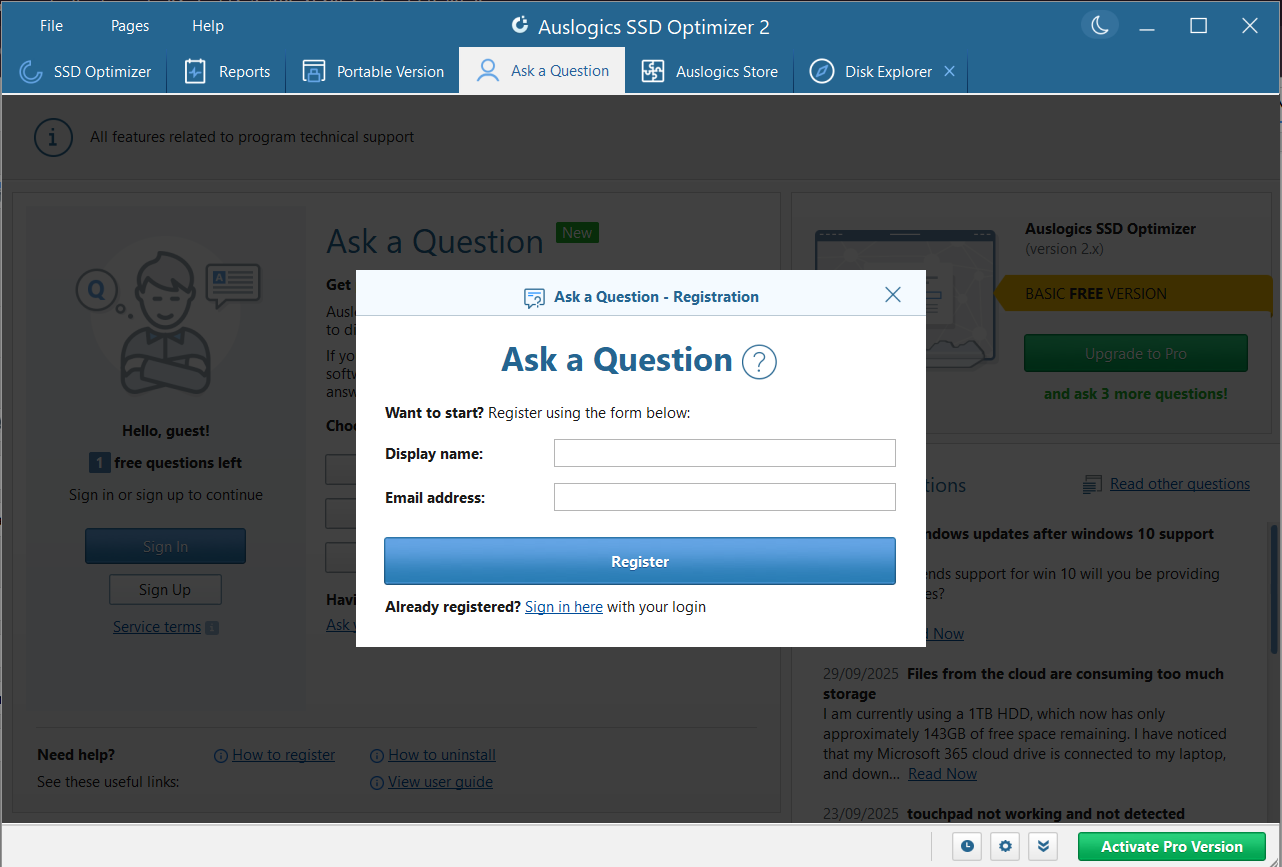
- If this is your first time using this feature, you’ll have to sign up with your email address in order to post a question. To do that, click the Sign Up button and enter your email address and your preferred display name (this is the name you’ll bear on the forum pages). Then click the Register button.
- Go to your specified email and open the confirmation message to view your user password. You will need it to sign in whenever you want to ask a question.
- Go back to the app and enter the password to sign in.
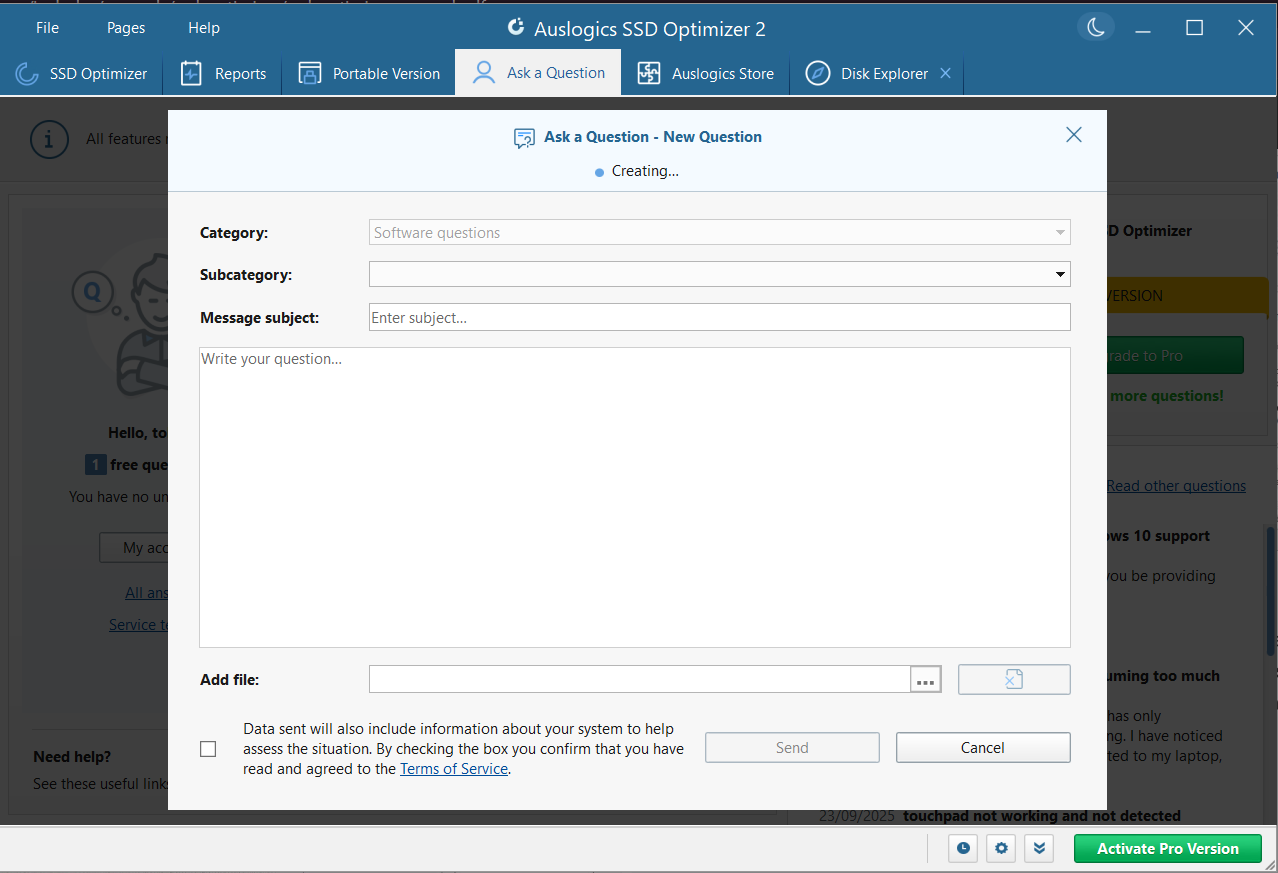
- Once signed in, choose a question category and provide a descriptive message subject. Then type your question. You can use the Add file button to attach screenshots or other files to your message.
- Click the Send button when you are done. Your question will be reviewed and then uploaded to the web forum.
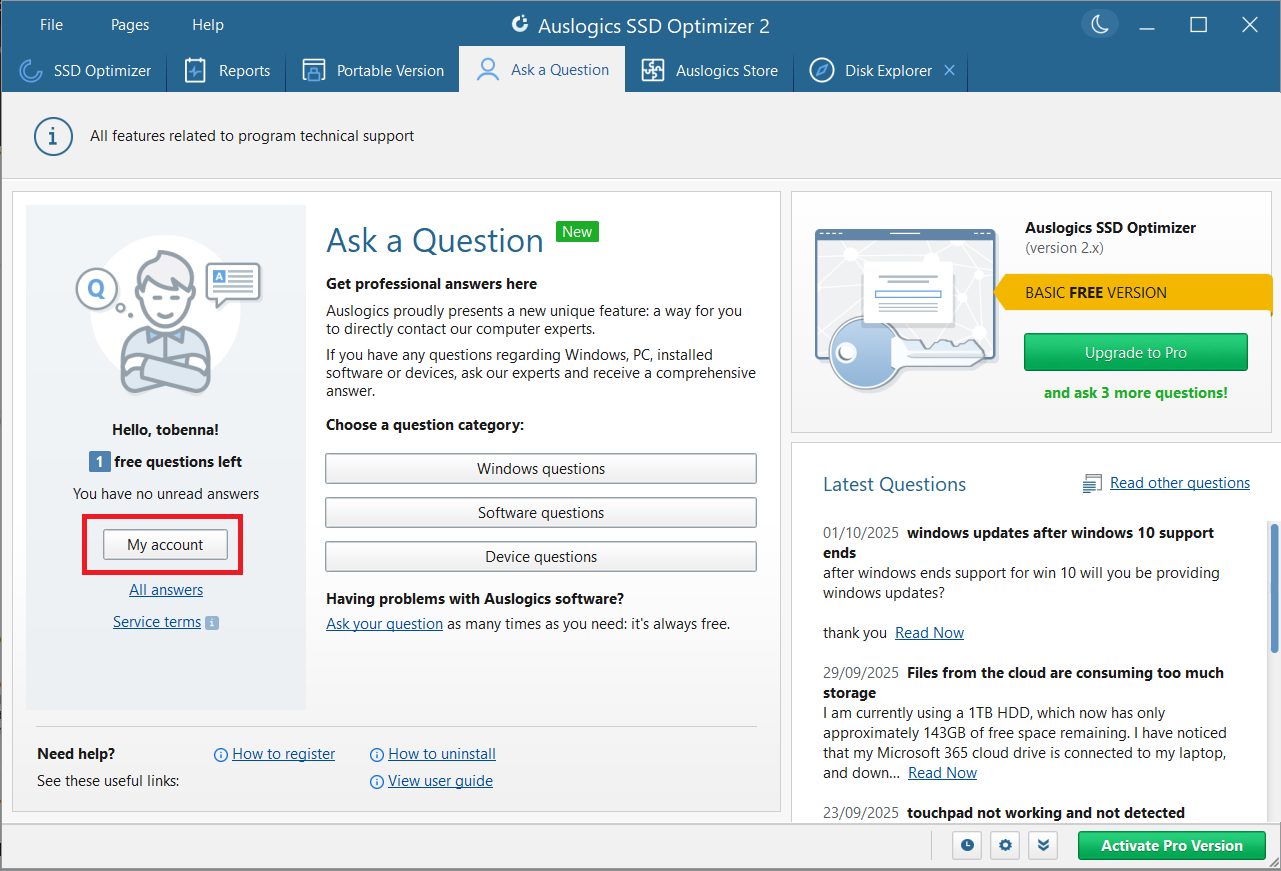
- To view your questions and the responses left on them, click the My account button.
Why Auslogics SSD Optimizer Is the Best Tool for SSD Optimization
With its advanced optimization algorithms and tons of useful features that streamline SSD management, user satisfaction is guaranteed. Auslogics SSD Optimizer is a tool worth having.
💻 User-friendly interface:
The app does not bore you with a dull interface. All features are clearly placed and are effortless to navigate.
⚙️ Additional features:
The tool uses advanced algorithms to efficiently carry out SSD optimization. But it doesn’t stop there. It also packs several useful features that facilitate device management. For instance, you can check your drive for errors, wipe free space, monitor system load, analyze your storage to identify items that are taking up the most space on your drive, and more.
🌿 Lightweight and low resource usage:
The tool doesn’t weigh down your PC when it operates. It is swift and efficient.
🔄 Regular updates:
The developers are continuously improving the app, providing updates on a regular basis.
🆘 Strong customer support:
Get quick responses to your most pressing questions. And find all the support you need via the Ask a Question platform.
💰 Affordable pricing:
SSD Optimizer gives you value for your money. You can purchase the Pro version for as low as $25 depending on your region (discounts also apply).
| Features/capabilities | Auslogics SSD Optimizer | SSD Fresh | Sandisk Dashboard | Samsung Magician |
|---|---|---|---|---|
| SSD firmware updates | ❌ | ❌ | ✅ | ✅ |
| SSD TRIM support | ✅ | ✅ | ✅ | ✅ |
| System optimization | ✅ | ✅ | ✅ | ✅ |
| Automatic optimization scheduling | ✅ | ❌ | ❌ | ❌ |
| Customizable optimization algorithm | ✅ | ❌ | ❌ | ❌ |
| Drive health monitoring | ✅ | ✅ | ✅ | ✅ |
| Drive error checking | ✅ | ❌ | ✅ | ✅ |
| Detailed drive usage pattern statistics | ✅ | ❌ | ❌ | ❌ |
| Drive content analysis | ✅ | ❌ | ❌ | ❌ |
| Disk cleanup | ✅ | ❌ | ❌ | ❌ |
| Free space wiping | ✅ | ❌ | ❌ | ✅ |
| SMART data display | ✅ | ✅ | ✅ | ✅ |
| Drive usage level display | ✅ | ❌ | ✅ | ✅ |
| Temperature monitoring | ✅ | ✅ | ✅ | ✅ |
| Real-time system resource reports | ✅ | ❌ | ❌ | ❌ |
| On-platform active user support | ✅ | ✅ | ❌ | ❌ |
| Portable version | ✅ | ❌ | ❌ | ❌ |
| Price | ✅ Free version
💲 $29.95/year for 3 PCs (U.S. price, varies by region) |
✅ Free version
💲 $35.17/year |
✅ Free | ✅ Free |
How Much Does Auslogics SSD Optimizer Cost?
The price depends on your region. You can check the official product page to find current prices. For instance, the 3-PC license for users in the U.S. costs $29.95 per year. Discounts also apply, and first-time users enjoy a 30-day money-back guarantee.
That’s right. You will bear no risks at all. If you don’t like the tool, you will get a full refund. Plus, there is a free version that enables you to run some basic optimizations if you’re not quite ready to make the purchase.
Here’s a quick comparison table that shows the features you’ll get in the free and Pro versions of the tool:
| Auslogics SSD Optimizer features | Free version | Pro version |
|---|---|---|
| Advanced SSD optimization algorithm | ✅ | ✅ |
| Automatic optimization | ❌ | ✅ |
| Drive protection | ✅ | ✅ |
| Drive error check and repair | ✅ | ✅ |
| Temporary file cleanup | ❌ | ✅ |
| Free space wiping | ❌ | ✅ |
| Ask a Question | 1 question | 3 questions |
Auslogics SSD Optimizer: Keep Your Solid-State Drive Fast and Healthy
Auslogics SSD Optimizer is a trusty tool that enables you to gain some extra mileage from your solid-state drives. It minimizes write activities, improves speed and performance, and promotes drive health.
Whether your SSD is brand new and you are keen on treating it right or you are already struggling with low speeds, slow boot times, and degrading SSD health, you’ll find great value for your money by putting SSD Optimizer to the task.
If you have any questions about this app or about optimizing your Windows computer, please feel free to drop them in the comments section below.
Or use Auslogics’ Ask a Question platform.


