


![[FIXED] Windows 11 Quick Access Missing: Restore The Quick Access Menu in Windows 11](https://www.auslogics.com/en/articles/wp-content/uploads/2025/09/Quick-Access-Menu-568x359.webp)
- Why Is the Quick Access Menu Missing in Windows 11?
- Where is Quick access in Windows 11?
- How to Restore the Quick Access Menu in Windows 11
- Step 1: Modify folder options in File Explorer
- Step 2: Restart File Explorer in Task Manager
- Step 3: Repin folders to Quick access and add files to favorites
- Step 4: Run Windows Update
- Step 5: Scan your PC for malware
- Step 6: Clear and rebuild the Windows icon cache
- Step 7: Run the DISM and SFC scans to resolve corrupted Windows files
- How Do I Pin and Remove Items from the Quick Access Menu?
- Conclusion
- FAQ
If you’ve been using Quick access in File Explorer for some time now, you’d have gotten used to the convenience it lends when organizing files and folders.
That’s why you might find it very upsetting when, all of a sudden, the menus do not appear. And you’re left wondering why.
This confusion could stem from the recent changes Microsoft made to File Explorer in the Windows 11 2022 Update, whereby Quick access still exists but in a different location.
However, there are cases where Quick access is missing entirely in File Explorer’s Home. Folders you pin to Quick access, your frequently accessed folders, and recently opened files aren’t listed anymore. What a bother! But don’t fret.
You can effectively remedy this issue in Windows 11 using the solutions presented in this guide. By the time we’re done, you’ll get back the Quick access menu and your recent items once again. After fixing the issue, we will also look at how to manage all the items that appear in File Explorer’s Home in Windows 11.
💡 Starting from Windows 11 version 22H2 (the 2022 Update), Microsoft no longer lists Quick access in the left pane of File Explorer.
🏠 Home in File Explorer now contains the Quick access menu as a separate hub for frequently used folders. Home also has a second section for listing recently used files, shared files, and favorites.
🛠️ If the items in File Explorer’s Home are missing, you can fix it by:
✅ Changing your privacy options in File Explorer
✅ Restoring default settings in File Explorer
✅ Clearing the File Explorer history
✅ Restarting File Explorer in Task Manager
✅ Running Windows Update
✅ Scanning your PC for malware
✅ Clearing and rebuilding the Windows icon cache
✅ Running the DISM and SFC scans to fix corrupted Windows files
💡 In Windows 10 and Windows 11 version 21H2:
➖ File Explorer does not have a very tidy left pane.
➖ Quick access exists in place of Home. It has two sections that show frequently used folders and recent files. And it does not keep a list for shared files and favorites.
➖ Users can pin folders to Quick access but there’s no option for adding files to favorites.
Why Is the Quick Access Menu Missing in Windows 11?
If you can’t find Quick access and other items in File Explorer’s Home, then it could be due to one or more of these reasons:
- Privacy options in File Explorer
- File Explorer glitch
- System glitch
- Issues with the Windows 11 icon cache
- Corrupted Windows files
We will cover the various ways to effectively fix these issues and get back Quick access on Windows 11.
📌 Also read: In a Few Clicks: How to Find Large Files on Windows 10/11 and Clean Them Up
Where is Quick access in Windows 11?
It’s important to mention that Microsoft tidied up the left pane in File Explorer when they rolled out Windows 11 22H2 on September 20, 2022.
One of the headline changes in the update was renaming Quick access to Home in File Explorer’s left pane.
The erstwhile Frequent folders section in Windows 10 and Windows 11 21H2 is now called Quick access.
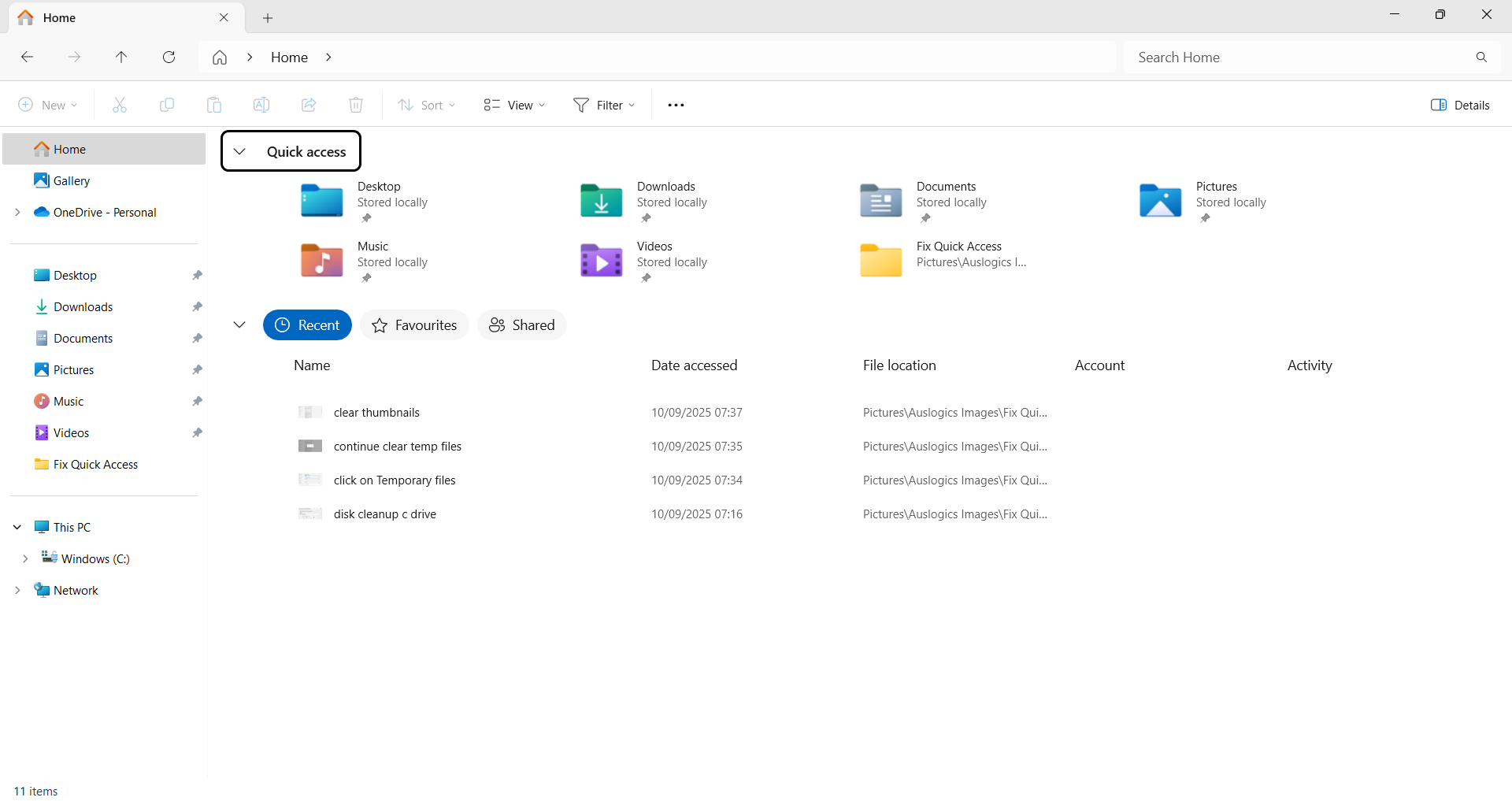
The Home page also includes a second section with tabs for recent files, shared files, and favorites. You can add files to favorites, just like you can pin folders to Quick access.
Therefore, if you weren’t aware of this change, and you just upgraded Windows, then go ahead and click on Home in the left pane of File Explorer to find the Quick access menu.
Otherwise, proceed to the next section of this article to find solutions to the missing Windows Quick access and recent items sections.
How to Restore the Quick Access Menu in Windows 11
There are easy fixes that you can apply to successfully restore the missing Windows 11 Quick access menu. And we will apply them step by step. By the time you’re done, you’ll have achieved a positive result.
- Modify folder options in File Explorer
-
- Allow File Explorer to show frequently used folders and recently used files
- Restore defaults
- Clear File Explorer history
- Set File Explorer to open to Home
- Restart File Explorer in Task Manager
- Repin folders to Quick access and add files to favorites
- Run Windows Update
- Scan your PC for malware
- Clear and rebuild the Windows icon cache
- Run the DISM and SFC scans to fix corrupted Windows files
We will now apply these fixes one at a time until the issue with Windows 11 File Explorer’s Quick access missing is resolved.
Step 1: Modify folder options in File Explorer
There are a couple of things you can do within File Explorer to bring back Quick access and your recent items. Apply the solutions presented below to change unfavorable Windows 11 Quick access settings and refresh File Explorer :
⇢ 1.1 Allow File Explorer to show frequently used folders and recently used files
The privacy options in File Explorer could be the reason why your frequently accessed folders and recently used files are not populating in Home. Here’s how to change that:
- Press the
Windows + Ehotkey on your keyboard to open File Explorer. - Click the See more icon (three dots) at the top of the page.
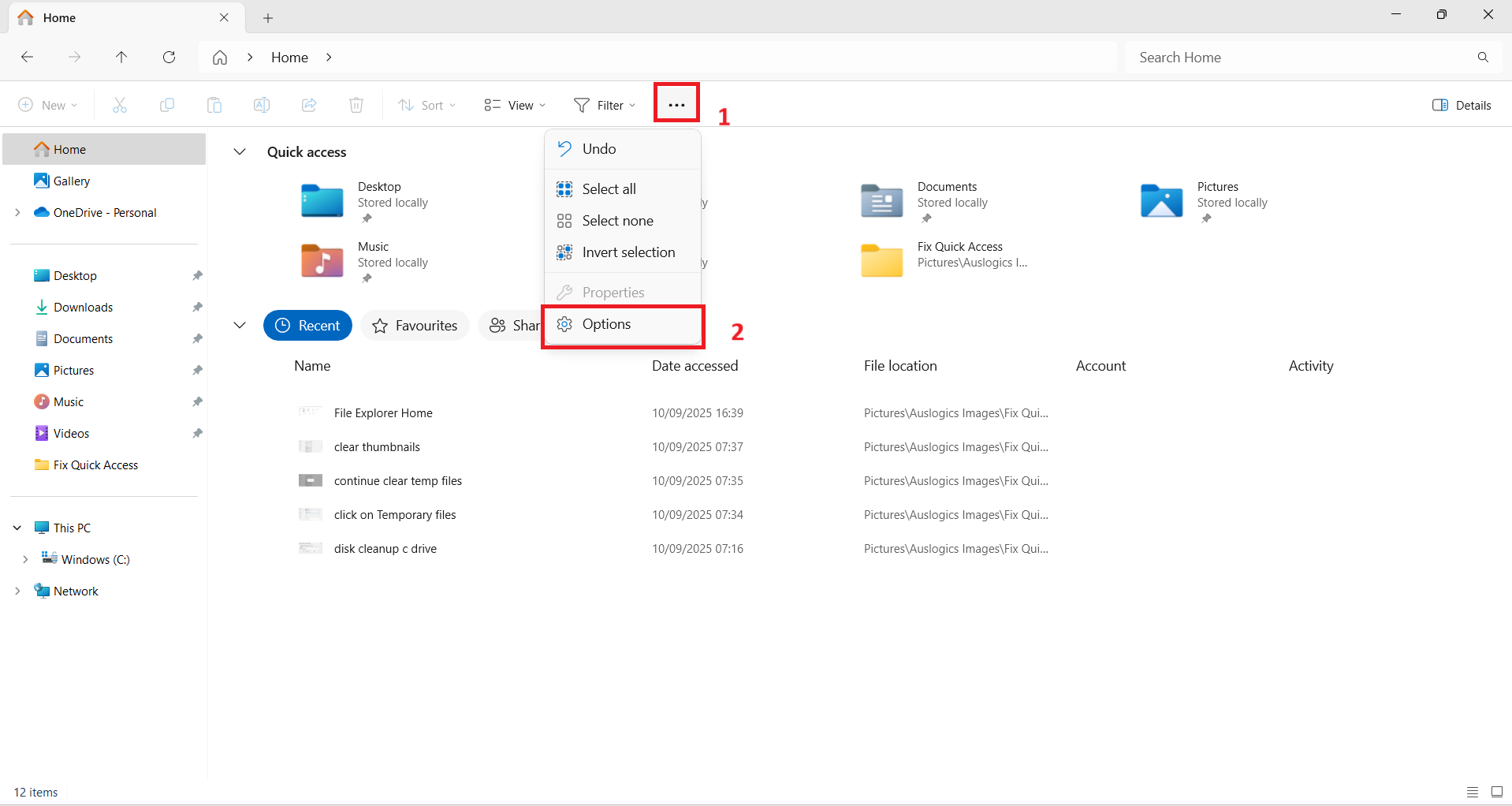
- Click on Options at the bottom of the context menu that opens.
- See that you are on the General tab in the Folder Options dialog box.
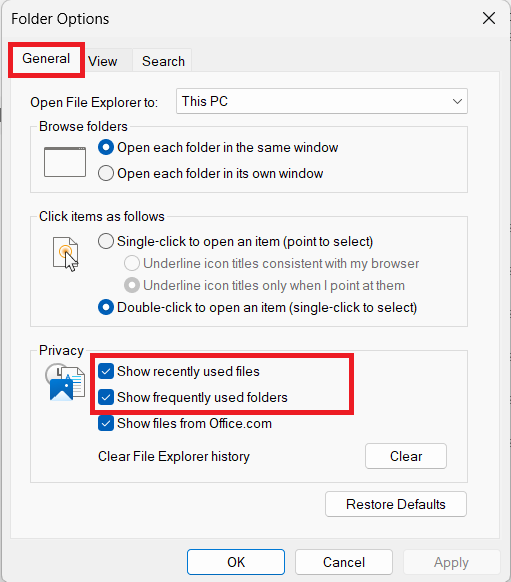
- In the Privacy section at the bottom of the page, mark the checkboxes for Show recently used files and Show frequently used folders.
- Click the Apply button and then click the OK button.
Your frequently used folders and recently used files will now begin to populate automatically in Home once more.
⇢ 1.2 Restore defaults
Restoring default folder options in File Explorer can help resolve glitches and restore Quick access. Here’s what you should do:
- Open File Explorer (
Windows + E). - Click the three dots at the top of the page.
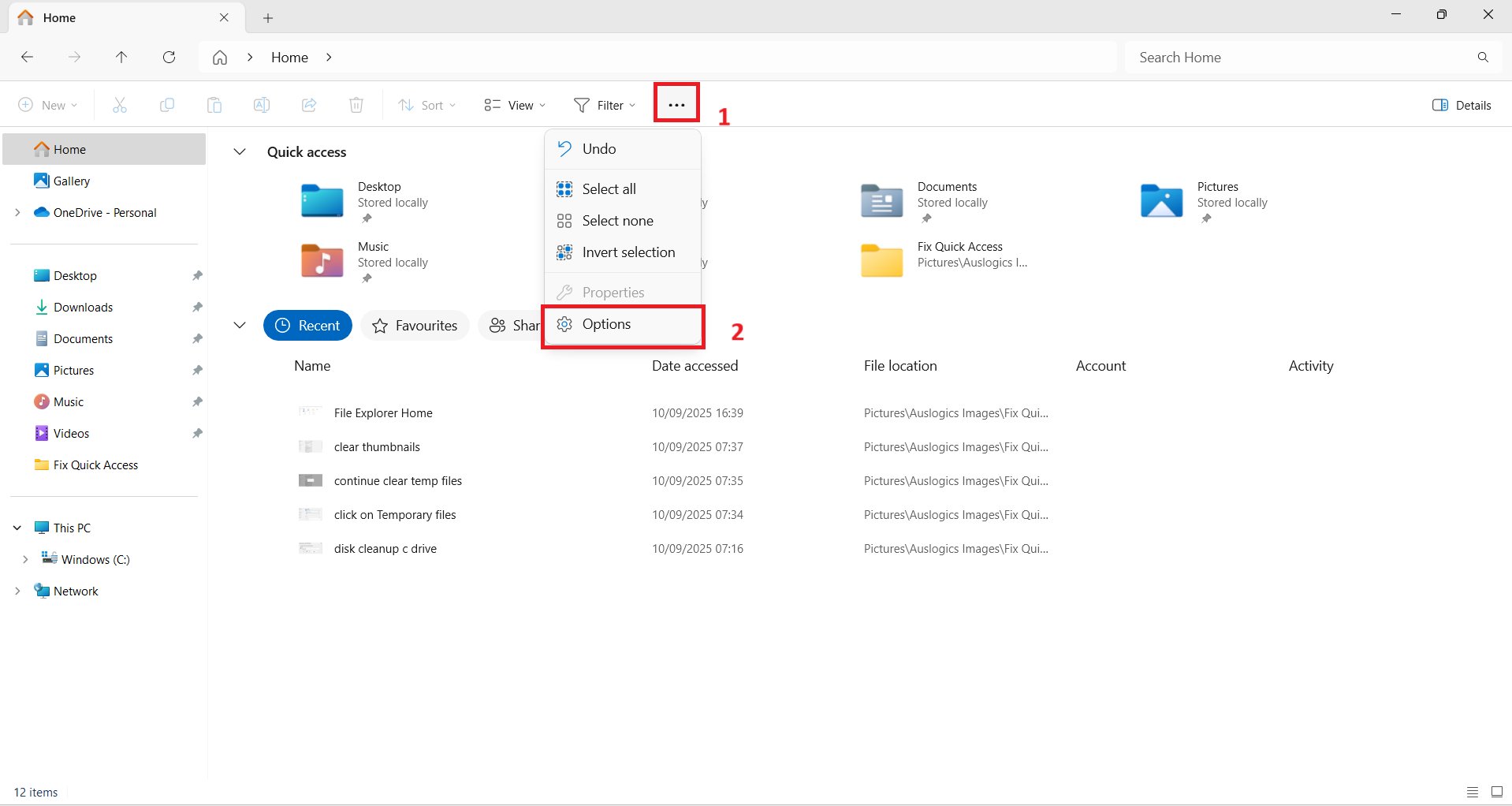
- Click on Options at the bottom of the context menu.
- On the General tab, click the Restore Defaults button just below the Privacy section.
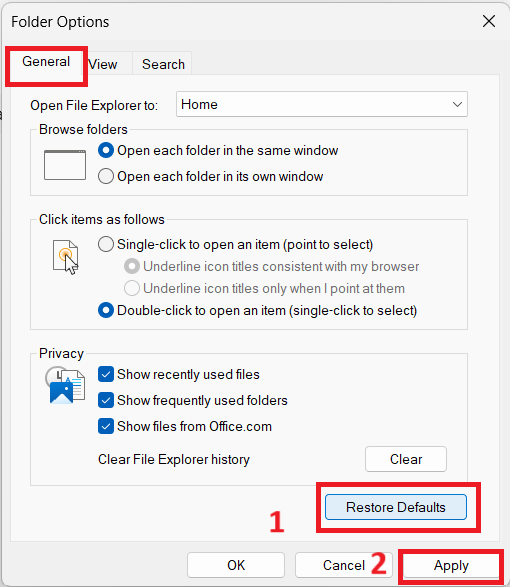
- Click the Apply button.
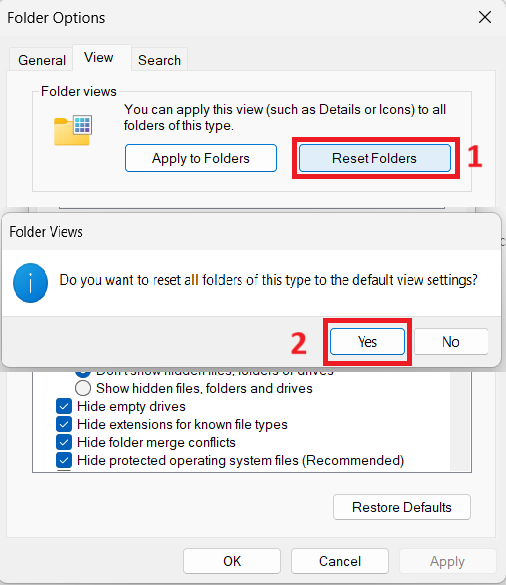
- Now, switch to the View tab.
- Click on the Reset Folders button, and then click the Yes button in the Folder Views prompt that appears.
- Next, click the Restore Defaults button just below the Advanced settings menu.
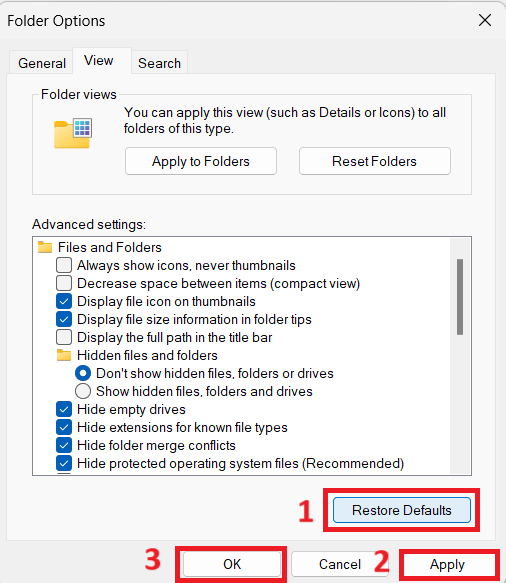
- Now, click the Apply button and then click the OK button.
File Explorer defaults will now be restored. And the issue with Quick access is probably resolved now. Otherwise, continue with the next fix
⇢ 1.3 Clear File Explorer history
Clearing File Explorer history will remove corrupted cached data, resolve minor faults, and may restore normal working conditions.
This will also wipe existing records of frequently accessed folders and recently used files. The search queries you ran in the File Explorer search bar will be cleared as well. Follow these steps:
- Open File Explorer (
Windows + E). - Click on the three dots at the top of the page.
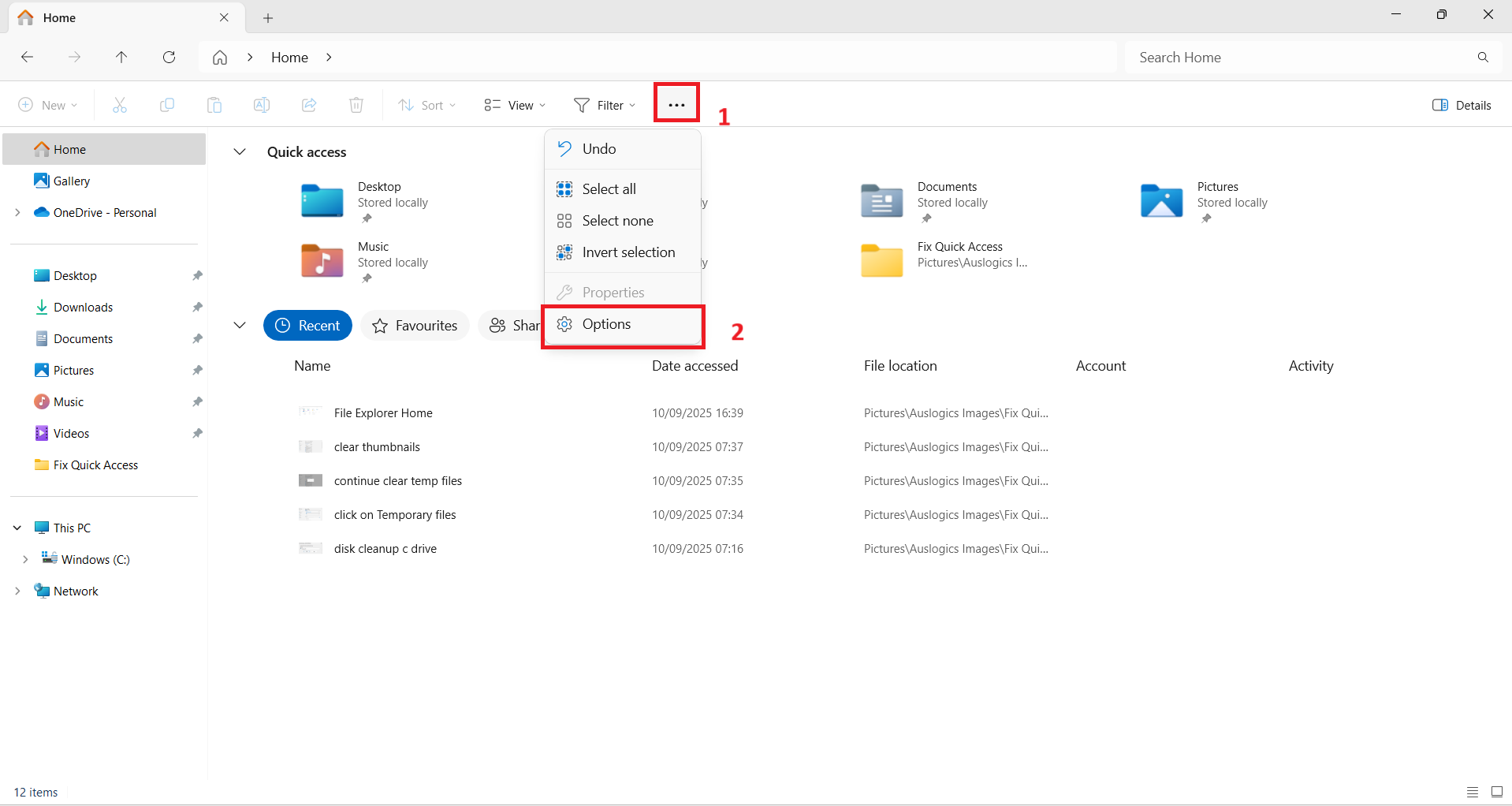
- Click on Options at the bottom of the context menu.
- You should be on the General tab in the Folder Options dialog box.
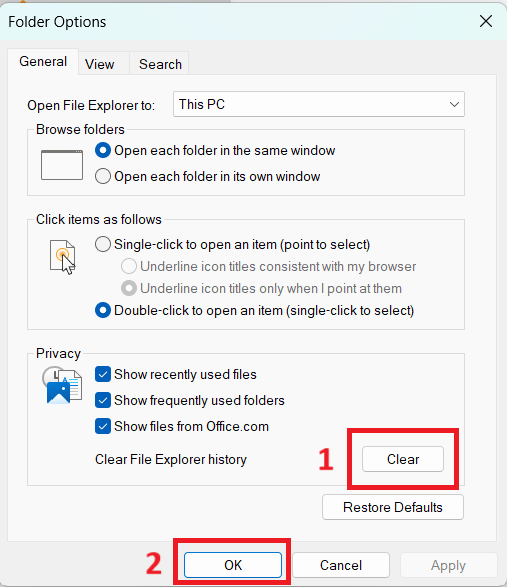
- Click on the Clear button on the right-hand side of the Clear File Explorer history option in the Privacy section.
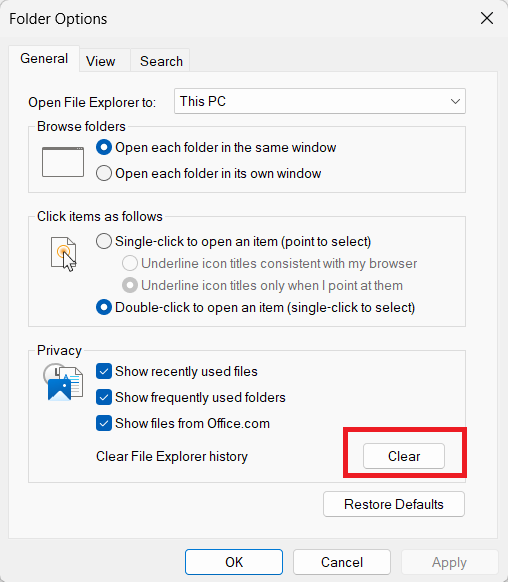
- Click the OK button.
The issue with Quick access should be resolved.
Thereafter, frequently accessed folders and recently used files will begin to repopulate in Home.
⇢ 1.4 Set File Explorer to open to Home
Whenever you open File Explorer, you’ll either land on Home or This PC. You can set it to Home in the meantime. See if that helps.
Here’s how to get it done:
- Click the
Windows + Ehotkey on your keyboard to open File Explorer. - Click the three dots at the top of the page.
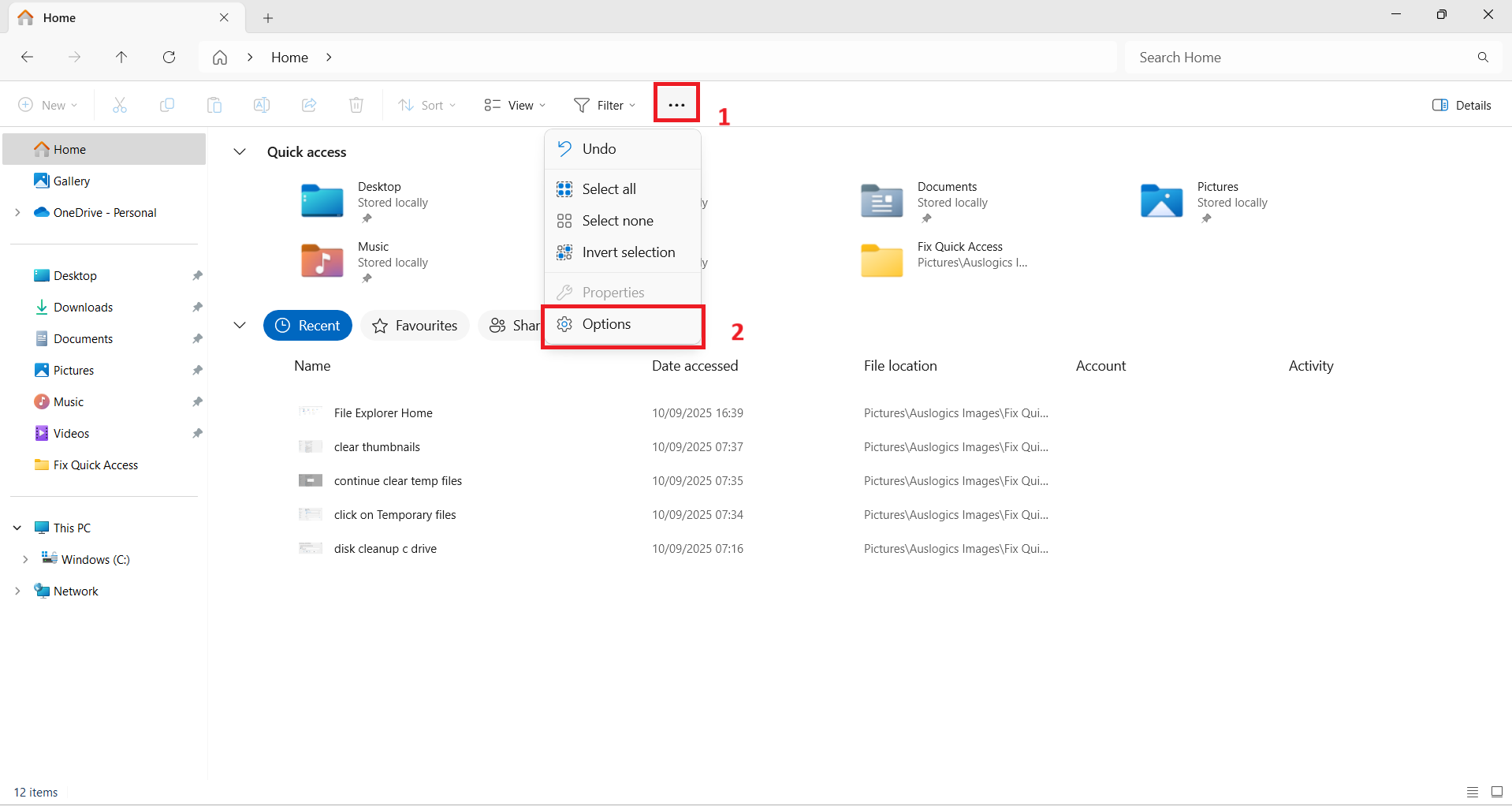
- Click on Options at the bottom of the context menu.
- On the General tab, click the drop-down menu next to the option that says Open File Explorer to.
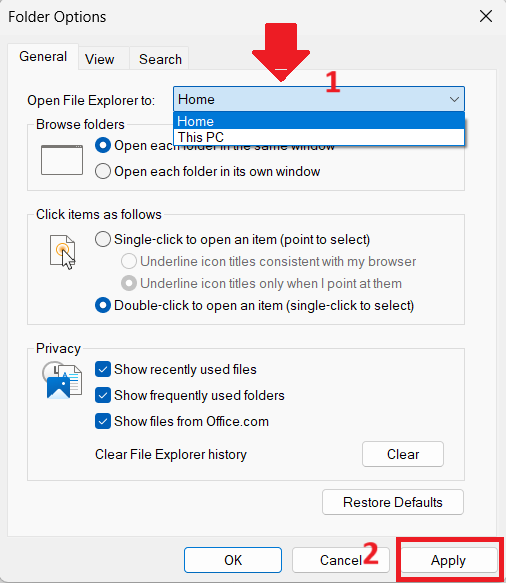
- Select Home.
- Now, click the Apply button.
- Click the OK button.
The next time you open File Explorer, it will land on the Home page. See if you can now find the Quick access menu. If there’s no positive change, then move on to the other solutions shown below.
Step 2: Restart File Explorer in Task Manager
Restarting File Explorer can help resolve glitches and get the Quick access menu and recent items to appear and function normally again. Here’s what you should do:
- Open Task Manager. You can do this by pressing the
Ctrl + Shift + Eschotkey on your keyboard. - Confirm in the left pane that you are on the Processes tab.
- Now, locate Windows Explorer under Apps on the right-hand side. Right-click on it and click on Restart in the context menu.
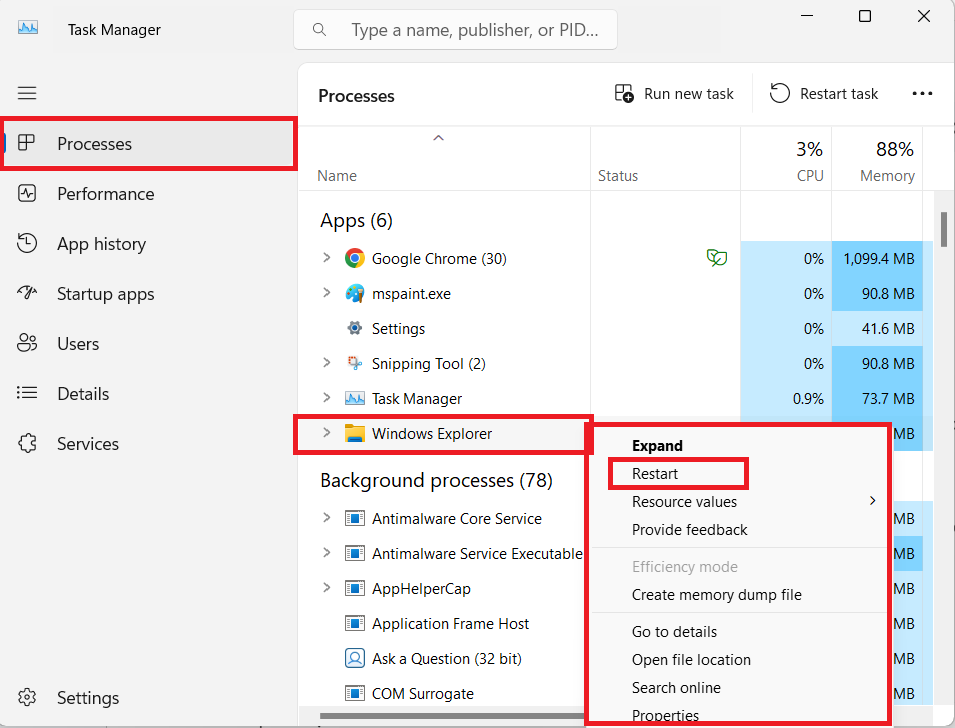
- Go ahead and close the Task Manager window.
That should do it. You can now open File Explorer once more and see if Quick access appears.
Step 3: Repin folders to Quick access and add files to favorites
Before proceeding with other fixes outside of File Explorer, you can try to repin your folders to Quick access and add your files to favorites to see if they will appear in Home.
Here’s how to pin folders to Quick access and add files to favorites:
- Open File Explorer (press the
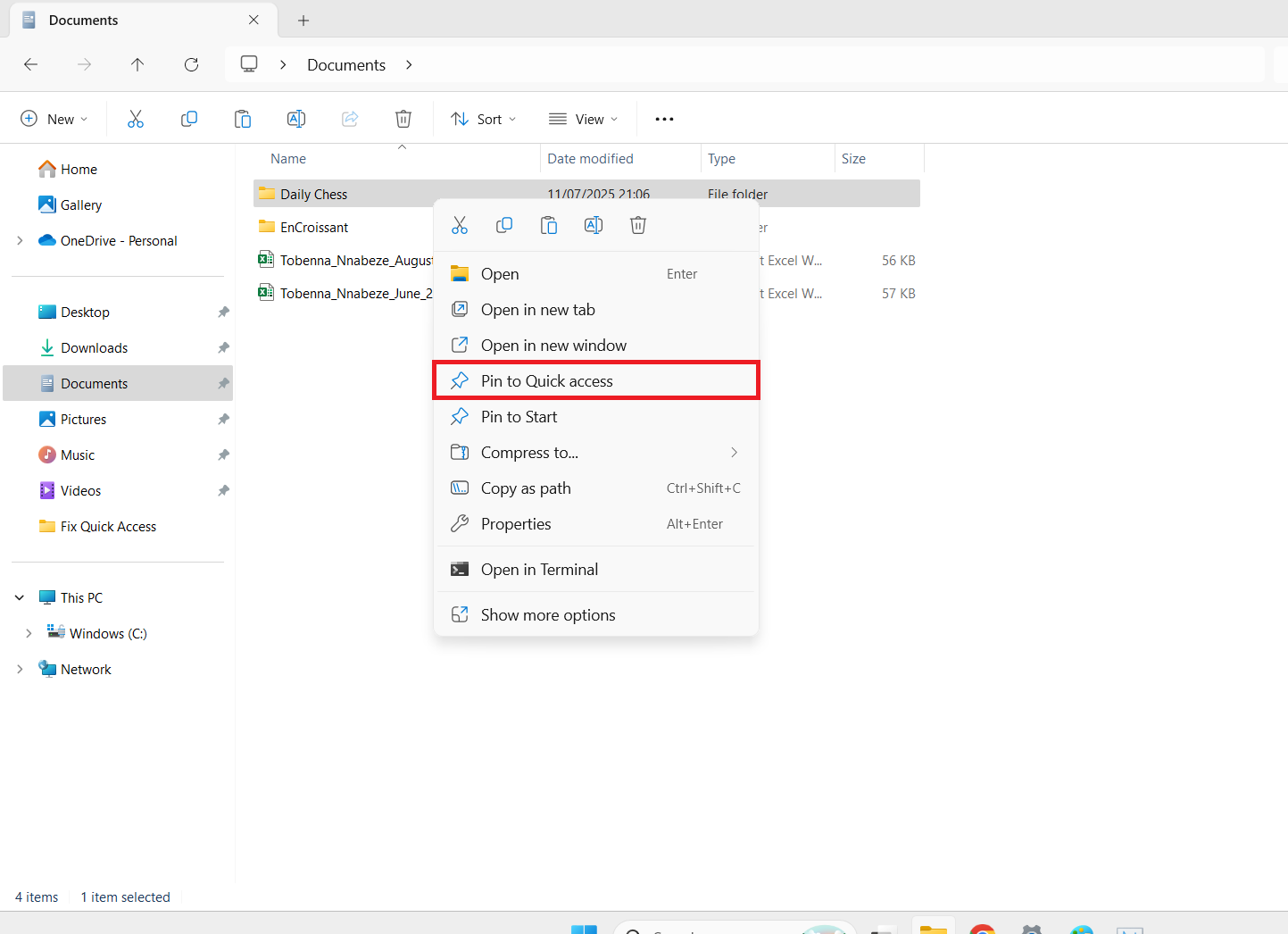
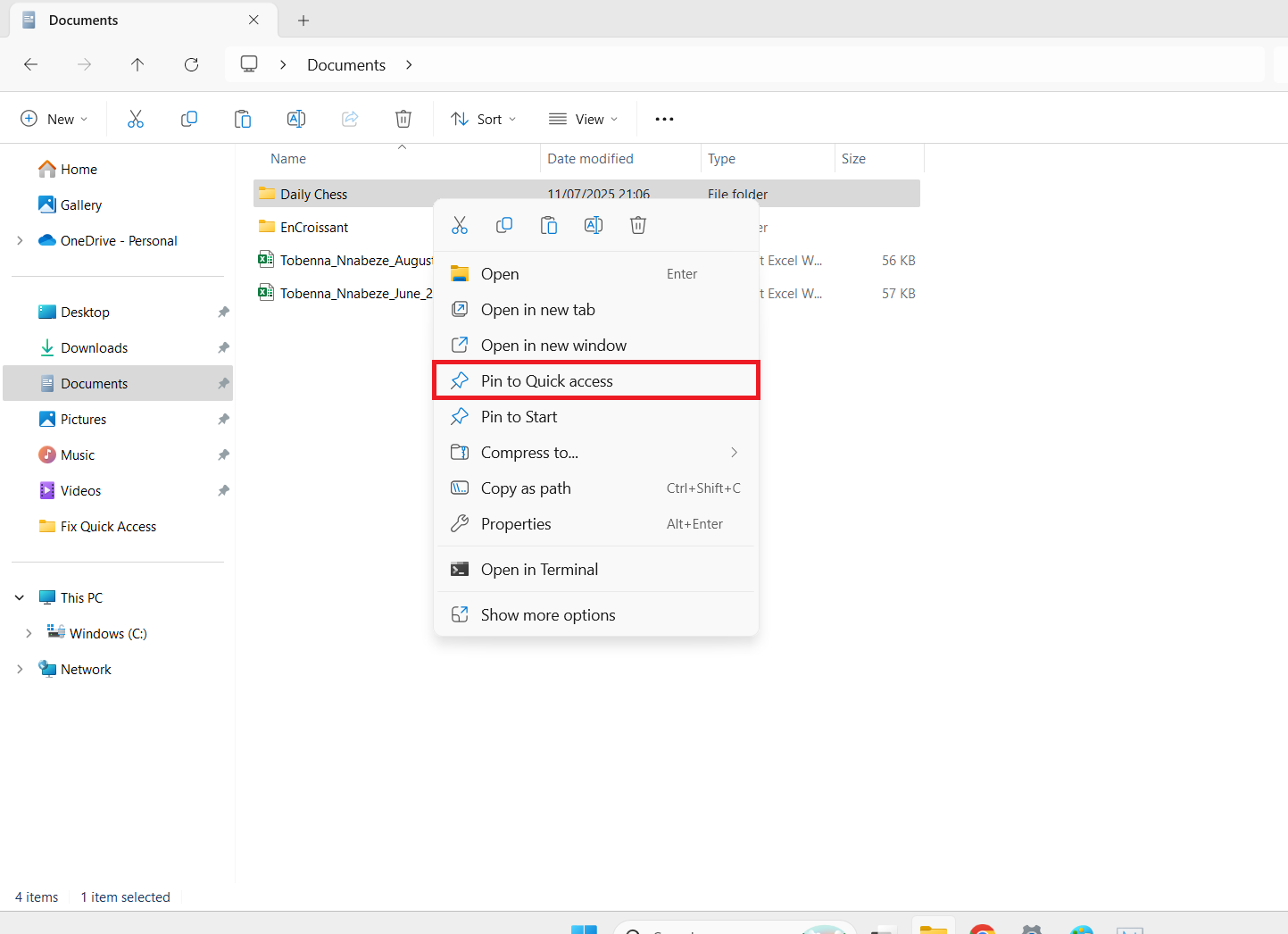
Windows + Ehotkey on your keyboard). - Right-click on any of your folders and click on Pin to Quick access in the context menu.
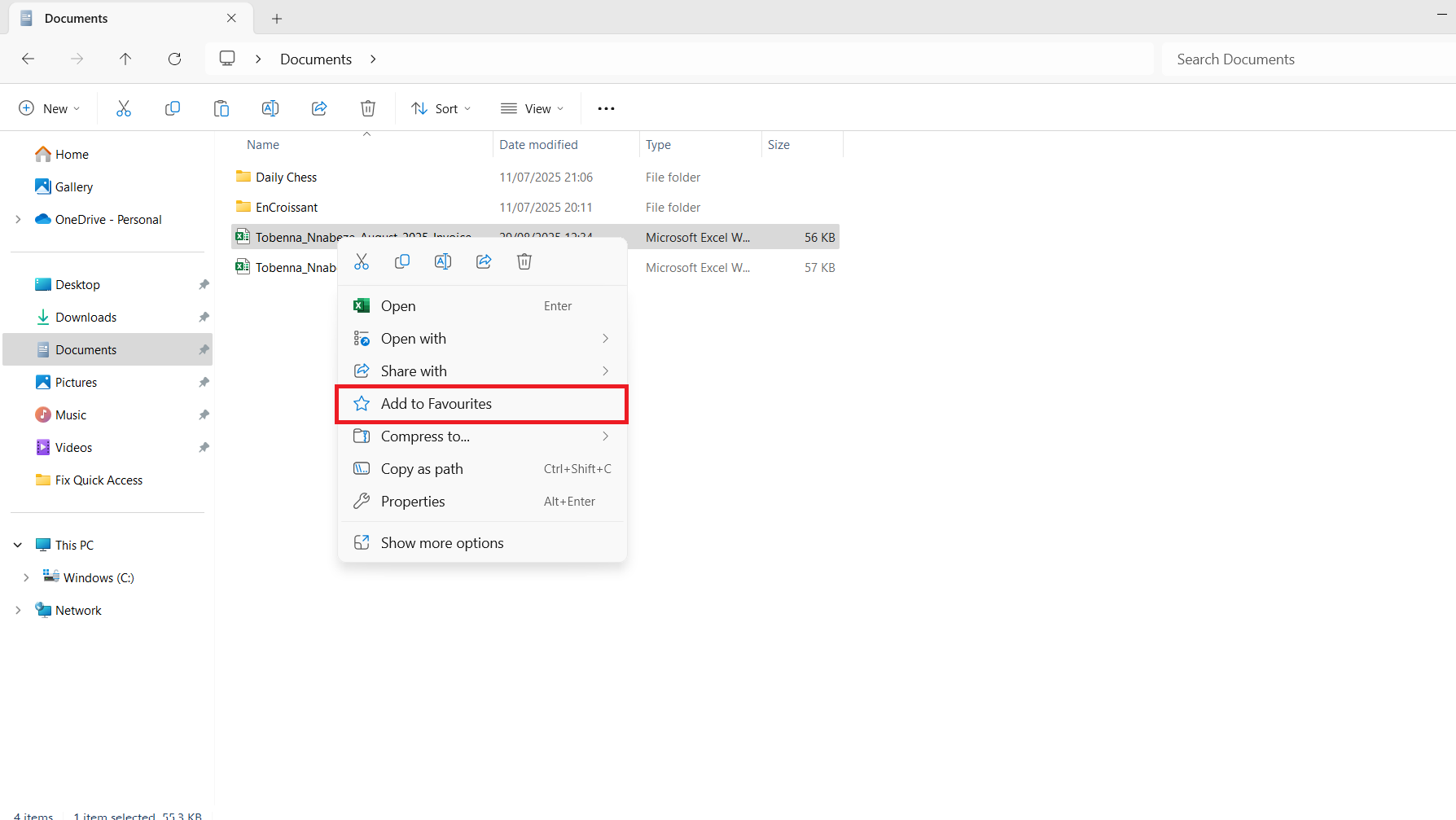
- Next, locate a file and click on it to select it. Then right-click on it and click on Add to Favorites in the context menu.
- Go to Home in the left pane of File Explorer. See if Quick access appears and everything is back to normal.
If there’s no positive result, we can now proceed with the other fixes as presented below.
Step 4: Run Windows Update
can help fix bugs and glitches that may be the reason for Quick access missing in Windows 11. Here’s how to proceed:
- Open the Windows Settings app. You can do this by pressing the
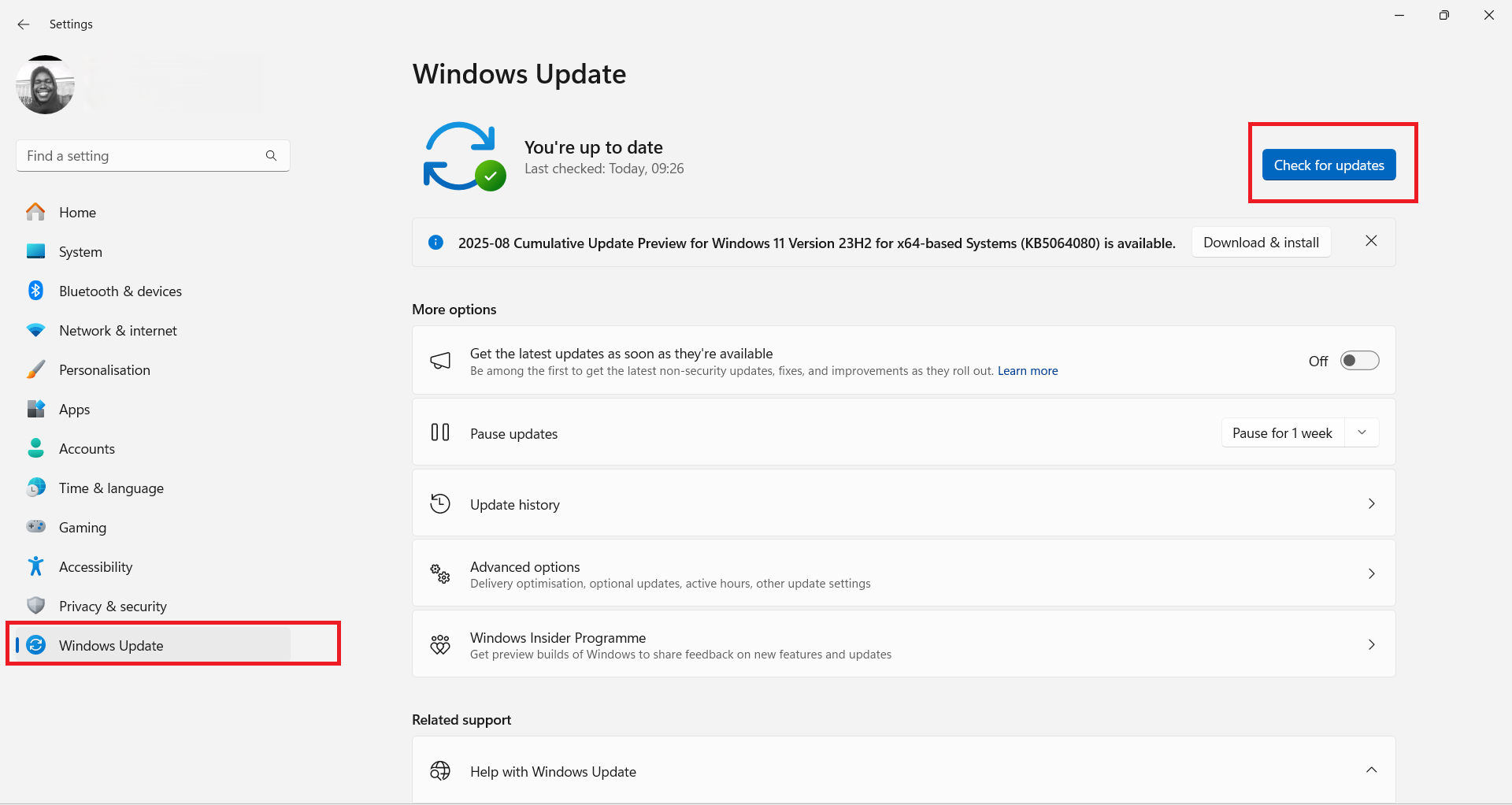
Windows + Ihotkey on your keyboard. - Click on Windows Update in the left pane.
- Click the Check for updates button.
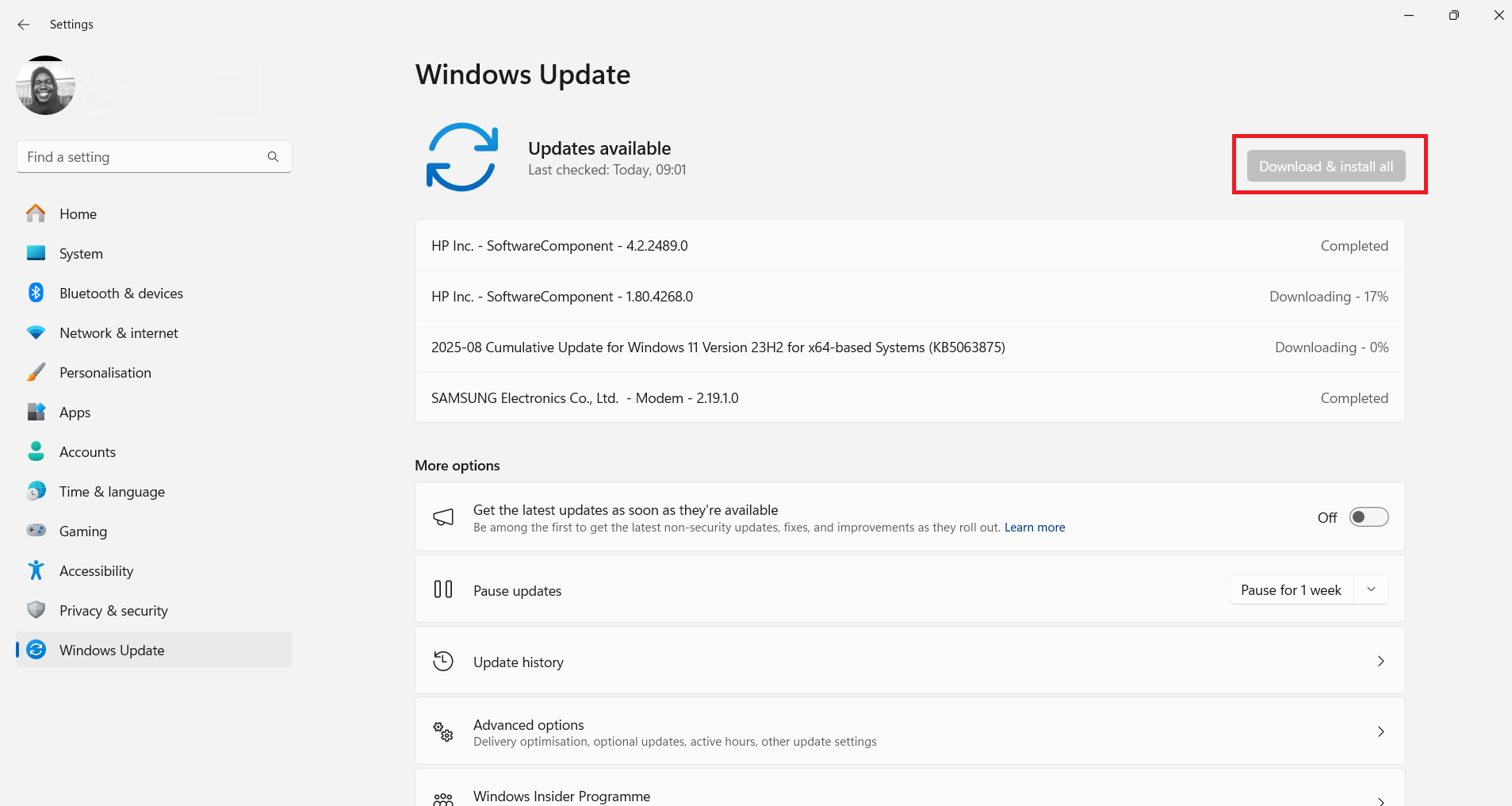
- After the check is complete and there are updates available, go ahead and click the Download and install all button. Ensure that you have enough battery power or plug in your PC.
After the new updates have been installed, go back to File Explorer and check whether Quick access appears normally now.
Step 5: Scan your PC for malware
alter and delete important system files, causing all sorts of unforeseen issues on Windows. This may have brought about the missing Quick access. You need to run a deep scan to find and remove hidden threats on your PC.
📌 Also read: Windows Backup: How to Back Up and Restore Your Apps, Files, and Settings on Windows 10/11
Start with Windows Defender, and then use Auslogics Anti-Malware to run an additional scan.
Follow these steps:
- Close all open apps on your PC.
- Click Start (the Windows icon) on your taskbar.
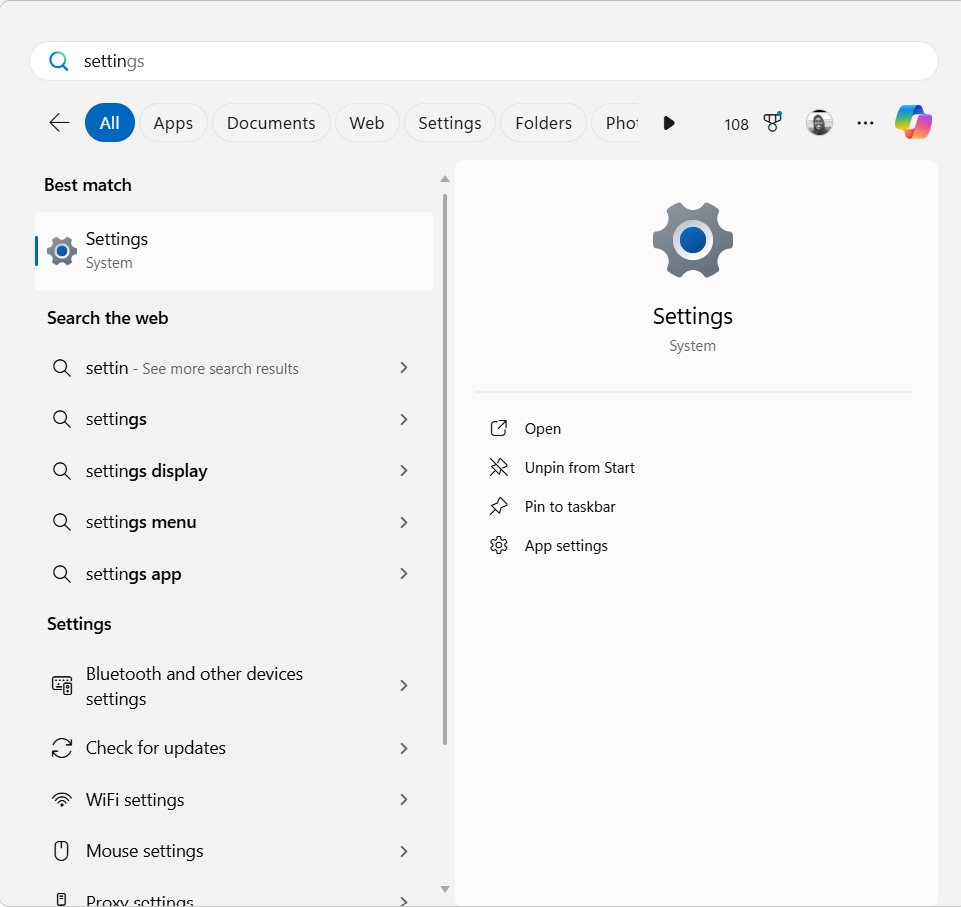
- Type Settings and click on the best match when it appears in the search results.
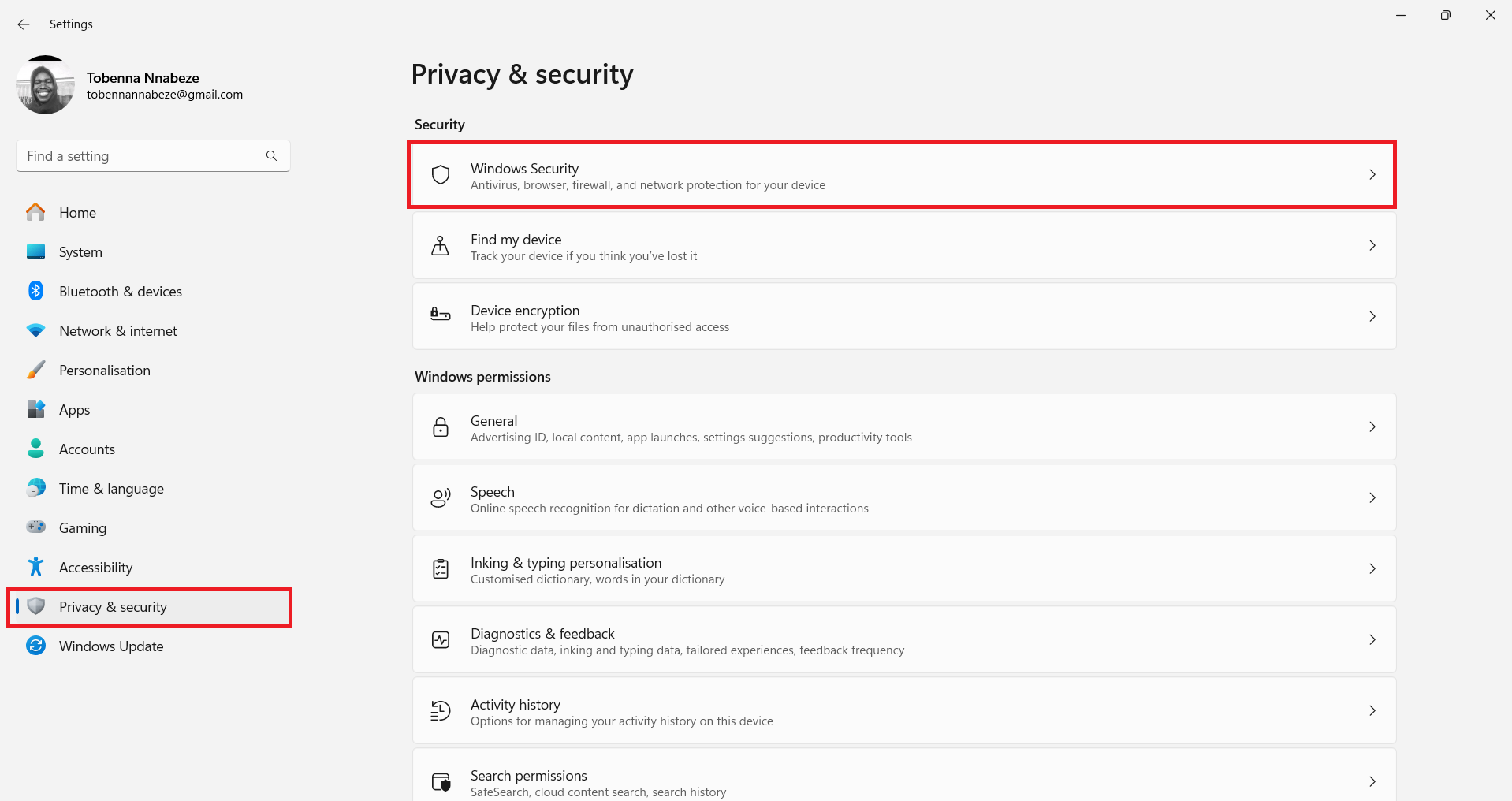
- Click on Privacy & security on the left pane and then click on Windows Security.
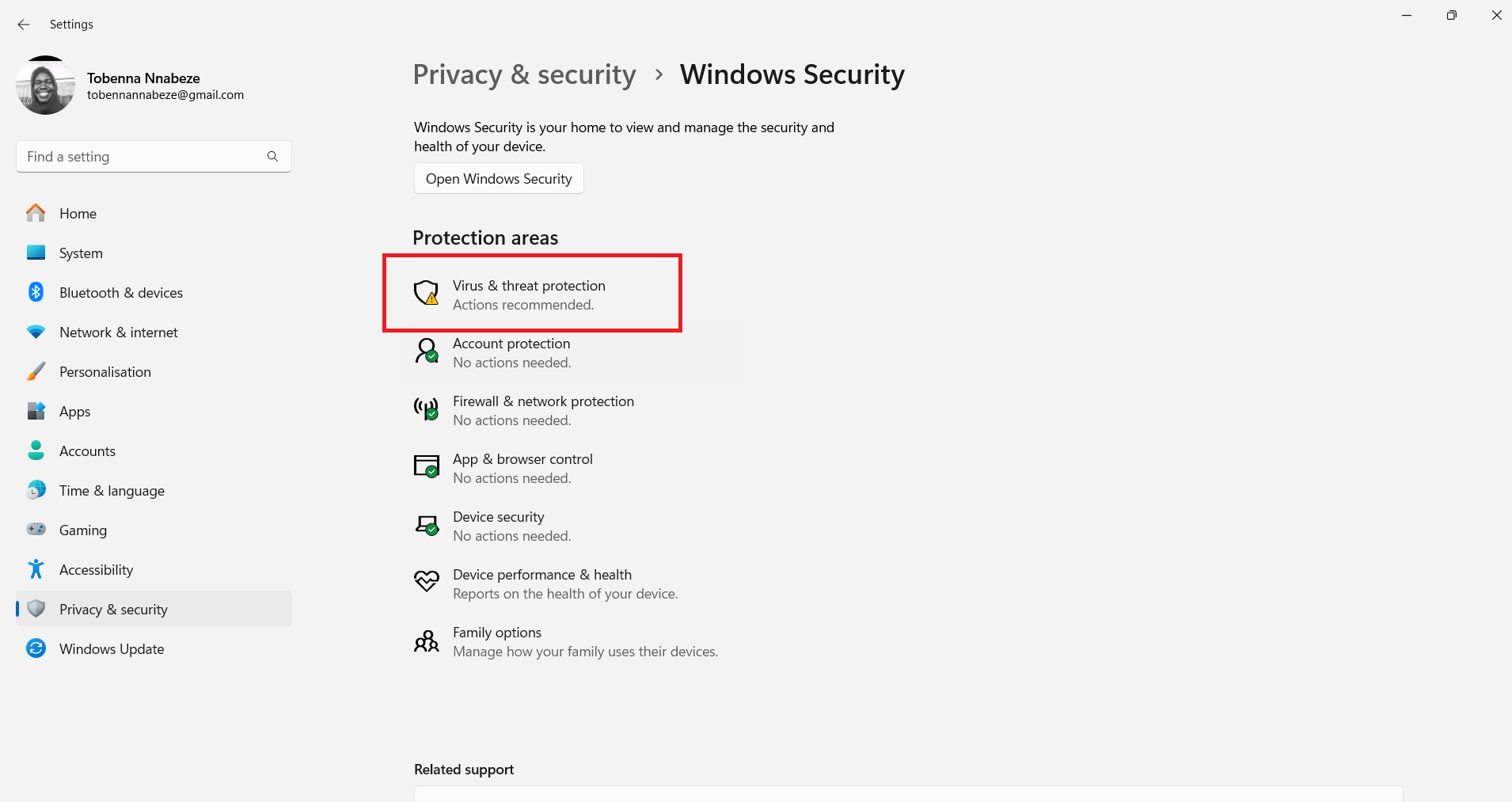
- Click on Virus & threat protection.
- Scroll down to Virus & threat protection updates, then click on the Protection updates link.
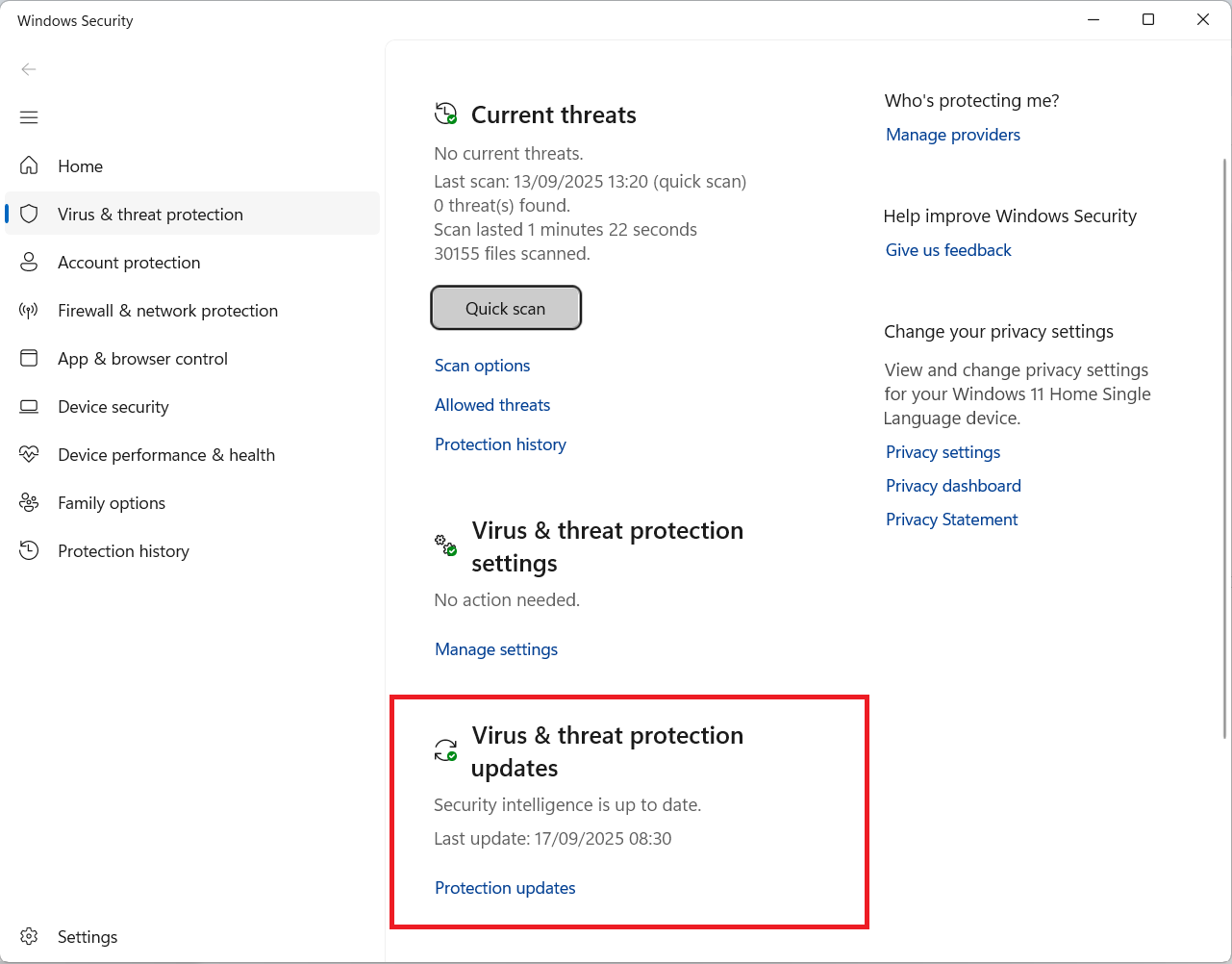
- Click the Check for updates button to get the most recent security intelligence that covers the newest threats.
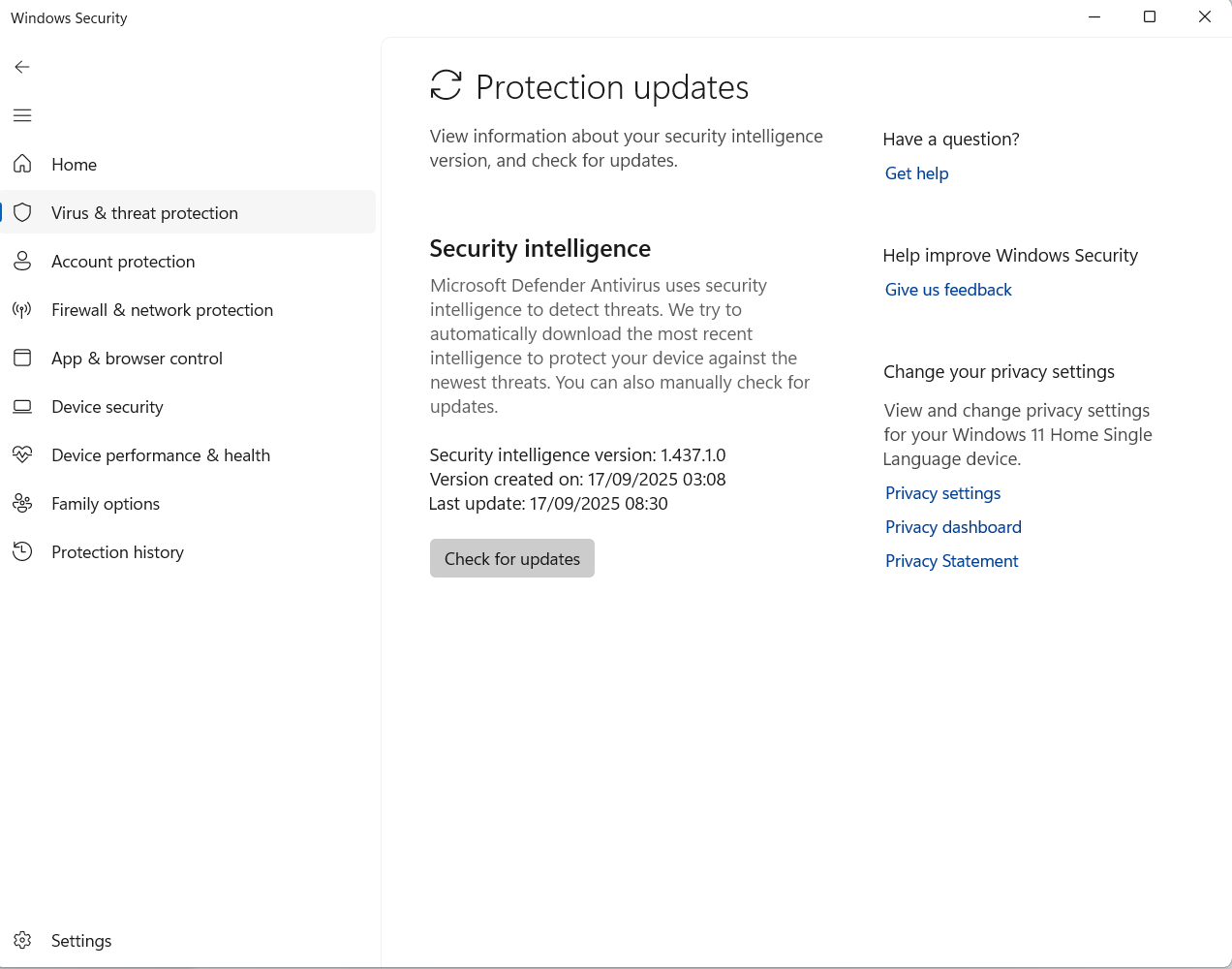
- After the update is complete, click on Virus & threat protection on the left pane to go back to the main page.
- Click the Scan options link beneath the Quick scan button under Current threats.
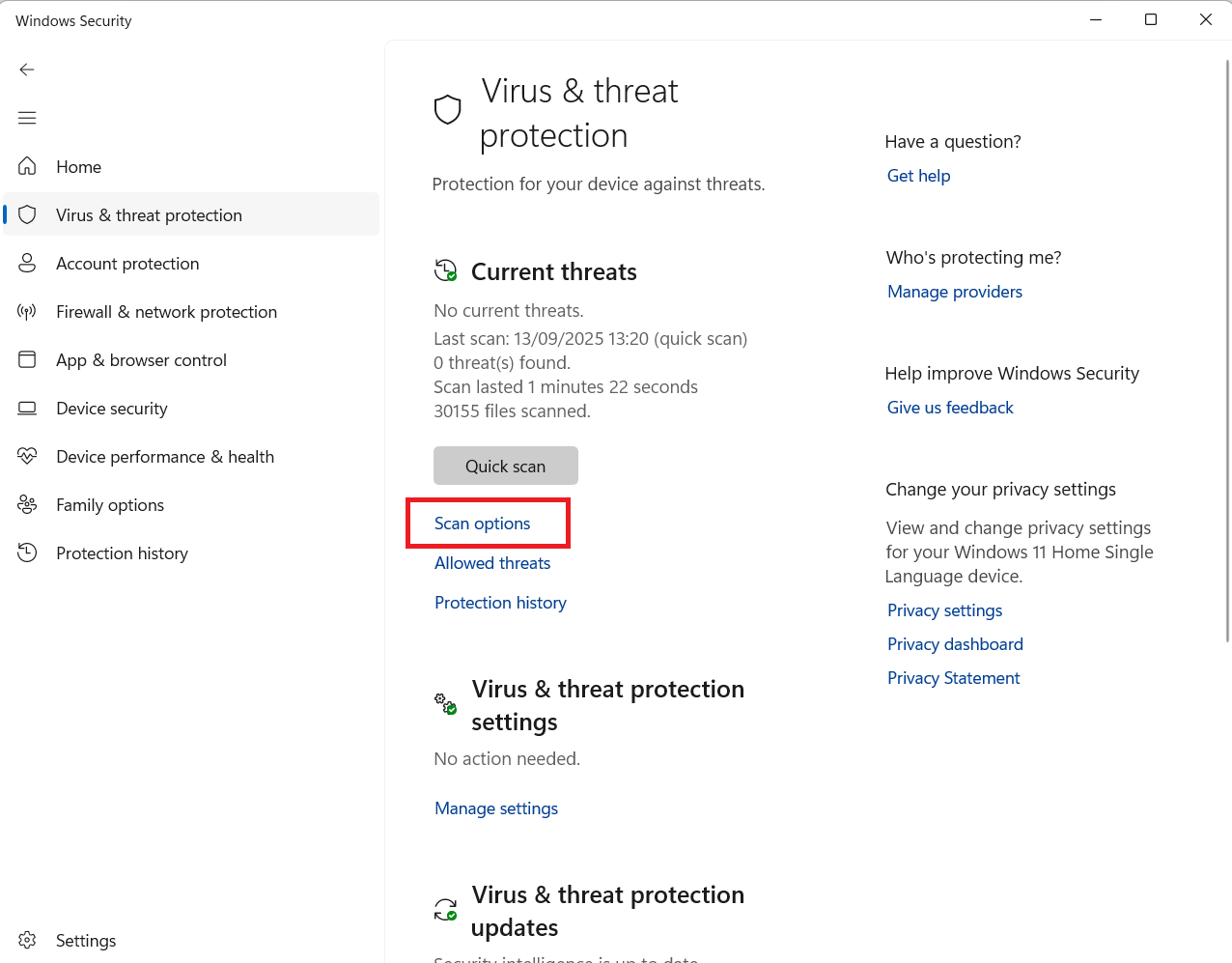
- Select Microsoft Defender Antivirus (offline scan) and then click the Scan now button.
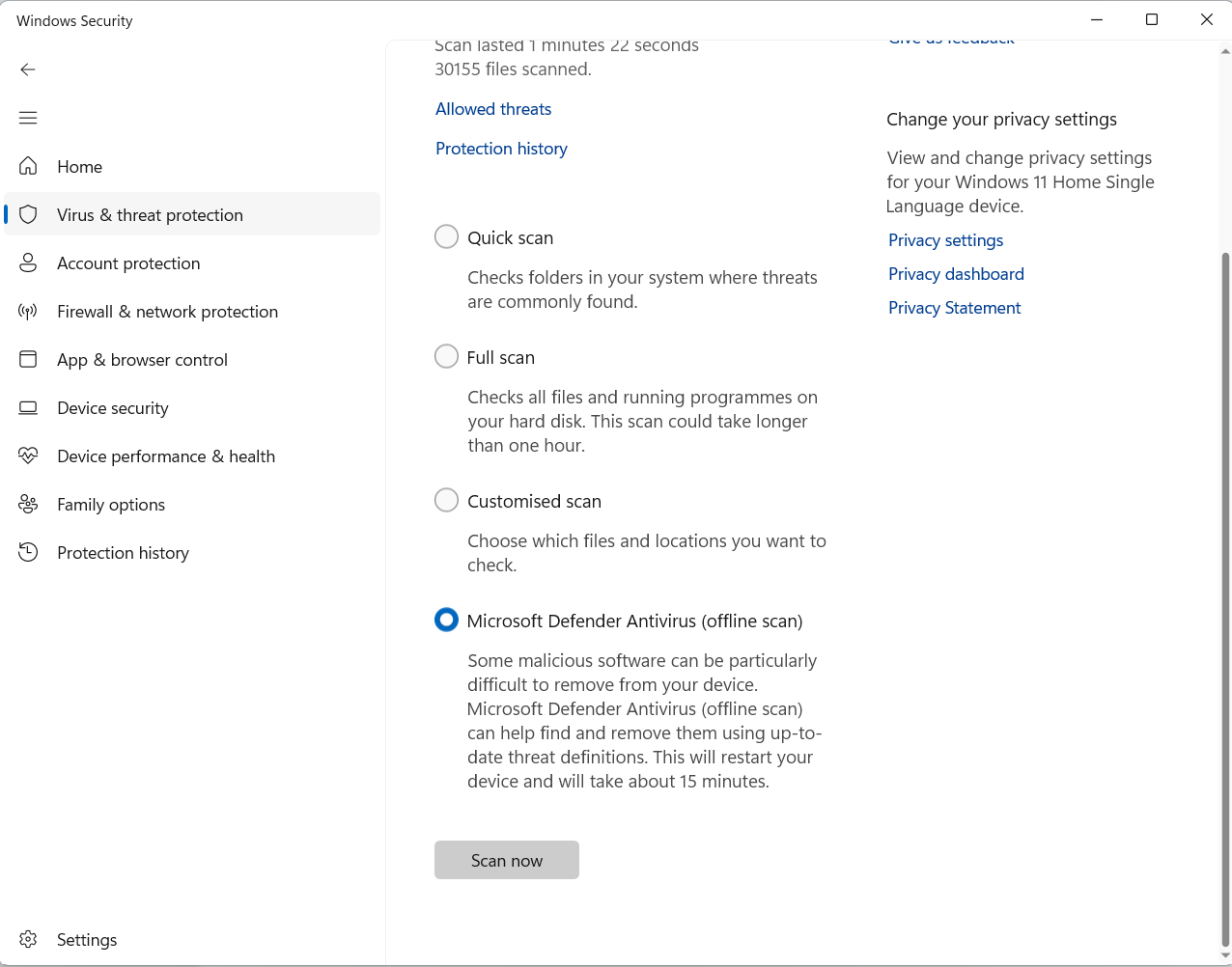
- Click the Scan button in the confirmation prompt. Your system will restart, and the scan will take about 15 minutes. So make sure your PC is plugged in and charging.
When the scan is complete and your PC starts up again, download and run Auslogics Anti-Malware. It offers extra protection and will help rid your system of elusive malware. After ridding your PC of any existing malware, continue with the next step below.
Step 6: Clear and rebuild the Windows icon cache
A corrupted icon cache on Windows 11 could be the reason why Quick access and recent items are not showing up in File Explorer’s Home. Clearing and rebuilding the icon cache will help resolve this. You can follow these steps to get it done:
- Press the
Windows + Ihotkey on your keyboard to open the Settings app. - Click on System in the left pane.
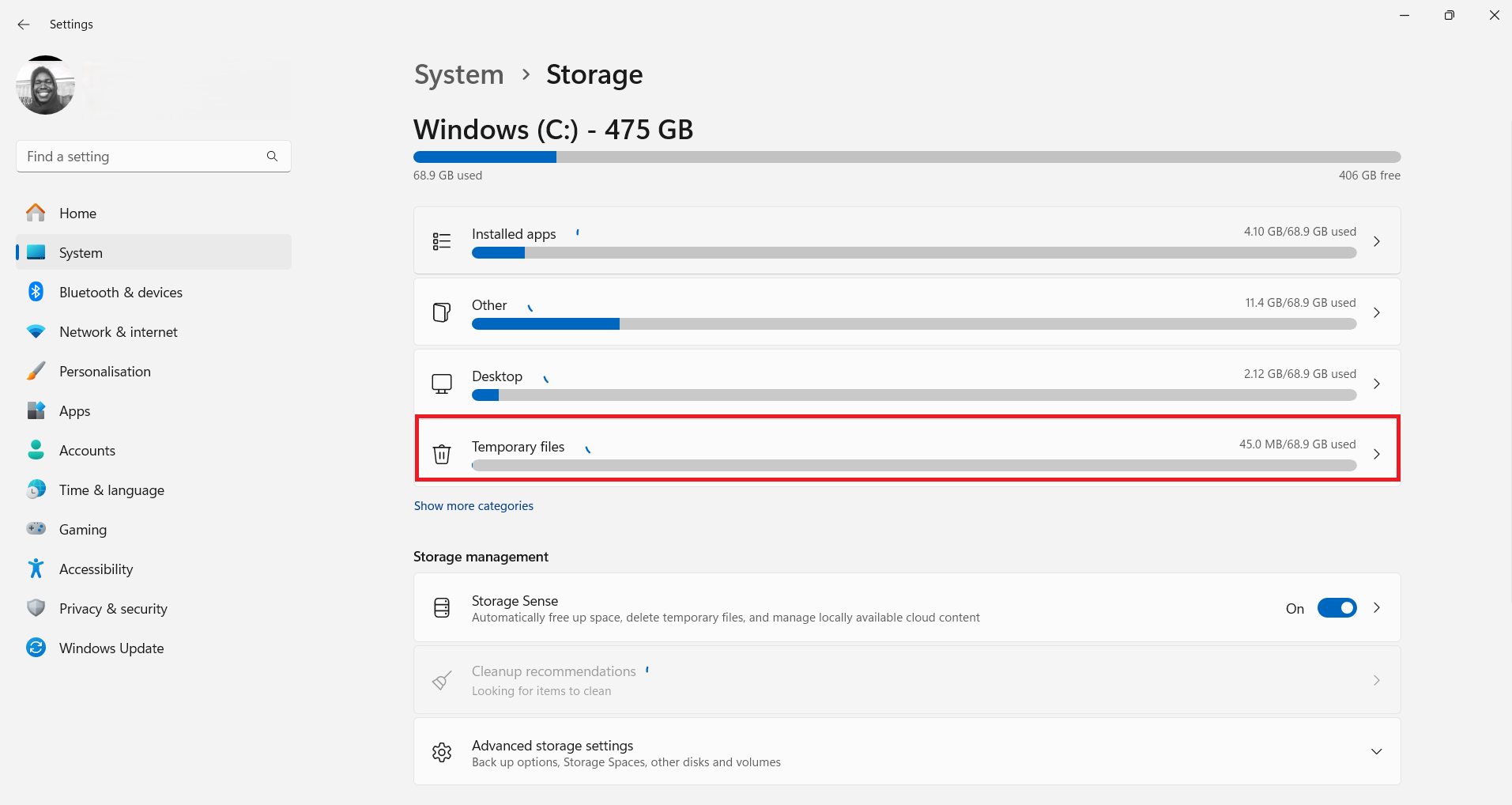
- Click on Storage on the right-hand side of the window.
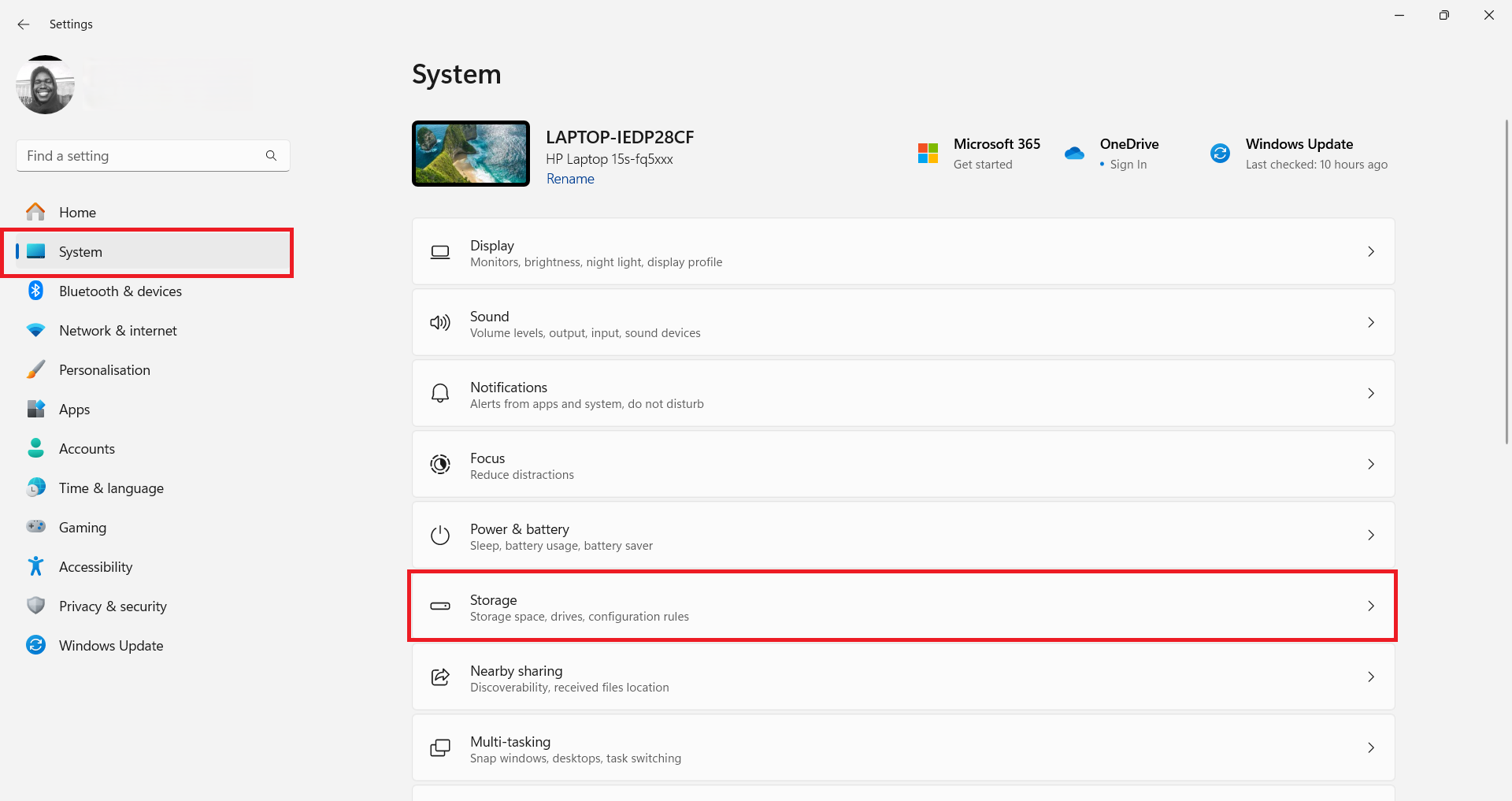
- Click on Temporary files.
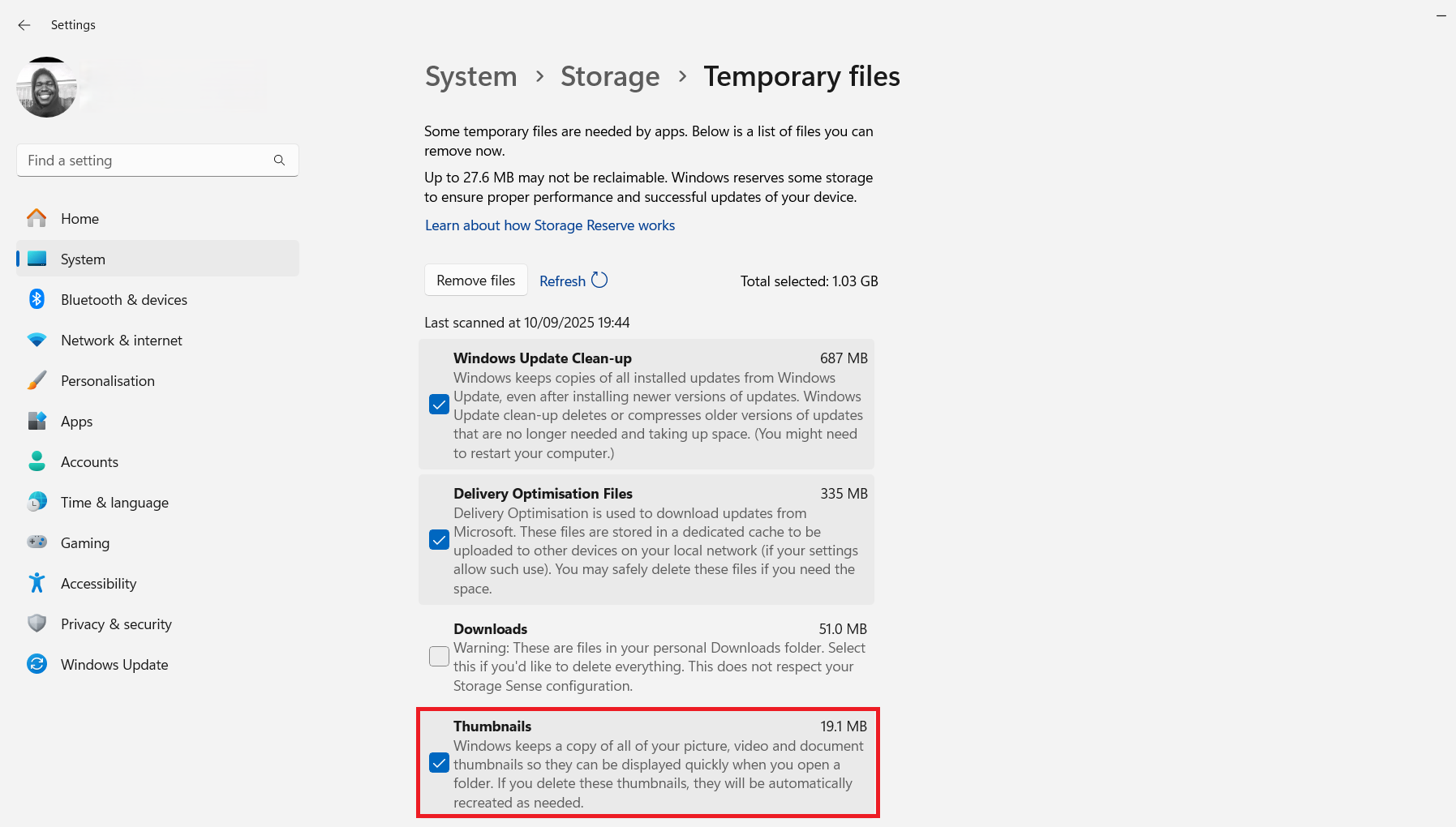
- Scroll through the list of items for cleanup and see that the checkbox for Thumbnails is marked.
- Now, click the Remove files button at the top of the list.
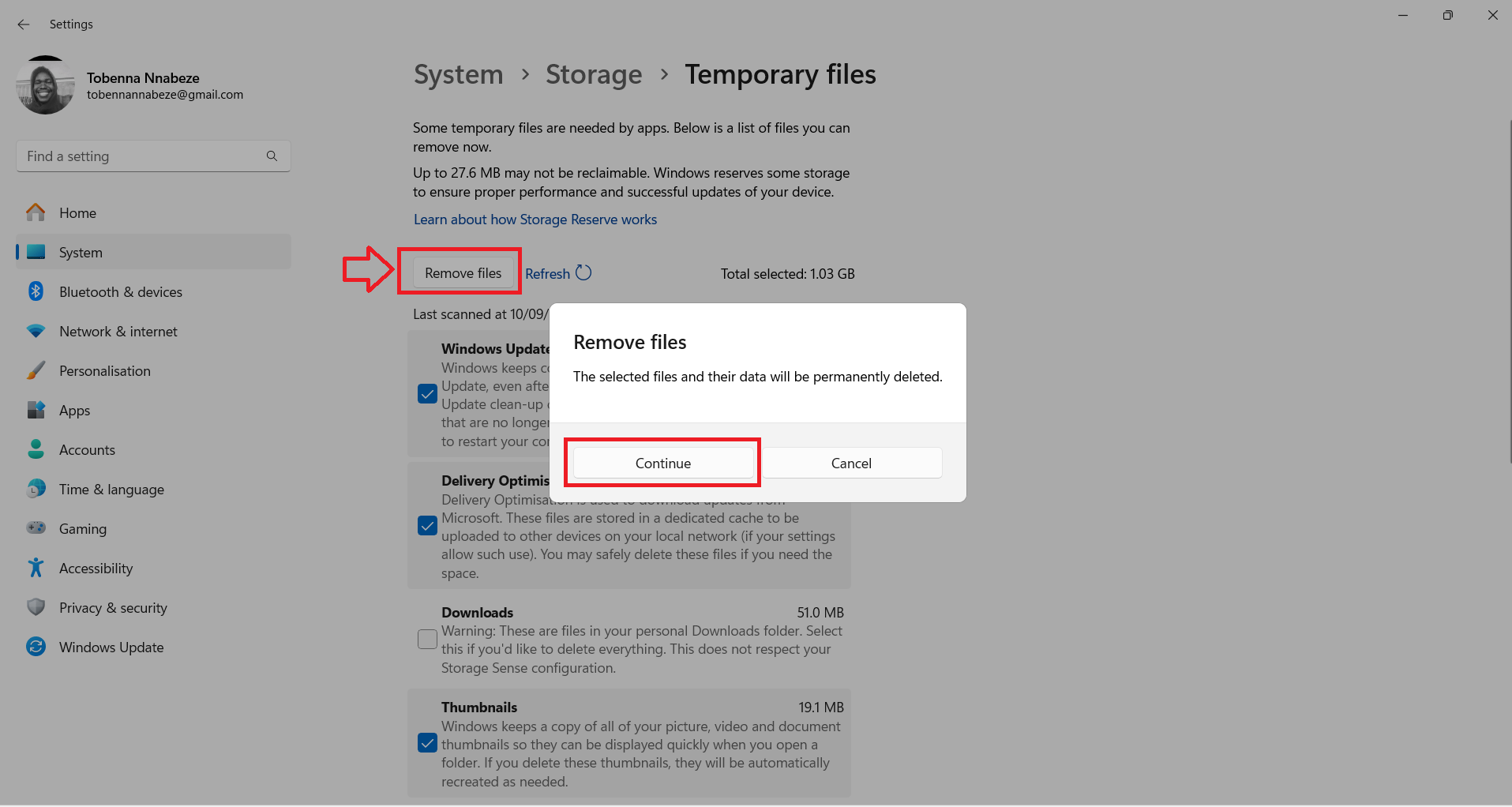
- Click the Continue button in the Remove files prompt to confirm the cleanup.
- The icon cache will be rebuilt automatically as needed afterwards.
After you’ve completed the above process, we now have one final fix to run. After which you can then restart your computer and check whether the missing Quick access and recent items sections have been restored.
Step 7: Run the DISM and SFC scans to resolve corrupted Windows files
To ensure that we cover all the bases, we will now check for corrupted system files and restore them to a healthy state. That will take care of the problem of Quick access missing in Windows 11 and also ensure that any other related performance issues on your computer are successfully resolved.
Let’s get started. Follow the steps below:
- Before we proceed, ensure that your PC is plugged in and charging to avoid power disruptions.
- Click the Start button on your taskbar.
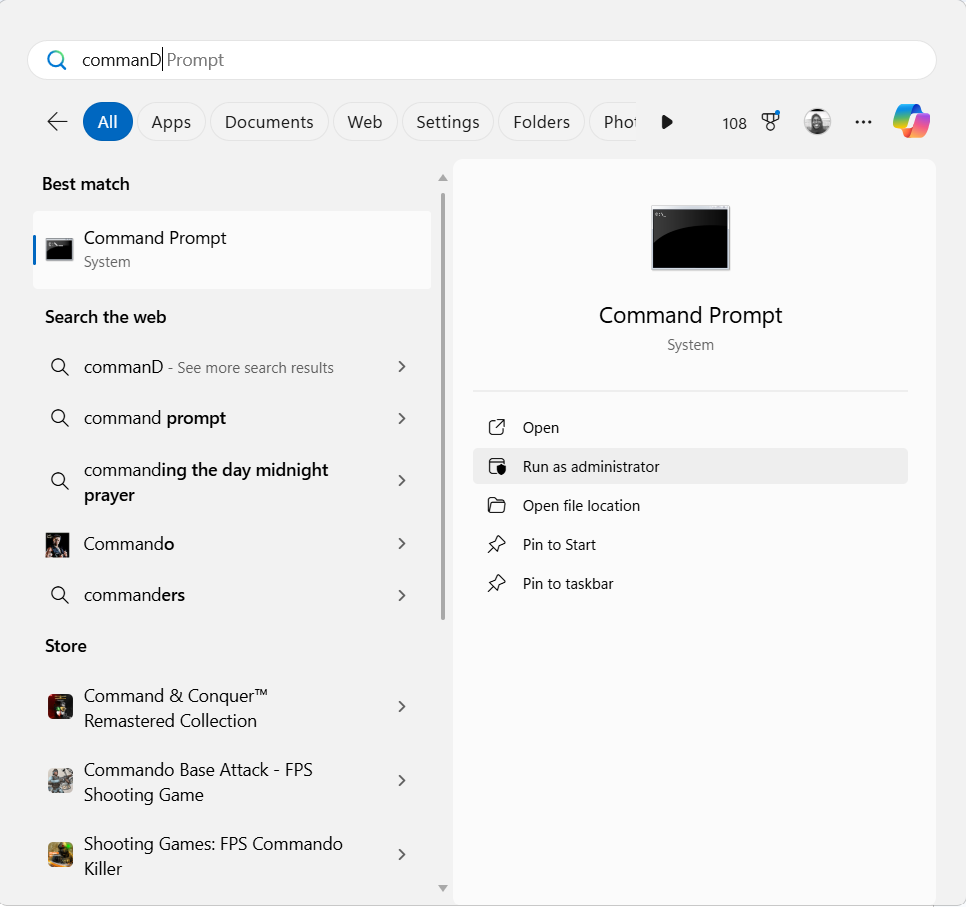
- Start typing Command Prompt in the search bar.
- Click on Run as administrator when Command Prompt appears in the search results.
- Click the Yes button in the User Account Control prompt to continue.
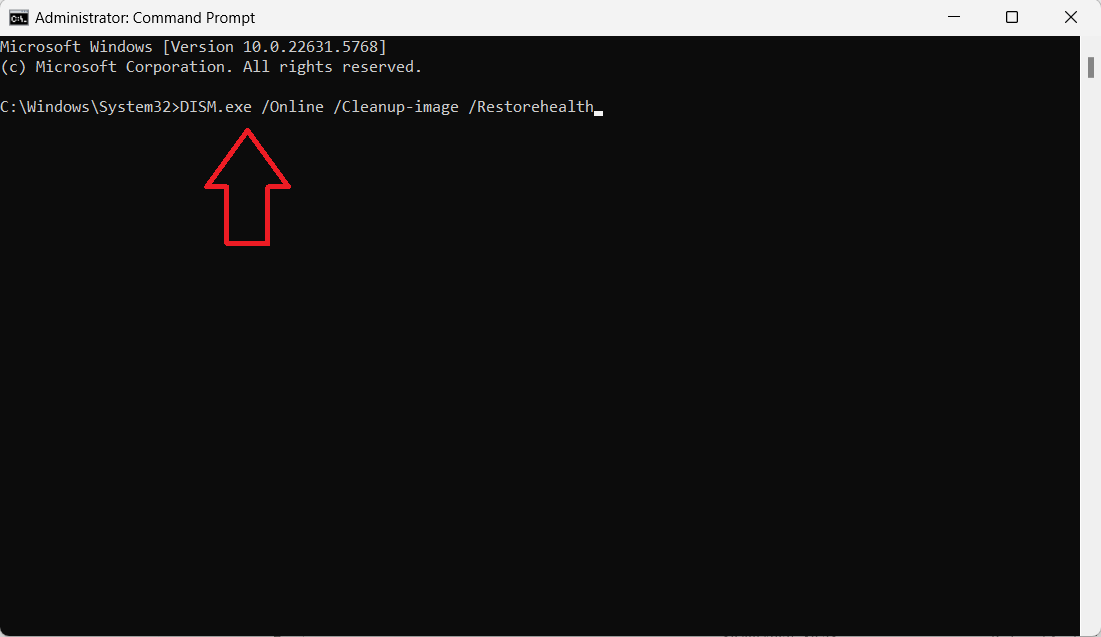
- Copy and paste the following command into the Administrator: Command Prompt window:
DISM.exe /Online /Cleanup-image /Restorehealth
- Hit
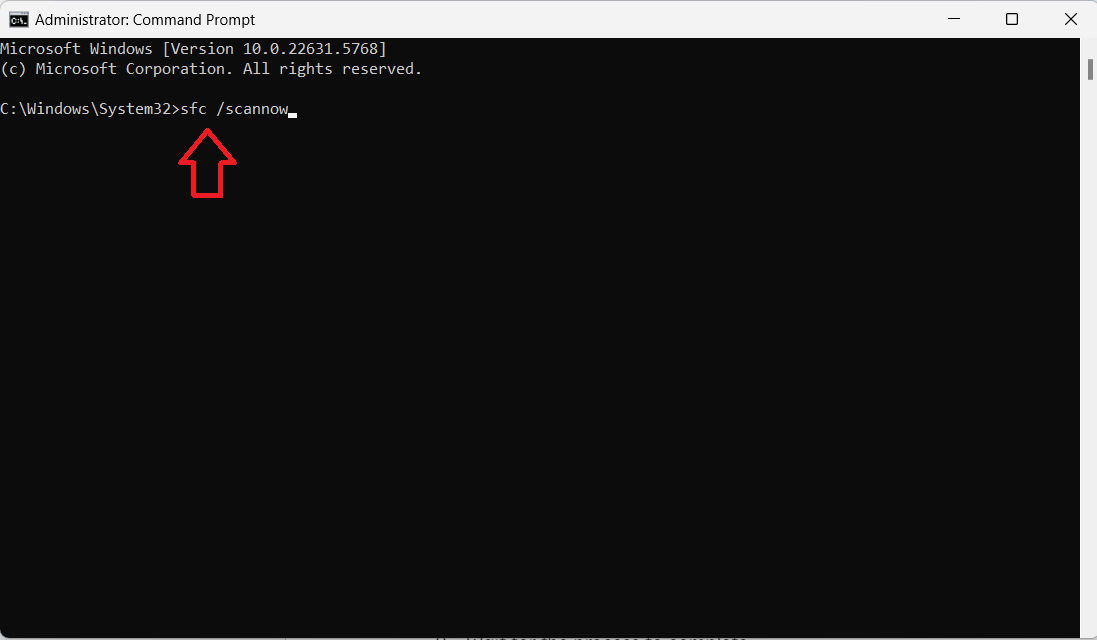
Enteron your keyboard to run the DISM command. The command uses Windows Update to download all the necessary system files that SFC may require to replace the corrupted counterparts. - Wait for the process to complete. Once it’s done, copy and paste the following SFC command and then hit
Enteron your keyboard to run it:
sfc /scannow
- Wait for the process to complete.
- Restart your computer.
Now that you are done with all seven steps for restoring the Quick access menu on Windows 11, you can go back to File Explorer’s Home.
Everything should be back to normal.
How Do I Pin and Remove Items from the Quick Access Menu?
When all sections of File Explorer’s Home appear and function normally, you can manage the items that exist there:
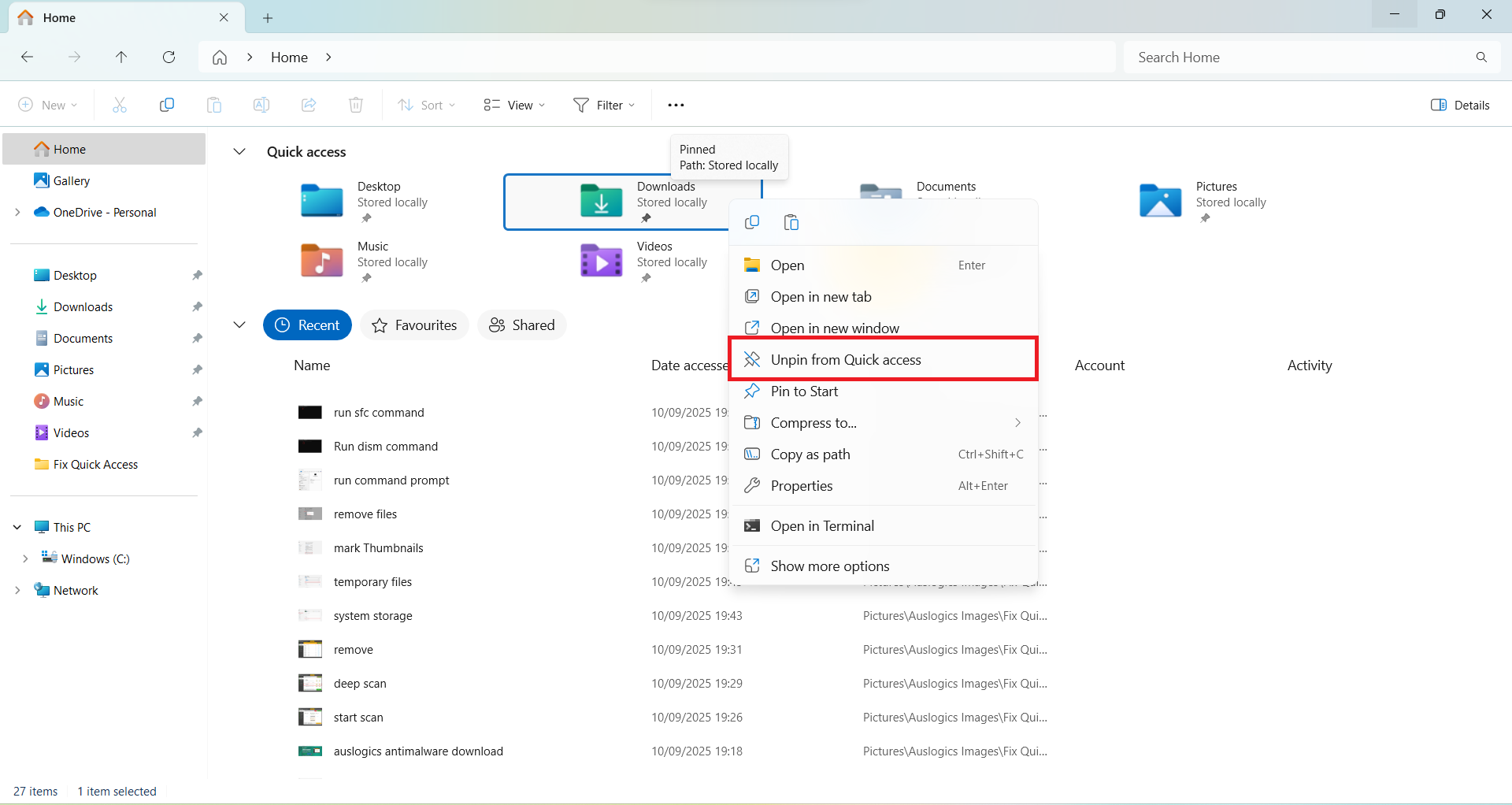
- If you wish, you can remove the pre-existing folders in the Quick access menu, such as Desktop, Downloads, Documents, Music, and Video. Simply right-click on a folder you don’t want and then click Unpin from Quick access in the context menu.
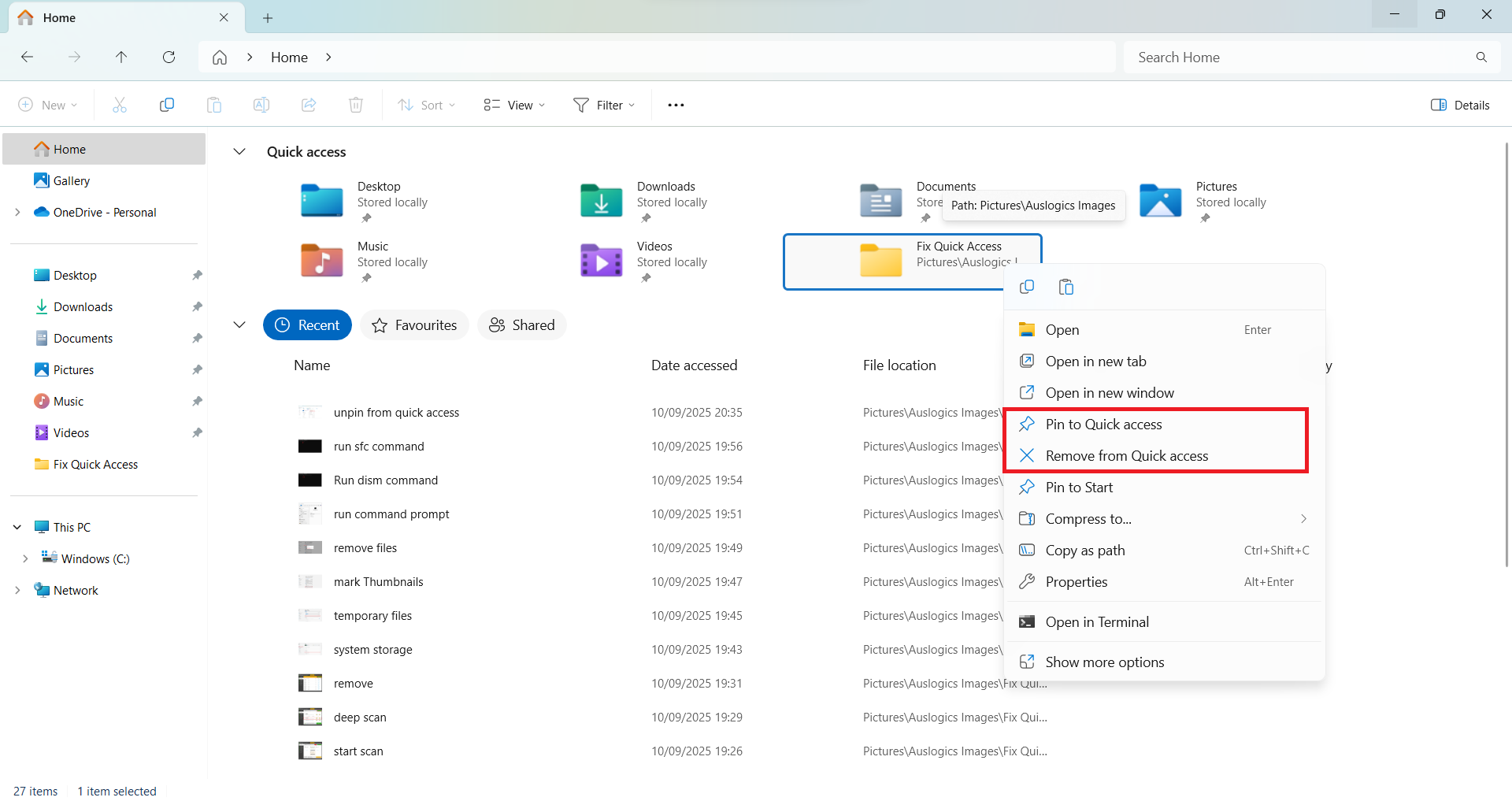
- The Quick access menu will also populate automatically with your frequently used folders. Those folders won’t be pinned. And you can remove them anytime you want by right-clicking on them and then clicking Remove from Quick access in the context menu. You can also pin them, if you wish, by right-clicking and selecting Pin to Quick access.
- If there are any other folders you’d like to have in the Quick access menu, simply locate them wherever they are on your computer. Click on them to select and then use the same procedure as previously shown to pin them to Quick access.
- While Quick access is for folders, File Explorer’s Home has a second section for files. Your recent files, shared files, and favorites appear here.
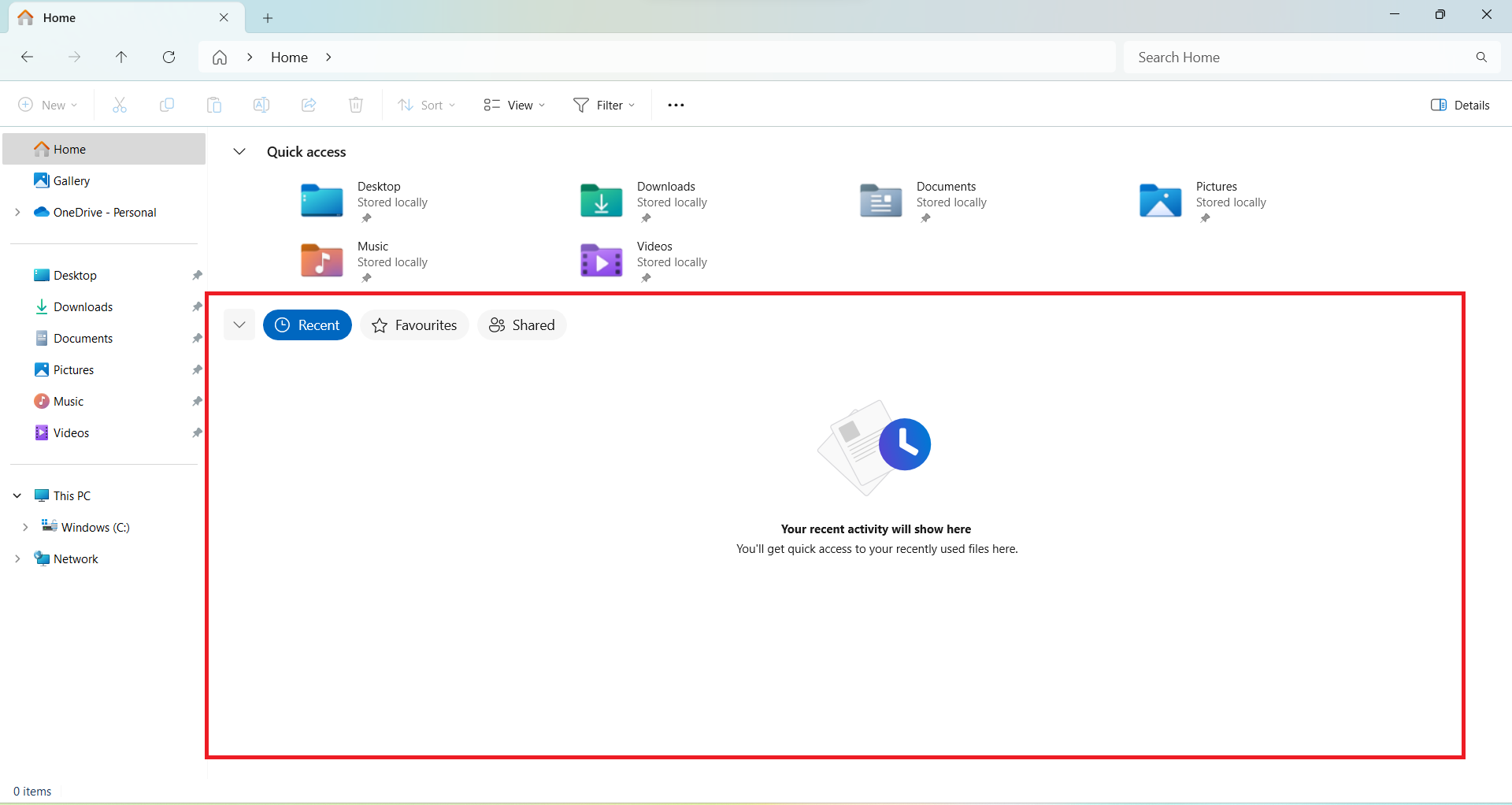
- Files populate automatically under the Recent tab.
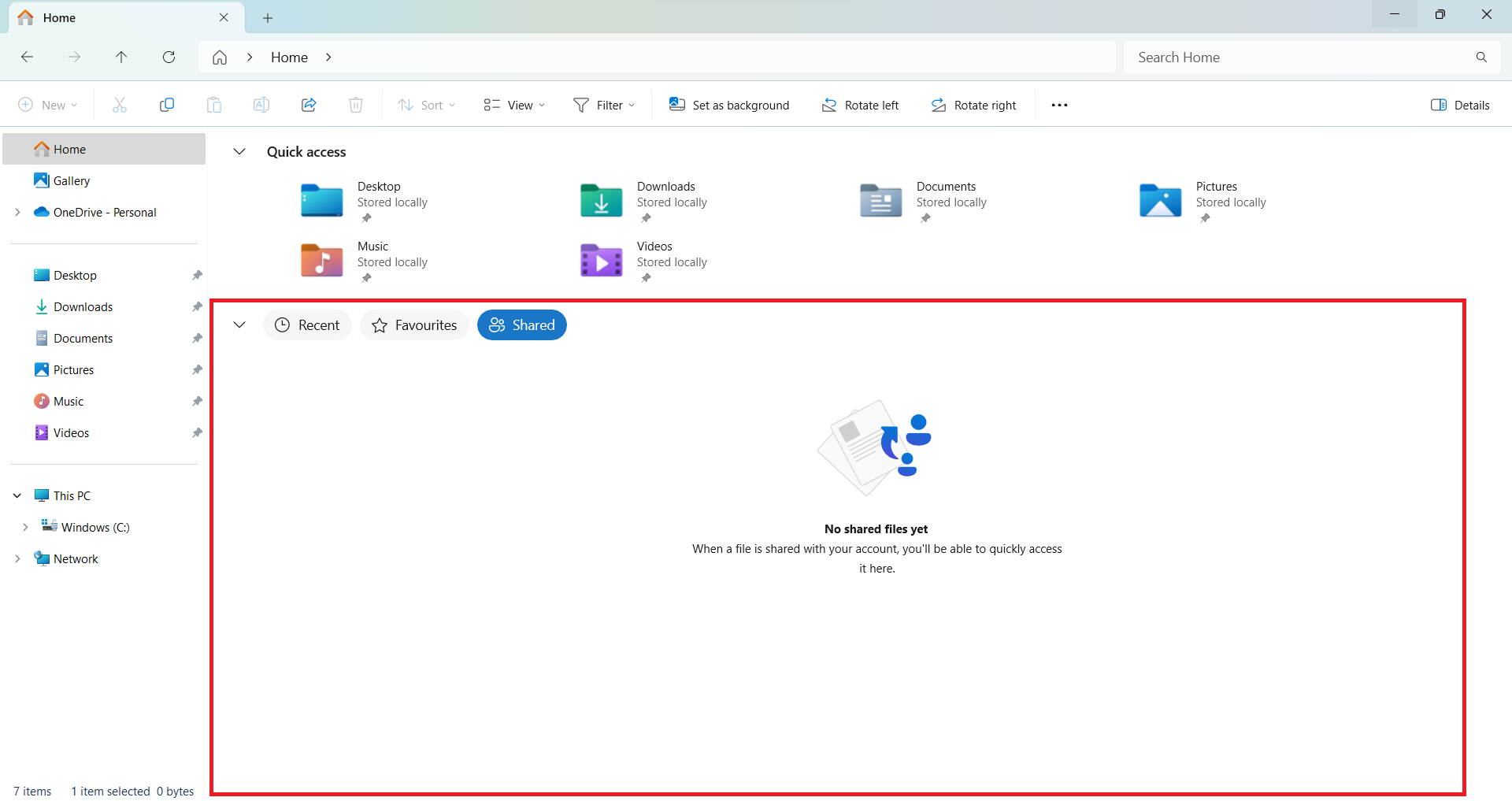
- The Shared tab will list any file you share.
- And you have to add files to the Favorites tab yourself.
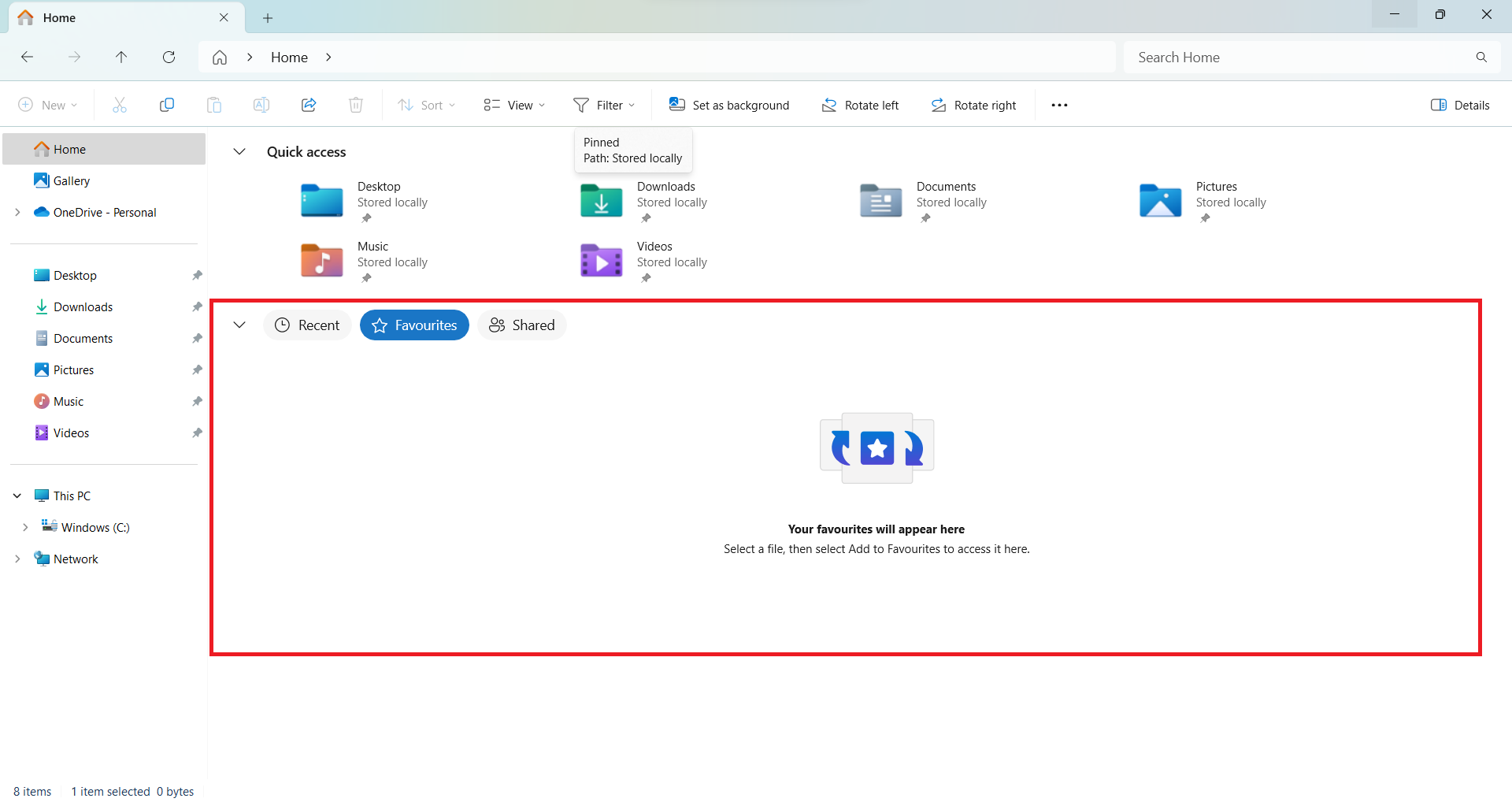
- If there are files you are currently working on and would like to reach them easily without going to their storage location every time, you can add them to favorites for easy access.
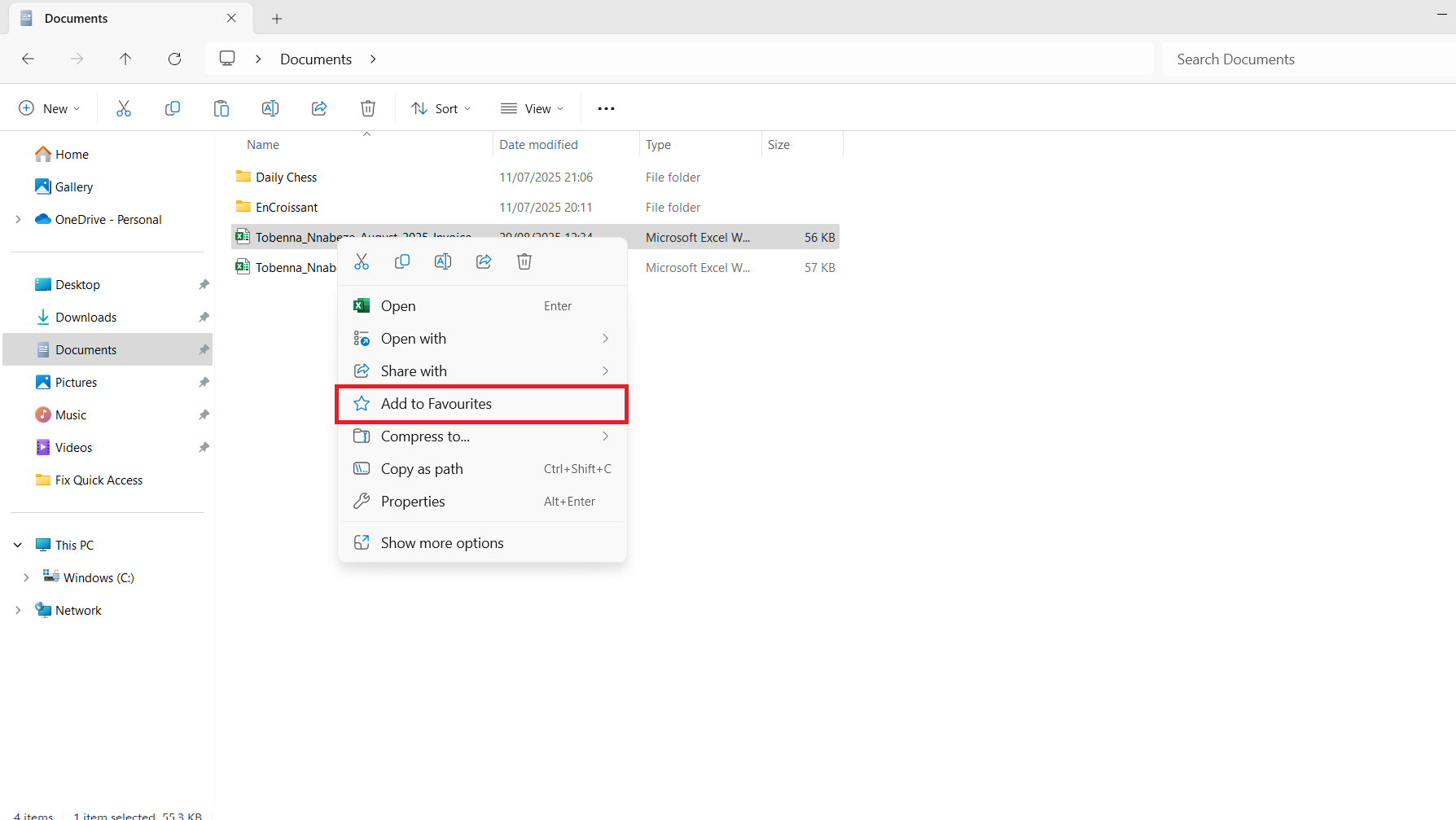
- To add a file to favorites, click on the file wherever it is located on your computer. Then right-click on the file and then click on Add to Favorites in the context menu.
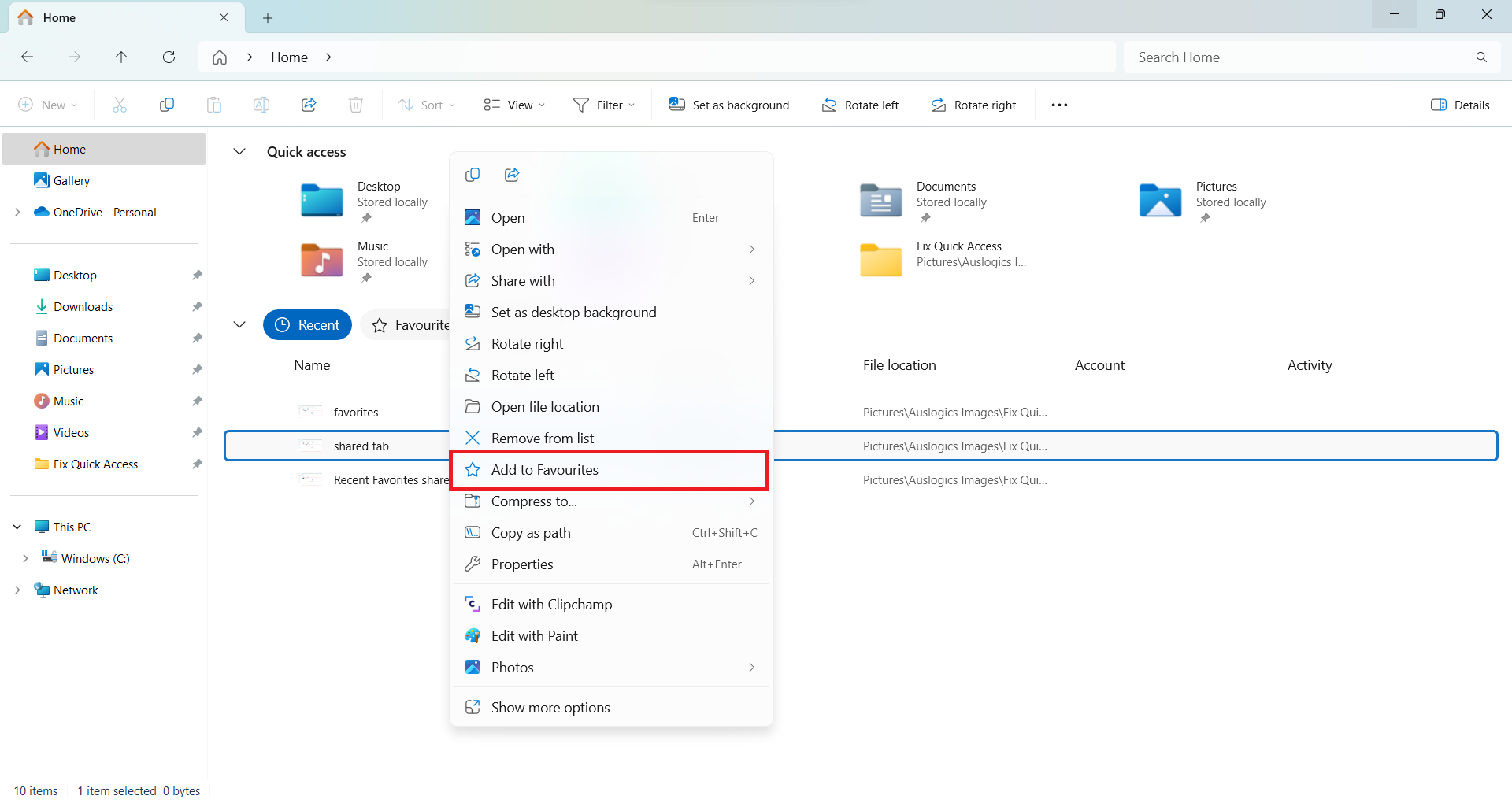
- Files that populate under the Recent tab can also be added to the Favorites tab using the same procedure of right-clicking and selecting Add to Favorites in the context menu.
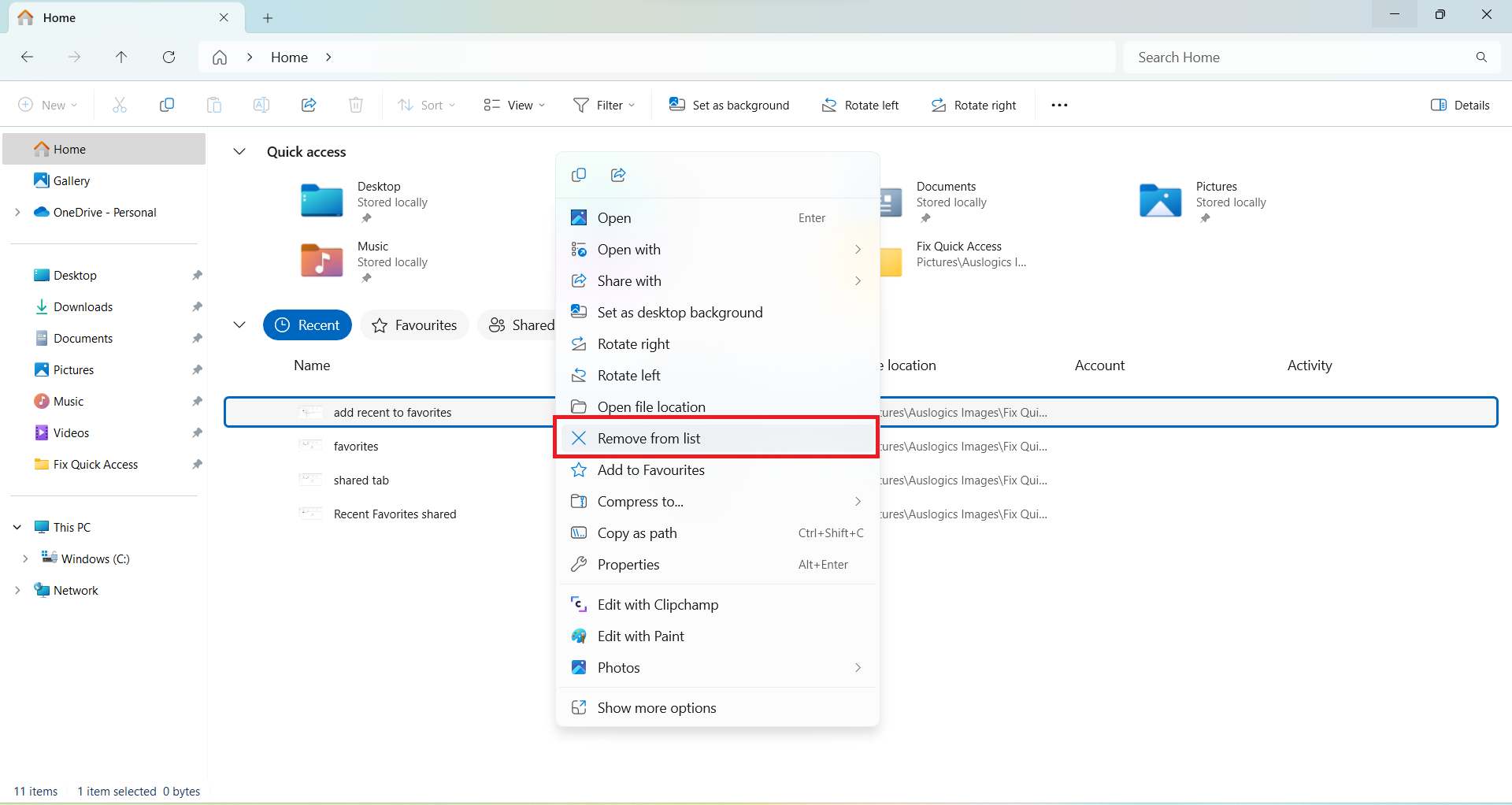
- If there are files you no longer want in the Recent, Favorites, or Shared lists, simply right-click on them and click on Remove from list in the context menu.
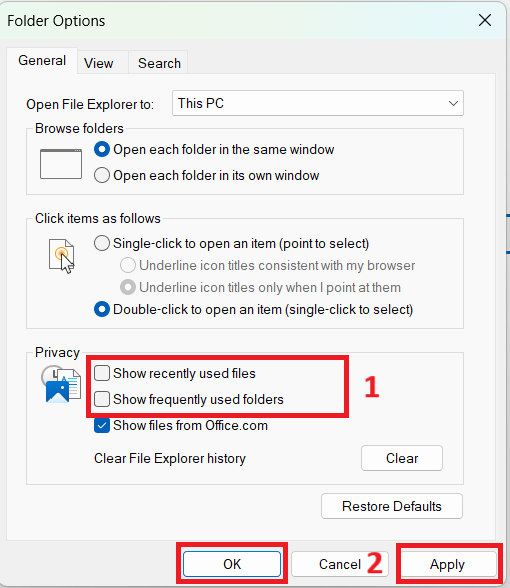
- Just like we demonstrated in the previous section of this article, you can stop files from populating automatically under the Recent tab. Also, if you’d only want your pinned folders to be in the Quick access menu, you can stop frequently used folders from populating automatically.
- To do this, simply click the See more icon (three dots) located on the top-right corner of the File Explorer window. Then click on Options in the context menu and go to the Privacy section under the General tab. Deselect the options for Show recently used files and Show frequently used folders. Then click the Apply button.
- But instead of preventing your recently used files and frequently used folders from appearing automatically in Home, you have the option of clearing existing items. If you’d prefer this, then click the Clear button next to the Clear File Explorer history option. Then click the OK button to exit.
- If you are still using Windows 10 or the Windows 11 version that’s older than the 2022 Update, you won’t find Home in File Explorer. Instead, Quick access is listed in the left pane. And when you click on it, you’ll find a section for Folders and a section for Recent files.
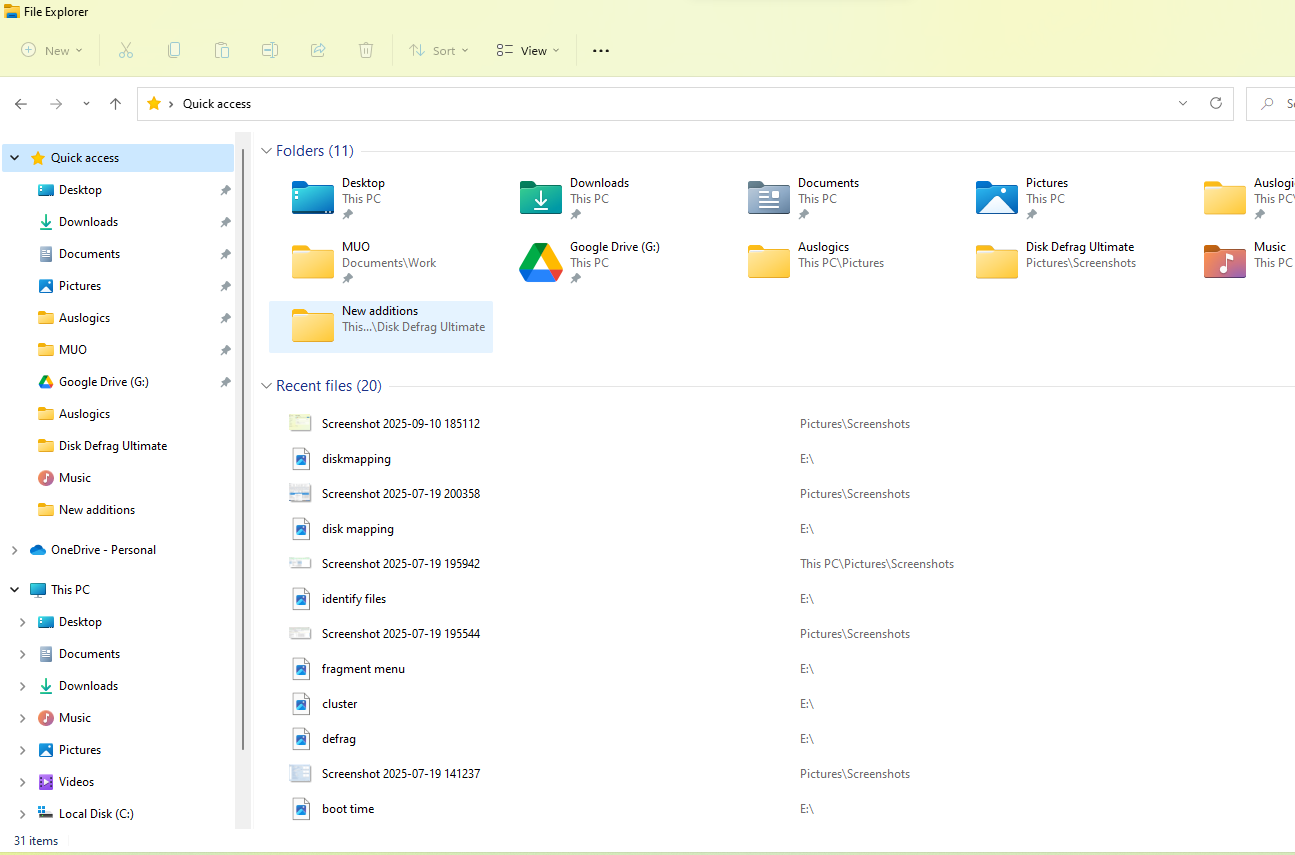
- There is no Favorites tab or Shared tab.
- Thus, on Windows 10 and Windows 11 version 21H2, you won’t see Add to Favorites in the context menu when you right-click on a file. In other words, you can pin folders to Quick access but won’t have the option of adding files to favorites.
Conclusion
We looked at what to do when you can’t find Quick access and other items that exist in File Explorer’s Home on Windows 11.
To ensure that the issue doesn’t reoccur, endeavor to keep Windows updated, mind the folder options in File Explorer, and protect your PC from malware infections and other scenarios like improper system shutdowns that could corrupt your system files.
We hope you’re leaving happier than you came. Be sure to like and comment.
Let us know how you’ve fared in resolving this issue.
FAQ
To get back the missing items in File Explorer’s Home, you should:
- Review your privacy options in File Explorer
- Restore default settings in File Explorer
- Clear File Explorer history
- Restart File Explorer in Task Manager
- Run Windows Update
- Scan your PC for malware
- Clear and rebuild the Windows icon cache
- Run the DISM and SFC scans to fix corrupted Windows files
For more details, see the How to Restore the Quick Access Menu in Windows 11 section of this guide.
Resetting Quick access could mean clearing File Explorer history. To do this, click the See more icon (three dots) at the top of the File Explorer window. Then, click on Options in the context menu. Beneath the Privacy section in the General tab, click the Clear button beside the Clear File Explorer history option. Then click the Ok button to exit.
Clearing File Explorer history will wipe the existing records of frequently accessed folders and recently used files. The recorded search queries you ran in the File Explorer search bar will be cleared as well.
Furthermore, you can remove frequently used folders that are currently listed in the Quick access menu. Simply right-click on them and then click on Remove from Quick access in the context menu. Also, if you’d like to stop your frequently used folders from populating automatically in Quick access, then click the See more icon (three dots) at the top of the File Explorer window. Then, go to Privacy under the General tab and deselect the Show frequently used folders option.
While in the same location, if you’d also like to stop your recently used files from showing in Home, also deselect the Show recently used files option. Finally, click the Apply button and click the OK button to exit.
To make it work again, click the See more icon (three dots) at the top of the File Explorer window. Then, go to the Privacy section under the General tab and mark the checkbox for the Show frequently used folders option. Also mark the checkbox for Show recently used files if you want your recent files to be listed in Home as well. Once done, click Apply and click OK.
Afterwards, your frequently used folders and recently used files will populate automatically in Home.


