



Every Windows gamer is very familiar with the reality of computer overheating and has often pondered, “Why are my computer fans so loud?”
Other users, like video editors, 3D animators, and heavy productivity multitaskers, will also attest to experiencing systems that are hot to the touch. Auslogics ChillMate is a necessary PC toolkit for such users.
While you can employ a cocktail of native Windows settings to reduce overheating, ChillMate streamlines these processes into single-click, simple-to-use profiles.
The program throws in extra functionalities like system monitoring and advanced optimizations to keep you alert about rising temperatures and maintain optimal performance. This article covers the utility’s suite of features and explains the best ways to deploy and utilize its offerings.
I’ll show you how to check your computer’s temperature and fix laptop overheating issues using the program. You’ll also learn how to make your laptop battery last longer using various ChillMate settings.
❄️ Auslogics ChillMate is designed to keep a computer cool, whether it is under a light or heavy load.
🛠️ Users can choose profiles designed for their specific workloads and tasks to keep their systems optimized and prevent overheating.
🔥 Overheating shortens the lifespans of internal components, reduces system performance, and can cause data loss.
🔄 The tool automatically adjusts fan speeds to keep a balance between noise and heat control.
⚙️ Users can turn advanced tools on or off depending on the type of optimizations they need.
⚡ Advanced utilities like Processor Optimization and Disk Priority Manager allocate system resources to active apps to boost performance and reduce the CPU and drive’s burdens.
✳️ The program can exempt user-selected applications from optimizations that restrict background activity and cap system resource usage.
✨ Auslogics ChillMate offers a better user interface and overall feature combination than other system monitoring utilities like CoreTemp and Speccy.
What Is Auslogics ChillMate?
Auslogics ChillMate is a software program designed to monitor and regulate CPU temperatures to stop computer overheating. It uses different algorithms to facilitate optimal conditions for CPUs, GPUs, memory, and storage devices to minimize heat.
The program provides solutions for the following needs:
📊🔋🌡️ System monitoring: The program shows you the temperature levels for your CPU and GPU; RAM, CPU, and GPU usage percentages; and battery level.
🥵🔥⚠️ Overheating: ChillMate uses different presets to keep your computer cool based on the types of tasks you run. It can control background processes, toggle visual effects, and regulate processor activity to reduce system temperature. This feature can help users facing heat-related errors like “CPU Over Temperature Error.”
🔋⏳⚡ Short battery life: The program employs various optimizations to increase uptime. Some of these optimizations include killing off unnecessary background apps and managing processor power usage.
🐌🐢⏳ Unoptimized computers: The utility’s advanced controls allocate memory and CPU resources to improve system performance, manage access to your hard drive to prolong the drive’s lifespan and enhance its performance and isolate Windows Explorer processes to reduce the risk of desktop crashes.
📢🙉😣 Excessive fan noise: ChillMate ensures your fans don’t have to spin faster than they should by activating system settings that keep your system cool, especially when you’re not running demanding tasks.
The company drew from its years of experience to develop ChillMate to prevent overheating in computers.
➡️ Who should use Auslogics ChillMate?
Users who do moderate to heavy work, especially on laptops. These use cases include cinematography, 3D animation, visual effects, gaming, and simulation.
If you run heavy browsing sessions, such as using numerous tabs simultaneously or running tasking web-based applications like Canva and Figma, the tool will also help you keep things cool.
➡️ How does Auslogics ChillMate work to stop overheating?
The program primarily prevents laptop overheating by reducing your CPU’s power consumption. Each profile ensures your system only draws the power required to handle your tasks. That way, your computer will generate less heat.
For example, if you select the Browsing profile (more on this later), the tool will tell your CPU to reduce its speed when it reaches a certain temperature level. The program will also deactivate idle CPU cores to prevent the processor from consuming unnecessary power.
Other methods involve:
- Adjusting visual appearance and brightness levels
- Parking your computer’s idle cores to prevent unnecessary power draws
- Sending notifications when the system temperature approaches unsafe levels
Is Auslogics ChillMate Compatible with My Windows Computer?
Yes. The program works on every modern Windows computer, given its inclusive system requirements. According to its technical specifications, any system with 256 MB of RAM and 58 MB of free hard drive space can run the tool.
That makes it available to any computer.
Key Features of Auslogics ChillMate
ChillMate’s feature set is extremely accessible and easy to understand. The developers even provide descriptions for most features to aid user understanding. Monitoring your system temperature and resource usage is also easy, as the related stats are right in front of you.
![IMG]() Ultra-fast installation
Ultra-fast installation

The installation process is the first highlight of ChillMate’s lightweight attribute. All you have to do is download the setup from the program’s official page, click Agree and Install after opening the setup file, and then click Finish.
It’s a slick 3-minute process, which can be shorter if you use a fast system. My old 6th-generation Core i3-powered computer got the app running in under 4 minutes.
![IMG]() Easy setup
Easy setup

The tool allows users to choose settings that suit them. You can decide which notifications you see, enable ChillMate to automatically launch at startup, change the app’s size, and select a temperature unit (Fahrenheit or Celsius).
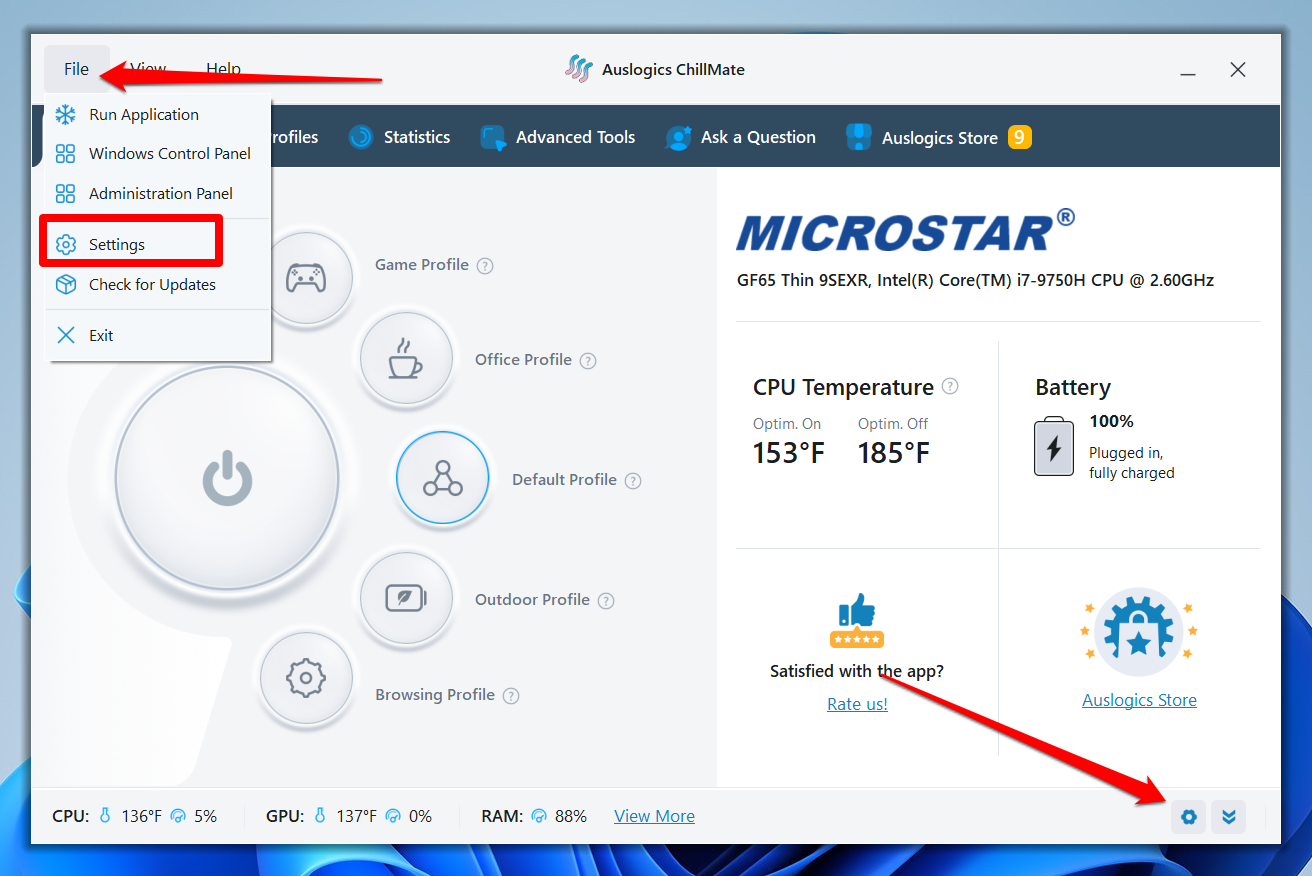
Selecting these preferences is as easy as clicking the settings icon in the app’s bottom-right corner and making changes in the General, Interface, and Notifications pages. You can also click the File menu and select Settings to access the Settings interface.
![IMG]() User interface
User interface

ChillMate’s features are nested within an easy-to-access user interface. The dashboard is the default home screen, which prominently features clickable profile icons arranged in a horseshoe format around the activation button. Clicking each icon activates the corresponding profile.
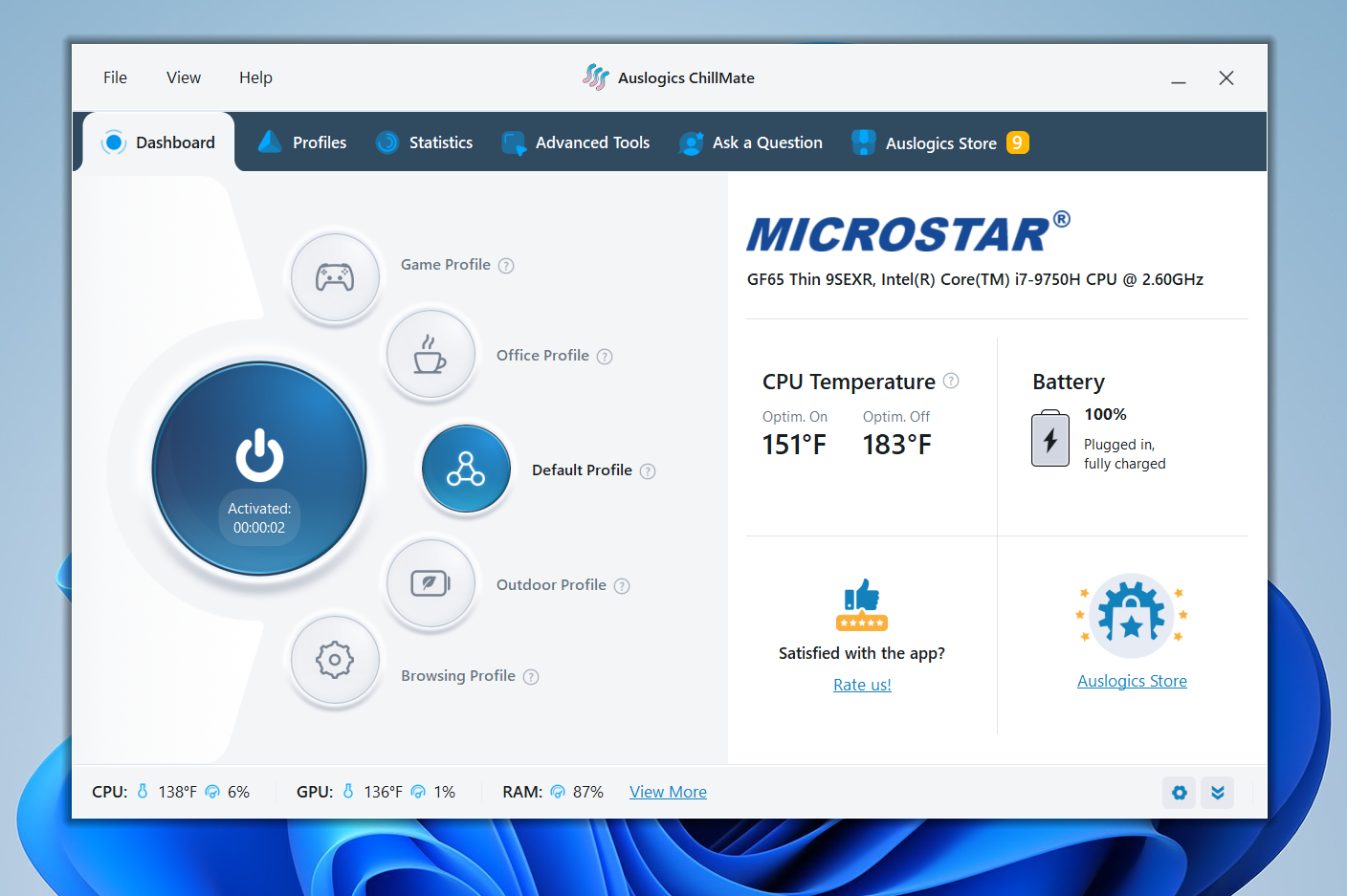
➡️ To the right of the buttons are basic system details, such as your computer’s brand name, model, and CPU specs. You should also see your CPU temperature and links to the Auslogics Store and ratings platform.
➡️ The tab bar allows you to switch between different tabs, such as the Profiles, Statistics, Advanced Tools, Ask a Question, and Auslogics Store tabs. We’ll cover each tab later.
➡️ Finally, the menu bar features the File, View, and Help menus, which you can use for navigation and to access extra features. You don’t really need the View menu, as it only lists the tabs on the tab bar. However, the File and Help menus contain helpful items, such as the Check for Updates, Run Application, User Guide, and Send Bug Report links.
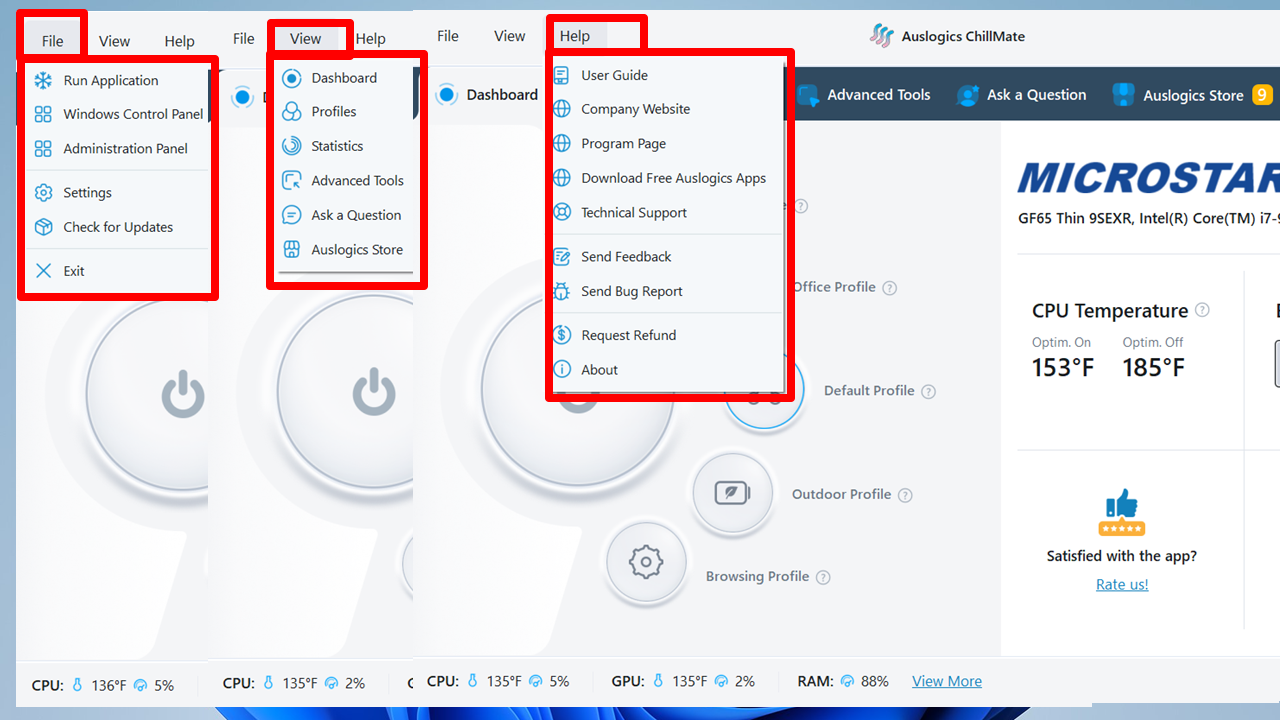
Additionally, the Settings and Check for Updates buttons are nested in the bottom-right corner to provide even quicker access.
![IMG]() Profiles
Profiles

The Profiles feature is the tool’s flagship offering. Each profile’s default settings are configured to provide the best performance, regulate heat generation, and reduce fan noise in specific use cases.
However, you can adjust each profile’s settings to suit your needs. Here’s an overview of each profile and who should use it:
| Profile | Description | Who should use it |
|---|---|---|
| Default | Maintains a balance between steady cooling and adequate performance for day-to-day tasks. | People who run relatively light applications and multitask. |
| Game | Applies configurations attuned to higher workloads.
It allows fans to spin faster for better cooling, and users can add their games and apps to maximize their performance. |
Gamers and other power users, such as video editors and 3D animators. |
| Office | Focuses on providing a balance between battery life and cooling for productivity programs like Microsoft Office and Photoshop.
Users can also add productivity apps here to increase their performance. |
Professionals working in offices, libraries, and workspaces where silence and battery life are important. |
| Outdoor | Ensures max battery life while increasing screen brightness for comfortable and prolonged outdoor use. | People using laptops on the go. |
| Browsing | Optimizes the computer for moderate to heavy browsing sessions where multiple tabs may be running at the same time.
Your browsers are automatically selected here, but you can add others manually. |
Users who rely on web applications like Canva, Figma, and GitHub. |
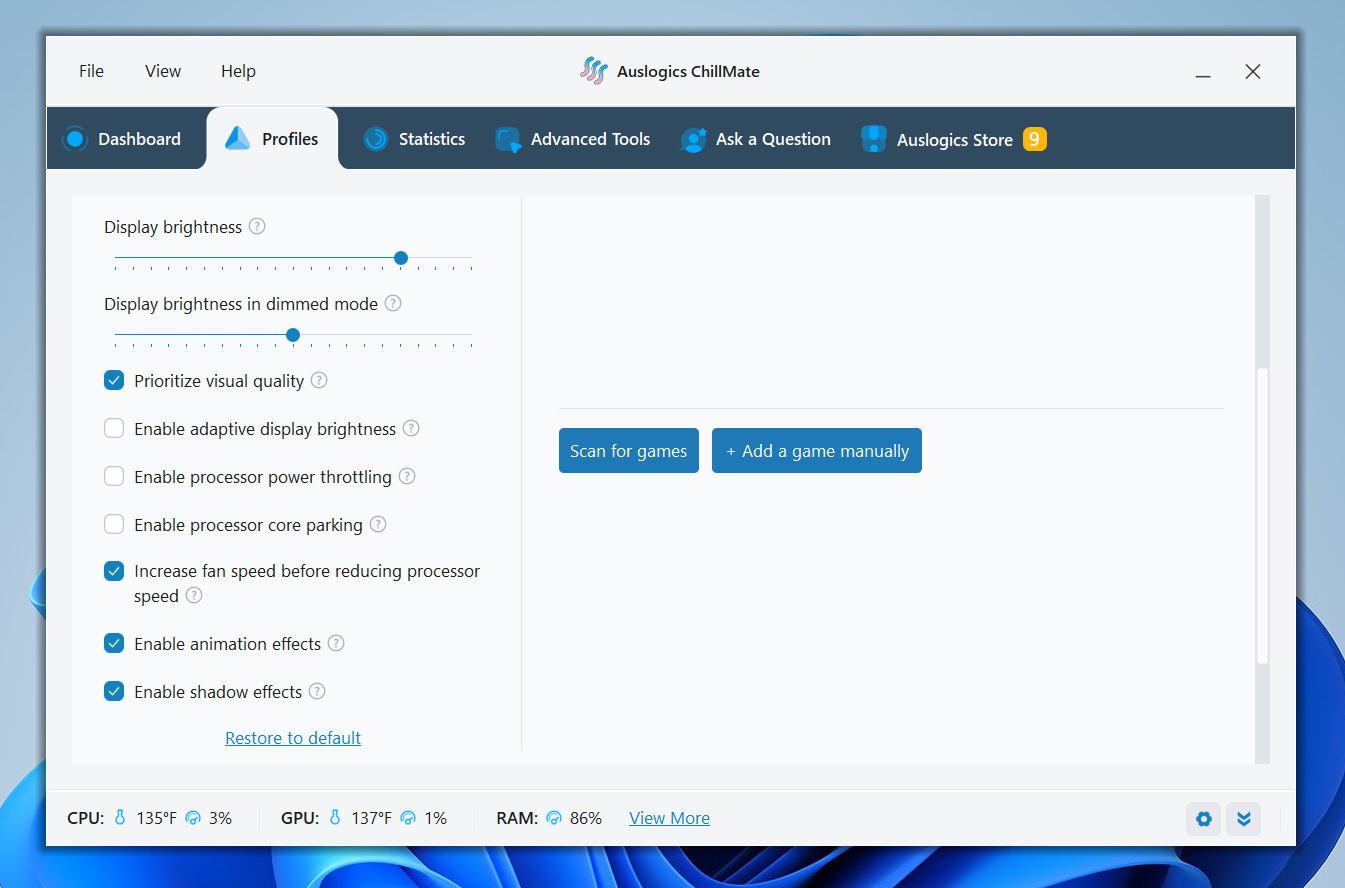
You can toggle any profile on or off from this tab to activate ChillMate. If you want to change settings for specific profiles, expand the profile and make your adjustments.
You can change the following settings under each profile:
If things don’t work, you can click Restore to default to revert your settings.
- Display: There are four display-related settings under each profile. The first two allow you to tell the program to turn off and dim the display after a specific period. The last two settings are sliders that enable you to adjust the display brightness in normal and dimmed mode.
➡️ Higher brightness levels draw more power and may shorten battery life.
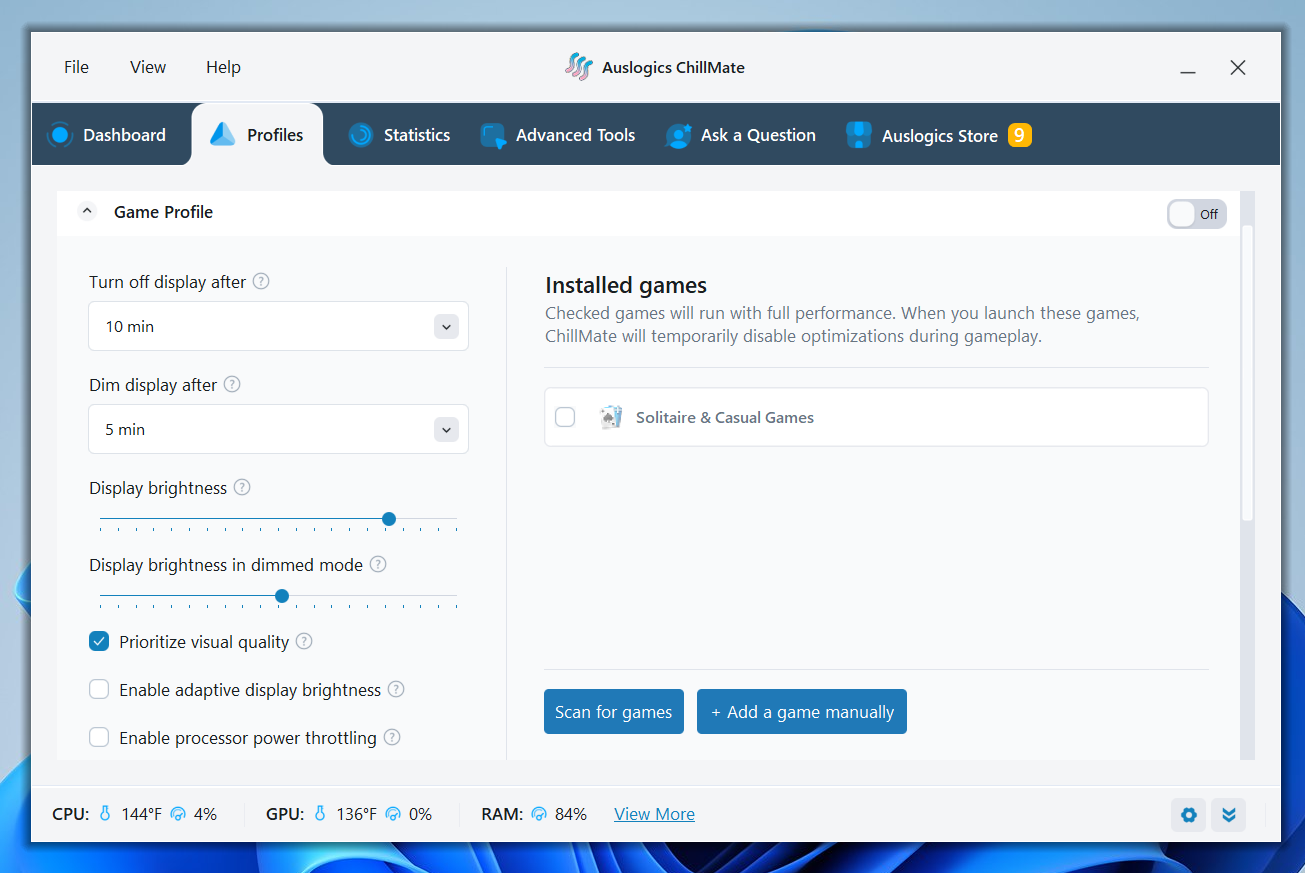
- Prioritize visual quality: This setting allows you to decide whether you want pretty or poor pictures.
➡️ Prioritizing display quality while on battery reduces runtime. You can uncheck this box to extend battery life.
- Enable adaptive display brightness: When you select this option, your computer’s display brightness automatically adjusts to your environment.
➡️ That way, you get to save battery life and processing power in dim surroundings.
- Enable processor power throttling: This option prevents overheating by automatically reducing the processor clock speed when temperatures approach critical levels. The setting is not activated by default under high-load profiles like Game. Instead, fans are allowed to spin faster to reduce heat.
➡️ Enabling this setting keeps your CPU cool, reduces power usage, and boosts battery life. But that may be at the slight expense of high performance. It is not recommended for gaming.
- Enable processor core parking: Core parking is a process that automatically deactivates certain CPU cores when your computer is under light load. This option ensures your computer is not expending unnecessary power. It improves battery life and keeps things cool.
➡️ People looking for how to stop laptops from overheating and also extend battery life can benefit from this option. However, you may experience slight slowdowns due to delays when waking up the idle cores.
- Increase fan speed before reducing processor speed: This setting prioritizes performance and is usually turned on under the Game profile. When you enable it, your fans will spin faster when your system’s temperature starts rising. If you turn it off, ChillMate will reduce the processor speed instead of spinning your fans faster.
➡️ The setting reduces overheating and improves performance when users run demanding games and other heavy applications. However, you may have to deal with louder fans.
- Enable animation effects: This setting activates Windows’ appealing animations and transitions to enhance your computer’s aesthetics.
➡️ You can uncheck the option in every profile if battery power is your priority.
- Enable shadow effects: Enables Windows’ subtle, soft-edged shadows that appear as backdrops under icons and floating app windows.
➡️ You can also disable this feature if you want to prioritize battery life.
![IMG]() Application optimization
Application optimization

You can enhance the performance of specific applications when using the Game, Office, and Browser profiles. Once you add programs and activate the profile, ChillMate will allow the added applications to use as much processing power and system resources as they need.
This feature is best for users running games, resource-heavy applications, and demanding browsing sessions.
Here’s how to add a program to a profile:
- Go to the Profiles tab and expand the profile.
- Click the Scan for games button to automatically add games. You can also click the Add an application (or Add a game manually ) button and double-click its EXE file to add the app.
- Now, browse to the location where the app is installed and double-click its EXE file to add the app to the list.
While most apps are installed in the Program Files folder, you can also find the EXE files you want in the Program Files x86 (32-bit apps) and Games folders.
However, selecting apps installed from the Microsoft Store is a more complicated process. First, you have to locate the WindowsApps folder and then identify the app’s installation folder.
Follow these steps:
- Go to C:\Program Files\WindowsApps.
- If you can’t find the WindowsApps folder under Program Files, click View in the menu bar and select Show > Hidden items. If you’re on Windows 10, click the View menu and check the box for Hidden items.
- The next hurdle is identifying the right folder for the specific app, as the Microsoft Store makes a mess of the naming. Expand the File Explorer window to fully view the unusually long folder names.
- You can expand the Name tab if your view is still limited. Each app’s name is nested within the alphanumeric identifiers used by the store.
- To identify the folder with the EXE file, look for the folder where x64 comes after the program version.
- Once you open the folder, you should see the EXE file. If not, it should be within a subfolder named after the app or something similar.
- Double-click the EXE file.
If you see a message that says, “You have been denied permission to this folder,” you can follow our guide on how to fix the “You have been denied access to this folder” message.
![IMG]() System monitoring (Statistics)
System monitoring (Statistics)

There’s no need to learn how to check CPU temp using complicated methods since system statistics are spread across various areas of the program’s interface. Apart from the Dashboard tab, you should see CPU and GPU temperature and usage and RAM usage in the bottom panel.
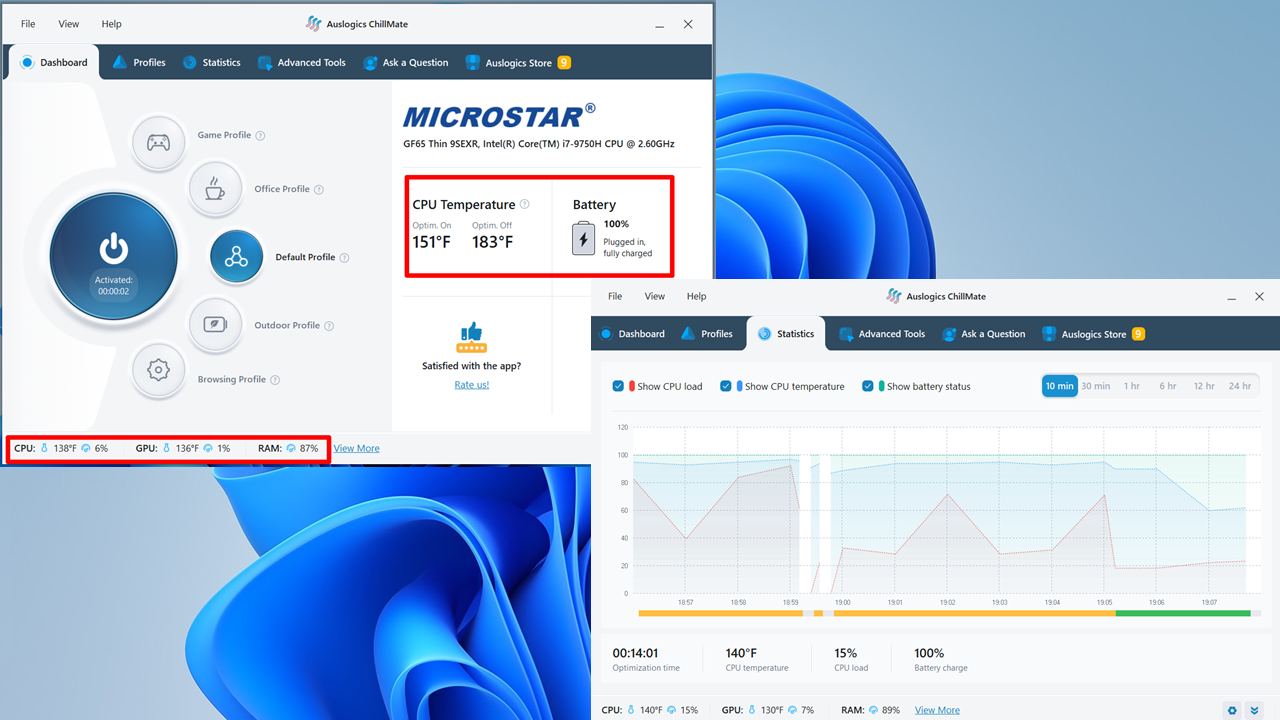
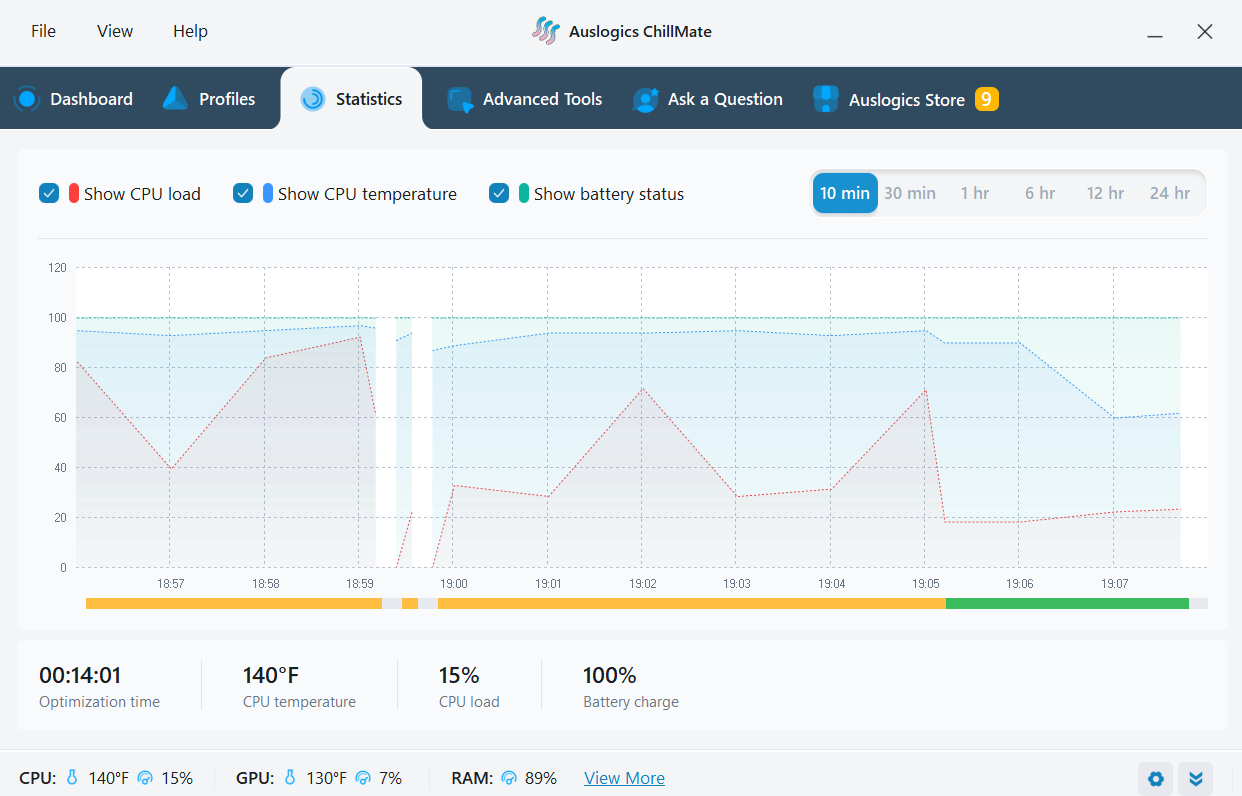
You can go to the Statistics tab (clicking View more at the bottom will also take you there) to see more system monitoring details. This section of the program shows a graphical representation of CPU load, CPU temperature, and battery status during a specific timeline. You can change the timeline and choose which metrics to show.
The green bar below the graph indicates usage statistics when ChillMate optimization is active. The yellow bar shows usage without optimization.
![IMG]() Advanced controls
Advanced controls

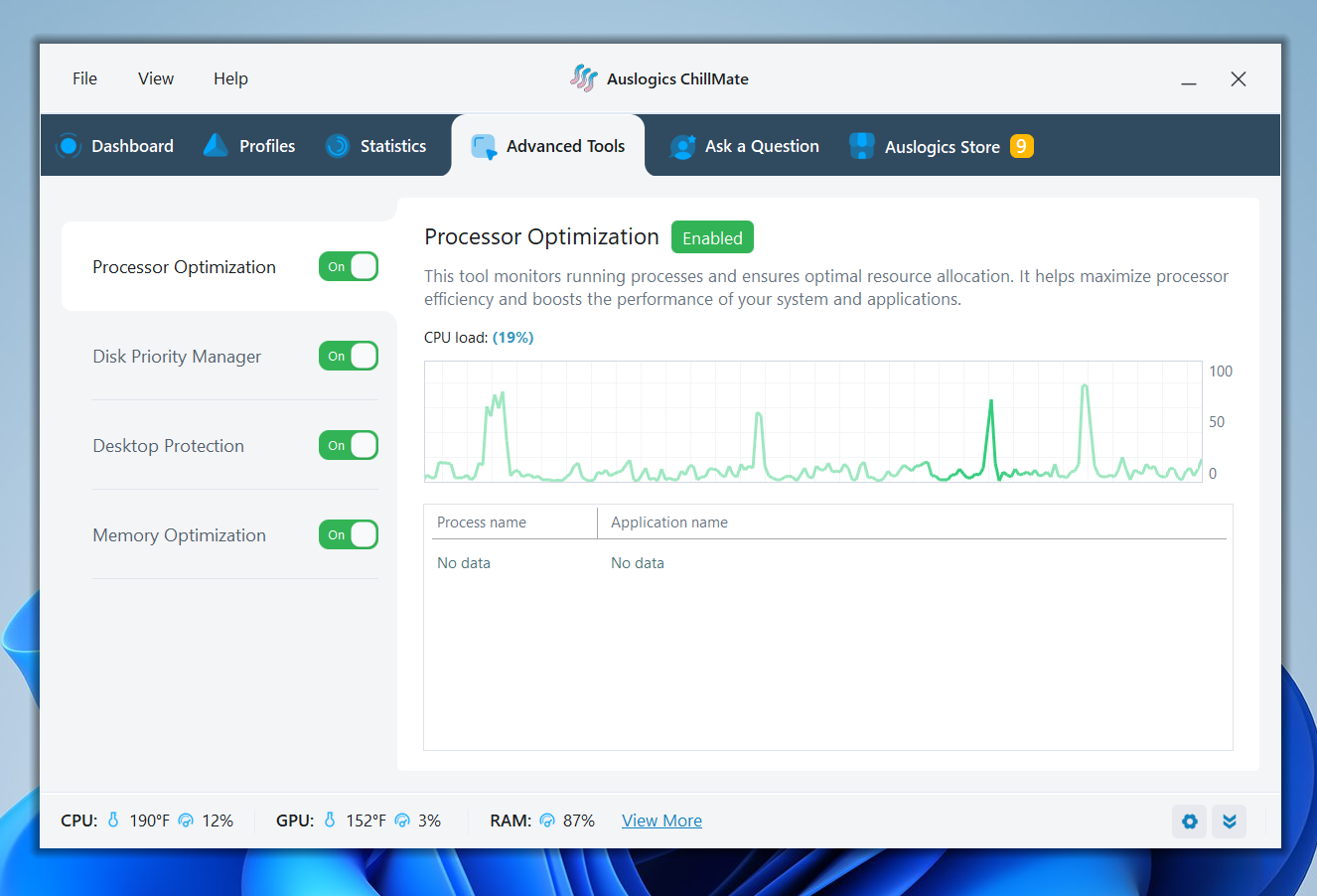
The Advanced Tools tab contains utilities that manage system resources and improve performance. These include the Processor Optimization, Disk Priority Manager, Desktop Protection, and Memory Optimization tools. While you don’t have granular control over how each tool works, you get to decide whether they run or not.
Let’s break down what you should expect when you activate each advanced utility:
➡️ Processor Optimization: This tool automatically allocates CPU resources to active programs to boost efficiency and performance. You should see your active processes under the CPU usage graph.
➡️ Disk Priority Manager: When this tool is turned on, it prioritizes access to your hard drive for applications that you’re actively using. You will also see a list of those programs on the page.
➡️ Desktop Protection: Per the description, the utility ensures your desktop and File Explorer don’t crash whenever Windows Explorer encounters an issue.
In some cases, you may need to restart Windows Explorer through the Task Manager when it gets stuck. Sometimes, the process restarts itself. The Desktop Protection tool prevents such issues by spawning multiple instances of Windows Explorer to isolate desktop and File Explorer processes.
➡️ Memory Optimization: Like Disk Priority Manager, this utility allocates the system memory more efficiently to improve overall system performance.
![IMG]() Automatic fan control
Automatic fan control

Your fans need to spin faster to keep your computer cool when you run heavy tasks like gaming. While ChillMate does not allow you to control your computer’s fan speed, it leverages automatic triggers to keep a balance between noise level and laptop cooling.
Selecting a profile activates specific configurations, enabling the app to optimize processor and GPU resources to meet your task demands.
For example, the Game profile activates the Increase fan speed before reducing processor speed setting by default, while the Default profile focuses on CPU throttling and core parking instead.
![IMG]() Ask a Question
Ask a Question
The Ask a Question tab provides users with access to Auslogics experts. Signing up allows you to ask any Windows-related question. Free users receive one question, while paid subscribers receive three. However, all users can ask unlimited questions about Auslogics products, including ChillMate.
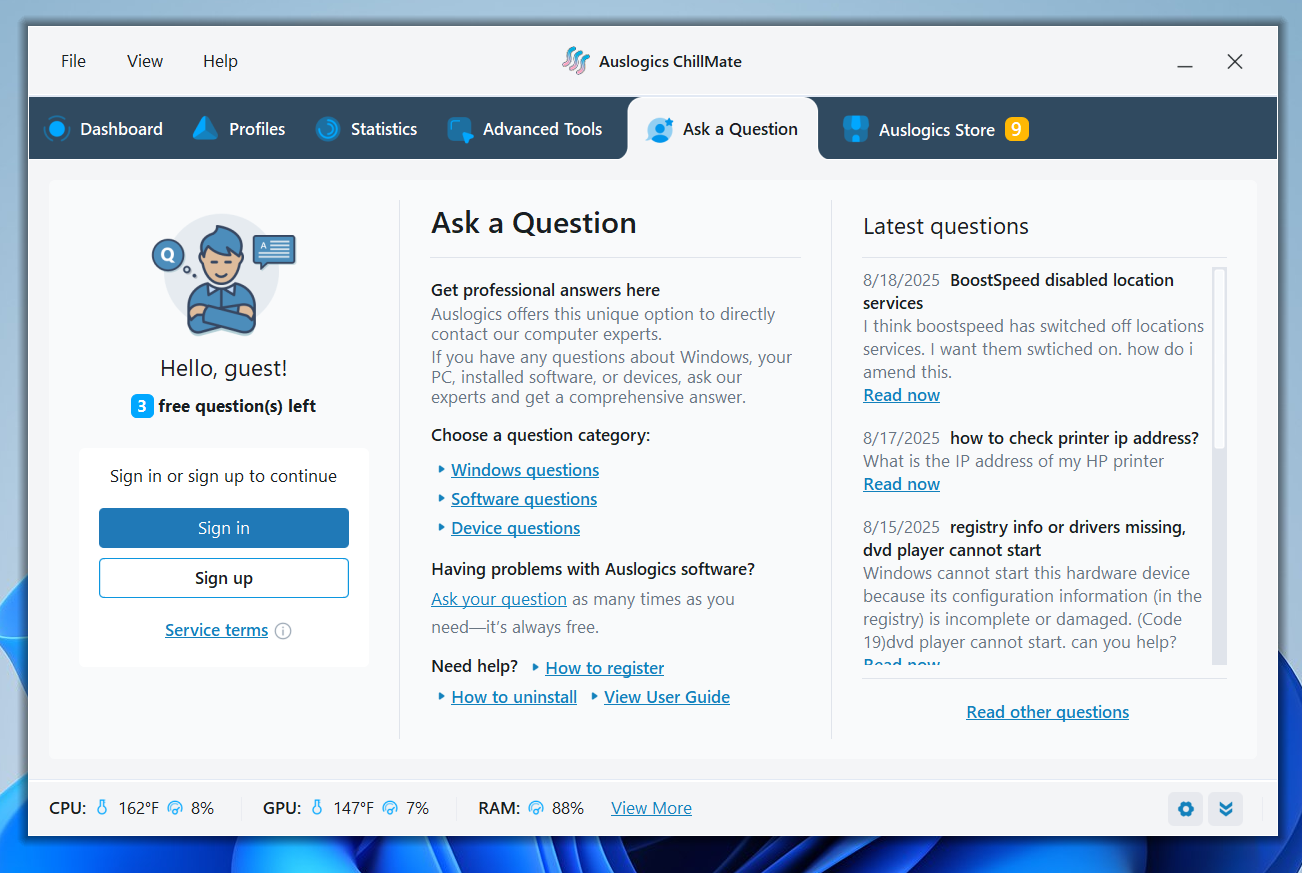
You need an Auslogics account to use the platform, just like in other products. If you’re already a customer or have signed up before, click the Sign in button and enter your details to begin. If you don’t have an account, click Sign up and fill out the short registration form. Go to your email address for confirmation and your password.
Once you’re logged in, click the category related to your question under Choose a question category and fill out the form. You have to enter a subcategory and type out your message. You can use the attachments button if you intend to share more details, like screenshots of the problem.
![IMG]() Auslogics Store
Auslogics Store

The Auslogics Store tab provides access to the full library of Auslogics products. These include apps like BoostSpeed, Driver Updater, Disk Defrag, and SSD Optimizer, all of which can complement your ChillMate to boost Windows performance.
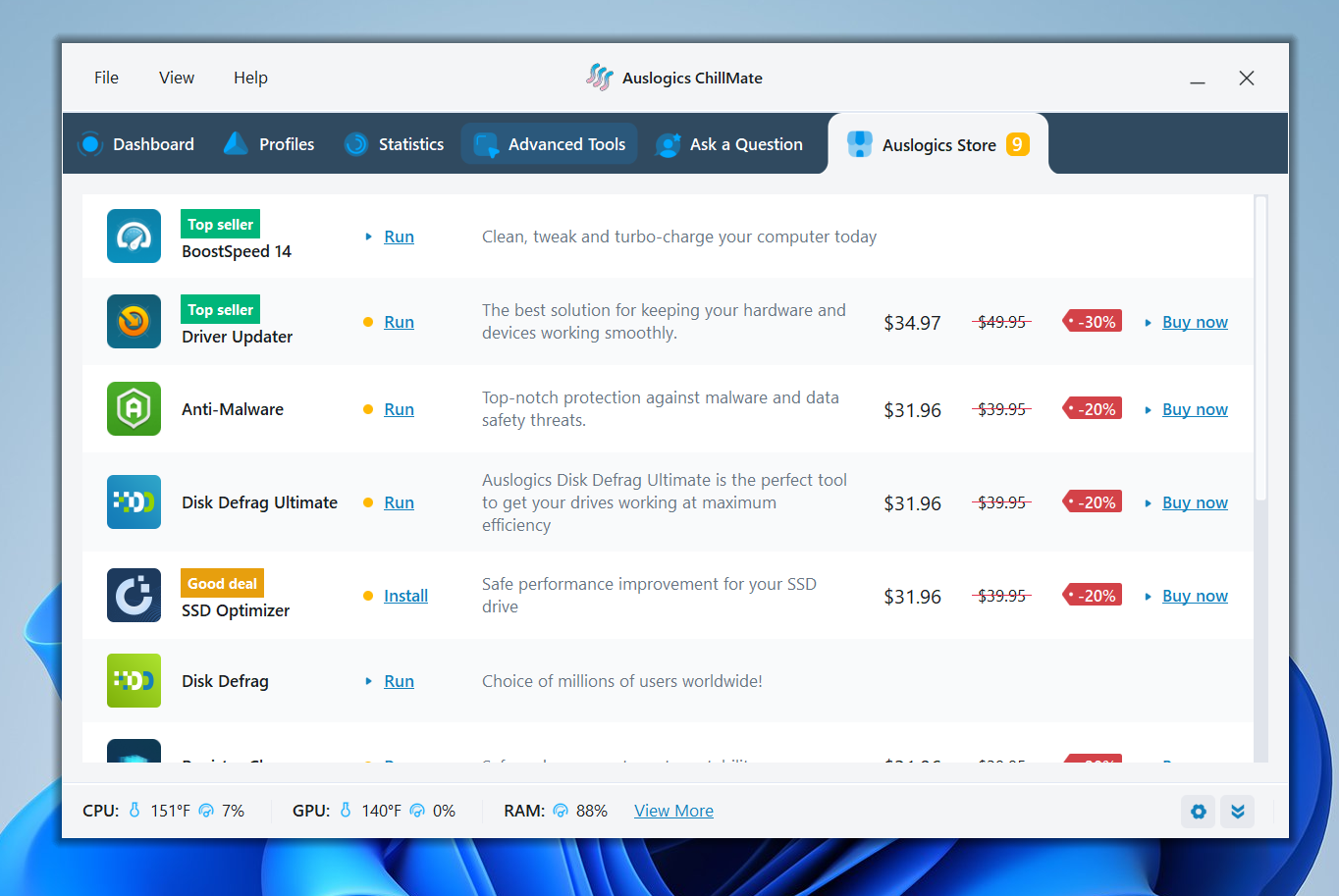
Beside each program is the Install or Run button (depending on whether it is installed), the tool’s description, its price (showing discounts), and a Buy nNow link.
Why Auslogics ChillMate Is the Best Tool to Stop Laptop Overheating
Auslogics ChillMate stands out against other temperature monitoring and heat prevention applications thanks to its streamlined profiles, powerful algorithms, and enhanced user experience.
| Feature/capability | Auslogics ChillMate | Speccy | CoreTemp |
|---|---|---|---|
| Core functionality | ✅ Real-time temperature monitoring plus active optimization and cooling control | ❌ Primarily hardware info and temperature monitoring | ✅ Accurate per-core CPU temperature readings and configurable max temperature actions |
| User interface | ✅ Modern, sleek, and intuitive
✅ Great for beginners and advanced users |
❌ Dated and challenging to comprehend and navigate | ❌ The interface is outdated and can be seen as chaotic
❌ Navigation is also not intuitive and can be tough for beginners |
| Temperature monitoring | ✅ Monitors CPU and GPU temperatures
✅ Shows real-time CPU temperature tracking with charts |
✅ Shows real-time temps of CPUs (including each core) and GPUs | ❌ Limited to CPU temperature monitoring |
| Cooling & fan control | ✅ Deploys custom cooling profiles that target different use cases
✅ Also has fan auto-adjustment to reduce heat and noise |
❌ No cooling or fan control features | ✅ The overheat protection feature allows users to set maximum temperatures that can trigger a range of shutdown actions
❌ No fan control |
| System performance optimization | ✅ Yes, with advanced tools like Disk Priority Manager, Processor Optimization, and Memory Optimization | ❌ No | ❌ No |
| Battery & power optimization | ✅ Actively optimizes power consumption to extend battery life | ❌ Not focused on power or battery metrics | ❌ No battery optimization capabilities |
| Hardware protection | ✅ Prevents overheating and heat-induced wear | ❌ Monitors temperature but does not intervene to safeguard hardware | ✅ Can automatically hibernate, shut down, or put the computer to sleep when the temperature reaches the maximum level set by the user |
| Customizations | ✅ Predefined use-case profiles and the ability to create custom ones
✅ The Settings page allows users to choose between Fahrenheit and Celsius readings ✅ Users can select what metrics appear on the statistics charts ✅ Advanced tools can also be turned on and off |
❌ No cooling-specific optimizations | ✅ Users can configure temperature readings
✅ The overheat protection feature allows customizing max temperatures that trigger warnings and other actions ✅ Users can choose whether to shut down the system, hibernate, or put the PC to sleep upon reaching the max temperature |
| Resource footprint | ✅ Lightweight, but more active operations than simple monitors | ✅ Lightweight and fast system information capture | ✅ Very lightweight, monitor-only tool |
| Platform support | ✅ Windows 7–11 (32- & 64-bit); no macOS/Linux | ✅ Windows (multi-version, 32- & 64-bit) | ✅ Windows only, supports Intel, AMD, and VIA processors |
| Additional support | ✅ Expert support for free users and paying subscribers via the Ask a Question service | ❌ The link from the Help menu leads to the community forum
✅ Paid users can contact CCleaner’s support team directly for questions |
❌ The support link in the About page directs users to FAQs and the community forum |
| Price | ✅ Free version available; the annual subscription price depends on the region ($33.96 for the U.S.) | ✅ Free version available; the annual license price is $19.95 | ✅ Freeware |
How Much Does Auslogics ChillMate Cost?
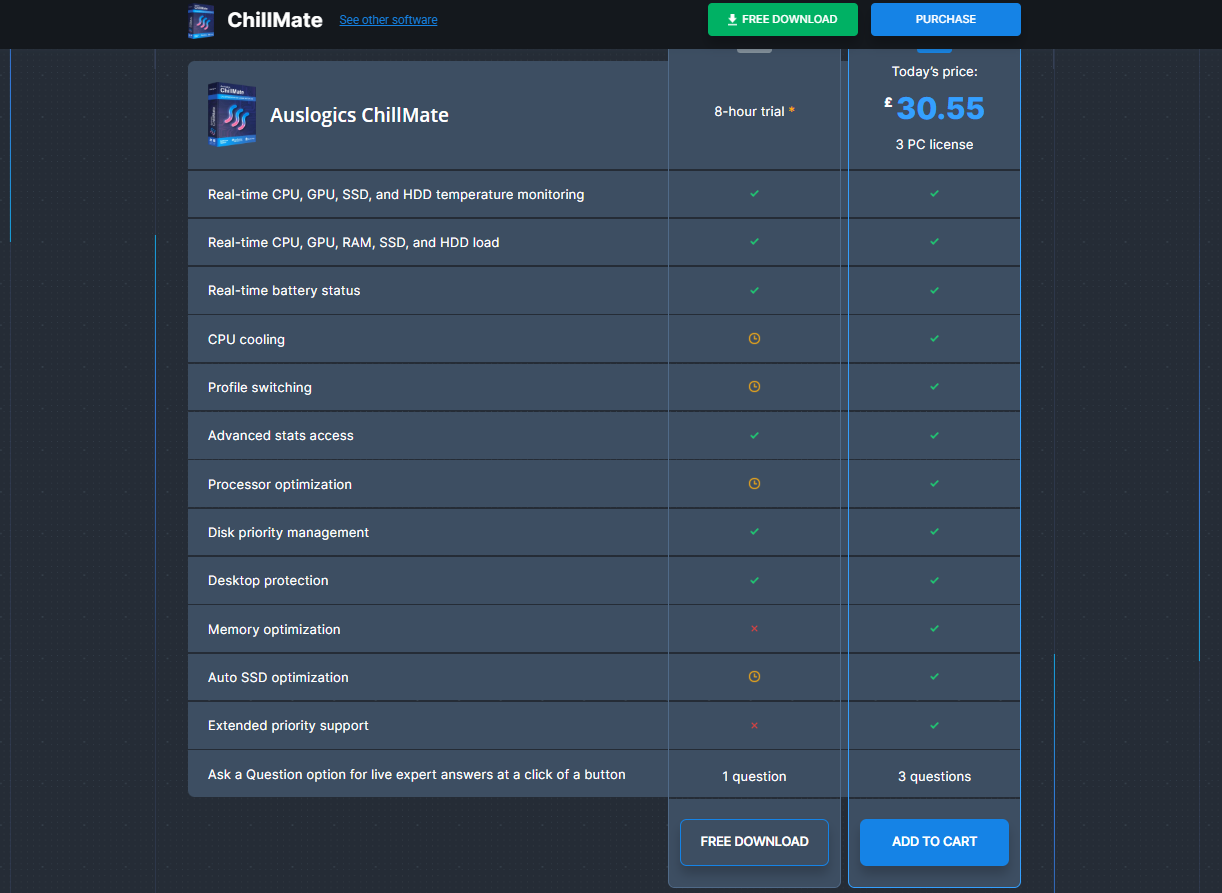
It depends on your region. For example, the tool costs $33.96 per year for 3 PCs in the U.S. and £30.55 per year for UK customers. Free users gain access to some features for only 8 hours, while others are available forever. Here’s how the free version stacks up against the full version:
| Feature | Free/⏳8-hour trial | 3-PC license |
|---|---|---|
| Real-time temperature monitoring | ✅ | ✅ |
| Real-time CPU, GPU, and RAM usage monitoring | ✅ | ✅ |
| Real-time battery percentage | ✅ | ✅ |
| CPU cooling | ⏳ | ✅ |
| Profile switching | ⏳ | ✅ |
| Advanced statistics access | ✅ | ✅ |
| Processor Optimization | ⏳ | ✅ |
| Disk Priority Manager | ✅ | ✅ |
| Desktop Protection | ✅ | ✅ |
| Memory Optimization | ❌ | ✅ |
| Auto SSD optimization | ⏳ | ✅ |
| Extended priority support | ❌ | ✅ |
| Ask a Question | 1 question | 3 questions |
Auslogics ChillMate: Keep Your PC Cool and PC Fans Quiet
Auslogics ChillMate delivers overheating prevention, temperature monitoring, and resource efficiency in a lightweight and simple package. Unlike other basic tools, you can effortlessly use it to protect critical hardware components from the hazards of overheating and boost system performance while you’re at it.
\The utility is an ideal toolkit for modern gamers, content creators, and people running large language models who push their laptops hard. Other professionals and everyday users who want longer battery life and peace of mind can also rely on it.
Remember to add your programs to the Game, Office, and Browsing profiles for proper optimization. Let us know your favorite features, and feel free to ask any questions.


