



Speed is the prominent difference between SSDs and HDDs, but care regimen is a close second.
That’s because how you take care of your drive determines how long and well it runs. So, can you defrag an SSD like a hard disk? Defragmentation is possible on SSDs, but how safe is it? And should you do it?
This article will explain whether defragging SSDs is harmful, safe, or beneficial, and what you should do to keep your drive healthy.
❌ Don’t defrag your SSD—it has no impact on SSD performance.
💀 Defragmentation can shorten SSD lifespan—each defrag operation counts toward an SSD’s finite write cycle.
⚡ SSDs work differently from HDDs—they use flash memory and access data instantly.
📂 Fragmentation doesn’t slow down SSDs—no moving parts = no delay in accessing scattered files.
🧹 TRIM replaces defrag for SSDs—it tells the SSD which deleted data blocks can be wiped and reused.
🪟 Windows handles SSD maintenance automatically—the built-in Optimize Drives tool runs TRIM weekly on supported systems.
🛡️ Use SSD-ready tools if needed—programs like Auslogics Disk Defrag Ultimate, Defraggler, and O&O Defrag offer safe, SSD-focused optimizations.
What Is Defragmentation?
Defragmentation is a process designed to reverse the effects of fragmentation. A drive is fragmented when pieces of individual files are scattered across different locations on the disk.
Files are not saved as single big chunks of data on hard drives. Instead, they are broken down into smaller pieces (fragments) to fit into the hard drive’s basic storage units, each of which can only contain a specific amount of data (512 bytes to 16 KB).
In a fragmented hard drive, file pieces are scattered into units that are far away from each other. The address for each piece is registered by the controller. The controller tells the drive where to locate each fragment during read operations.
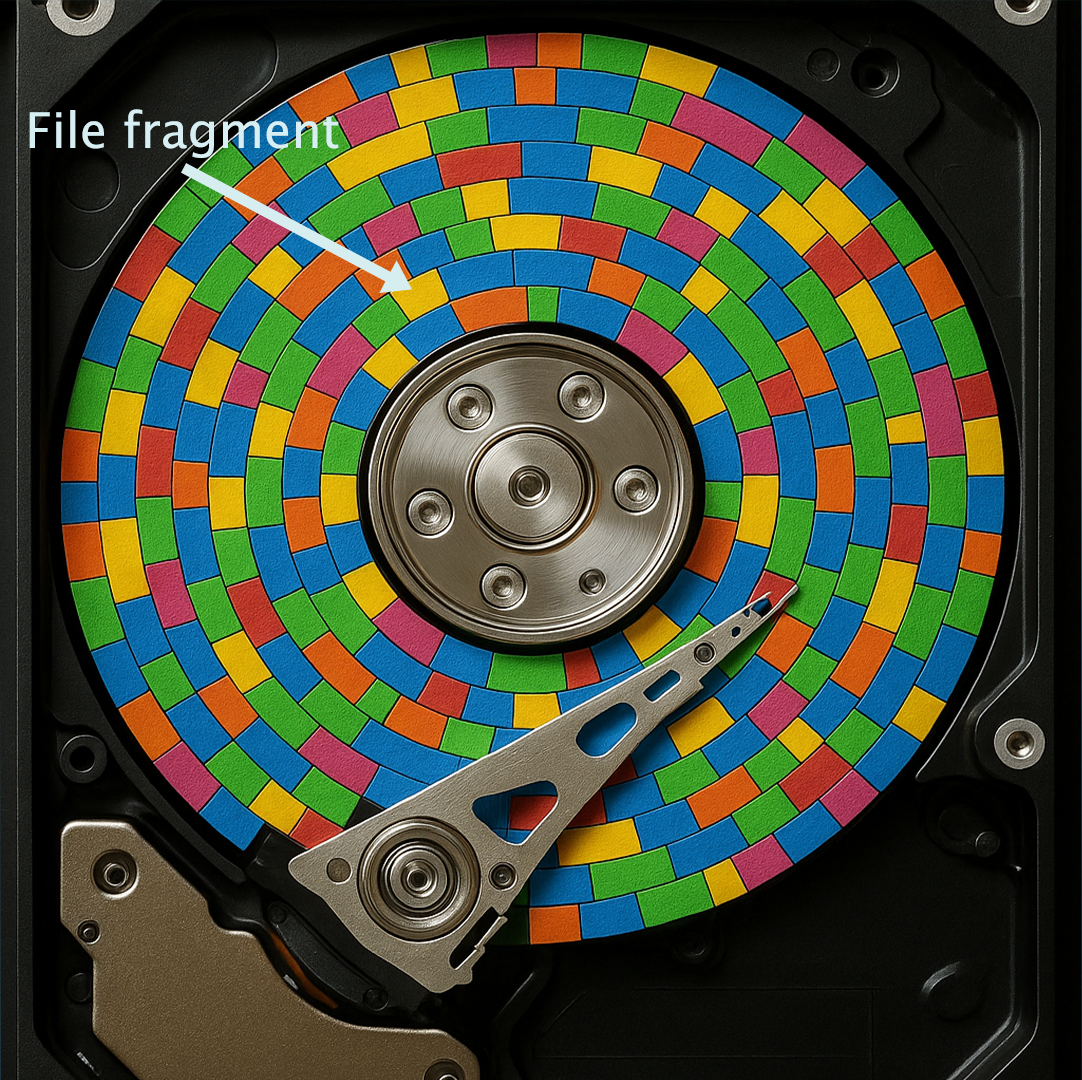
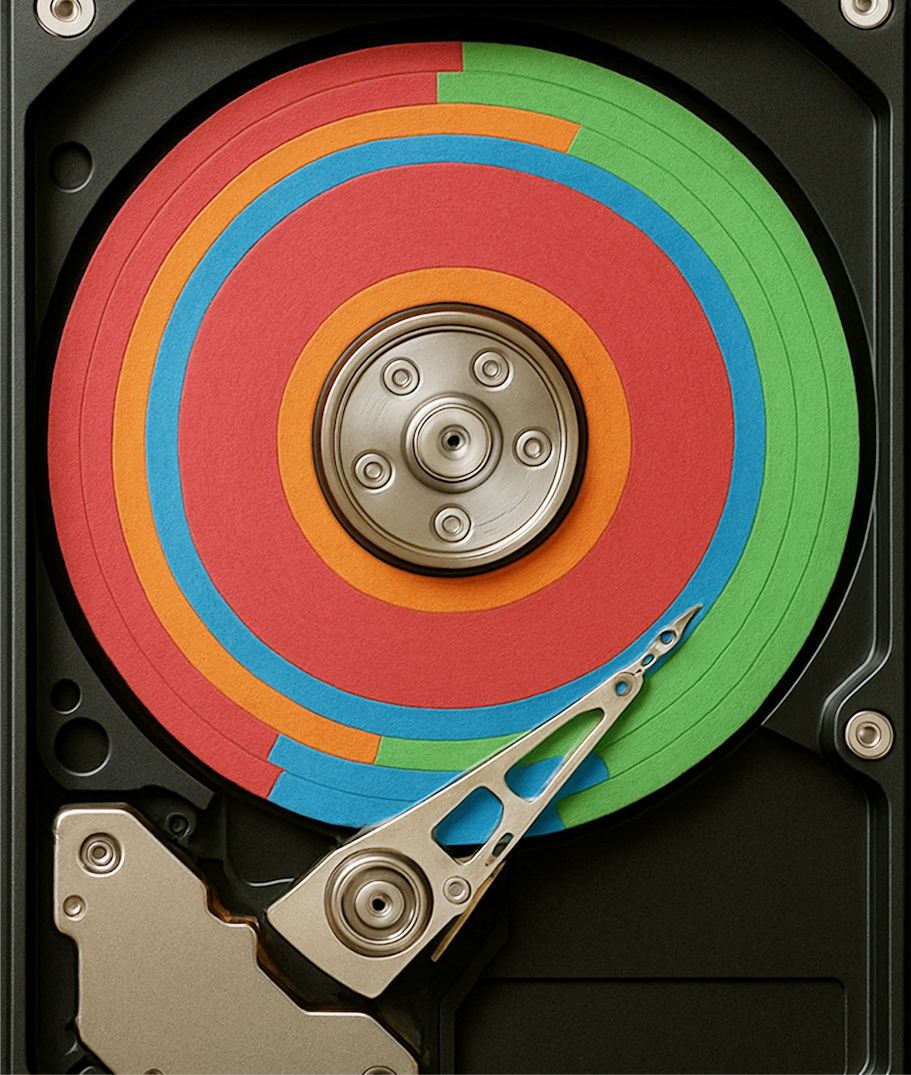
So, what does defragging do? The process brings each file’s fragments close to each other. That way, the hard drive can access files faster.
However, the process affects HDD and SSD performance differently.
How Do SSDs Work Differently from HDDs?
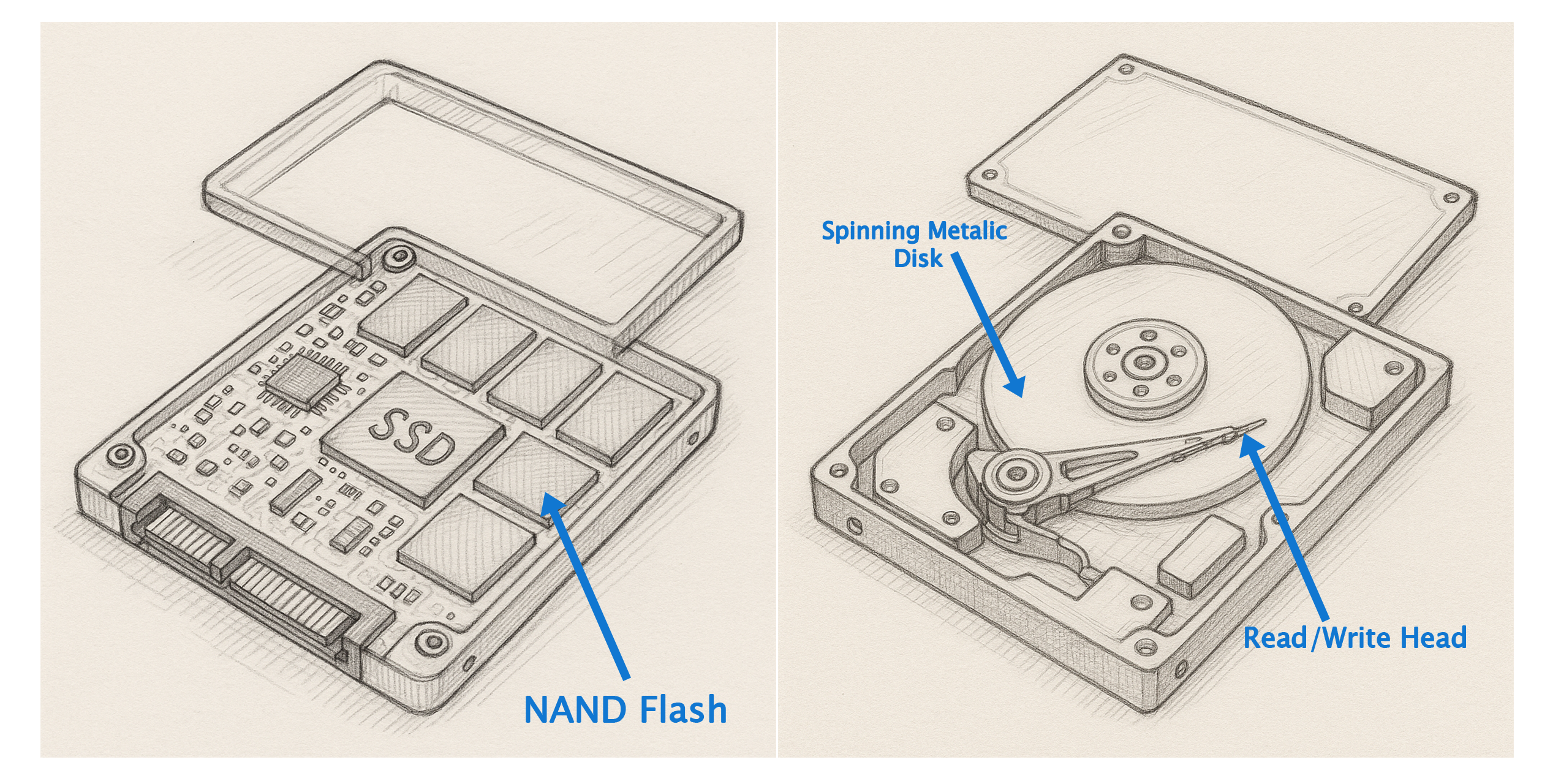
Fragmentation results in slow read times for hard disk drives because of their physical makeup. Every HDD has a spinning metal disk where data is stored and a read/write head (controlled by a mechanical arm) that moves over the disk’s surface to read and write the data.
To read a single file on a fragmented disk, the R/W head collects location information from the controller and covers a greater distance to locate the pieces of that file. This process significantly slows down the hard drive and causes wear over time.
But SSDs are not affected in the same way. These drives use flash memory, which allows high-density storage allied with superfast R/W speeds. It doesn’t require moving parts to reach file fragments after collecting addresses from the controller. Instead, access is instant.
How fragmentation affects HDDs and SSDs
| HDD | SSD | |
|---|---|---|
| Are files fragmented? | Yes | Yes |
| Where are file fragments saved (basic storage units)? | Sectors | Pages arranged in grid patterns |
| How are fragments retrieved? | Moving read/write head controlled by a mechanical arm | Controllers read the charge state of memory cells to access data instantly |
| Does fragmentation affect performance? | Yes | No |
| Why? | The mechanical arm must physically reach each fragment to read a file | SSD controllers have instant access to every memory cell within each page |
Should I Defrag My SSD?
Short answer: No.
Long answer: No. Defragmentation is not recommended for SSDs. It does not offer any performance benefits and can reduce your drive’s lifespan. Let’s break down the reasons why you should stay away from SSD defragmentation.

Up there, I explained how SSDs operate via flash storage and fetch data without delay, regardless of its location on the drive. For this reason, I do not recommend you perform an SSD defrag. While defragmentation can speed up storage performance for HDDs, it has no effect on SSDs.
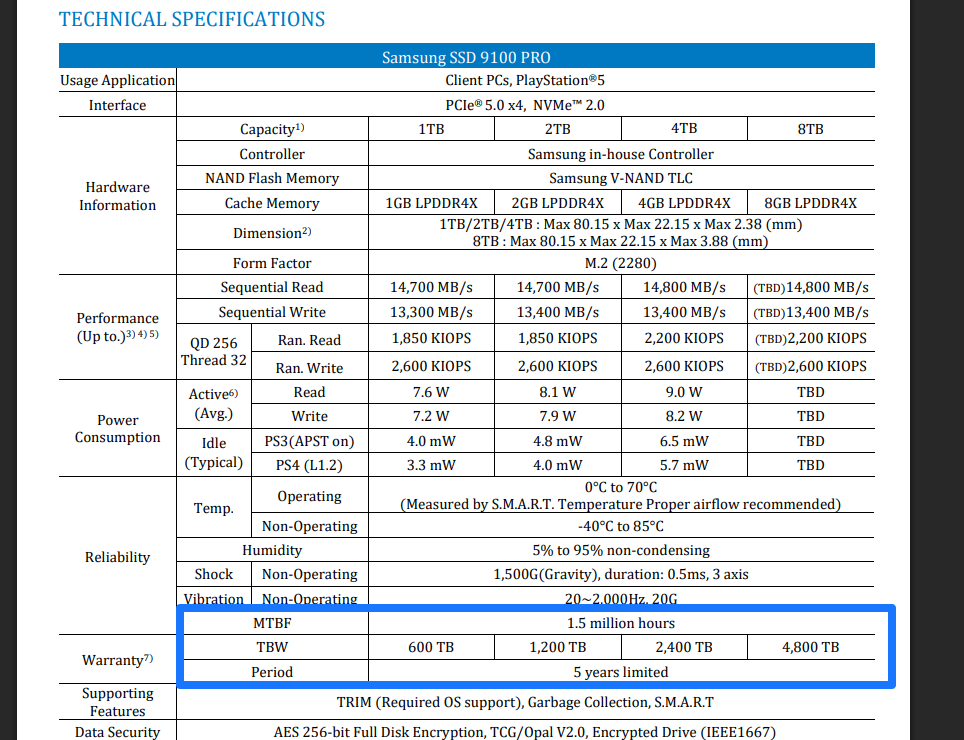
SSD lifespan is generally measured by terabytes written (TBW), a metric that gauges how many write operations a drive can handle before it starts to wear out. This measurement is derived from the finite read and erase cycle (about 3,000 in most cases) of each memory cell.
Each defrag operation involves moving thousands or even millions of file fragments around, which counts toward those limited cycles. So, every time you defrag an SSD, you chip away at its lifespan and bring it closer to wearing out.
Defragging an SSD repeatedly can prematurely wear out the drive, even before its write cycles are complete. Manufacturers also provide a statistical assessment of SSD reliability called mean time between failures (MTBF). It shows the “odds” of your SSD failing consecutively over time and is measured in hours.
The more you run disk defrag operations, the more your SSD is likely to fail.
Wear-leveling is a technique built into SSDs that allows drives to evenly distribute read and write cycles across memory cells. That way, it prevents some cells from being overused before others.
Defragmenting the hard drive interferes with this process and causes hotspots (more cells being used than others) within the drive.
Your operating system already knows defragging SSDs is a no-no. Windows 7 and later have a tool called Optimize Drives (now Microsoft Drive Optimizer). It runs on a weekly schedule and defragments your hard drive to ensure better performance.
But when you’re using a solid-state drive, it works differently. In this case, it sends a TRIM command to the SSD to clean up cells with erased data.
Do Disk Defrag Tools Work on SSDs?
Yes. But that’s not always a good thing. Most disk defrag tools are intended to work with HDDs rather than defrag SSDs. And just because they can run on solid-state drives too doesn’t mean you should use them for that purpose.
So, even though disk defrag tools do work on SSDs, only use programs with built-in SSD detection and optimization. If you feel like your SSD has become slower than usual, you might want to optimize it.
The built-in Defragment and Optimize Drive tool on Windows is suitable for this. Simply search and launch it, select the drive you wish to enhance, and click the Optimize button.
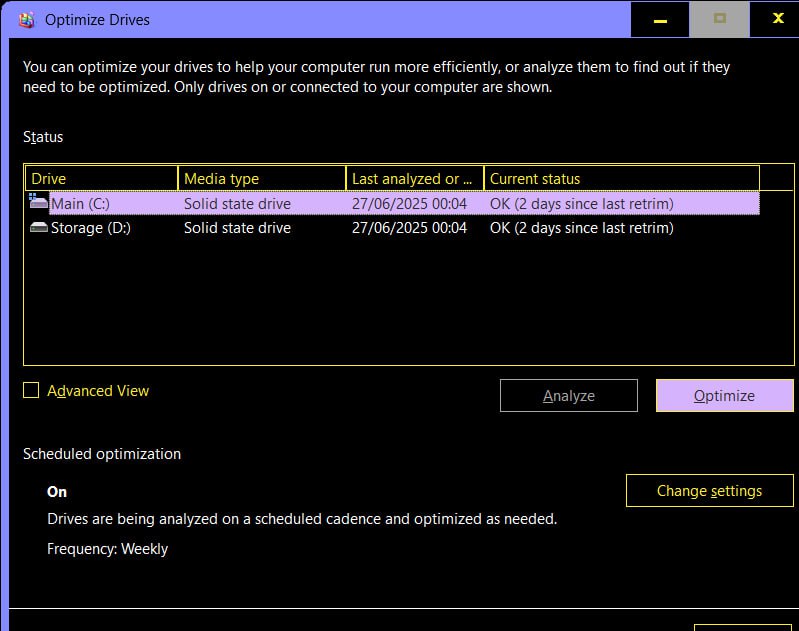
Actually, you don’t need to do this yourself, as Windows runs the process once a week, provided you turn on its Scheduled optimization feature.
If you have both an SSD and HDD on your computer or use an external SSD alongside an internal HDD and vice versa, consider using an SSD-aware third-party program like Auslogics Disk Defrag Ultimate.
The utility automatically detects your drive type and runs the corresponding optimization. You can schedule or automate optimizations and even choose individual files or folders to scan.
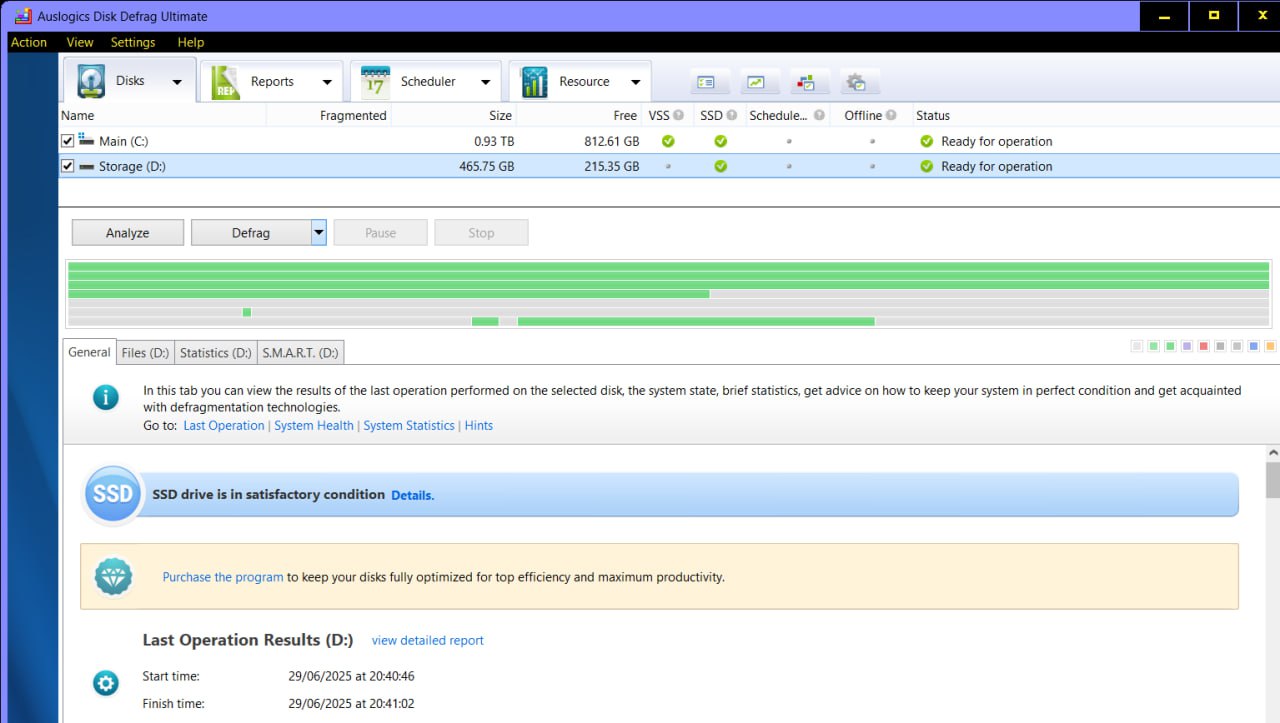
Defraggler by CCleaner and O&O Defrag are other popular options for SSD-friendly drive tweaking.
What Should I Do Instead of Defragging?
I have explained why you shouldn’t want to defrag your SSD.
Let’s look at some alternative SSD optimization practices that can help keep your drive in tip-top shape.
TRIM and Active Garbage Collection
I previously mentioned how the Optimize Drives tool in Windows runs scheduled SSD maintenance. To do this, it uses the TRIM and Active Garbage Collection features.
TRIM simply tells your operating system where to clean up and reuse pages that represent a deleted file. This avoids clutter, maintaining efficiency. To effectively optimize your SSD, TRIM must be kept enabled.
If you’re using Windows 7 or later, you typically don’t need to take any action, as it’s active by default.
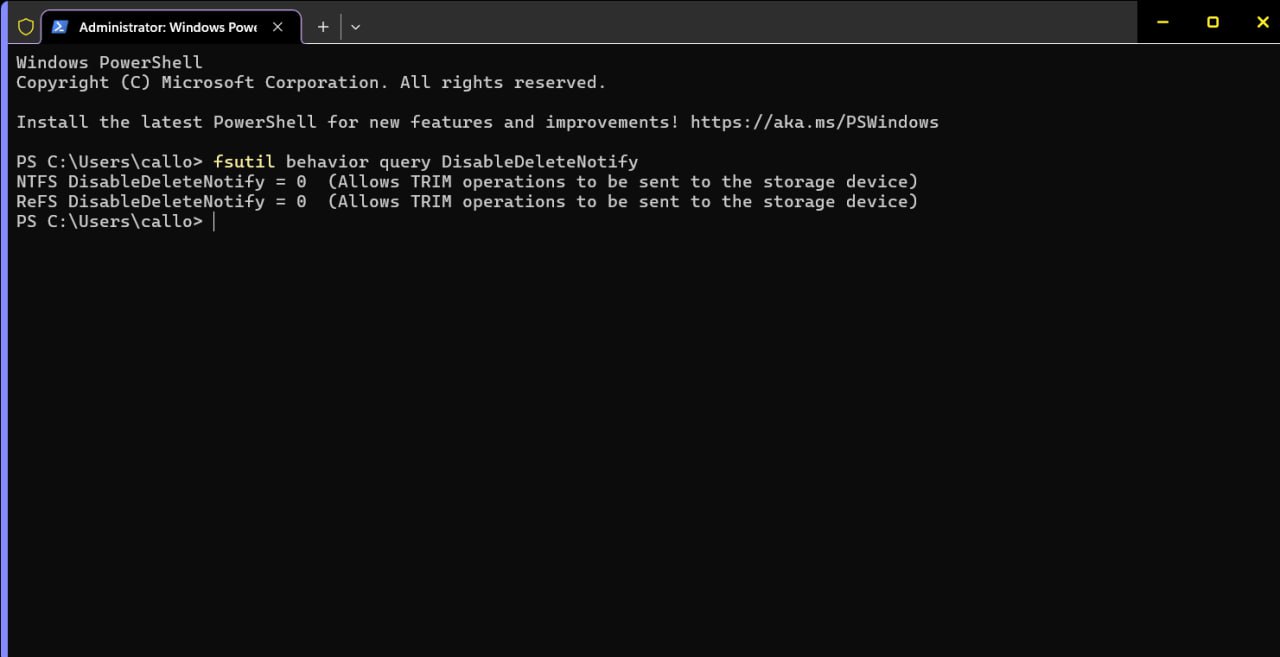
Follow these steps to check if TRIM is enabled:
- Open the Start menu, start typing cmd, and click Run as administrator.
- Click Yes in the UAC prompt.
- Type the following into the Command Prompt window and hit
Enter:
fsutil behavior query DisableDeleteNotify
If the response is DisableDeleteNotify = 0, TRIM is enabled.
Use optimization tools
Apart from Windows’ built-in utility, you can download third-party options, such as Auslogics SSD Optimizer and EaseUS Partition Master, to run additional optimization operations. Alongside TRIM and garbage collection, these tools offer SSD health checks, disk cleanups, and free space management.
People who use their SSDs for gaming will also appreciate the temperature monitoring feature in some tools that can tell them when to cool off their system to prevent overheating.
Leave free space
SSDs are more resilient than HDDs but are still subject to internal and external wear and tear. If you would rather avoid situations that will make you consider defragging your SSD, leaving enough space on your drive is a good place to start. Ensure your SSD always has at least 20% of free space.
You can free up space by archiving less frequently used files to the cloud or an external drive. You can also run cleanup utilities like Windows Disk Cleanup, Auslogics BoostSpeed, and CCleaner to help you clear out junk and unneeded files.
Tweak power settings
Endeavor to give your SSD rest when you’re not actively using your machine. With sleep and hibernation modes active, your drive can get regular breaks between heavy use. Here’s a short guide on how to change these settings in Windows 11:
- Open the Settings app and click System.
- Select Power & battery.
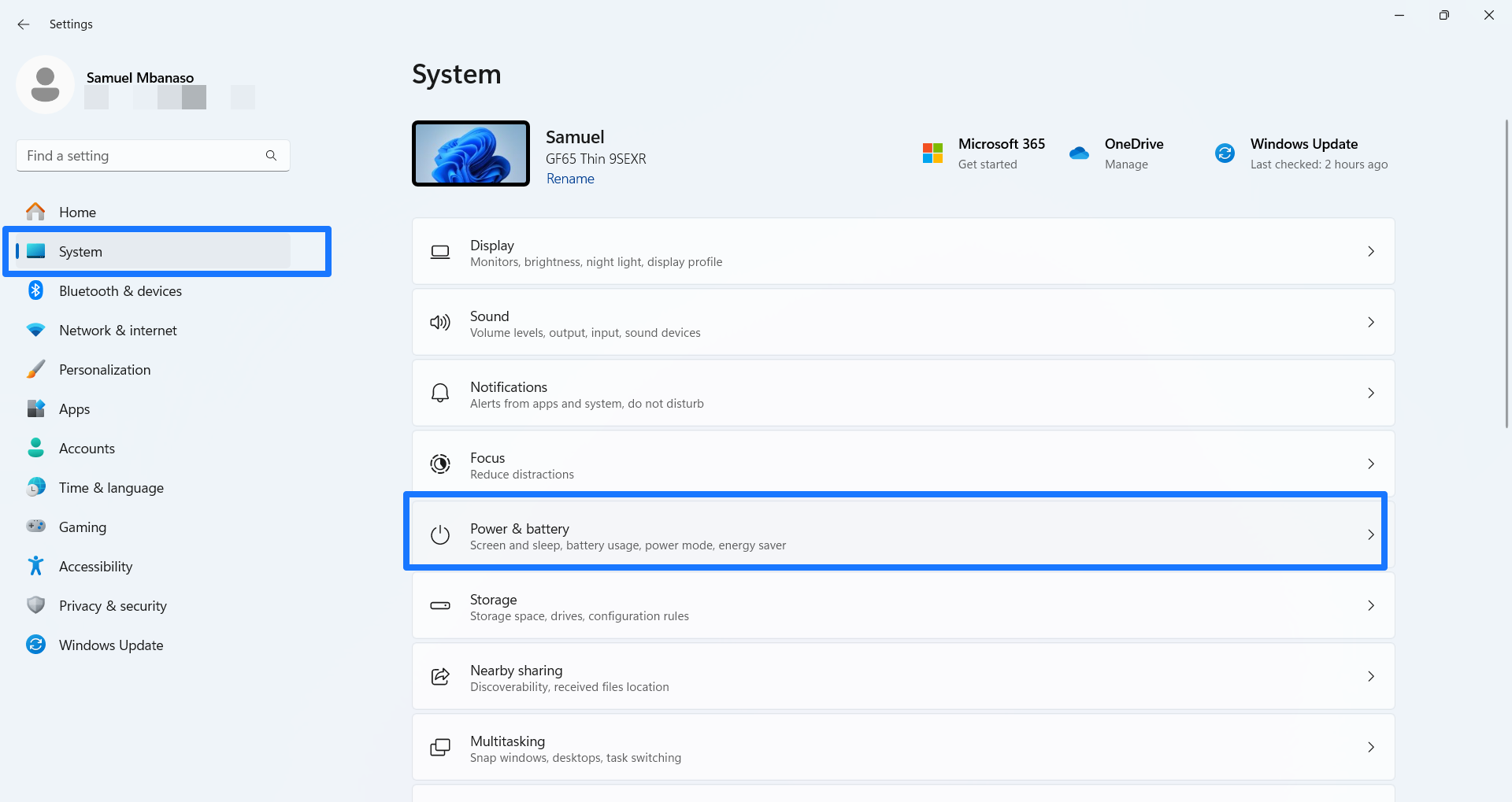
- Expand the Screen, sleep, & hibernate timeouts section.
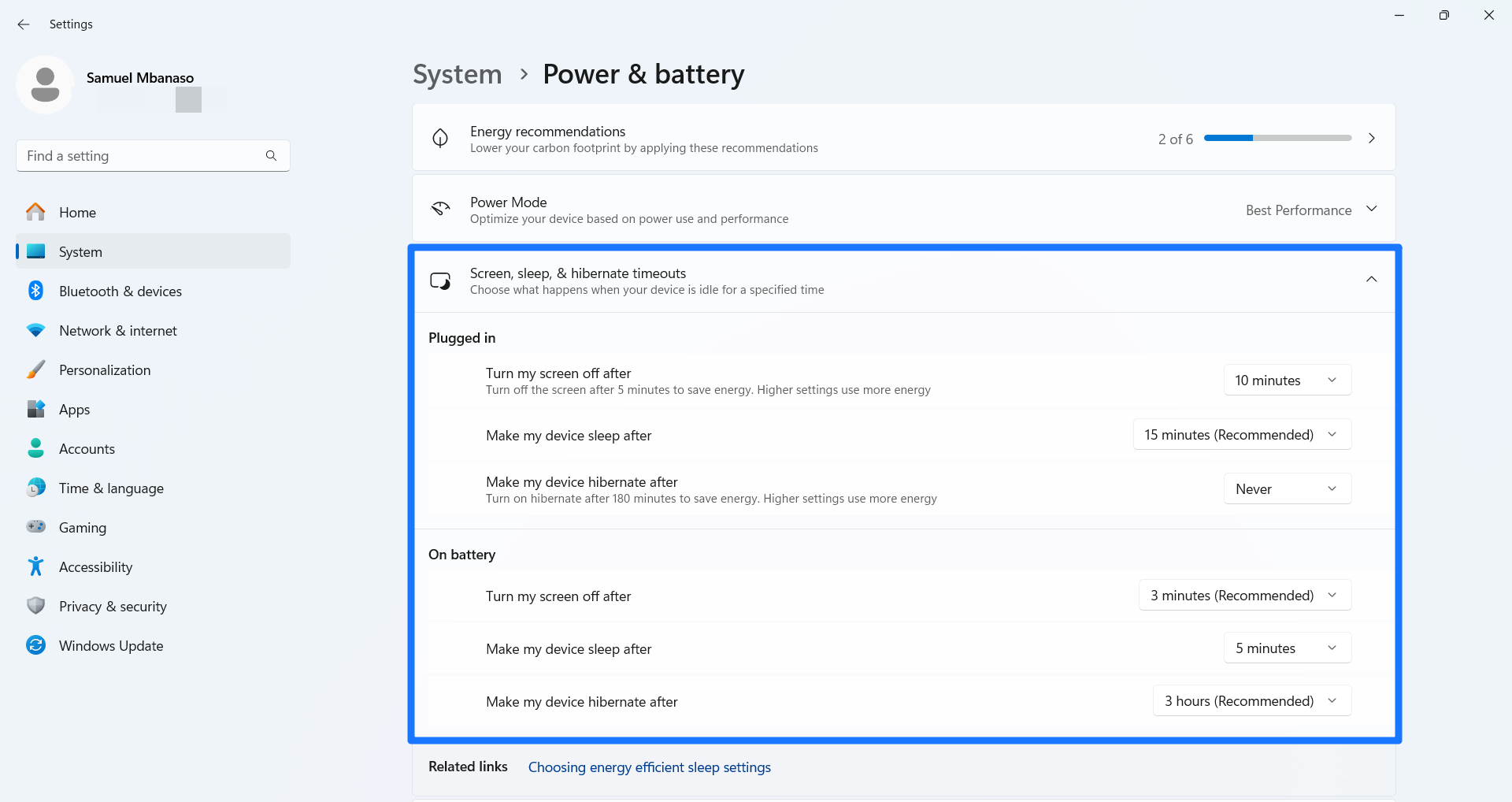
- You can now select timeouts when plugged in and on battery (if you use a laptop).
If you’re running Windows 10, you can go through Control Panel. Here’s how:
- Open the Start menu, type control panel, and open the app.
- Select Hardware and Sound > Power Options.
- Now, click Change plan settings next to your current power plan.
- You can now choose your preferences under the Edit Plan Settings page.
Update drive firmware
Firmware updates can improve the performance, stability, and lifetime of your drive. Whether your SSD manufacturer is Samsung or another supplier, endeavor to check its support page and install available updates.
What Are the Common Misconceptions Surrounding SSDs and Defragmentation?
There is a lot of talk out there about solid-state drives and how they work. While some are pure misconceptions, some are closer to the truth. Let us look at what is true and what is not.
❌ Defrag makes SSDs run faster
✅ Because SSDs access data electronically, file fragmentation doesn’t slow them down the way it does on a hard drive.
❌ Defragging SSDs makes them last longer
✅ Actually, it’s the opposite. When you defrag, you give your SSD extra work it doesn’t want or need. You’re killing it faster rather than helping it.
❌ Windows defrags SSDs the old way
✅ Not true. Windows can tell the difference and uses TRIM for SSDs. It might run a defrag every now and then, but only when the situation is critical.
❌ You need to defrag SSD so files can stay organized
✅ SSDs don’t care how neat your files are. As long as the data is stored somewhere on the chip, it’s being accessed instantly.
❌ Every disk defrag software is safe to use with SSDs
✅ Depends on the tool. Some of them are outdated and can’t recognize SSDs. Do your due diligence to protect your drive.
❌ If I don’t defrag an SSD, it will slow down
✅ If your drive feels sluggish, defrag should be the last thing on your mind. Maybe TRIM got disabled somehow. A full drive or obsolete firmware can also cause this.
❌ More maintenance means better SSD performance
✅ SSDs are low-maintenance. Tinker less, not more.
Can You Defrag an SSD? The Verdict
When people ask questions like this, what they really want to know is if SSDs can be optimized. Sometimes we think the old way of doing something still applies, hence the confusion.
HDDs and SSDs are both storage devices, but that’s where the similarity ends. Since SSDs use flash memory.
On whether to defrag SSD, the verdict is no. Although most drive optimizer tools offer SSD defrags, what they actually do is optimize via TRIM or a comparable command. They run a cleanup of “deleted” data so the drive can use the space for something else. You can also leave the job to the operating system, which runs a weekly SSD cleanup.
This, along with healthy usage habits, should be enough to keep your SSD functioning near peak performance.


