



When left uncurbed, fragmentation takes a toll on your computer’s performance.
The health of your hard disk drive also takes a hit, as it’ll have to work harder to read and write files.
That’s why you need to run disk defragmentation with a suitable disk defrag software program.
The process effectively reduces the mechanical strain on your drive, enabling your computer to save and retrieve files more efficiently.
This article presents nine disk defragmentation programs for your consideration.
✅ Best for ease of use
- Microsoft Drive Optimizer
- Auslogics Disk Defrag
- O&O Defrag Professional
⚡ Fastest performance
- Auslogics Disk Defrag
- GlarySoft Disk SpeedUp
- IObit Smart Defrag
🆓 Best free tools with the most features
- O&O Defrag Professional (30-day free trial)
- GlarySoft Disk SpeedUp
- IObit Smart Defrag
- Defraggler
🏆 Best premium versions
- Auslogics Disk Defrag
- O&O Defrag Professional
🔓 Completely free (no premium version)
- Microsoft Drive Optimizer
- GlarySoft Disk SpeedUp
- Defraggler
- WinContig
💽 SSD support
- Microsoft Drive Optimizer
- O&O Defrag Professional
- DiskTrix Ultimate Defrag
- GlarySoft Disk SpeedUp
- IObit Smart Defrag
- Defraggler
- Wise Care 365
Should I Use Disk Defrag Software?
Yes. You should defragment your HDD using disk defrag software to improve hard drive performance and reverse issues associated with file fragmentation. Although modern PCs have made a shift towards the more advanced solid-state drives (SSDs), hard disk drives remain ever present.
Whether in older PCs, as low-cost network storage solutions (NAS systems), or as backup drives for individuals and businesses, hard disk drives still rely on defragmentation for optimal performance and longevity.
📌 Also read: Should You Defrag Your SSD? Here’s Everything You Need to Know
What is fragmentation on an HDD? And what are the effects?
When there’s little consolidated space on a hard disk, files get split up into multiple pieces during storage. Each piece goes where there’s free space to contain it until the entire file is successfully saved on the disk.
File fragmentation, therefore, causes the hard drive’s read/write head to skip around a lot when reading and writing files. This deals a blow to performance:
- System processes and operations are delayed
- Apps take time to load
- The health of the hard drive starts to deteriorate over time due to wear and tear of the mechanical parts
What does disk defrag do?
software consolidates free space on the disk and rearranges fragmented files contiguously, thus allowing for smoother read/write operations. This then increases system responsiveness. Installed apps also load faster and experience fewer lags.
Some disk defrag programs make it possible to place certain files and folders on the fast or slow zone of the disk, further optimizing accessibility and reducing the chances of fragmentation.
What Are the Best Free Disk Defrag Software Programs to Use?
The best disk defrag software program is one that provides you with all the features you need to safely and effectively defrag your drives. We’ve taken the time to handpick nine such tools.
- Auslogics Disk Defrag
- GlarySoft Disk SpeedUp
- IObit Smart Defrag
- O&O Defrag Professional
- Defraggler
- WinContig
- Microsoft Drive Optimizer
- Wise Care 365
- DiskTrix Ultimate Defrag
We selected them based on their available features, ease of use, speed, and trustworthiness. To determine their safety and effectiveness in handling HDD and SSD drives, we tested the tools on two PCs—an older PC running on an HDD and a modern PC running on an SSD.
- HDDs require defragmentation, and SSDs require trimming.
- Ensure that your third-party tool proactively avoids SSD defragmentation.
- You can choose a tool that supports both HDD defrag and SSD trimming.
- Some third-party tools, such as Auslogics Disk Defrag Ultimate, O&O Defrag Professional, and DiskTrix Ultimate Defrag, provide special algorithms for defragging select files on an SSD.
| Specs | Auslogics Disk Defrag | GlarySoft Disk SpeedUp | IObit Smart Defrag | Defraggler | WinContig | Microsoft Drive Optimizer | O&O Defrag | DiskTrix Ultimate Defrag | Wise Care 365 |
|---|---|---|---|---|---|---|---|---|---|
| Supported OS | Windows 11, 10, 8.1, 8, 7 | Windows 11, 10, 8, 7, 2000, Vista, XP | Windows 11, 10, 8.1, 8, 7, Vista, XP | Windows 10, 8.1, 8, 7, Vista, XP | Windows 11, 10, 8.1, 8, 7, Vista | Windows 11, 10, 8.1, 8, 7 | Windows 11 & 10 | Windows 11, 10, 8, 7, Vista, XP | Windows 11, 10, 8, 7, Vista, XP |
| Premium version price | 3-PC license: $39.95
(U.S.) 30-day money-back guarantee
|
Free | 1-PC license: $17.99/year (40% off)
3-PC license: $19.99/ year (50% off)
|
Free | Free | Built-in Windows utility | $29.95 (one-time payment) | $19.97 (33% off)
30-day money-back guarantee
|
3-PC license: $29.96/year (discounted price)
60-day money-back guarantee
|
| Trustpilot rating | 4.2/5 (1,958 reviews) | 3.3/5 (20 reviews) | 3.0/5 (1,314 reviews | 4.5/5 (25,820 reviews) | – | – | 2.7/5 (8 reviews)—Unclaimed profile | – | – |
| SSD TRIM support | Available in sister tool (Auslogics Disk Defrag Ultimate) | Yes | Yes | Yes | No | Yes | Yes | No | Yes |
| Special algorithms for SSD defrag | Available in sister tool (Auslogics Disk Defrag Ultimate) | No | No | No | No | No | Yes | Full version | No |
| Automatically excludes SSDs from defrag | Yes | Yes | Yes | Yes | Yes | Yes | No | No | Yes |
| Works with external drives | Yes | Yes | Yes | Yes | Yes | Yes | Yes | Yes | No |
| Boot-time defrag | Pro version | Yes | Yes | Yes | No | No | Yes | Full version | No |
| Defrag scheduling | Pro version | Yes | Yes | Yes | No | Yes | Yes | Full version | No |
| Auto-analysis | Available in sister tool (Disk Defrag Ultimate) | No | Yes | No | No | Yes | Yes | Full version | No |
| Auto-defrag | Yes | Yes | Pro version | No | No | Yes | Yes | Full version | No |
| Customizable defrag algorithms | Yes | Yes | Yes | Yes | Yes | No | Yes | Full version | No |
| File/folder defrag | Yes | Yes | Yes | Yes | Yes | No | Yes | Full version | No |
| File exclusion | Yes | Yes | Yes | Yes | Yes | No | Yes | Full version | No |
| Drive mapping | Yes | Yes | Yes | Yes | No | No | Yes | Yes | Yes |
| Disk health monitoring (shows HDD SMART data) | Yes | No | Yes | Yes | No | No | Yes | Full version | No |
![IMG]() Auslogics Disk Defrag
Auslogics Disk Defrag

💲Premium version price
Varies by region. The 3-PC license price for U.S. users is $39.95.
30-day money-back guarantee.
🧠 Supported OS
Windows 11, 10, 8.1, 8, 7.
🗣️ Trustpilot rating
4.2/5 (1,958 reviews).
Auslogics Disk Defrag is a trusted, award-winning defrag tool with 17+ years on the market. It is one of the fastest, lightest defraggers you could ever come across.
Disk Defrag is perfect for beginners who require all the basic features for disk optimization.
Notable features
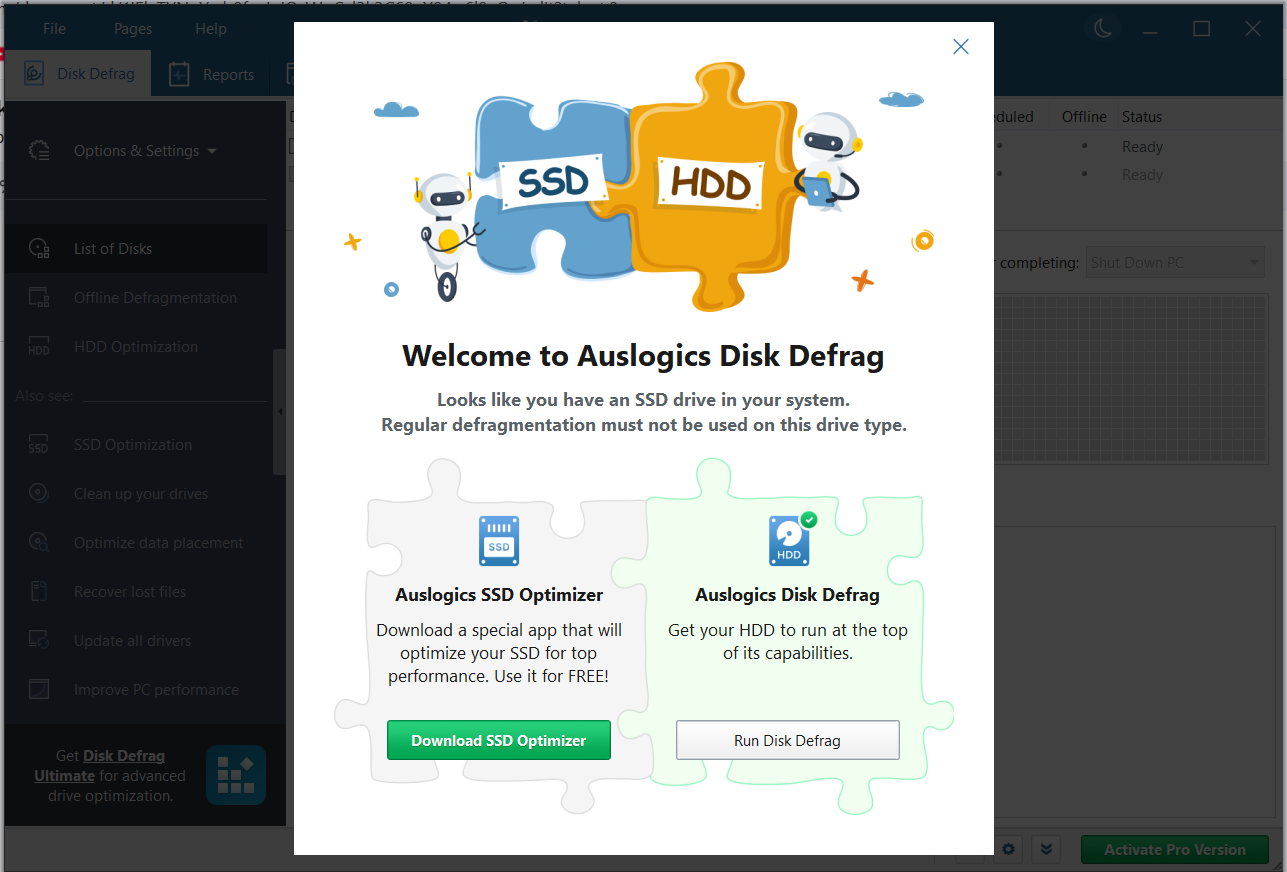
- If your PC has an SSD as the system drive, and Disk Defrag doesn’t detect an HDD on the computer, it won’t let you commence defrag. It instead recommends that you get the right tool for solid-state drives, namely Auslogics SSD Optimizer.
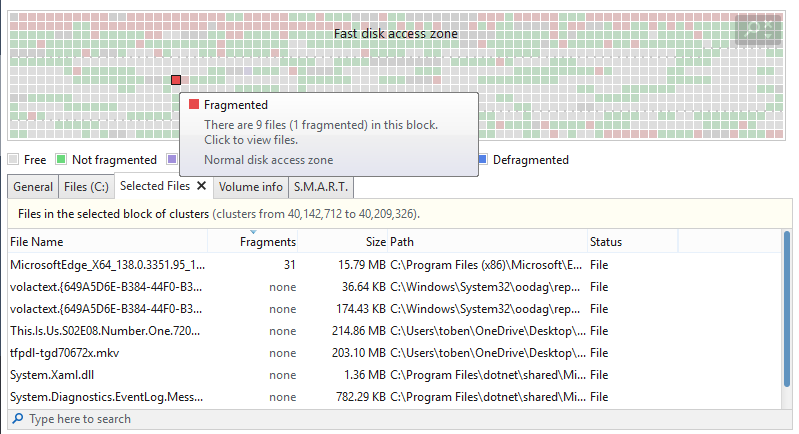
- The cluster map gives users a visual representation of how fragmented the hard disk is. You can identify fragmented files that reside within each block on the disk.
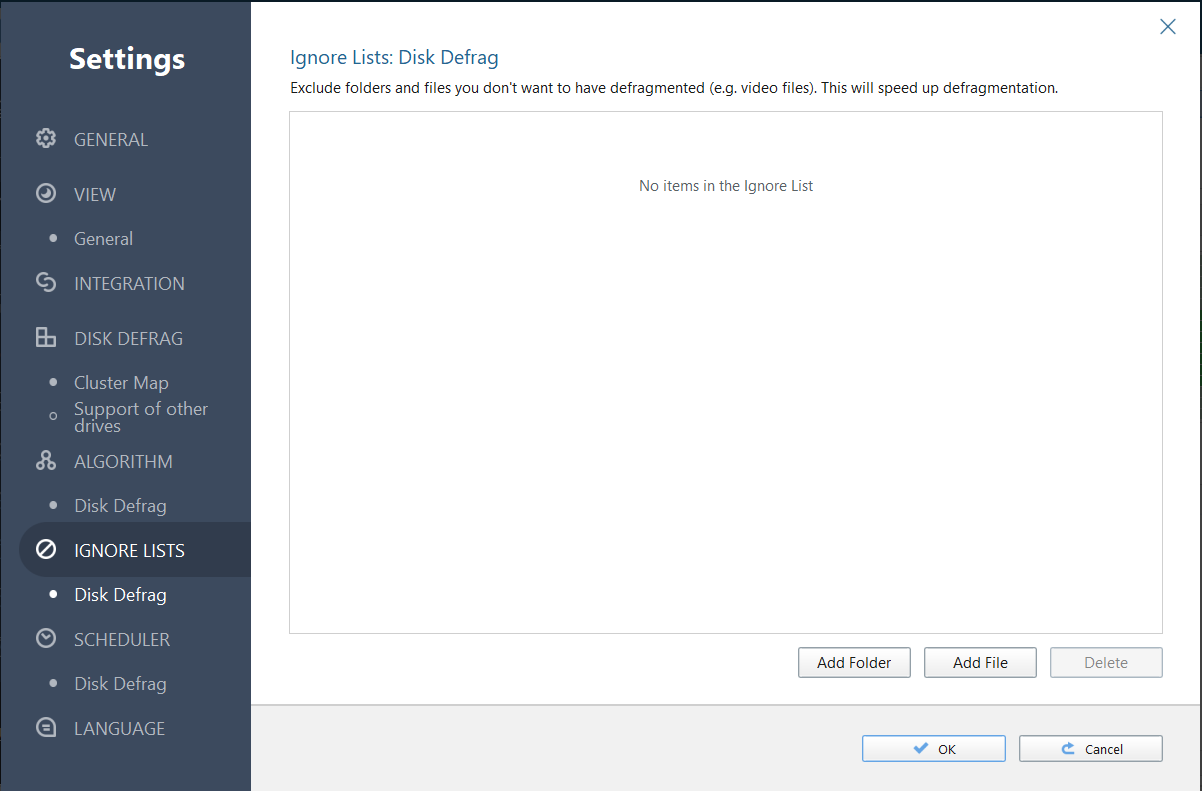
- You can add files and folders to an exclusion list.
- Provides different methods for carrying out disk optimization.
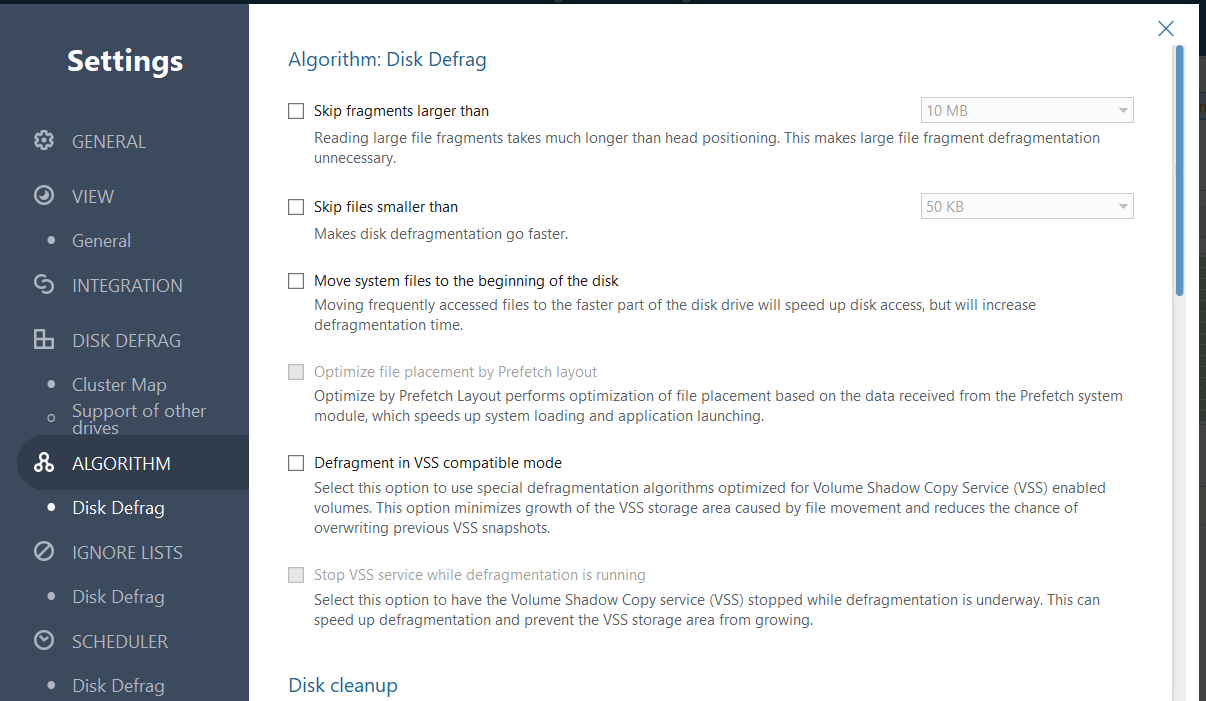
- Customizable defragmentation algorithms optimize file organization on the disk and more.
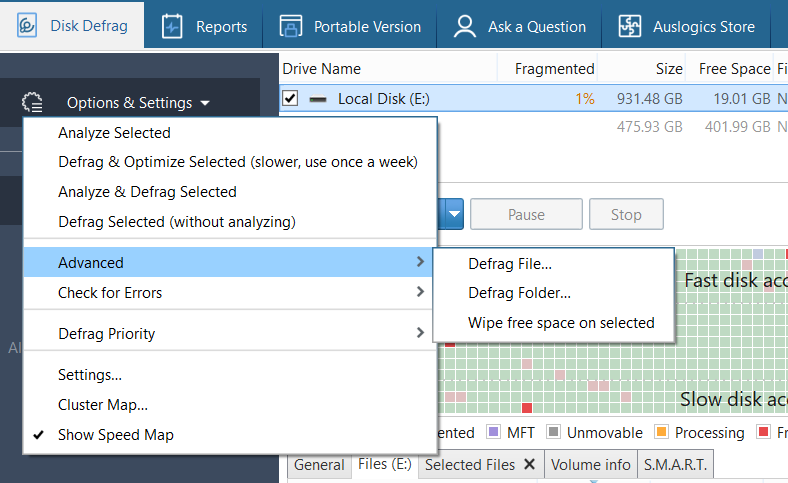
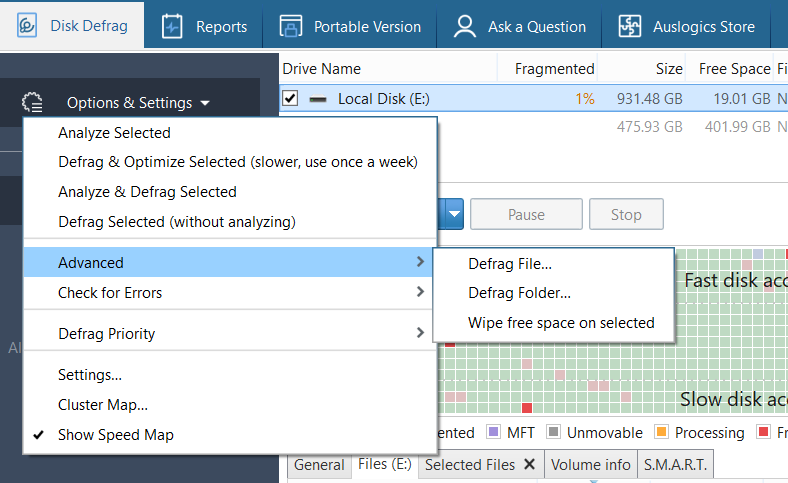
- You can choose files and folders for defragmentation.
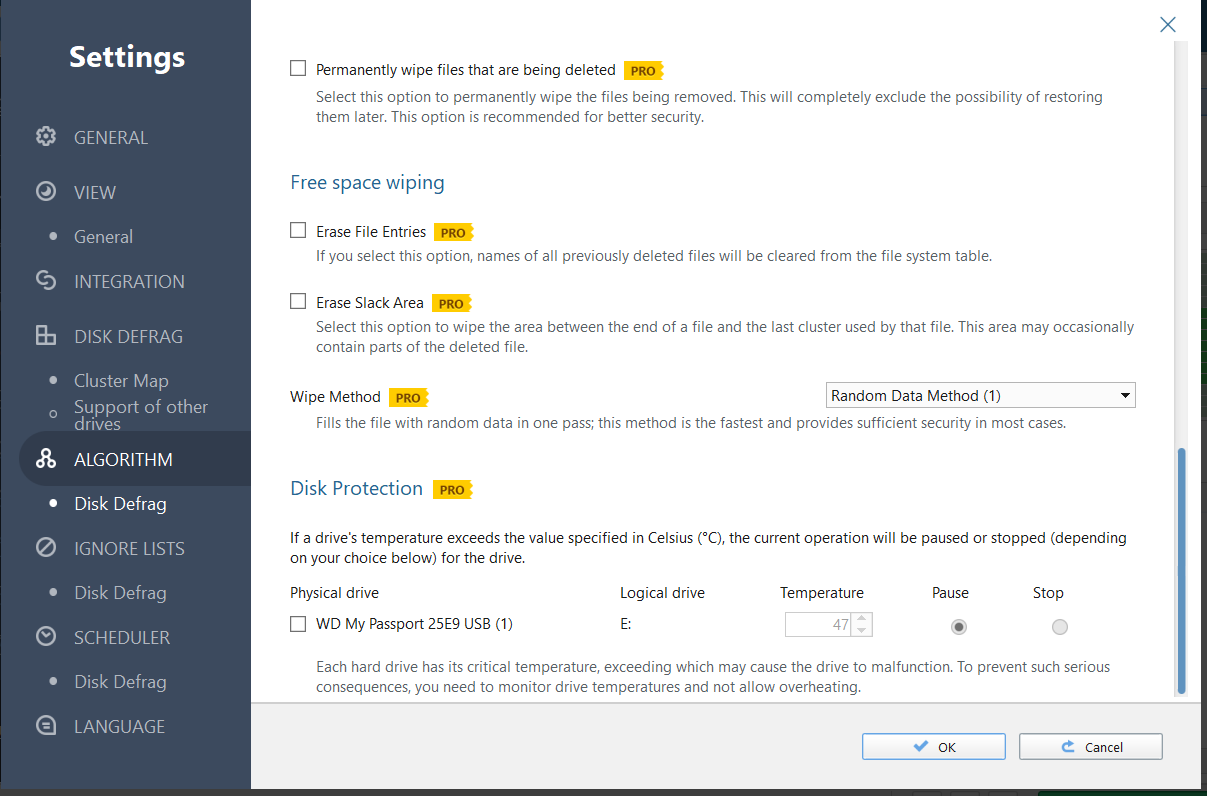
- The Pro version offers free space wiping and a Disk Protection feature that pauses or stops defrag operations if the hard drive’s temperature exceeds a specified safe limit (in °C).
- The Pro version also offers a disk cleanup feature.
- Easy to use
- Analysis and defrag are fast and efficient
- Doesn’t permit SSD defrag and can exclude other types of flash memory, such as Intel Optane
- The tool is regularly updated
- Has a portable version
- Can be integrated with File Explorer
- Has an Ask a Question feature; you can also view expert responses to questions left by other users
- The Pro version offers a 30-day money-back guarantee
- Several features are only available in the Pro version, including defrag scheduling, boot-time defragmentation, free space wiping, disk cleanup, and disk protection
![IMG]() GlarySoft Disk SpeedUp
GlarySoft Disk SpeedUp
💲Premium version price
Free to use. No premium version.
🧠 Supported OS
Windows 11, 10, 8, 7, 2000, Vista, XP.
🗣️ Trustpilot rating
3.3/5 (20 reviews).
🔶 Overview
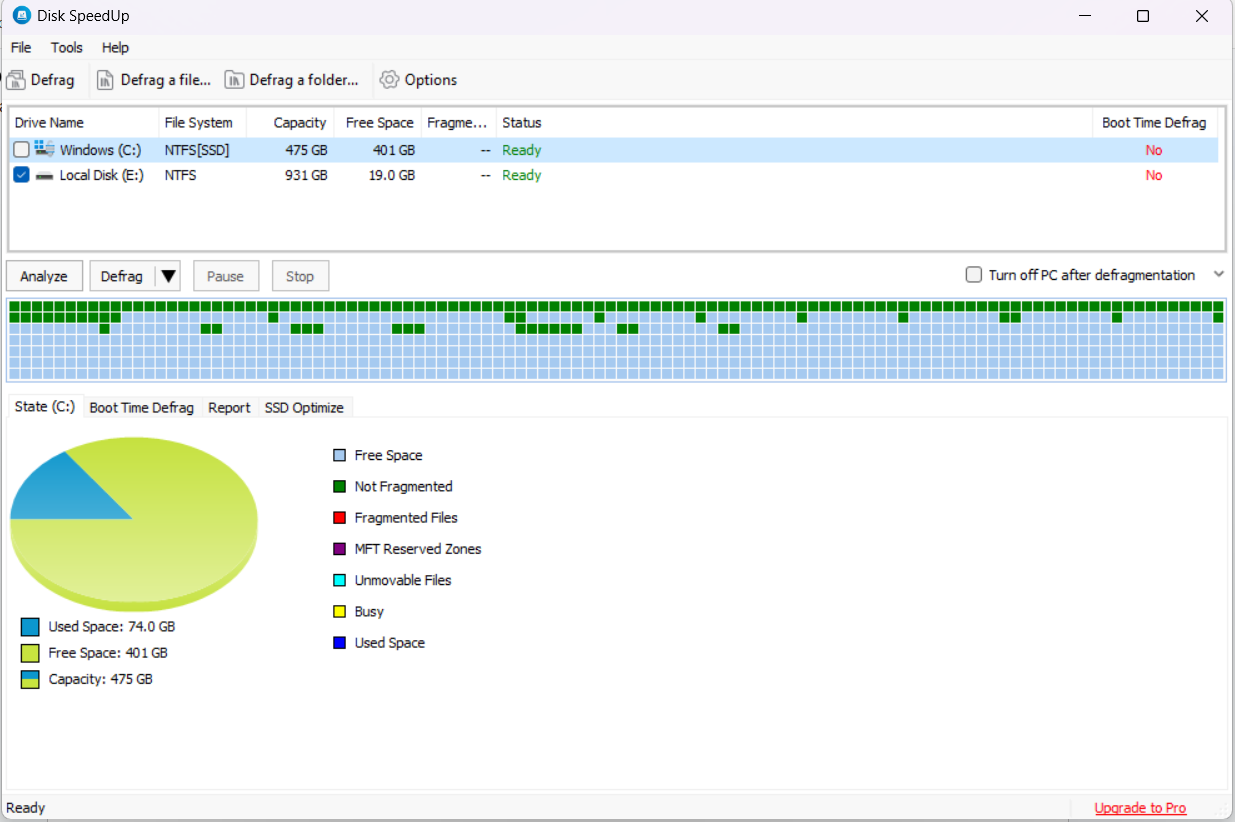
GlarySoft Disk SpeedUp is a free disk defrag tool with a neat user interface that is extremely easy to navigate.
Disk SpeedUp is one of the fastest and most efficient disk defraggers.
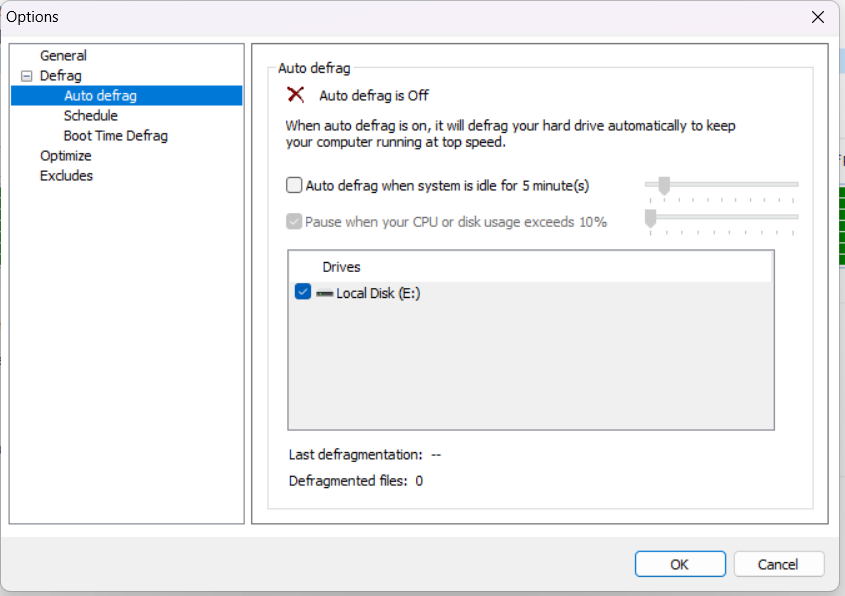
It allows for defrag scheduling and boot-time defrag. It also has a customizable auto-defrag feature, which is handy for keeping your drives in the best shape.
Disk SpeedUp is a standalone disk defragger. But it is also included in Glary Utilities Pro, which is an all-in-one utility for general PC maintenance.
⭐️ Notable features
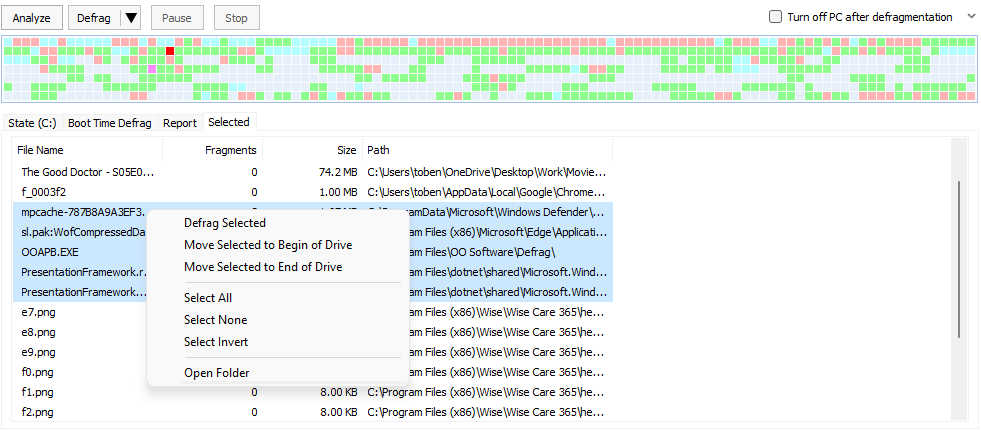
- The disk mapping feature gives you a list of fragmented files on each block, and you can choose actions for the selected files, such as defragging them or moving them to the beginning or the end of the disk.
- The tool supports SSD optimization by enabling or disabling specific settings on your computer.
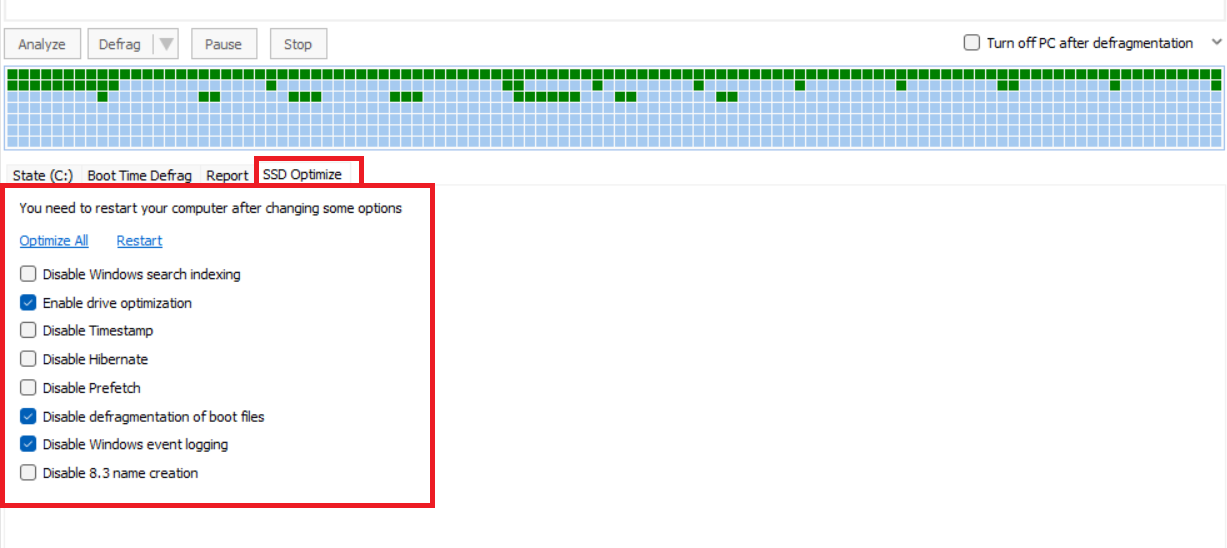
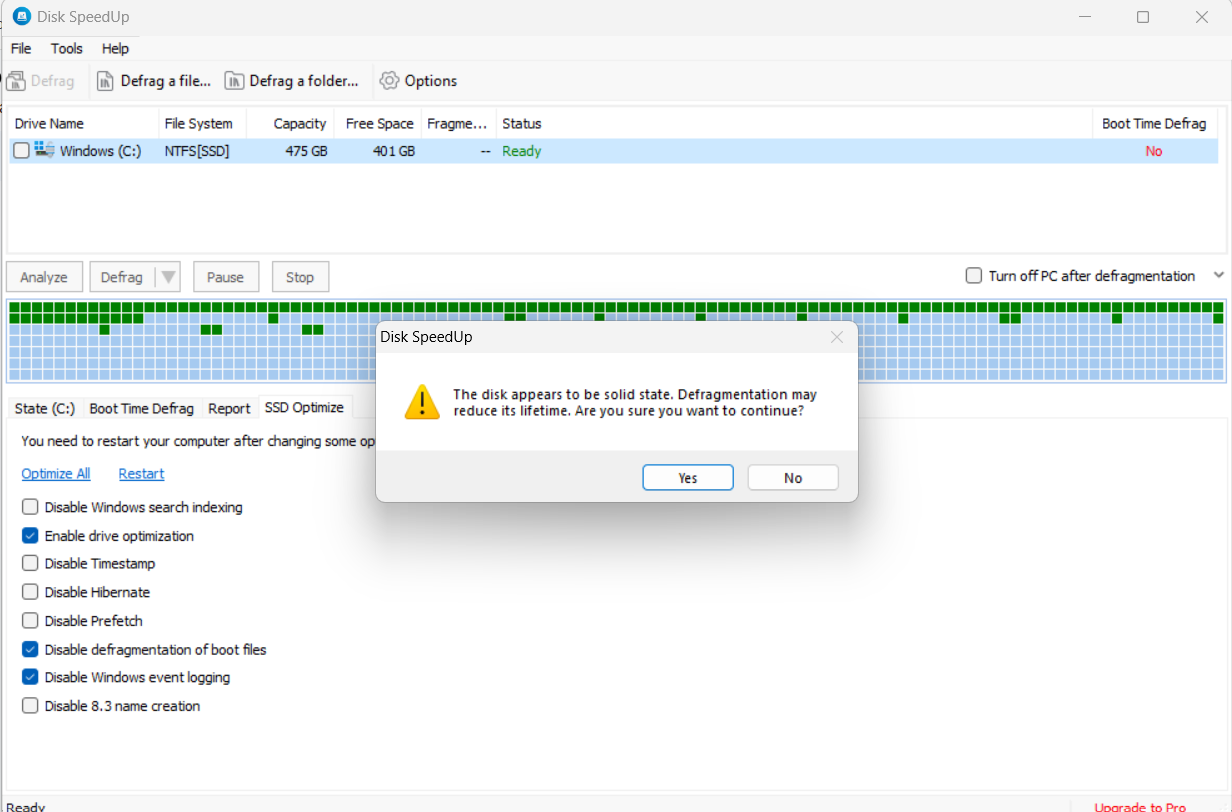
- It issues a warning when you try defragging an SSD.
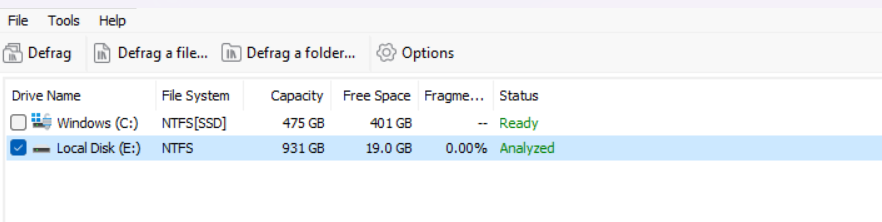
- It provides options for file and folder defragmentation.
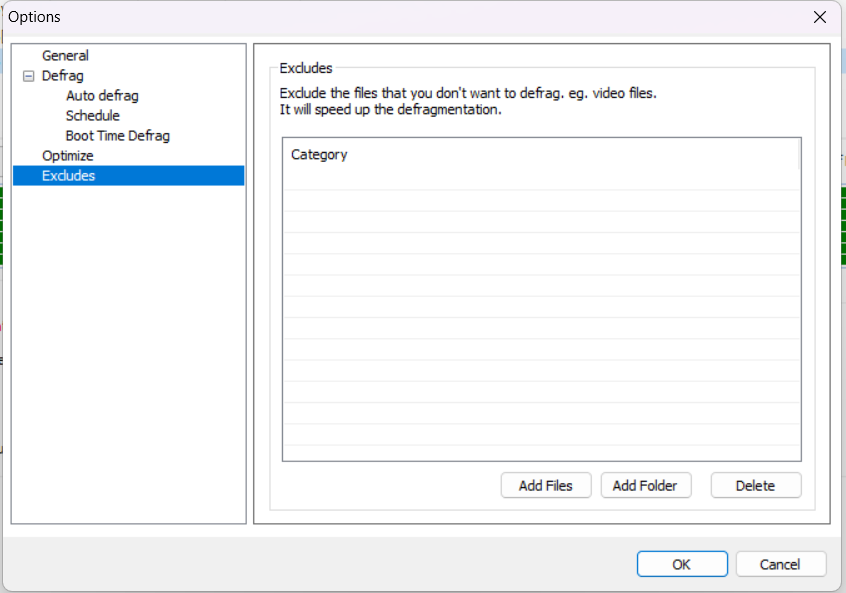
- You can add files and folders to an exclusion list.
- Provides multiple defrag methods, including free space defrag, defrag and prioritize files, and defrag and optimize.
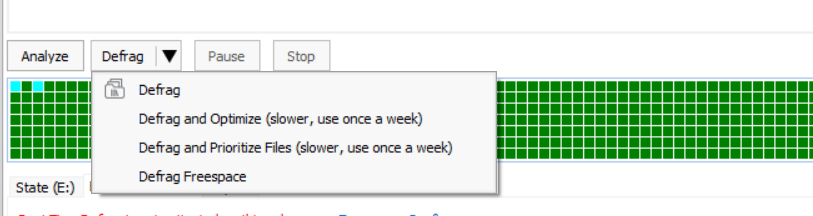
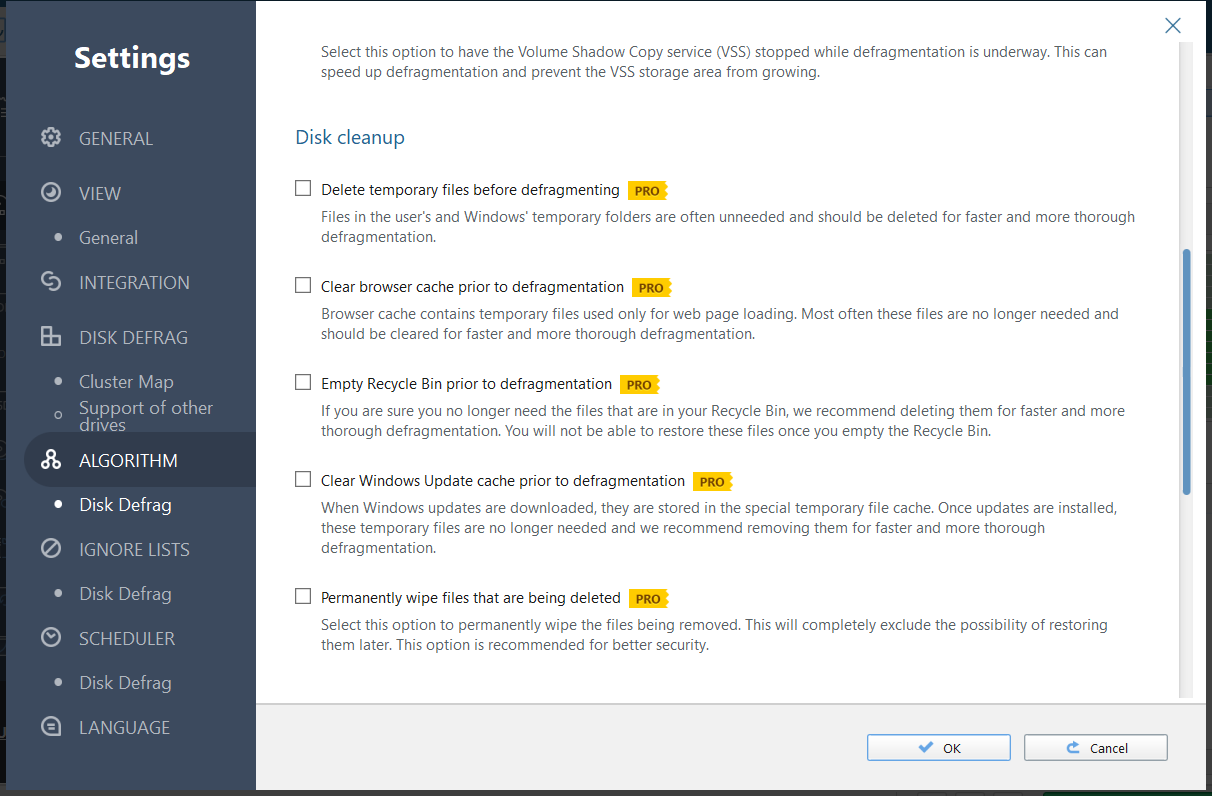
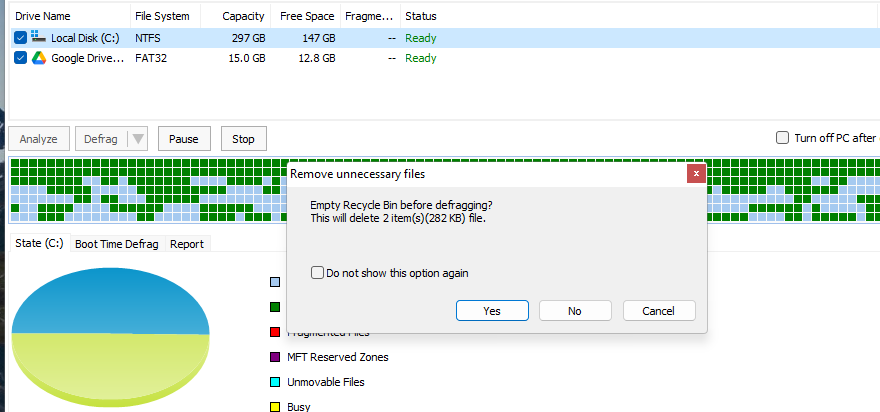
- It can remove unnecessary files before starting defragmentation.
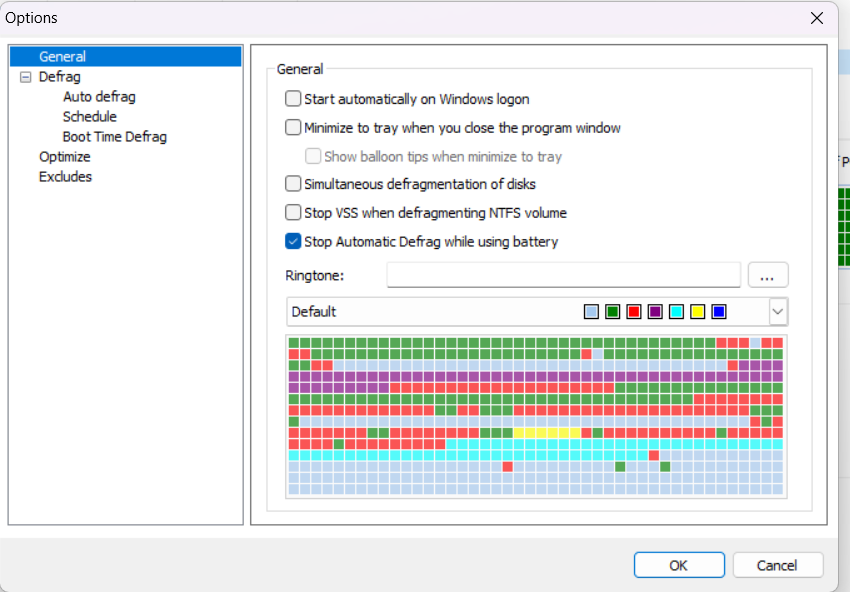
- Provides various defrag settings, including stopping VSS when defragmenting NTFS volumes.
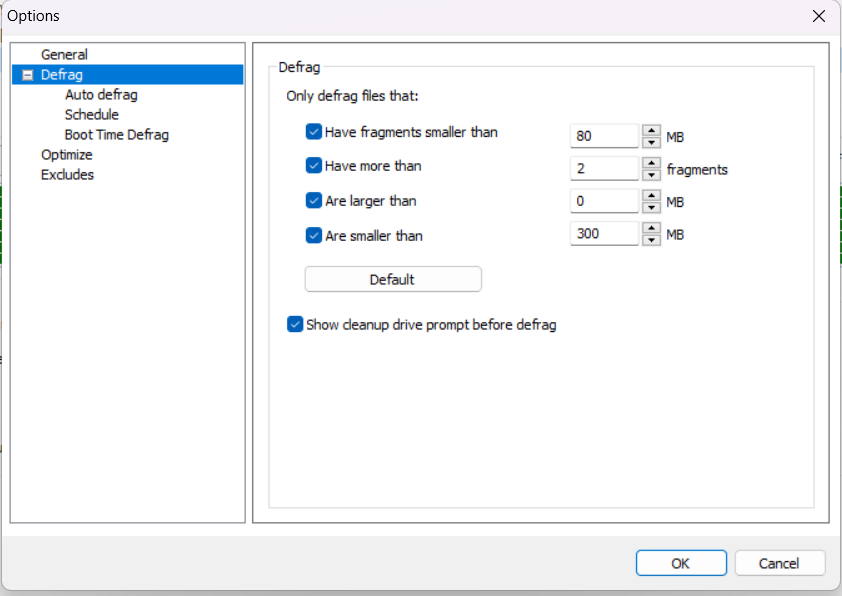
- Filter files to be defragged based on file size, fragment size, and number of fragments.
- Provides options for optimizing the reorganization of files on the disk.
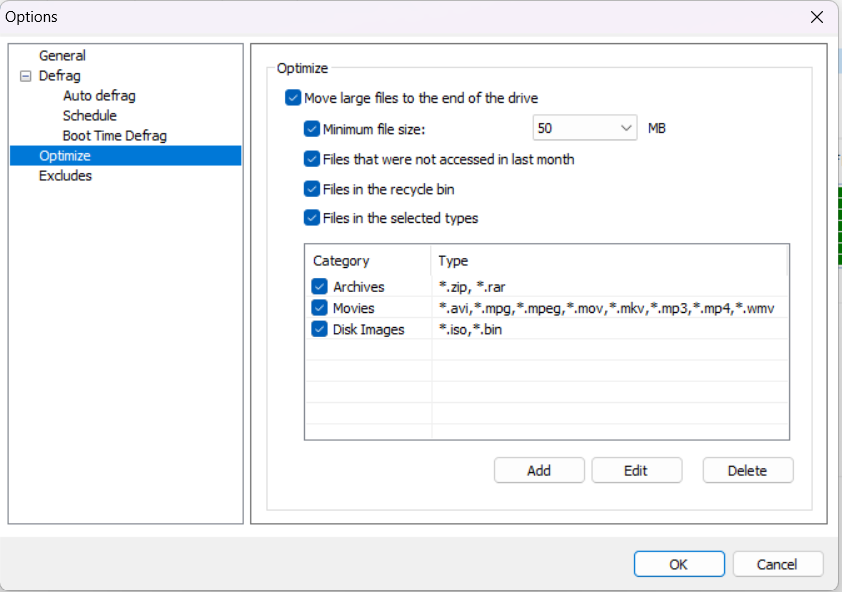
- Offers customizable auto-defrag, defrag scheduling, and boot-time defrag.
- Easy to navigate
- Warns against SSD defrag and allows the user to enable or disable certain system settings for SSD optimization
- Provides more features than most free tools
- The premium version, Glary Utilities Pro, offers a variety of tools and a 90-day money-back guarantee
- The tool doesn’t have a visible option for disk error checking
- No disk health monitoring feature
![IMG]() IObit Smart Defrag
IObit Smart Defrag
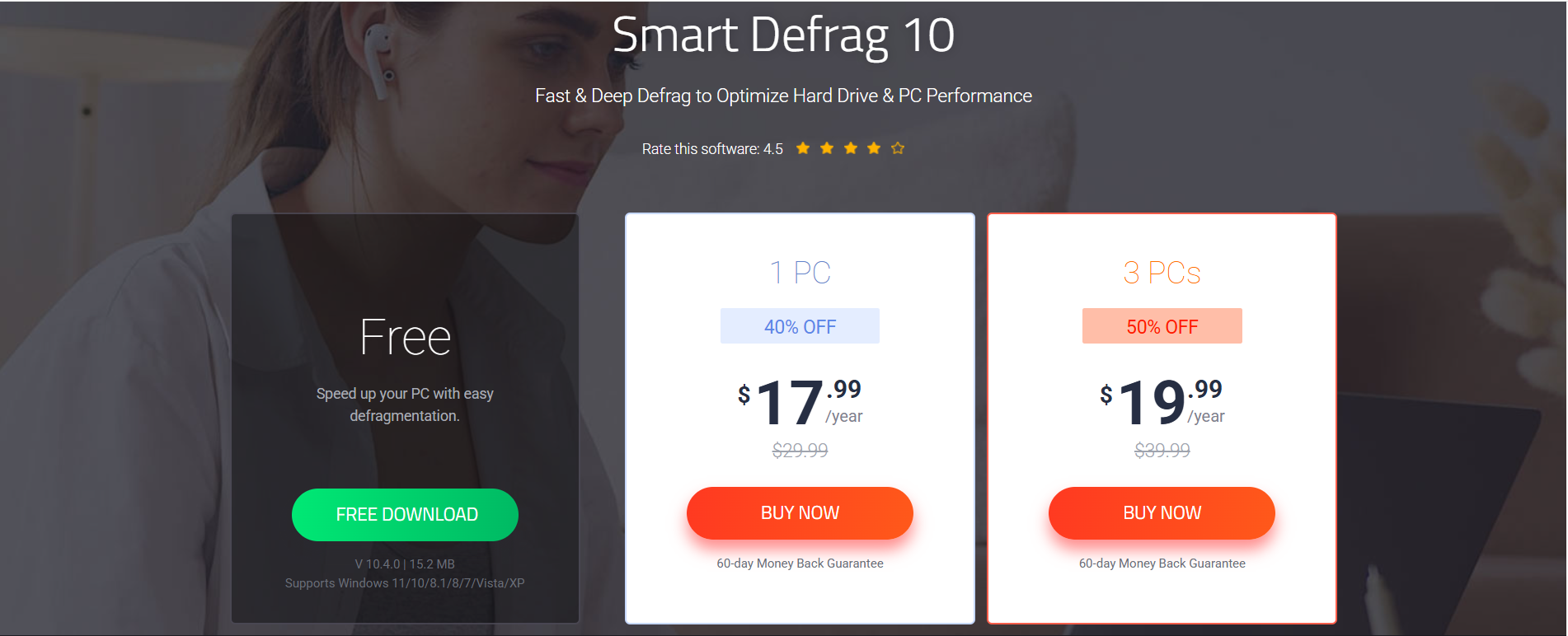
💲Premium version price
- 1-PC license: $17.99/year (40% off price)
- 3-PC license: $19.99/year (50% off price)
60-day money-back guarantee.
🧠 Supported OS
Windows 11, 10, 8.1, 8, 7, Vista, XP.
🗣️Trustpilot rating
3.0/5 (1,314 reviews).
🔶 Overview
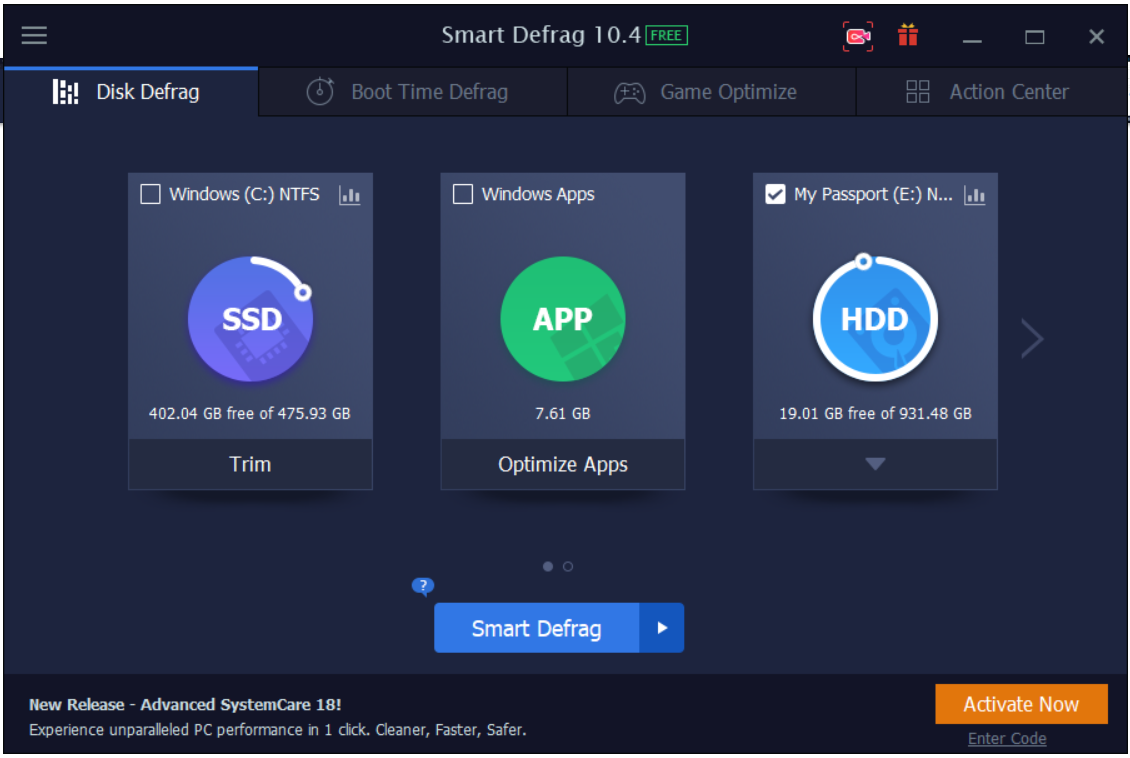
IObit Smart Defrag is another reliable third-party defragger. It uses multithreading for fast and efficient defrag. And it has a simple user interface that’s easy to navigate.
What makes this tool stand out is that, in addition to defrag scheduling, it has an auto-defrag and auto-analysis feature and runs intelligently in the background to defrag your drives when required.
Smart Defrag supports SSD TRIM. Therefore, if you have an HDD and an SSD on your computer, the tool will serve for both. It determines the optimization method that your drive type requires and prevents SSDs from being defragged.
⭐️ Notable features
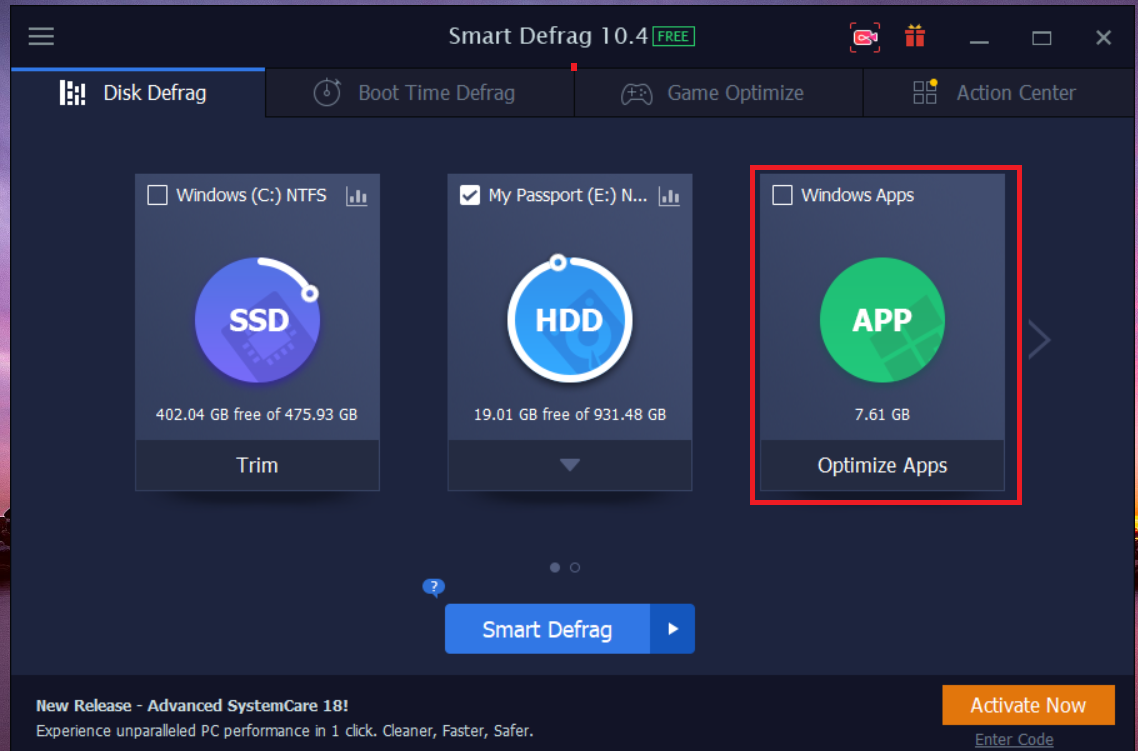
- Provides a unique Optimize Apps feature.
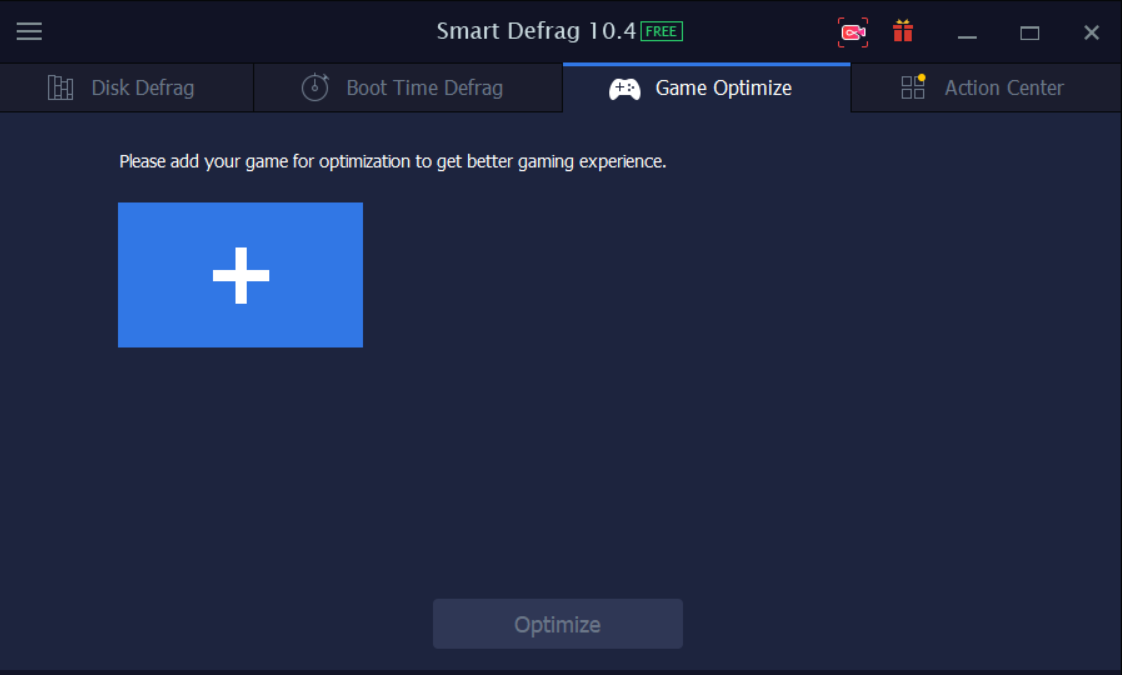
- It also has a unique Game Optimize feature.
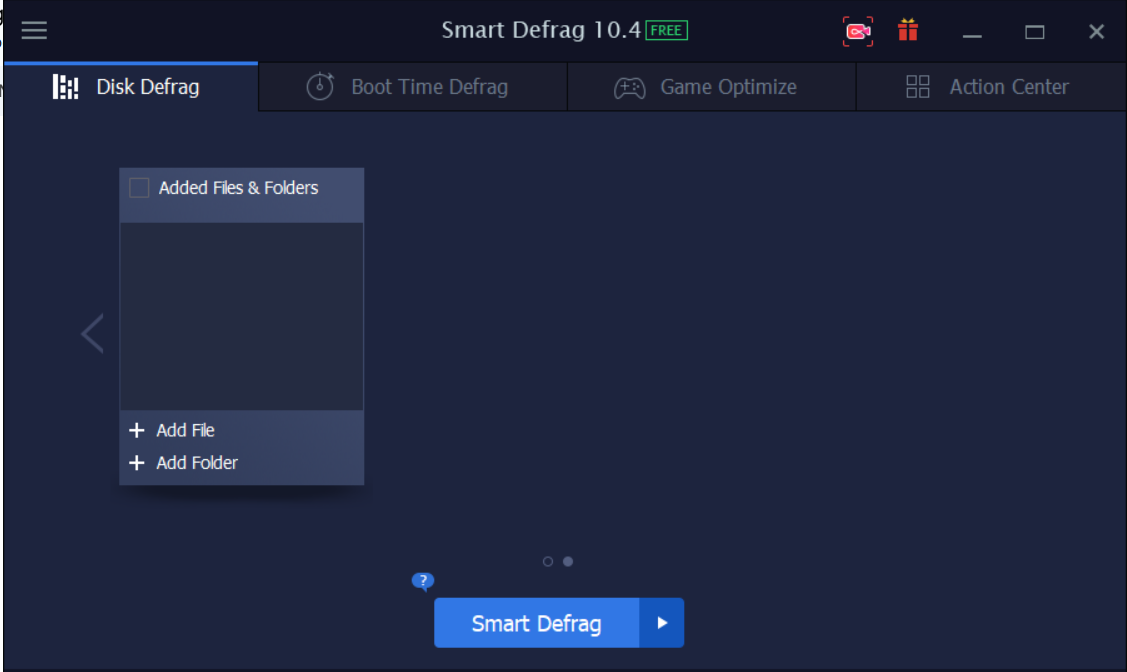
- You can add files and folders for defrag/optimization.
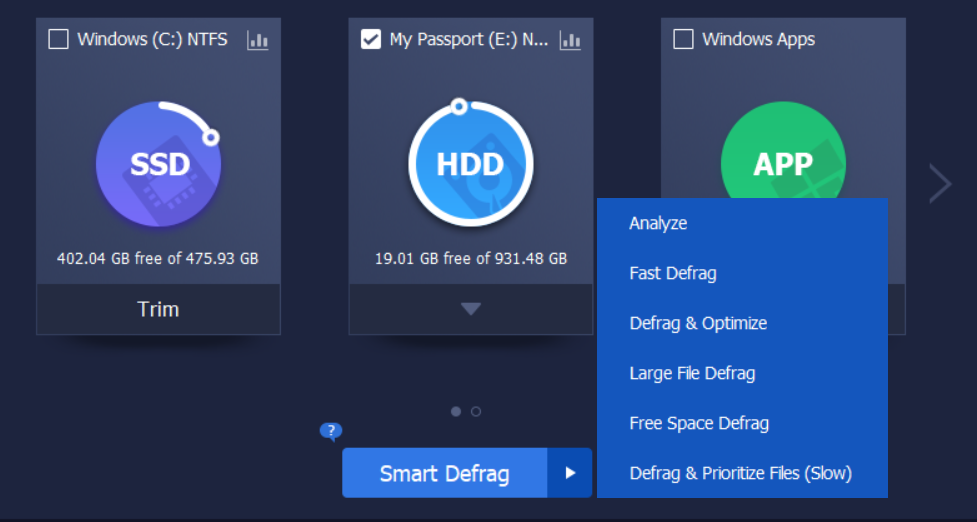
- Smart Defrag has multiple defrag methods, including free space defrag, large file defrag, fast defrag, and more.
- The defrag algorithm is customizable.
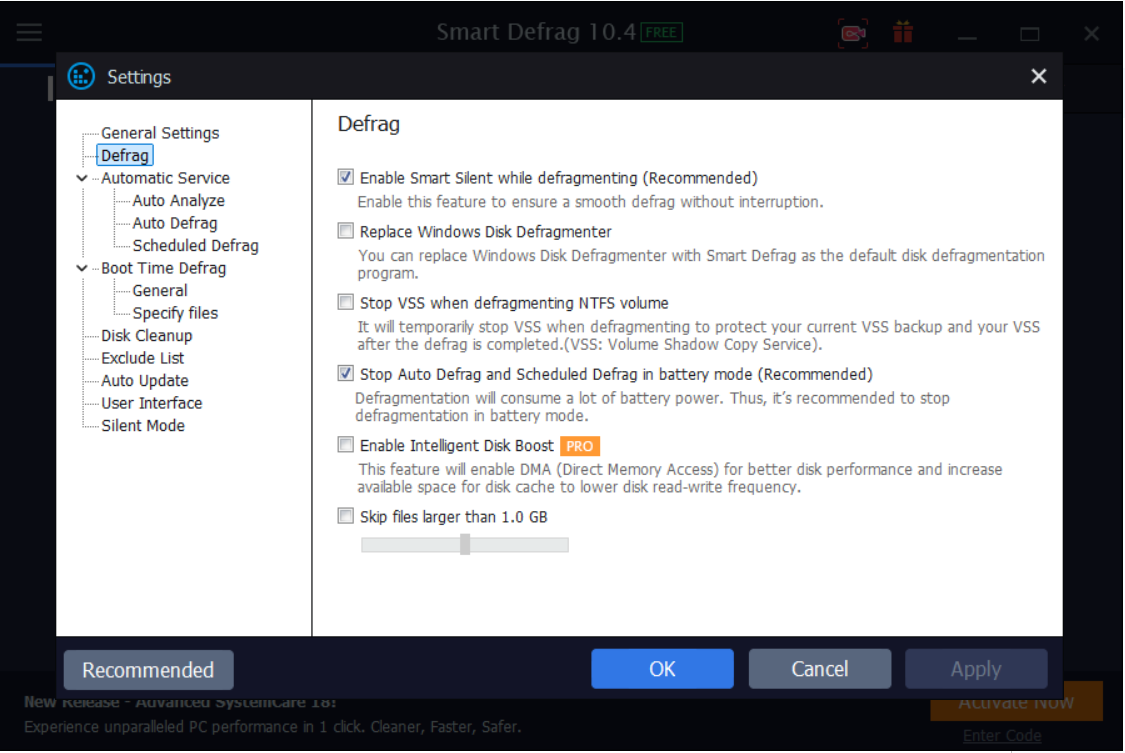
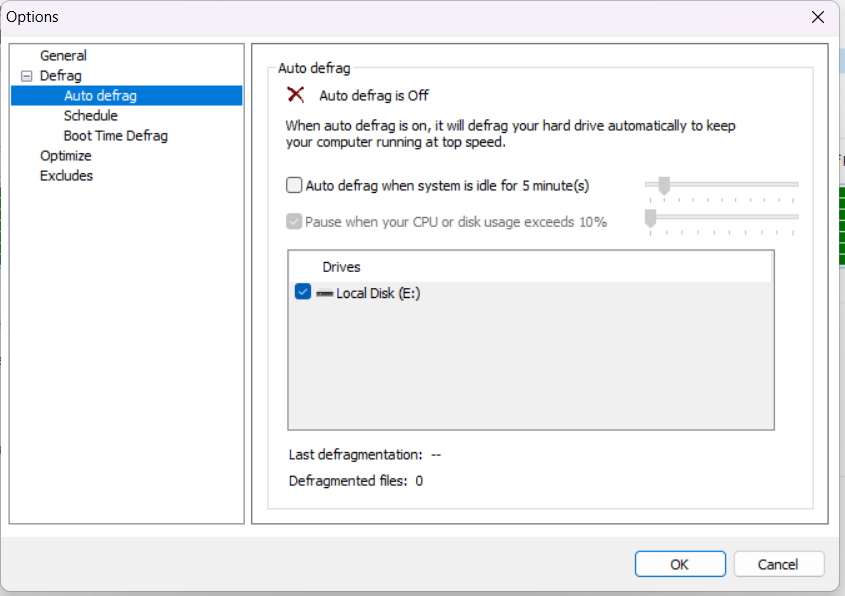
- Provides automatic services, including Auto Analyze, Auto Defrag, and Scheduled Defrag. But the Auto Defrag option is only available in the paid version.
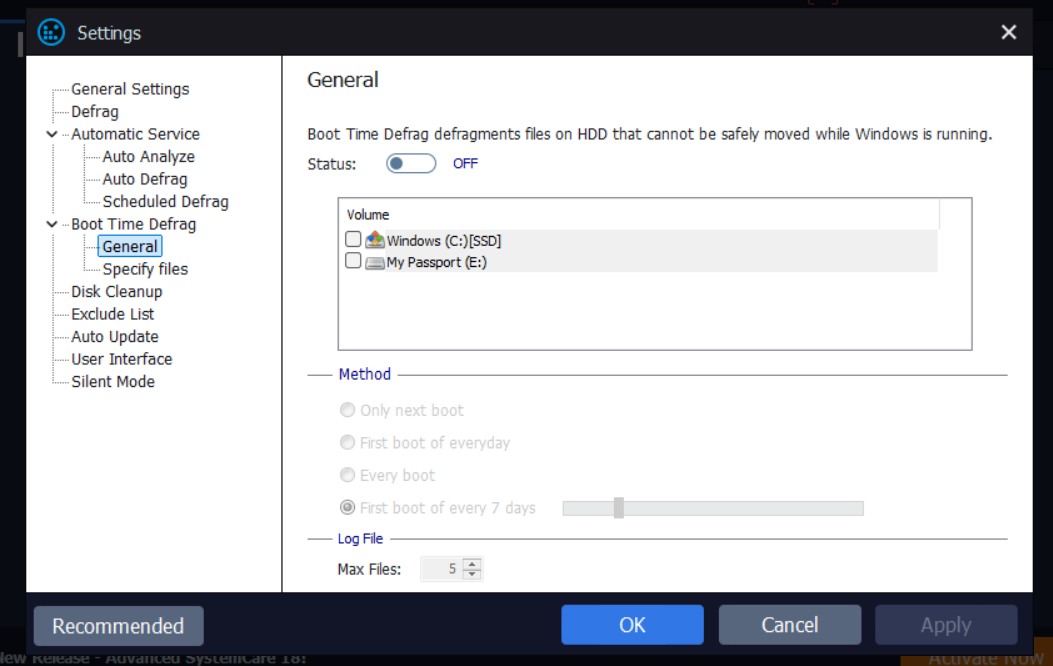
- Offers customizable boot-time defrag. And you can also specify files that will be defragged at boot time.
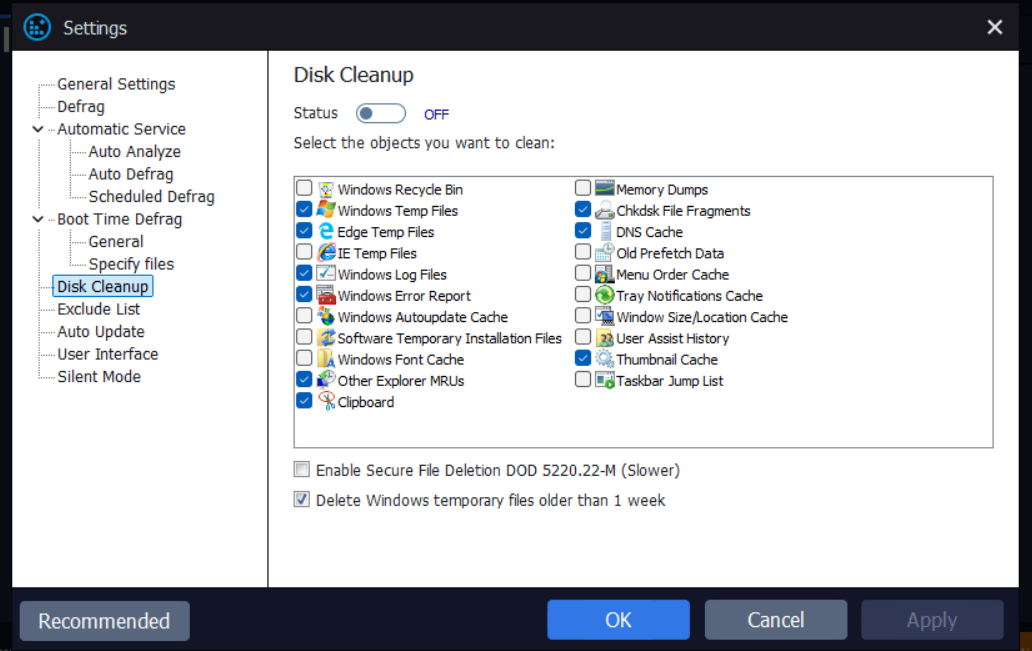
- Offers disk cleanup.
- You can exclude files and folders from being defragged.
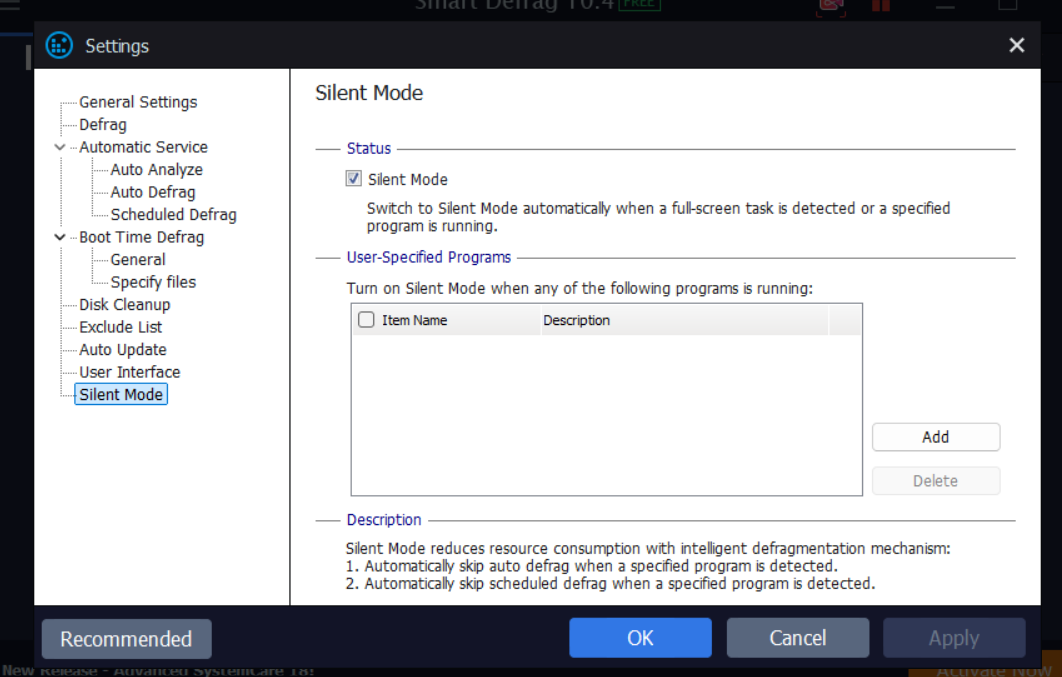
- The special Silent Mode feature intelligently reduces resource consumption by skipping defrag when specified programs are running on your computer.
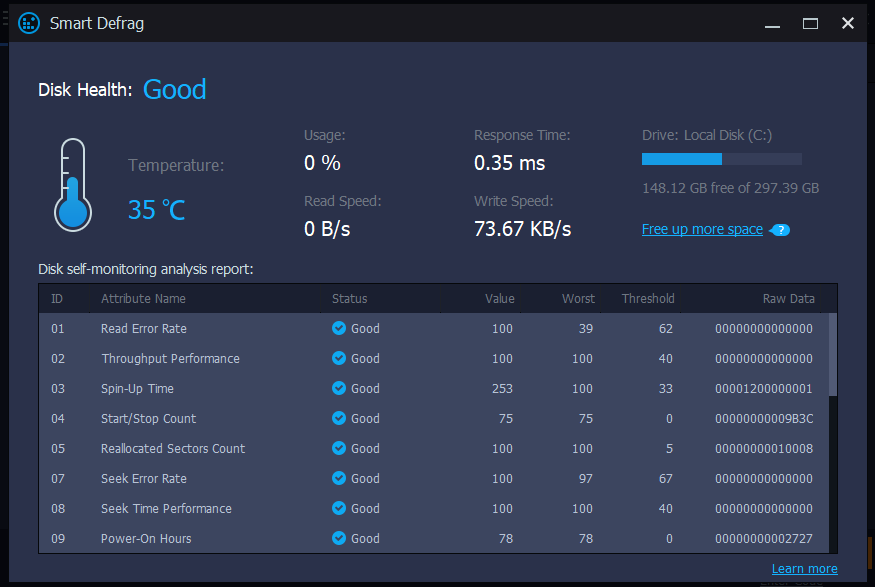
- Disk health monitoring presents your hard drive’s SMART data so that you can get ahead of potential issues.
- Fast and efficient
- Neat user interface
- SSD TRIM support
- Offers boot-time defrag, defrag scheduling, and auto-analysis
- Notifies you when new updates are available
- Provides tech support
- The installation process tries to install additional products if the user permits
- Boot-time defrag in the free version doesn’t allow defragging registry files and specified files
- The auto-defrag option is not available in the free version
- The free version doesn’t seem to offer disk error checking
![IMG]() Defraggler
Defraggler
💲Premium version price
Free to use. No premium version.
🧠 Supported OS
Windows 10, 8.1, 8, 7, Vista, XP.
🗣️ Trustpilot rating
4.5/5 (25,820 reviews).
🔶 Overview
Defraggler is brought to you by the makers of CCleaner. It used to have a premium version, but now, all features are available for free.
Defraggler is lightweight and has all the basic functions you need in a third-party disk defragmentation tool.
It also supports SSD trimming and uses the zero-filling method to optimize SSDs when TRIM is disabled on the computer.
⭐️ Notable features
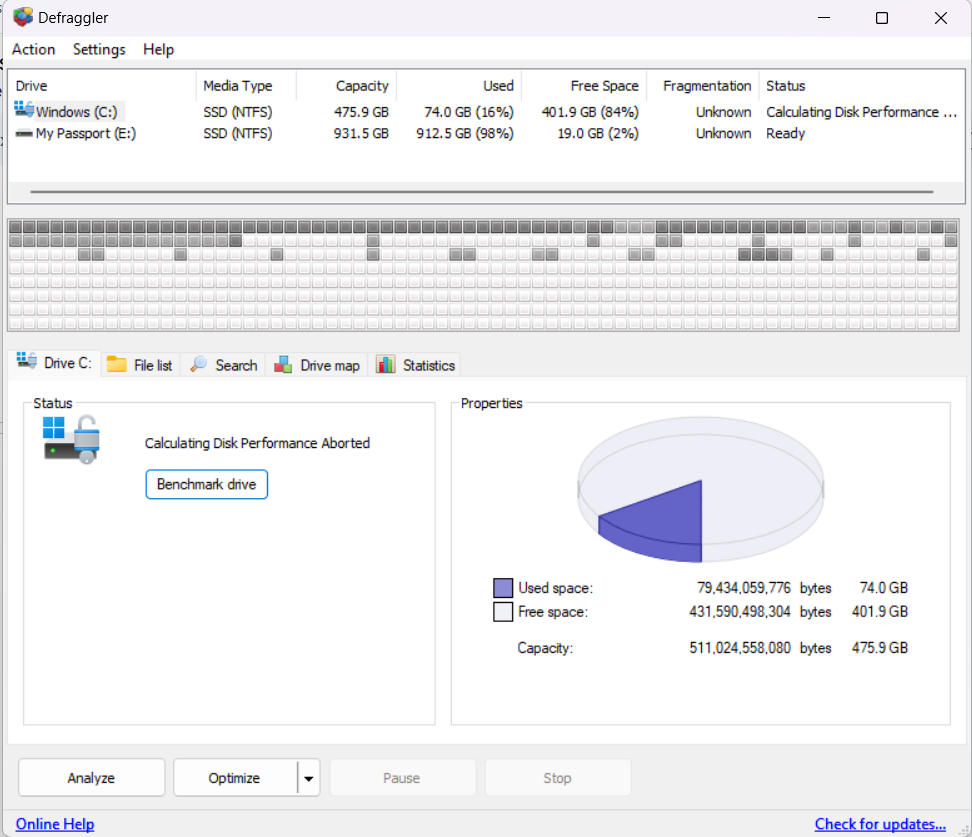
- The benchmarking feature runs tests on the drive to measure read/write performance.

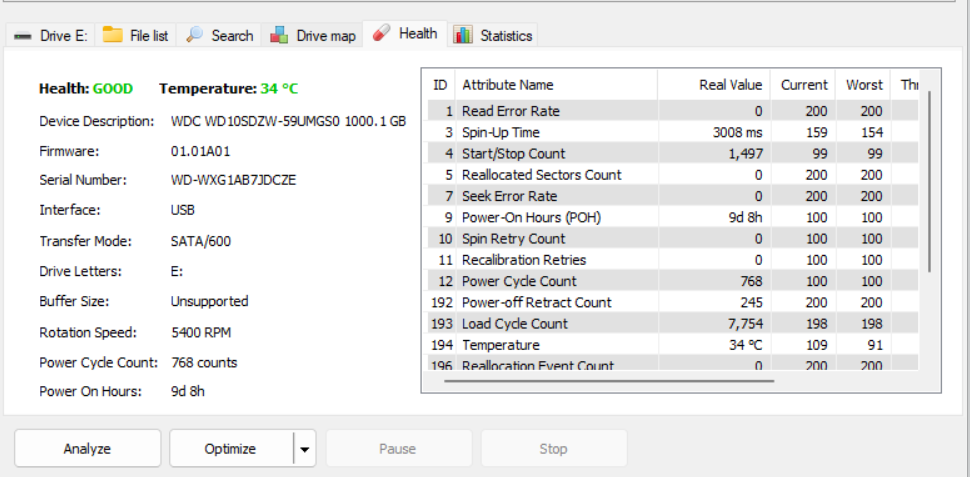
- The Health feature displays your hard drive’s SMART data, enabling you to monitor the health of your drives.
- The Drive map feature lets you pinpoint fragmented files on the drive, and you can select and defrag them.

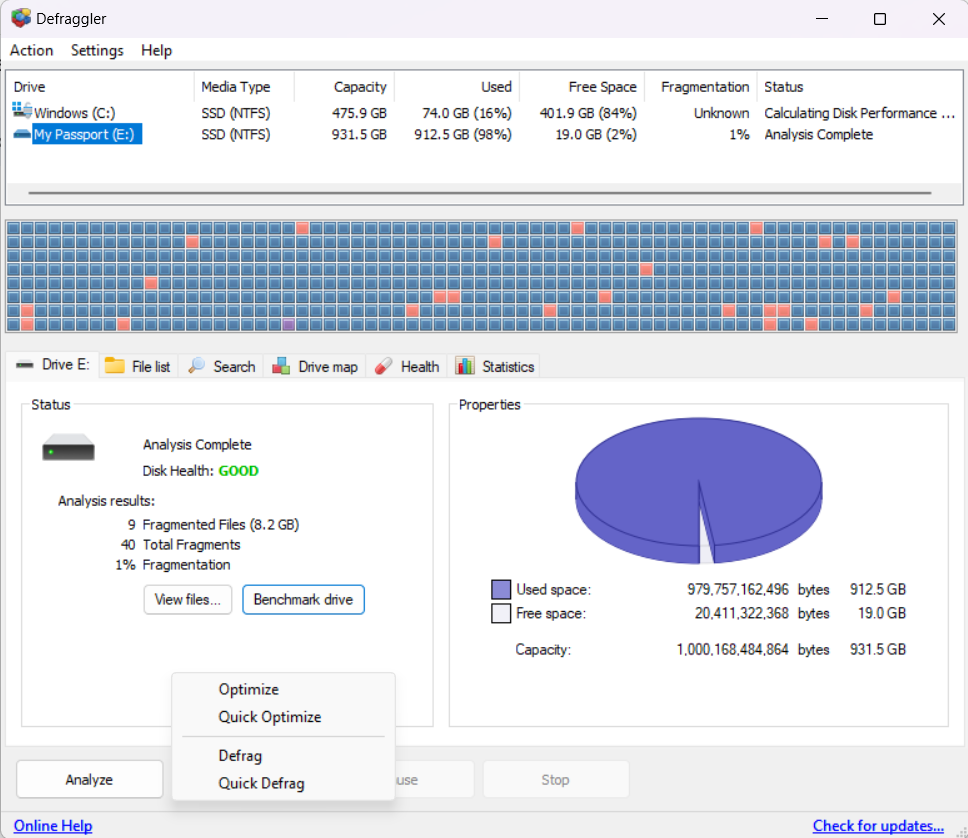
- The optimization options include Optimize and Quick Optimize for SSDs and Defrag and Quick Defrag for HDDs.
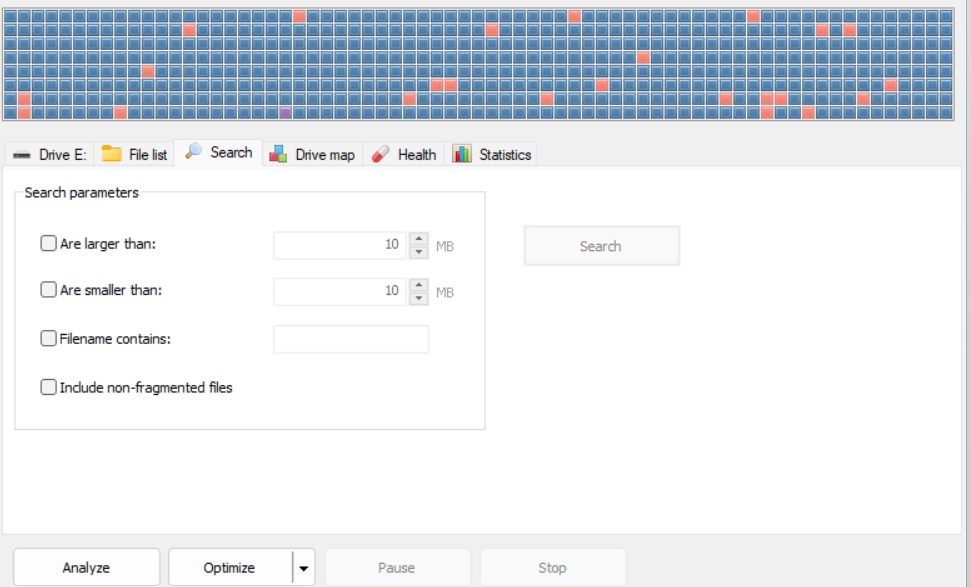
- The Search feature lets you select files of a specified size. You can also select by filename key phrases.
- Defrag individual files and folders.

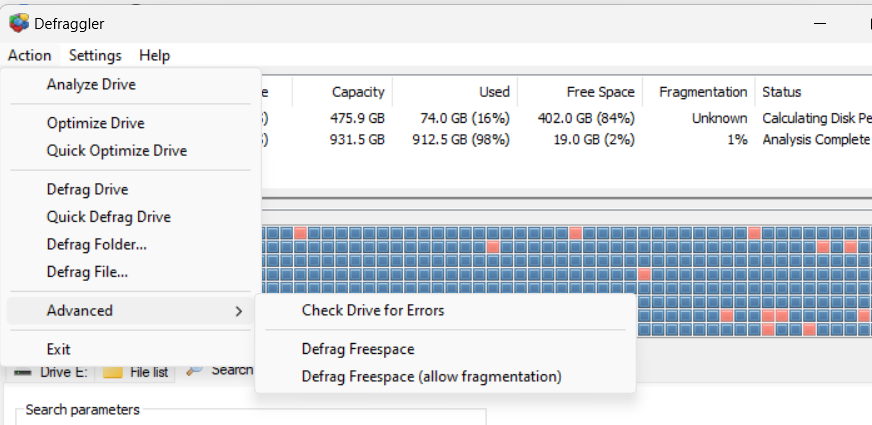
- The Advanced option includes drive error checking and free space defrag.
- Has a defrag scheduling feature.
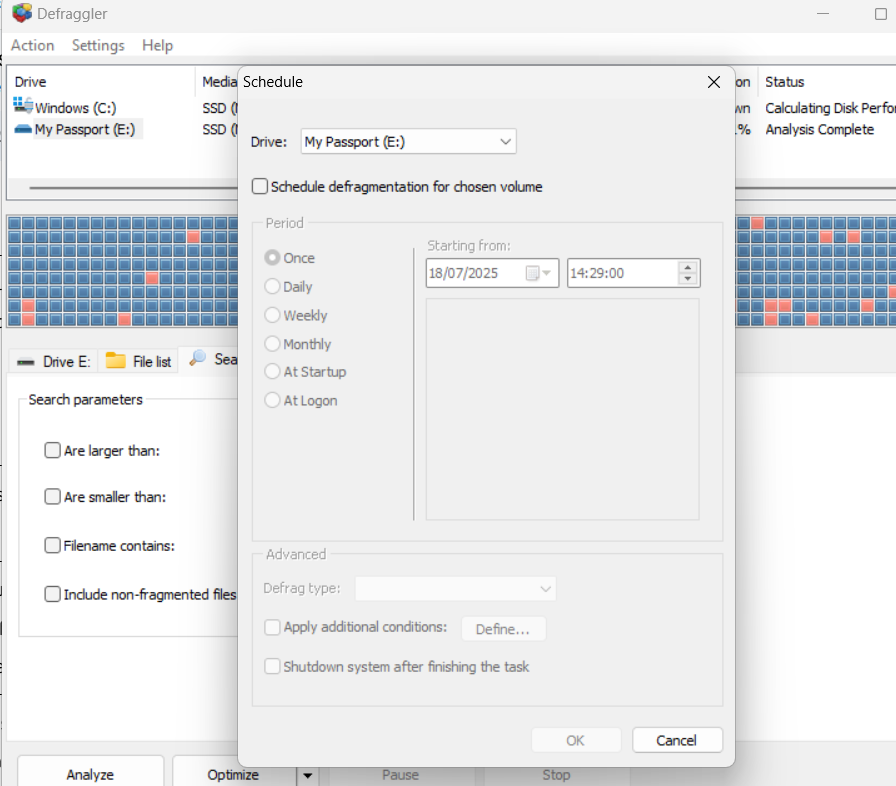
- Offers boot-time defrag.
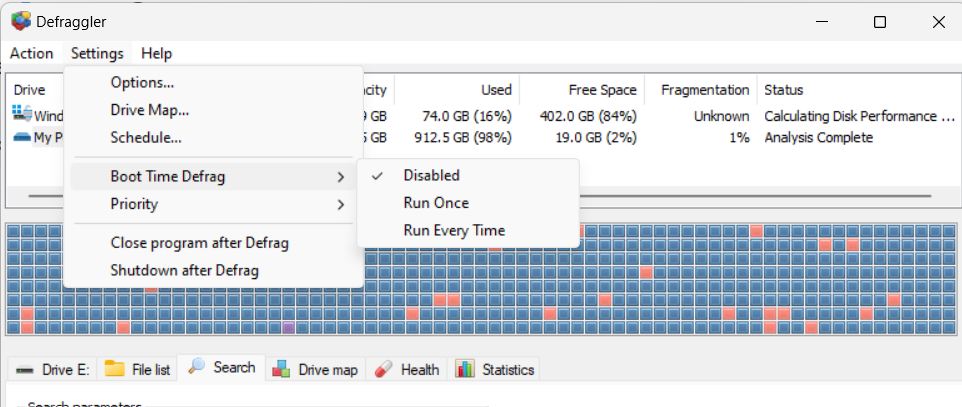
- The tool is free to use. It doesn’t have a premium version
- Simple user interface
- Customizable optimization algorithms
- You can add files and folders to an exclusion list
- Supports SSD trimming
- Uses the zero-filling method to optimize SSDs when TRIM is disabled
- Defraggler is no longer being updated. It was last updated in 2018
- No disk cleanup feature
![IMG]() WinContig
WinContig
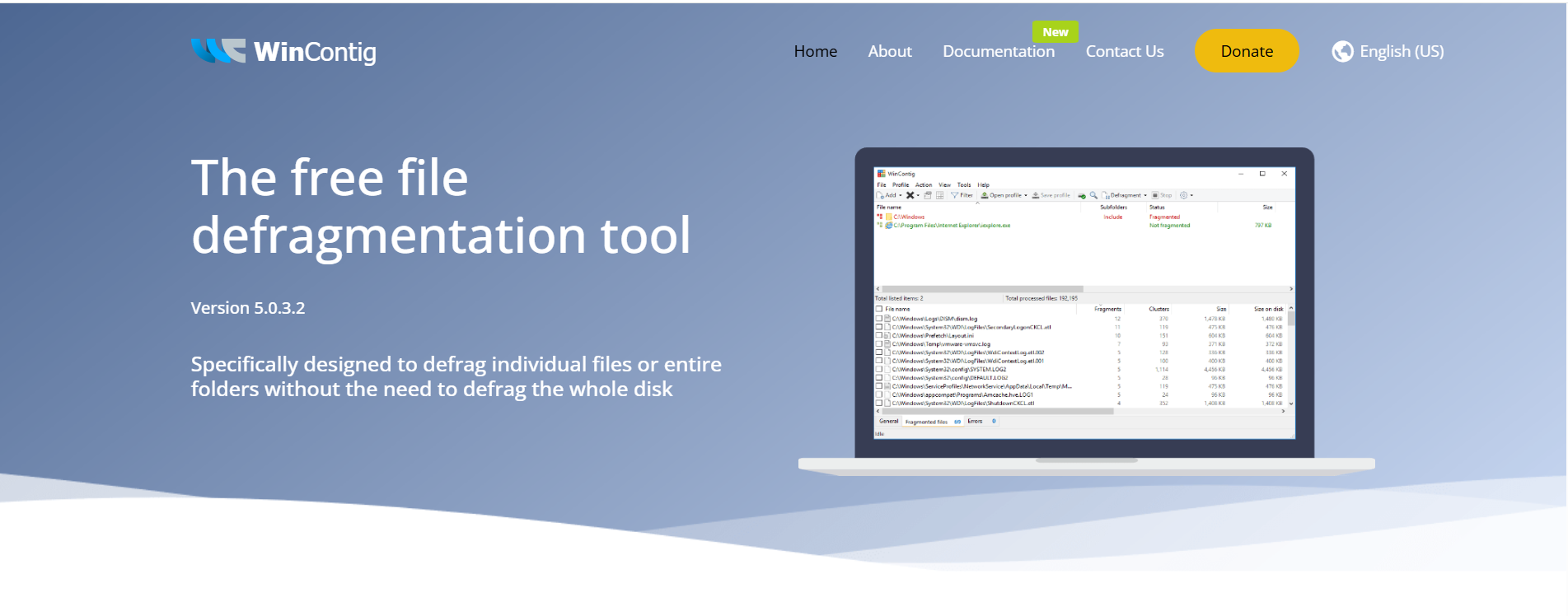
💲Premium version price
Free to use. No premium version.
🧠 Supported OS
Windows 11, 10, 8.1, 8, 7, Vista.
🗣️Trustpilot rating
Not listed.
🔶 Overview
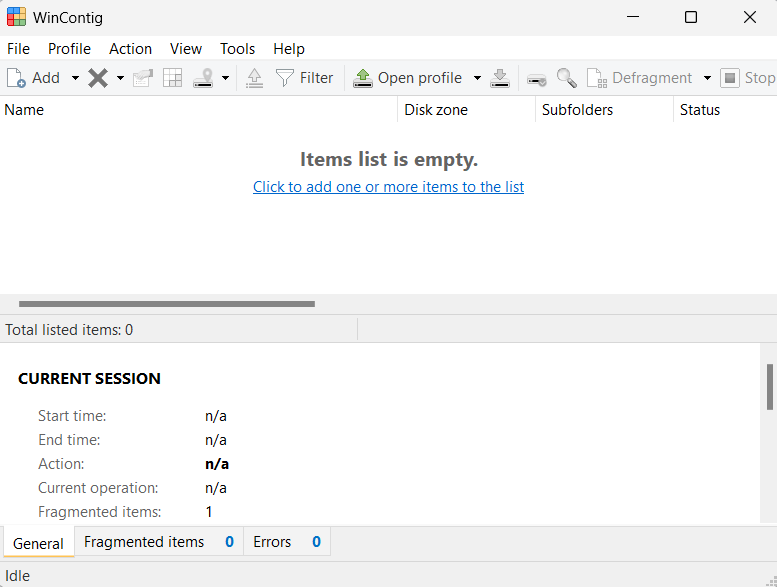
WinContig is a free executable tool that requires no installation. After extracting the contents of the downloaded zip file, running the executable file does not create any entries in the Windows registry.
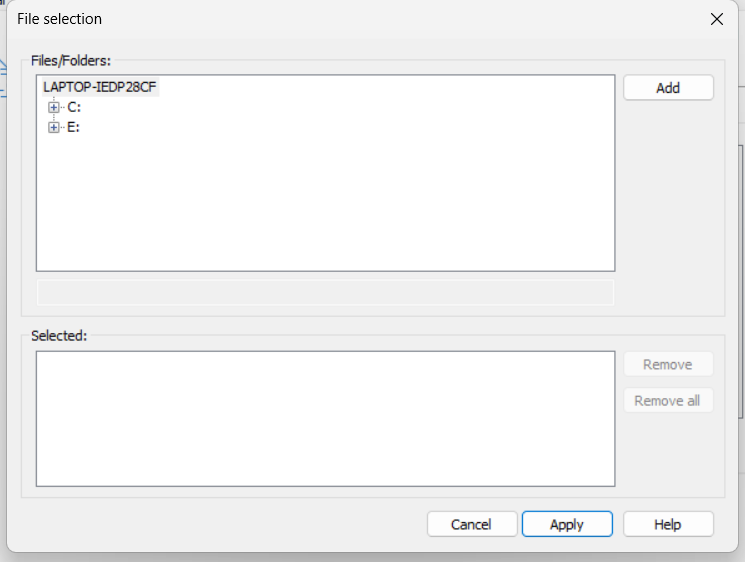
In order to begin analysis and defrag, WinContig requires you to manually add files and folders, as opposed to selecting the entire disk. However, it’s also possible to include the entire drive if you wish.
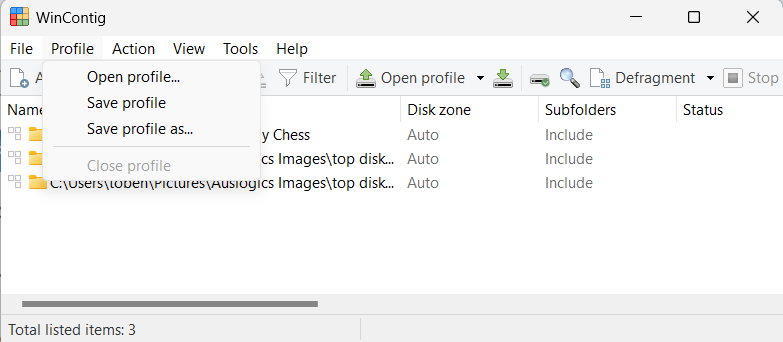
As an extension of this file-targeted approach, selected files and folders can be grouped into a profile. And the next time you want to run defrag, you can quickly choose a saved profile.
⭐️ Notable features
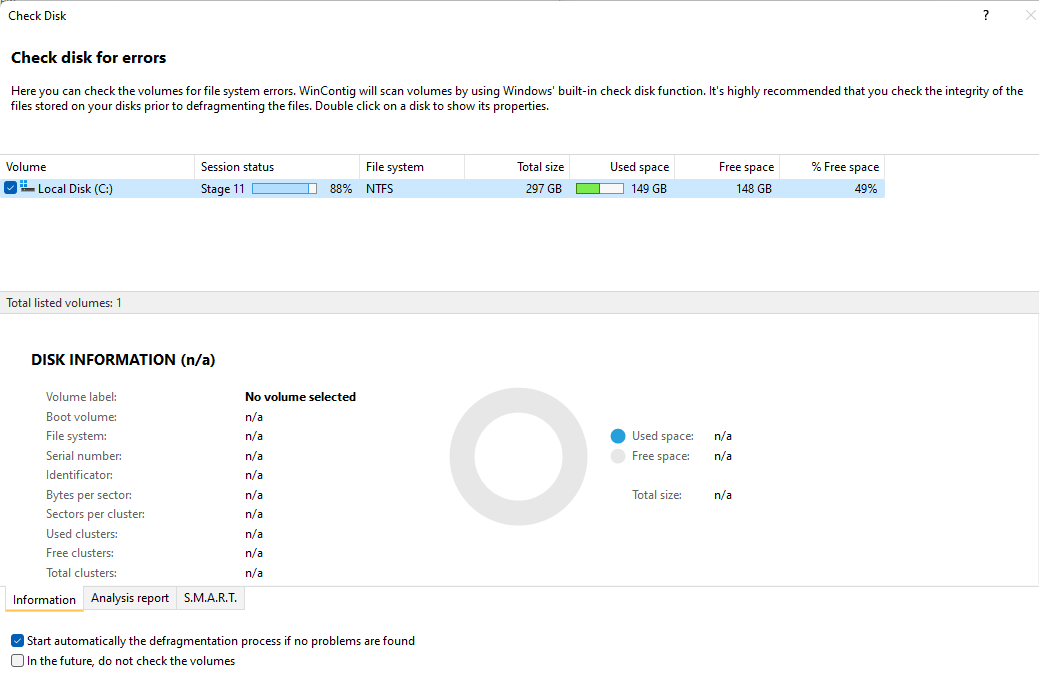
- Checks disks for errors prior to defragmenting.
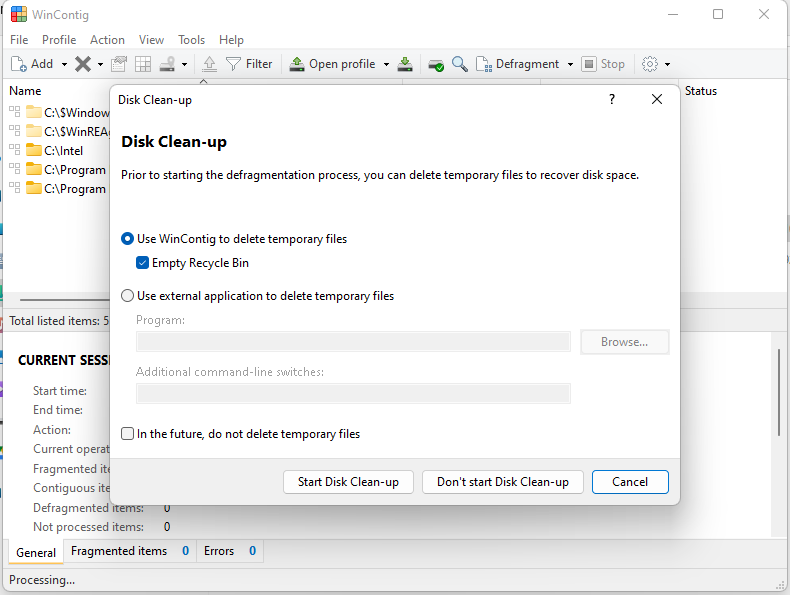
- Runs disk cleanup prior to defragmenting.
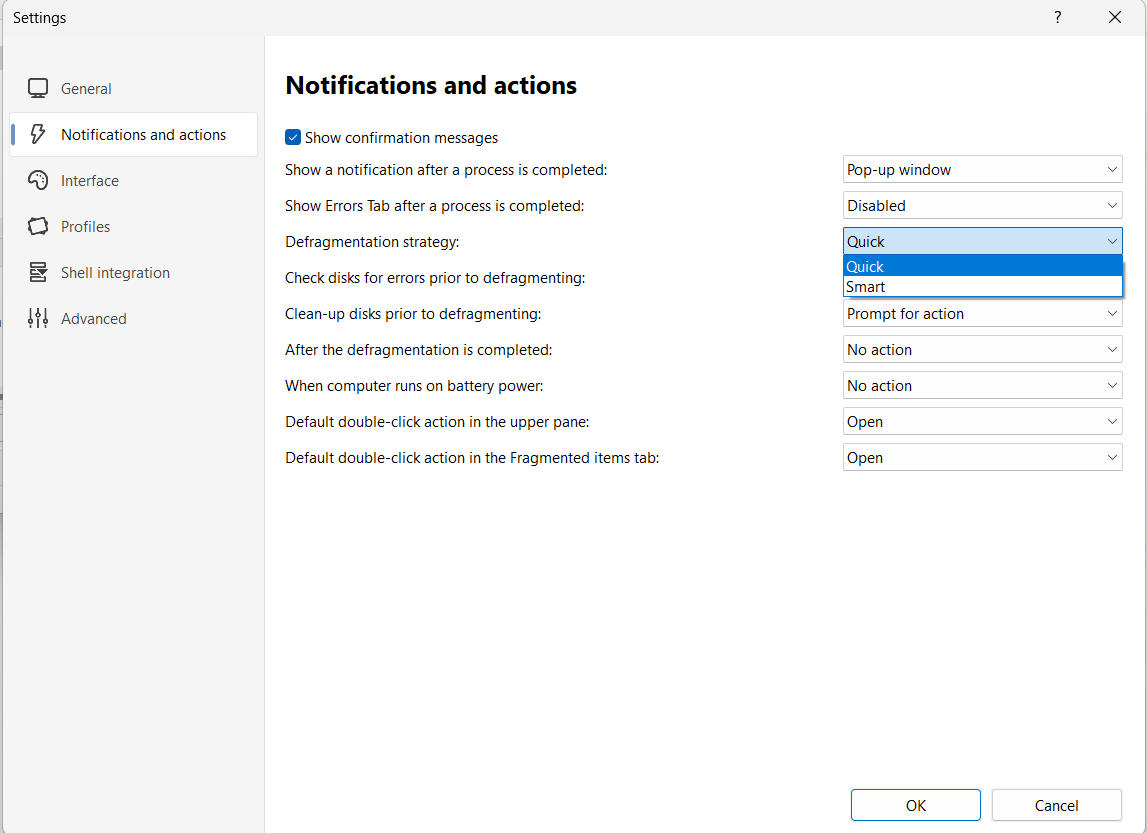
- Defragmentation methods include quick defrag and smart defrag.
- Save selected files and folders to a profile, enabling you to easily run defrag next time.
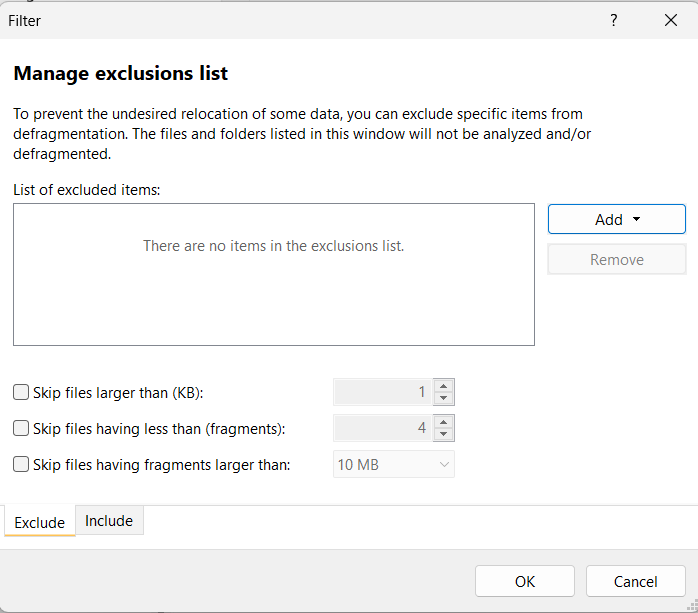
- Use filters to include or exclude files for defrag.
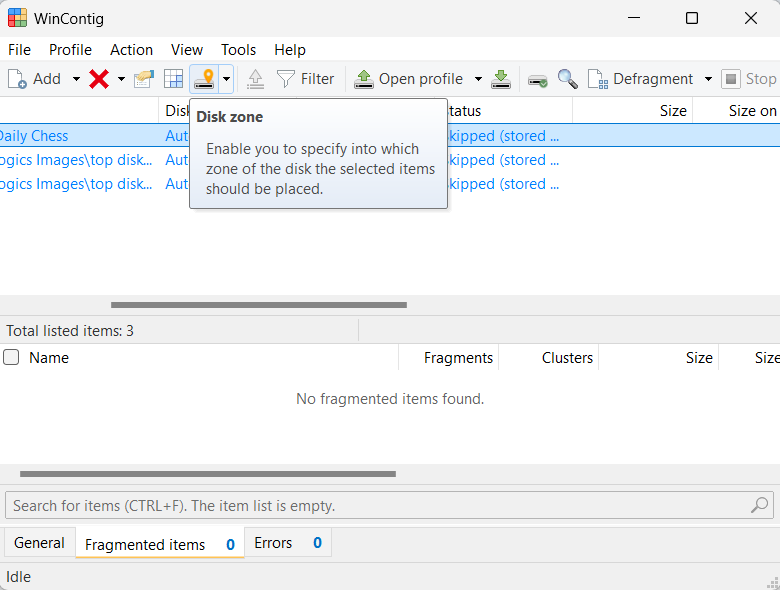
- Users can specify the disk zone where selected files will be placed after defrag.
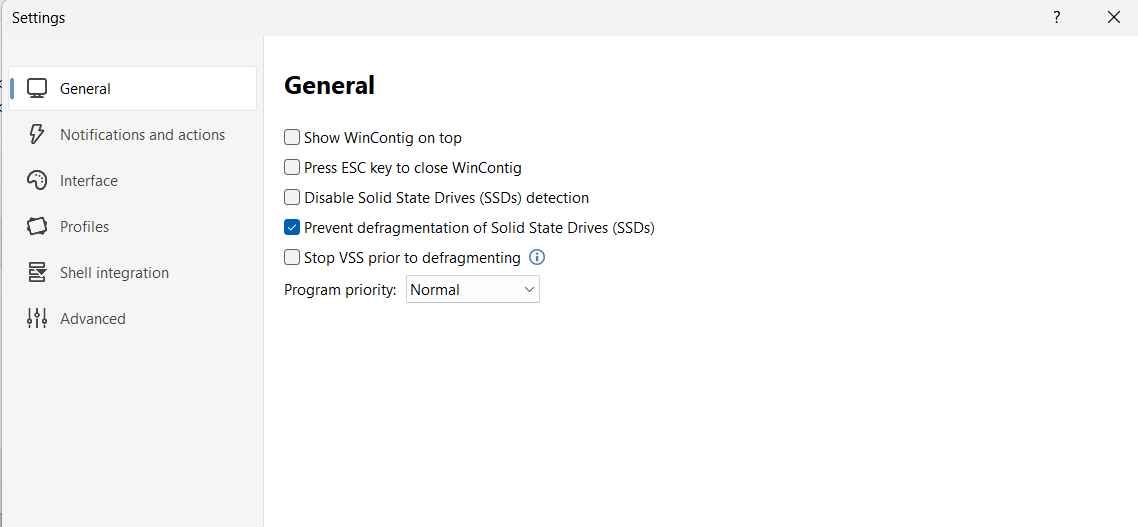
- There’s an option for excluding solid-state drives from defrag. And you can also stop VSS prior to defragmenting VSS-enabled drives.
- Simple user interface
- The tool is free to use
- Doesn’t require installation
- Automatically prevents SSD defrag
- Selected files and folders can be saved in a defrag profile
- Use filters to include or exclude files for defrag
- File Explorer integration
- No drive mapping feature
- Doesn’t perform boot-time defragmentation
- No scheduling option
- Analysis and defrag takes time
![IMG]() Microsoft Drive Optimizer
Microsoft Drive Optimizer
💲Premium version price
Free built-in Windows tool. No premium version.
🧠 Supported OS
Windows 11, 10, 8.1, 8, 7.
🔶 Overview
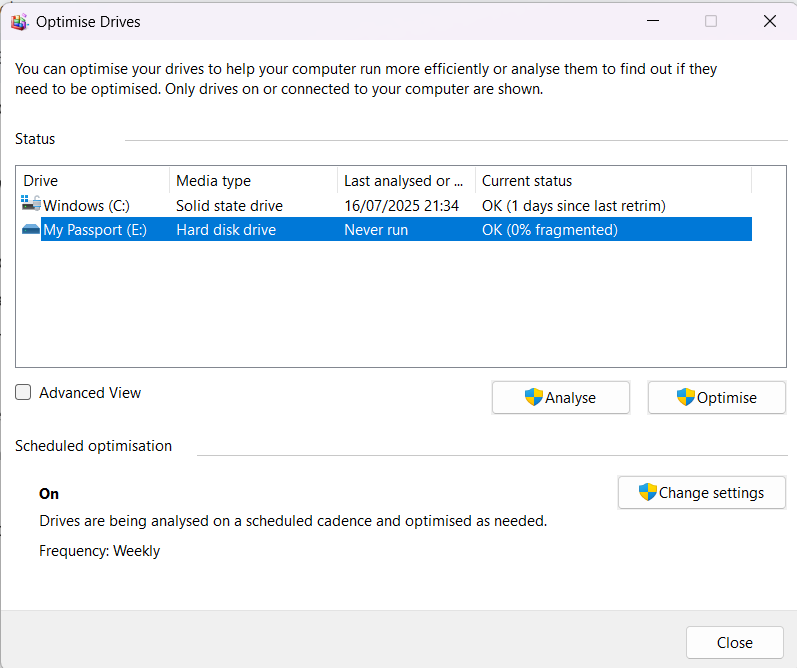
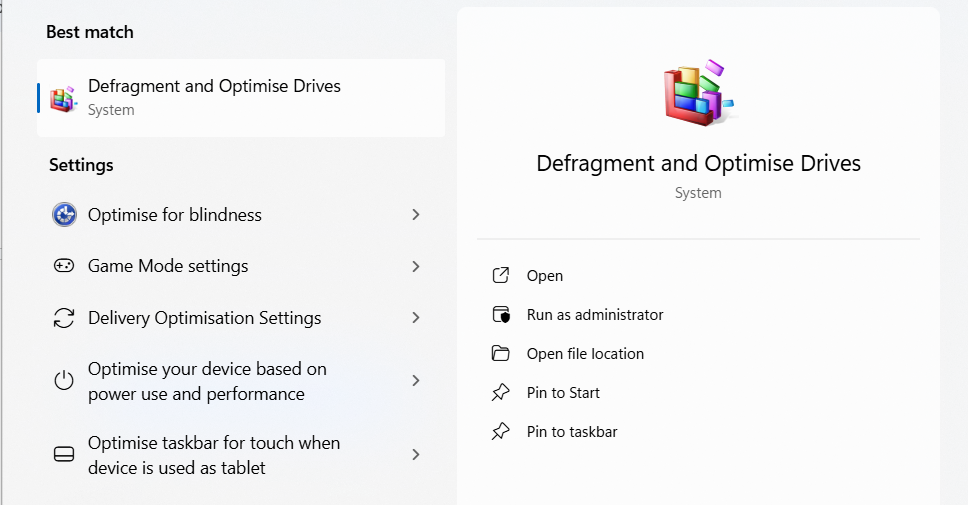
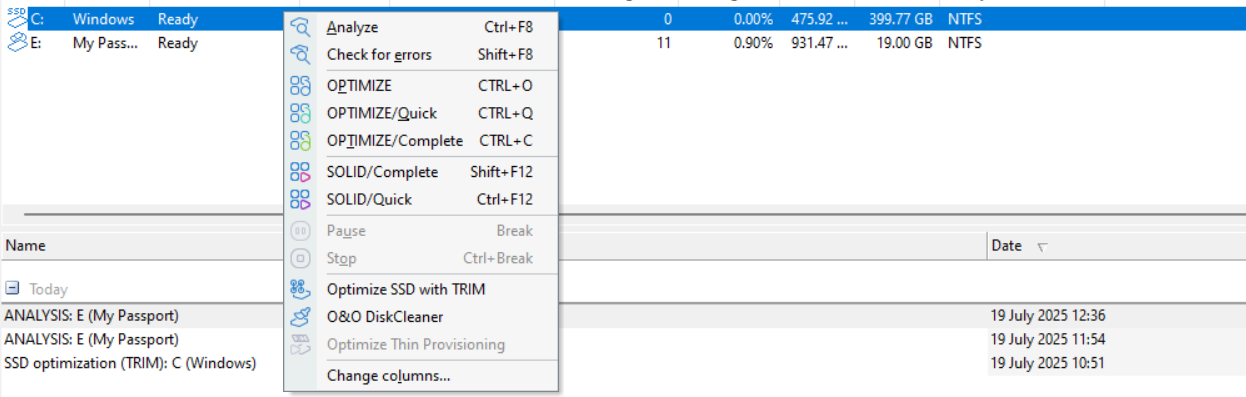
Microsoft Drive Optimizer, otherwise known as Defragment and Optimize Drives, is a native utility on Windows. It runs in the background when your PC is idle and automatically optimizes your HDDs and SSDs.
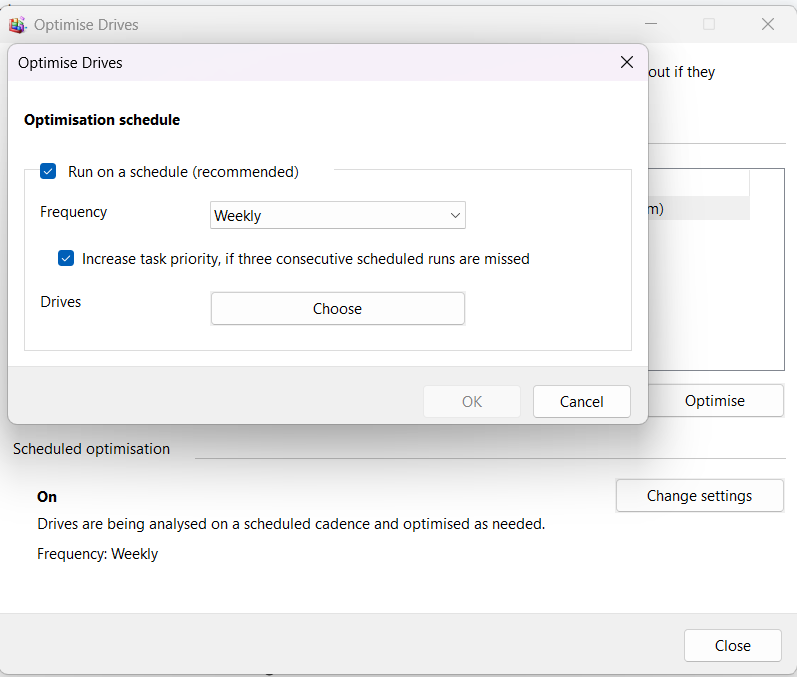
By default, the tool analyzes your drives on a weekly schedule and runs optimization when needed. HDDs are defragged, and SSDs are retrimmed.
📌 Also read: Microsoft Drive Optimizer vs. Third-Party Alternatives: Which Is Better for Defragmentation?
⭐️ Notable features
- You can change the optimization schedule to run daily or monthly rather than weekly.
- You can manually initiate analysis and optimization whenever you wish.
- Windows native tool
- Runs automatically and doesn’t require user input
- Easy to navigate
- Third-party tools are more robust and efficient
- No defrag customization options
- Doesn’t run boot-time defragmentation
- Scheduled optimizations do not always hold, and the tool uses the Increase task priority, if three scheduled runs are missed option to ensure that disk optimizations can be carried out
- Users can’t select files and folders for defrag
- No file/folder exclusion option
- Doesn’t provide additional options for disk maintenance, such as disk cleanup
![IMG]() O&O Defrag Professional
O&O Defrag Professional
💲Premium version price
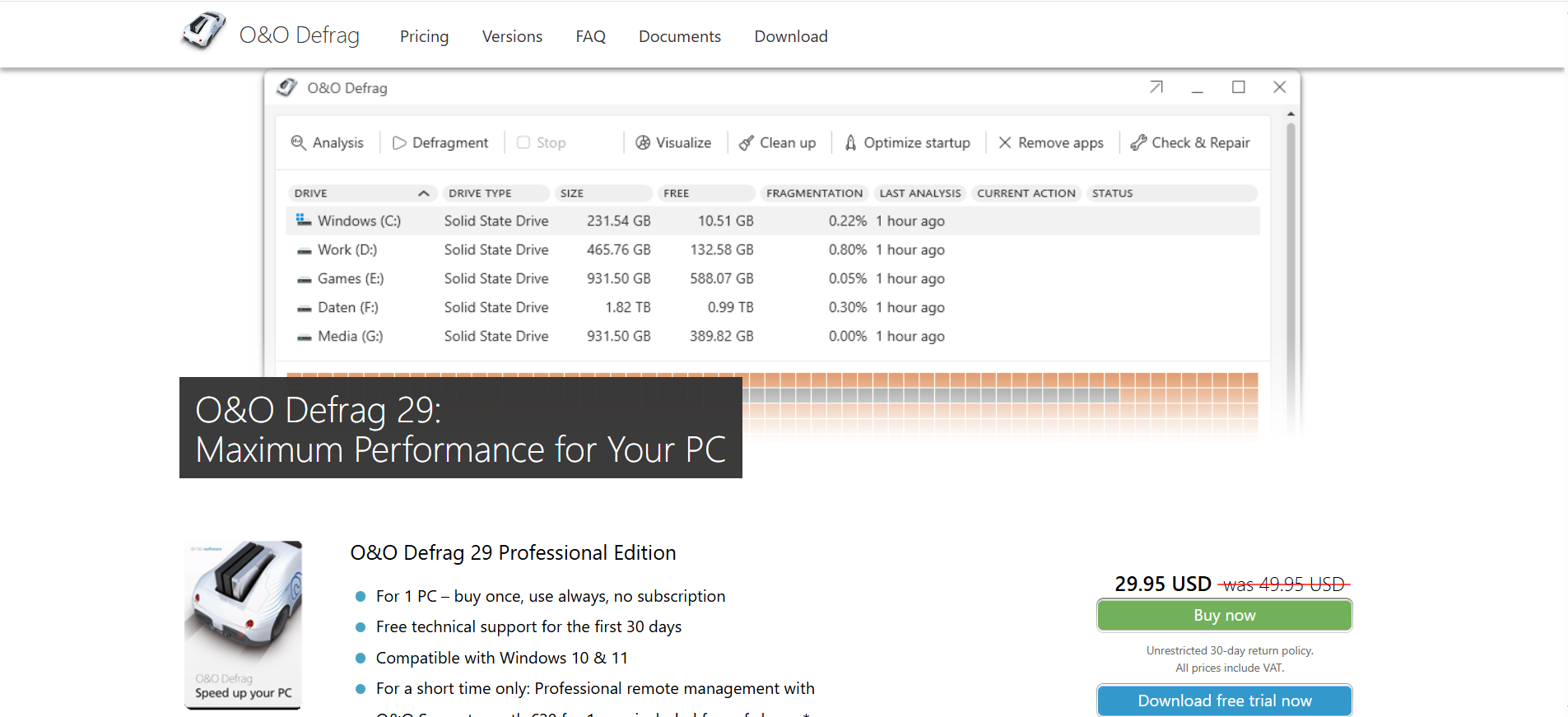
$29.95 (one-time payment, no subscriptions).
30-day free trial.
🧠 Supported OS
Windows 11 & 10.
🗣️ Trustpilot rating
2.7/5 (8 reviews).
O&O’s Trustpilot profile is unclaimed.
🔶 Overview
O&O Defrag is a professional tool that advanced users would appreciate. It offers a 30-day free trial version. After which you will have to purchase a license to continue usage.
The attractive thing about O&O Defrag is that it automatically handles drive optimization using its recommended default settings. You can also tweak all settings to suit your preferences.
O&O Defrag Professional also includes special algorithms for optimizing SSDs. But users have the option to prevent SSD defrag by excluding it in the app settings.
⭐️ Notable features
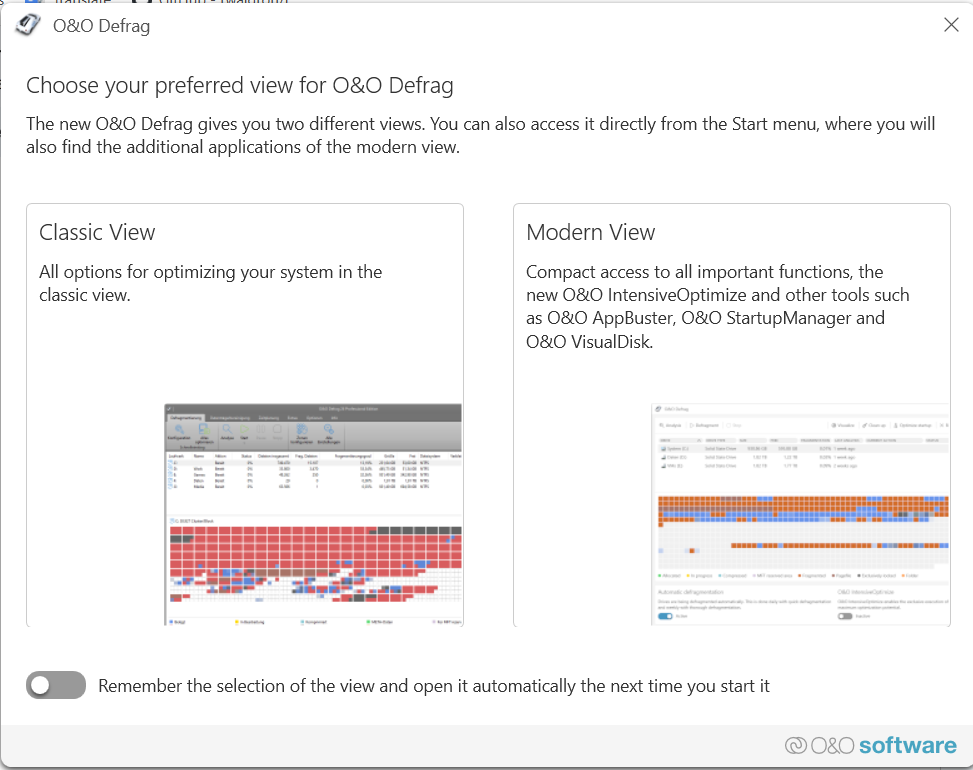
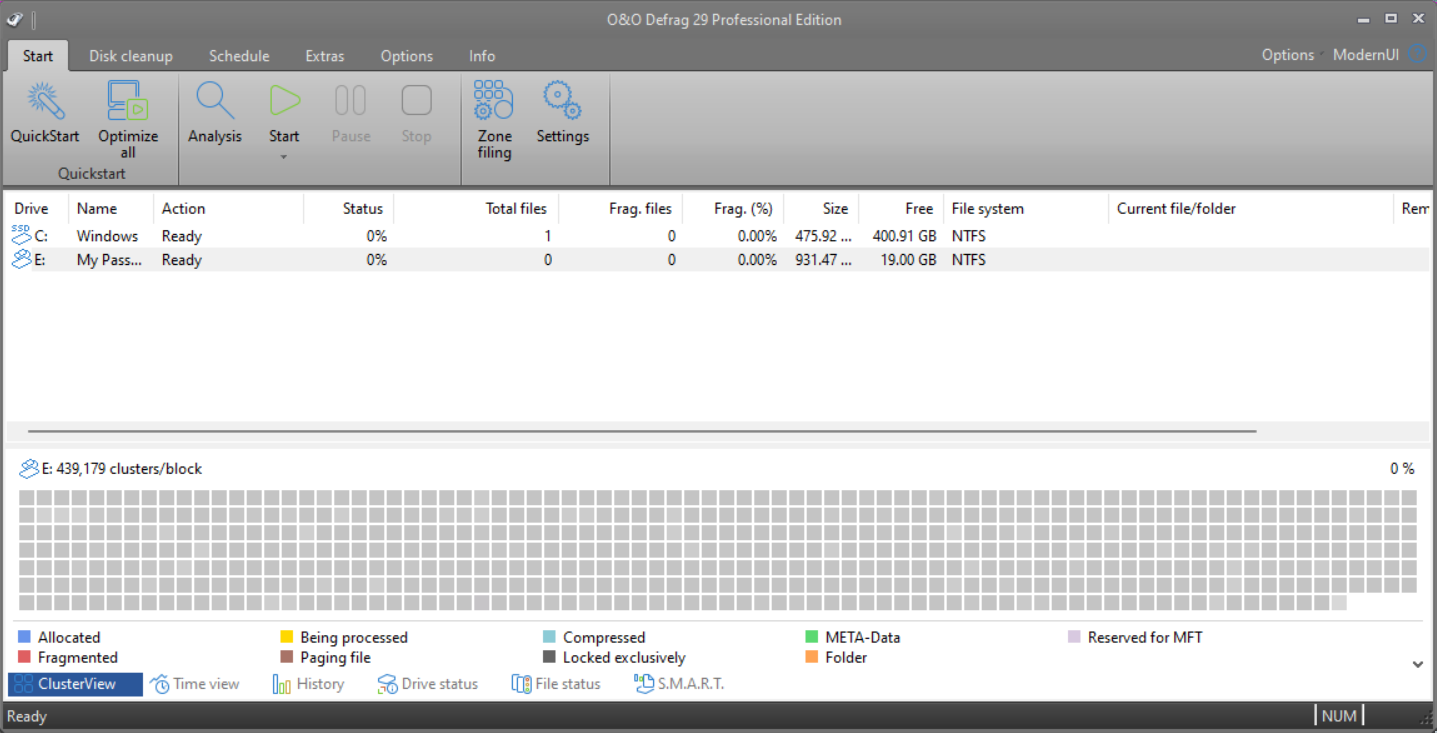
- When launching the app, you’ll have the option of choosing between the classic and modern views.
- This is the classic view. It focuses on drive optimization and is ideal for advanced users who would like to have more control.
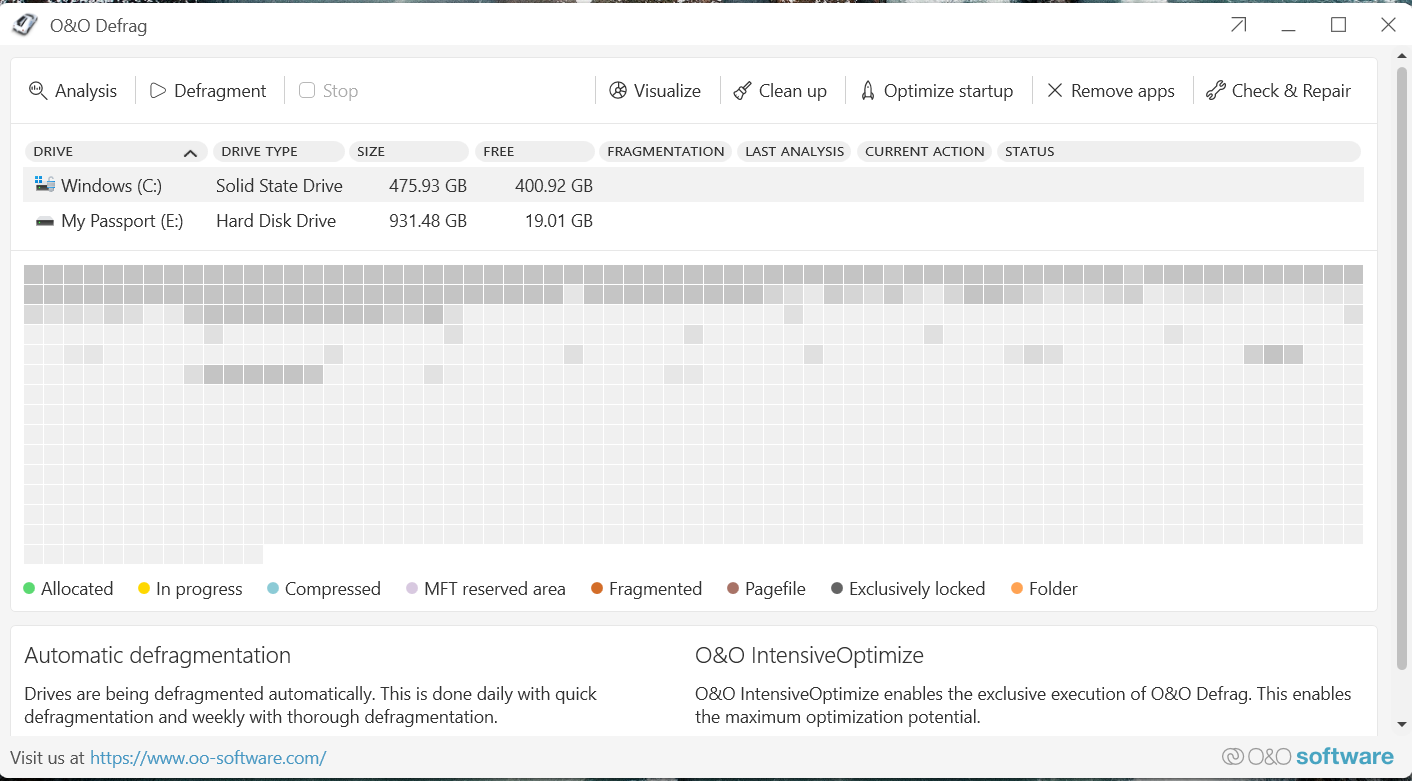
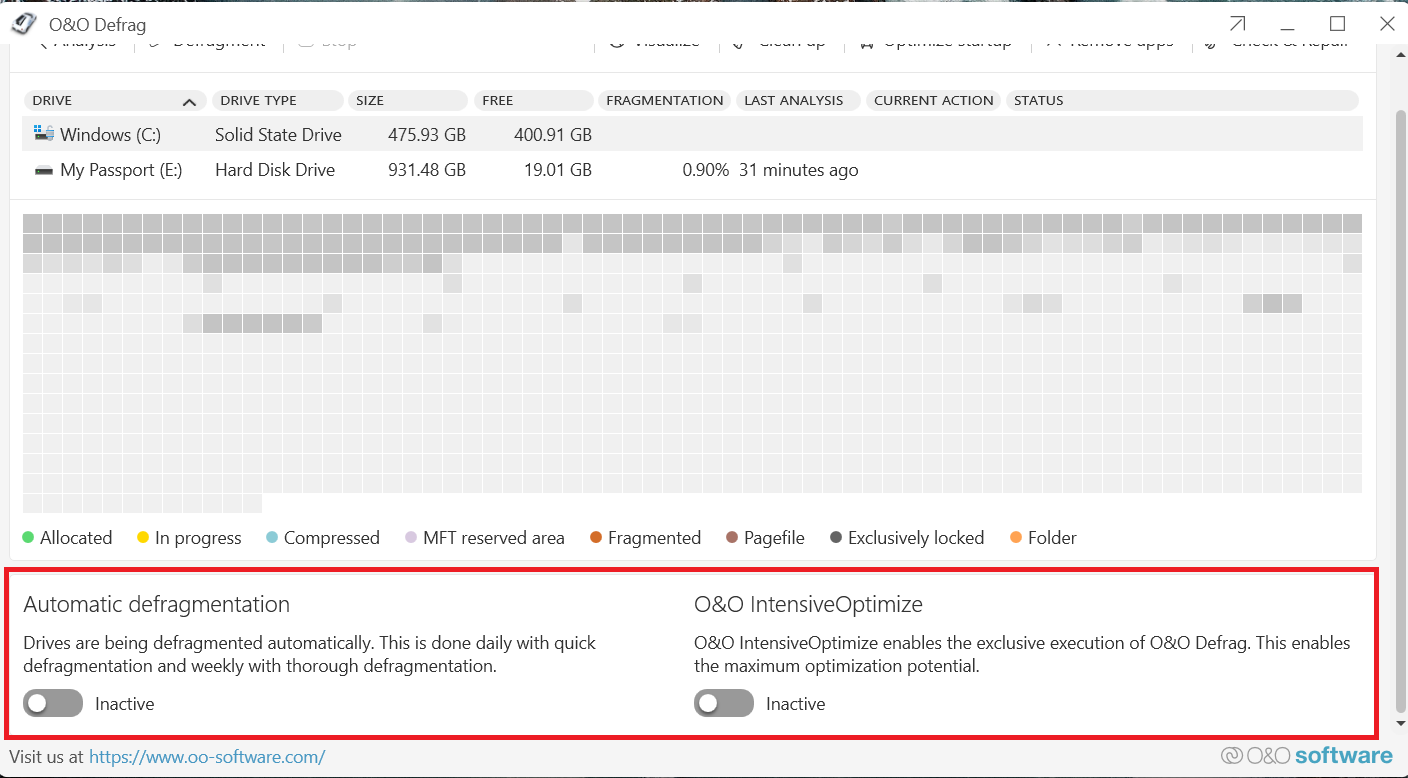
- And this is the modern view. It brings forward the essential features for automatically carrying out system optimization. It is suitable for beginners.
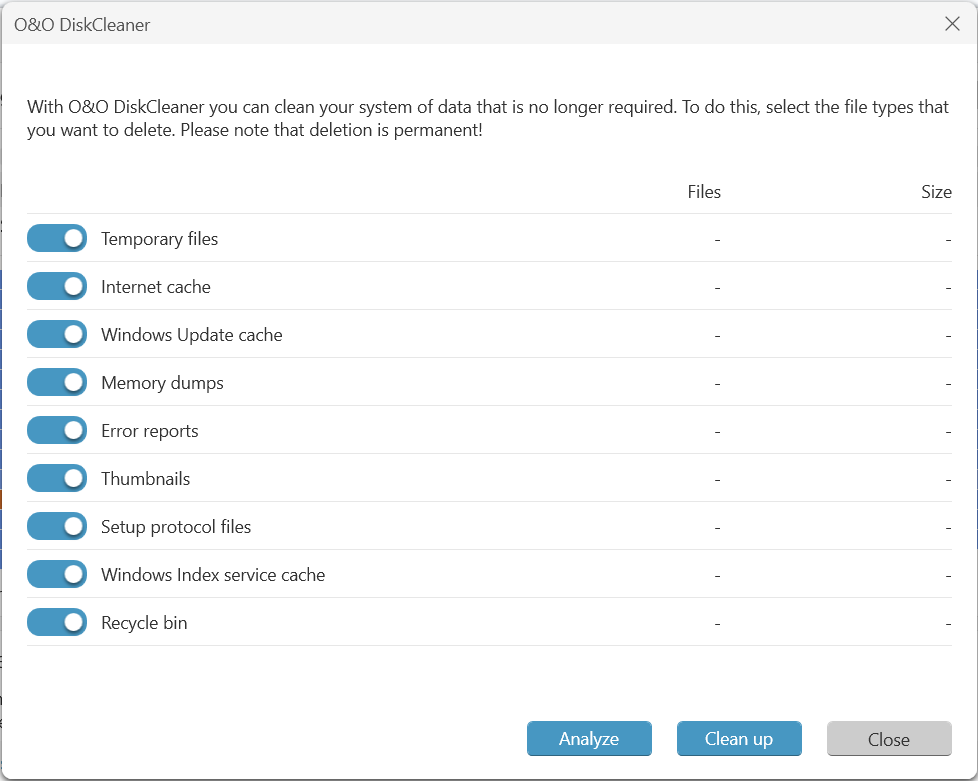
- The tool carries out disk cleanup.
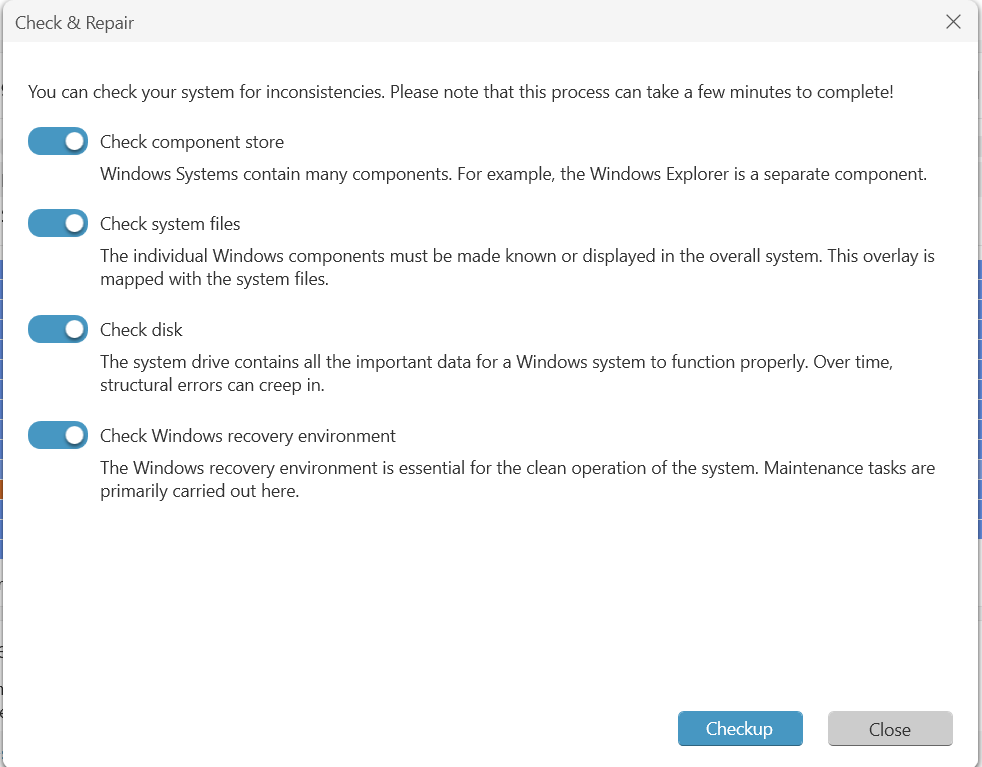
- It has the Check & Repair function.
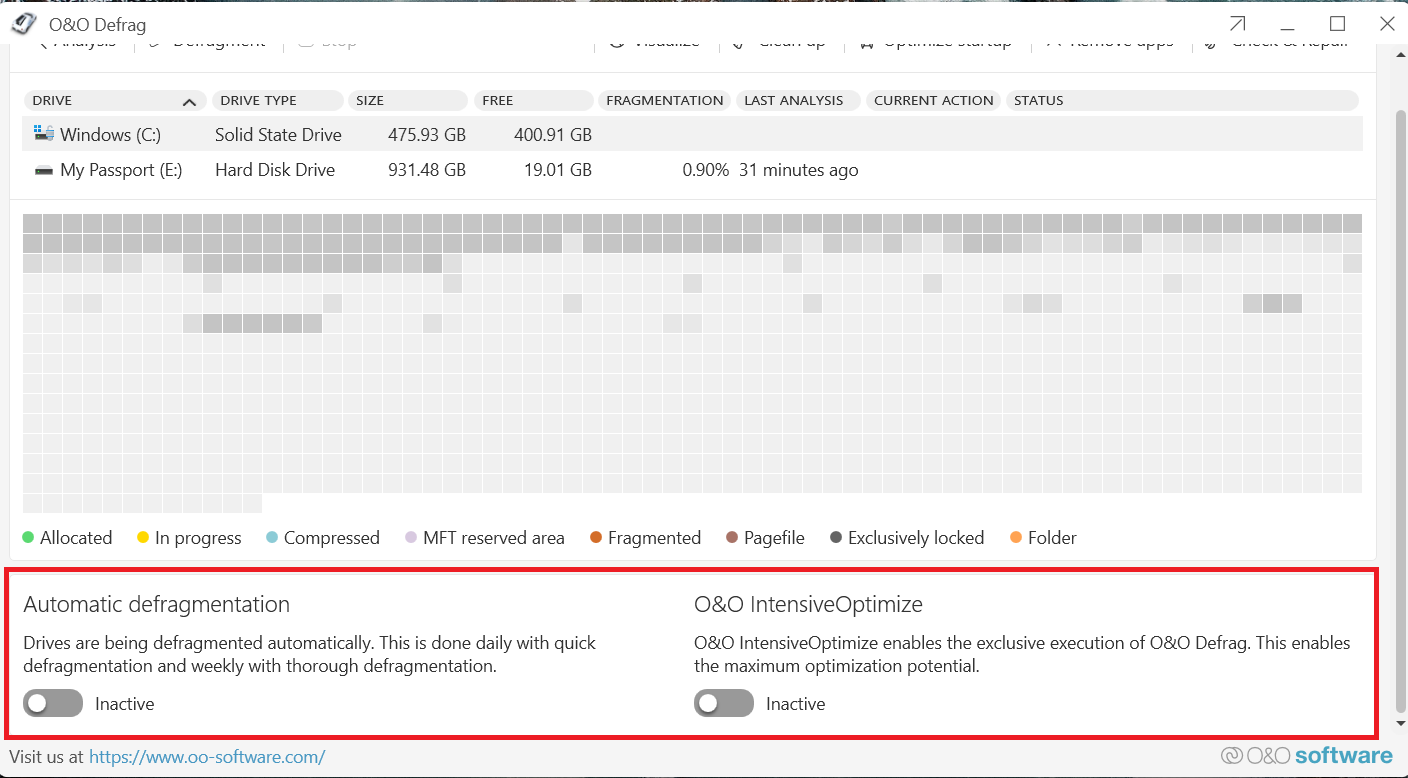
- It has Automatic defragmentation and O&O IntensiveOptimize functions, as you can see in the image below.
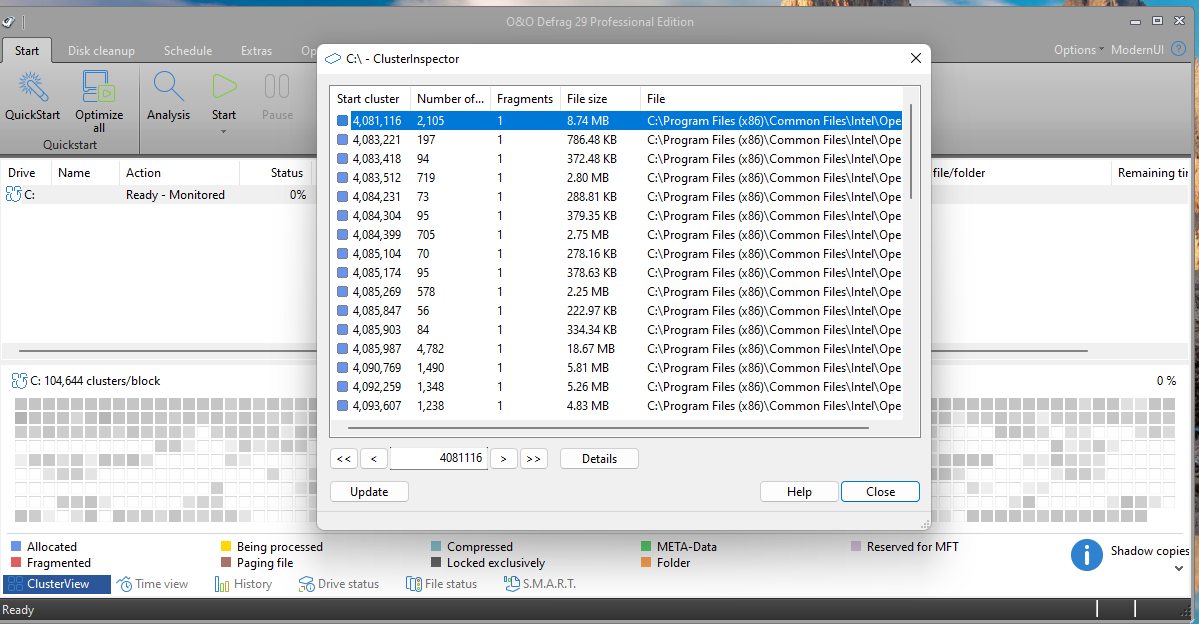
- In the classic view, clicking on a fragmented block in the cluster map gives you detailed information about fragmented files in the block.
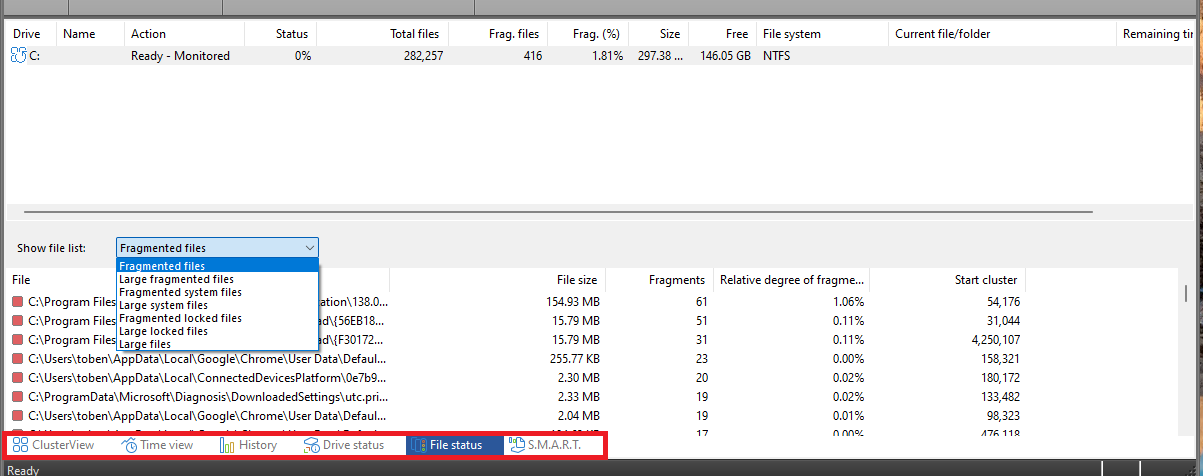
- Via the File status menu, you can get a detailed list of fragmented files on your disk. There’s also a Drive status menu and a S.M.A.R.T. menu for getting information about your drive and for monitoring the health of your drive.
- The Zone filling feature lets you customize how files will be placed on the disk.
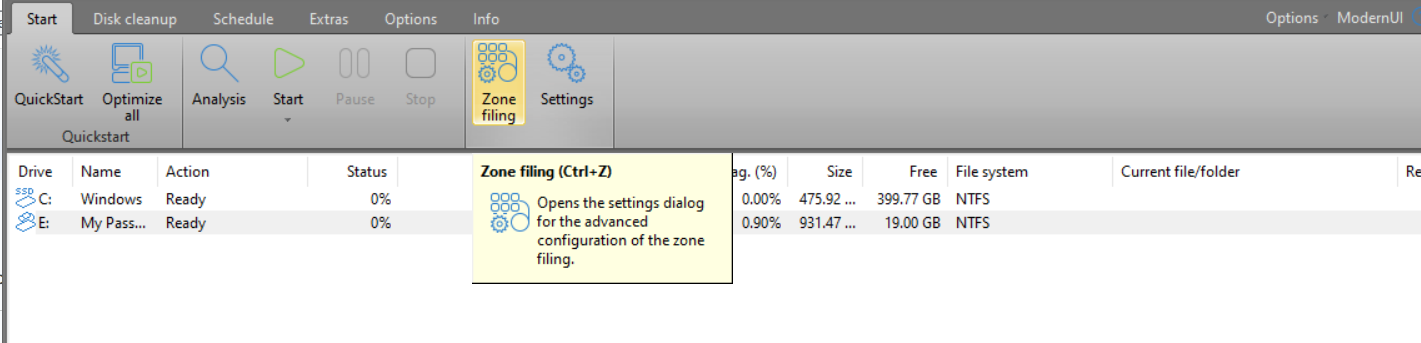
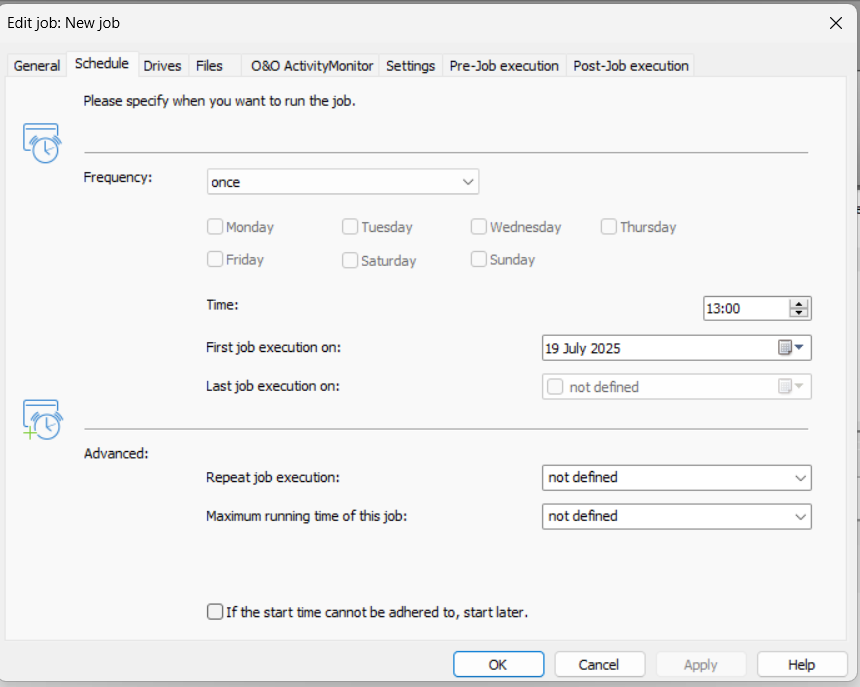
- The tool also offers defrag scheduling.
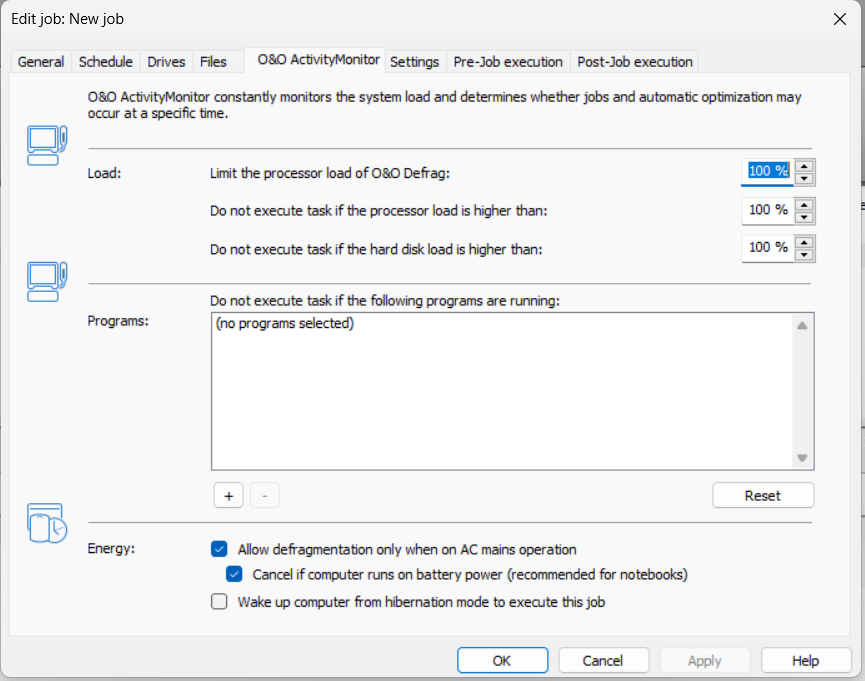
- The O&O ActivityMonitor feature helps control system resource usage so that drive optimization can only take place at the most suitable time.
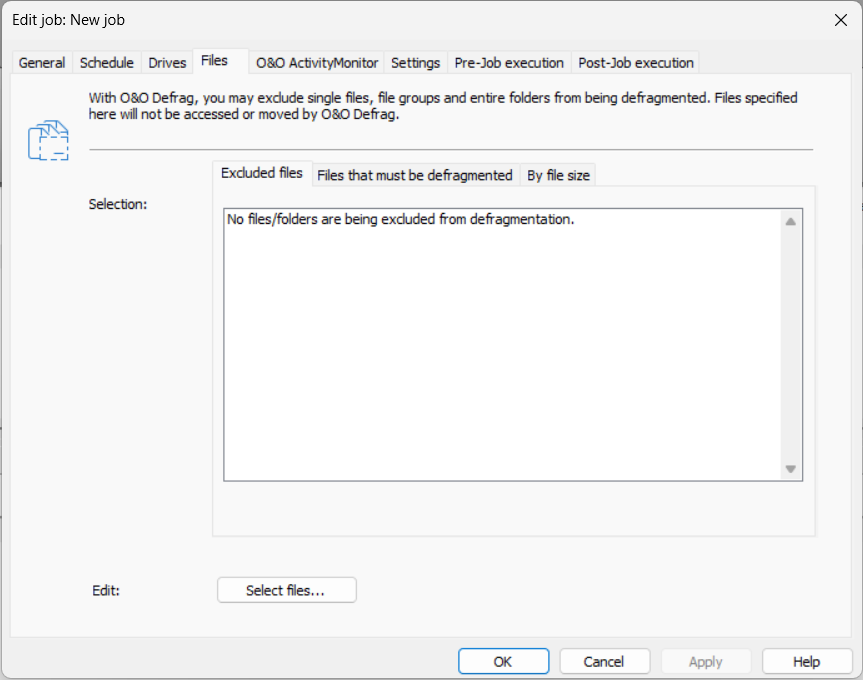
- Exclude selected files and folders from the defragmentation process. You can also exclude based on file size.
- You can select files and folders for defrag.
- It provides various options for HDD and SSD optimization and defrag.
- Provides a host of options that are more than sufficient for HDD, SSD, and system optimization
- Suitable for both novice and advanced users
- The auto-defrag feature requires no user input—set up the tool and let it handle everything
- Available for personal use or administrative use over a network
- The Pro version requires a one-time payment with no yearly subscriptions
- Provides 30-day free access to all professional features
- The app checks for new updates automatically
- Installation and setup take time and require the additional installation of the .NET 8.0 Desktop Runtime
- Access to the tool’s trial version and tech support ends after 30 days
![IMG]() DiskTrix Ultimate Defrag
DiskTrix Ultimate Defrag
💲Premium version price
$19.97 (33% off).
30-day money-back guarantee.
🧠 Supported OS
Windows 11, 10, 8, 7, Vista, XP.
🗣️Trustpilot rating
Not listed.
🔶 Overview
DiskTrix Ultimate Defrag is a professional tool worth mentioning. It offers advanced features for HDD and SSD optimization. It doesn’t have an option for SSD trimming. Instead, it uses special algorithms for running defrag on SSDs.
However, users can choose not to defrag an SSD by disabling it in the app settings.
The tool optimizes HDDs by dealing with three core performance issues, namely file fragmentation, file placement, and seek confinement.
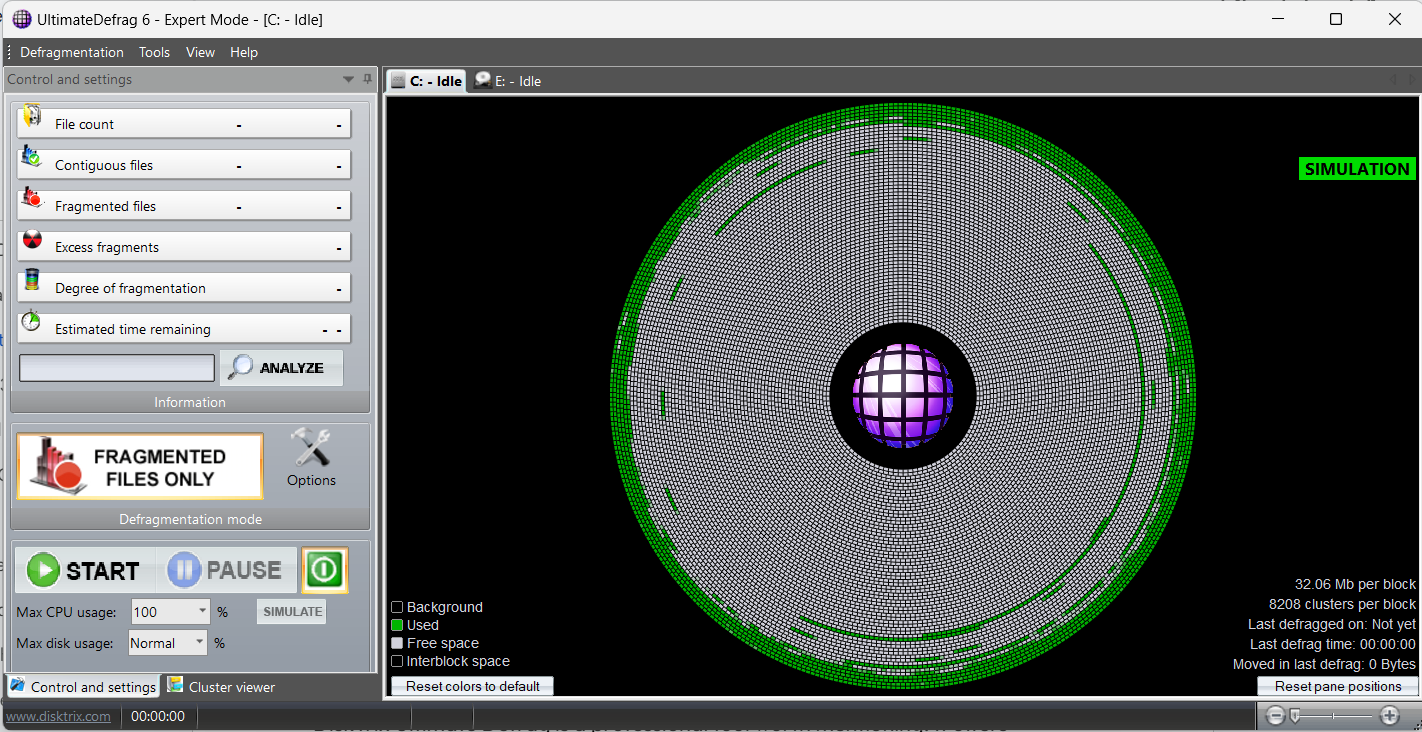
However, there’s a caveat. The demo version of the tool runs in simulation mode. This means that you can play around with all functionalities of the software program to see how everything works, but it doesn’t actually make any modifications to your drives. It’s all simulated.
You’d have to purchase the license in order to use the tool for real.
⭐️ Notable features
- Presents a cluster map.
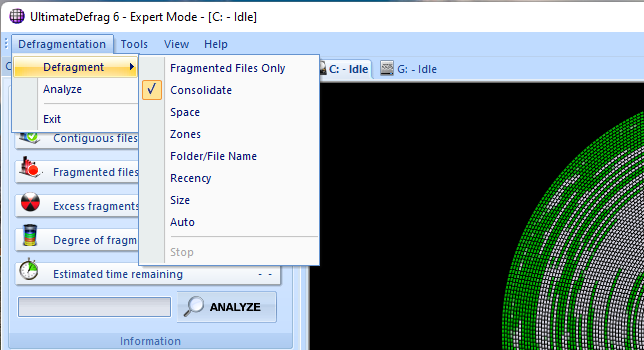
- The tool offers several defragmentation options. As you can see in the image below, users can choose what and how to defrag, including space, disk zones, file recency, size, etc.
- It also provides defrag options for solid-state drives, as you can see here.
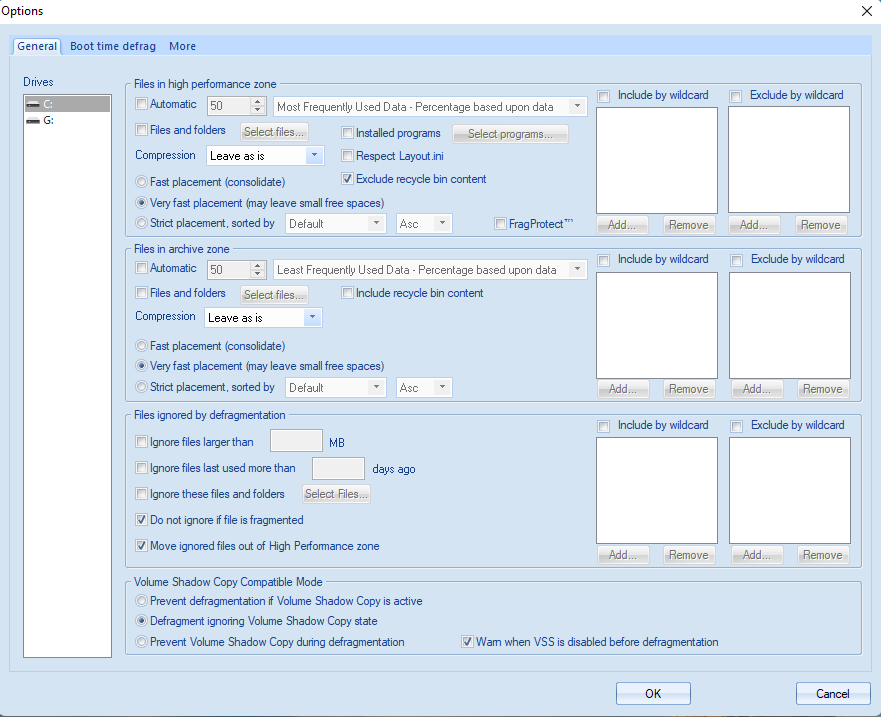
In addition, there are numerous options for defrag customization, including optimizing the placement of files on the disk after defrag. There are also broad options for file/folder exclusion and for selecting files that will be prioritized during the defragmentation process.
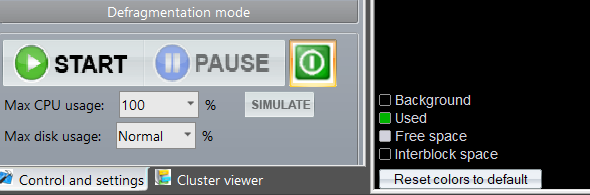
- Users can specify the maximum CPU usage and disk usage or set them to auto.
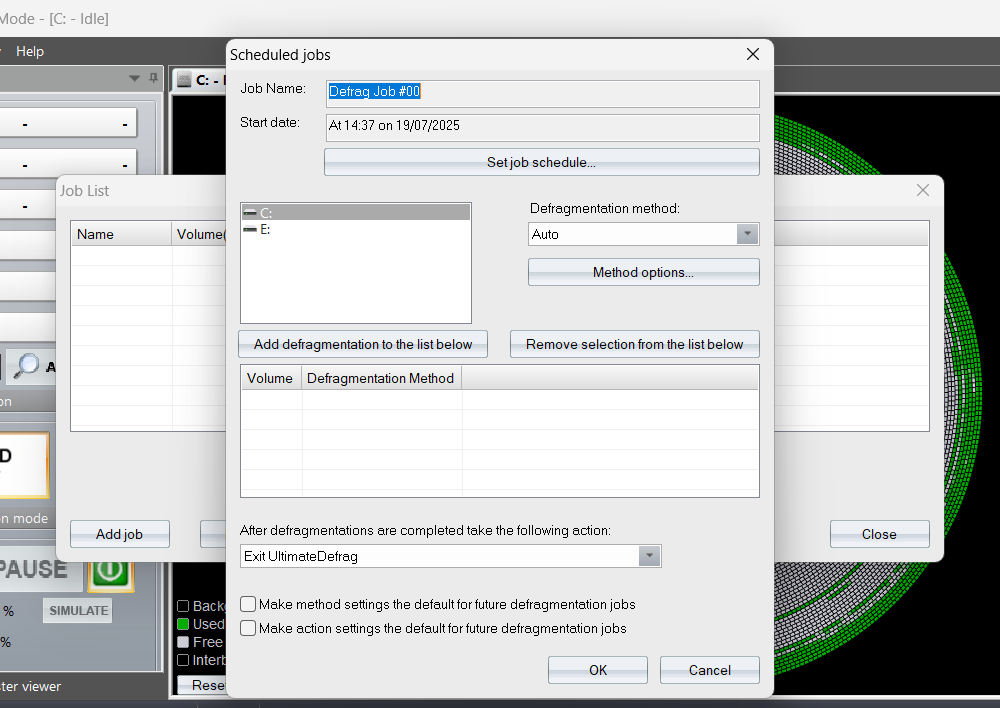
- The tool offers defrag scheduling.
- It also offers customizable boot-time defragmentation.
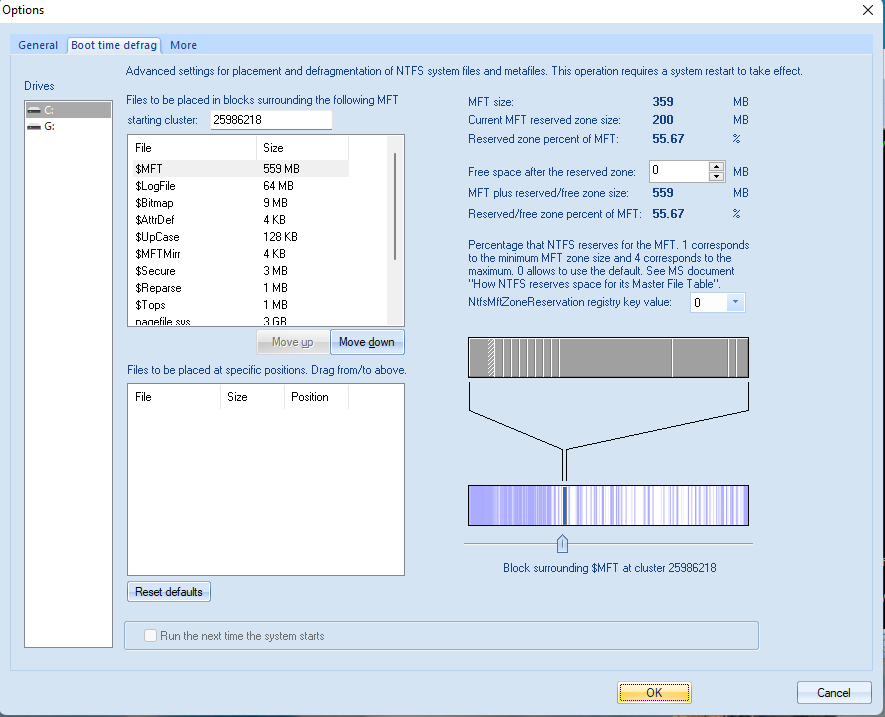
- Provides numerous customizable options
- Places the most frequently used files on the fastest zone of the hard drive for maximum performance
- Subsequent defrags target frequently used files, thus minimizing the workload on the disk
- Runs HDD speed test
- Analysis and defrag runs quite fast
- The full version offers a 30-day money-back guarantee
- Numerous customizable options can be overwhelming
- The demo version doesn’t optimize your drives; it only runs in simulation mode to let you see how the tool works
- Doesn’t have any visible options for disk error checking and disk cleanup
![IMG]() Wise Care 365
Wise Care 365
💲Premium version price
3-PC license: $29.96/year (discounted price).
60-day money-back guarantee.
🧠 Supported OS
Windows 11, 10, 8, 7, Vista, XP.
🗣️ Trustpilot rating
Not listed.
🔶 Overview
If you want a simple disk defragmenter tool that doesn’t have too many bells and whistles, then you are going to appreciate Wise Care 365. It is an all-round utility for system optimization. And disk defrag is one among the many functionalities it provides.
The tool recognizes the type of drive you have. It supports both SSD trimming and hard drive defrag.
⭐️ Notable features
- Wise Care 365’s disk defrag tool is located in the System Tuneup tab. It doesn’t overwhelm you with too many settings and customizations.
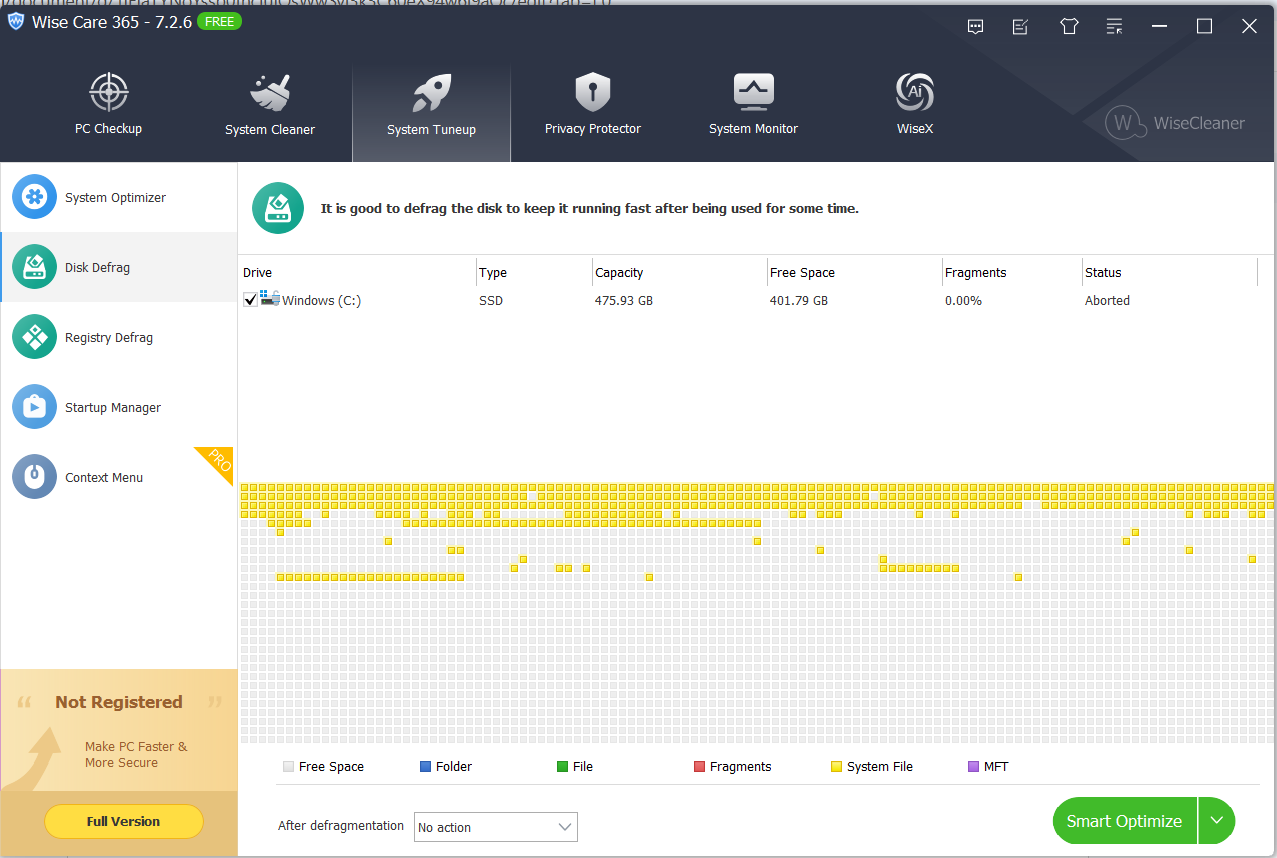
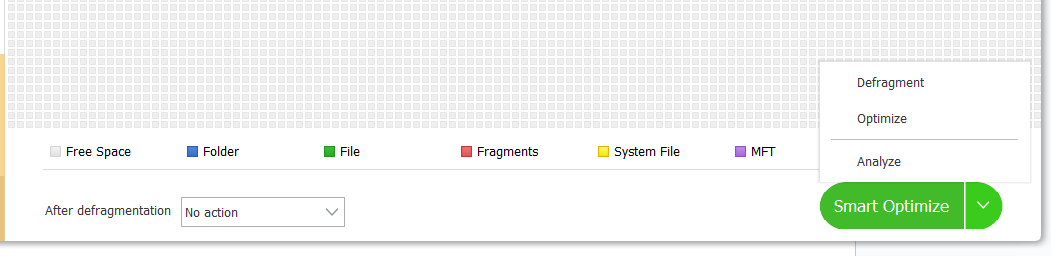
- Smart Optimize identifies your drive type and runs the type of optimization it needs.
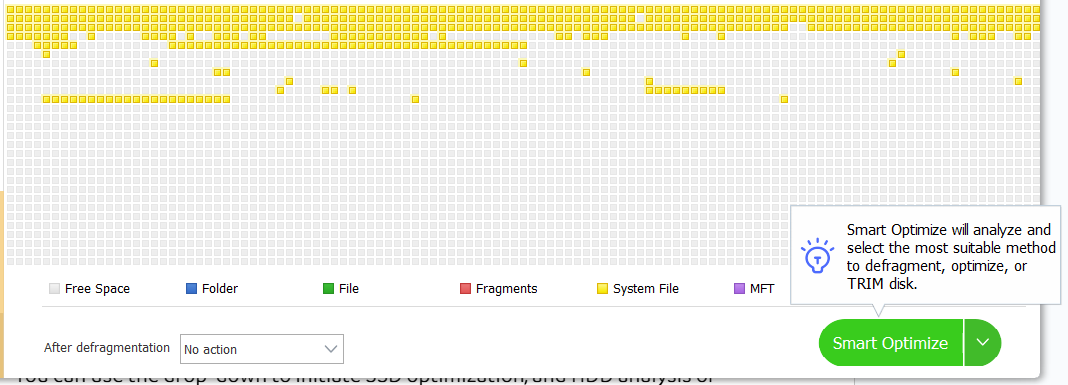
- You can use the Smart Optimize drop-down menu to initiate SSD optimization or HDD analysis or defragmentation.
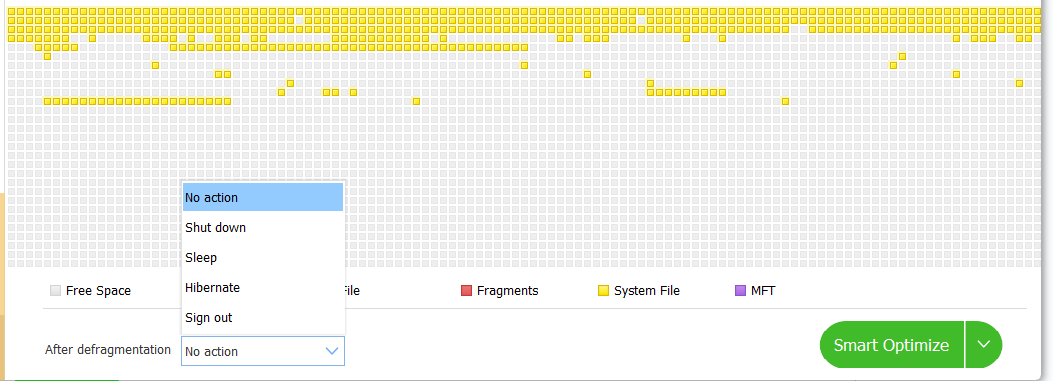
- Specify actions to be taken after drive optimization, such as Shut down, Sign out, Hibernate, or Sleep.
- Simple and easy to use
- No complex settings and customizations
- Supports SSD TRIM
- Its Smart Optimize feature identifies the type of drive you have and runs defrag for HDDs and trimming for SSDs
- Although the Smart Optimize option performs defrag for HDDs and initiates trimming for SSDs, the app doesn’t show any warning when the user tries to use the Defrag option on an SSD
- Doesn’t provide a list of fragmented files
- The optimization and defragmentation processes are slow
- Can’t be used for scheduling
- No boot-time defrag
- No auto-defrag
- Doesn’t support external drives
What Should I Look for When Choosing a Free Disk Defragmenter?
When choosing a free disk defragger, you should consider compatibility, safety, speed, available features, and ease of use.
- 🔧 Compatibility: See that the tool is supported on the OS you are running on your computer.
- 🛡️ Safety: It must be able to differentiate between HDD and SSD drives and effectively avoid defragging SSDs. And while defragging HDDs, it should do so without causing any damage to the disk and the data stored on it. Ensure that the tool is provided by a reputable developer with good user reviews.
- ⚡ Speed: How quickly does the tool complete disk analysis and defrag? It should be fast and resource-efficient. The best tools properly manage system resources and quickly run defragmentation without weighing down the PC.
- 🧰 Available features: Consider the specialized functions and the degree of customization allowed to the user.
- 👌 Ease of use: Is the app interface clear, simple, and easy to navigate? Also, feature descriptions, help files, and customer support should be readily available.
Conclusion: Optimize Your Hard Disk Drive with the Right Disk Defragmenter
Defragmentation is a crucial optimization process for hard disk drives. It safeguards the health of your hard drive and ensures your system continues to perform optimally.
Although Windows has its native Defragment and Optimize Drives utility, it doesn’t offer users much flexibility, and therefore, might not always achieve the performance improvements that users are looking for. Third-party tools provide more robust features for optimization.
However, if you only have SSDs, then you won’t need a disk defragmenter. You should instead stick with Windows’ native tool or go for dedicated third-party programs for SSD optimization. A good example is Auslogics SSD Optimizer.
Hope you’ve benefited from this guide. Let us know your favorite disk defrag software program.


