



- What Happens When I Clear My YouTube Watch and Search History?
- How to Clear Your YouTube History
- How to Clear Your YouTube Search History
- How to Clear Your YouTube Watch History
- How to Auto-Delete Your YouTube Search and Watch History
- How to Pause Your YouTube Search and Watch History
- How to Suspend YouTube History with YouTube Incognito Mode
- Conclusion—Stay in Control of What You See
- FAQ
Signing in to YouTube with your Google Account enables you to keep track of your activity on the platform.
Whatever you watch or search for is saved in your history, and YouTube uses it to personalize your experience—showing you more relevant content recommendations, search results, and Google ads.
If you are concerned about your privacy or simply not happy with the content YouTube presents on your feed, this article will show you how to clear your YouTube history and get a fresh start.
You’ll also learn how to manage your history so it serves you better going forward. We will explore how to go about it on the web and on the YouTube mobile app for Android and iPhone.
📺 The term “YouTube history” refers to videos you watch and things you search for on YouTube.
📑 You can visit the YouTube My Activity page to delete specific items in your history, clear multiple items by date or keyword, or clear your entire YouTube history.
🔄 The YouTube algorithm uses your history to recommend content in places like your homepage.
🧹 Deleting your search and watch history and preventing some of your activities from being saved allows you to control how the algorithm personalizes your feed.
🗑️ Auto-delete lets you clear your YouTube history on a schedule, removing old history you may no longer find relevant.
⏸️ You can pause your YouTube history to prevent new activities from being saved while keeping your past history.
🕵️ Incognito mode allows you to use YouTube as if you’re logged out. YouTube won’t save your watch and search history to your account in this mode, and your existing history won’t influence your experience.
🌐 When you are not signed in, YouTube can still record your activity on the platform by means of your IP address.
🛡️ Enhance your privacy by using a VPN, an alternative front-end platform (like Invidious or Piped), or a privacy-oriented browser (like Brave or Tor).
What Happens When I Clear My YouTube Watch and Search History?
Clearing your YouTube history will reset your content recommendations because they rely on your watch history. Deleting your search and watch history will also reset your Google Ads data, as the company relies on this information to serve adverts.

📌 Also read: How to Set Up Off-Facebook Activity Tool to Protect Your Privacy
Your past searches will no longer appear as suggestions when you use the search bar. The algorithm will also stop using them to personalize your experience.
However, instead of taking that nuclear approach, you also have the option of deleting specific items in your watch history and/or search history so that they will no longer influence future content.
How to Clear Your YouTube History
You can clear your YouTube history through the YouTube My Activity page, where your watch and search history appear in one continuous list. They are also categorized by the days on which they were created.
This makes it easy for you to perform a complete YouTube history search. You can then review your past activity and delete select items or clear all YouTube history. You’ll be able to manage everything you watched and searched for since day one.
How to clear your YouTube history on a computer
- Go to the YouTube My Activity page, where you can find our watch and search history.
- Scroll through the list and click the ✖️ icon on individual items to delete them from your history. Videos in the list are labeled Watched, searches are labeled Searched for, and other content is labeled Viewed.
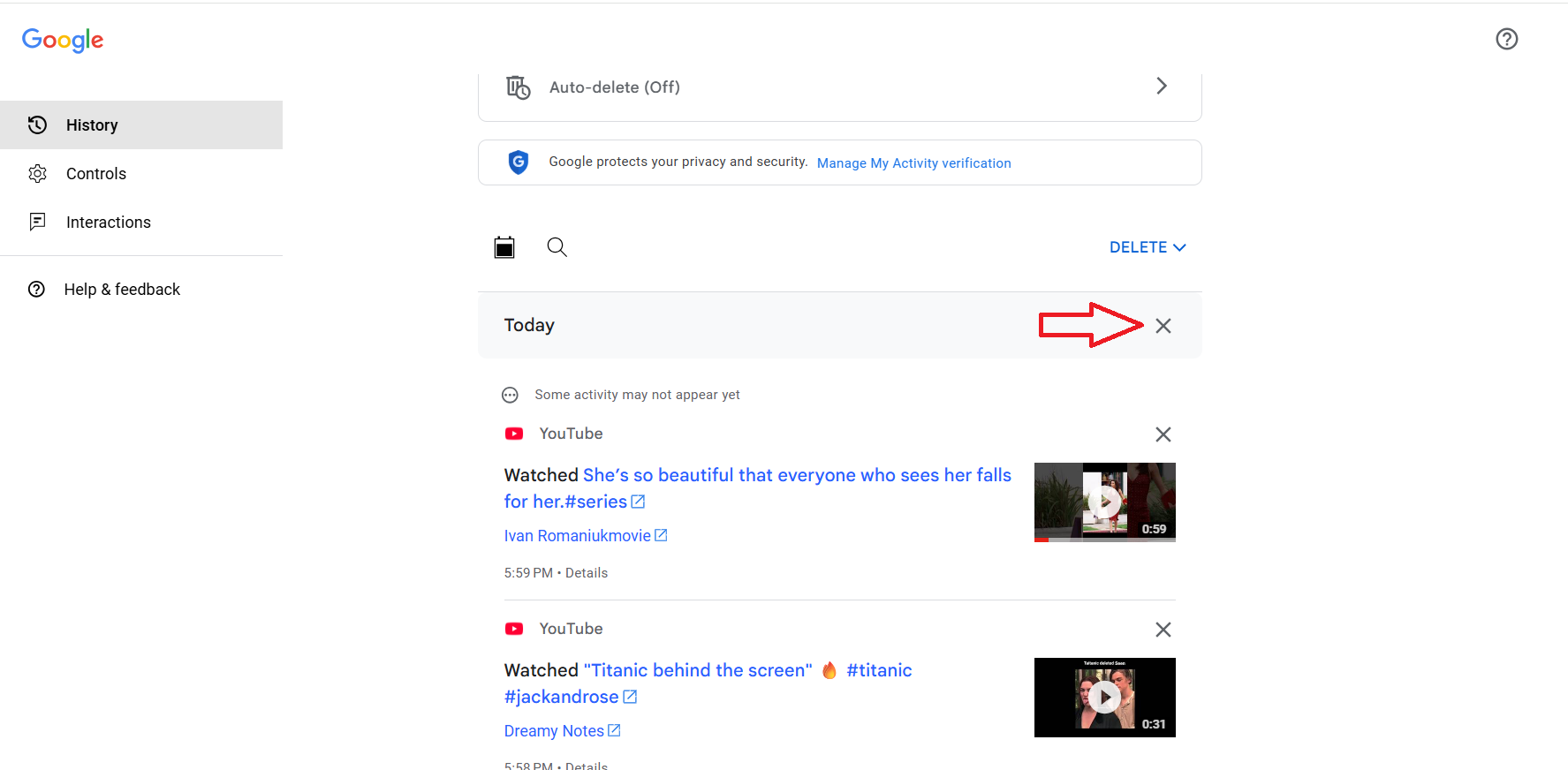
- You can also click the ✖️ icon on the day headers if you’d like to delete all history saved on those particular days.
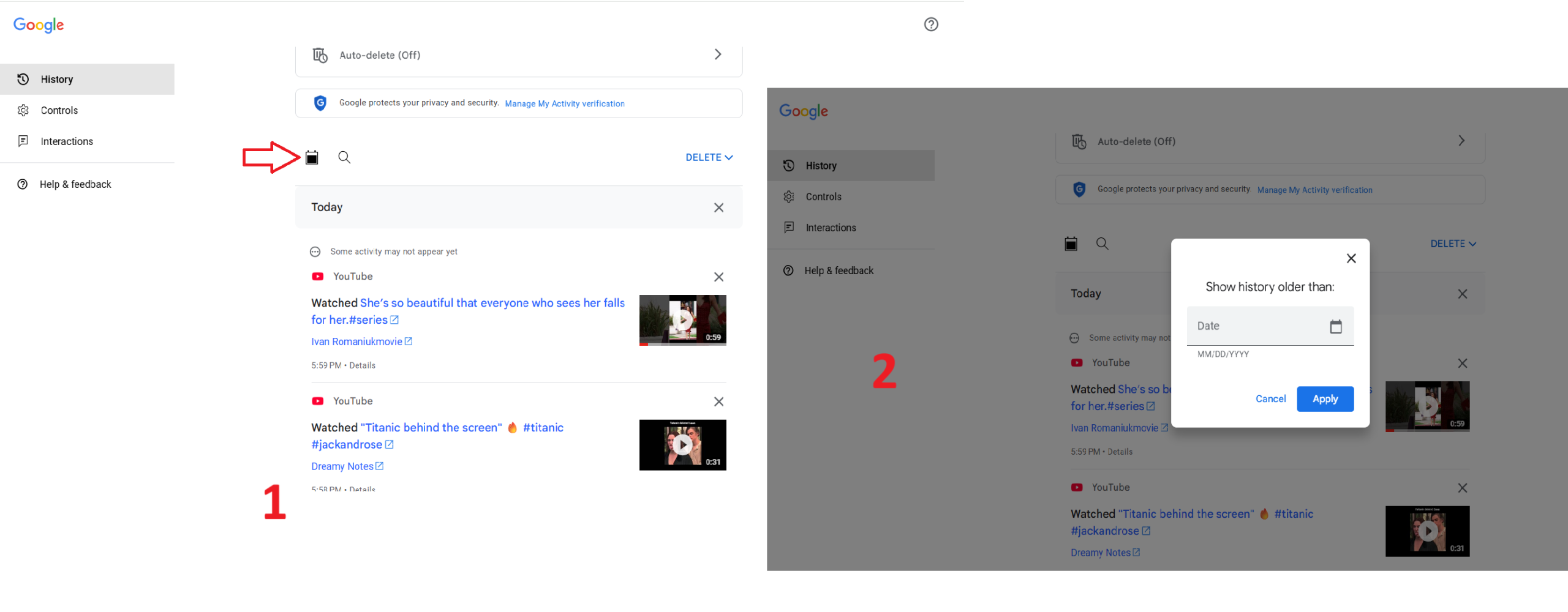
- To find older history, click the calendar (🗓️) icon, enter a date, and click Apply.
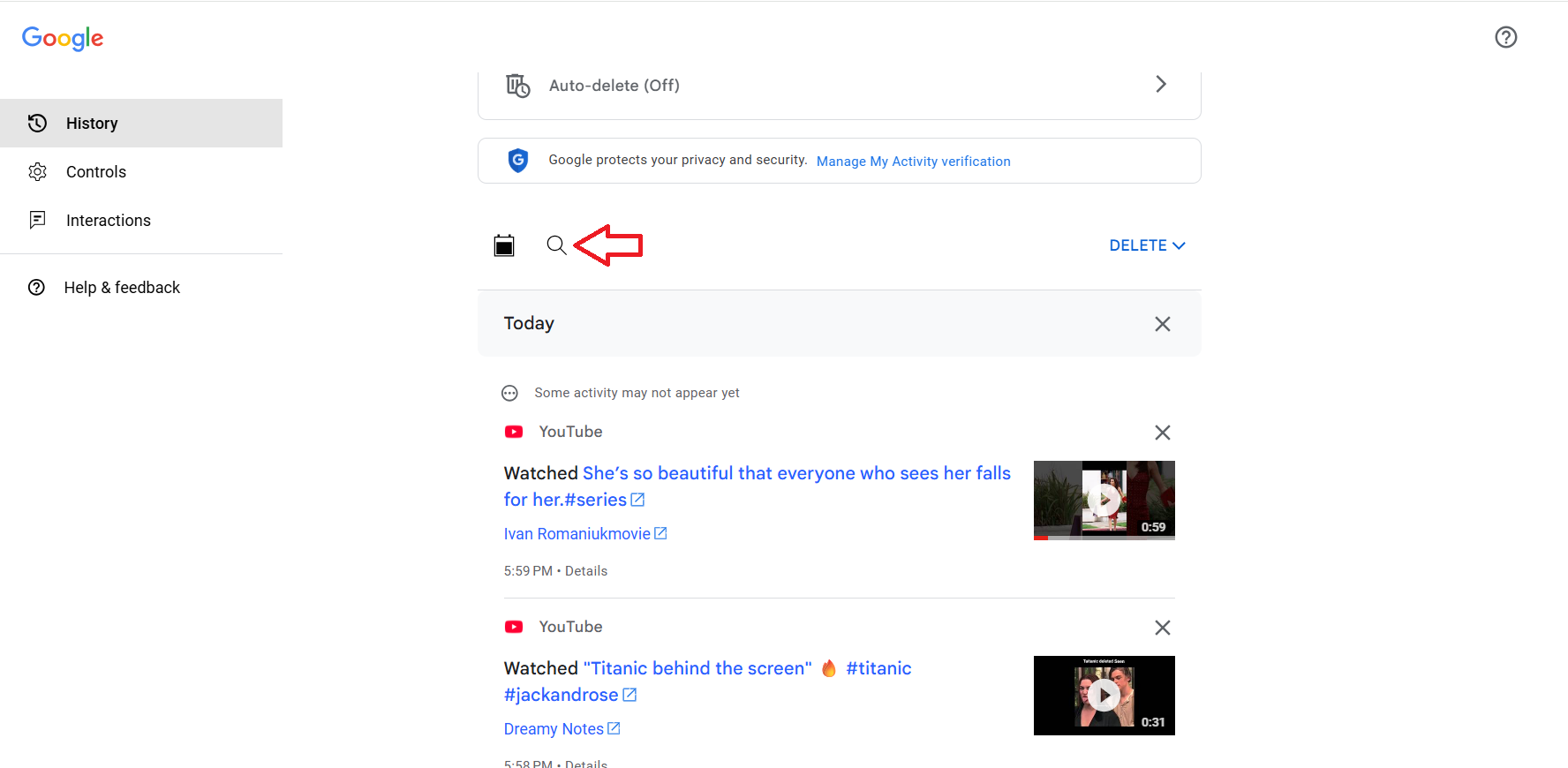
To filter YouTube history with a keyword, continue with these steps:
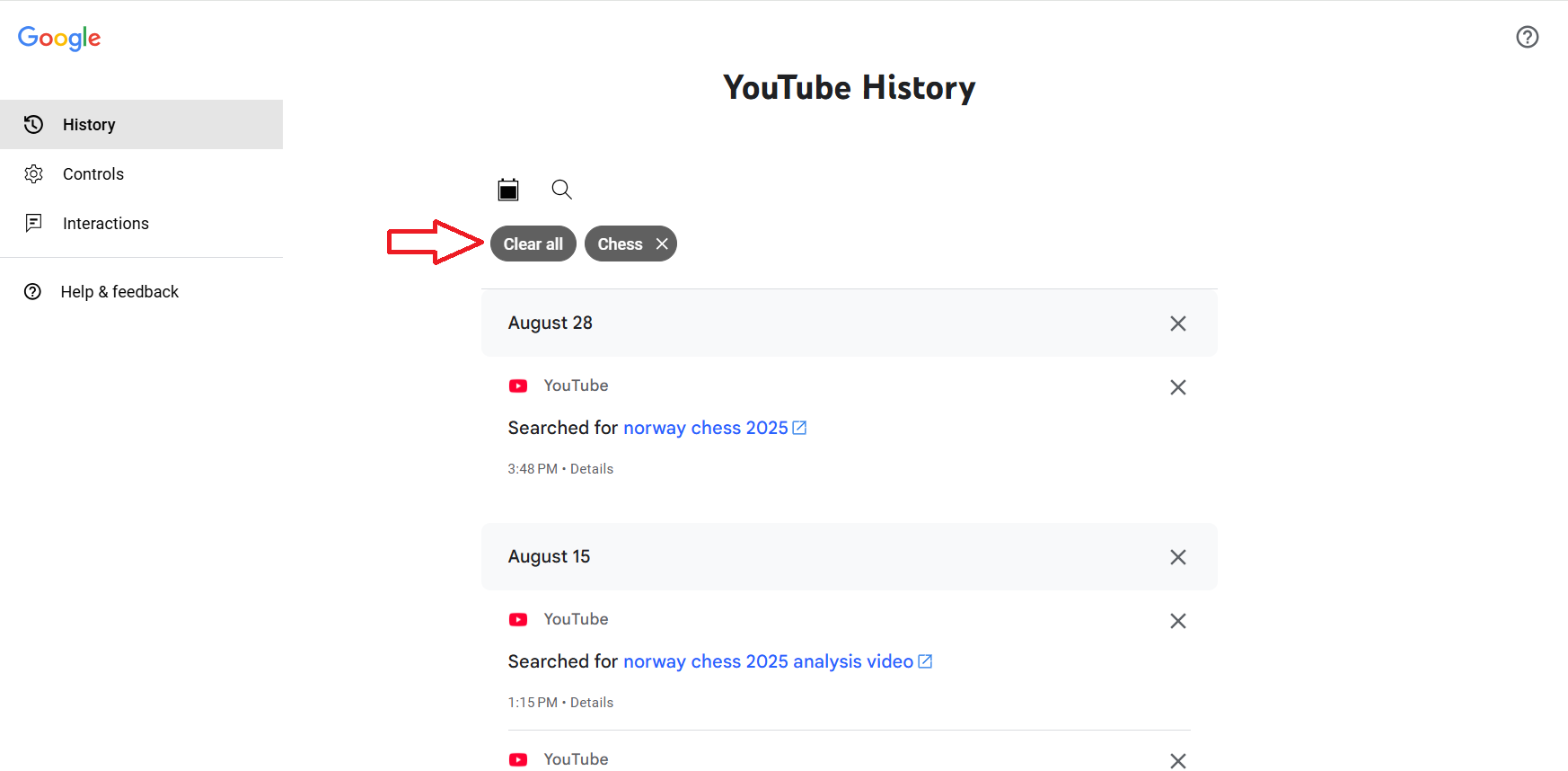
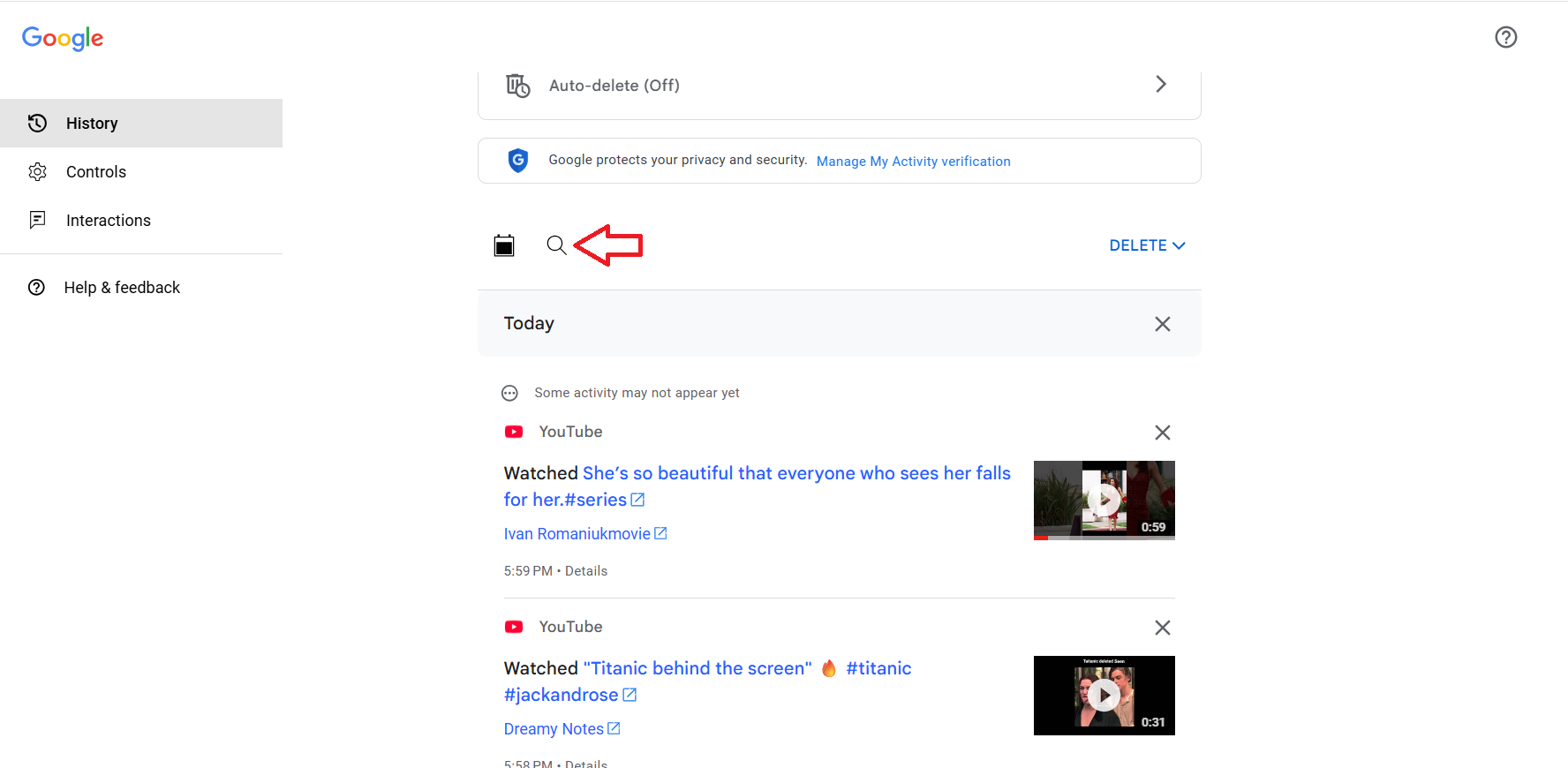
- Click the search (🔍) icon to filter out your YouTube history with a keyword.
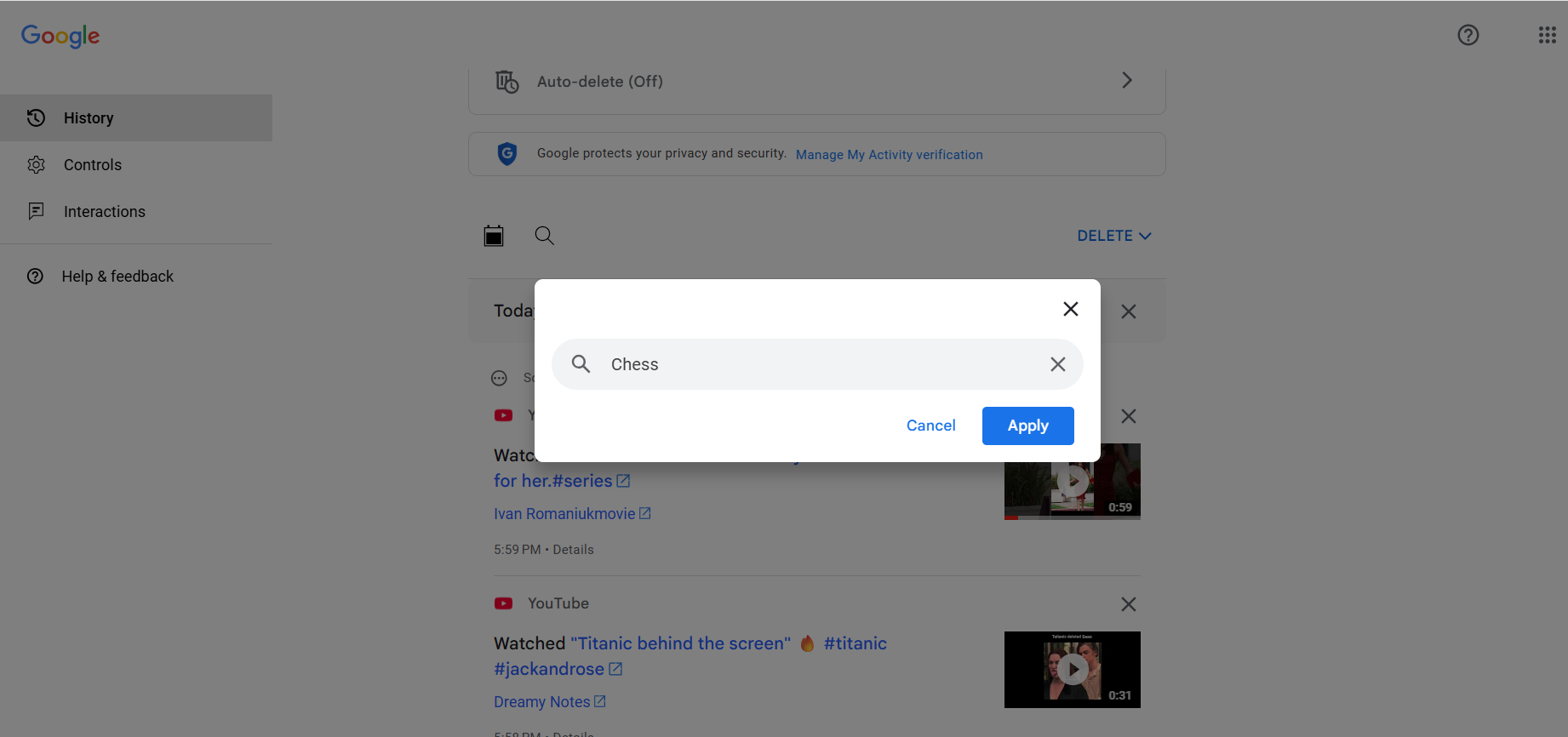
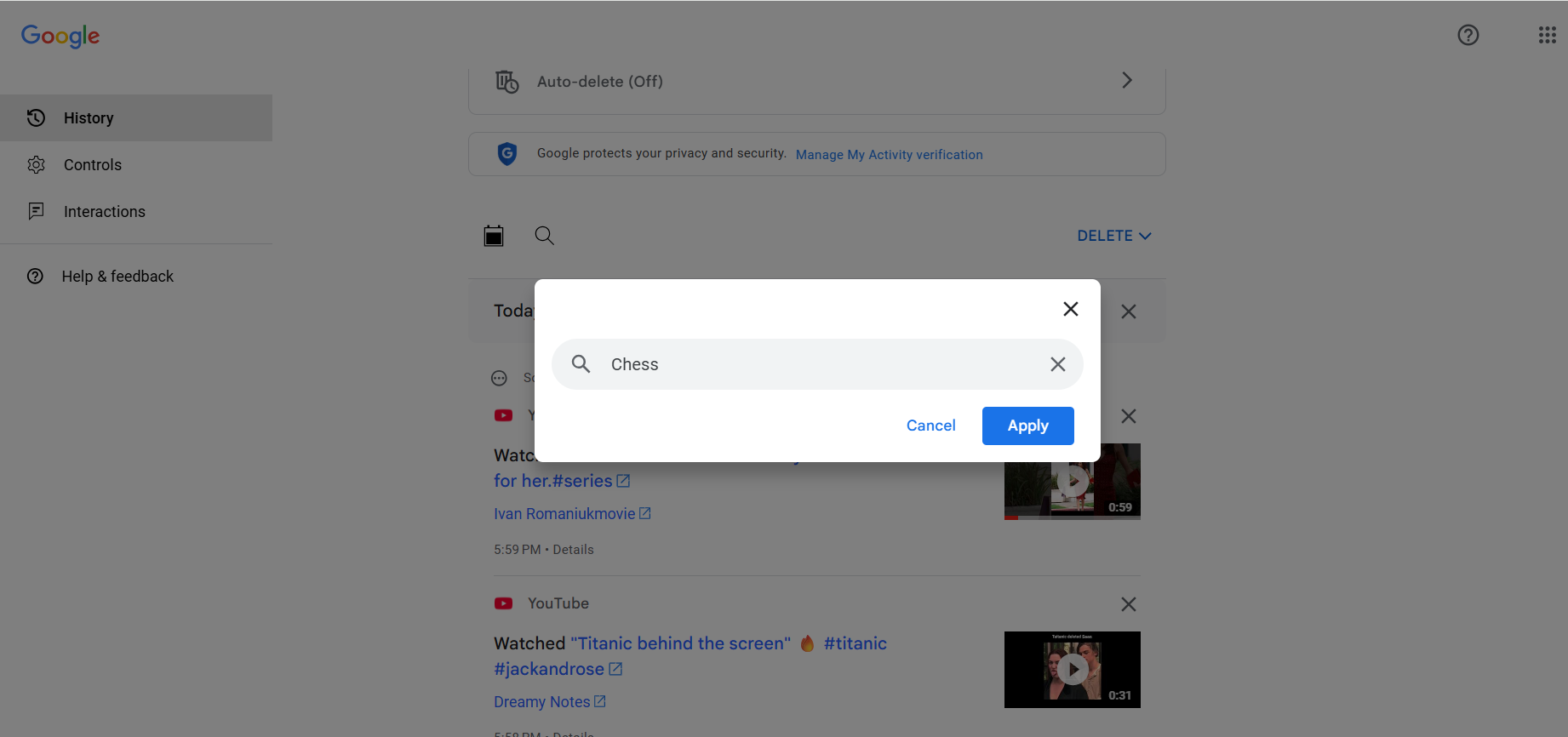
- Type in a keyword and click Apply.
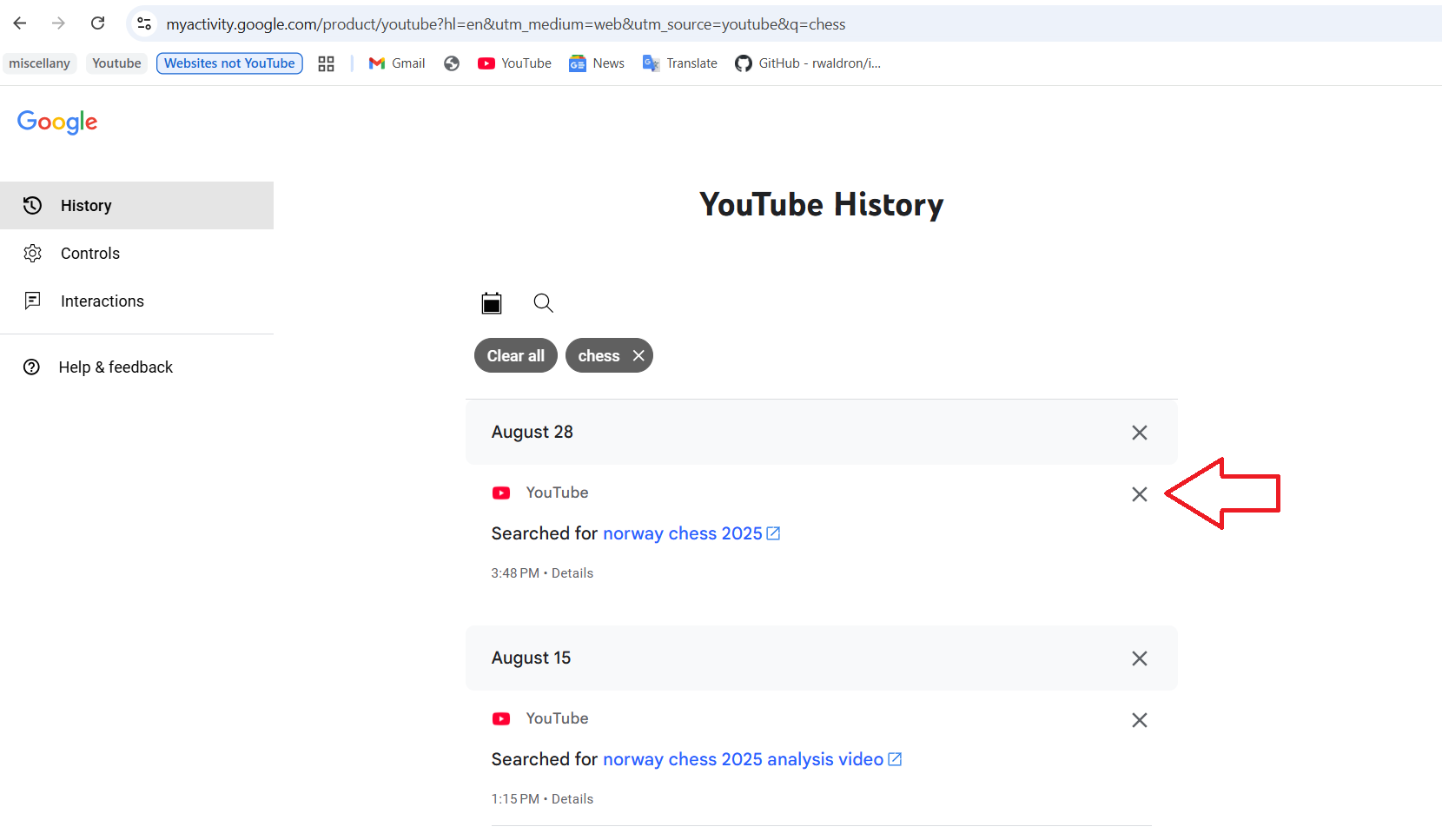
- Click the ✖️ icon on individual items to delete them, or click the Clear all button to clear all history that matches the keyword.
To filter history by time range, continue with these steps:
- Click on DELETE to expand the drop-down menu.
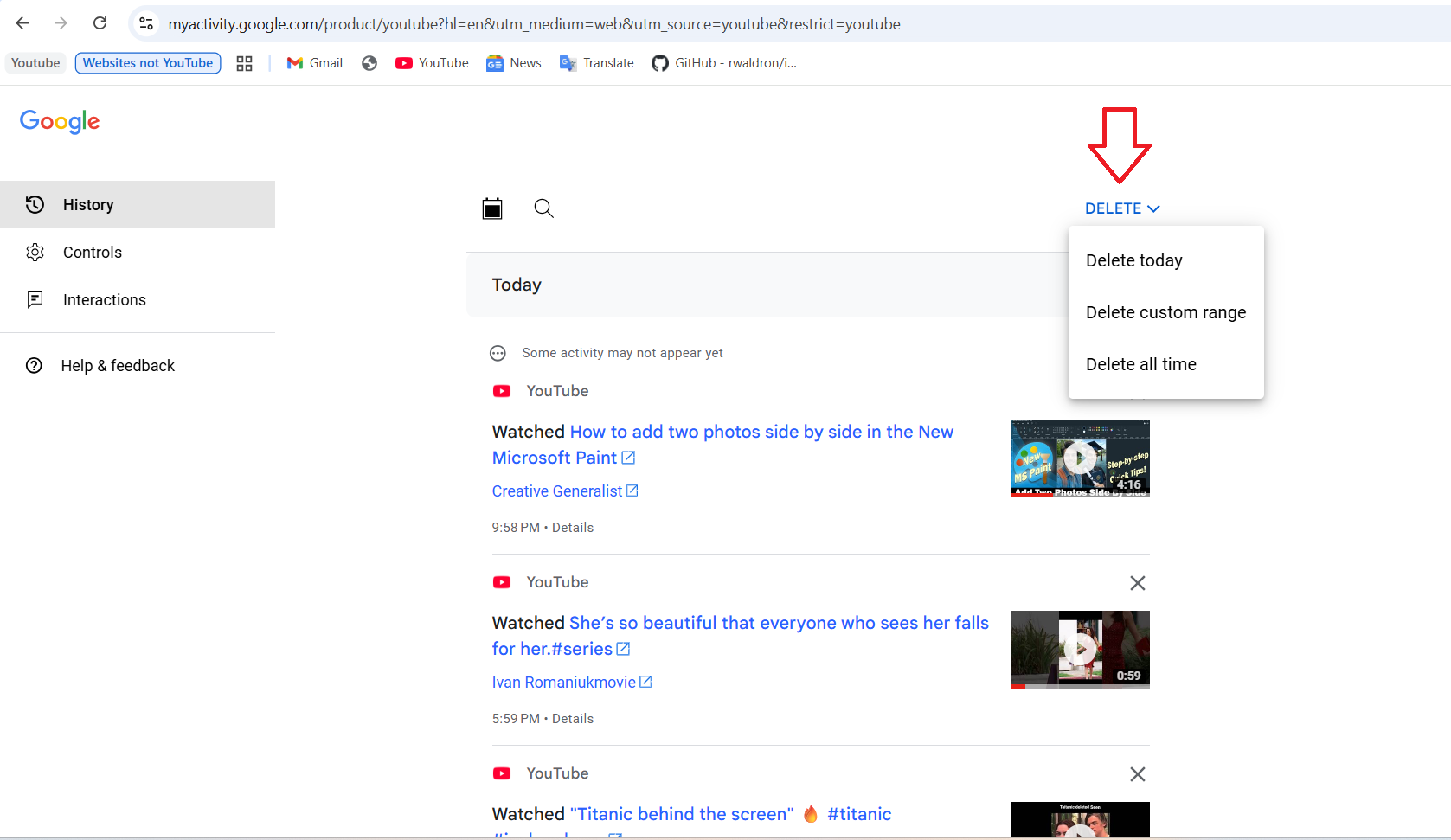
- Select Delete today to clear all the items saved in your history today.
- Select Delete all time to clear your entire YouTube history and start fresh.
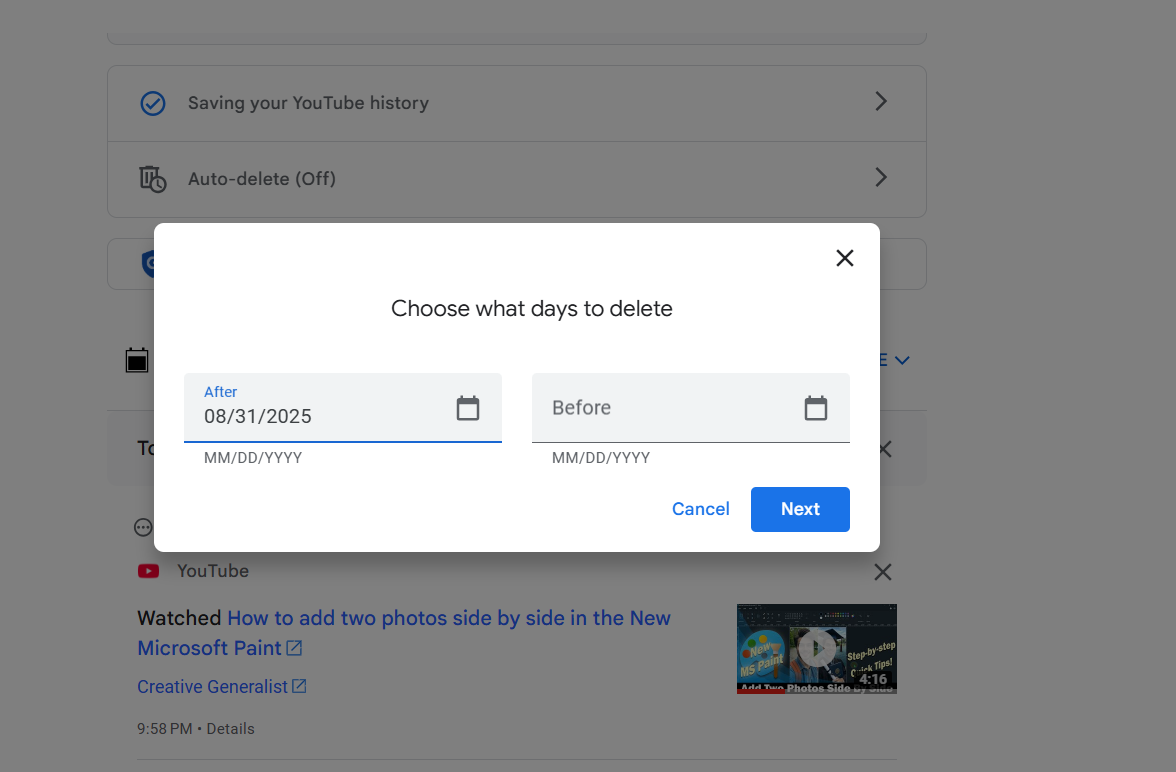
- Select Delete custom range to filter out your YouTube history based on a chosen time range.
If you select Delete custom range, enter a date into the After and/or Before fields. Then click Next.
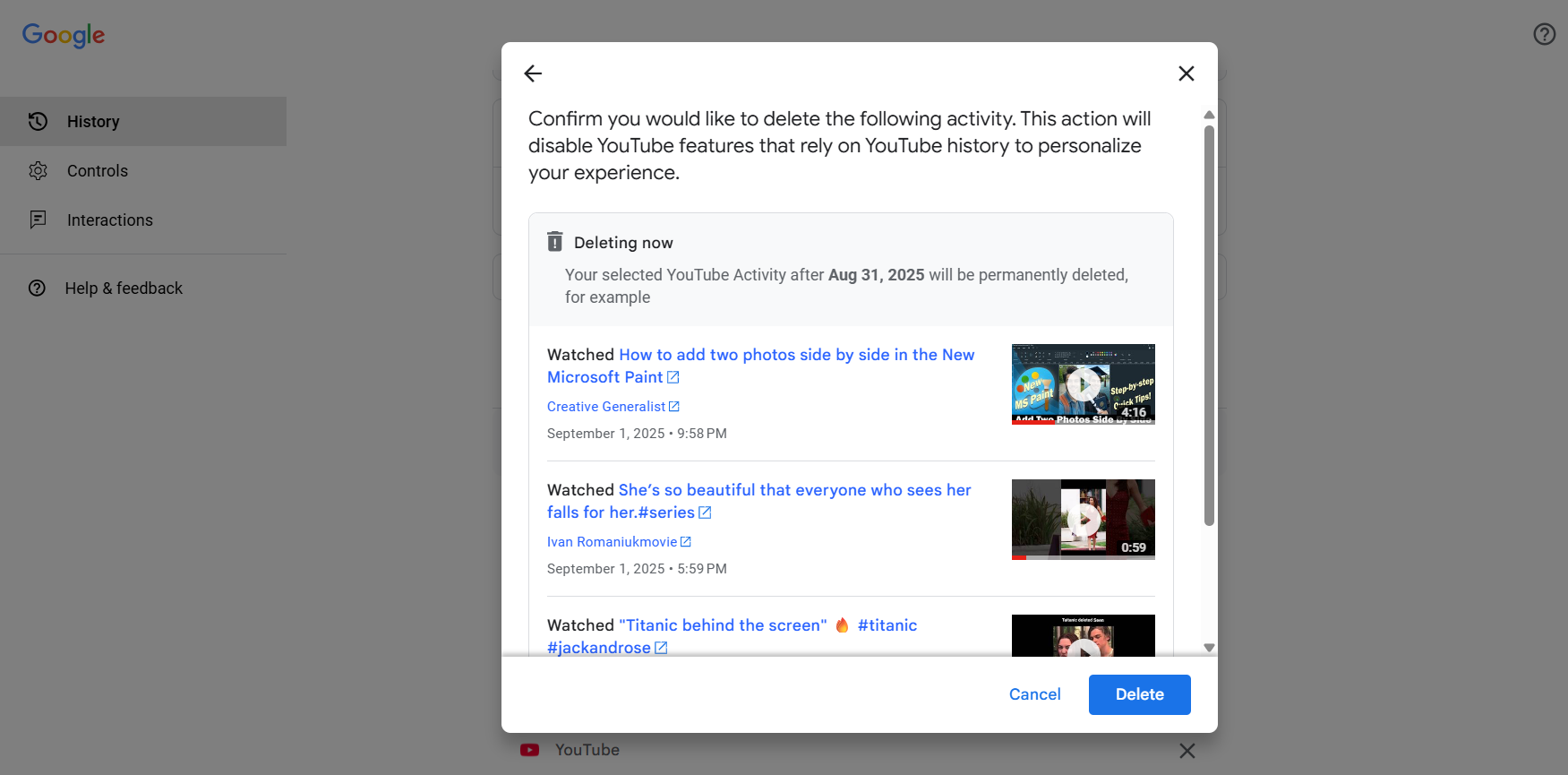
- You’ll be presented with a list of items that will be deleted. Click the Delete button to proceed.
How to clear your YouTube history on the YouTube mobile app (Android, iPhone & iPad)
- Open the YouTube mobile app on your device.
- Tap on You (your profile picture) and sign in if you are not signed in already.
- Tap the settings (⚙️) icon at the top of the screen.
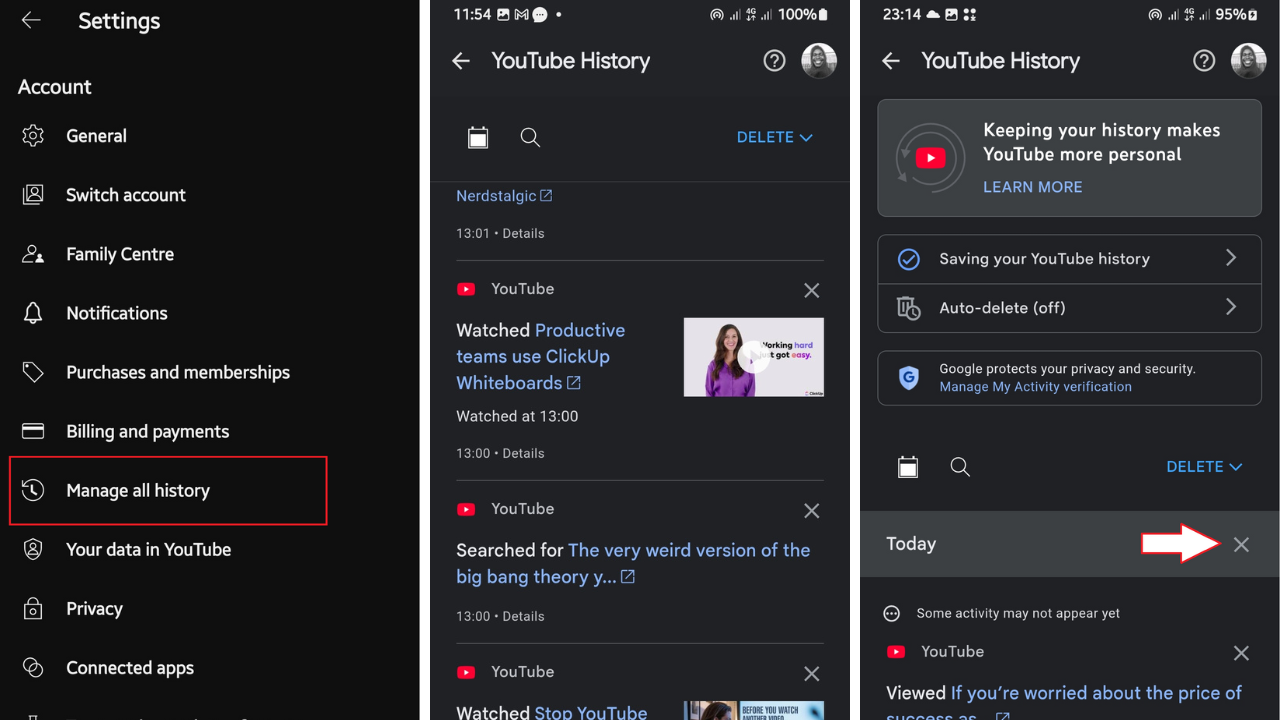
- Tap Manage all history.
- From here on, the process is similar to the web method explained earlier. Tap the ✖️ button next to any item to delete it. Videos are labeled Watched, searches are labeled Searched for, and other content is labeled Viewed.
- You can also tap the ✖️ icon on the day headers to delete all history saved on those days.
- To find older history, tap the 🗓️ icon, enter a date, and tap Apply.
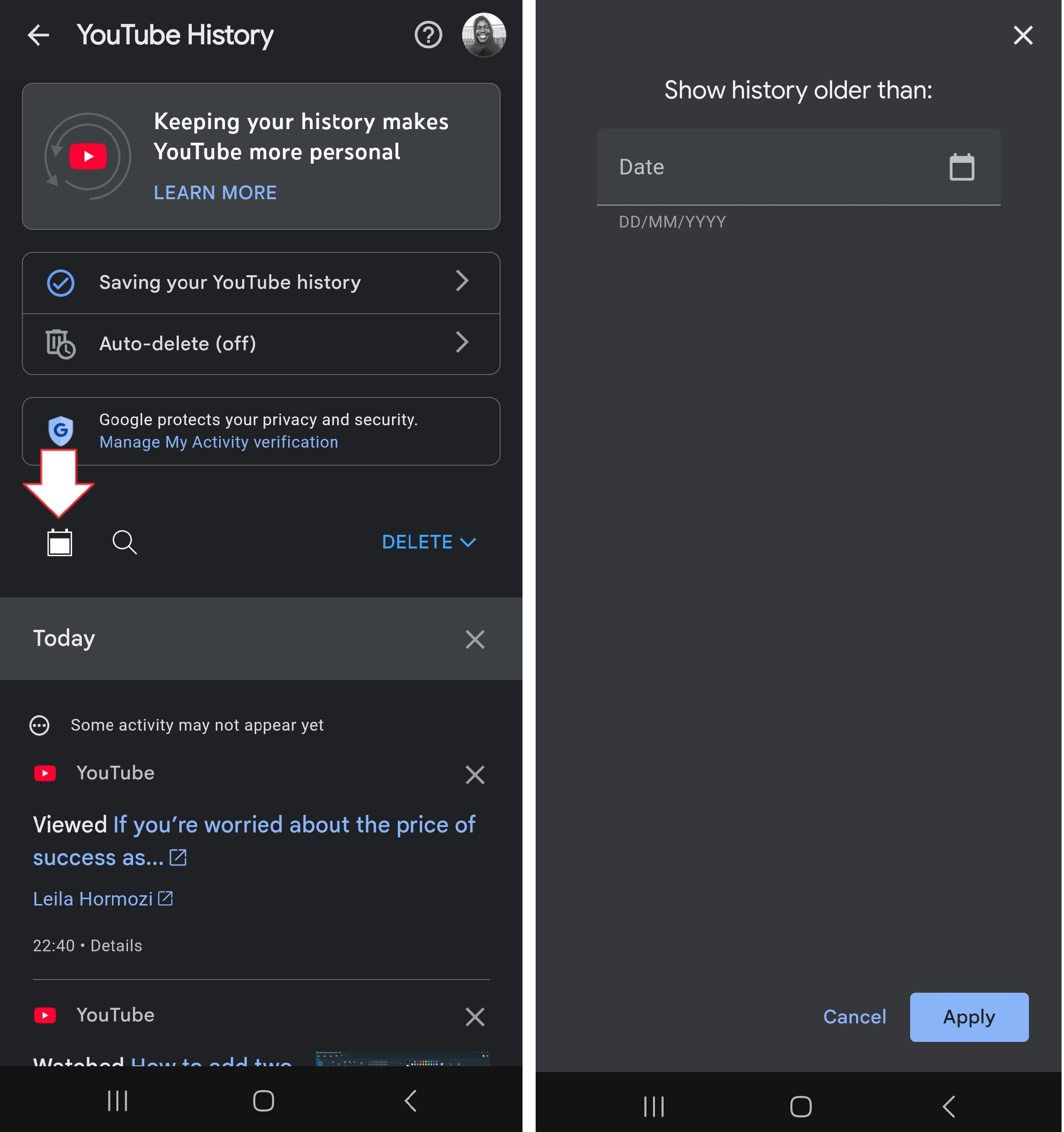
- You can tap the 🔍 icon to filter out your YouTube history with a keyword.
- Type in a keyword, tap Apply, and tap the ✖️ icon beside each item you want to delete.
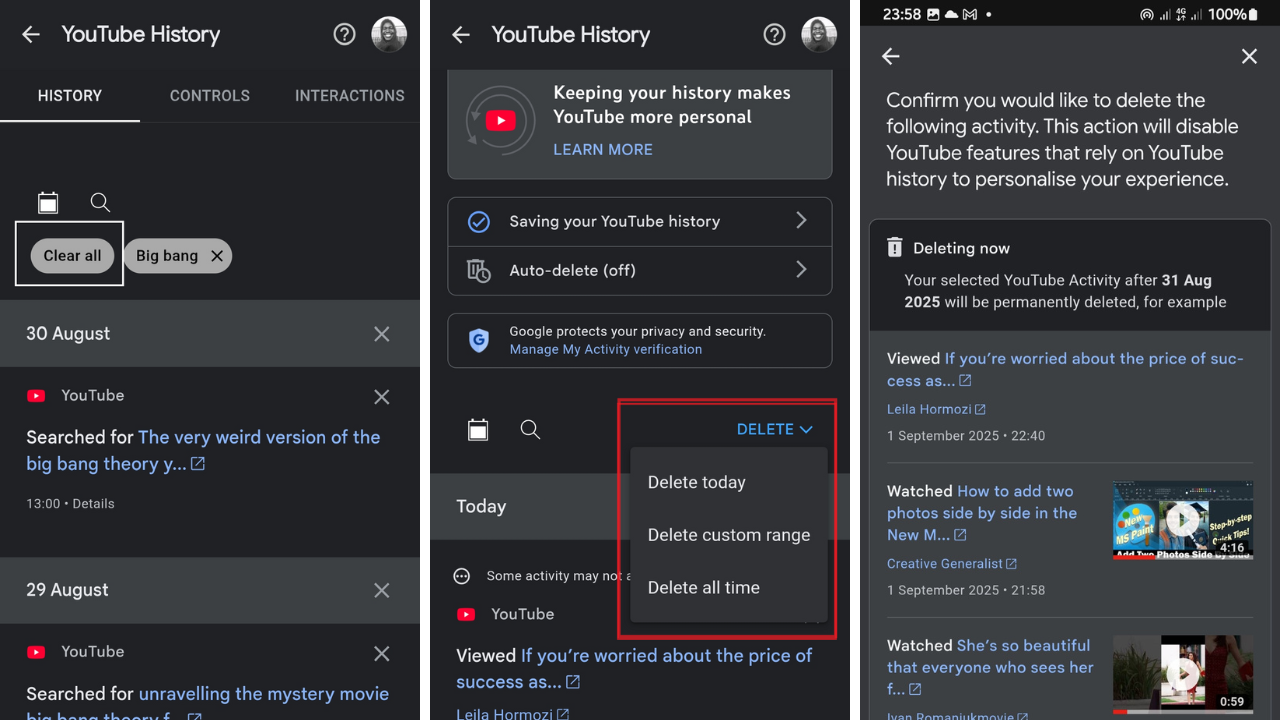
- Tap the Clear all button to clear every item on the results page.
To filter history by time range, continue with these steps:
- To remove search history by specific time ranges, tap the DELETE drop-down menu and choose between Delete today, Delete custom range, and Delete all time, as explained earlier.
- You’ll then be presented with a list of items that will be deleted. Tap the Delete button to proceed.
How to clear your YouTube history when you’re logged out
Did you know? When you are not signed in to YouTube, the platform can still record what you watch and search for, enabling it to personalize your experience.
It is able to do this using your device’s IP address and browser fingerprinting. Such history won’t be related to your account, if you have one.
You also won’t be able to view or manage them, but you can still clear all of it.
To clear your YouTube history when you are signed out, follow the procedure below:
⇢ On a computer
- Go to YouTube.
- Click on History under the You category on the left-hand side of the page.
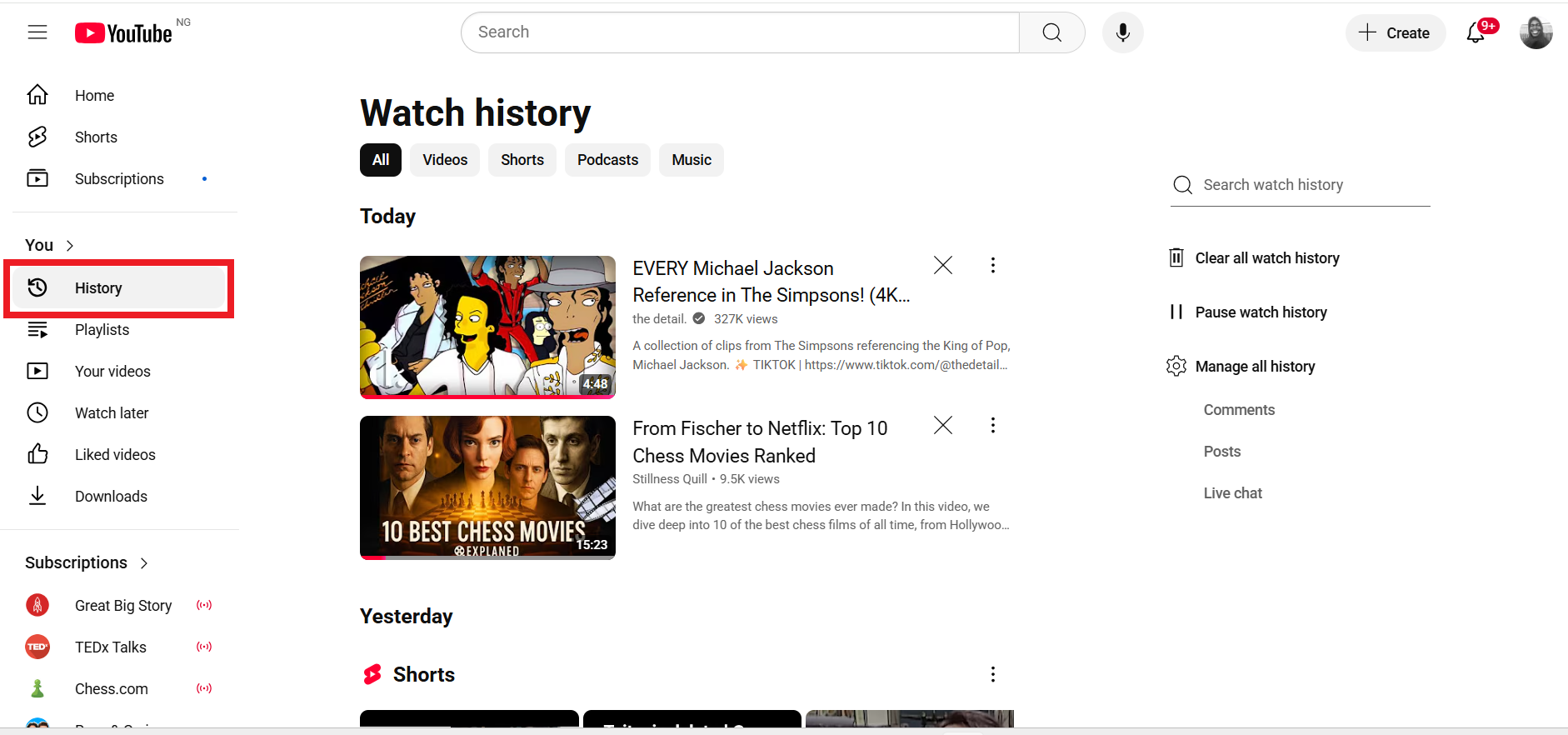
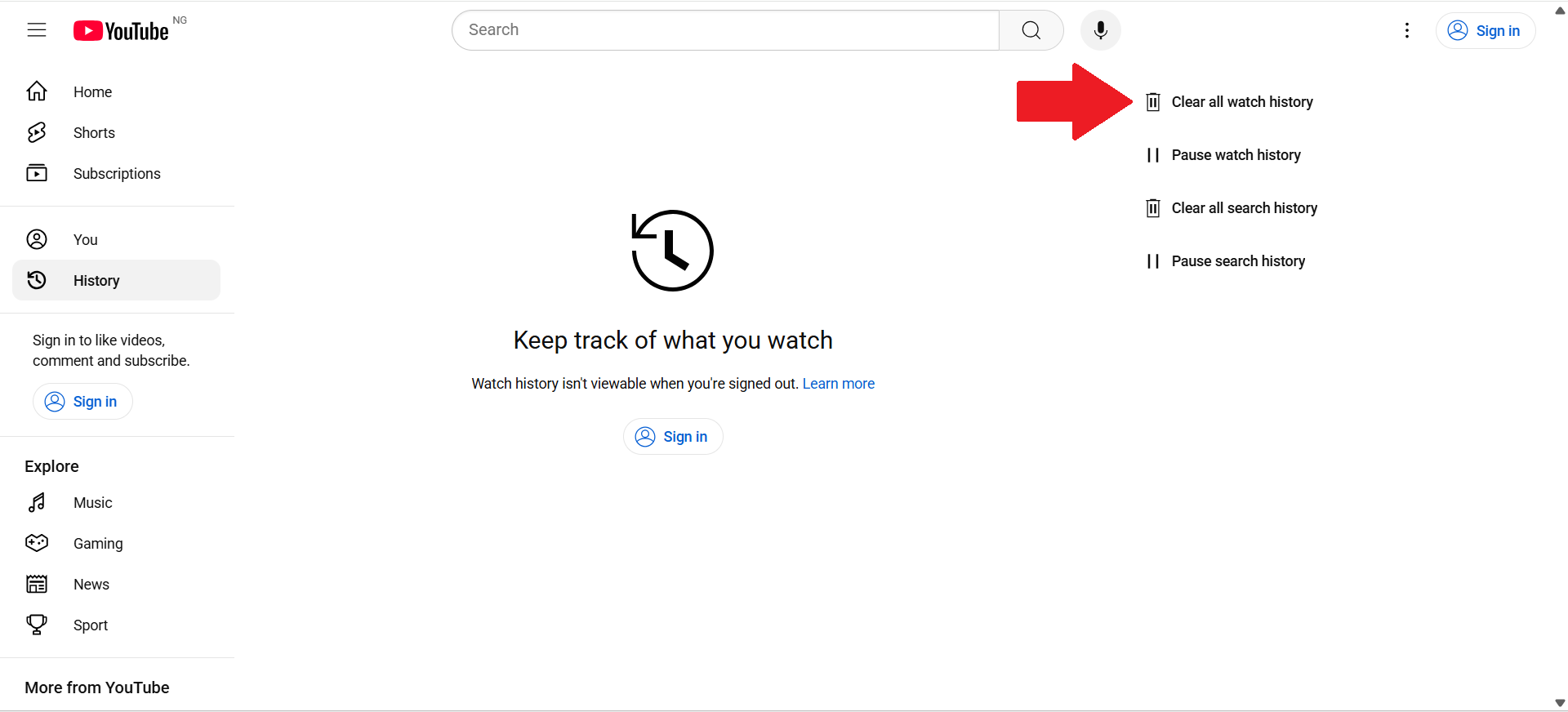
- When you are signed out, your watch history won’t be viewable. However, click on the Clear all watch history option on the right-hand side of the page.
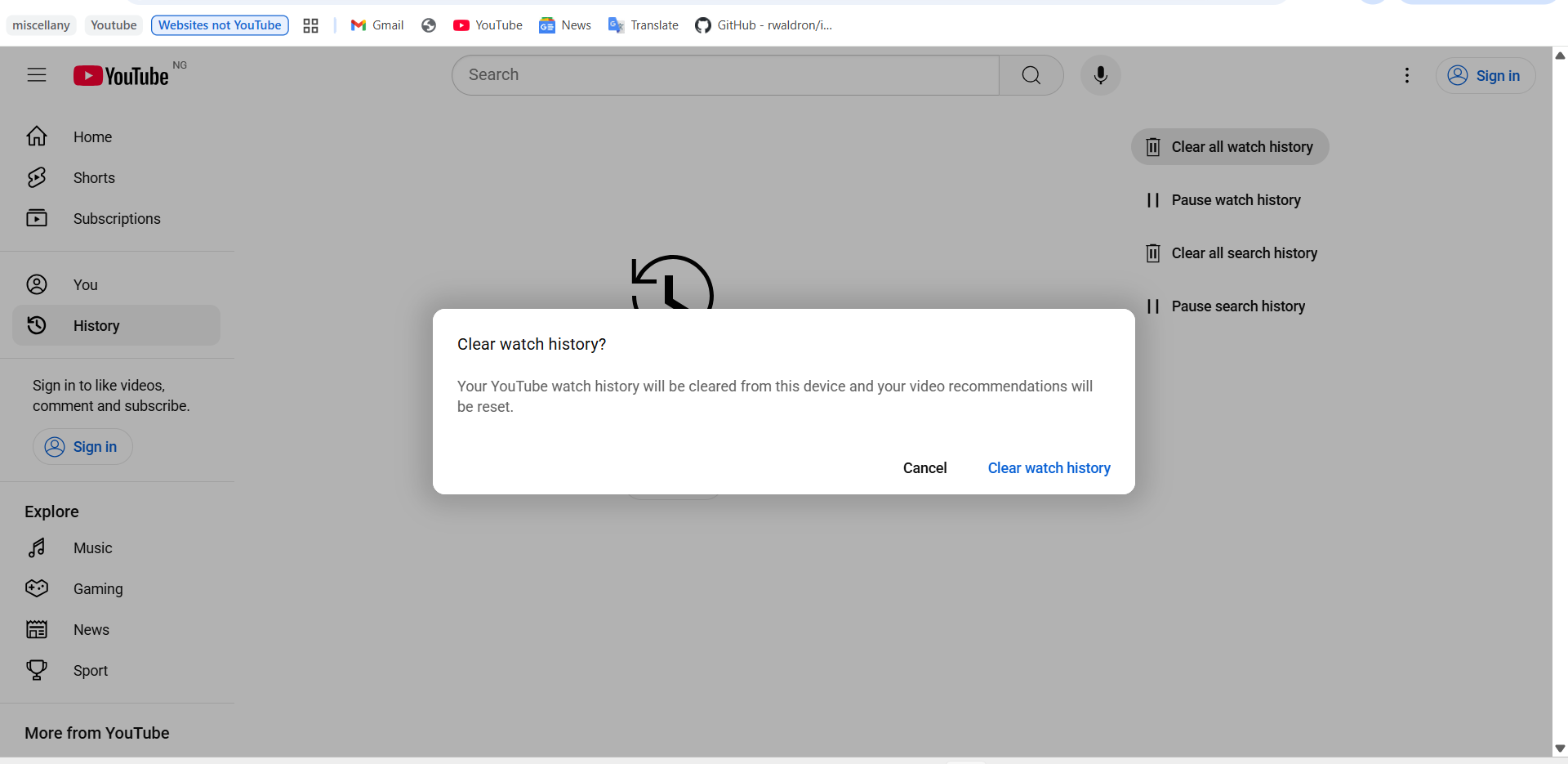
- Click Clear watch history in the Clear watch history? confirmation prompt that pops up.
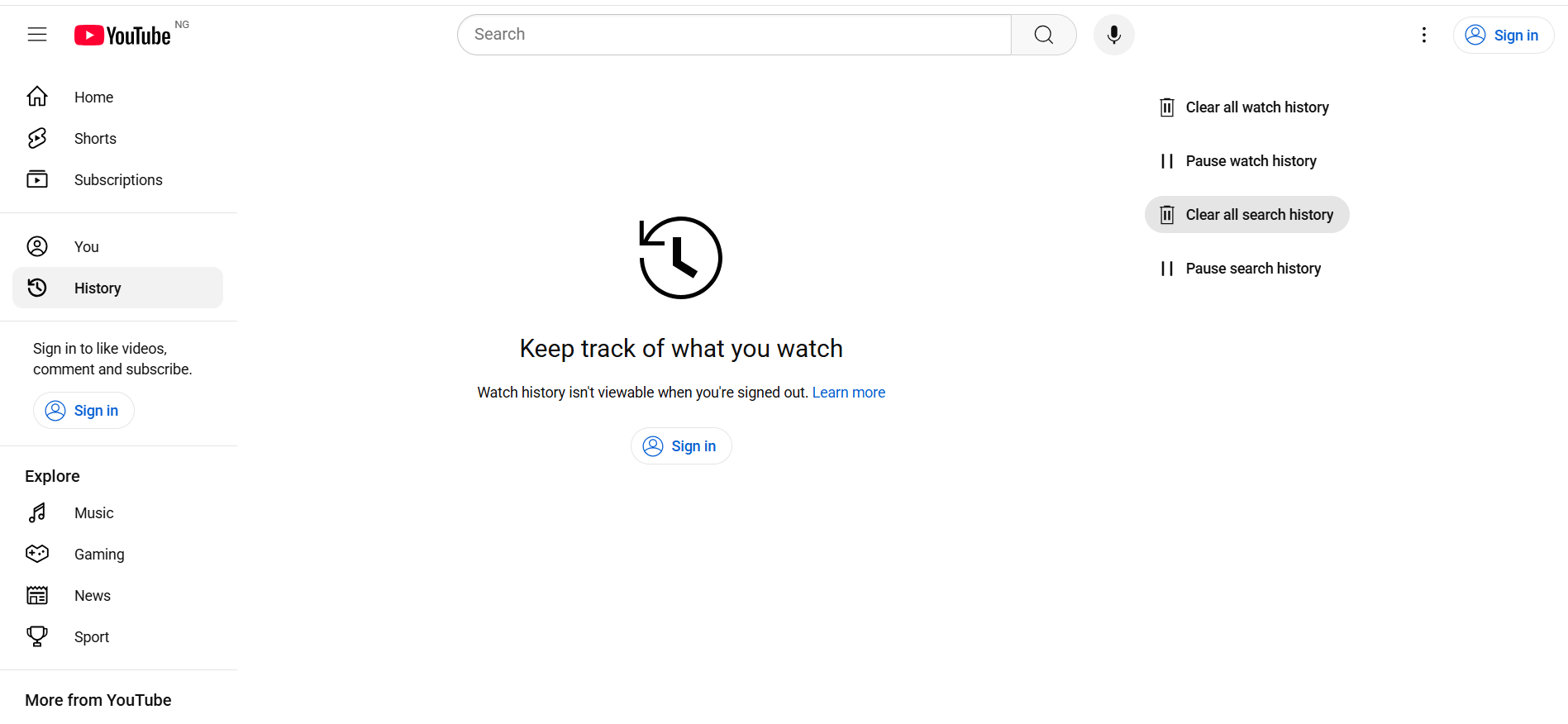
- Next, click on the Clear all search history option.
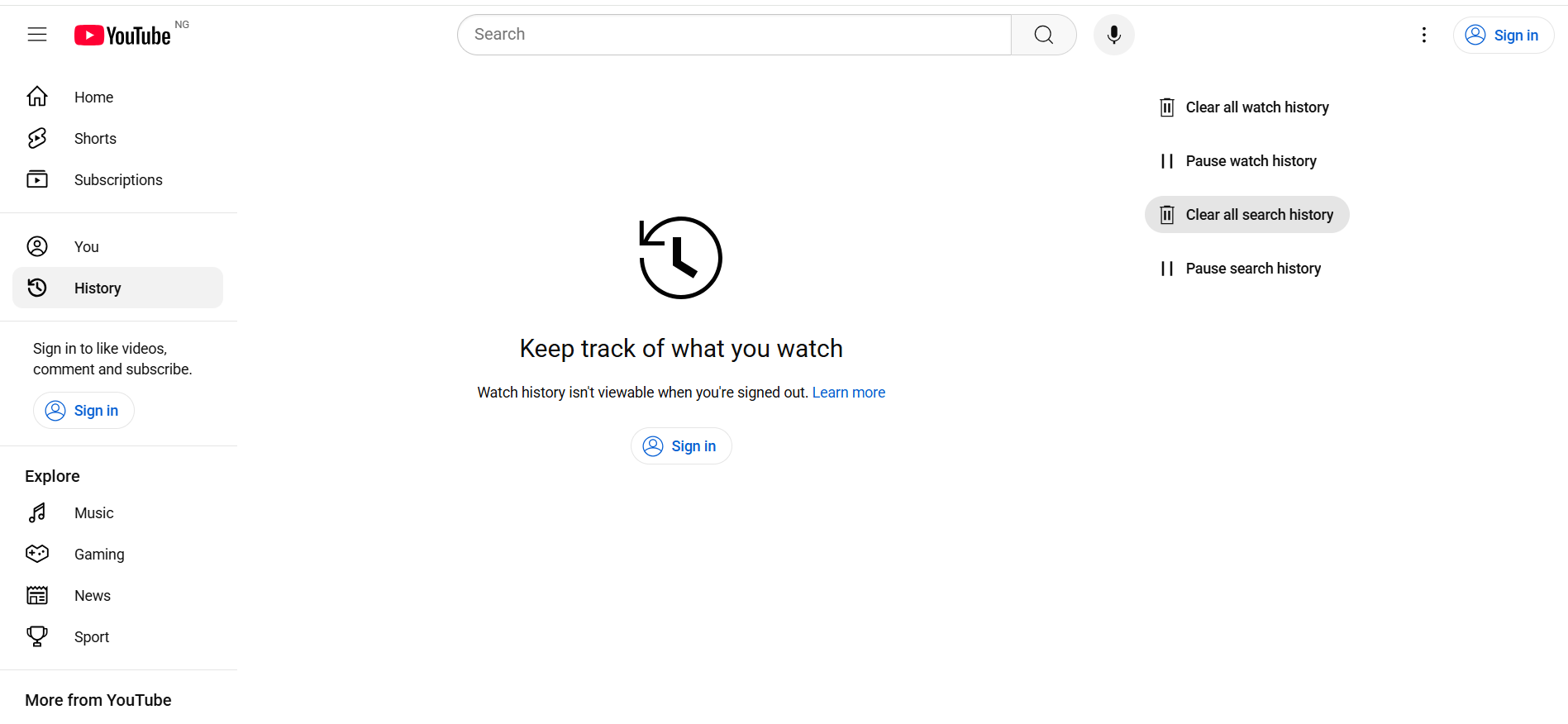
- Click on Clear search history in the Clear search history? prompt that appears.
⇢ On the YouTube mobile app (Android, iPhone & iPad)
- Open the YouTube mobile app on your device.
- Tap on You (the profile photo).
- If you are signed out, your watch history and playlists won’t be listed.
- Tap the ⚙️ icon at the top of the screen.
- Tap on History and privacy.
- Tap on Clear watch history.
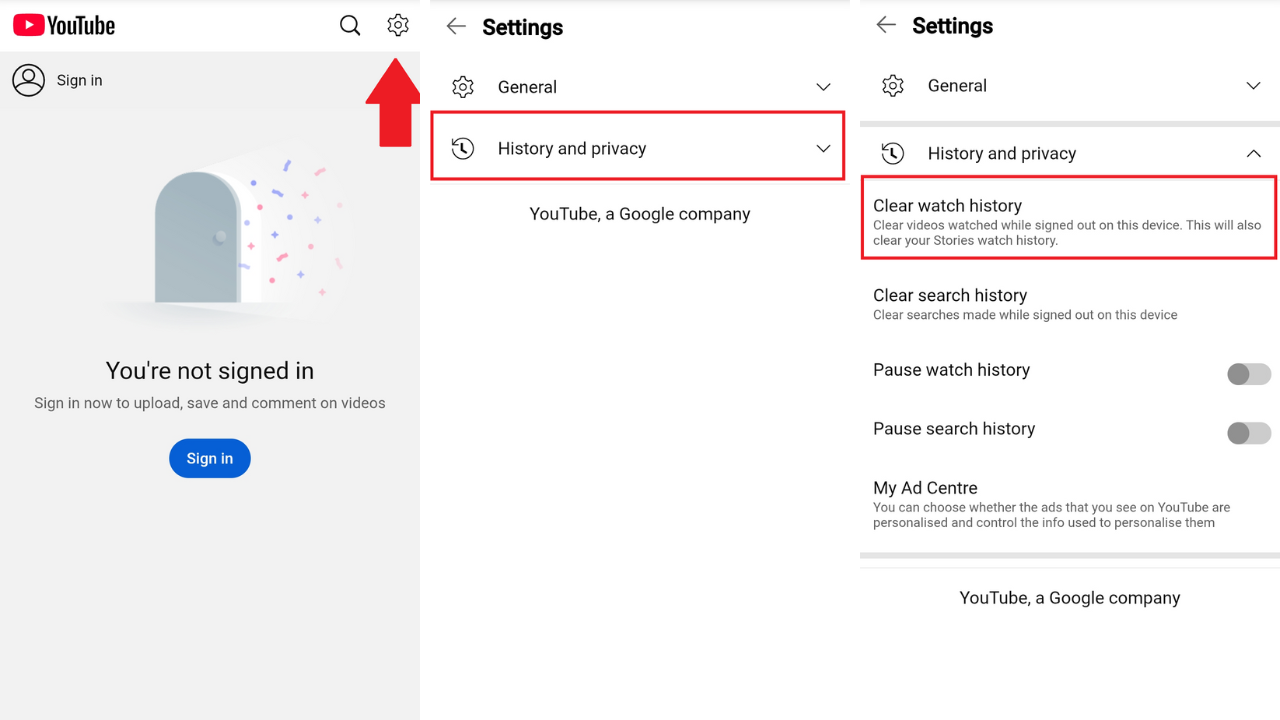
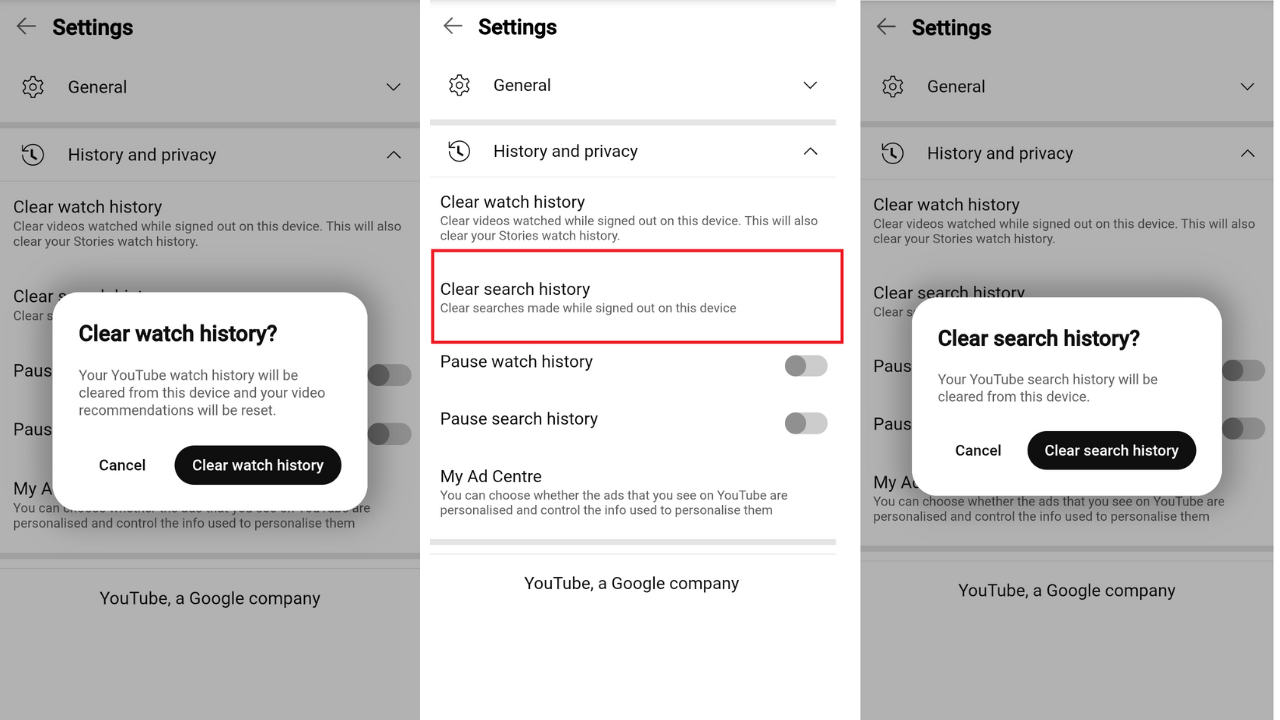
- Tap Clear watch history in the Clear watch history? confirmation prompt that pops up.
- Next, tap on Clear search history.
- Tap the Clear search history button in the Clear search history? confirmation prompt that pops up.
How to Clear Your YouTube Search History
Apart from the search suggestions that appear when using the search bar, there’s no separate list for managing the YouTube search history.
When you click on the search bar, your past search queries on YouTube appear as suggestions marked with a clock icon. The most recent ones are nearest to the search bar.
And if you want the suggestions to appear alphabetically, just type the desired letter into the search bar.
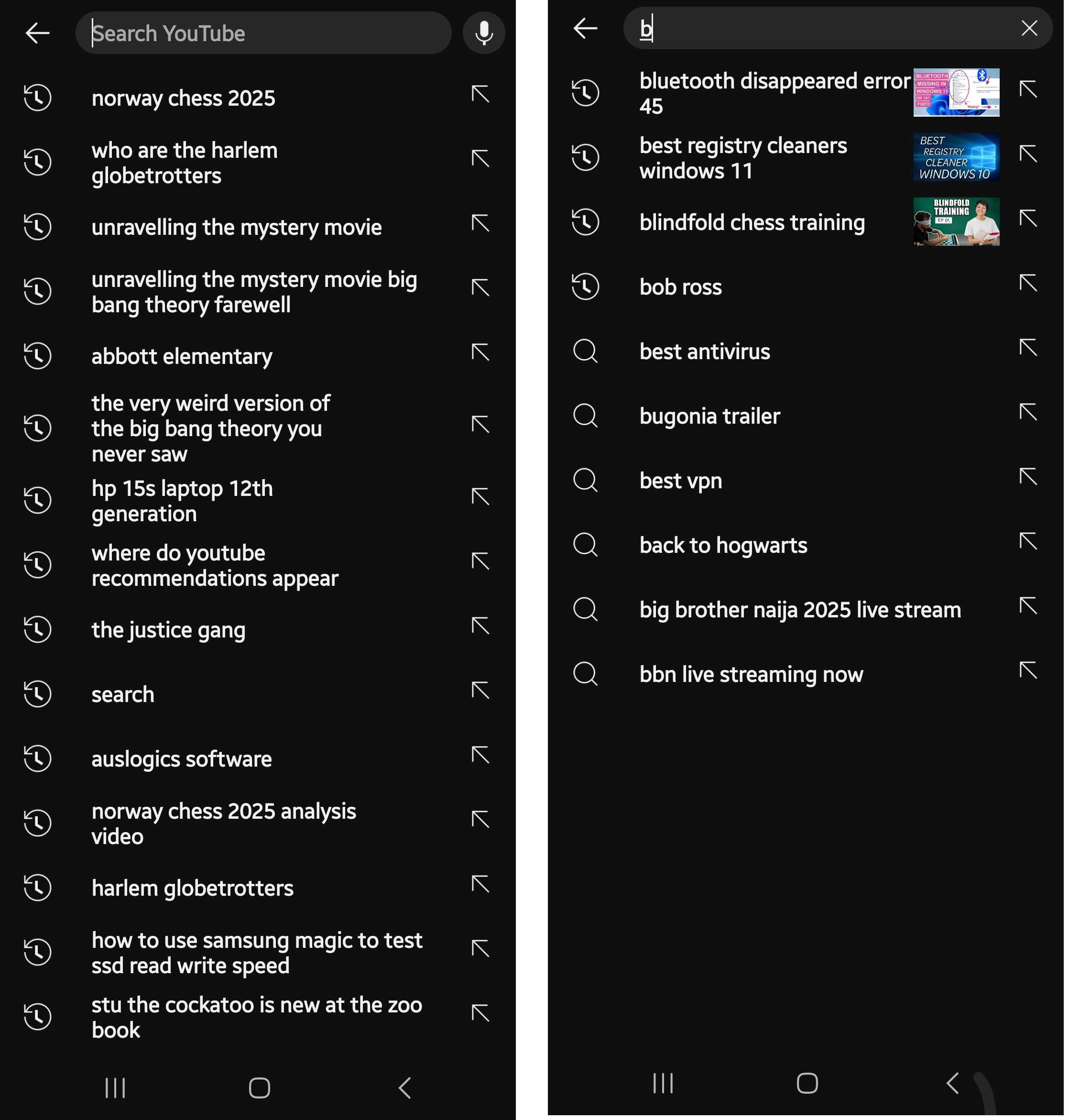
So, while it’s possible to clear your search history on YouTube, you cannot do it in a single stroke without simultaneously clearing your watch history.
However, you can use your browser’s Find feature (Ctrl + F) when on the My Activity page to filter out search history and delete it. I’ll show you how. First, let’s start with deleting search suggestions.
How to clear your YouTube search history on a computer using the search bar
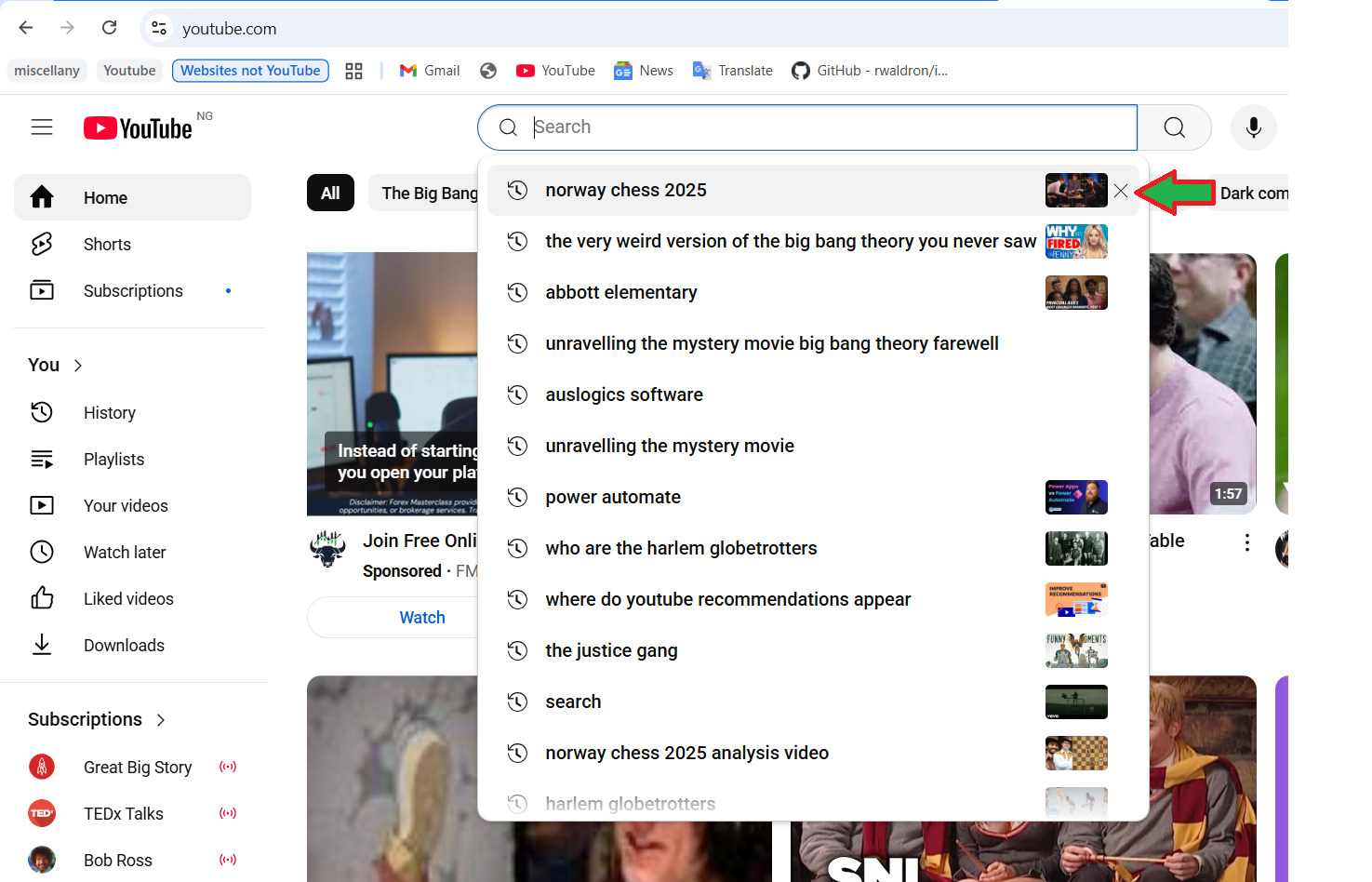
- Go to YouTube and sign in to your account.
- Now, click on the search bar.
- Hover over a suggestion and click the ✖️ icon to the right to delete it. It will then no longer exist in your search history.
Follow these steps to use your browser’s Find feature on the My Activity page:
- Go to the YouTube My Activity page. Your search and watch history are mixed together here.
- Instead of scrolling manually, press Ctrl + F and type search in the box that appears.
- Your browser will now automatically take you to the Searched for items. Click the ✖️ icon beside each item to remove it from your history.
- You can also use the 🗓️ icon to find older history, then use the Find feature to locate the search items.
Additionally, you can find and delete search items in the YouTube history based on keywords if you remember your searches. Here’s how:
- Click the 🔍 icon and type in a keyword.
- Click the Apply button.
- You’ll now be presented with a list of searches that contain that keyword. Click the ✖️ icon next to each search item to delete it.
How to delete your YouTube search history on phones
- Open the YouTube mobile app on your device.
- Tap on You and sign in if you are not already signed in.
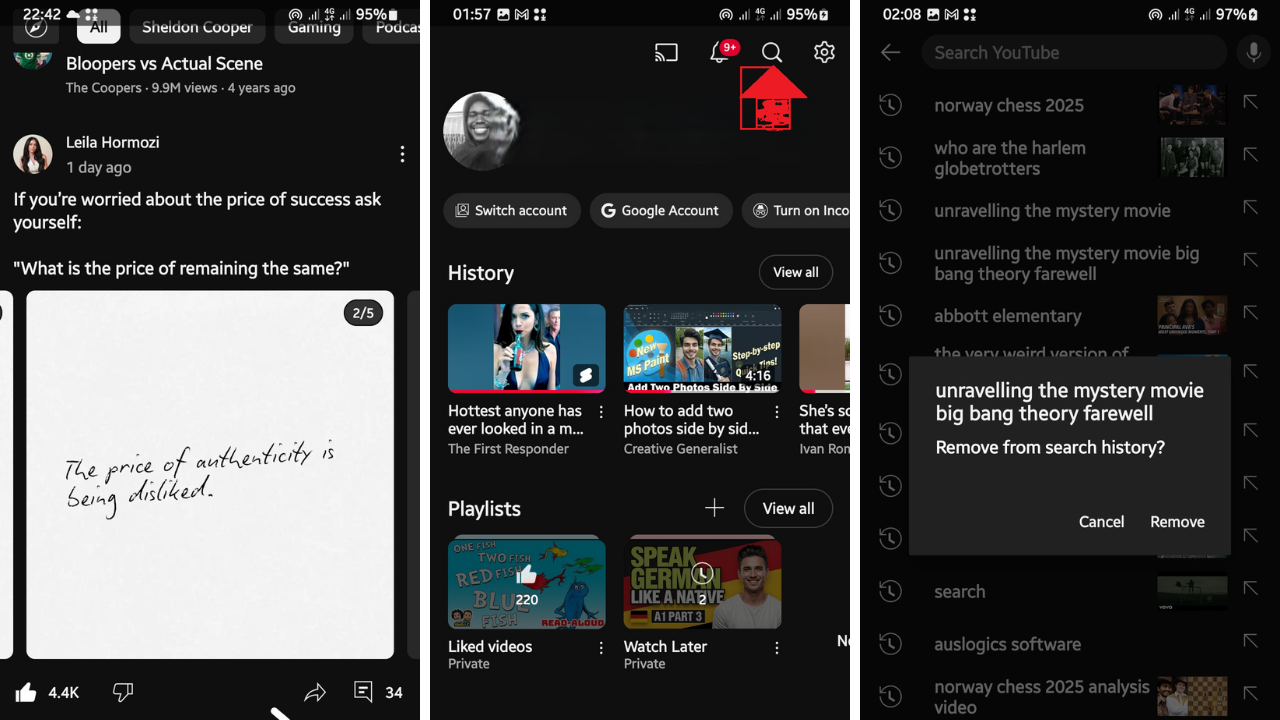
- Tap the 🔍 icon at the top of the screen to open up the search bar.
- Press and hold a search suggestion, and then tap Remove in the Remove from search history? prompt that appears.
Deleting search history by date on mobile devices involves the same process explained earlier under the How to Clear Your YouTube History section.
Go to Settings > Manage all history and focus on the items tagged Searched for. You can also click the 🔍 icon to find specific search history items you remember.
How to Clear Your YouTube Watch History
YouTube allows users to manage the watch history independently of the search history. The watch history is categorized not only by day but also by type, including Videos, Shorts, Podcasts, and Music.
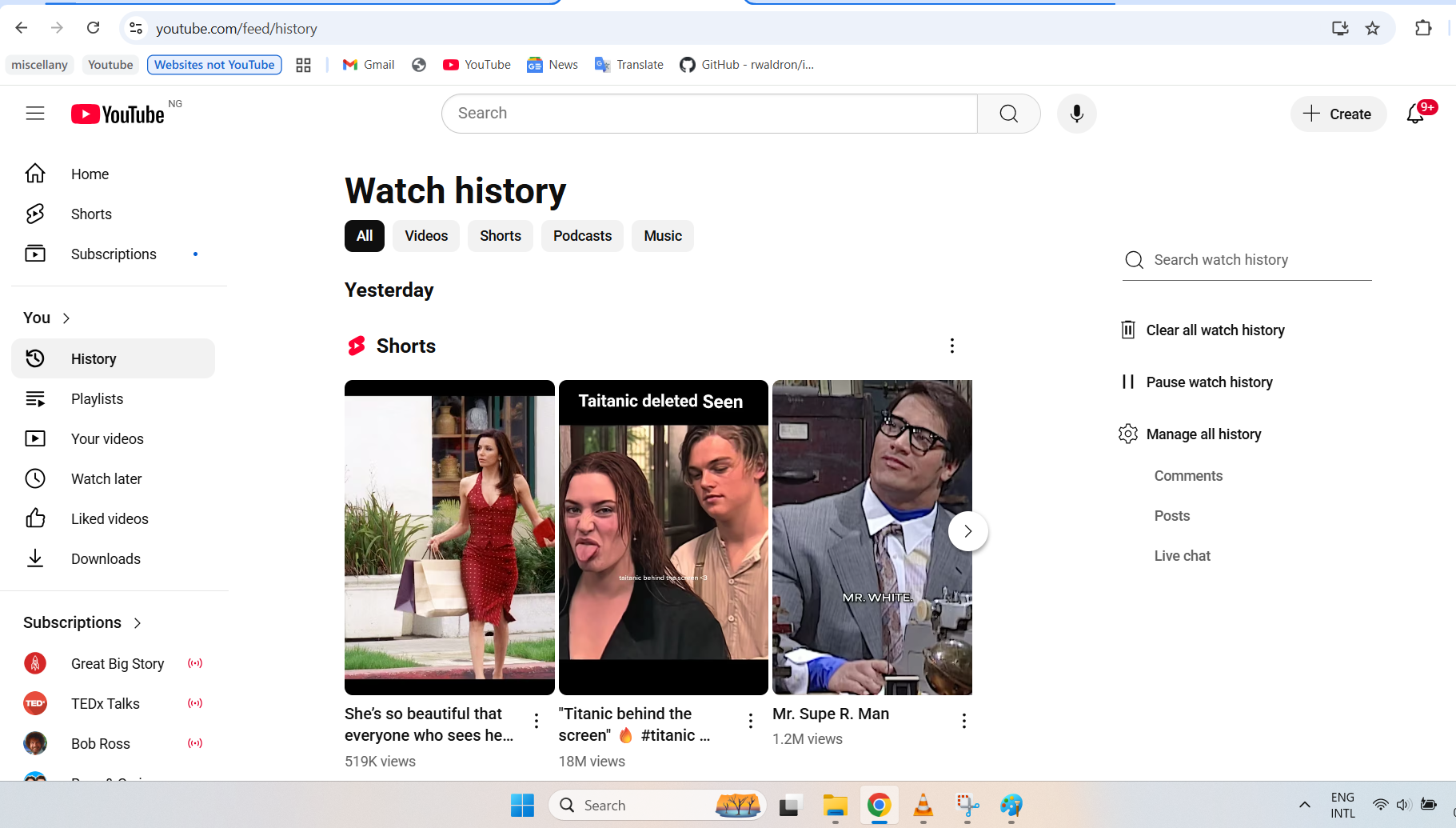
You can then delete specific items in the history one at a time or simply clear all watch history so as to reset your content recommendations and general experience on YouTube.
Now, without further ado, let’s get to it.
How to clear YouTube watch history on your computer
- Go to YouTube in your browser.
- Click on History under the You category on the left-hand side of the page.
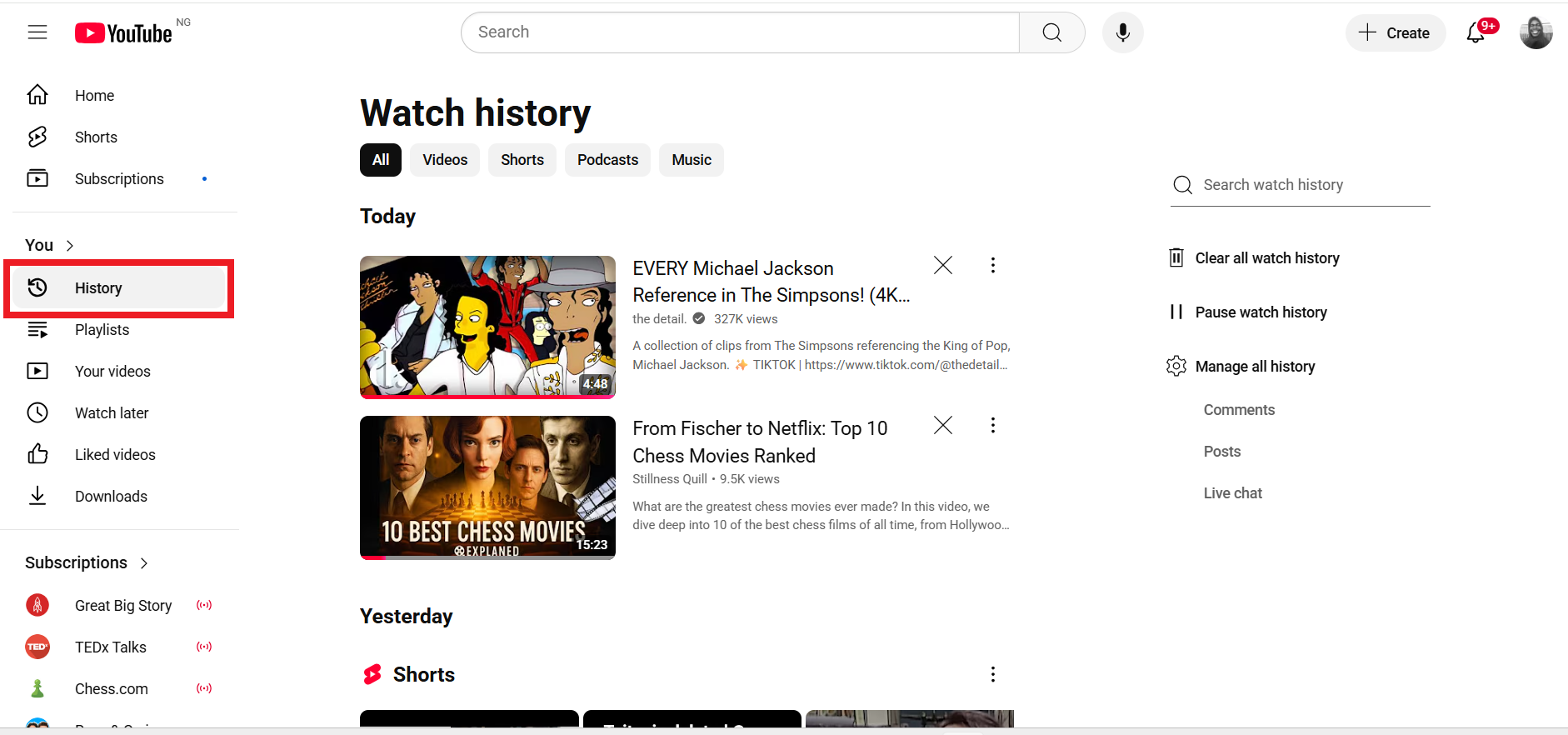
- If you are signed in, you’ll see a list of your watch history, and you can keep scrolling down to view more.
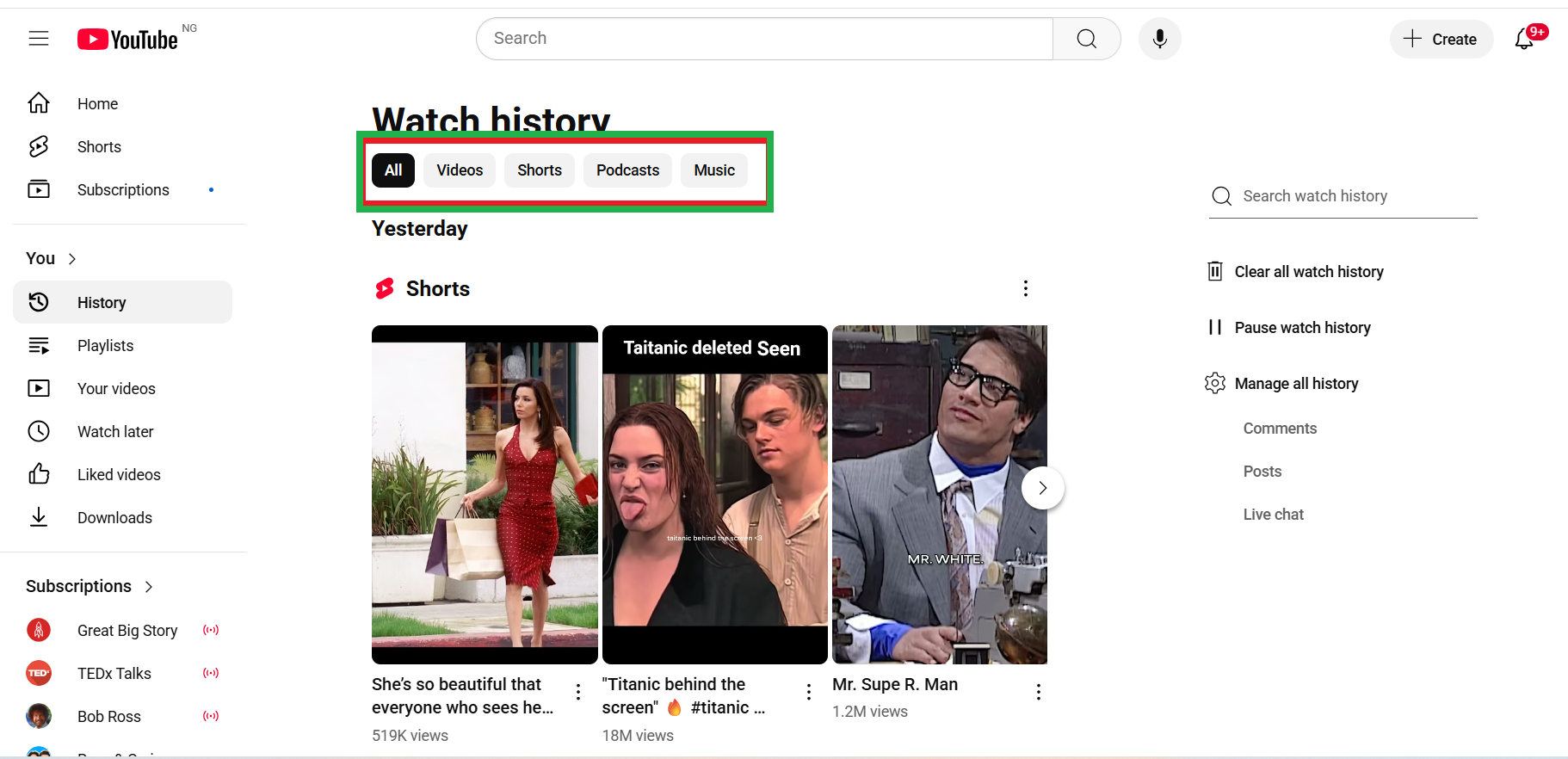
- You can switch from the All tab to the Shorts tab to get a separate list for your Shorts. You can also switch to Videos, Podcasts, or Music to view history for each.
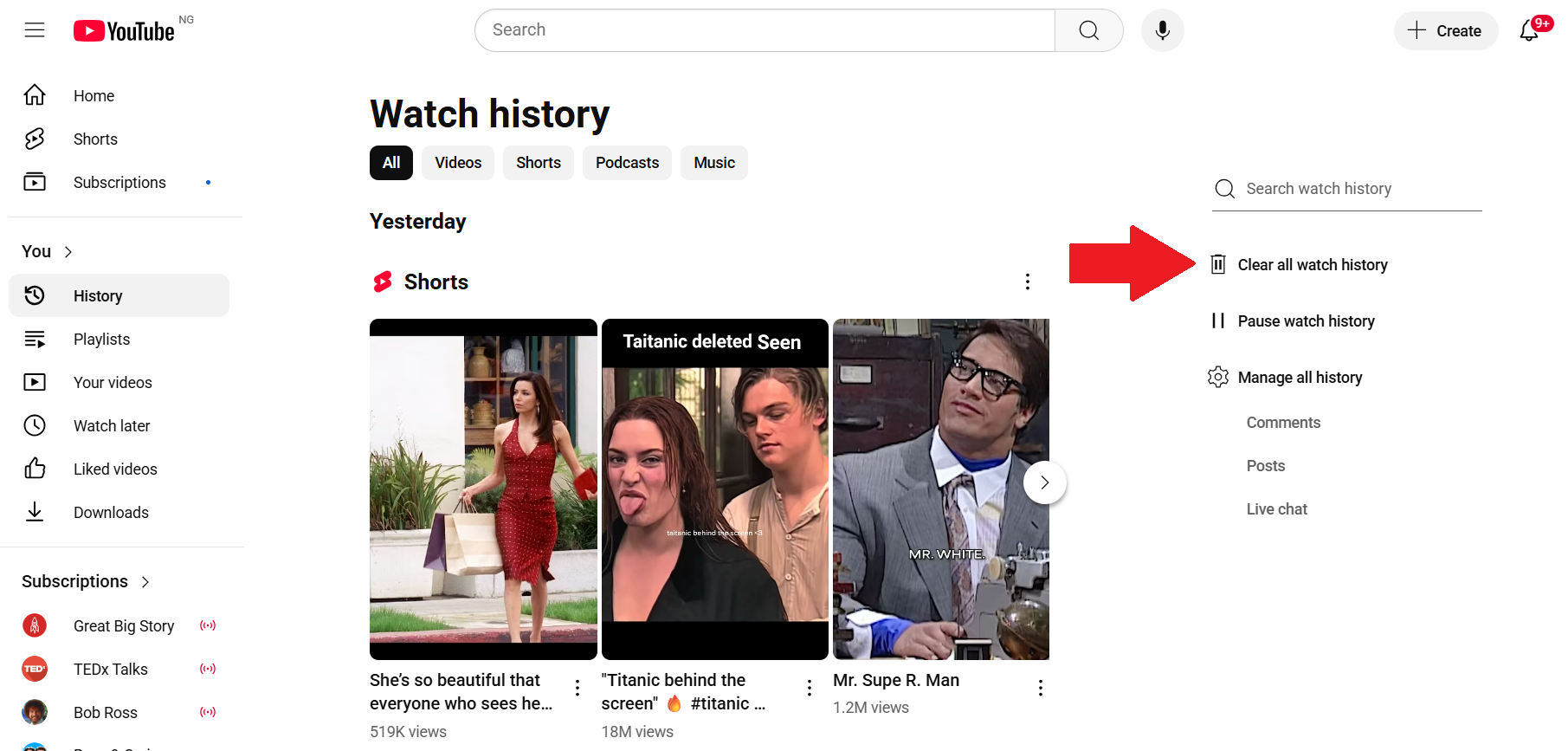
- If you’d like to clear all of your watch history, click the Clear all watch history option on the right-hand side of the page.
- To confirm the action, click Clear watch history in the Clear watch history? prompt that appears.
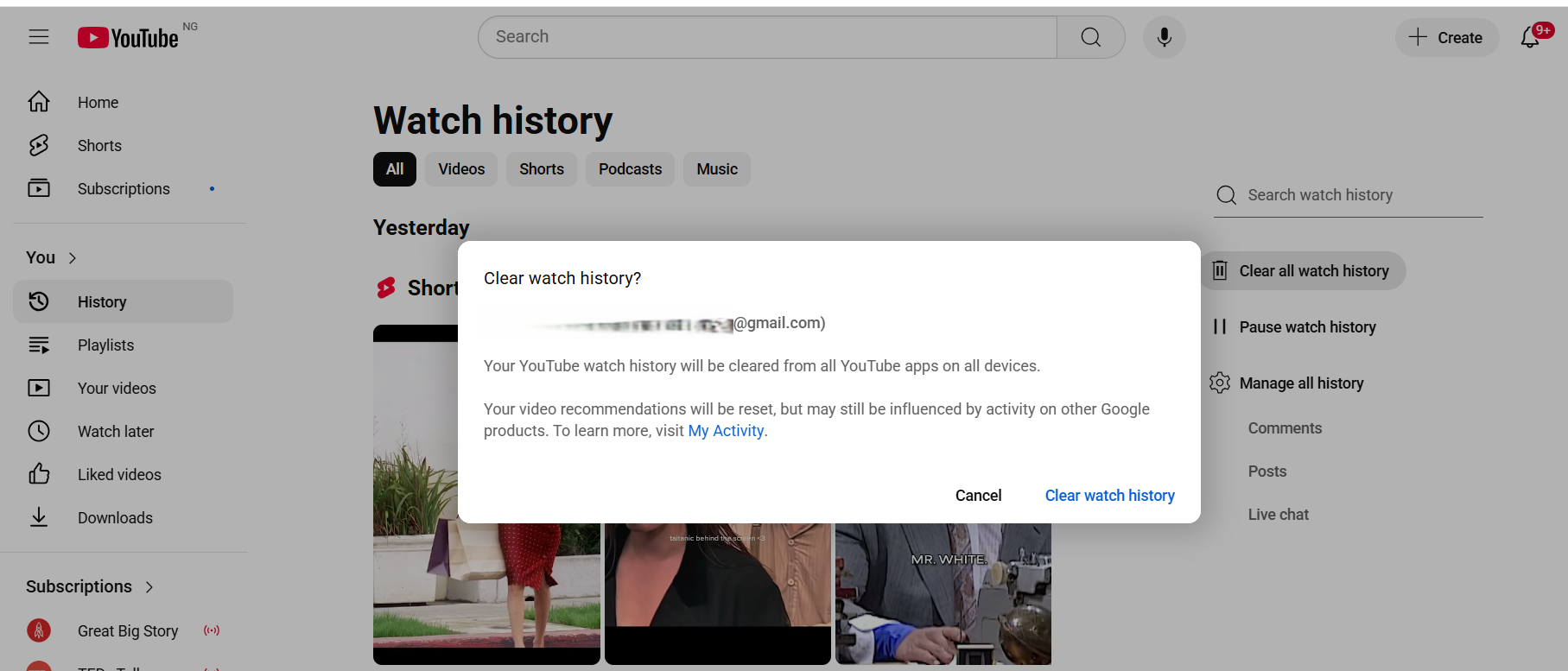
To delete individual items in your YouTube watch history, continue with these steps:
- Click the ✖️ icon on a specific item to delete it from your watch history.
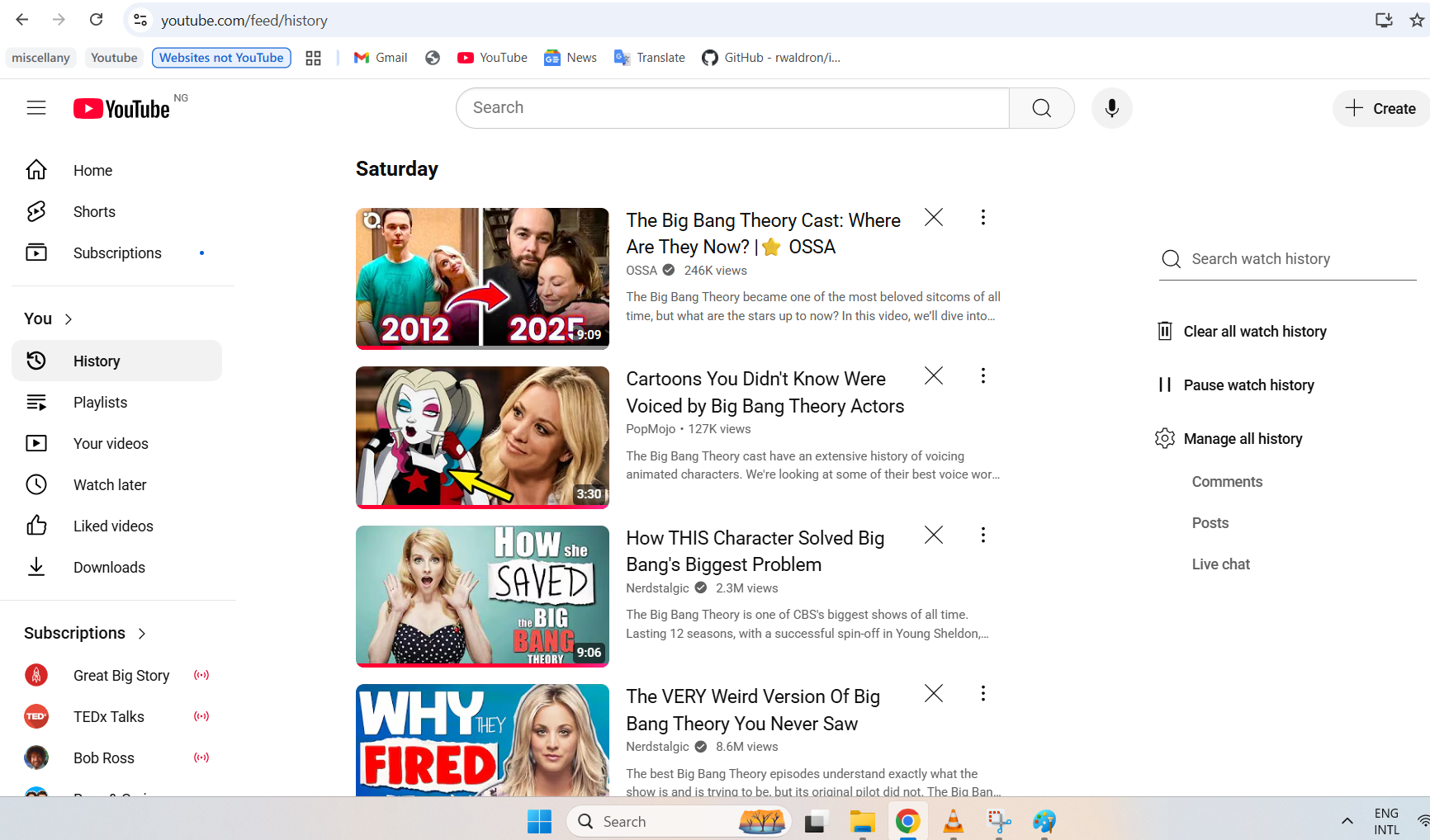
- To delete a Shorts video, click the three-dot icon beside it and select Remove from watch history.
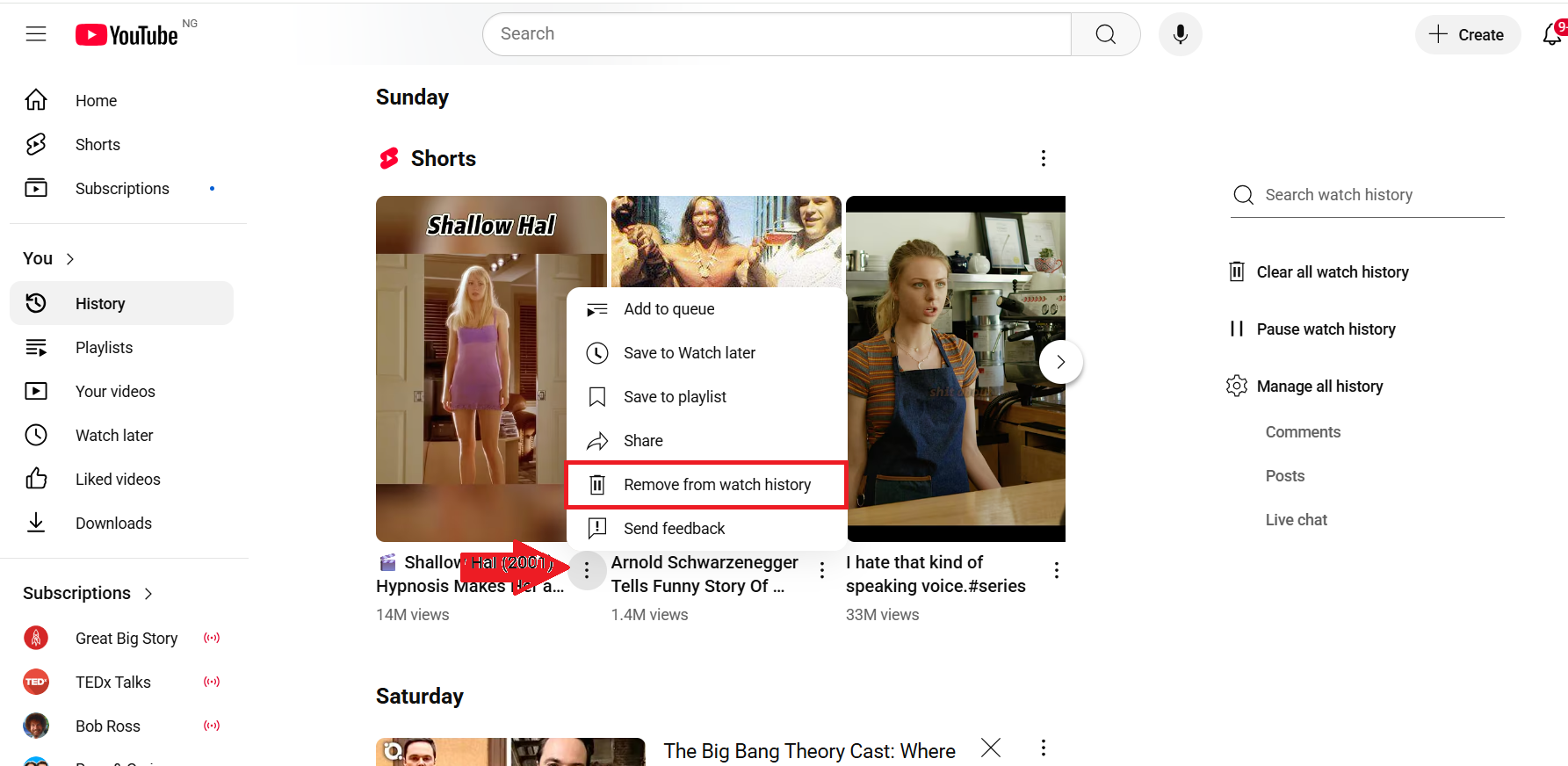
To get more options to filter and delete your watch history by date, keyword, and time range, tap the Manage all history option on the right-hand side of the page. This will lead you to the YouTube My Activity page, where you can find your watch and search history. See the How to Clear Your YouTube History section of this article for more information on how to navigate the page.
How to clear YouTube watch history on the YouTube mobile app (Android, iPhone & iPad)
- Open the YouTube mobile app on your device.
- Tap on You.
- If you are signed in, tap View all beside the History heading to see a full list of your watch history.
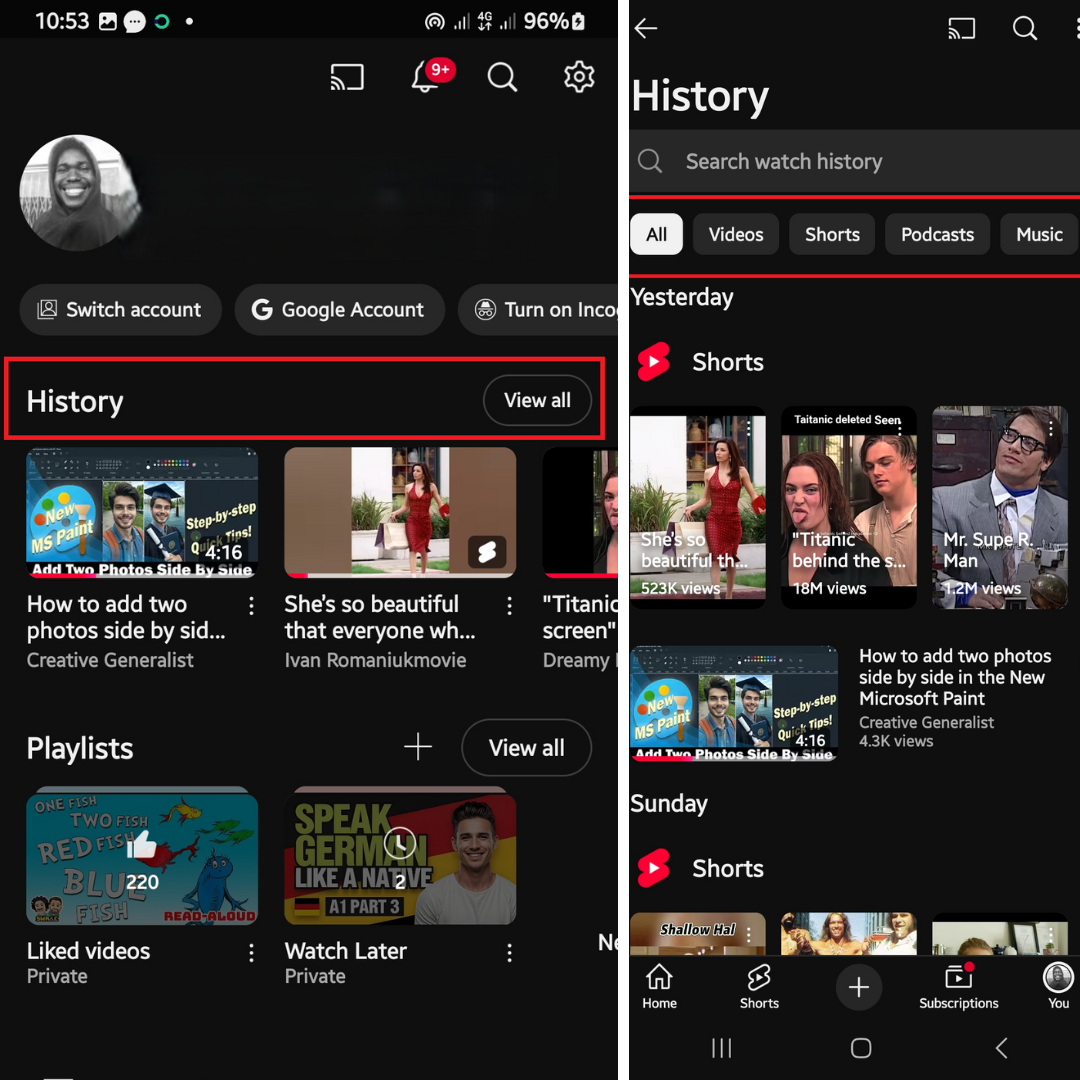
- You can switch from the All tab to the Shorts tab to get a separate list for your Shorts. You can also switch to Videos, Podcasts, or Music to see the corresponding history items.
- If you’d like to clear all your watch history, tap the three-dot icon at the top of the screen beside the search icon. And then tap Clear all watch history.
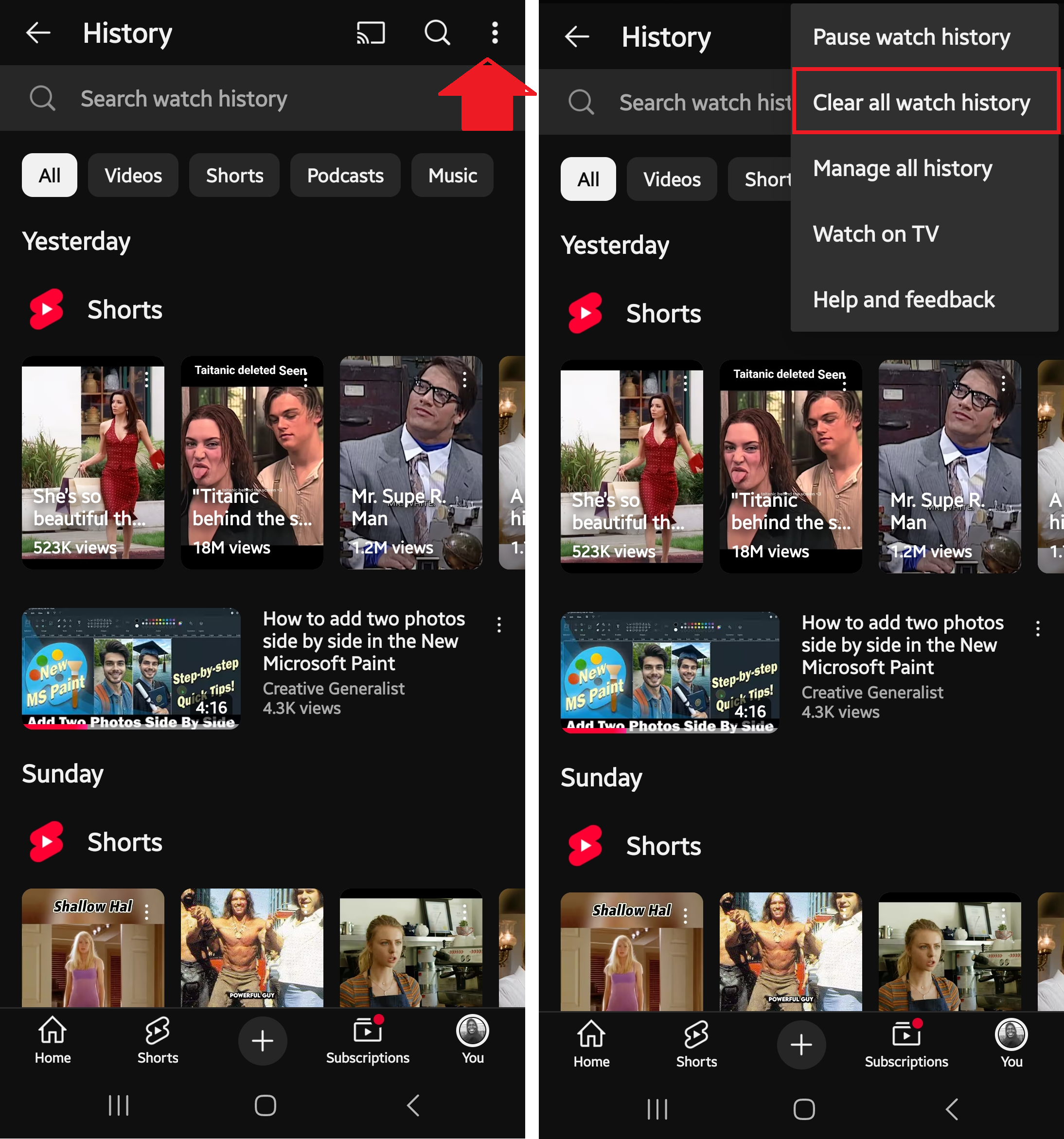
- Tap Clear watch history in the Clear watch history? prompt to confirm the action.
- To delete individual items in your watch history, tap the three-dot icon beside an item and tap Remove from watch history.
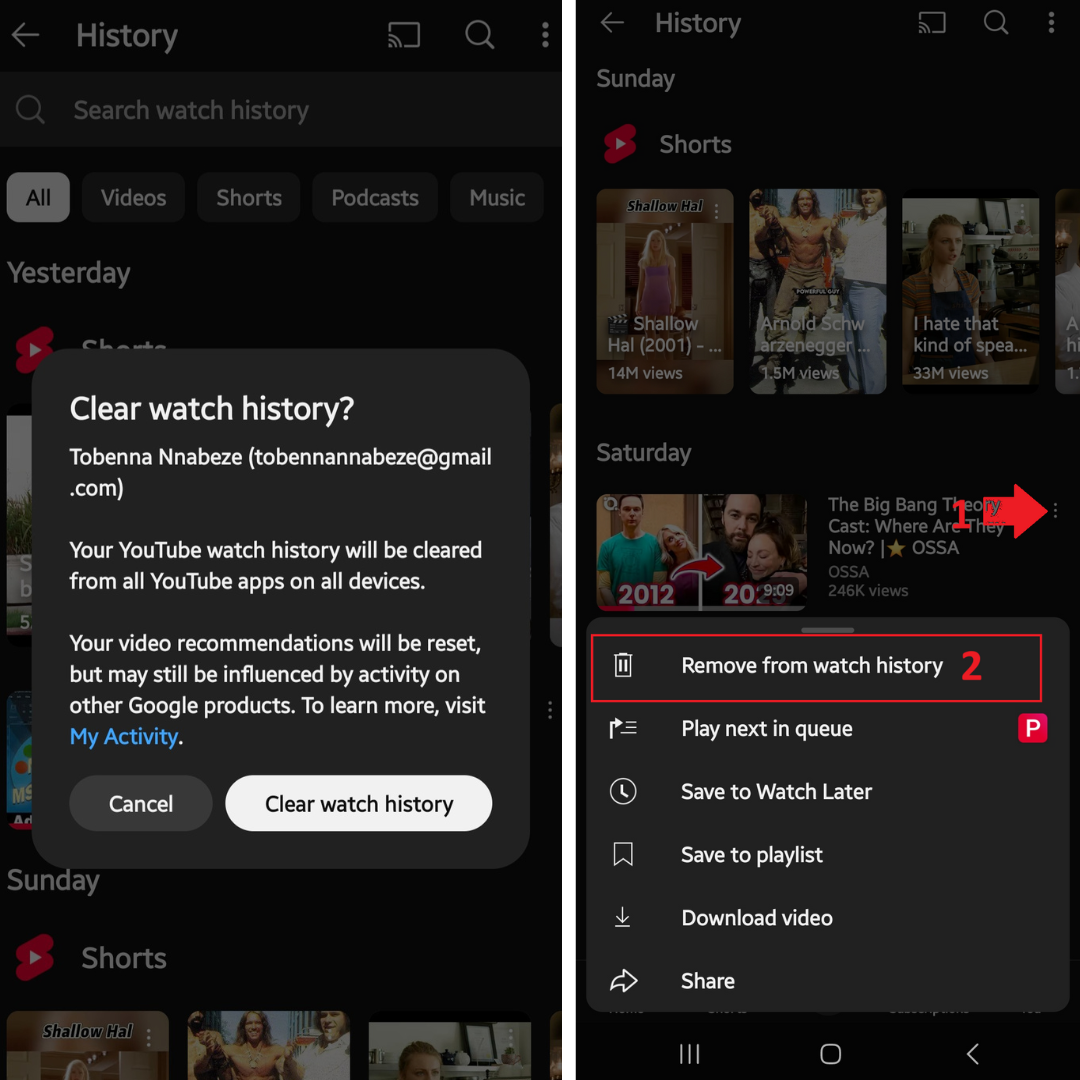
- To get more options to filter and delete your watch history by date, keyword, and time range, tap the three-dot icon at the top of the page and click on Manage all history. See the How to Clear YouTube History section of this article for more details.
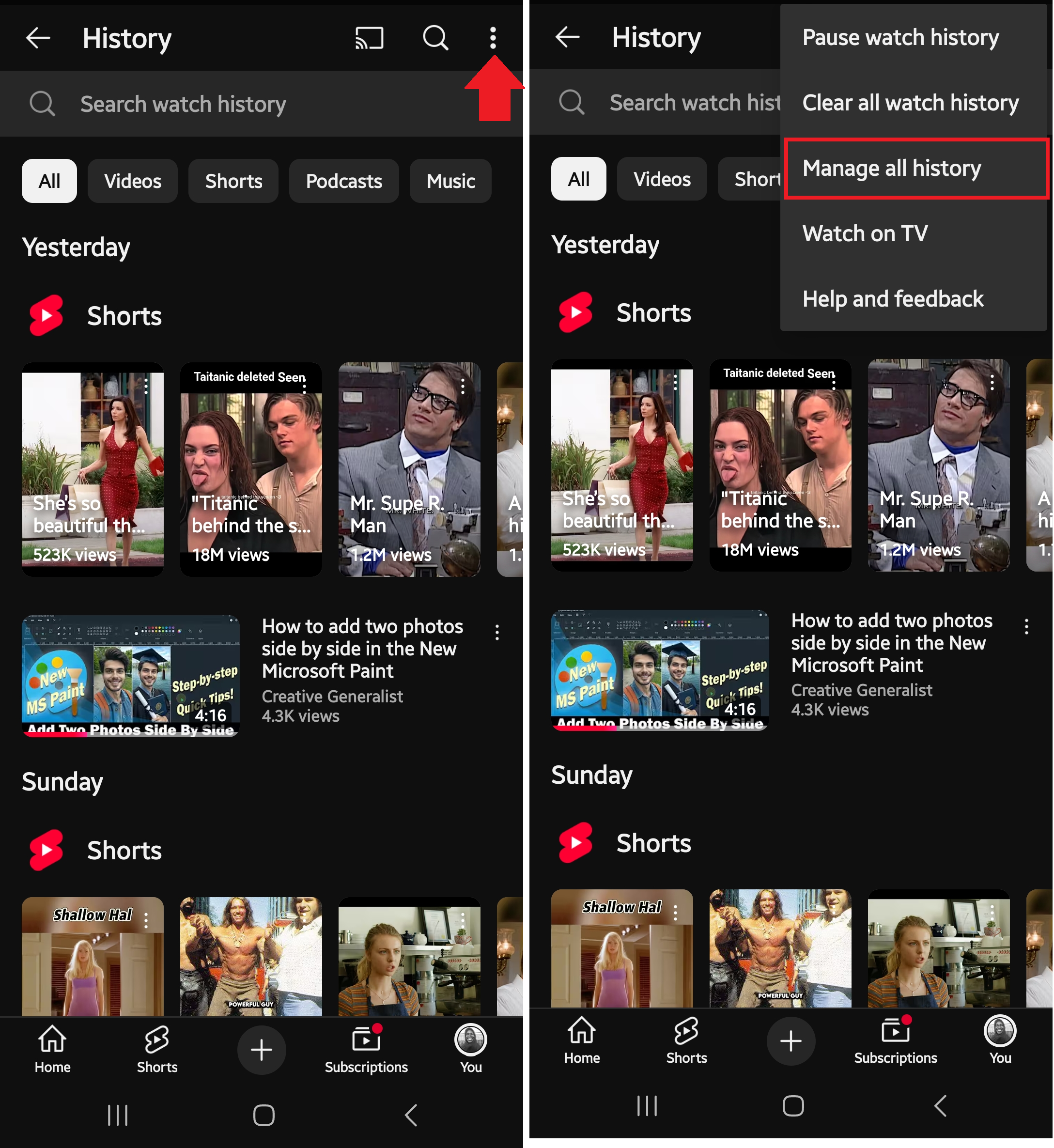
How to Auto-Delete Your YouTube Search and Watch History
If you’d like to enjoy the benefits of keeping a record of your searches and watched videos but don’t want them stored indefinitely, you have the option of deleting old history automatically on a regular basis.
You can keep items in your YouTube history for a shorter or longer period of time, depending on how long you want them to influence your feed.
Once any history gets older than your chosen duration (3 months, 18 months, or 36 months), it gets deleted automatically.
Here’s how to set your YouTube history to delete automatically on a computer
- Go to YouTube.
- Click on History under the You section.
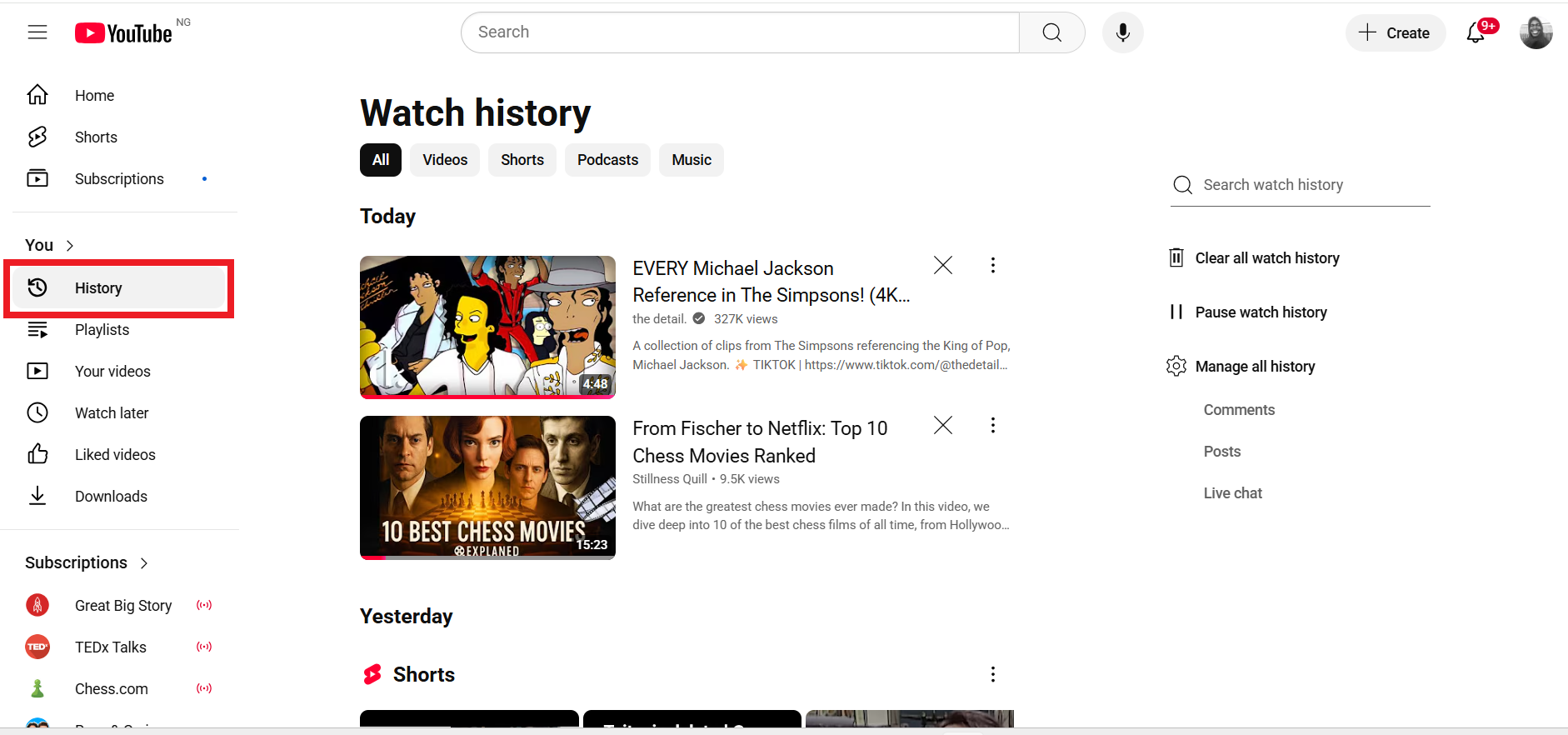
- You have to sign in to proceed. If you’re signed in, you’ll see your watch history.
- Now, click on the Manage all history option on the right-hand side of the page.
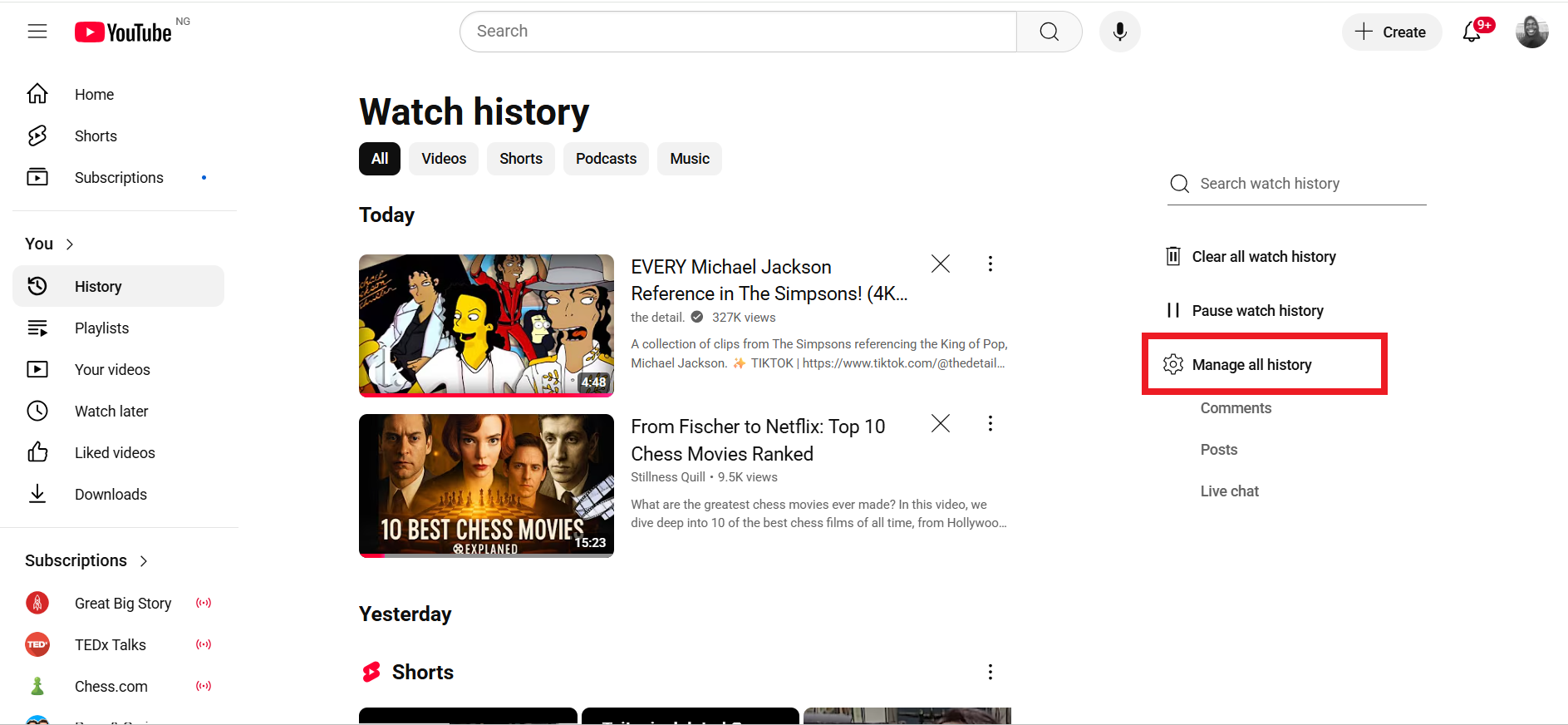
- Click on the Auto-delete option.
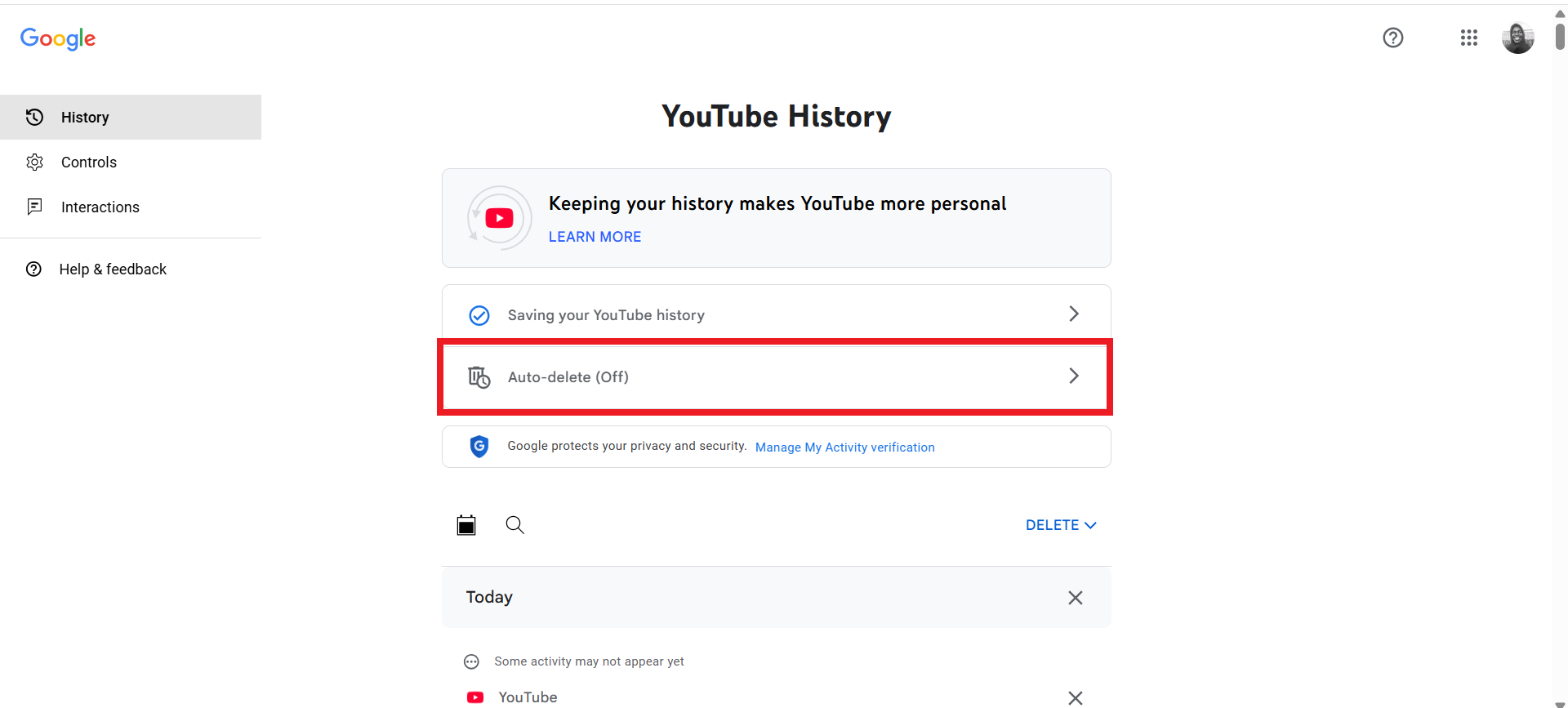
- Click the radio button for Auto-delete activity older than.
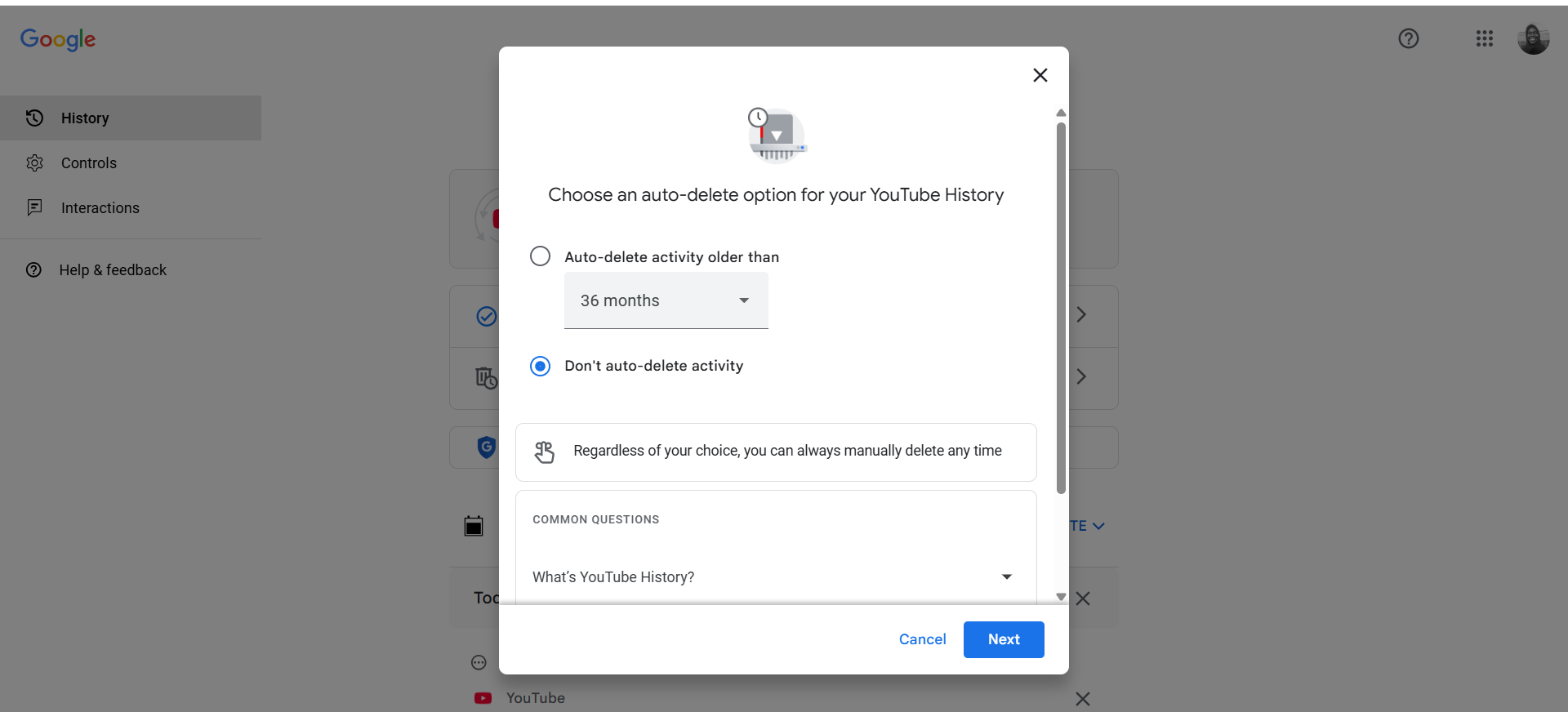
- The default auto-delete timeframe is 36 months. But you can expand the drop-down menu to choose your desired duration. Other options are 3 months and 18 months.
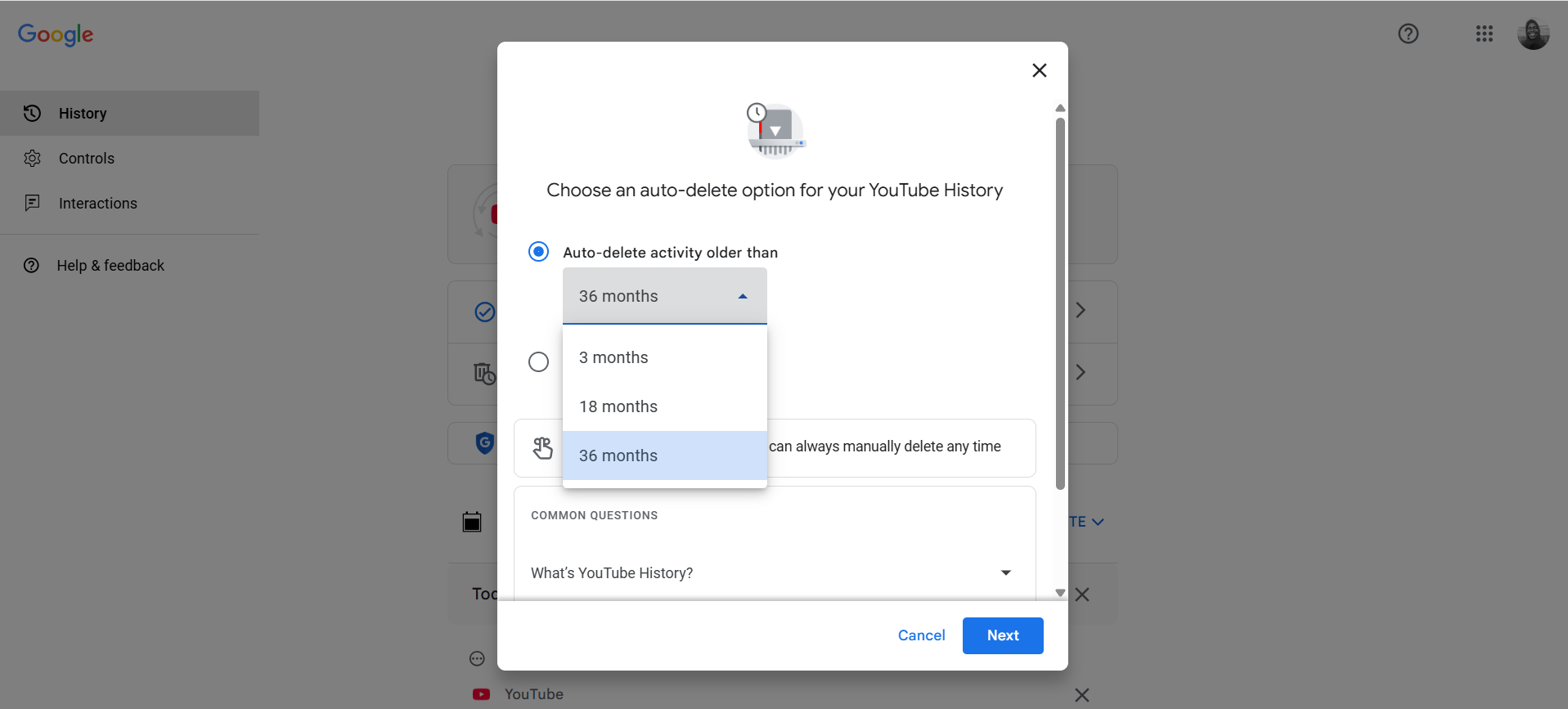
- Click the Next button.
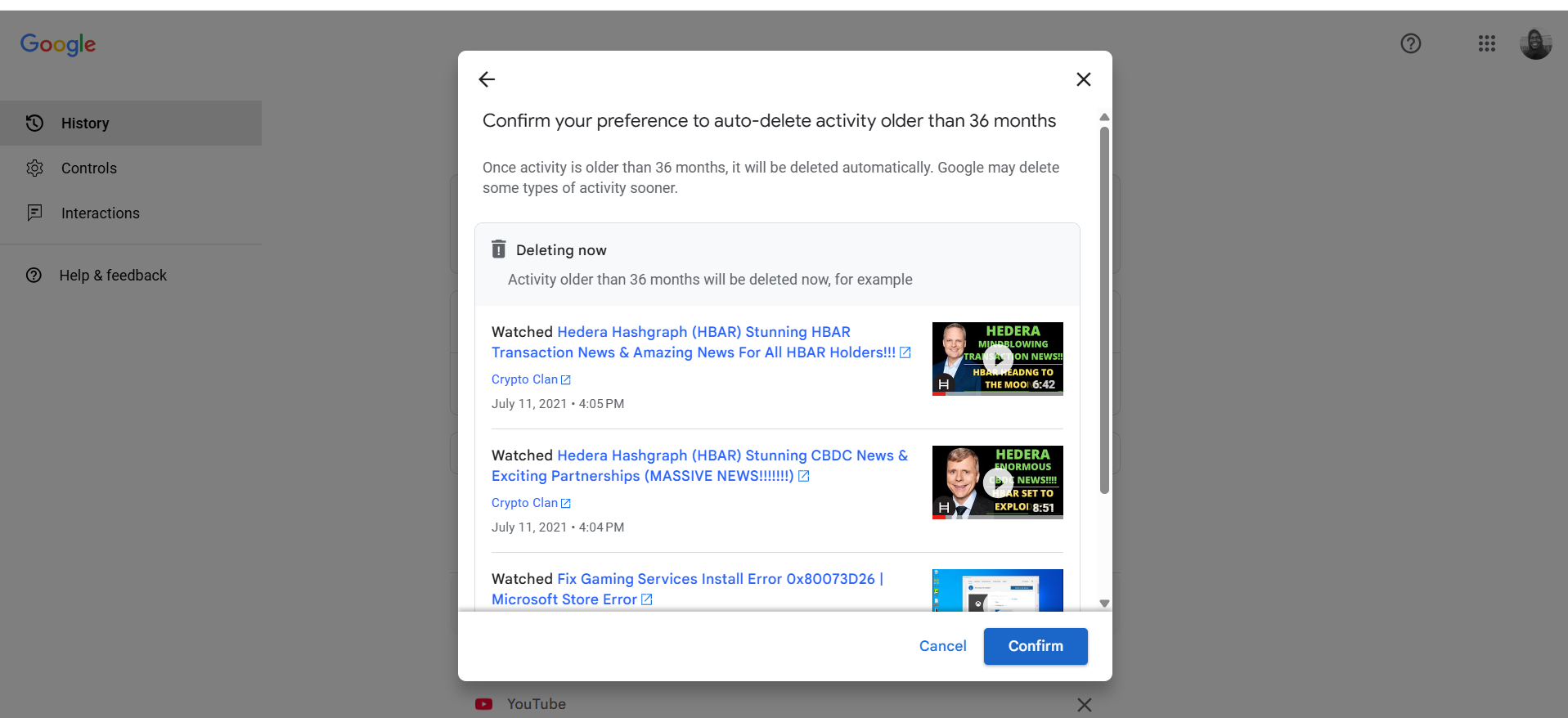
- You’ll now be shown activity older than the number of months you set that will be deleted. Click the Confirm button to proceed with the deletion.
How to auto-delete your YouTube history on the YouTube mobile app (Android, iPhone & iPad)
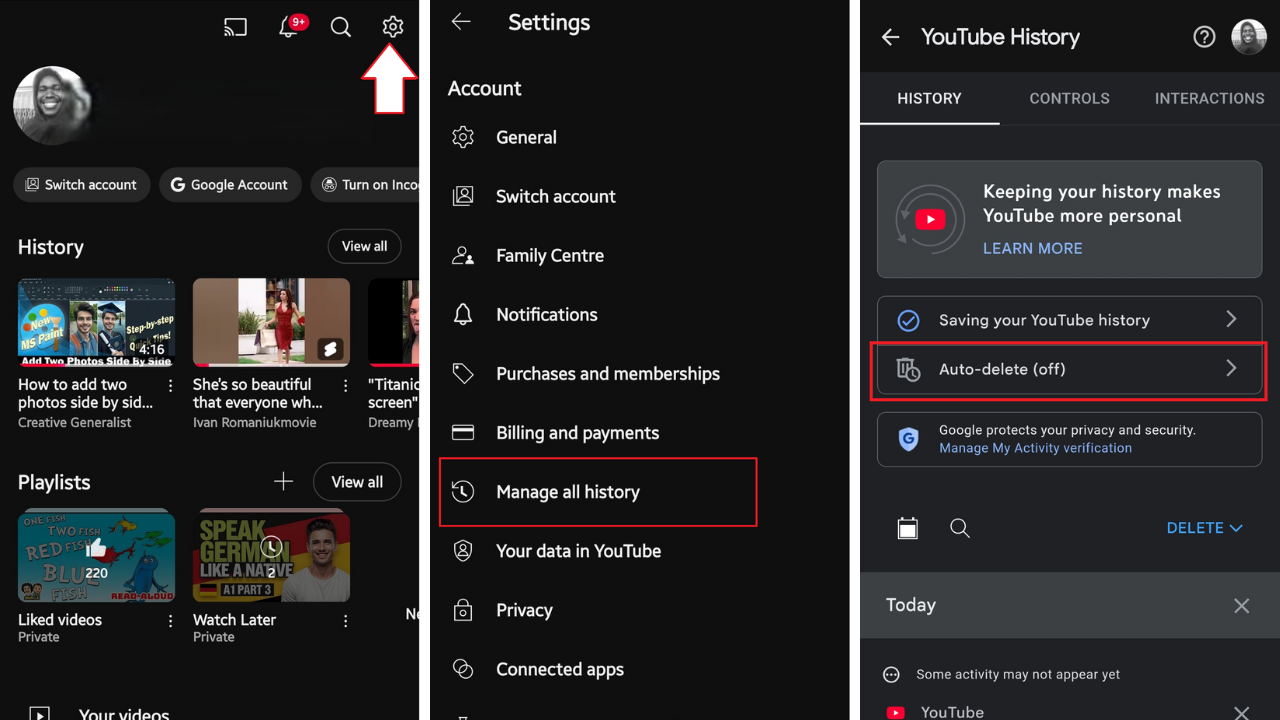
- Open the YouTube mobile app.
- Tap on You. Sign in if you are not signed in already.
- Tap the ⚙️ icon at the top of the screen.
- Tap Manage all history.
- Tap the Auto-delete option.
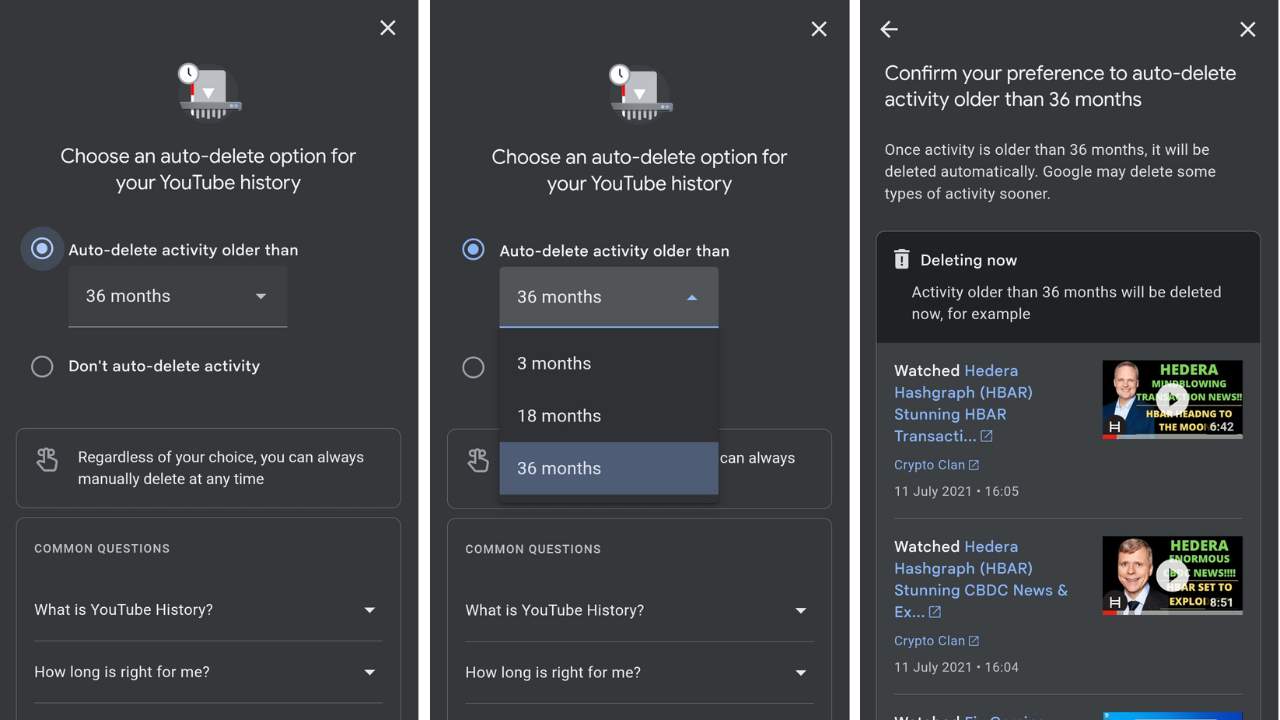
- Select Auto-delete activity older than.
- Expand the drop-down menu to choose a shorter duration if you are not satisfied with the default duration of 36 months.
- Tap the Next button.
- You’ll now see activity that is older than the selected range. Tap Confirm to delete it.
How to Pause Your YouTube Search and Watch History
YouTube allows users to pause their watch and/or search history. Your existing history remains viable, but new activity will not be saved thereafter.
The feature is convenient if you want to keep some of your activity on YouTube private. It removes the necessity of going back to delete items from your history later on.
You’ll also find it helpful in a situation where you wouldn’t mind getting recommendations based on your existing history. And at the same time, you don’t want what you’re watching and searching for now to leave a footprint that will influence your future experience.
Follow these steps to pause your watch history on a computer
- Go to YouTube.
- Click on History under the You section on the left-hand side of the page.
- If you’re signed in, you’ll now see your watch history.
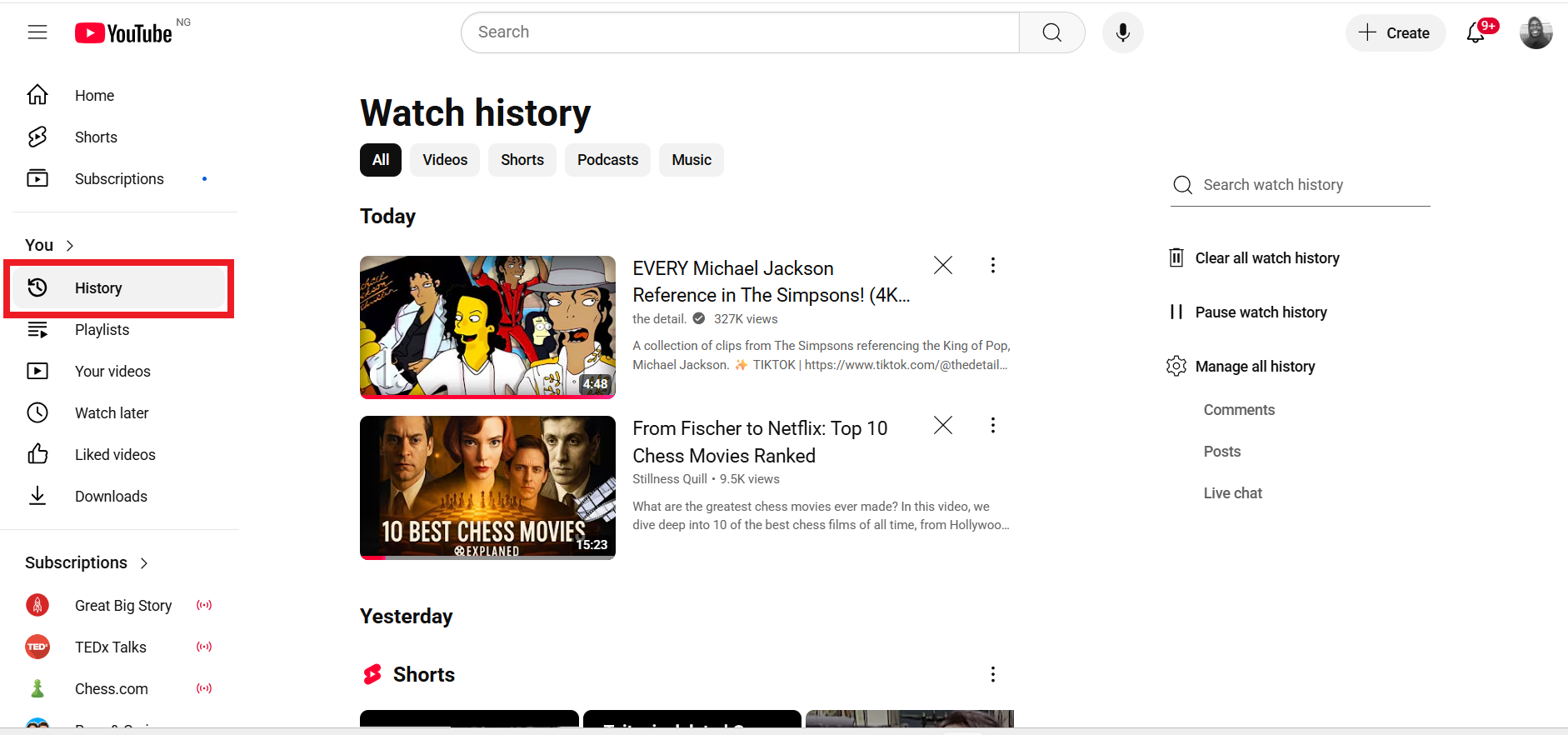
- If you are signed out, you won’t be able to view your existing watch history, but you can still proceed.
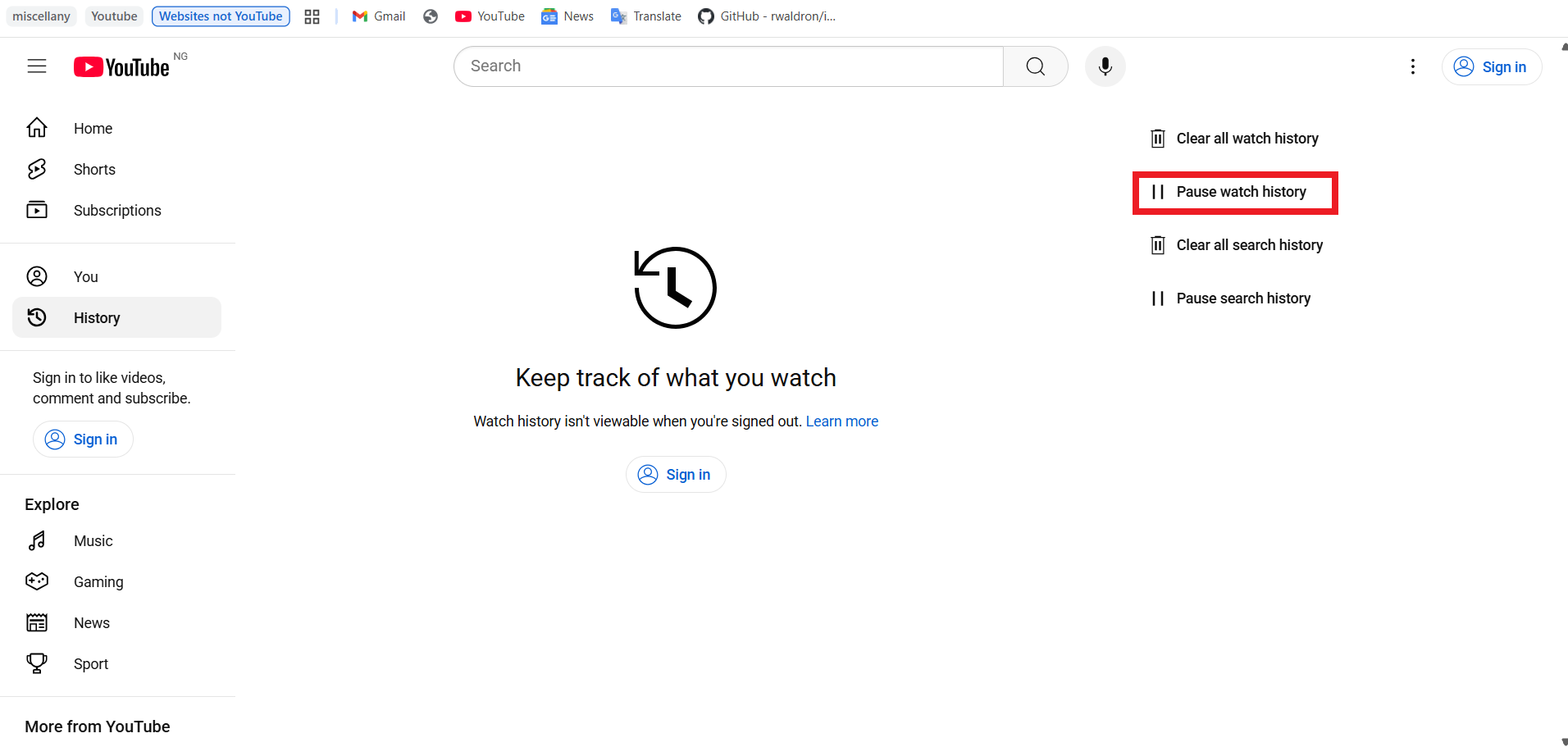
- Now, click on the Pause watch history option located on the right-hand side of the page.
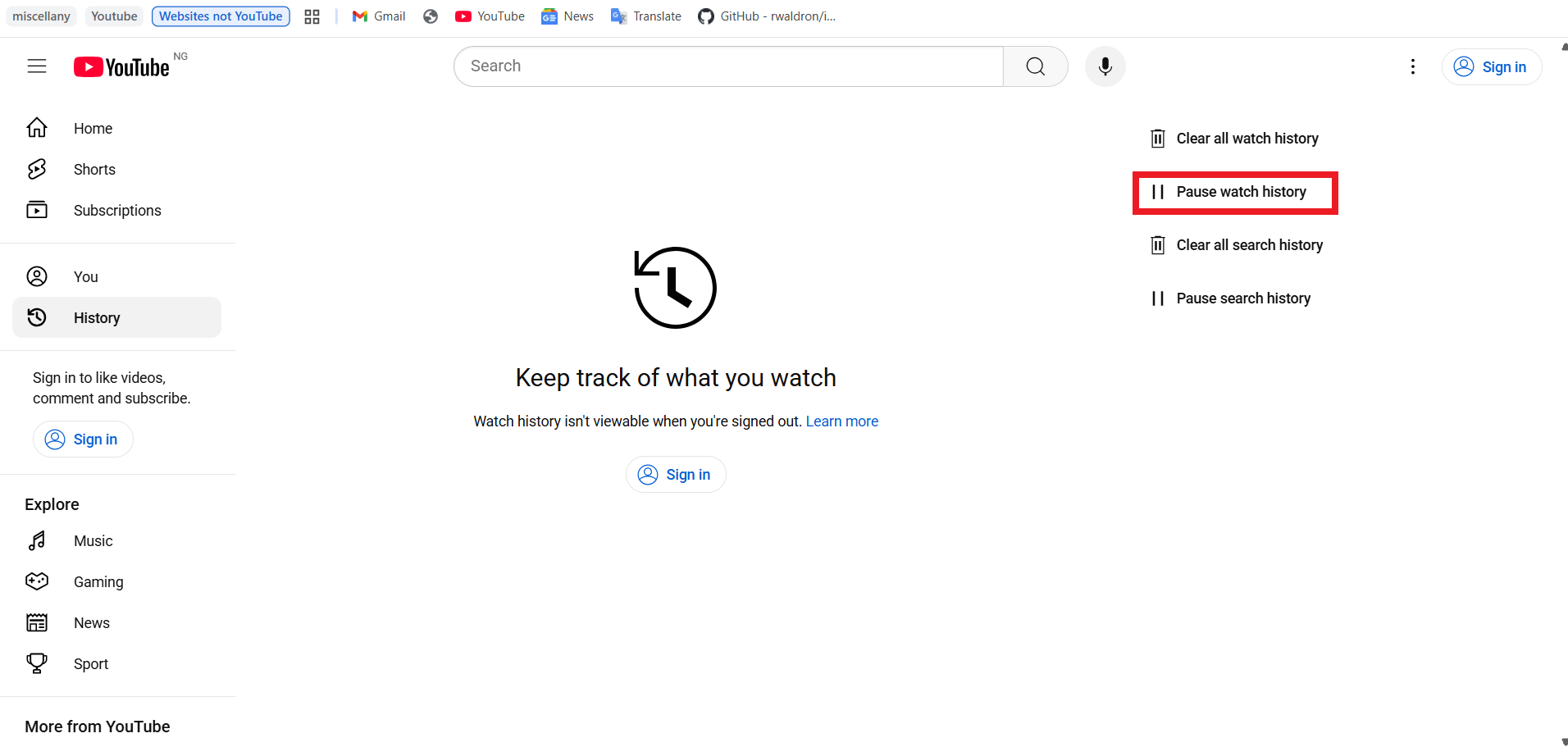
- Click the Pause button in the Pause watch history? dialog to confirm the action.
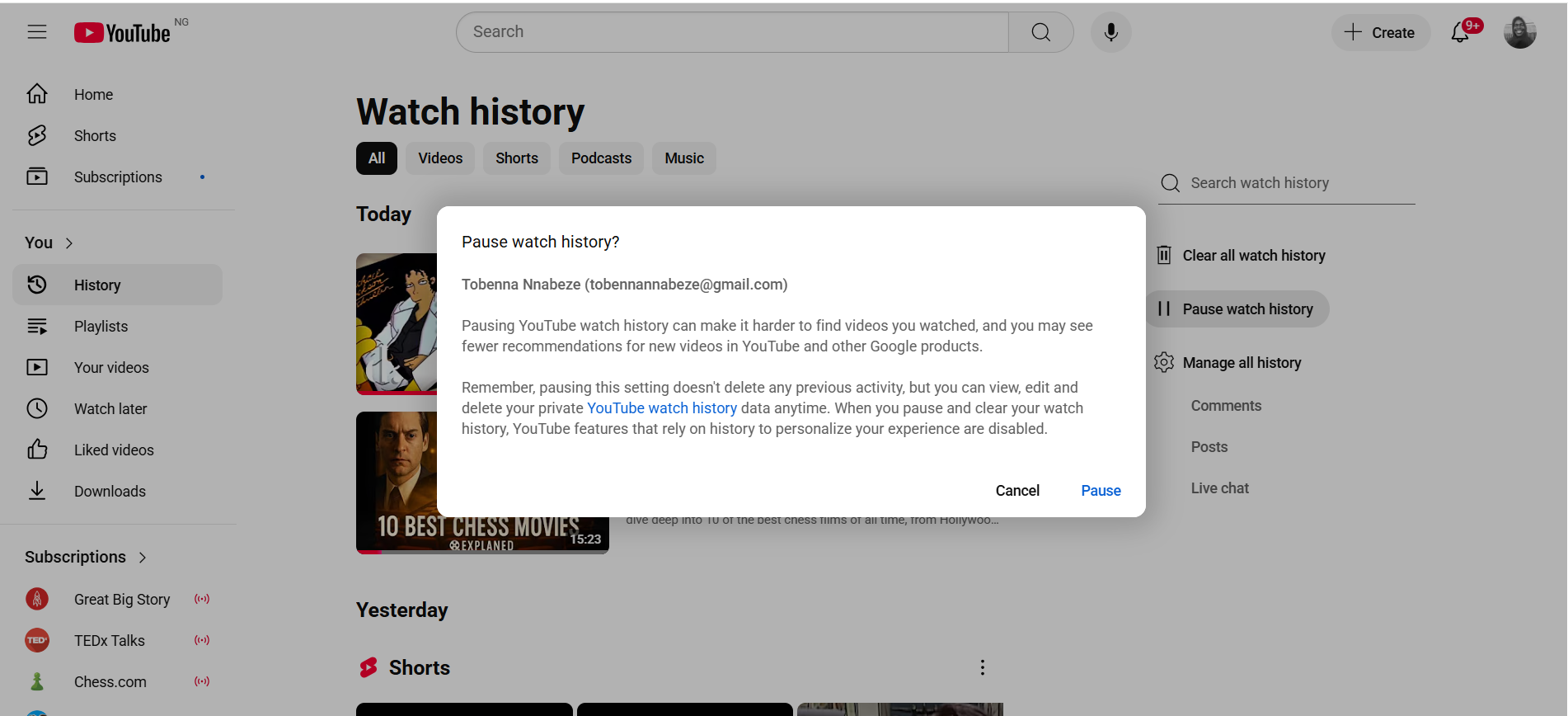
- If you are signed out, you’ll get a similar prompt. Click Pause to confirm.
If you’d also like to pause your search history, continue with the following steps:
- If you are signed in, skip to Step 11 below.
- If you are not signed in, click the Pause search history option on the right-hand side of the page.
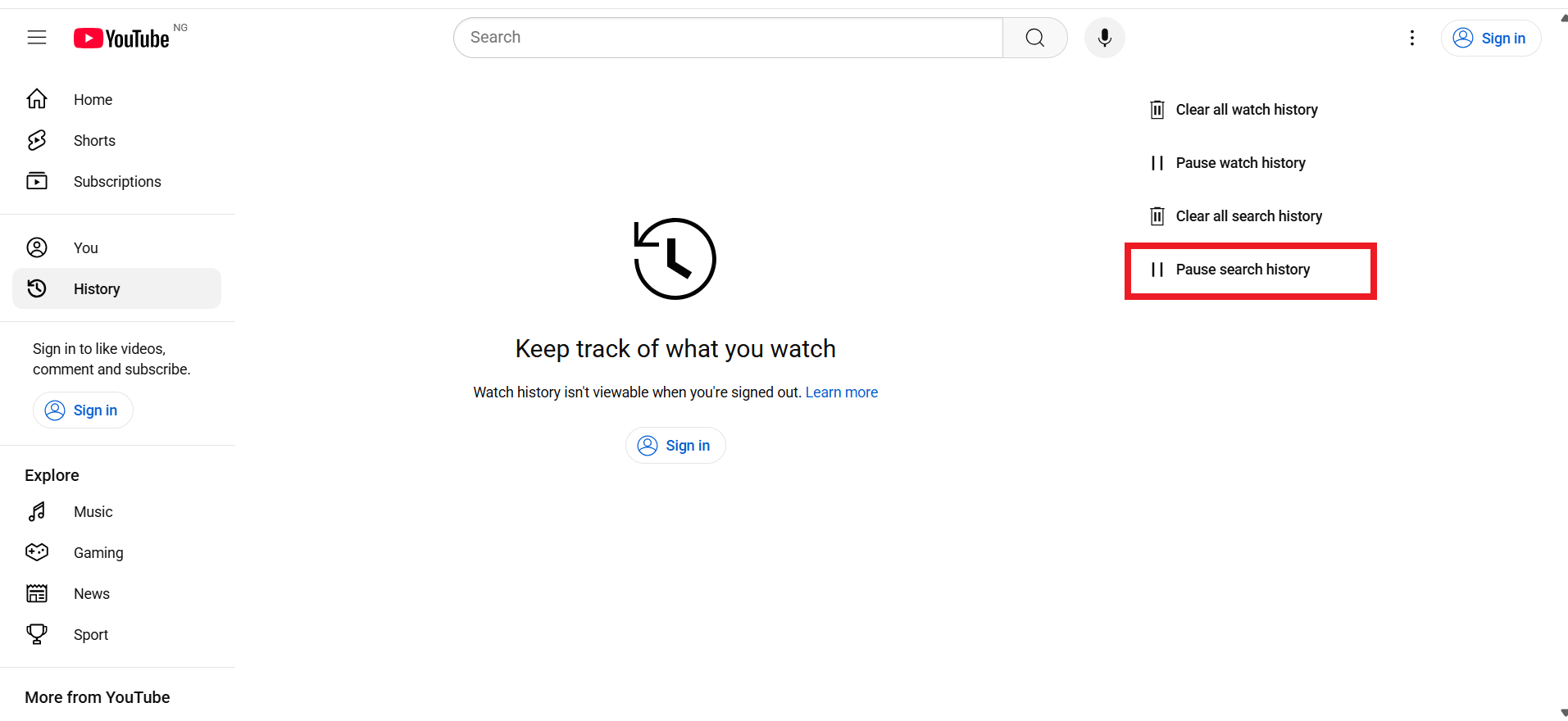
- Confirm the action by clicking Pause in the Pause search history? prompt that pops up.
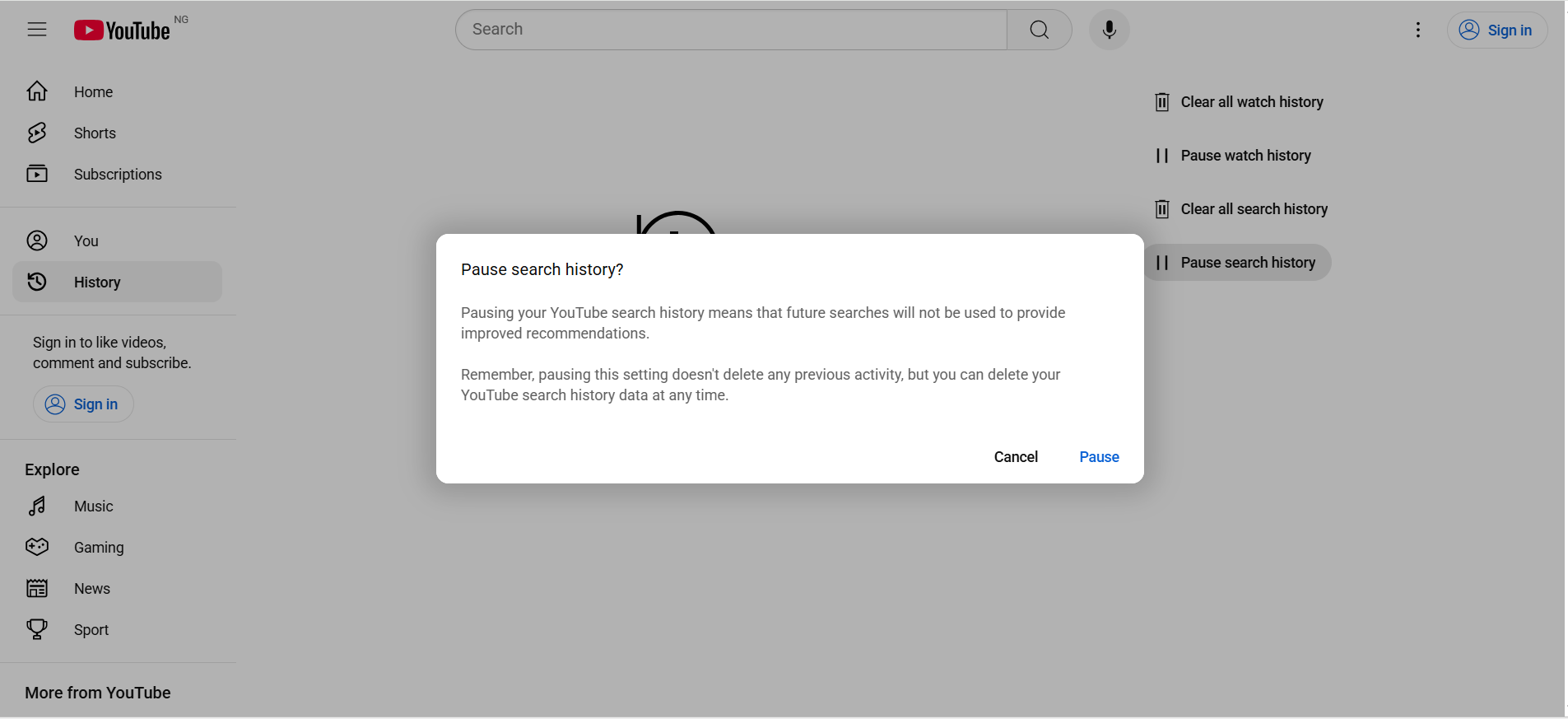
- If you are signed in, you won’t find the Pause search history option on the History page. Instead, click the Manage all history option still on the right-hand side of the page.
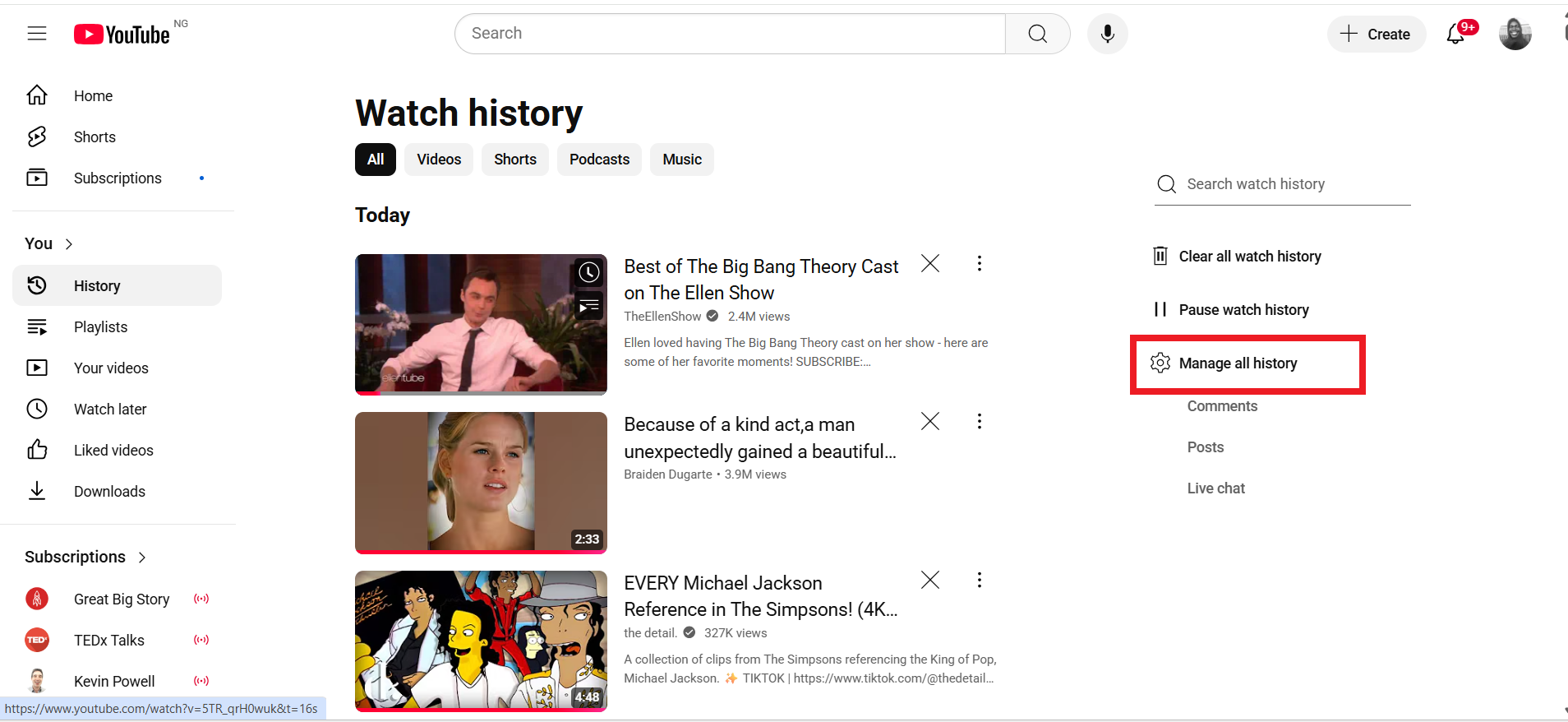
- Click on Saving your YouTube history.
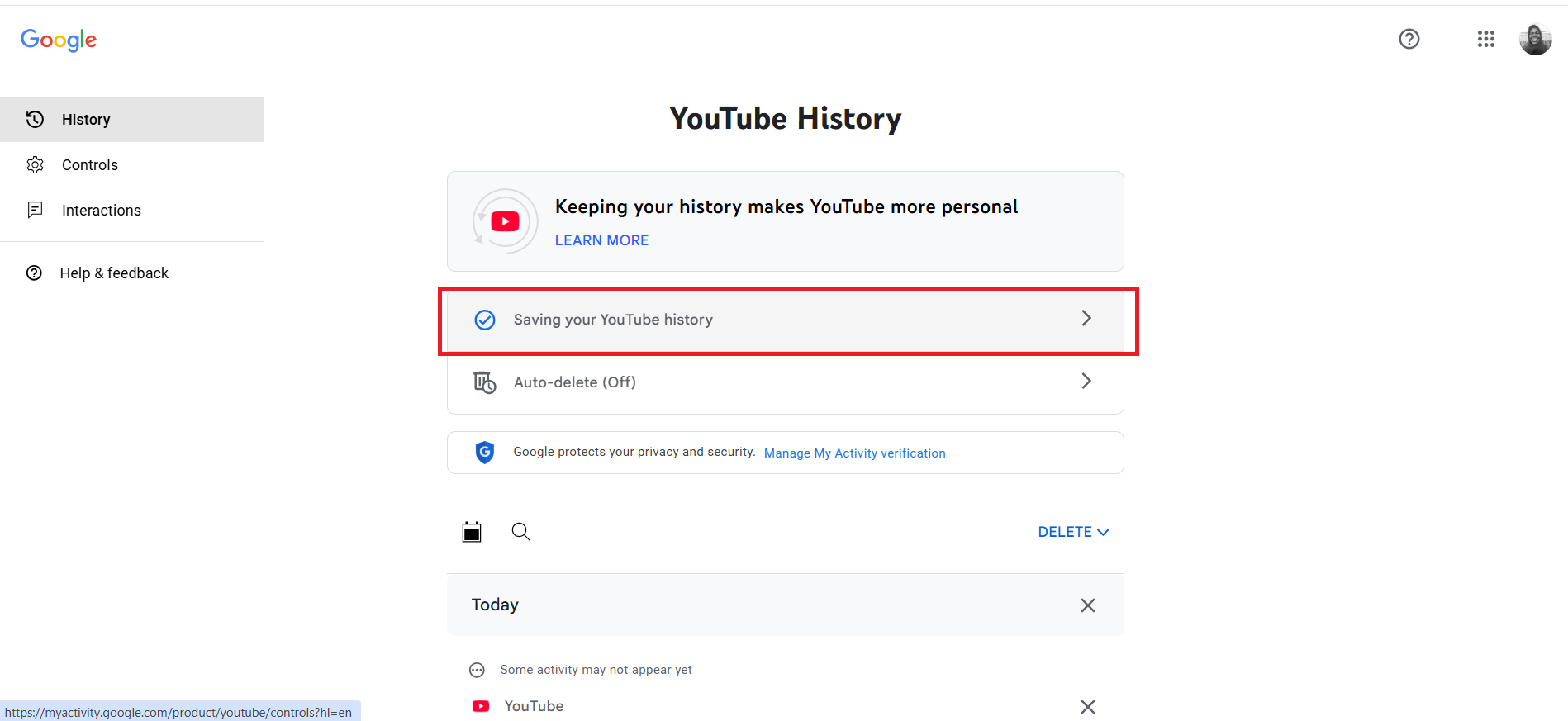
- Click the TURN OFF button. It controls the watch history, search history, and YouTube voice and audio activity. You can also disable the individual options as listed under Subsettings.
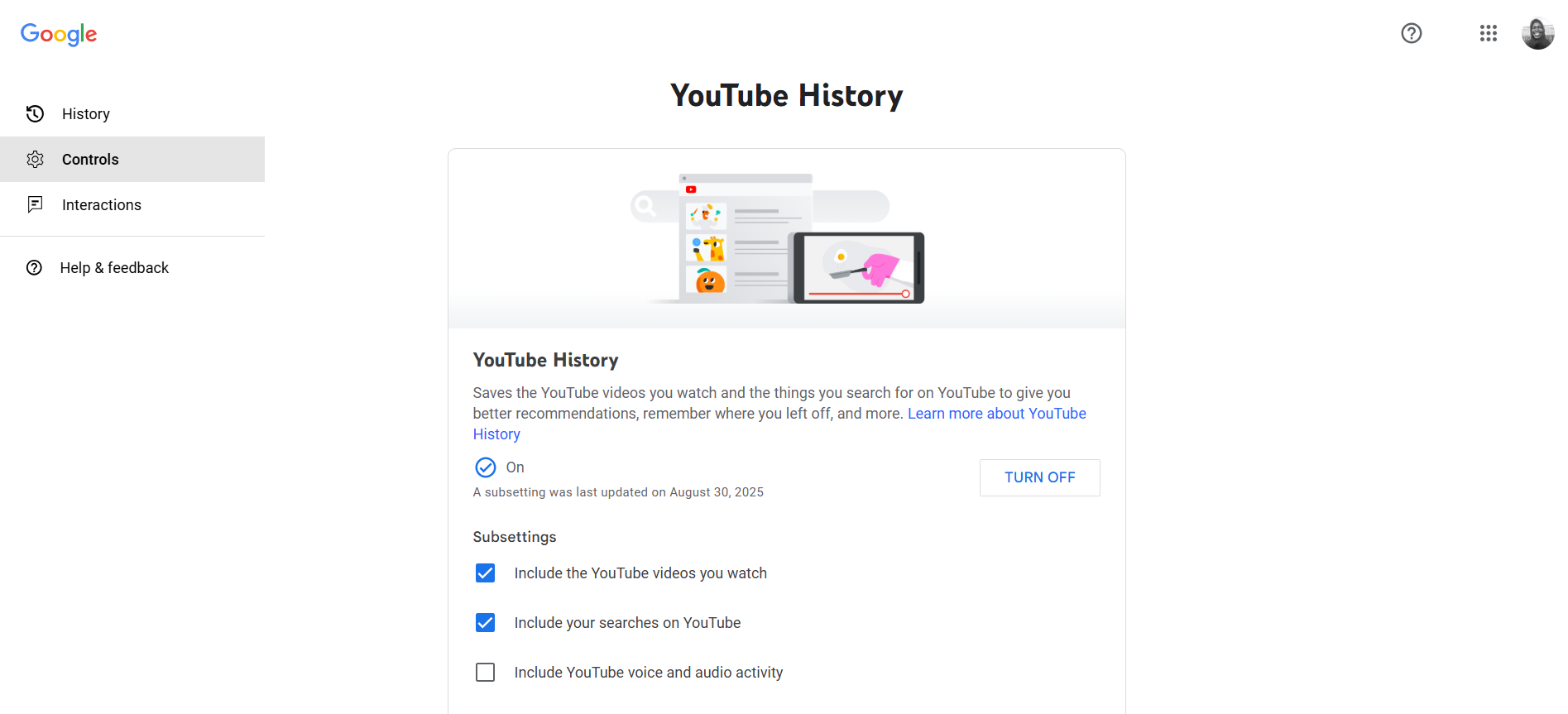
- Click the Pause button in the confirmation prompt that pops up.
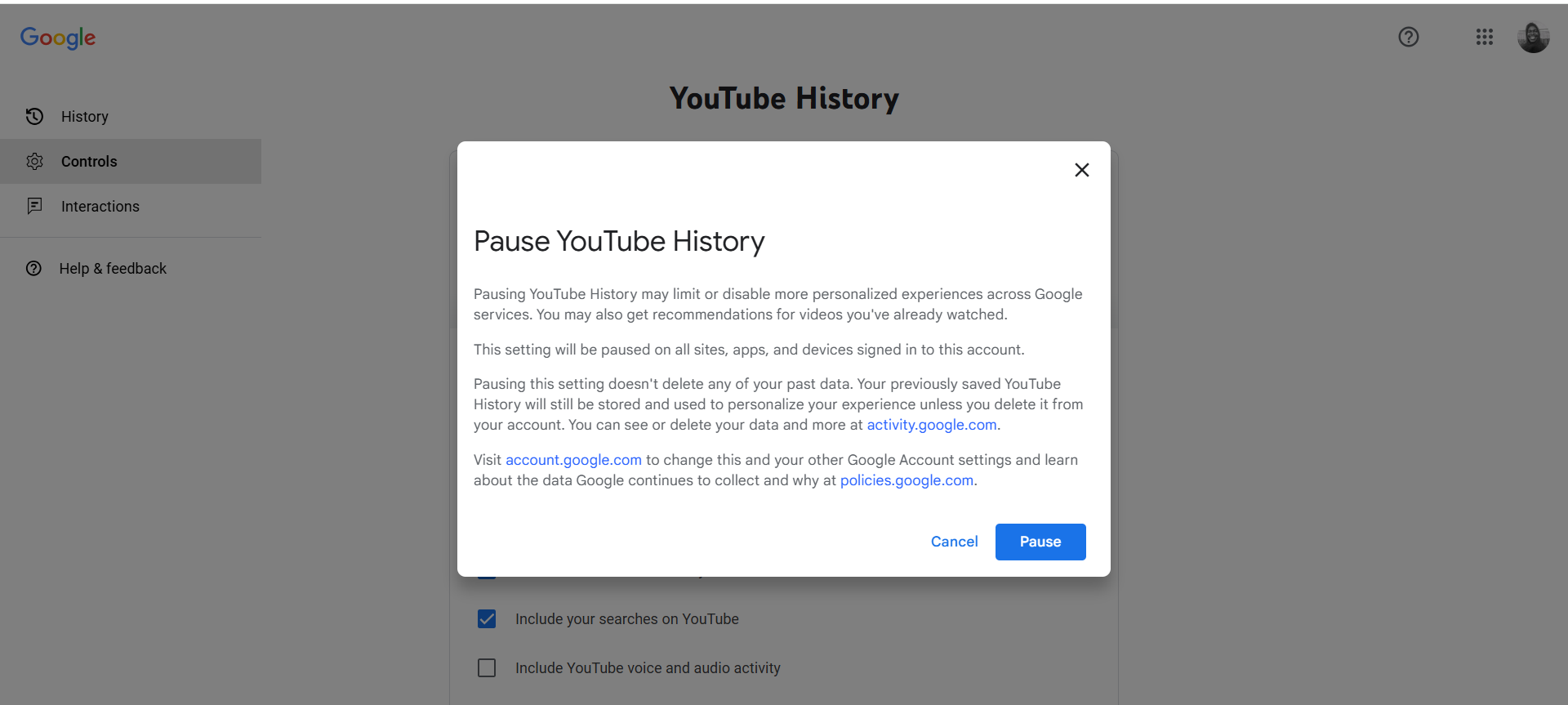
How to pause your YouTube history on the YouTube mobile app (Android, iPhone & iPad)
To pause watch & search history when signed out:
- Open the YouTube app on your device.
- Tap on You.
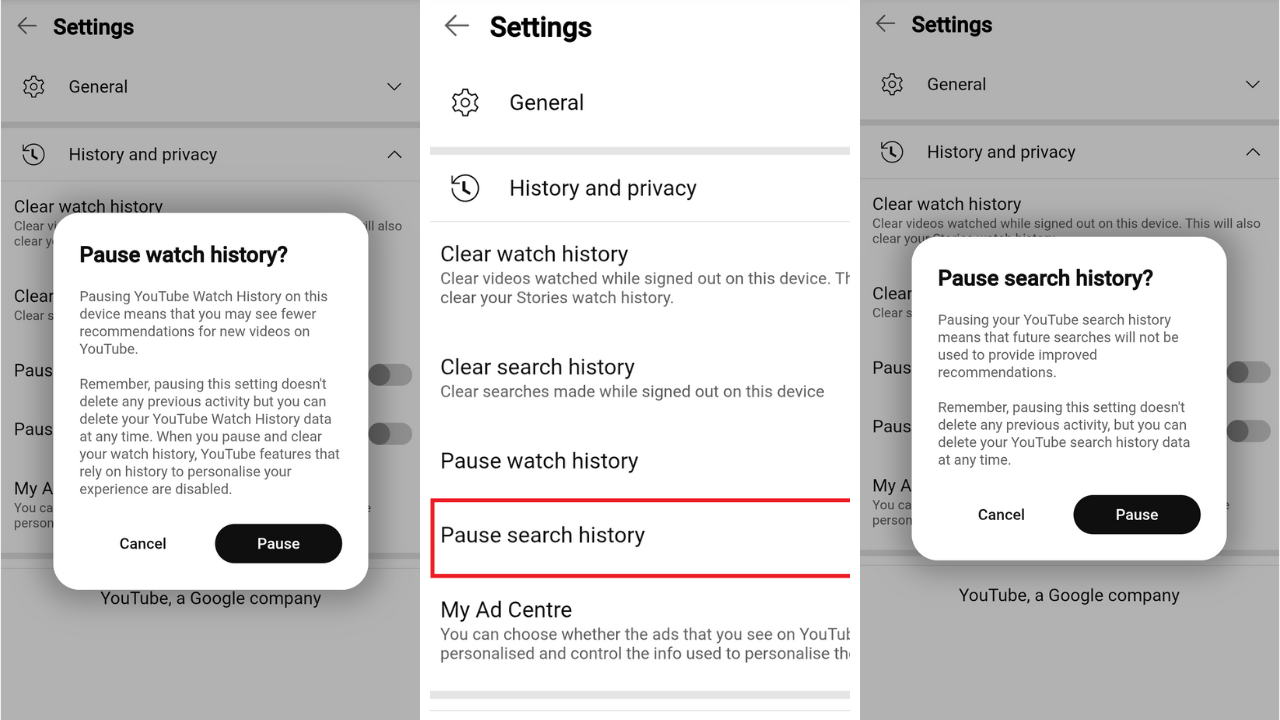
- If you are signed out, tap on the ⚙️ icon at the top of the screen.
- Tap on History and privacy.
- Enable the Pause watch history option.
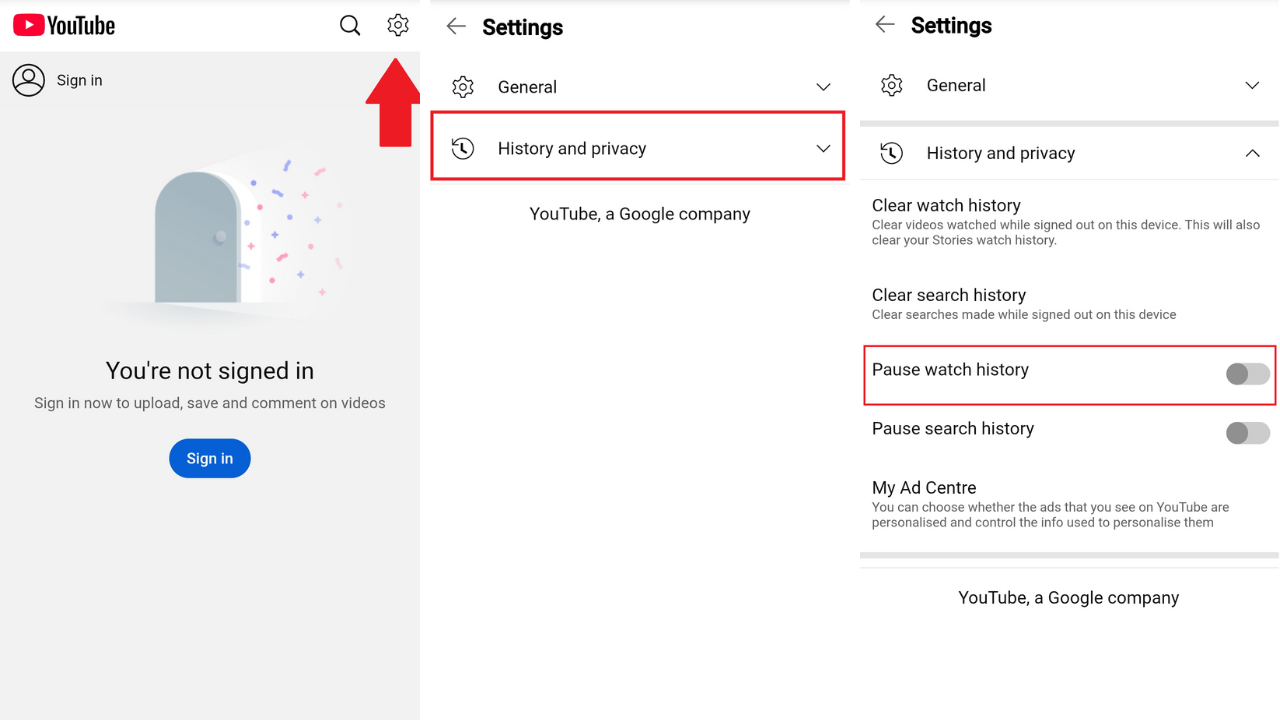
- Click the Pause button in the Pause watch history? confirmation prompt.
- Next, enable the Pause search history option.
- Now, tap the Pause button in the Pause search history? confirmation prompt.
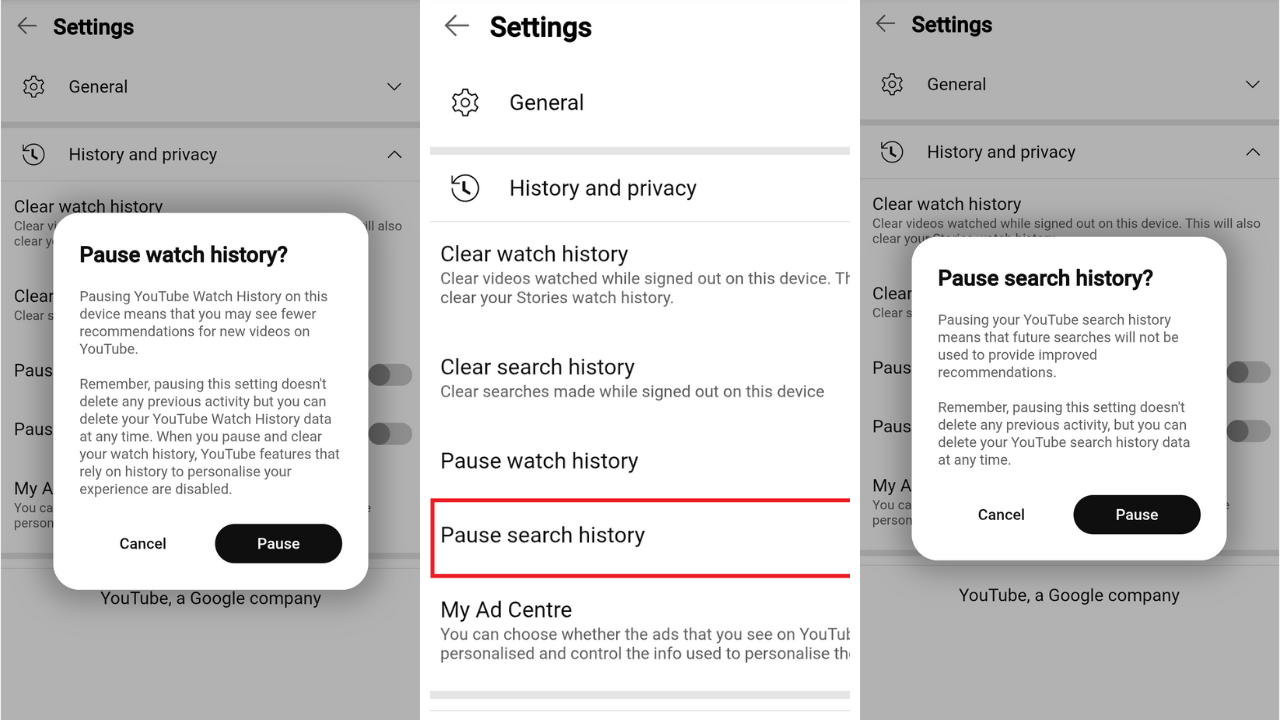
To pause watch & search history when signed in:
- Open the YouTube mobile app on your device.
- Tap on You.
- Tap the View all button beside History.
- Tap the three-dot icon at the top of the screen and then tap Pause watch history.
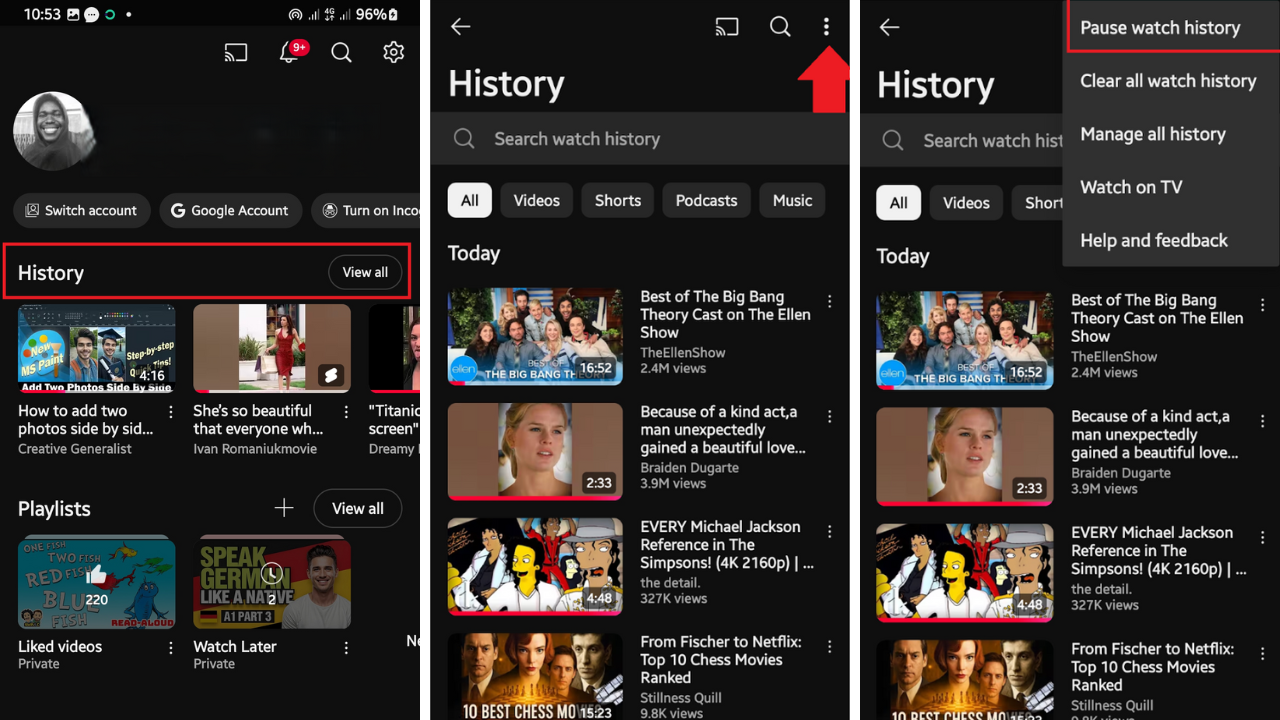
- To confirm the action, tap the Pause button in the Pause watch history? prompt that pops up.
- To pause your search history, tap the three-dot icon and then tap Manage all history.
- Tap on the Saving your YouTube history option.
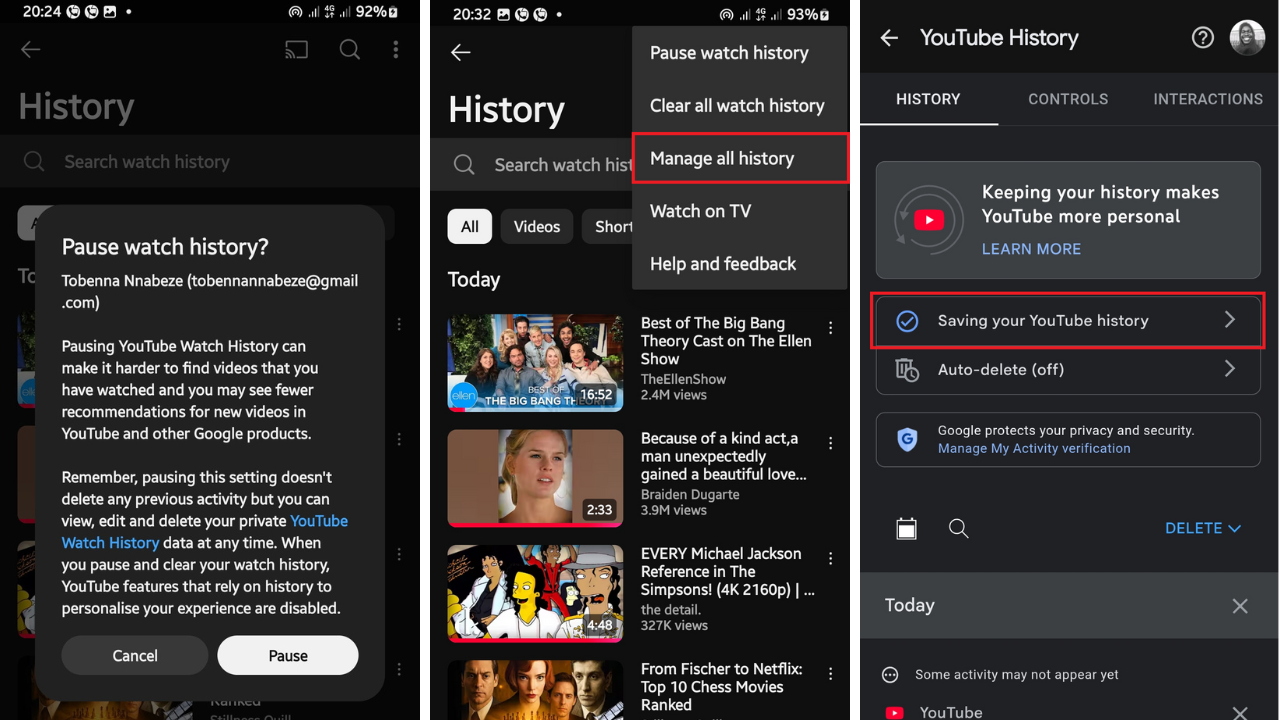
- Tap the TURN OFF button. Your searches, videos you watch, and your YouTube voice and audio activity will no longer be saved. Or instead, you can disable the individual options under Subsettings.
- Now, tap the Pause button in the Pause YouTube History confirmation prompt that pops up.
How to Suspend YouTube History with YouTube Incognito Mode
Your activity during the incognito session will not reflect in your account. This can be useful when sharing a device with other users. It also helps in situations where you’d prefer to keep your existing YouTube history but don’t want it influencing your current session.
Incognito mode is available on the YouTube mobile app when you are signed in, but you won’t find it on the YouTube website. However, using an incognito tab on your browser will achieve the same purpose.
Here’s how to enable Incognito mode on the YouTube mobile app for Android, iPhone & iPad
- Open the YouTube mobile app on your device.
- Tap on You. You have to be signed in to enable Incognito mode.
- Tap Turn on Incognito.
- You’ll then get a prompt stating that your activity in the session will not be linked to your account.
- Tap Got It to continue.
When Incognito mode is active, a black bar stating “You’re incognito” will persist at the bottom of the screen as a reminder.
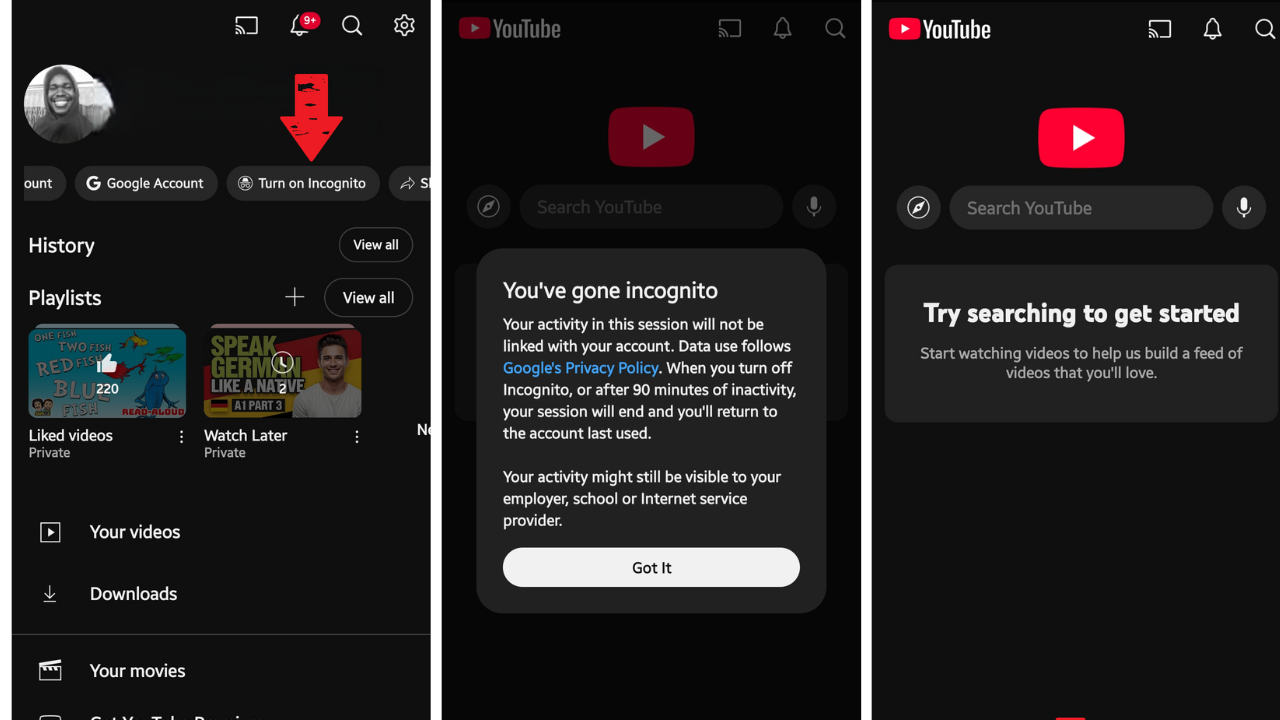
And all features on your homepage that show recommended videos will be removed. Your experience now will be similar to when you are signed out of your account.
You can turn off Incognito mode by tapping on You and tapping Turn off Incognito.
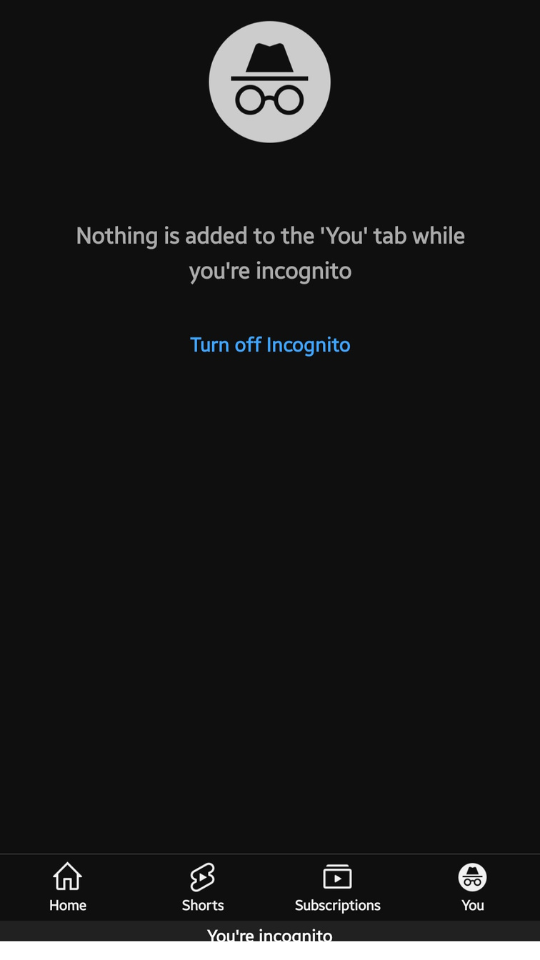
The session will then end, and you’ll be returned to your user account. The same also applies if you stay inactive for up to 90 minutes. Your activity will once again continue to be saved to your watch and search history.
Conclusion—Stay in Control of What You See
The YouTube algorithm is viewer-centric.
This means that users are in control of what they see on their feed. So, if you are getting any content that doesn’t reflect your interests, it can be traced back to videos you watched and things you searched for in the past. Clearing your watch and search history will ensure that you won’t get any related content in the future.
Now that you know how to clear your YouTube search history and watch history, as well as how to filter out your history to delete specific items, you’ll be better able to curate your feed and get improved content recommendations going forward.
You’ll also be able to control how much of your data Google will have access to.
We do hope you’ve benefited from this guide. Please feel free to leave us a comment. We’d like to know your thoughts.
FAQ
Your activity while in Incognito mode will not be linked to your account and saved to your watch and search history, since you’re treated as if you’re logged out.
So, your future experience when you’re no longer in Incognito mode will not be influenced. The same applies if you enable Incognito mode on your browser.
However, YouTube and your ISP or network owner can still see your IP address. They’ll know when you’re on YouTube and how long you stayed.
Also, YouTube will be able to use your IP address and browser information to track your activity and show you personalized content.
In today’s digital world, it’s nearly impossible to completely avoid being tracked when using products and services by tech giants such as Google.
However, you can significantly reduce YouTube’s ability to track you when you’re signed in by using the following methods:
- Turn off your watch and search history
- Enable Incognito mode
- Review privacy options for your Google Account on the My Activity page, such as personalized ads, since YouTube can use data from other Google products that you interact with
To further enhance your privacy in sessions where you’re signed out:
- Use a VPN
- Clear your browser cookies and history
- Use a privacy-focused browser like Brave or Tor
- Use an alternative front-end platform for YouTube, like Invidious or NewPipe
Yes. You can use Google Takeout to export your YouTube history to a downloadable .zip or .tgz file. Click the Deselect all option at the top if multiple Google products are selected, then scroll down to check the YouTube and YouTube Music boxes.
The download link will be sent to your email, or you can choose to have it sent to your cloud storage like Google Drive, Dropbox, and OneDrive.


