 BoostSpeed 14
 Disk Defrag
 SSD Optimizer
 Driver Updater
 Disk Toolkit
 Disk Defrag Ultimate
 Registry Cleaner
 Essential Tools
 Registry Defrag
 PureVPN
 Anti-Malware
 File Recovery
 BitReplica
 ChillMate
 Duplicate File Finder
 Video Grabber
 Windows Slimmer
![[FIXED] NVIDIA Control Panel Not Opening on Windows](/en/articles/wp-content/uploads/2025/10/FIXED-NVIDIA-Control-Panel-Not-Opening-on-Windows.webp)



 Download now
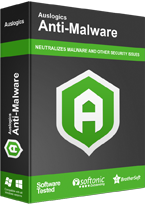
 Anti-Malware
Reliable computer security software!
What Can Auslogics Anti-Malware Do for My PC?
Boost Windows Security
Anti-Malware is reliable computer protection software that is designed to work alongside your primary antivirus. It checks system memory for malicious programs that could be running, detects cookies that track your activity and collect your personal data, checks system and temporary folders for security issues, analyzes suspicious entries in the registry, and checks the safety of programs set to auto-start in Task Scheduler to ensure your computer security.Scan for Malware and Viruses
With our anti-malware software, you can choose to run a quick scan to analyze the most important areas where threats can be found, a deep scan to scan your entire system for items that may pose a threat, or a custom scan, where you can select specific folders and files to be analyzed.Give You Full Control
With Auslogics Anti-Malware, you can quarantine suspicious files so you can restore any of them later if needed and easily add files or folders to the ignore list so they will be excluded from future scans and cleanups.Automate Malware Check
Auslogics Anti-Malware allows you to schedule automatic scans that will be running in the background at specified periods of time for continuous Windows protection.Configure Malware Detection Engine
Our computer security software lets you adjust the heuristic level for the engine, which helps detect previously unknown viruses and malware. You can select to disable it to exclude false positives while risking missing zero-day threats or set it anywhere from low to high levels to increase computer and network security.Compatible with Windows 7, 8, 8.1, 10, 11.
Why Auslogics Anti-Malware?
Industry-Acknowledged Quality
Exclusive Auslogics technology is proven safe and effective in multiple tests, used by PC manufacturers, and recommended by experts.100% Money-Back Guarantee
We guarantee that our software will deliver the results it is designed for. If you aren’t satisfied with the outcome, you may receive a full refund within 30 days of the license purchase.Advanced Malware Detection Engine
Thanks to its advanced engine, Anti-Malware knows how to scan for malware and can detect items your main antivirus may miss and that you might not even suspect existed. Our tool is designed to work alongside any antivirus software on Windows without causing conflicts and may be a powerful addition to your computer security.Professional Support
Use the Technical Support link in Anti-Malware to contact our tech experts for prompt assistance. Most inquiries are answered within a few hours.How to Check for Malware with Auslogics Anti-Malware
Step1
Download and install Anti-Malware on your PC Step2
Wait for the program to update the malware database Step3
Click Start Scan to scan for and remove malware How to Prevent Malware?
Keep Software Updated and Use Anti-Malware Tools
One of the most effective ways to prevent malware is by keeping your system updated. Malware often exploits vulnerabilities in outdated software, so regular updates can minimize risks. Additionally, using reliable programs, like Auslogics Anti-Malware, helps ensure your system remains secure.Ensure Safe Browsing and Email Security
Malware frequently enters through phishing emails and unsafe websites. To stay protected, be cautious of suspicious links and attachments, and use safe browsing practices.To ensure online security, use Auslogics Anti-Malware to complement your primary antivirus in scanning for and eliminating tracking cookies and potentially dangerous files downloaded from the Internet.
Run Regular Malware Detection Scans
To prevent malware from causing harm, it’s crucial to perform regular system scans. Auslogics Anti-Malware allows you to schedule scans and adjust the heuristic level, helping to detect even zero-day threats. In combination with your primary antivirus solution, this ensures that any potentially dangerous files are caught before they can damage your system.Compatible with Windows 7, 8, 8.1, 10, 11.
Still Have Questions?
Auslogics Anti-Malware supports the following Windows versions:
- Windows 7 (32-bit and 64-bit)
- Windows 8 (32-bit and 64-bit)
- Windows 8.1 (32-bit and 64-bit)
- Windows 10 (32-bit and 64-bit)
- Windows 11
It does not support Windows 2000, 95, 98, 98SE, ME, XP, or Vista.
There are no Mac or Linux versions.
Auslogics Anti-Malware is made with your computer security in mind and is designed to protect your PC with no risk of losing any data. Whenever you are not sure what a flagged file is, you have the option to securely quarantine it instead of full removal, which will let you restore the file later if needed.
If you have already installed and purchased Auslogics Anti-Malware, follow these steps:
- Copy your license key from the order confirmation email. To do this, highlight the key in the email, then right-click on it and choose Copy.
- Launch your Auslogics Anti-Malware and click on the Register Now button at the top of the main program window.
- In the window that appears, right-click inside the registration field and choose Paste to enter your license key.
- Press the Register button and restart the program.
If you haven't installed Auslogics Anti-Malware yet, please install it first and then follow the instructions above to register the program. You can download Auslogics Anti-Malware using this link.
You don't need to remove your current version of Auslogics Anti-Malware. Follow these steps instead:
- Download the latest version of the program.
- Double-click on the downloaded file to launch an installation wizard.
- Follow the wizard. The program will detect the older version of Auslogics Anti-Malware on your PC, automatically remove it, and install the new one.
Auslogics Anti-Malware will use whatever proxy server settings are set in Windows on your computer. It does not have specific proxy server settings for itself.
To remove viruses and malware, perform regular scans using Auslogics Anti-Malware alongside your primary antivirus. To run a malware scan in Anti-Malware, follow these steps:
- Run the program and wait for it to update the malware database.
- Click Start Scan.
- Anti-Malware will search for malicious items on your PC and then allow you to quarantine or fully remove the threats.
To prevent malware, use a reliable antivirus, keep your software updated, be cautious of suspicious links and email attachments, use safe browsing practices, and run malware scans with Auslogics Anti-Malware regularly. This way, you will be able to maintain optimal computer security.
Yes. Auslogics Anti-Malware is designed to complement your existing antivirus software and works alongside it, searching for threats that may have been missed and adding an extra layer of security to your PC.
Is Anti-Malware enough to get my computer running at its best?
Auslogics BoostSpeed is an easy-to-use and expert-recommended tool for PC maintenance and optimization. It lets you clean out junk files, resolve registry issues, eliminate slowdown causes, clear privacy traces to protect your confidential data and so much more. Learn more >>
Use Anti-Malware together with BoostSpeed to ensure continuously fast, secure, and stable performance.
Industry Acclaimed
Auslogics software is recognized by leading IT magazines and online resources













Compatible with Windows 7, 8, 8.1, 10, 11.
Compare Anti-Malware Versions
Try the free Anti-Malware version to see how you like the app, or go with the full version to make the most of our best malware removal tool.
Anti-Malware
Discover Anti-Malware Insights
Auslogics Anti-Malware: Lightweight Solution for Extra Malware Protection
Did you know? The AV-TEST Institute registers more than 450,000 new malware samples and PUAs (potentially unwanted applications) on a daily basis. And cybercriminals now leverage AI to create ever more sophisticated and diversified threats. […]Signs of Malware: How to Know if Your Computer is Infected
Malware is a serious problem that can cause damage to your PC and put your private information at risk. Did you know that 560,000 new types of malware are found each day? That’s over 1 billion malicious programs circulating right now! These alar […]What Computer Maintenance Tasks Should You Do Regularly? Here’s a Quick Guide
Having a system with top-tier hardware specs will become less of an advantage over time if you don’t engage in regular maintenance practices. Your computer care routine will also determine how well your computer lives out its lifespan. Thankfull […]Purchase Anti-Malware today for convenient hands-off PC protection


