



Windows 7 may be past its glory days, yet both individuals and businesses are still clinging to it.
From compatibility concerns to unwillingness to pay to upgrade, there are various reasons that prompt users to keep running this version of Windows on their personal computers.
A predecessor of Windows 8, 8.1, 10, and 11, Windows 7 holds a 5.34% chunk of the desktop OS market as of February 2023 despite the fact that Microsoft has discontinued its support and recommends migrating to Windows 11.
With this in mind, there is little surprise numerous Windows 7 users are wondering, how can I speed up my computer?
Fortunately there are safe ways to without having to download any software or applying dangerous registry hacks. We are going to cover these ways in this article.
The Top Windows 7 Performance Tweaks and How to Apply Them
Fix 1: Use ReadyBoost
ReadyBoost is a feature that was first introduced in Windows Vista and made its way into Windows 7. Basically, it lets you use a USB flash drive as secondary memory cache, which helps your computer to run faster. Keep in mind that it’s no substitute for RAM, though.
To use ReadyBoost, simply inset a USB flash drive and if it meets certain requirements, Windows 7 will ask you if you want to use it for ReadyBoost and recommend the size to reserve.
If you insert the flash drive and nothing happens, it could mean that AutoPlay is disabled. In this case do the following:
- Go to Computer, right-click on the removable storage device and select Properties.
- If the drive is compatible, you will see ReadyBoost there. Click on it.
- Select Use this device and set the amount of space to be used for ReadyBoost system file.
- Click OK.
Related: How to Upgrade to Windows 10 From Windows 7?
Fix 2: Get rid of unused programs and Windows features
When you get a new PC or laptop, it often comes with lots of pre-installed try-and-buy programs. Most people never use these programs, so it’s best to uninstall them.
Also if you like trying out new software and download different applications regularly, it’s a good idea to review your installed software list and get rid of everything you don’t need.
That way you’ll be able to free up some system resources and speed up Windows 7 startup time.
To do that just go to Control Panel –> Programs –> Uninstall a program and get rid of everything you don’t use.
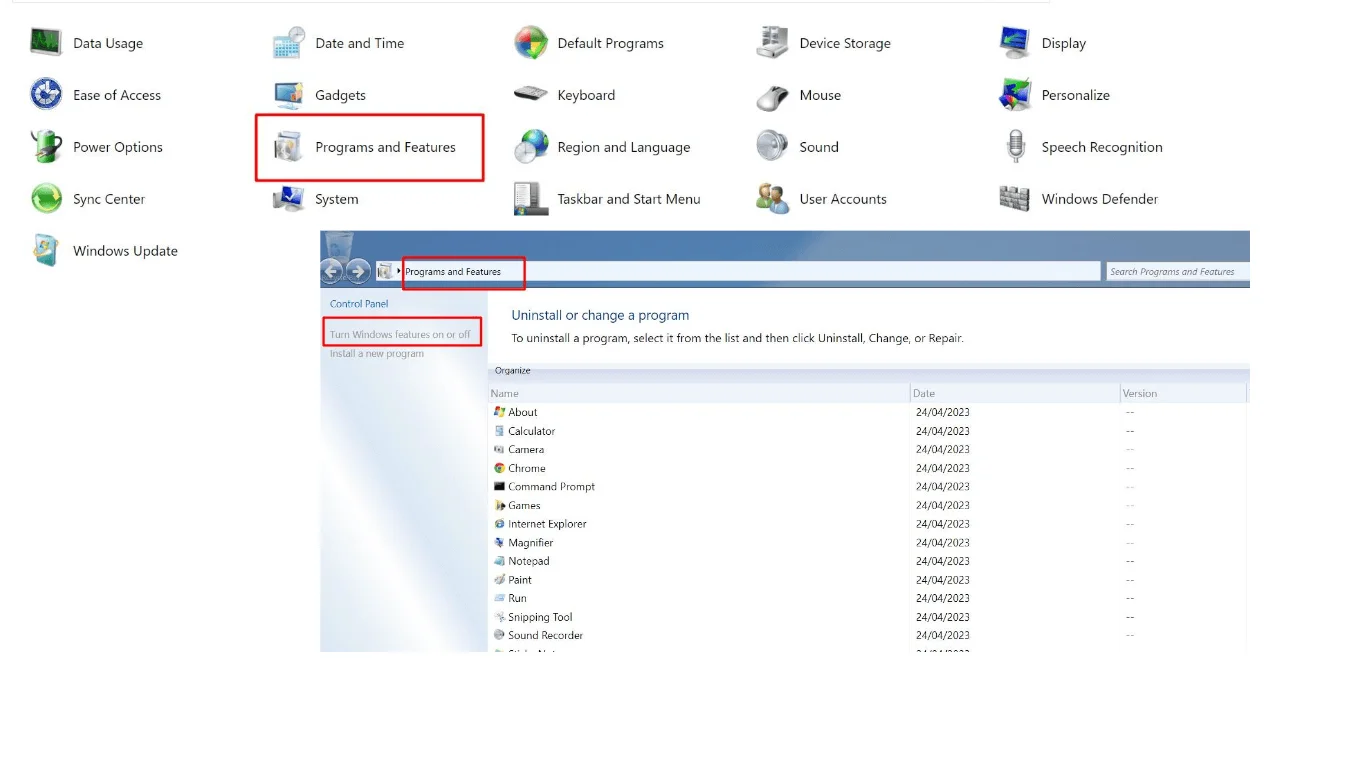
Same goes for unused Windows features – go to Control Panel –> Programs –> Turn Windows features on or off and uncheck the features you don’t need.
This is another tip on how to speed up your computer running any Windows version.
Fix 3: Review your startup list
Having too many startup items is the most common cause of computer slow-downs.
Some programs act as if you can’t live without them and make themselves load every time your computer starts.
That way every time your computer loads all these programs load as well, even if you don’t use them that frequently. As a consequence, your Windows becomes much slower.
The answer is to disable the option for such programs to start automatically. This can be done either via the program menu, or with the help of the System Configuration utility (msconfig).
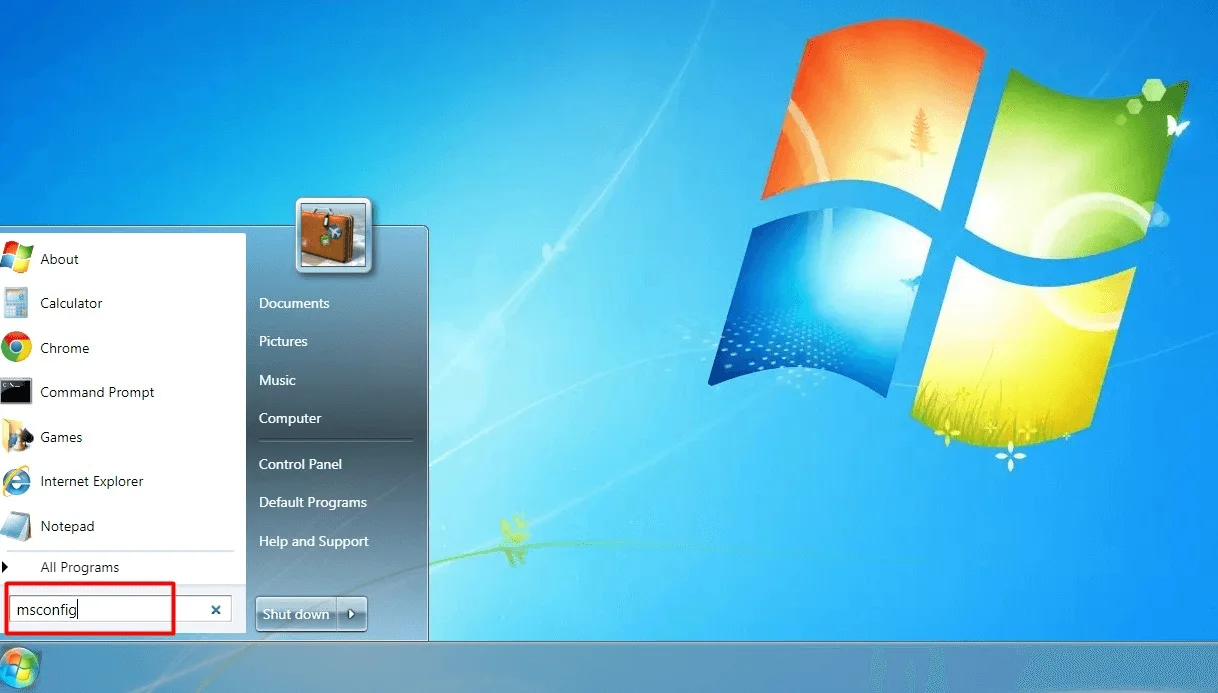
Just type msconfig in the Start menu search box, hit Enter, and then launch the program from the search results. Then go to the Startup tab and disable the entries you don’t need.
Just like the previous tip, this will work on all Windows versions.
Fix 4: Adjust visual effects for best performance
The “eye candy” Windows 7 is not the fastest Windows 7. So if you are keen on performance, you should consider choosing the more minimalistic look to gain speed.
Go to Control Panel, search for Performance, and then select Adjust the appearance and performance of Windows from the System category in the results.
A new window will open. There you can either select the Adjust for best performance option, or make a custom selection of the visual effects you like.
Fix 5: Disable sounds
Windows sounds can be really annoying and they also take up valuable system resources. Fortunately, you can always disable them. Don’t worry, it’s only the Windows sounds that will be disabled – not all sounds.
Go to Control Panel –> Hardware and Sound –> Change system sounds. There you will see the Sound Scheme drop-down menu.
Select No Sounds and also don’t forget to uncheck Play Windows Startup sound. Click OK and you’re done.
Fix 6: Adjust indexing options
Indexing helps Windows to speed up search, but it can affect performance and make you hard drive thrash. That’s why it’s a good idea to make Windows index only the locations you search pretty frequently.
To do it, go to Control Panel, search for Indexing and then select Indexing options. Click Modify. A new window will open.
Click on Show all locations if the button is enabled. Then simply clear the checkboxes for locations where you rarely search and click OK.
Fix 7: Disable gadgets
Windows 7 takes the idea of gadgets and sidebar a step further than its predecessor, Vista. It uses customizable gadgets that can be placed anywhere on the desktop.
But that doesn’t make them less resource-hungry – they still take up a portion of system resources to load and update. Turning off all gadgets is one more way to speed up Windows 7.
You can just close all of the gadgets so that none are displayed, or you can go a step further and switch off the entire Windows 7 gadgets platform via Control Panel –> Programs –> Turn Windows features on or off.
Conclusion
In this article we’ve covered the essentials of how to speed up Windows 7. Remember that Windows 7 requires regular maintenance to keep it running fast and smooth – just like any other version of Windows.
We recommend using a system utility, like Auslogics BoostSpeed. If you are asking “Will this speed up my computer?
Yes, with the help of this program you will be able to clean up your system from junk files, defragment disks, repair registry errors and automatically tune over 280 hidden Windows settings to maximize your computer’s speed.


24 replies on “How to Speed Up Windows 7 Without Risk”
Для Windows XP программа Auslogics BoostSpeed была просто бесценна. Скорость работы на стареньком компьютере – процессор AMD 1800+, с оперативной памяти 756MB (333МГц) увеличилась настолько, что стало возможно выполнять дизайнерские работы при одновременно открытым Adob Photoshop CS4 и CorelDrow CS4, хотя требования обеих программ выше чем возможности компьютера. Буду пробовать программу на новом компьютере с Windows 7. Спасибо создателям!
Thanks to the Auslogics ‘team. Wonderful!!
Here is the English translation of that Russian comment, according to Google Translate (I corrected some minor typos):
For Windows XP, Auslogics BoostSpeed has been invaluable. Speed on an old PC – AMD 1800+ processor, with RAM 756MB (333MHz) has increased so much that it became possible to carry out design work at the same time open Adobe Photoshop CS4 and CorelDraw CS4, although the requirements of both programs is higher than the computer’s capabilities. I will try the program on a new computer with Wiindows 7. Thanks to the creators!
how do I set registry cleaner up on an regular schedule to work on its own????
Hi Robert,
to make registry cleaner run on a schedule, open BoostSpeed, click on Settings – Program Settings and go to the Schedule tab. Select registry cleaner, configure the schedule and click OK to save your settings.
You have mentioned the key tips to speed up pc. Thanks for sharing the above important tips, it helped me a lot. You can also do the above task easily by using a speed up tool.
My notebook driver has lost and I can’t download from internet. Its name was Haier ai7G. It has Gt335M video graphic. so I haven’t use it anymore. If you know much about it, would you like to give me an advice or idea.
You can download a program called “Driver easy”. It will scan your PC and populate a list of all components with missing/outdated drivers.
thanx
more thanks!!!
Thanks dear, hopefully now my system run fast.
😛 my wifi is not working i think i mistakenly disabled wifi device. Now it do not allow me to add or search wifi devices.
Can you please tell me how can i enable wifi device and setting.
msconfig is a handy utility, however the entries in it are mostly cryptic, and it’s hard to work out what can be disabled safely, or without impact.
What is more annoying is that entries that I’ve turned off keep reappearing (presumably when I update the software) and the result is a bunch of duplicate entries (some enabled, some disabled).
Suggestion: Microsoft add one of those security confirmation messages whenever a program tries to add an entry to the startup list. This will help the user understand which programs are creating entries, and stop the software authors from sneaking entries into the list that the user doesn’t want.
This is a major reason why Windows gets slower over time and needs to be reinstalled, which is a factor in Windows competitiveness against other OS.
I just purchased Ready Boost and ran the initial scan and am alarmed that it showed 6,200++ errors. I am going through the errors and need to know how to correct them one at a time or a group of maybe ten at a time. If I tell Ready Boost to correct all the errors I am afraid my computer will not ever work again properly. I have a H.P. Pavilion dv-7-3186cl Entertainment Notebook, running Windows 7, Home Prem. edition. How do I correct a few errors at a time. Also, is there a manual located somewhere within Ready Boost or does one have to learn it pieces and parts at a time? Thanks. Roy Bond – Naples, Florida USA
This is good. Just remember not to overdo this. I managed to close some of the essential services in my Laptop and Win& just stopped working.
Had to do a factory restore and install everything 🙁
Key areas that have helped me are the reg cleaning, regular defrag & switching off the Aero theme and other fancy stuff
Have used quite a few free tools (Reg clean, file clean up, fix etc etc). But normally need to run each of them manually and worst even, in a sequence (refrag, file clean up, delete restore points, reg clean) kind of cycle. Even then Laptop started to slow down and from 20 sec started taking 2 minutes and none of the above seemed to work (core i# with 6GB of RAM, no page file)
Started tweaking the reg myself (I am doing this for all my systems from the time of win 95) and managed to crash the complete OS and do a repair install (again)
Then based on suggestion of a friend tried demo version of your software that promise to do what all the different free applications were doing plus fix any OS issue (good for nerds like me who delete the OS dll files to speed up the system). Being a skeptic I never though this can do any good, but it did. Not like what the product add promise but did managed to bring boot up time below 1 minute and made the applications smoother and faster(?)
I would suggest trying out this product and see if it helps.
Hi.
Excuse me if can not write english good. it’s more than 2weeks that my loptop has reduce speed in opening evry programs the first time that windows start up,for exampel, when i start windows and want to open a picture first time it will take about 10-15sec to open that.
my laptop is “ASUS-N55 SF” and my OS is WIN7.
thanks.
How people say readyboost will speed up the prosess,I want proof i didn’t get any difference,……….
hey, thank’s very much dude you helped me 🙂 a lot thx
Am running Chromium as my browser that seems to really work handsomely. But I find myself with one issue, as yet have not been able to find a compatible flash player. Would gladly appreciate your wisdom.
Art
Roy Bond,
Be careful with all massive change utilities. Mostly I find that doing the *plain vanilla* settings works best the first few times you use any utility program. Do a registry backup… and know how to restore the registry from your backup is a nice trick top know. Saved my proverbial bacon a few times.
I’ve been using utilities like BoostSpeed for over a decade. So over running it, and digging into the settings and doing aggressive tweaks can cause systems to become unstable or inoperable.
My rule of thumb is to only use tweaks if I have to, or use tweaks only ONE AT A TIME, and write down the tweak so I can try to undo something that didn’t work like I thought it would.
good….
This is a very helpful list of tips. It made a big difference for my laptop.
Thankyou.
thanx for the post.
Thanks! It works well. I like Boostspeed 8 very much.