home > articles > disk defragmentation explained
24 comments

Disk Defragmentation Explained

By Anna Lind 14 February 2011 in Defragmentation

  Disk defragmentation used to be surrounded in mystery with advice being to never touch your computer mouse while defrag is running, doing it in Safe Mode and bracing yourself for the possibility of data loss from occasional power failure. Many people still fear defragmentation or simply try not to think about it because of the old advice still coming up in internet searches. In this article I will try to explain disk defragmentation and all related notions in simple terms to eliminate every fear or myth associated with it.


  To understand what disk defragmentation is, one first needs to understand how a hard disk operates, what a file system is and how fragmentation really happens. These may sound like very technical terms, but the notions are in reality quite easy to comprehend with a little explaining and some illustrations. Let’s look at them here.


How Your HDD Works

  Your HDD (hard disk drive) is the slowest part of your computer, because it contains moving parts - spinning platters and the read-write head. This is what it looks like inside your computer:

Every time you open a file (or the system tries to access a file), the CPU sends the request to your hard drive and the read-write head starts moving to retrieve the requested data. Instead of going into detail talking about how exactly the read-write head moves (using terms like "angular velocity", "seek time" and such), I will just state a fact you will need to remember - in terms of data access speed, the outer part of the hard drive platter, also referred to as the front of the drive, is the fastest, while the inner part, or the back of the drive, is the slowest.

The disk surface is subdivided into sectors and tracks (see picture below). If this seems like too much information to take in, then don't worry about it. There are two reasons why I'm including this info in my article - it may help create a picture in your mind showing how data is stored on your hard drive, and these are also terms that are frequently used in defragmentation software. So if you can make the extra effort, then by all means please read through this part and try to understand the extremely technical terminology that is going to follow here.

Tracks are basically like the annual rings on a cut tree. And sectors are like the wedges in a pizza, except in computer terminology a single sector is the part of the pizza wedge that belongs to a single track and is usually 512 bytes in size.

Different hard drive models may have a different number of tracks, and sectors. However, the fact remains that data stored on the outer tracks on any hard drive takes less time for the read-write head to access than data stored on the inner tracks.


What Is a File System?

  With huge amounts of data that is stored on the hard drive there has to be a way to organize and control it, which is what file systems do. NTFS is the file system used by Microsoft in the Windows operating system (from Windows NT on). The file system maintains the physical location of each file on the hard drive and makes it possible for your computer to retrieve data when it's requested. The file system combines groups of 512-byte sectors into clusters, which is the smallest unit of space to store a file or part of a file. On NTFS hard drives there are usually 8 sectors per cluster, which means the size of a single cluster is 4096 bytes. This is the size of pieces each file gets divided into. Considering that sizes of many files stored on your hard drive are measured in megabytes or even gigabytes, dividing them into 4096-byte pieces, although necessary for a number of reasons, provides huge potential for fragmentation.


What Is Fragmentation?

  On a freshly formatted hard drive files get written in a continuous manner - all clusters belonging to a single file are neatly stored together and the file is all in one piece, since there is plenty of free space to write each file. And then you begin using your PC. If you didn't use it, it would remain neatly organized and you wouldn't have to worry about fragmentation, but then it would be nothing but an expensive room decoration. Fragmentation happens not because you do anything wrong or because your PC is bad, it is what happens with normal PC use. Imagine a hard drive with files stored neatly one next to another. Now say you delete a 1-megabyte file from the middle of this neatly stored group, and then save a 2-megabyte file to your hard drive. Your system looks for free space to write the file to, it finds the 1-megabyte block of free space that you have just made available by deleting the old file, and starts writing the new file to it, and as one would expect, 1 megabyte later it runs out of space in this spot and starts looking for the next available block of free space. If the next window of space is 1 megabyte in size, then your newly saved file gets broken into 2 pieces only. But let's say the next block of free space is half a megabyte, then having written part of your file into this spot, the system looks for more space and your file is now broken into more than 2 pieces. This is a simplified explanation of how fragmentation occurs.

To see why it matters for your PC's performance, have a look at the picture below. On the left you see a schematic representation of a file stored all in one piece in one location. On the right you see the same file fragmented into several pieces stored in different locations on the hard drive. Now imagine the amount of work the read-write head has to do to retrieve the file on the left and compare it to the amount if work it has to do jumping place to place to fetch the file on the right. It is obvious that it will take longer to access the file on the right. The more pieces the file is broken into, and the further apart those pieces are scattered on the hard drive, the longer it takes for the read-write head to retrieve it, which results in slower performance.

disk defragmentation

Besides file fragmentation itself, there is the issue of free space fragmentation, which in turn causes more file fragmentation. This usually occurs when data gets deleted leaving small sections of free space scattered in-between remaining files. The result is that when new files get saved to the hard drive, the system breaks them up into pieces to fit in these small sections of free space.


How Disk Defragmentation Works

  Now that you know all you need to know about hard drives, file system and fragmentation, we shall move on to the main subject of this article, which is disk defragmentation. I hope it is clear why it is necessary to defragment your hard drive. This operation not only helps put file pieces back together, but can also consolidate free space so that there are larger blocks of space available to write new files thus preventing further fragmentation. A good defragmenter will also include an algorithm for smart file placement that utilizes the knowledge of faster and slower data access zones on the hard drive. Let’s take a closer look at these aspects of disk defragmentation.


File Defragmentation

  In simple terms, file defragmentation is the process of putting file pieces back together. What disk defragmenters do is re-write files into contiguous blocks of free space making sure that all file fragments are written in a consecutive order. This way the hard drive's read-write head has to go to one location to access the requested file instead of having to gather file pieces all over the drive.


Free Space Defragmentation

  Defragmentation, or consolidation, of the free space on a hard drive is one of the most effective fragmentation prevention techniques. When free space is in large contiguous blocks instead of scattered around the hard drive in smaller sections, new files that get written to the hard drive can be easily placed in one piece. When rewriting files during disk defragmentation, defraggers try to place all files closer together so that the remaining free space is consolidated into larger sections.


Smart File Placement

  Knowing how a hard drive operates and how data is stored and accessed on it, you can more easily understand the theory behind smart file placement. There are actually more than a few ways files can be placed on a hard drive with the intent of improving system performance. Different defragmenters may use different techniques or algorithms for placing files, some offering a choice of algorithms a user may pick to match their individual PC usage style.

Defragmenters may try to keep together the files that are normally accessed together, such as a group of .dll files needed when an application is launched. This greatly reduces the amount of work the HDD's read-write head needs to do to when these files are requested. Placing system files to the fast outer tracks of the hard drive reduces the time it takes for your system to start up, as well as for applications to launch. This fast zone on the hard drive can also be used to place most frequently accessed files improving the speed of everyday tasks. At the same time, moving rarely used files to the back of the drive (the slower inner tracks) ensures they are out of the way and don't take up valuable free space in the fast zone.


  As you can see, disk defragmentation is not just putting file fragments together, there is so much more to it. All of the various techniques used in defragmenters offer great potential for improvement of system speed and performance. People who proclaim that defragmentation is not needed with modern hard drives may not have tried a modern defragmenter with a powerful optimization engine. Anyone who uses their PC a lot, editing, saving and deleting files, installing and uninstalling software, playing computer games or working on long-term school projects will definitely notice an improvement in their computer's performance after using feature-rich defragmentation software on it. As they say, seeing is believing. Try defragmenting and optimizing your hard drive to see what difference it can make in your PC's performance.

Did you like this article?
2839 people rated the article "Disk Defragmentation Explained". Article rating: 4.93.

It’s a pity you didn’t like the article

Please tell us what’s wrong with it. Be specific, and we’ll do our best to make the necessary changes

Thanks for reading!

Hey, but don't keep this article a secret - share it with your friends!
Like Us on Facebook!

About the Author

Anna Lind Anna Lind
Anna's passion is helping novice users understand computers and software better.

Discussion

This helped me realize that I have desperately need to run regular disk defrags. I've only defraged my computer once since I got it and that was about 7 months ago and I'm a heavy gamer and I run programs that are demanding on my laptop. Thank you for being so helpful.
Autumn Brandenberger
August 2nd, 2012 @01:05 am
Reply
0
Thanks, This article is really very helpful & easy to understand.
Apoorv
October 20th, 2012 @01:16 pm
Reply
+1
Autumn Brandenberger, Just one question. Do you need to place a blank disk inside the disk hard-drive in order to do a disk defragmentation? or is this done with in the computer drive its self? please respond asap. thank you in advance.
steven
November 5th, 2012 @06:42 pm
Reply
-1
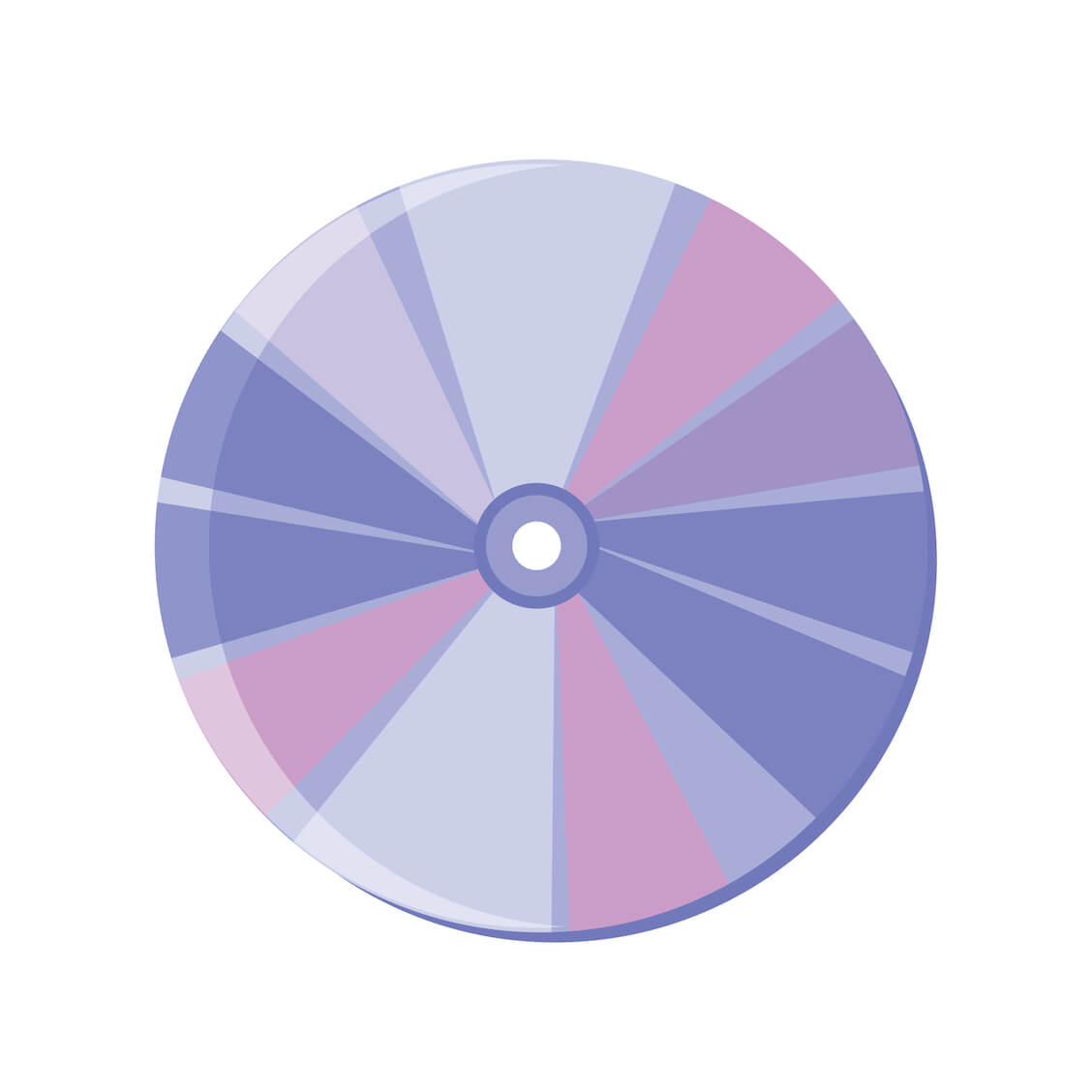
A hard drive is something that's already inside your computer and you don't open it or put anything in it in normal PC usage. You are probably confusing it with a DVD or CD-ROM drive, which you can put a disk in, but it is not a drive you would defragment. Defragmenters will not normally display your CD-ROM drive in the list of drives that require defragmentation, so it's not something you need to worry about. Hope this makes it a little more clear. Good luck!
Anna Lind
November 5th, 2012 @11:26 pm
Reply
+1
This piece is simply amazing.
Thanks
Success Umeh
November 21st, 2012 @02:49 am
Reply
-2
Boost Speed 5.4.0.10 does not recognize that my Solid State Drive must never be defragmented. I accidentally allowed it to defragment my SSD. This will decrease the life span of the SSD due to rearranging of file pieces.
Carl Hopfinger
December 2nd, 2012 @12:00 pm
Reply
-1
wow its too good explanation about HDD(hard drive disk) i like it and i quickly understand on this
Altaf khan
December 15th, 2012 @11:30 pm
Reply
-1
Need a briefly explanation about CD-ROM and DVD-ROM and also how a CD-drive works plzzz
Altaf khan
December 15th, 2012 @11:34 pm
Reply
-1
my zonealarm firewall often says "your disc defragmentor is trying to contact the internet do you wish to allow" why would the defragmentor need to do this? there sould not be a need sould there????
Rita
December 22nd, 2012 @08:01 am
Reply
-2
Rita, I'm not sure which defragmenter you have on your computer, but I can speculate on some reasons why it may need to use the internet connection, such as to check whether there are newer versions available and suggest that you update. If it's a defragmenter you got from a trusted source, then I wouldn't worry about it sending any sensitive data anywhere.
Anna Lind
January 10th, 2013 @03:01 am
Reply
+1
Hi, I dont know a lot about computers but I was told that its a good idea to defragment them, how exactly do I do it and do I need to buy a program that will do the job I have no idea where to start, please can you help, thanks John.
JOHN LIGHTFOOT
January 10th, 2013 @02:32 am
Reply
0
Hi John. You can use the free Auslogics Disk Defrag from this link - http://www.auslogics.com/en/software/disk-defrag/
The program is pretty easy to use for a novice. Good luck!
Anna Lind
January 10th, 2013 @02:54 am
Reply
+1
At what stage do you need to defrag your hard drive. I did mine last week and it free'd up a lot of space. It is now 4% fragmented. Is it best to wait until it is up to 10%b before defragging?

i use Piriform's defraggler which has a quick defrag option - is it ok to use this on a weekly basis or would that be too much?

Regards
David
David C
January 11th, 2013 @05:01 pm
Reply
+1
Can I have active downloads while Disc Defrag is working?
Ryan Asurlekar
January 28th, 2013 @10:09 pm
Reply
-1
would the disk defrag boost my terrible slow internet speed?
Dippy
February 14th, 2013 @02:49 pm
Reply
-1
Dear Sirs, I do have problems lately every day. My Notebook and my desktop freezes and I cannot use them, specially the desktop computer. Everybody talks different than the other and you do not know who is correct. My lady goes to the school to learn how to use her Notebook. She has no files at all and lately she does gets virus on her Notebook and goes back to the school to help her. She does have a program that the school downloaded on her computer and she things that she is protected. Lately she had over a thousand viruses on her Notebook and her teacher spend over 3 hours to clear it and now she is happy. I do have a program to protect my Notebook and my desktop computers but only the Notebook works . The desktop freezes and I have to wait and wait and wait. How you can solve this problem? Am I have too many records,programs ,files etc
Dimitrios Marantidis
February 16th, 2013 @12:55 pm
Reply
0
i wud also wish if u explain about intel pentium processors
winnie
February 20th, 2013 @05:41 am
Reply
0
i was defragmenting and i stopped it before it finish and my system is become slow?
ernest
March 3rd, 2013 @05:22 am
Reply
0
Every couple of months I defrag my computer with no problem. To-day when doing so I after 49% this message showed.
The scan has been cancelled because an error occurred in file :C:\Documents and settings\My Name\LocalSettings\Temp~DF5004.TMP

I have tried turning off my computer and re-starting it and ran the defrag again, but the same message appeared again.
Other then this my computer works fine, although it may be getting slightly slower on start up. I am not a heavy user or gamer, mainly e-mails general browsing, probably an hour a day on average
Clive
March 20th, 2013 @12:14 pm
Reply
0
this is good knowledge to learn about disk defragment
Ved Prakash
May 4th, 2013 @02:48 am
Reply
0
If your standard Disk Defragmenter isn't working properly or as you wish, then you can download good, smart defragmentation software available for free. Google around and maybe it will help you out :)
Kevin D
May 15th, 2013 @09:22 am
Reply
0
awesome article.....Thanks !!
santhosh
May 15th, 2013 @02:52 pm
Reply
0
very good and helping article
rida rehman
June 2nd, 2013 @09:38 am
Reply
0
This peace is amazing (somebody actually said that!!! :):):) I loved the sincere conversation behind it. No, in it. We all loved it. You were just about to lose me ... (not in a single moment, actually, I did understand every word of it and was amused and wanted to learn it all), and moreover I knew it from before, although learned a lot of structured elements on the process (and big big thanks for that), it was great to be reminded how it works, but you won me :) We all loved it, defrag easily with a powerful tool.
Gergana
June 18th, 2013 @04:28 pm
Reply
0

Leave a comment


Fields marked with * are required.
Please note: All comments will be moderated.